YouHaveCode
Need a Unicode symbol‽ Now you have the code‼
Search, inspect, insert, transform, and pretty-print Unicode and emoji without leaving VS Code.
| Lion |
Phoenix |
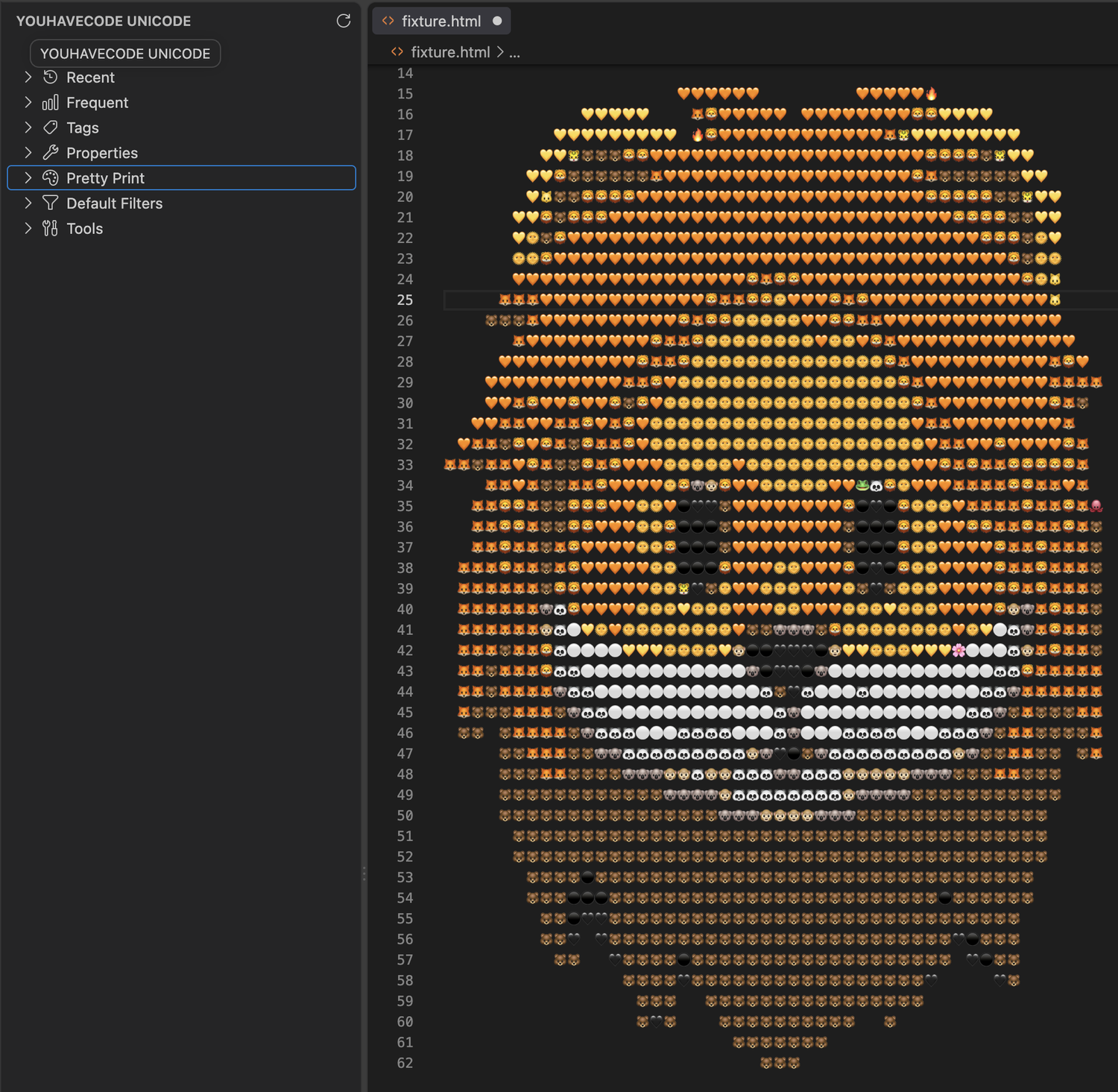 |
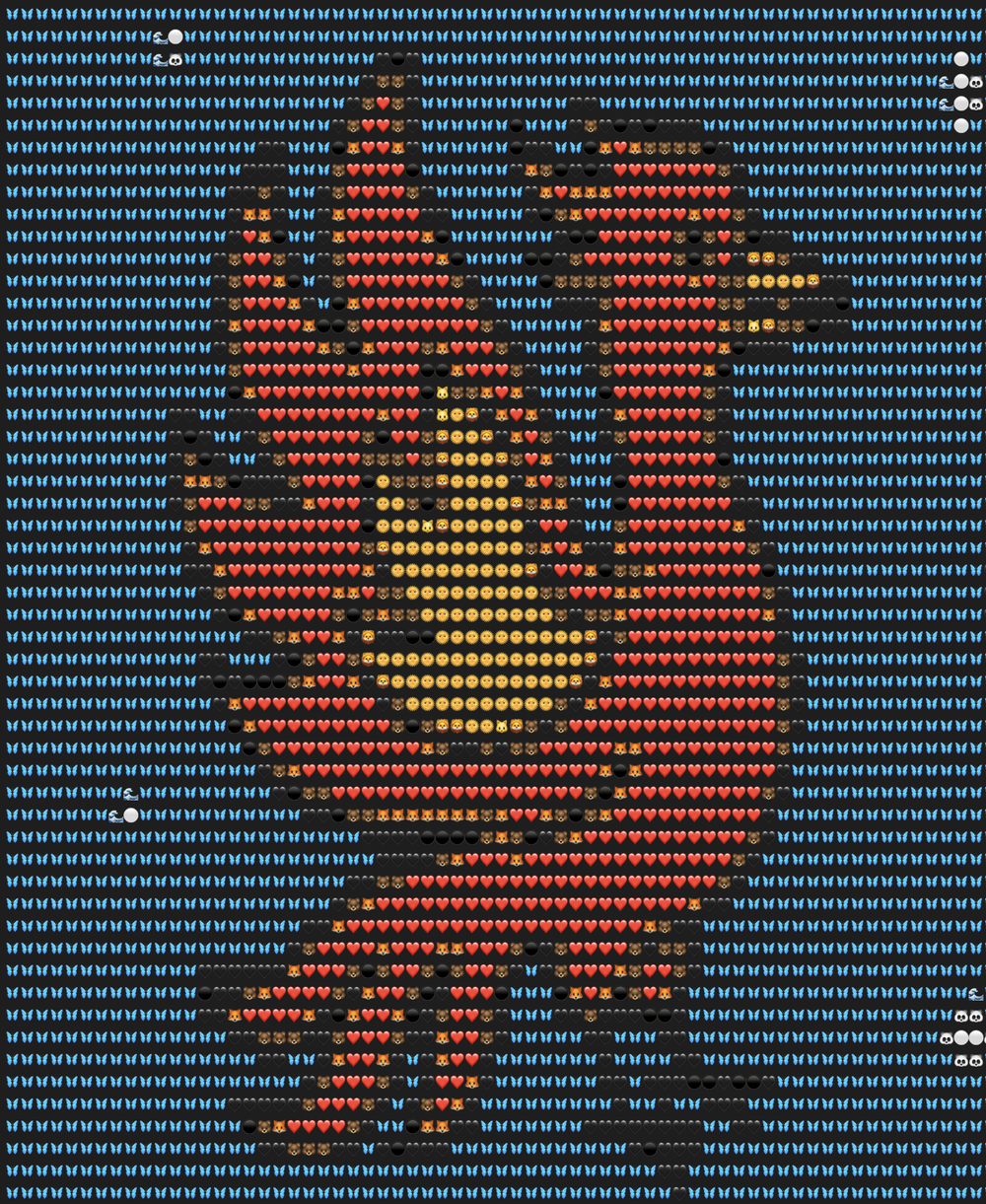 |
Start typing. YouHaveCode meets you in the editor:
| Type |
What happens |
::_____... |
Search for any Unicode glyph or emoji by name, property, tag, character, or code point. |
:: |
Open the full search menu, then start typing or browse. |
\u... |
Find a character and insert the right native escape for the current language. |
\u:... |
Insert the actual glyph. |
\u*... |
Find a glyph and turn it into Braille, block, emoji, binary, hex, or other bitmap art. |
Cmd+Option+P / Ctrl+Alt+P |
Pretty Print the selection, or render clipboard text at the cursor. |
YouHaveCode is for the moment between “I know that symbol exists” and “what was its code point again?” It gives glyph search, emoji, Unicode properties, custom tags, compatibility hints, font-aware rendering, and Pretty Print output one fast home inside the editor.
Install
Open Extensions in VS Code, search for YouHaveCode, and choose Install. Then type :: in any editor.
Install YouHaveCode from the Visual Studio Marketplace
code --install-extension BrockNash.youhavecode
No account or external service is required for Unicode search and local bitmap rendering.
Find A Feature
Features
Search And Insert
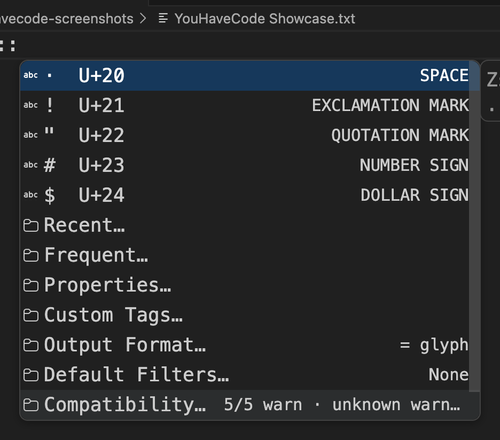
Read \u:(have)(code) as a pocket-sized grammar hint: \u: requests glyph output, while adjacent parenthesized words demonstrate chained search terms. Replace have and code with the name, property, or custom tag you need.
- Type
:: to search for and insert a glyph. After insertion, the full root menu reopens without leaving query text behind; prior query tokens appear first for quick reapplication, followed by the glyph just inserted. Choose another glyph or any search, tag, property, and output tool. Typing line continues the hidden query exactly like ::line, including the (line) suggestion.
- After the colons, type a glyph, Unicode name word, code point, custom tag, or property key.
- Press Tab to accept the top YouHaveCode result. Use Up or Down first to choose another result, then accept normally.
Open the u: icon in the Activity Bar for YouHaveCode::Unicode. Search and Insert focuses the active editor, inserts :: at each cursor or selection, and opens the same inline menu used while typing. Tags starts with Create or Add Tag…, then lists every custom tag alphabetically with a comma-free preview of its first and last assigned glyphs plus a compact count. Click a tag header to expand or collapse its assigned glyphs; use the cycle button at the right of the row to move that tag through required (tag), restricted (!tag), and absent states. Right-click a tag for direct Toggle as Filter and Toggle as Restriction actions, to add either form as the mutually exclusive default, or to remove assignments. Right-click any glyph row to insert it, copy it, append it directly to the clipboard without a separator, or remove it from the containing tag when applicable. Properties lists every property family and opens the selected property's values directly. Default Filters is a top-level section listing each configured property or search term; right-click one to toggle it without losing its value, or choose Clear to remove it. Disabled defaults remain visible in muted text. Output Format is a top-level section immediately after Frequent and shows the active format in its description. Tools contains Compatibility, extension settings, and usage-history controls. Compatibility lists every platform with its version and policy, with nested controls for changing either.
Right-click Recent or Frequent to clear that list independently. Right-click an individual history glyph to remove it from Recent or wipe its Frequent usage count. Glyph rows also offer Insert, Manage Tags, and Set as Default Filter. Glyph property defaults replace the previous value for that property; name words and custom tags accumulate. When defaults eliminate every result, the no-match row identifies the active constraints. The tag manager opens at the top of the window with the glyph's assigned tags first as Remove actions, followed by Recent and Frequent tags as Add actions, then New Tag…. It stays open after each change so several tags can be edited in one visit. A clean installation starts with the favorite tag assigned to ★; removing it remains persistent. Reset Usage History asks for confirmation before clearing recency, frequency, and replay history.
Examples:
| Query |
Behavior |
::. |
Puts . (FULL STOP) first, followed by semantic chips such as (period), (full), and (stop). |
::st |
Offers counted name chips such as (star) and (start), followed by matching glyphs. |
::(star)(black) |
Requires both STAR and BLACK in the Unicode name. |
::(bidi=ON)(circle) |
Requires bidi class ON and the name word CIRCLE. |
::(category=So)(bidi=ON) |
Combines two different Unicode property families with AND. |
::(bidi=AL\|BN) |
Matches either bidi value; values within one property family use OR. |
::(bidi=!ON) |
Excludes glyphs whose bidi value is ON. |
::203D |
Searches by hexadecimal code point and finds U+203D INTERROBANG. |
\u:1F9EA |
Inserts 🧪 regardless of the configured default output. |
\u#1F9EA |
Inserts the code-point reference U+1F9EA. |
\u&1F9EA |
Inserts the HTML entity 🧪. |
Literal punctuation searches put the exact character first. YouHaveCode may also offer friendly aliases where Unicode's formal name differs from common usage. For example, Unicode calls . FULL STOP, but (period) is also searchable.
Output Representations
Use u: and :: for the configured insertion format, or start with \u and a representation modifier to force the result for one lookup. Every form uses the same names, code points, properties, and custom tags; the modifier changes only the inserted representation.
| Input |
Meaning |
Example result |
\uquery |
Native Unicode-escape assistance |
\u{1F680} in JavaScript |
\u\query |
Explicit language-native escape |
\U0001F680 in Python |
\u*query |
Pretty print using the configured bitmap format |
Braille bitmap by default |
\u:query |
Actual glyph |
🚀 |
\u#query |
Unicode code-point reference |
U+1F680 |
\u&query |
Hexadecimal HTML numeric entity |
🚀 |
Queries are not restricted to hexadecimal code points:
\u:1F680
\u:rocket
\u:emoji rocket
\u:script=Greek
JavaScript and TypeScript use \uXXXX for BMP characters and \u{XXXXX} for supplementary characters. Rust, Swift, and PHP use braced escapes. Python, C#, Go, C, and C++ use \uXXXX or \UXXXXXXXX. Java, Kotlin, JSON, and unknown languages fall back to UTF-16 \uXXXX sequences. CSS-family documents use CSS escapes; HTML, XML, and Markdown use numeric entities. Bare \u augments native escape entry, while \u\ explicitly requests escaped output. \u*query uses the configured bitmap output and layout settings; when the configured insertion output is textual, it falls back to Braille.
Name And Tag Filters
Accepted name chips become parenthesized filters. Name and custom-tag filters always combine with AND:
::(arrow)(double)
::(star)(favorites)
The first query requires both Unicode name words. The second requires the name word STAR and the custom tag favorites.
Shorthand - and _ separators also chain words. ::closed-reversed behaves like ::(closed)(reversed). Prefix a word with ! to exclude it, as in ::arrow-right-!left.
Unicode Property Filters
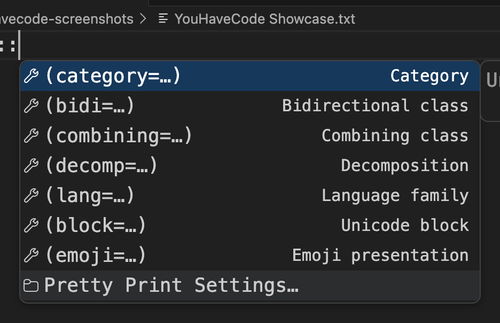
Choose Properties… in the root menu to see the available filter families, or type a property key directly. Values show friendly names and contextual glyph counts.
| Key |
Meaning |
Example |
bidi |
Bidirectional writing class |
(bidi=AL) |
category |
Unicode general category |
(category=So) |
combining |
Canonical combining class |
(combining=0) |
decomp |
Decomposition type |
(decomp=CANONICAL) |
lang |
Language/script family (language and script are aliases) |
(lang=ARABIC) |
block |
Unicode code-point block |
(block=Geometric Shapes) |
emoji |
Default presentation: COLOR, TEXT, or NONE |
(emoji=COLOR) |
Rules:
- Different name words and property families use AND.
- Repeated values in one property family use OR and normalize to pipe syntax:
(bidi=AL|BN).
- Prefix a property value with
! to exclude it: (category=!Lu).
- Already-applied property keys disappear from the
Properties… menu.
- Up to five recently used values appear first; remaining positive values precede negated values.

Custom tags are persistent searchable keywords attached to glyph code points.
On a clean installation, favorite is available immediately and is assigned to ★ (U+2605 BLACK STAR).
(+=favorites) adds favorites to the glyph selected from that query.‽::+favorites or ‽::+=favorites immediately adds favorites to the preceding glyph and removes the ::... shortcut. A final ) is optional.(-=favorites) removes favorites only from the selected glyph.(--favorites) removes favorites from every glyph and deletes the custom tag.(favorites) searches for glyphs carrying that tag.(star)(favorites) searches with AND semantics.
Use Custom Tags… in the root menu to see recently used tags, Create New Tag, the most assigned tags not already shown, and then the remaining tags by assignment count. Tags appear as assignment choices such as (stars). After a glyph and an otherwise empty :: query, choosing a tag assigns it to that preceding glyph immediately. In a filtered query, choosing a tag inserts an add assignment for the glyph selected next. Remove and delete actions remain available through the syntax above. Tag assignments do not filter results and are not replayed onto later glyphs.
An exact singleton custom tag puts its glyph first. Here, test is attached only to 🧪:

Any name or custom-tag suggestion supported by only one remaining glyph is omitted from ordinary search results. When typed directly, an exact singleton custom tag such as favorite promotes its glyph to the first glyph recommendation and preselects it. As soon as two or more glyphs share the tag, (favorite) returns as the preselected narrowing suggestion above those glyphs. Singleton custom tags remain searchable and manageable through Custom Tags….
Pretty Print
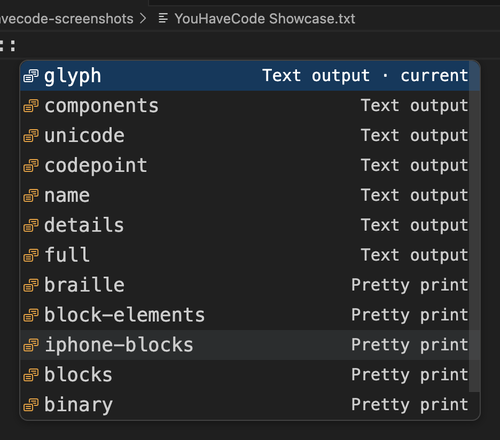
Choose Output Format… to insert glyphs as Unicode escapes, code-point references, names, details, HTML entities, or bitmap text. Use \u*query for the configured bitmap format. Press Cmd+Option+P on macOS or Ctrl+Alt+P elsewhere to Pretty Print selected text with current settings; with no selection, the same shortcut renders clipboard text at the cursor. Pretty Print, Pretty Print…, and Pretty Print*… provide progressively more control.
Pretty Print uses the fonts already installed on your machine, preserves complete emoji grapheme clusters, and can rotate, mirror, wrap, compact, and redirect output without sending editor content to a service.
Tip Jar
If YouHaveCode saves you from another tab spiral through Unicode charts, search engines, missing-glyph boxes, emoji tables, and copy-paste limbo, you can help fund the next round of polish. Tips support Unicode data updates, platform compatibility profiles, font coverage scans, Pretty Print rendering work, and release packaging.
Advanced And Technical
Inline Query Actions
Action suggestions begin with *. Choosing *print inserts the canonical (*print) token without filtering glyph results. Its follow-on menu exposes output, size, wrap, compactness, flow, wrap direction, and D4 controls. For example:
::(*print)(output=braille)(size=16x16)(wrap=40)(compact=on)(flow=lr)(wrap-direction=ud)(*d4=rotate-90)(star)
(compact=on) removes unused edges along the active flow axis while preserving one blank separator cell. (compact=off) retains each square raster's full padding.
The five most recent glyphs appear in the empty root, followed by Recent…, which lists up to 25 glyphs by recency. Frequent… lists glyphs ranked by usage count. Both submenus stay in the suggestion widget and respect active filters. Name/tag chips with no glyphs under the active filters are omitted.
Root utilities are searchable and rank above ordinary glyph providers when matched. Type terms such as recent, frequent, settings, properties, tags, or format after a query prefix to surface and open the corresponding menu item.
Emoji search includes the version-pinned Unicode Emoji 17.0 RGI repertoire: supplementary characters, presentation sequences, keycaps, flags, skin tones, and ZWJ sequences. Search uses CLDR short names and Unicode group/subgroup terms, so queries such as ::grinning, ::technologist, or ::(emoji) include entries that are absent from the BMP-oriented compact character table. RGI membership is platform-independent; whether a sequence renders as one colored glyph still depends on the host OS and fonts.
Completed filters offer up to five high-count follow-up name/tag chips that narrow the remaining glyphs and still represent at least two glyphs. Singleton tags are omitted because their glyph already appears immediately below. Separate chips are ANDed, while alternatives inside one chip are ORed: (line)(circle) requires both words and (line|circle) accepts either. Partial alternatives complete inline, so (line|cir offers (line|circle).
OR results are ranked lexicographically by matches per group, from left to right. For (line|circle)(below|above), match vectors sort as (2,2), (2,1), (1,2), then (1,1).
A literal glyph remains searchable directly and its semantic name expansion is ranked first: ::. offers (period), while ::? offers (question)(mark). A leading ? is therefore a literal search; add ? after one glyph to inspect and convert that glyph into query syntax:
?n / ?name: semantic name chips, such as ::.?n → ::(period) and ::A?n → ::(capital)(letter)(a).?b / ?bidi, ?c / ?combining, ?cat / ?category, ?d / ?decomp.?u / ?unicode, ?l / ?lang / ?language, ?block, and ?e / ?emoji.
Typing only ? lists every available property inline. Property choices expand to existing valid filter syntax; Unicode expands to an exact code-point search.
Pretty Print Controls
Pretty Print Settings… is an inline suggestion-widget drill-down containing:
Output / format…: glyph, components, Unicode escape, code point, name, details, Braille, blocks, binary, hex, and more.Size…: bitmap raster size.Wrap…: maximum text-cell extent along the active flow axis, or automatic editor wrapping.Compact…: trim blank edges along the flow axis or preserve full raster padding.Flow direction…: lr, rl, ud, or du.Wrap direction…: perpendicular line progression, or auto (down for horizontal flow and right for vertical flow).D4 transform…: identity, rotations, axis mirrors, and diagonal reflections applied before text packing.Reset Usage History: clears recency, frequency, and replay history without deleting custom tags or settings.
Bitmap format names are searchable directly. For example, ::braille lists the ordinary (braille) name filter followed by the pretty-print option (output=braille); the same shortcut works for block, binary, and hex formats.
Explicit option syntax remains available, for example:
::(output=braille)(size=16x16)(wrap=32)(flow=ud)(wrap-direction=rl)(*d4=reflect-slash)(star)
Bitmap layout wraps only between complete glyph rasters. Horizontal flow creates rows; vertical flow creates columns. Reverse flow changes glyph order within each row or column, while reverse wrap direction changes row or column order.
Persistent defaults live under youhavecode.defaultOutput and the youhavecode.bitmap* settings. Explicit query options override those defaults for the current query only. The former Braille-specific glyph-count setting is no longer used.
There are two output workflows:
- Glyph insertion output transforms each accepted
:: glyph independently.
- Select an existing Unicode message and press Cmd+Option+P on macOS (Ctrl+Alt+P elsewhere) to transform the full selection with current Pretty Print settings. With no selection, the shortcut reads text from the clipboard and inserts its rendering at each cursor. Cmd+Option+U on macOS (Ctrl+Alt+U elsewhere) opens the broader output-format chooser.
Pretty Print… asks only for bitmap type and size while retaining and saving the other settings. Pretty Print*… walks through type, size, wrapping, spacing, flow, and transform; choose Back at any step to revise an earlier choice without losing the walkthrough state. Textual output transforms remain directly available below these actions.
Bitmap conversion is local and self-contained; it does not require the Unicode Atlas backend. Emoji sequences are rasterized as complete grapheme clusters. A single selection is limited to 256 non-whitespace graphemes so native font rendering cannot exhaust the extension host; split larger messages into smaller selections.
The root menu shows Output Format… with = glyph (or the active format) in the right-aligned description column. Default Filters… shows active defaults as (key=value) expressions and opens an inline menu for adding, changing, removing, or clearing persistent property filters. Defaults are stored in youhavecode.defaultFilters; an explicit query filter replaces the default for that property while unrelated defaults remain active. Properties… drills down to property keys inside the same suggestion widget. Emoji-capable glyph searches show explicit Emoji and Text rows; youhavecode.emojiPresentation controls which row appears first and how other emoji-capable insertion paths render:
auto: preserve the Unicode default.color: append Variation Selector-16 (VS16, U+FE0F) to request emoji-style presentation.text: append Variation Selector-15 (VS15, U+FE0E) to request text-style presentation.deconstructed: show the base separately, then label the selector and place its literal character on a dotted-circle carrier: ☀ + <VARIATION SELECTOR-16 (VS16, U+FE0F)> ◌️.
Terminology:
- Base character: the character being varied, such as
☀ (U+2600).
- Variation selector: a default-ignorable Unicode nonspacing mark placed immediately after an eligible base to request a standardized visual variant. It has no standalone visible glyph.
- VS15: Variation Selector-15 (
U+FE0E), which requests text-style presentation.
- VS16: Variation Selector-16 (
U+FE0F), which requests emoji-style presentation. Color is determined by the renderer and available font, not guaranteed by VS16 itself.
- Standardized variation sequence: the base and selector together, such as
☀️ = U+2600 U+FE0F.
- Dotted-circle carrier:
◌ (U+25CC) placed immediately before the literal selector in deconstructed output. This conventional carrier keeps the selector away from the original base; the selector remains present even though it has no independently visible shape.
Angle-bracketed text such as <VARIATION SELECTOR-16 (VS16, U+FE0F)> is a visible label emitted by YouHaveCode. The selector itself is the invisible character following the dotted circle in ◌️.
Use code-point or component output to inspect both the base character and its presentation selector.
VS Code exposes the configured editor.fontFamily priority string, and YouHaveCode's canvas runtime can enumerate installed font family names. Reliable font= filtering is not currently offered because exact glyph coverage requires indexing each font's cmap; merely finding an installed family does not prove it supports a glyph.
Render Compatibility
System-font coverage is consolidated in COMPATIBILITY_COVERAGE.md and the generated profile at data/compatibility_profiles.json. Coverage ranges should come from cmap scans of pinned platform images, not manually inferred font lists.
Compatibility… in the root suggestion menu and Tools sidebar configures future platform-support verdicts. Every known target defaults to version: current and policy: warn:
- iOS
- Android (AOSP); OEM distributions may use different fonts
- macOS
- Windows
- Ubuntu; other Linux distributions have different base fonts
Target policies are required, warn, permitted, and blocked. required removes entries known to be unsupported, warn keeps them with an accessible warning, permitted does not warn or filter, and blocked excludes entries identified as target-specific. Versions can be current, any, or a pinned platform version such as 18 or 24.04.
youhavecode.compatibilityUnknownPolicy and youhavecode.compatibilityLocalFontPolicy both default to warn. Missing evidence is reported as Unknown, never mislabeled Unsupported. The local-font policy describes the existing installed-font probe; custom fonts may provide coverage beyond a base OS profile.
The settings and menus are available now, but platform filtering and result indicators remain evidence-gated until versioned font manifests and sequence exceptions are bundled. Until then, platform verdicts stay Unknown. Opera and similar browsers inherit OS font coverage and are not separate targets.
Configuration
The default u: completion prefix is configurable with youhavecode.triggerPrefix. Double-colon completion can be disabled with youhavecode.enableDoubleColonPrefix. Emoji presentation is configured with youhavecode.emojiPresentation.
YouHaveCode registers its completion provider for every known VS Code language so :: queries participate in the highest provider group inside text, code, strings, and embedded editor contexts. Outside a valid query it returns no completions, leaving the host language's IntelliSense unchanged. VS Code does not expose token-range-exclusive completion providers; TextMate embedded-language grammars affect tokenization, not generic completion-provider ownership.
Development
From the repository root:
npm install
npm run compile
Refresh the Marketplace/README screenshots from a clean, isolated VS Code profile with:
npm run screenshots
The script fixes the theme, editor typography, and window size; seeds representative custom-tag and compatibility usage through the real extension UI; and clips each active suggestion menu or sidebar view into media/screenshots. Pass scenario names after -- to regenerate a subset, or add --keep-open to inspect the isolated window after capture.
Current scenarios are root-menu, properties-menu, output-format-menu, custom-tags-menu, tag-search-menu, sidebar-overview, unicode-table-sidebar, pretty-print-settings-sidebar, and compatibility-warning-menu.
For the first Marketplace pass, the highest-signal set is root-menu, sidebar-overview, unicode-table-sidebar, output-format-menu, pretty-print-settings-sidebar, compatibility-warning-menu, and tag-search-menu.
Local bitmap rendering uses a native Canvas dependency. Publish platform-targeted VSIX packages from matching build agents with vsce package --target <platform> so each package contains the correct native binary.
Delegate capability profiles and their security boundary are documented in
DELEGATE_SECURITY.md. The built-in full-access
profile represents trusted extension-host execution; it is not described as a
sandbox.
Before publishing, follow RELEASE_CHECKLIST.md. Run
npm run release:prepare to regenerate and verify RELEASE_INTEGRITY.json, then
create a SHA-256 sidecar for the final VSIX with npm run integrity:artifact -- ./path-to-package.vsix.
License And Third-party Notices
The extension is distributed under the proprietary terms in LICENSE. You may install and use unmodified copies under those terms, and your editor content and generated output remain yours. Public source visibility, if a repository is published, does not make the extension open source or grant rights beyond the license.
The bundled compact Unicode metadata and RGI emoji repertoire are derived from Unicode Character Database and Unicode Emoji data files. Redistribution is permitted under the Unicode License v3; the required copyright and permission notice is included in THIRD_PARTY_NOTICES.md.
Compatibility profiles use compact generated code-point ranges and source notes. They do not bundle platform font files.
YouHaveCode is independent and is not affiliated with, sponsored by, or endorsed
by Unicode, Inc. or the Unicode Consortium. Third-party components and data remain governed by their notices in
THIRD_PARTY_NOTICES.md.

