Spec2Integration — VS Code Extension
An in-IDE project launcher, navigator and guided command composer for the
Spec2Integration pipeline. It brings the prompt-driven experience of
tools/pipeline-runner into VS Code, scaffolds new pipeline workspaces, and hosts
the IR visualizer as a bundled webview.
Install
Install from the Visual Studio Marketplace:
Spec2Integration Pipeline.
After installing, click the Spec2Integration icon in the activity bar to open
the panel.
Launch a new project (no workspace needed)
Open the Spec2Integration activity-bar icon with no folder open and the
panel offers two starting points:
- Greenfield — start from a PRD or brief.
- BizTalk migration — reverse-engineer an existing BizTalk solution.
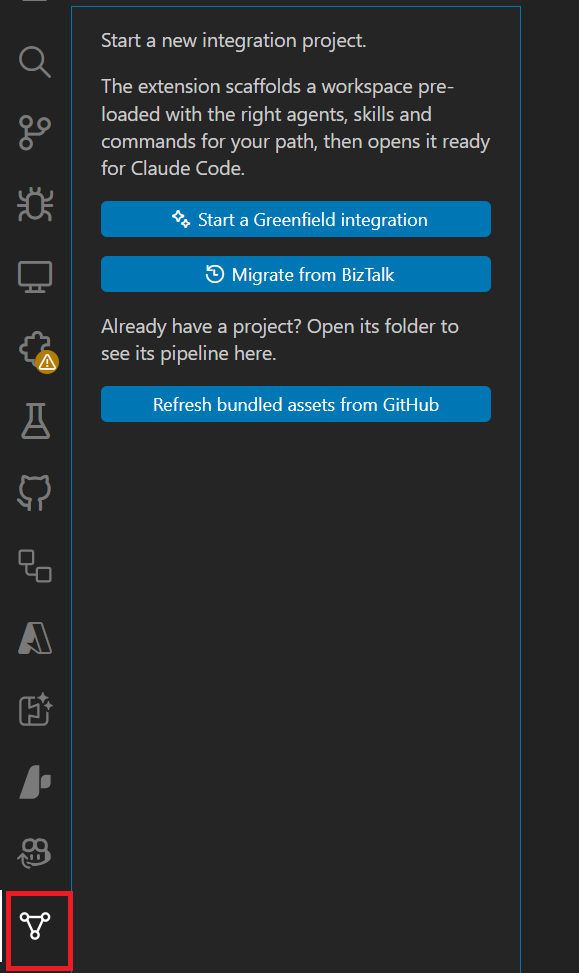
Pick one, choose a parent folder and a name, and the extension scaffolds a new
workspace containing exactly the agents, skills and commands that path needs
(BizTalk-only assets are omitted from greenfield projects), a sanitized
.claude/settings.json, and a .spec2integration/ seed. It then opens the folder
and offers the first step plus a path-specific walkthrough.
The assets are bundled in the extension (synced from the repo at build time),
so scaffolding is fully offline. Use Update Pipeline Assets from GitHub to
refresh a workspace's .claude/, schemas/, templates/ and scripts/ to the
latest from balbrench/cci-spec2integration (the only networked feature).
BizTalk migration — Analyse → Migrate a group → Deploy
A BizTalk solution is migrated one integration group at a time, in three
explicit steps surfaced on the BizTalk welcome and the BizTalk solution tree
node:
- Specify BizTalk Source Folder — point the extension at your solution (the
folder with the
.btproj files, or an MSI export). It's remembered, defaults
smartly (last-used → the path recorded in an existing inventory → a source/
that holds a .btproj), and warns if no .btproj is found.
- Analyse Solution — runs
/biztalk-inventory <source> to produce the
inventory + catalogue. The catalogue's INT-NNN boundaries then appear under
the BizTalk node, each with a Migrate ▶ action.
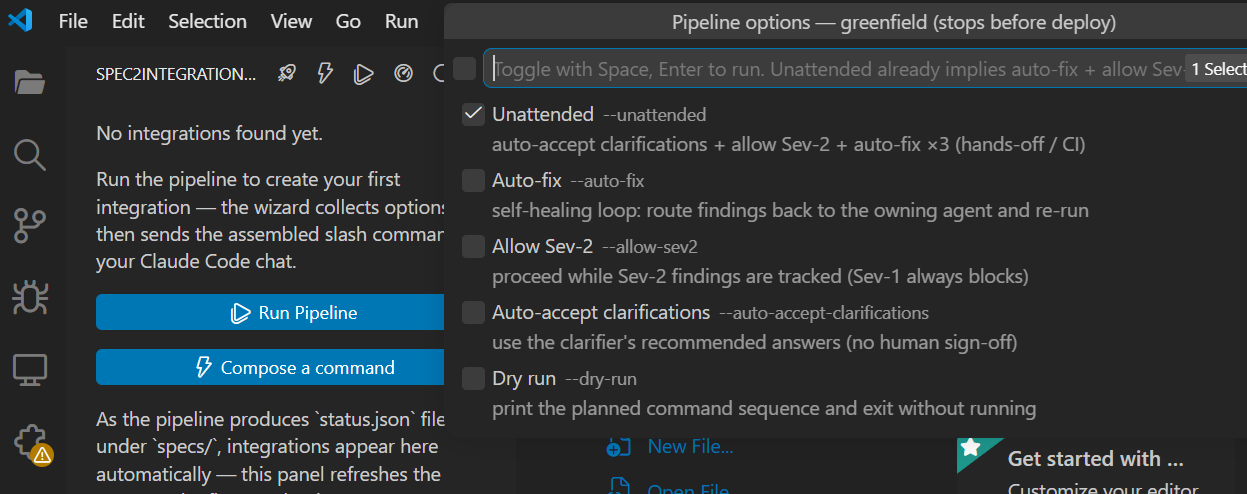
- Run Pipeline — pick one group (or All groups for one combined
integration) and toggle options as checkboxes (unattended, auto-fix, allow
Sev-2, auto-accept clarifications, pause for spec review, dry-run). The
extension sends
/run-pipeline --mode biztalk --input <source> --group INT-NNN <flags>; each
group becomes its own independent integration with its own status.json.
- Deploy — once a group's integration is green, its Deploy action
provisions and deploys it via
azd.
Greenfield projects use the same option-checkboxes without the group/source
steps, plus one greenfield-only step: Run Pipeline first opens a multi-line
editor (specs/_intake/brief.md) to capture your integration brief, then passes
it to /run-pipeline --input-file … so the brief always runs through /draft-prd.
Tick Pause for spec review to have the run stop after spec.md is created so
you can review and edit it (directly or via /specify "<change>") before the rest
is built; resume with /run-pipeline --folder <folder>.
In a pipeline workspace
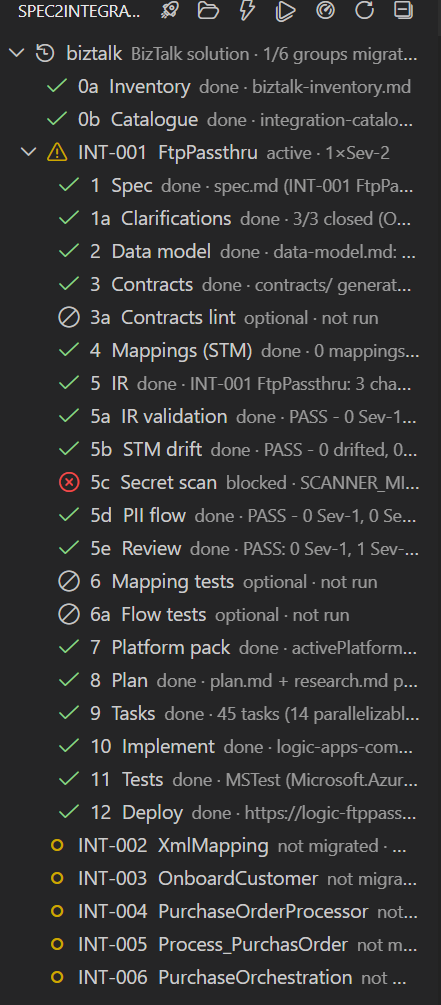
- Pipeline tree (activity-bar) — every integration under
specs/**, grouped
by domain, each expanded into its pipeline stages with live status pills read
straight from <folder>/status.json. A BizTalk solution node shows the
Analyse rows once and lists each INT-NNN group (migrated groups expand to
their integration incl. Deploy; un-migrated groups offer Migrate ▶).
Integration rows carry a findings badge (2×Sev-1, 1 blocked, …), a
coverage/blocked-flow tooltip, and turn red/yellow when attention is needed;
optional/non-gating stages (3a, 6, 6a) render muted rather than as gaps.
Updates automatically (file watcher, incl. the inventory/catalogue).
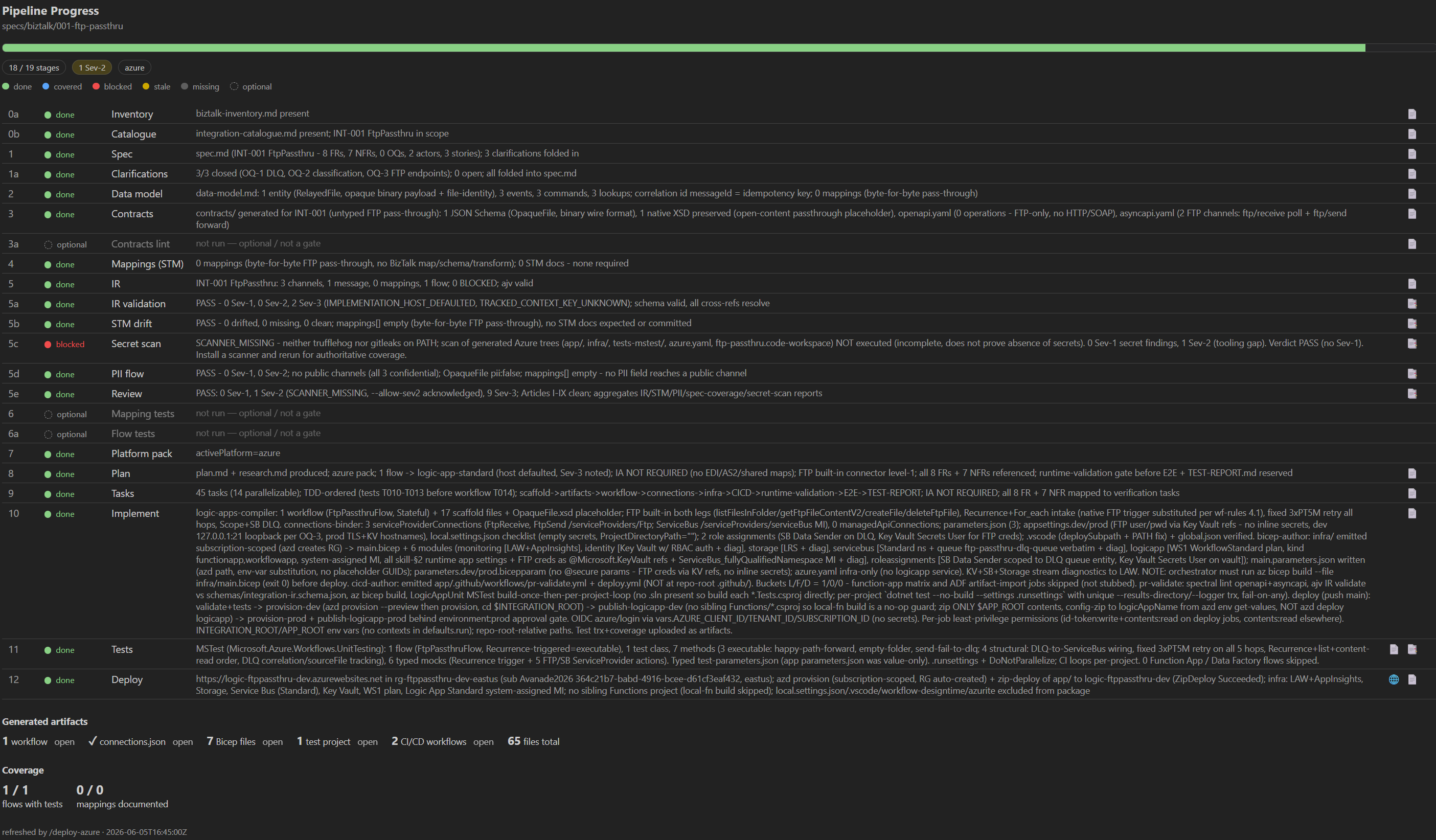
- Pipeline Progress cockpit — a live, read-only dashboard for one integration:
an N-of-applicable progress bar, the stage table with an explicit status word +
legend, Sev/stale badges, a Generated artifacts panel (workflows,
connections, Bicep, Function/test projects, CI/CD — each with an open-link),
coverage, blocked-flow ids, and per-stage timings. The "next" row matches the
tree (
status.json.next), optional stages are muted, and each row links to its
artifact and report. Opens from the panel toolbar or an integration row.
- Notifications — a toast when a stage completes, and a warning (with
Open Visualizer) when a Sev-1 finding appears. Opening a populated workspace
primes silently — no toast storm.
- Jump to artifacts & reports — click a stage to open its artifact (
spec.md,
integration-ir.yaml, plan.md, contracts/, …); blocked/findings stages
expose Open Report.
- Guided wizard — pick any slash command and the extension walks you through
its options with QuickPicks and input boxes, then assembles the exact
/command … string (with an optional preview/edit step).
- Hand-off to chat — the assembled command is delivered to your live Claude
Code chat (in-process command → deep link → clipboard fallback). The extension
never runs commands headlessly.
- Status bar — the active integration and its recommended next step.
- IR IntelliSense —
integration-ir.yaml validated/autocompleted against
schemas/integration-ir.schema.json (requires the
YAML extension).
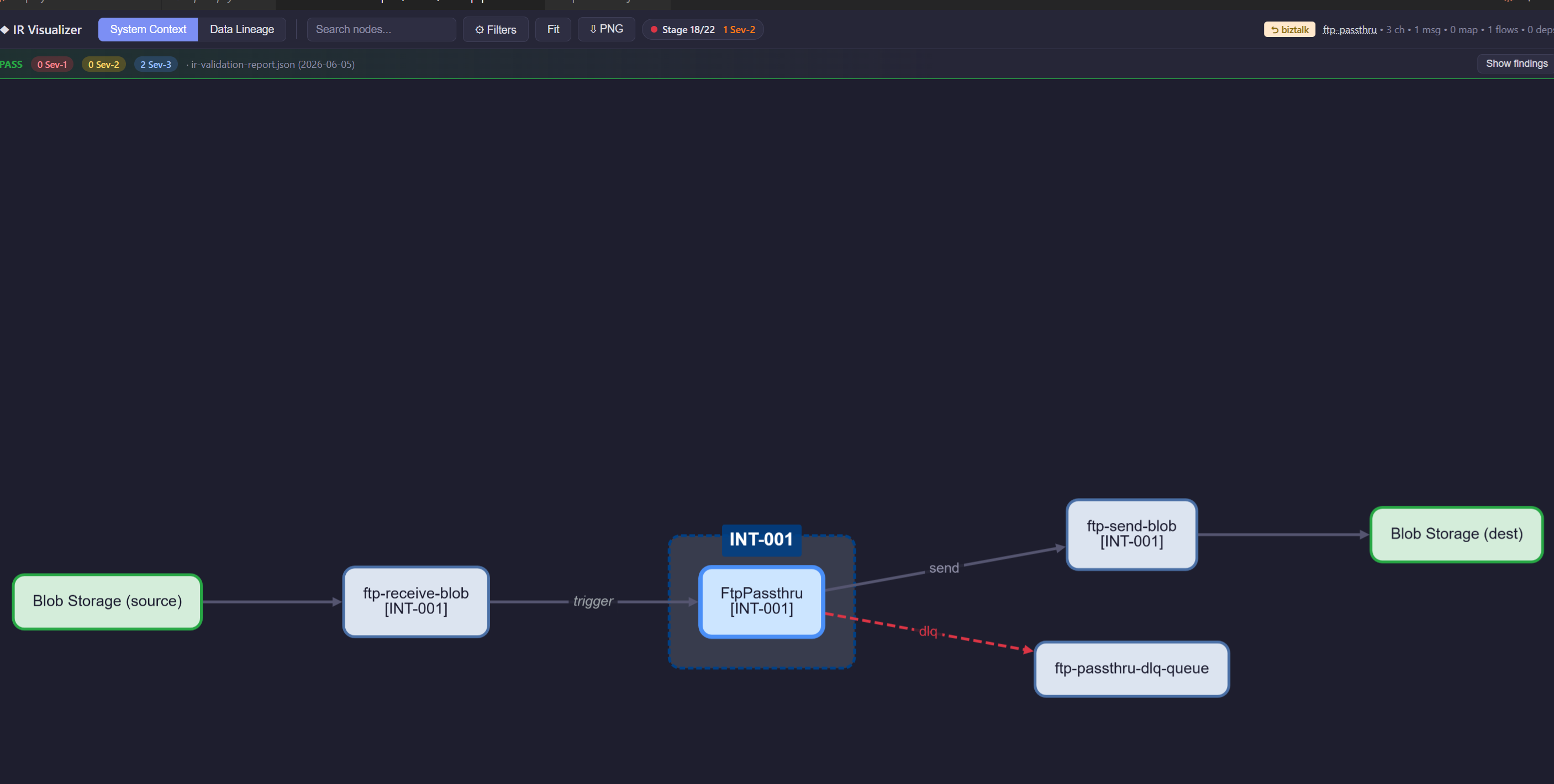
- IR visualizer — a bundled Cytoscape graph seeded with the selected
integration's
integration-ir.yaml, overlaid with a live status pill and
Sev-1/2/3 findings.
- Adaptive walkthroughs — separate Getting Started guides for greenfield and
BizTalk (open from Help → Get Started).
Pipeline Progress cockpit — a live, read-only dashboard for one integration:
IR visualizer — the integration's integration-ir.yaml as an interactive flow graph:
Why this design
Claude Code does not expose an API to inject a command into your current
interactive chat session, and the project is deliberately prompt-driven. So this
extension is a launcher + composer + navigator: it scaffolds the workspace,
removes the need to remember command names/arguments or track which stage is
next/stale, then hands the finished command to chat for you to run.
Commands
Command (palette: Spec2Integration: …) |
What it does |
| New Integration Project… |
Scaffold a greenfield or BizTalk workspace from bundled assets |
| Specify BizTalk Source Folder… |
Record where the BizTalk solution lives (persisted; no chat command) |
| Analyse BizTalk Solution |
Run /biztalk-inventory <source> to produce the inventory + catalogue |
| Run Pipeline… |
End-to-end orchestrator; BizTalk picks a group + option checkboxes |
| Migrate This Group |
(group row) scope an unattended run to one INT-NNN catalogue group |
| Deploy |
(integration row) provision + deploy via /deploy-azure |
| Update Pipeline Assets from GitHub |
Overlay the workspace's .claude/schemas/templates/scripts with the latest from GitHub |
| Open Pipeline Progress |
Live progress cockpit for an integration |
| Compose Command… |
Pick any slash command → guided wizard → send to chat |
| Run Recommended Next Step |
Sends status.json.next.command for the integration |
| Run This Stage |
(tree row) composes the command that advances that stage |
| Open Artifact / Open Report |
(stage row) opens the stage's artifact / report |
| Open IR Visualizer |
Cytoscape graph webview seeded with the folder's IR |
| Reset Pipeline Chat Session |
Forget the reused session so the next command starts a fresh one |
| Open domain.yaml / Set as Active Integration / Refresh |
navigation helpers |
The per-stage "run" mapping mirrors STAGE_CMD in
tools/pipeline-runner/index.html, so the two tools stay consistent.
Settings
| Setting |
Default |
Purpose |
spec2integration.chatDelivery |
command |
command (in-process) → deeplink → clipboard fallback chain. |
spec2integration.deepLinkScheme |
vscode://anthropic.claude-code/open |
Adjust if your Claude Code extension uses a different URI. |
spec2integration.previewBeforeSend |
true |
Show the assembled command in an editable box before delivering it. |
spec2integration.continueSession |
false |
Keep a whole pipeline run in one chat tab (see below). |
spec2integration.claudeCliPath |
claude |
CLI used to mint the reusable session; override if not on PATH. |
One tab per pipeline (continueSession)
By default each command opens a new Claude Code conversation — that's the only
behavior the extension can guarantee, because Claude Code doesn't expose the
active GUI session's id to third-party extensions.
Enable spec2integration.continueSession to keep an entire run in a single tab.
The first command mints a reusable session via one tool-free headless
claude -p call (it does no file edits, so it never hits a permission prompt),
stores the session id for the workspace, and routes every later command into that
session using the documented session= parameter of the
vscode://anthropic.claude-code/open deep link — which resumes the conversation
and refocuses its tab. Every real pipeline command still appears pre-filled in
the GUI for you to review and send. Requires the claude CLI on PATH and signed
in; if a session can't be established it transparently falls back to a new
conversation. Run Spec2Integration: Reset Pipeline Chat Session to start a
fresh one.
Develop / run
cd tools/vscode-extension
npm install
npm run compile      # sync bundled assets + esbuild → dist/extension.js
npm run compile/package/vscode:prepublish first run scripts/sync-assets.js,
which copies the repo's .claude/ (agents, commands, skills), schemas/,
templates/, scripts/ and CLAUDE.md into assets/ and writes
assets/manifest.json (version + git sha + the BizTalk-only classification the
scaffolder uses). assets/ is generated and git-ignored — it is rebuilt from the
live repo so the bundle can never drift.
Press F5 to launch an Extension Development Host. To exercise the launcher,
run it with no folder open.
npm run watch — rebuild on change.npm run package — produce a .vsix (runs the asset sync first).
What it reads & writes
In an existing pipeline workspace the extension is read-only against your
artifacts — it reads .spec2integration/state.json, specs/**/status.json, and
specs/**/integration-ir.yaml; all mutations happen through the slash commands it
sends to chat. The only files it writes are when you ask it to: scaffolding a
new project folder, or running Update Pipeline Assets from GitHub.

