Export Folders Tree Structure
An extension that generates the tree structure of any folder in your workspace, with configurable ignore patterns, one-click copy, and .txt / .md export.

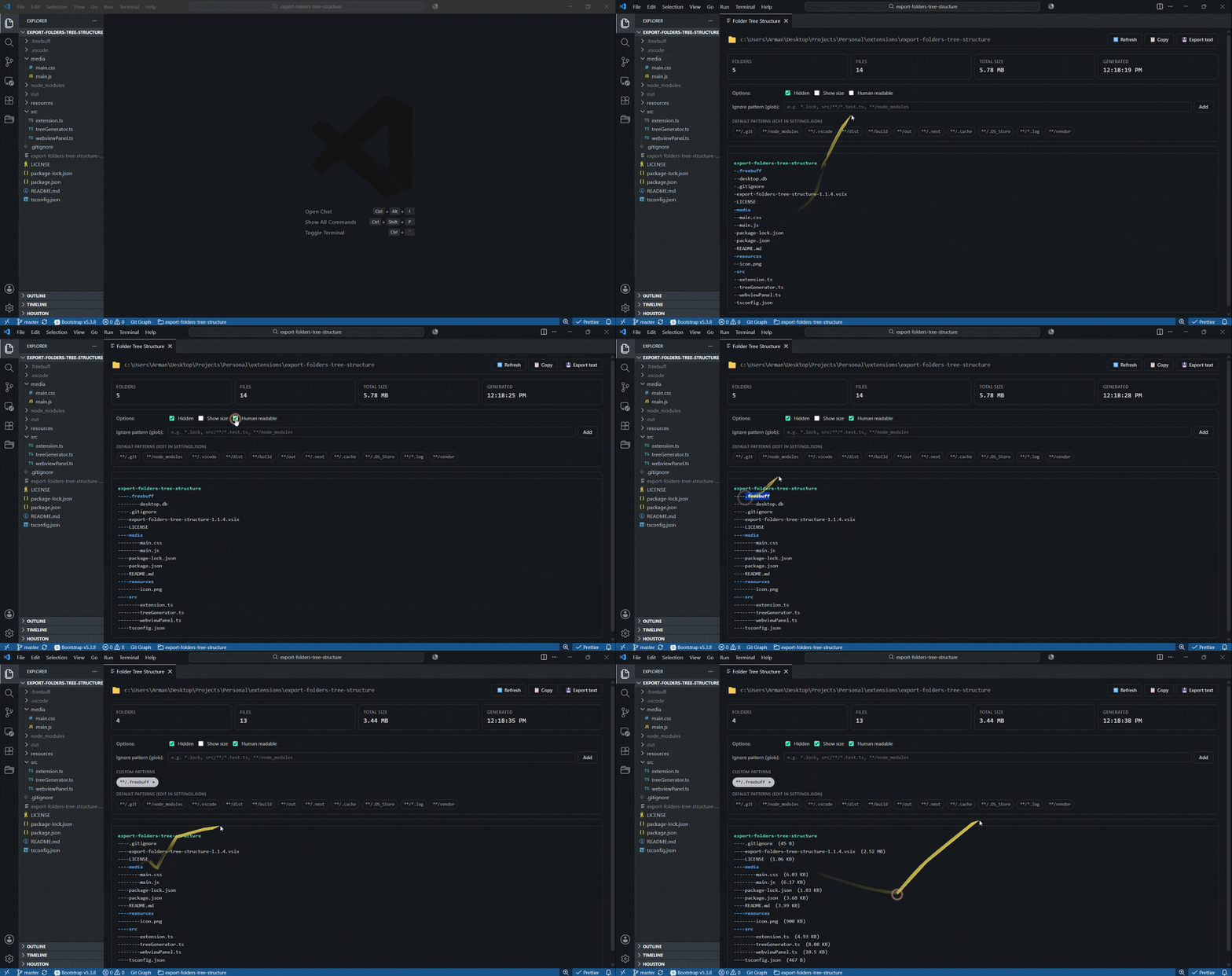
✨ Features
- 🌲 Tree view generator — ASCII tree of any folder in your workspace, similar to the
tree CLI.
- 🚫 Ignore patterns — built-in defaults (
.git, node_modules, dist, ...) plus a fully customizable pattern list.
- 📋 Copy to clipboard — instantly copy the rendered tree.
- 💾 Export to file — save the tree as
.txt or a markdown-fenced .md.
- 🧠 Smart defaults — intelligent ·* glob matching, max depth safety, hidden-file inclusion, optional file sizes.
- ⚡ Right-click integration — context-menu entries on folders:
Show, Copy, Export.
📦 Intended Installation - easy peasy (Recommended)
just click install in package page & right click each folder you like (or empty space for root) in vscode explorer tab!
⚠️ Manual Installation - NERDS ONLY
- Clone or download this repository.
- Run
npm install.
- Open the folder in VS Code and press
F5 to launch an Extension Development Host with the extension loaded.
- For a packaged
.vsix, use vsce package (requires npm i -g @vscode/vsce).
🚀 Usage
From the Explorer
Right-click any folder → Folder Tree → choose Show, Copy, or Export.
From the Command Palette
Folder Tree: Export: Show Folder Tree Structure — opens the tree in a side panel.Folder Tree: Export: Copy Folder Tree to ClipboardFolder Tree: Export: Save Folder Tree as text
The side panel
- Refresh — refresh the current folder.
- Copy — sends the rendered tree to the clipboard.
- Export text — opens a save dialog for rendered tree as .txt/.md.
- Options — Hidden files, Show size from the panel; the choices are persisted to workspace
settings.json.
- Ignore pattern input — add custom ignore patterns (e.g.,
*.lock, src/**/*.test.ts, coverage, **/node_modules). They appear as removable chips. Default patterns are tagged as “default” and can be removed from Settings if needed.
If a folder is deeper than maxDepth, the truncated subtree is replaced with a … (truncated) marker so it's visually obvious you didn't see everything. Malformed glob patterns are reported back as a feedback line and skipped.
⚙️ Configuration
| Setting |
Description |
Default |
exportFoldersTreeStructure.defaultIgnorePatterns |
Patterns always ignored (glob). Edit in settings.json. |
[".git", "node_modules", ".vscode", "dist", "build", "out", ".next", ".cache", ".DS_Store", "*.log"] |
exportFoldersTreeStructure.customIgnorePatterns |
User-added patterns (managed from the panel). |
[] |
exportFoldersTreeStructure.includeHidden |
Include dotfiles / dotfolders. |
true |
exportFoldersTreeStructure.maxDepth |
Maximum recursion depth (1–100). |
20 |
exportFoldersTreeStructure.showFileSize |
Append file sizes to each entry. |
false |
exportFoldersTreeStructure.searchHighlightColor |
Background color for search match highlights in the tree. Set via the color picker in Settings UI. |
#BF0AC2A6 |
Patterns support globs: *, **, ?, and character classes. Match semantics:
*.log — every .log file anywheresrc/**/*.spec.ts — every spec under src/, no matter how deeply nested**/node_modules — any node_modules folder at any depth (also matches the basename node_modules)coverage — the coverage folder or file at the top levelsrc/**/foo.ts also matches src/foo.ts — **/ represents zero or more directory segments.
🛠️ Development
npm install
npm run watch    # incremental build
# in VS Code: F5 (Run Extension)
Build output goes to ./out/. The webview's HTML / CSS / JS live in ./media/.
📁 Project structure
.
├── package.json
├── tsconfig.json
├── src/
│   ├── extension.ts        # entry point, commands
│   ├── webviewPanel.ts     # webview host & message routing
│   └── treeGenerator.ts    # tree walker, ignore-pattern matching, ASCII renderer
├── media/
│   ├── main.css
│   └── main.js
└── README.md
📝 License
MIT.

