Graphics.h Compiler for VS Code
Run C++ graphics.h programs with Turbo C or WinBGI directly from VS Code.




📺 Video Walkthrough
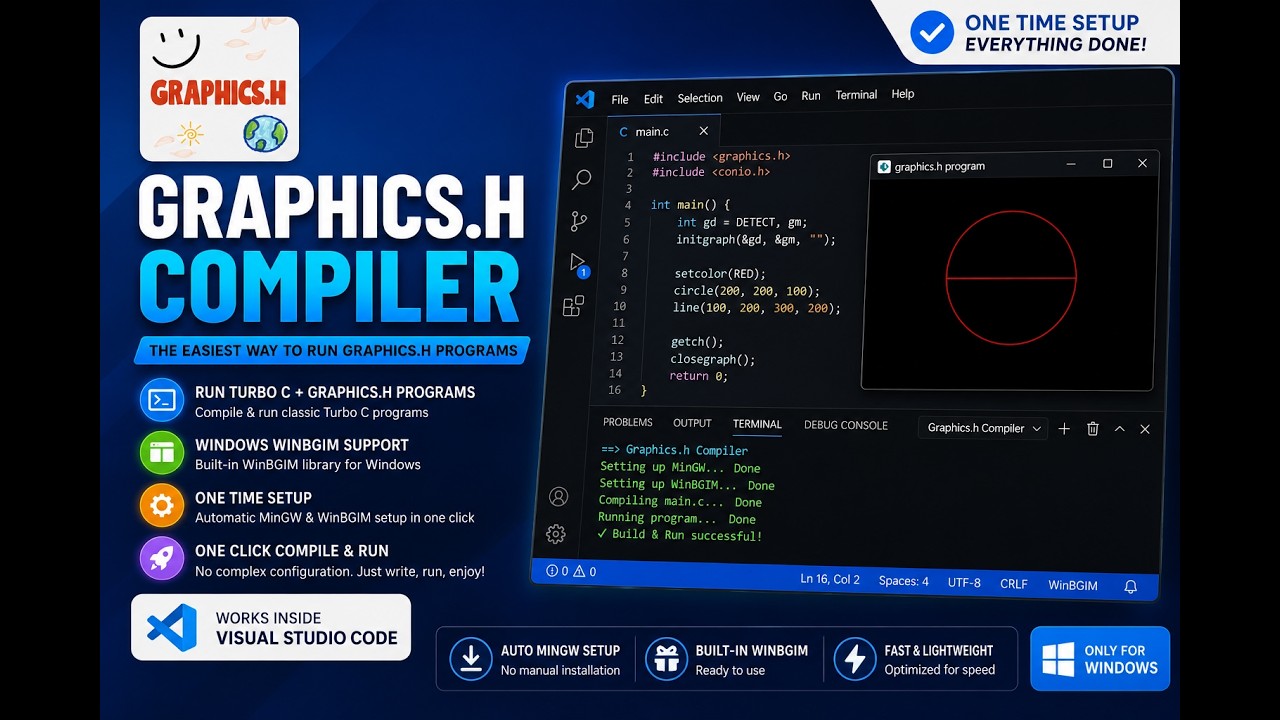
Click to watch the full demo on YouTube — covers both modes, setup, and usage.
🚀 How to Run
- Open a C++ file (
.cpp, .c++, .cc, or .cxx) that uses #include <graphics.h>
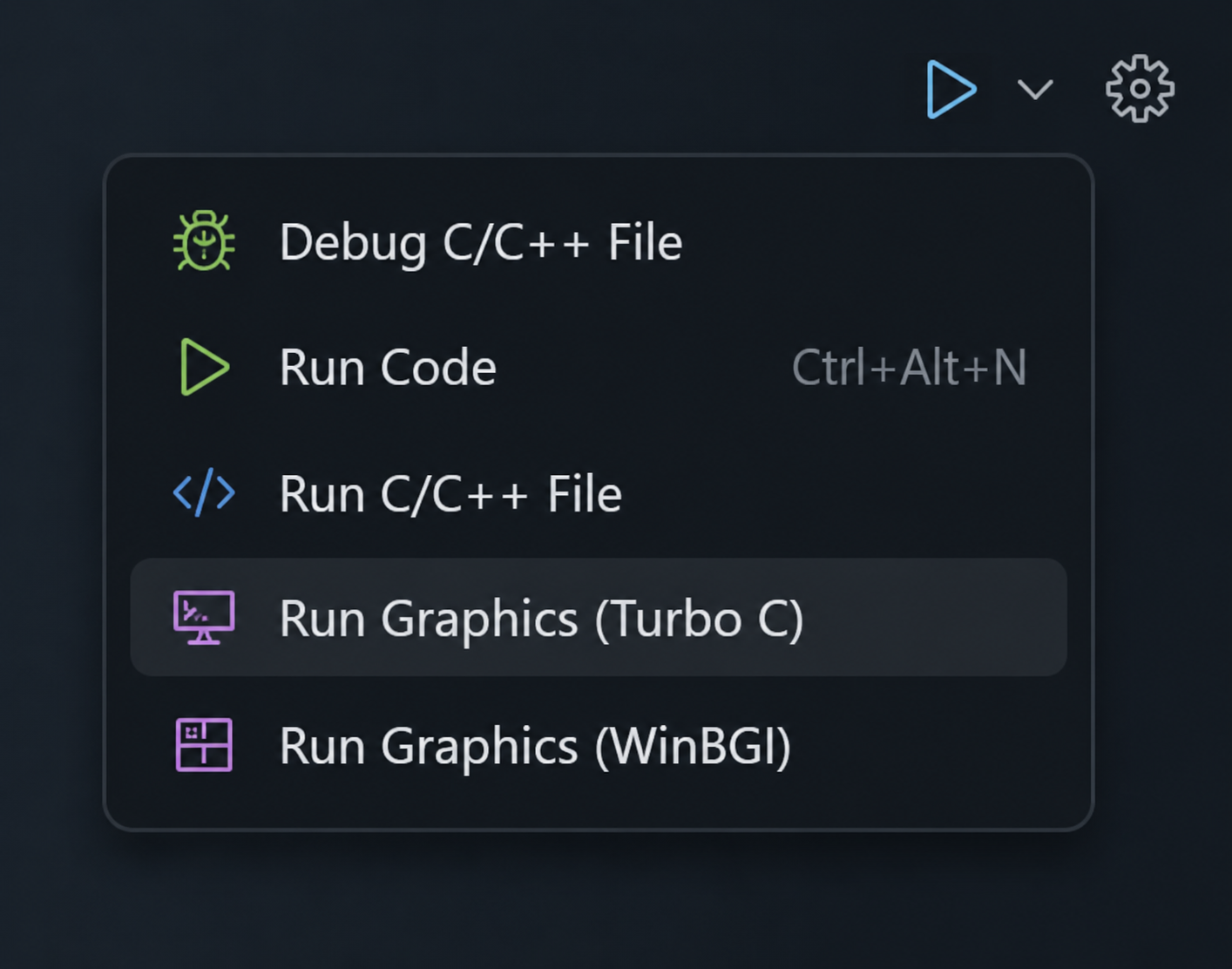
- Click the dropdown arrow (▾) next to the ▶ Run button in the top-right corner of the editor
- Two options will appear — pick the one that suits you
🖥️ Compilation Modes
This extension gives you two ways to compile and run graphics.h programs, each with its own strengths.
Mode 1 — Turbo C (DOSBox)
Runs your code inside an emulated Turbo C 3.0 environment, rendered directly in a VS Code tab. No downloads, no configuration — just open and run.
- Nothing to install — the Turbo C compiler, DOSBox runtime, and WASM binary are all bundled inside the extension
- Completely isolated — a fresh copy of the DOS environment is created in memory on every run, so there's no stale state between executions
- Errors shown inline — if compilation fails, an error panel appears below the DOS canvas without leaving the tab
- Windows and Linux supported — the DOSBox runtime is bundled with the extension
- macOS is experimental — Turbo C mode is enabled, but it has not yet been tested on a physical macOS machine
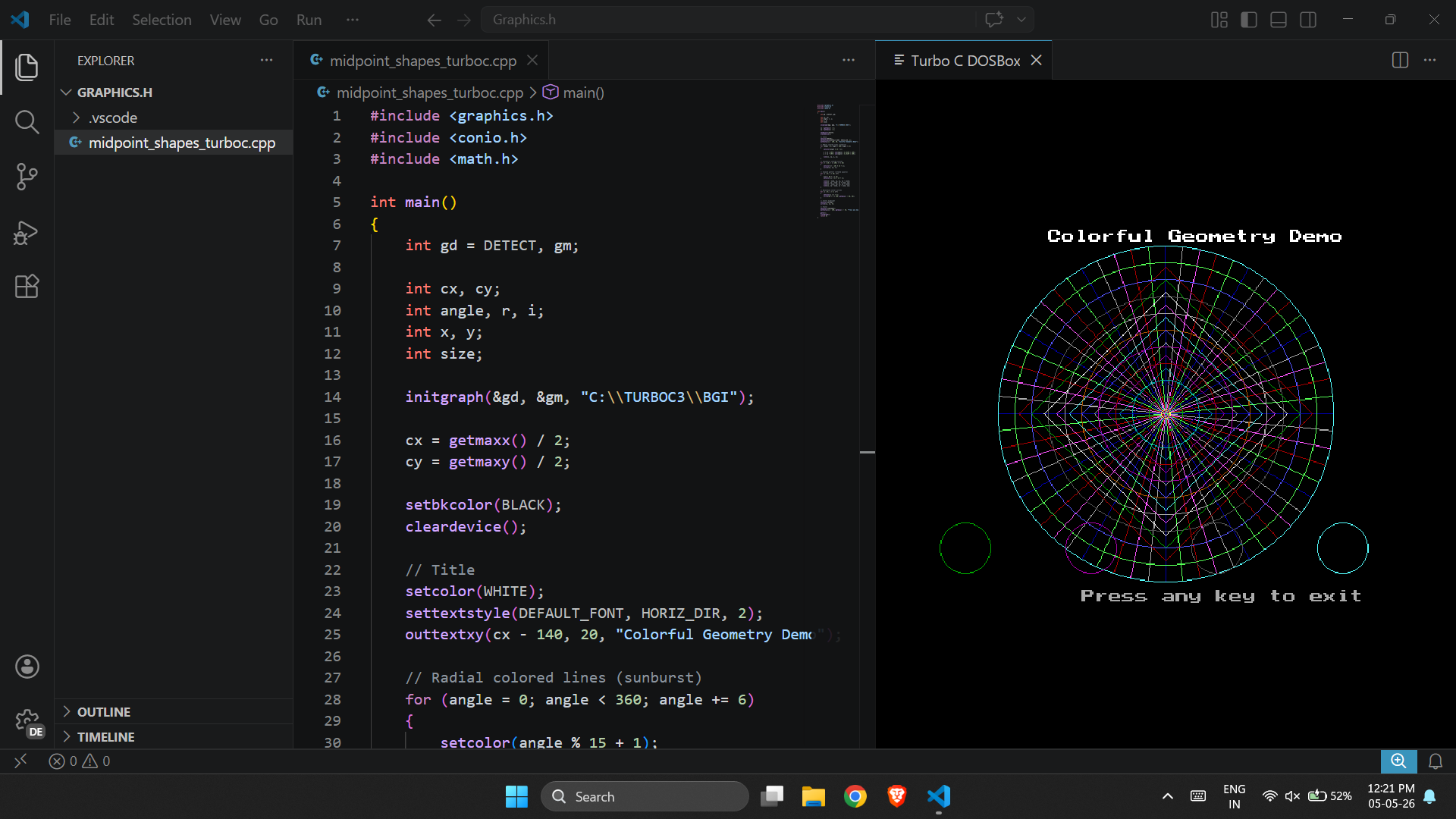
Mode 2 — WinBGI (Native Windows)
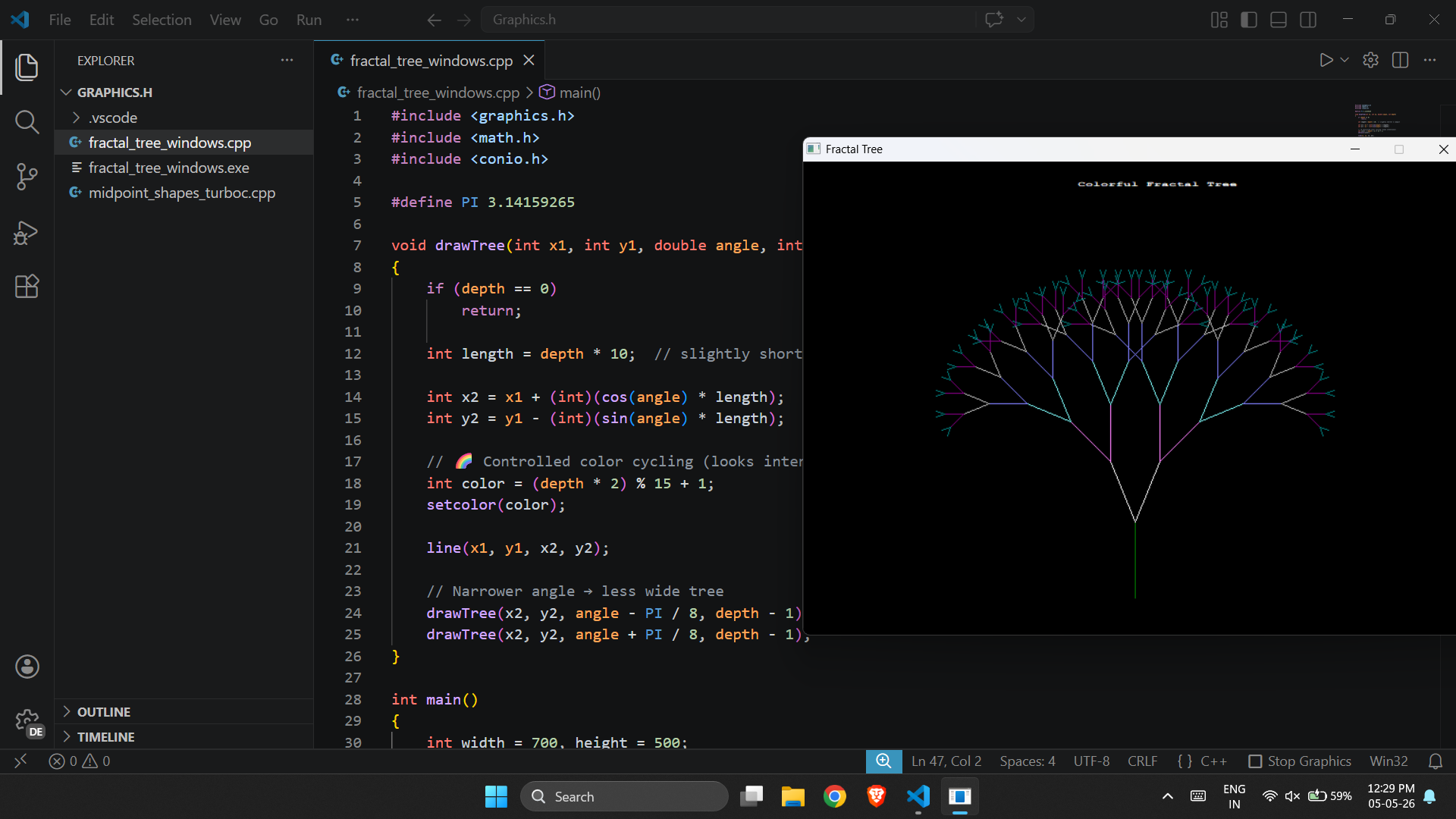
Compiles your code using MinGW + WinBGI and runs it as a real native Windows executable. On Linux, it runs through Wine automatically.
- Proper error diagnostics — compilation errors appear in VS Code's Problems panel (
Ctrl+Shift+M) with exact file, line, and column info — just like any modern C++ project
- One-time toolchain setup — the extension downloads and installs everything automatically on first use:
- Downloads ~220 MB from the internet
- Extracts to up to ~1 GB on disk
- A five-stage progress notification shows download, checksum verification, archive extraction, graphics-file copy, and installation verification in real time
- Ubuntu/Debian ready — Wine uses the dedicated graphics.h prefix created by the installer
⌨️ Keyboard Shortcuts
| Action |
Shortcut |
| Run Graphics (WinBGI) |
Ctrl+Alt+N |
| Compile Only — no run |
Ctrl+Alt+B |
| Stop Running Program |
Ctrl+Alt+K |
All commands are also reachable via the Command Palette (Ctrl+Shift+P) — search for Graphics.h.
⚙️ Extension Settings
Open settings with Ctrl+, and search for graphics-h-compiler:
| Setting |
Default |
Description |
autoRun |
true |
Automatically run after a successful build |
showOutputPanel |
true |
Show the Output panel during compilation |
clearOutputBeforeCompile |
true |
Clear the Output panel before each new build |
runInTerminal |
true |
Run in the integrated terminal — recommended for programs that use scanf or cin; stop/status tracking uses VS Code terminal shell integration |
🔧 First-Time Setup
Windows
WinBGI mode will ask for your permission before downloading anything. Once confirmed, the extension handles the full setup:
- Downloads the MinGW32 toolchain (~220 MB)
- Extracts to up to ~1 GB on disk
- Copies the
graphics.h library files automatically
- Shows a step-by-step progress indicator throughout
Turbo C mode requires no setup at all on Windows.
Ubuntu / Debian Linux
When you first run WinBGI mode, the extension offers Open Terminal & Run. It opens a terminal, starts the bundled installer, and keeps a progress notification visible while it verifies the compiler, Wine, and graphics files. Enter your sudo password in the terminal if prompted. The script installs:
i686-w64-mingw32-g++ — the MinGW cross-compilerwine — to execute the compiled Windows binary- bundled
graphics.h compatibility files — installed to /usr/local
View the full Ubuntu install script →
macOS
Turbo C (DOSBox) mode is available on macOS, but it is experimental and unverified because it has not been tested on a physical macOS machine. WinBGI is not supported on macOS.
🌐 No VS Code? Try the Online Compiler
You can compile and run basic graphics.h programs directly in your browser — no installation of any kind required.
→ Open the Online Compiler
🔗 Links
Built for students learning computer graphics. If it helped you, drop a ⭐ on GitHub — it means a lot.

