
TextPaletteHighlight text, change font colors, and add Word-style annotations to any file. Perfect for code reviews, log analysis, and custom styling. Installation Launch VS Code Quick Open ( Ctrl+P), paste the following command, and press enter.Copied to clipboard |

🎨 TextPaletteHighlight text, change font colors, and add Word-style annotations to any file in VS Code. Perfect for code reviews, log analysis, and custom styling.
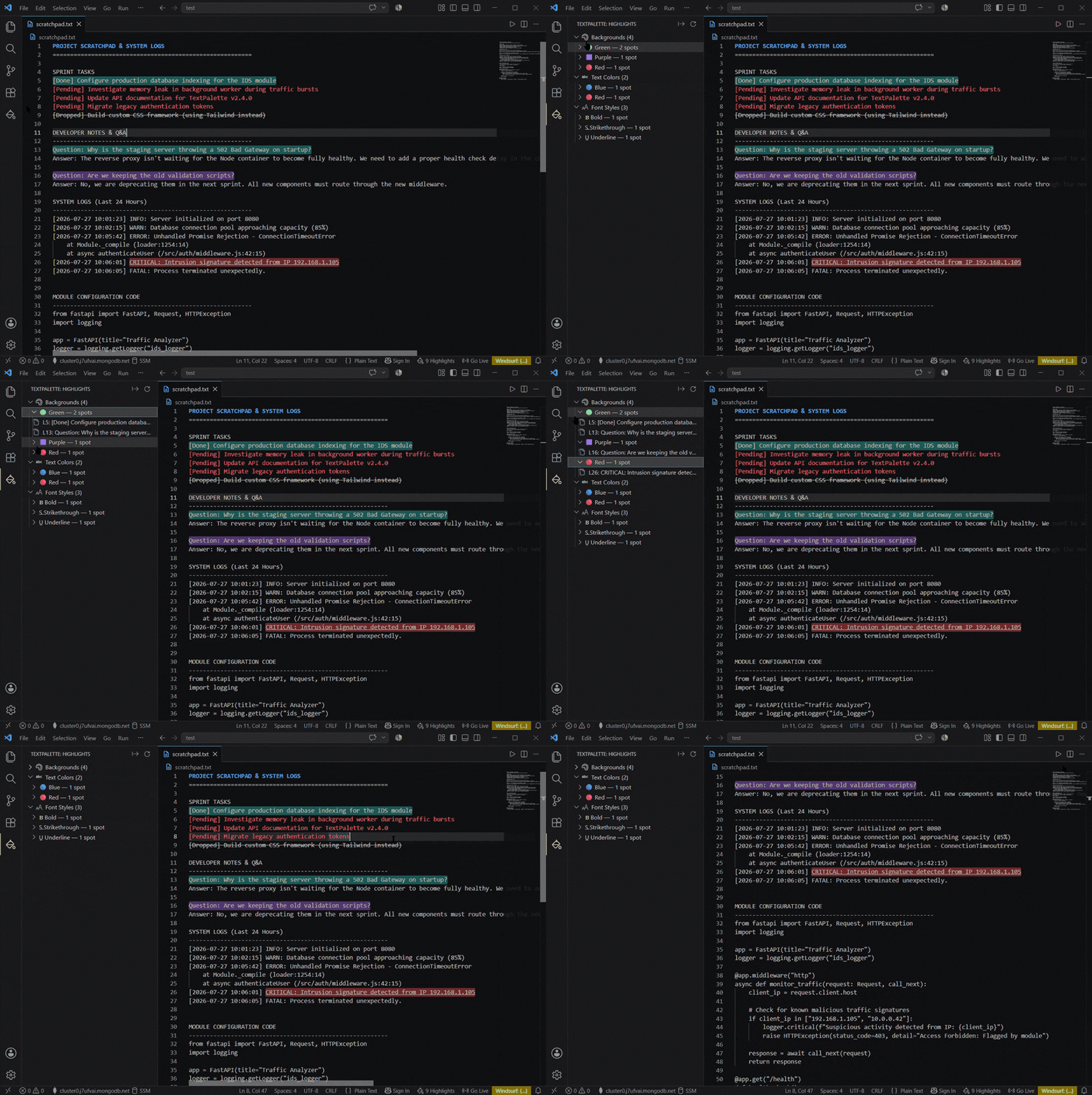
TextPalette brings rich, persistent text annotation right into your editor. Whether you are collaborating on a pull request, reading heavy server logs, or leaving visual breadcrumbs for yourself, TextPalette lets you mark up your codebase exactly like a traditional word processor. ✨ Key Features
🚀 Getting Started
Quick MenuPress Alternatively, right-click any selected text and choose 🎨 TextPalette from the context menu, or click the paint-can icon in the bottom status bar! ⌨️ Keyboard Shortcuts (Key Chords)To prevent clashing with VS Code's default bindings, TextPalette uses Key Chords. Press and release the modifier combination, then press the letter for the color/style you want. You can remap any of these in your VS Code Background Highlights (
|
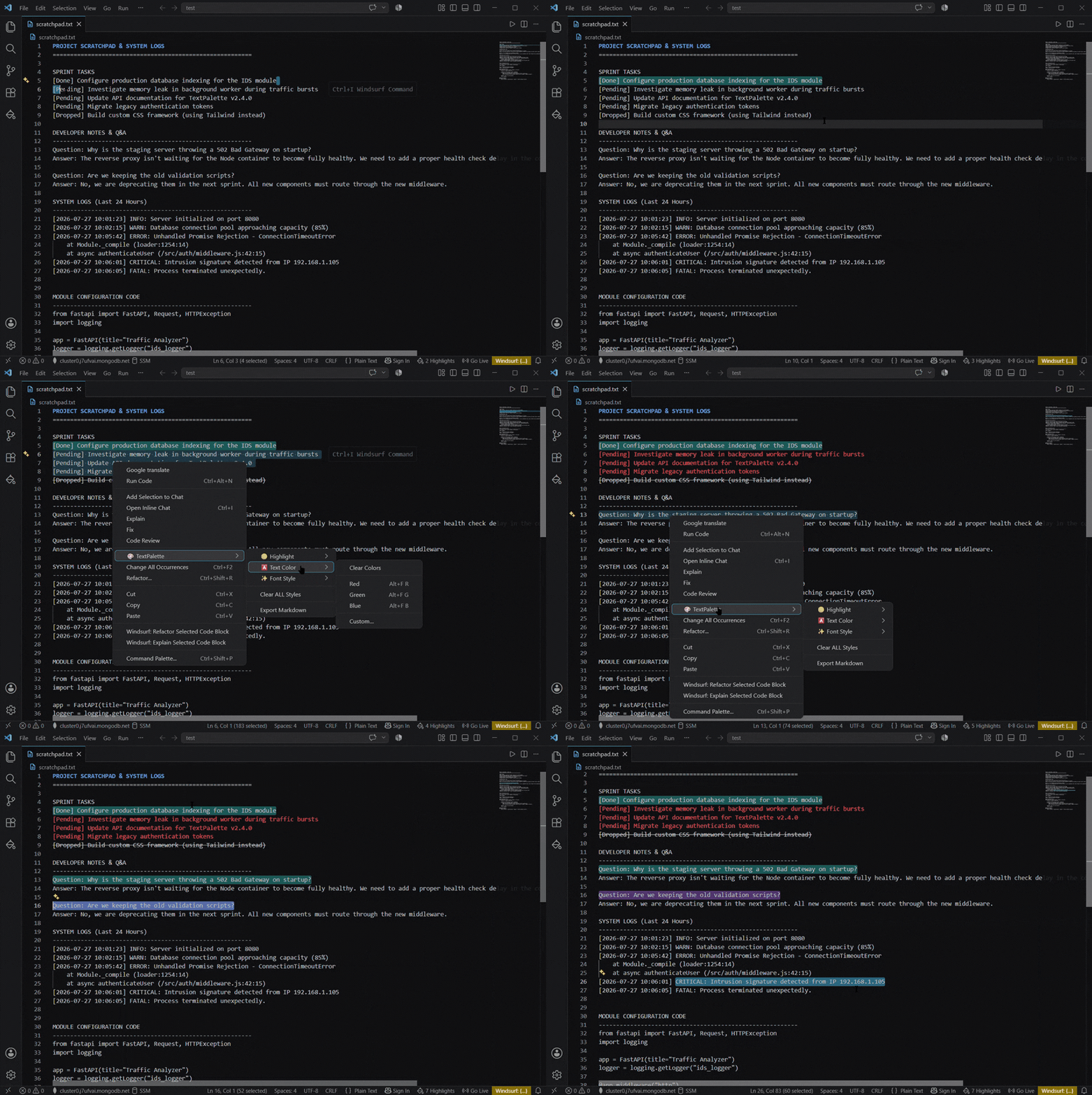
| Command | Windows / Linux / Mac |
|---|---|
| Highlight Yellow | Alt+H then Y |
| Highlight Green | Alt+H then G |
| Highlight Red | Alt+H then R |
Font Colors (Alt + F)
| Command | Windows / Linux / Mac |
|---|---|
| Font Red | Alt+F then R |
| Font Green | Alt+F then G |
| Font Blue | Alt+F then B |
Font Styles (Alt + S)
| Command | Windows / Linux / Mac |
|---|---|
| Bold | Alt+S then B |
| Italic | Alt+S then I |
| Underline | Alt+S then U |
| Strikethrough | Alt+S then S |
(Note: The main Quick Menu is bound to Ctrl+Shift+H / Cmd+Shift+H)
⚙️ Extension Settings
Customize TextPalette's behavior through your VS Code settings.json:
| Setting | Default | Description |
|---|---|---|
textpalette.persistHighlights |
true |
Remember highlights, text colors, and font styles per file across VS Code restarts. |
textpalette.shareHighlights |
true |
Save highlights to a shared .vscode/textpalette.json file so they can be committed to Git and shared with your team. |
🧹 Clearing Styles
You have complete control over how you remove annotations:
- Toggle: Select the exact same block of text and re-apply the active color to turn it off.
- Category Clear: Use the Quick Menu (
Ctrl+Shift+H) to wipe all Backgrounds, Text Colors, or Font Styles at once. - Clear All: Wipe the slate clean and remove all TextPalette annotations from the current file.
🛠️ Installation
- Open VS Code.
- Go to the Extensions view (
Ctrl+Shift+X). - Search for TextPalette (Publisher: 1Danish-00).
- Click Install.
Developed by 1Danish-00