Skip to content
| Marketplace
Sign in
Visual Studio Code>Programming Languages>Stellar KitNew to Visual Studio Code? Get it now.
Stellar Kit

Stellar Kit

vida

|
2 installs
| (0) | Free
Stellar Kit — Build, deploy, and manage Soroban smart contracts on Stellar directly from VS Code. One-click deploy, transaction simulation, and integrated CLI workflows.
Installation
Launch VS Code Quick Open (Ctrl+P), paste the following command, and press enter.
Copied to clipboard
More Info

Stellar Kit (prev. Stellar Suite)

Visual Studio Marketplace License Stellar

  • Extension: VS Code Marketplace · Manage: Publisher Hub

Stellar Kit is a developer toolkit for building, deploying, and managing smart contracts on the Stellar network—directly from your editor. Build, deploy, and simulate Soroban contracts from VS Code without jumping between the terminal and the editor: the Stellar CLI is wired into a sidebar and commands so you can stay in the flow.


What it does

  • Build and deploy contracts with a few clicks. The extension runs the CLI, captures contract IDs, and stores deployment metadata.
  • Sidebar for your workspace: see contracts, build status, deployment history, and run Build / Deploy / Simulate from there.
  • Simulate transactions against the network and get formatted results, resource usage, and storage diffs in the editor.
  • Signing is built in: interactive prompt, keypair file, VS Code secure storage, or paste a signature from a hardware wallet.
  • Errors and progress from the CLI are streamed and parsed so you get clear feedback when something fails.

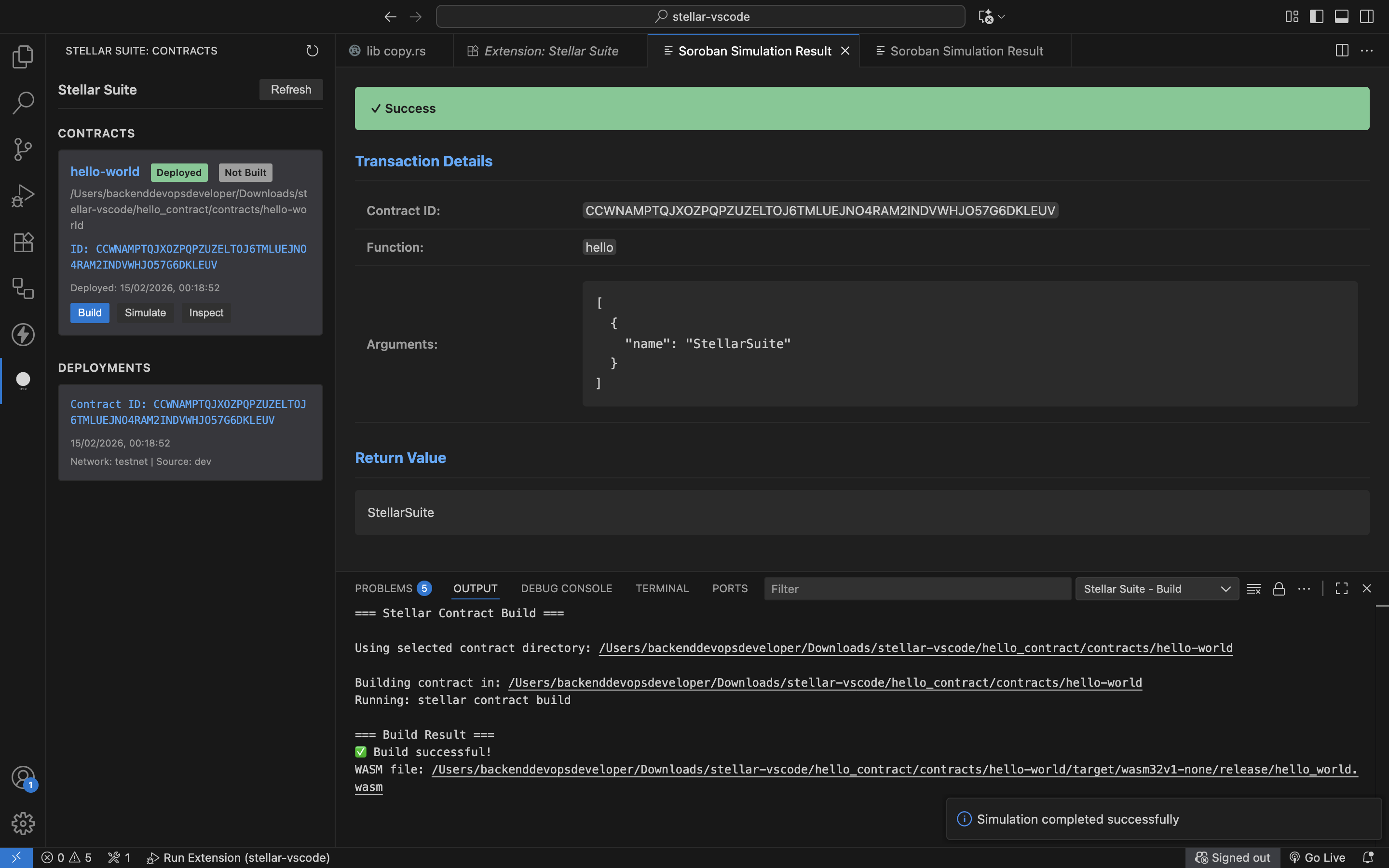
Stellar Kit MVP Screenshot

Screenshot of the current Stellar Kit MVP. The project and repo were originally released as Stellar Suite; the product is now named Stellar Kit.


Install and run

Install Stellar Kit from the VS Code Marketplace (Extensions view, Ctrl+Shift+X / Cmd+Shift+X).

  1. Open a workspace that has a Soroban contract (e.g. a Cargo.toml with soroban-sdk).
  2. Open the Stellar Kit sidebar from the Activity Bar.
  3. Use Build on a contract, then Deploy or Simulate as needed.

Build from source: clone the repo, run npm install and npm run compile, then press F5 in VS Code to launch the Extension Development Host.


Main workflows

Deploy: Command Palette → Stellar Kit: Deploy Contract. Pick WASM, network, source account, and signing method. The extension runs the CLI, handles signing, and shows the result and contract ID.

Build: Command Palette → Stellar Kit: Build Contract, or use the sidebar. Chooses the contract folder if you have more than one.

Simulate: Command Palette → Stellar Kit: Simulate Soroban Transaction. Enter contract ID, function, and arguments; results show in a panel with return values and resource usage.

Configure CLI: Stellar Kit: Configure CLI lets you manage profiles, validate network/source/RPC settings, and export/import config as JSON.


Configuration

Relevant VS Code settings:

  • stellarSuite.network – default network (e.g. testnet)
  • stellarSuite.cliPath – path to the Stellar CLI binary
  • stellarSuite.source – source identity for invocations
  • stellarSuite.rpcUrl – RPC endpoint for simulation (when not using local CLI)
  • stellarSuite.signing.defaultMethod – default signing method (interactive, file, secure storage, etc.)
  • stellarSuite.signing.enableSecureKeyStorage – allow storing keypairs in VS Code SecretStorage

Custom contract templates

Using the Sidebar

The Stellar Kit sidebar provides a visual interface for managing contracts:

  • View all detected contracts in your workspace
  • See build status at a glance
  • See detected contract template/category (token, escrow, voting, custom, unknown)
  • Access quick actions (Build, Deploy, Simulate)
  • Run template-specific actions from the contract card/ context menu
  • Manually assign template categories from the context menu
  • View deployment history
  • Inspect contract functions

You can define templates so the sidebar can categorize and offer actions for your contract types. In the workspace root, add stellar-suite.templates.json (or .stellar-suite/templates.json):

{
  "version": "1",
  "templates": [
    {
      "id": "amm",
      "displayName": "AMM",
      "category": "amm",
      "keywords": ["swap", "liquidity_pool"],
      "dependencies": ["soroban-sdk"],
      "actions": [
        { "id": "amm.swap", "label": "Swap Assets" }
      ]
    }
  ]
}

Contracts that don’t match a template show as “Unknown” until they match or you assign a category from the sidebar context menu.


Contributing

Fork the repo, clone it, run npm install and npm run compile. Use npm test to run the test suite and F5 in VS Code to try your changes in the Extension Development Host. Keep changes focused, handle errors clearly, and update docs when you change behavior.


Support

Open an issue on GitHub for bugs or feature ideas.

  • Contact us
  • Jobs
  • Privacy
  • Manage cookies
  • Terms of use
  • Trademarks
© 2026 Microsoft