EasyView_Md — Visual Markdown Editor for VS Code and Desktop
English | 简体中文
Sample
Demo Part 1
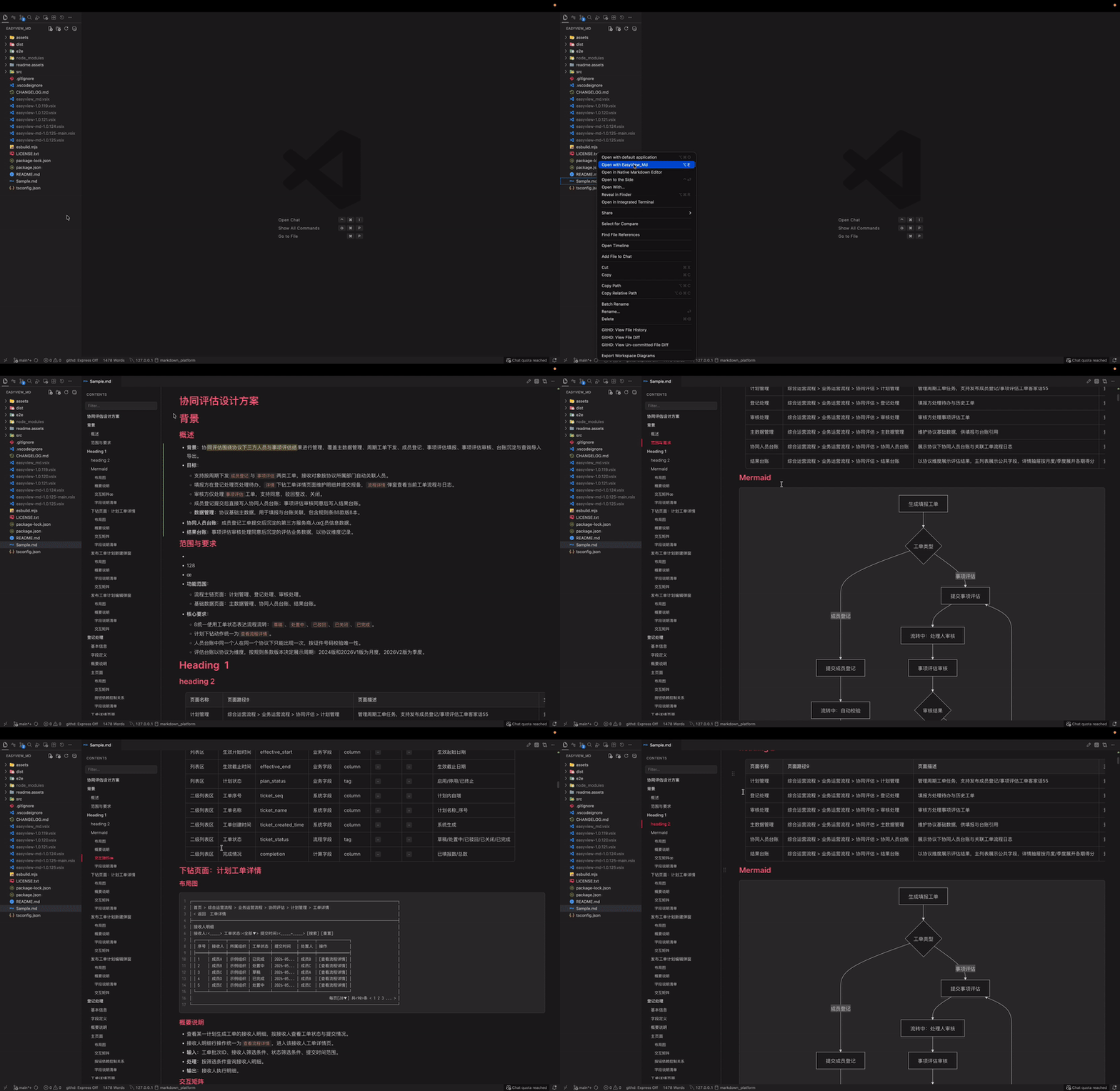
Demo Part 2
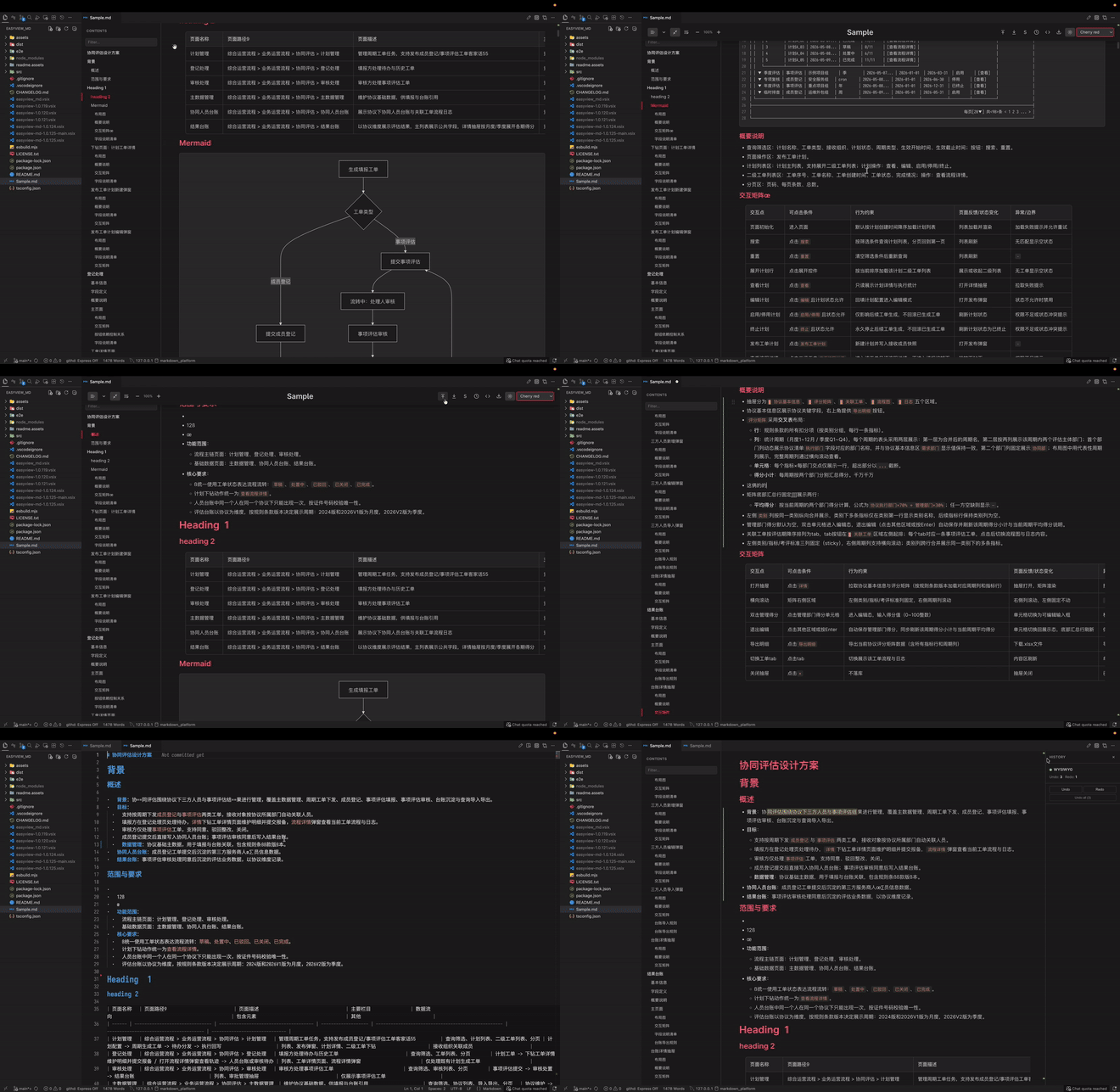
Demo Part 3
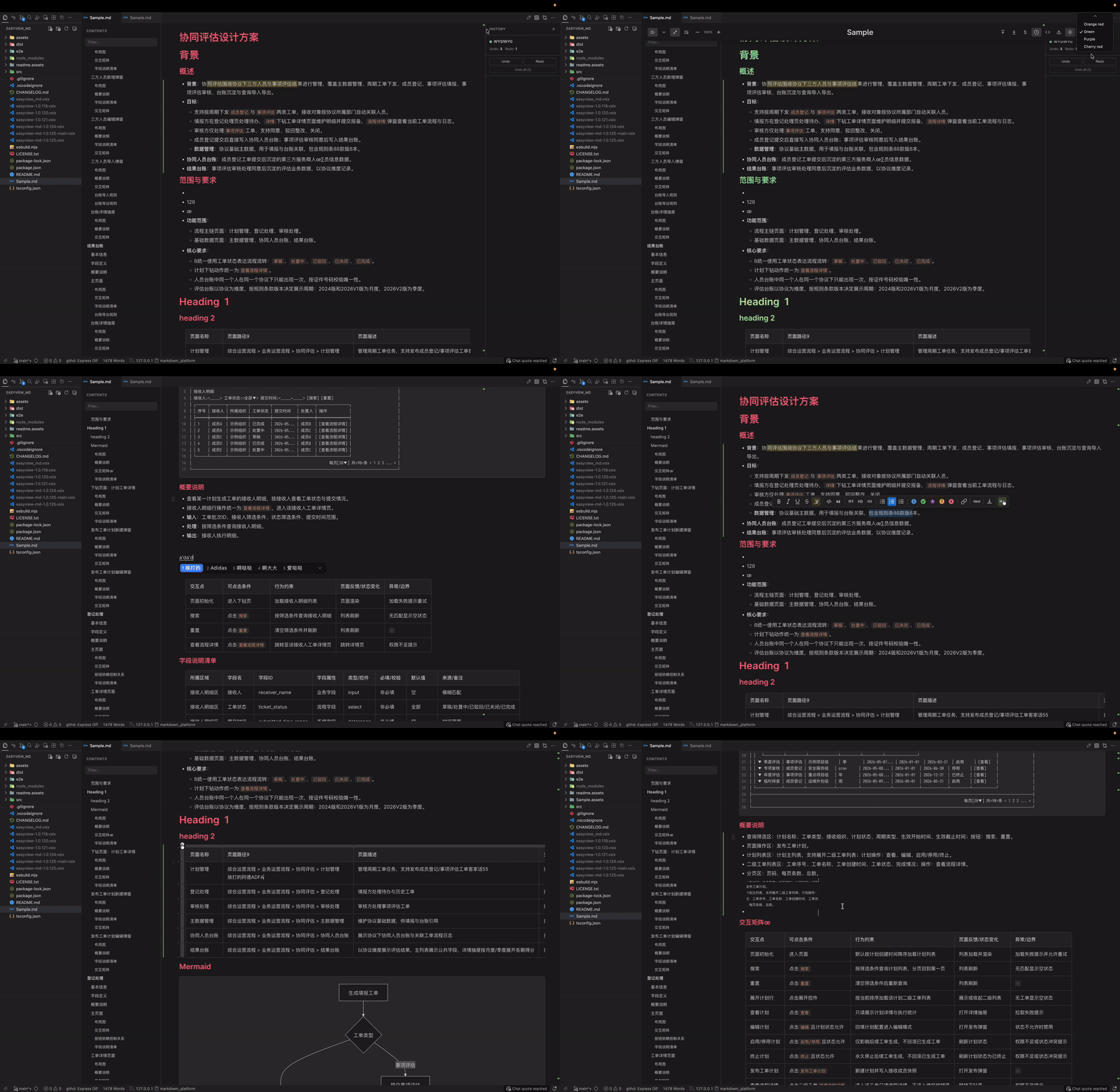
EasyView_Md is a visual Markdown editor available as a VS Code/Cursor extension and an Electron desktop application. Both products share one editor core, Markdown serializer, table implementation, and export pipeline.
Monorepo Architecture
apps/vscode-extension   VS Code/Cursor extension product and VSIX manifest
apps/desktop            Electron desktop product for macOS and Windows
packages/editor-core    Browser-only editor, extensions, controllers and UI
packages/markdown-core  Platform-neutral Markdown parsing, models and transforms
packages/contracts      Cross-platform messages, capabilities and result contracts
packages/node-runtime   Node runtime for Git, terminal, export, conversion and files
tests/e2e               Editor, extension-host and desktop runtime tests
tests/fixtures          Shared test documents and samples
resources               Shared brand, demo, font and runtime-style sources
tooling                  Architecture, maintenance and brand tooling
The repository root is orchestration-only. Product manifests, versions, build outputs and packaging rules live in their own apps/* workspace. The extension and desktop app must reuse the packages above instead of copying editor or host logic.
npm run build                 # VS Code extension
npm run build:desktop         # Electron desktop app
npm run package:vscode        # VSIX under apps/vscode-extension
npm run package:desktop       # Electron application bundle
npm run verify:quick          # types, boundaries, build and unit tests
npm run verify:vscode         # extension host and VSIX verification
npm run verify:desktop        # desktop checks
Desktop Application
The desktop application runs independently of VS Code on macOS and Windows. It supports Markdown editing, built-in source mode, file open/save/rename, local image assets, HTML/PDF/DOCX/XLSX export, Git file operations, and an embedded terminal.
npm install
npm run start:desktop
npm run test:e2e:desktop
npm run package:desktop
Build platform installers with:
npm run make:desktop        # macOS ZIP or Windows ZIP/Squirrel
npm run make:desktop:mac    # macOS ZIP and DMG
Desktop source and platform-specific instructions are in apps/desktop. Current local desktop builds are development artifacts and are not code-signed or notarized.
What's New in 2.0.3
- PDF to Markdown conversion — right-click a
.pdf file and select Convert to Markdown with EasyView_Md. The extension creates an editable .md file beside the PDF, extracts images into a matching .assets folder, and falls back to page images when the PDF has no extractable text.
- Word to Markdown conversion — right-click a
.docx or .doc file and select Convert to Markdown with EasyView_Md. The converted Markdown is created beside the source file, with extracted images stored in a matching .assets folder.
- Reliable document images — Word and PDF image assets are written as relative references where possible, and transparent PNGs are flattened onto a white background for consistent rendering.
- More reliable visual tables — nested tables, cell editing, table scrolling, column resizing, and Markdown/HTML table serialization have been strengthened for complex documents.
- Improved native-editor workflow — Markdown stays compatible with the native VS Code editor, including outline navigation and a one-click return from visual editing to source editing.
- Portable image paste — when Markdown or HTML containing Base64 images is pasted into the native VS Code editor, images are written to the current document's
.assets folder and replaced with relative image references.
- Rich copy with images — copying a selection containing images keeps formatted HTML and embeds image data, so pasting into other rich-text editors retains the selected text and images.
- Improved DOCX and PDF export — DOCX export keeps H1-H4 headings black and bold without adding blank body paragraphs; PDF export includes bundled Chinese and symbol fonts for more reliable CJK, emoji, diagram, and special-character output.
- Update notification — after a new EasyView_Md version is installed and activated, VS Code shows a native update message with a link to the release notes. First installation only records the version and does not interrupt the user.
Editor
- Native editor compatibility — keep Markdown files on the VS Code text editor path when visual editing is not needed
- Native markdown decorations — lightweight inline styling directly in the VS Code editor
- WYSIWYG editing — visual editing with full Markdown serialization
- Source mode — switch to raw Markdown editing with CodeMirror 6 (
Ctrl+/ or Option+Q)
- Auto-save — seamless integration with VS Code document lifecycle
- Dark / Light theme — auto-detects VS Code theme and adapts
- Zoom — adjustable from 50% to 200%
- Full width mode — expand editor to use the entire panel width
- History panel — open editing history from the top toolbar
- One-click stage — stage current markdown file from the top toolbar (
Option+S)
- Accent text themes — choose text accent color (
default, blue, orange red, green, purple, cherry red)
- Slash menu (
/) — quick-insert 30+ block types by typing / in an empty line
- Floating toolbar — context-aware formatting toolbar on text selection
- Drag & drop blocks — reorder any block by dragging the grip handle
- Find & Replace (
Ctrl+F) — with match case, whole word, and regex support
- Block movement — move blocks up/down with
Ctrl+Alt+↑/↓
- Undo / Redo — full history support
- Placeholder hints — helpful text in empty blocks
Left Side
- TOC toggle — show/hide table of contents (
Option+W)
- Collapse all headings — collapse/expand all heading sections
- Full width toggle — switch full-width layout (
Option+A)
- Table word wrap toggle — enable/disable wrapping inside table cells (
Option+D)
- Zoom controls — 50% to 200%, click percentage label to reset to 100%, supports
Ctrl/Cmd + Mouse Wheel
Right Side
- Scroll to top — jump to top of current editor (
Option+↑)
- Scroll to bottom — jump to bottom of current editor (
Option+↓)
- Stage current file — stage current markdown file (
Option+S)
- History panel — toggle history panel from toolbar button
- Native source mode — open raw Markdown in the VS Code editor (
Ctrl+/ or Option+Q)
- Export menu —
Export HTML (Light), Export HTML (Dark), Export PDF (Light), Export PDF (Dark)
- Theme mode toggle — switch light/dark mode (
Option+R)
- Accent theme selector —
Default text, Blue, Orange red, Green, Purple, Cherry red
Markdown Elements
Text Formatting
| Format |
Syntax |
Shortcut |
| Bold |
**text** |
Ctrl+B |
| Italic |
*text* |
Ctrl+I |
| Underline |
<u>text</u> |
Ctrl+U |
| ~~Strikethrough~~ |
~~text~~ |
Ctrl+D |
Inline code |
`` code |
Ctrl+E |
| Highlight |
==text== |
Ctrl+Shift+H |
| Link |
[text](https://github.com/inlinemd/inlinemd/blob/HEAD/url) |
Ctrl+K |
Headings
Six heading levels (# H1 through ###### H6) with:
- Collapsible sections — click the arrow to collapse/expand
- Collapse all — toggle from the file header bar
- Anchor links — copy heading link for navigation
- Drag handle level badge — heading rows show
H1/H2/H3... beside the drag grip
- Shortcuts:
Ctrl+Shift+1 through Ctrl+Shift+4
Lists
- Bullet list (
Ctrl+Shift+8)
- Ordered list (
Ctrl+Shift+9)
- Checkbox / task list (
Ctrl+Shift+7) — with checked, unchecked, and inapplicable states
- Description list — key-value definitions (GitLab syntax)
- Tab / Shift+Tab to indent / dedent
Blockquotes
Nested blockquotes with styled left border. Toggle with Ctrl+Shift+B.
Callout / Notice Blocks
Five callout types with colored left border and icon:
- Note (blue) —
Ctrl+Shift+N
- Tip (green)
- Important (purple)
- Caution (yellow)
- Warning (red)
Code Blocks
- 70+ languages with syntax highlighting (Refractor)
- Language dropdown — select or auto-detect language from content
- Line numbers (auto hidden for
Plain text code blocks)
- Copy button — one-click copy code to clipboard
- Dark / light theme aware
Tables
- Insert via slash menu or toolbar
- Add / delete rows and columns
- Merge and split cells
- Toggle header row
- Column alignment (left, center, right)
- Sort by column (ascending / descending)
- Row & column selection with grip handles
- Move rows and columns via grip toolbar
- Table word wrap toggle
- Keyword badges — highlights
TRUE, FALSE, NULL, N/A, Yes, No, etc. with colored pills
- Export table to CSV — with smart delimiter detection (comma or semicolon based on locale)
Math (KaTeX / LaTeX)
- Inline math:
$E = mc^2$
- Block math:
$$...$$
- Live rendering with KaTeX
Mermaid Diagrams
Render Mermaid diagrams directly in the editor:
- Flowcharts, sequence diagrams, Gantt charts, and more
- Dark / light theme support
- Rendered in exports (HTML and PDF)
Images
- Drag & drop from file system
- Paste from clipboard
- Portable image references — Base64 images pasted as Markdown or HTML in the native editor are saved to the document's
.assets directory automatically
- Rich copy — copy selected formatted content and images to paste into other rich-text editors
- Image toolbar — width/height controls
- Insert via slash menu — by URL or file picker
- Formats: PNG, JPEG, GIF, SVG, WebP, BMP, ICO
Word to Markdown
Convert Word files directly from VS Code Explorer:
- Right-click a
.docx or .doc file.
- Select Convert to Markdown with EasyView_Md.
- EasyView_Md writes a Markdown file beside the source document and puts extracted images in
<document>.assets.
- Select Open Markdown in the completion notification to open the converted file in EasyView_Md.
The conversion keeps document headings, tables, image alt text and dimensions. PNG images with transparency are converted to an opaque white background. .docx conversion requires Pandoc; legacy .doc conversion additionally requires LibreOffice (soffice).
PDF to Markdown
Convert PDF files directly from VS Code Explorer:
- Right-click a
.pdf file.
- Select Convert to Markdown with EasyView_Md.
- EasyView_Md writes an editable
.md file beside the PDF and puts extracted images in <document>.assets.
- If the PDF has no extractable text, EasyView_Md creates page-image references instead.
PDF conversion requires the Poppler command-line utilities: pdftotext, pdfimages, and pdftoppm.
Other Block Types
- Horizontal rule — divider line
- Collapsible sections —
<details> / <summary> blocks
- Frontmatter — YAML metadata block at document start, displayed as a styled table
- Footnotes —
[^label] references with definitions
- HTML blocks — raw HTML editing
- HTML comments — hidden comments with compact icon
- Draw.io diagrams — embedded diagram editing
- Table of Contents —
[[_TOC_]] block with auto-generated heading list
- Emoji —
:shortcode: with visual rendering
Inline Elements
- Footnote references —
[^1]
- Hard breaks —
Shift+Enter
- Inline diff —
{+ added +} / {- removed -} (GitLab syntax)
- HTML inline tags —
<kbd>, <sub>, <sup>, <abbr>, <var>, <samp>, <small>, <ruby>
Smart Typography
-> → arrow-- → en-dash... → ellipsis
- Auto-generated from document headings
- Live updates as you type
- Click to navigate to any section
- Fixed status row — shows
Chars, Ln (source markdown line), and Sel (selected characters)
- Improved
Ln mapping for complex blocks (including tables and special markdown structures)
- Toggle with
Ctrl+Shift+T or the header button
Export
HTML
- Standalone HTML file with embedded CSS
- Light and Dark themes
- All content rendered: code highlighting, Mermaid diagrams, math, footnotes, images, frontmatter
- Images exported alongside HTML in a folder when needed
PDF
- Direct PDF generation via pdfmake
- Light and Dark themes
- Syntax-highlighted code blocks
- Rendered Mermaid diagrams and math equations
- Embedded images
- Auto landscape pages for wide tables
- Footnotes, frontmatter, keyword badges — all preserved
- Page numbers in footer
- Bundled Chinese and symbol fonts for reliable CJK, emoji, and special-character output
DOCX
- Export Markdown to DOCX from the export menu
- H1-H4 headings are exported as black bold headings
- Consecutive body text lines remain line breaks instead of becoming empty-looking paragraphs
- Markdown image size attributes such as
{width=357} are honored without being exported as visible text
CSV
- Export any table to CSV from the table grip toolbar
- Smart delimiter: auto-detects comma or semicolon based on system locale
- Configurable via
easyviewMd.csvDelimiter setting
- UTF-8 BOM for proper encoding in Excel
AI Integration
- Change detection — highlights blocks modified by external tools (e.g. AI assistants)
- Shimmer animation on actively changing blocks
- Gradient gutter — visual indicator for modified/added lines
- Summary toast with jump-to-changes
VS Code Integration
- Default open behavior — Markdown files stay in the native VS Code text editor
- Optional custom editor — the legacy custom editor can still be opened manually when needed
Commands
| Command |
Description |
Open with EasyView_Md |
Open current markdown file in the optional custom editor |
Convert to Markdown with EasyView_Md |
Convert a .docx or .doc file from Explorer into Markdown |
Convert to Markdown with EasyView_Md |
Convert a .pdf file from Explorer into Markdown |
Export to HTML (Light) |
Export as HTML with light theme |
Export to HTML (Dark) |
Export as HTML with dark theme |
Export to PDF (Light) |
Export as PDF with light theme |
Export to PDF (Dark) |
Export as PDF with dark theme |
Supported File Types
Settings
| Setting |
Description |
Default |
easyviewMd.csvDelimiter |
CSV delimiter: ,, ;, or auto |
auto |
easyviewMd.nativeDecorations.enabled |
Enable lightweight inline markdown decorations in the native VS Code editor |
true |
easyviewMd.nativeDecorations.mermaid.enabled |
Enable safe lightweight Mermaid flowchart previews in the native VS Code editor |
false |
easyviewMd.nativeDecorations.tables.enabled |
Enable conservative Markdown table styling in the native VS Code editor |
true |
easyviewMd.nativeEditor.forceMonospaceFont |
Keep CJK-aware language defaults while preserving explicit user/workspace font settings |
true |
Per-File Settings
Add an HTML comment at the top of your markdown file:
<!-- fullWidth: true tocVisible: true tableWrap: false -->
fullWidth — expand editor to full widthtocVisible — show table of contents sidebartableWrap — enable table word wrap
Keyboard Shortcuts
| Action |
Shortcut |
| Bold |
Ctrl+B |
| Italic |
Ctrl+I |
| Underline |
Ctrl+U |
| Strikethrough |
Ctrl+D |
| Inline Code |
Ctrl+E |
| Highlight |
Ctrl+Shift+H |
| Link |
Ctrl+K |
| Heading 1–4 |
Ctrl+Shift+1 – Ctrl+Shift+4 |
| Paragraph |
Ctrl+Shift+0 |
| Checkbox List |
Ctrl+Shift+7 |
| Bullet List |
Ctrl+Shift+8 |
| Ordered List |
Ctrl+Shift+9 |
| Blockquote |
Ctrl+Shift+B |
| Note Callout |
Ctrl+Shift+N |
| Find & Replace |
Ctrl+F |
| Source Mode |
Ctrl+/ or Option+Q |
| Table of Contents |
Ctrl+Shift+T or Option+W |
| Full Width Toggle |
Option+A |
| Table Word Wrap Toggle |
Option+D |
| Theme Mode Toggle |
Option+R |
| Stage Current File |
Option+S |
| Scroll to Top |
Option+↑ |
| Scroll to Bottom |
Option+↓ |
| Move Block Up |
Ctrl+Alt+↑ |
| Move Block Down |
Ctrl+Alt+↓ |
| Hard Break |
Shift+Enter |
| Slash Menu |
/ |
| Save |
Ctrl+S |
Acknowledgements
EasyView_Md is maintained as a secondary-development continuation based on Markdown Inline Editor (CodeSmith).
Thanks to the original author for the foundational editor architecture and implementation.
License
This project is licensed under the MIT License.
See LICENSE.txt for the full license text.
| |

