Skip to content
| Marketplace
Sign in
Visual Studio Code>Debuggers>Roku StudioNew to Visual Studio Code? Get it now.
Roku Studio

Roku Studio

ZeeAlpha Tech

|
2 installs
| (0) | Free
Find Roku devices, sideload your channel, and drive the TV from your keyboard - with live preview, crash diagnostics and an MCP server for AI agents.
Installation
Launch VS Code Quick Open (Ctrl+P), paste the following command, and press enter.
Copied to clipboard
More Info

Roku Studio

Find your Roku, sideload your channel, and drive the TV, without leaving VS Code.

Turn on Live Preview and Keyboard Capture together and you never touch the remote, or even look at the TV. The screen is in an editor tab; your own keyboard drives it. Deploy, navigate, type a URL and watch the result without your hands leaving the keys or your eyes leaving the monitor.

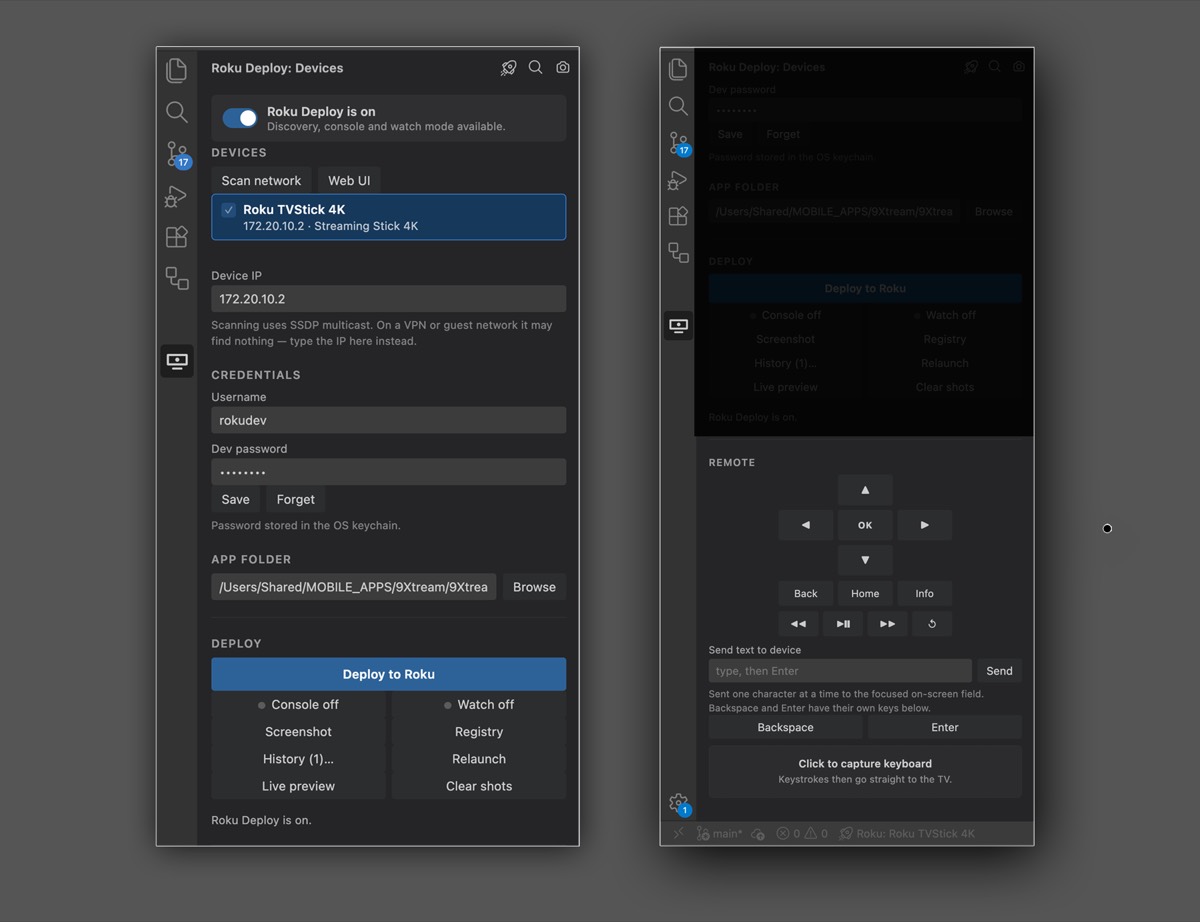
The Roku Studio panel, with device discovery, credentials, deploy controls and the on-screen remote


Everything in one panel

Find any Roku on your network

Press Scan network and every Roku answers with its name, model, serial, and whether developer mode is actually on, so you know before a deploy fails. On a VPN or guest network where multicast is blocked, type the IP instead. Your choice is remembered.

Deploy in one click

Hit Deploy to Roku (or Cmd+Alt+R). The channel is packaged, the old build removed and the new one installed, in seconds. Your developer password is kept in the OS keychain, never in a script or a settings file you might commit.

Errors land in the Problems panel

BrightScript compile errors come back from the device as HTML buried in an install response. Roku Studio parses them and puts each one on the exact file and line in the Problems panel. Click to jump straight to the broken code. Runtime crashes streamed over the debug console are reported the same way, so a Type Mismatch three screens deep still points at the line that threw it.

Live debug console

The BrightScript console (port 8085) streams into an Output channel, and reconnects by itself after every deploy, because the device drops the socket when the channel restarts. All your print output, no telnet window.


Live Preview: see your Roku inside VS Code

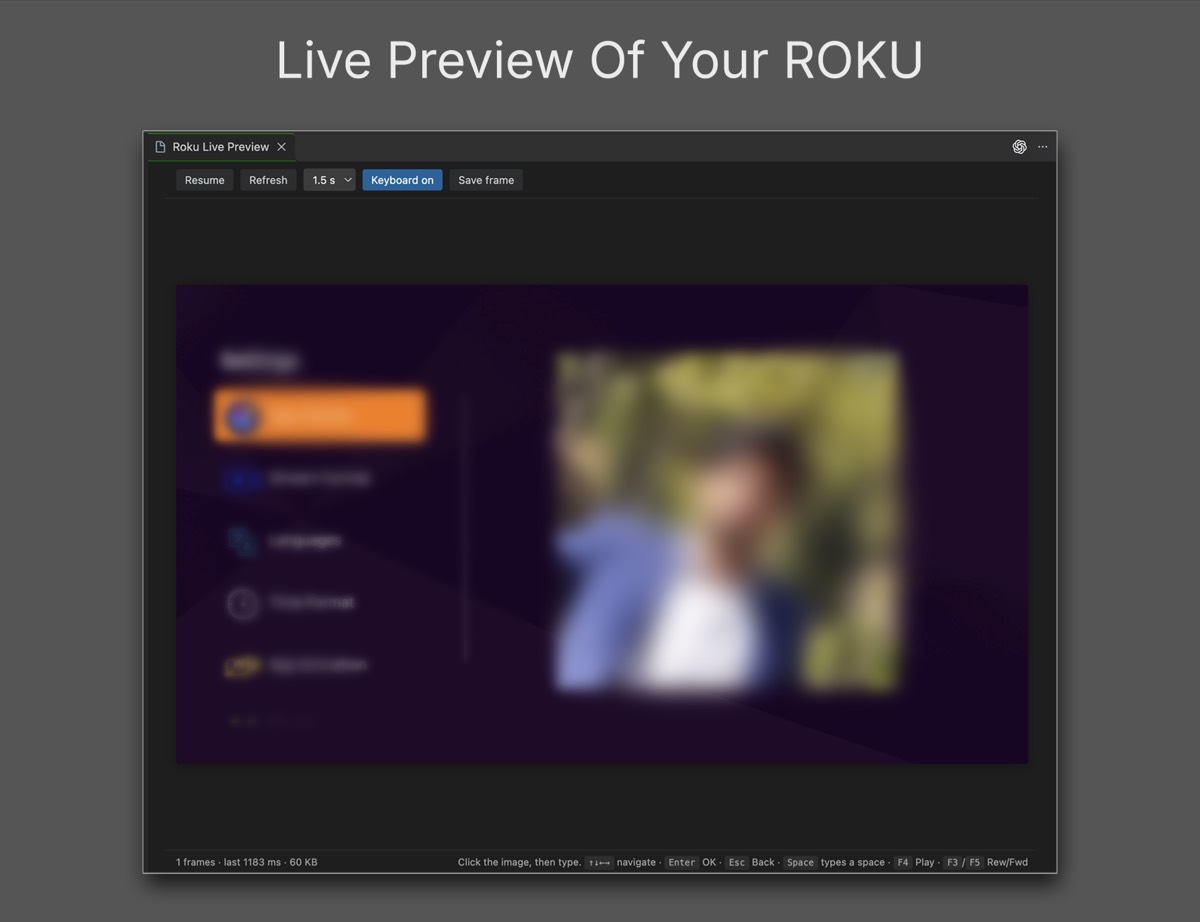
The live preview panel showing the Roku screen inside an editor tab

Watch the TV screen in an editor tab, refreshing about once a second. Then click the image and just type: arrow keys navigate, Enter is OK, Esc is Back, Space types a space, and F3–F5 are Rewind, Play/Pause and Forward.

No second monitor, no craning round to see the TV, no hunting for the remote under the sofa. The device is a window on your desktop.

Paste a URL straight to the device. Entering a long address with an on-screen keyboard takes a minute. Here it takes one Cmd+V.

Roku has no video-out API, so the preview is built from rapid screenshots and refreshes at roughly 1 fps. It is ideal for watching a layout change or confirming navigation; it is not a video stream.


Put the remote down

A full on-screen remote, with D-pad, OK, Back, Home, Info and transport controls, sits in the panel. Below it is the keyboard capture pad: click it once and your own keyboard drives the TV. Every key is echoed back as you type, so you can see exactly what was sent without glancing up.

Together with Live Preview, the physical remote becomes unnecessary. The screen is in one tab, your keyboard is the remote, and the whole loop of deploy, navigate, type and read the log happens on the monitor in front of you.

The capture pad polls nothing, so it costs no network traffic and works on any screen, including during video playback.


Built for a fast loop

Hot reload on save Turn on Watch mode and every save redeploys automatically.
Relaunch Restart the dev channel instantly, without a full reinstall.
Deploy history The last builds are kept. Roll any of them back onto the device in two clicks when a change breaks something.
Screenshots Capture the screen to a file, opened right in the editor. Old captures prune themselves.
Roku Web UI One button opens the device's own developer page in your browser.
Multi-device deploy Tick several devices and push the same build to all of them at once.
On/off switch Working on something else? Flip the switch and the extension goes completely idle, with no sockets, no timers and no watchers. It switches itself off in projects with no Roku manifest.

Everything also lives behind Cmd+Alt+K, a command-palette overlay you can reach without touching the sidebar.


For AI agents: a built-in MCP server

Roku Studio ships a Model Context Protocol server, so any MCP client can drive your Roku directly: deploy a build, read the crash log, take a screenshot, press keys, type a URL. It talks to the device over the network and does not need VS Code running.

Add it to your MCP client's config:

{
  "mcpServers": {
    "roku": {
      "command": "node",
      "args": ["<extension-path>/out/mcp.js"],
      "env": {
        "ROKU_IP": "192.168.1.50",
        "ROKU_USER": "rokudev",
        "ROKU_PASS": "your-dev-password",
        "ROKU_APP_DIR": "/path/to/your/app/root"
      }
    }
  }
}

Nine tools: rokustudio_scan, rokustudio_device_info, rokustudio_deploy, rokustudio_screenshot, rokustudio_keypress, rokustudio_type, rokustudio_launch, rokustudio_console, rokustudio_registry.

Screenshots come back downscaled to 500px and recompressed, a few KB instead of 130 KB, so an agent can look at the screen cheaply. Pass maxPx: 0 for the full 1920×1080 frame.


Getting started

  1. Enable developer mode on your Roku (Home ×3, Up ×2, Right, Left, Right, Left, Right) and set a password.
  2. Open your channel project in VS Code and click the Roku icon in the activity bar.
  3. Scan network, pick your device, enter the password once, press Deploy.

Shortcuts

Shortcut Action
Cmd+Alt+R Deploy
Cmd+Alt+K Quick actions overlay
Cmd+Alt+J Remote control
Cmd+Alt+L Live preview

(Ctrl instead of Cmd on Windows and Linux.)

Settings

Setting Default Meaning
rokuStudio.appDir root Folder holding the manifest
rokuStudio.bumpManifest true Ensure each package differs from the last
rokuStudio.bumpBuildVersion false Also increment build_version each deploy
rokuStudio.autoReconnectConsole true Reconnect the console after a deploy
rokuStudio.scanTimeoutMs 4000 How long to listen for SSDP replies
rokuStudio.watchDebounceMs 1200 Quiet period before an automatic redeploy
rokuStudio.historyLimit 5 Retained packages for rollback
rokuStudio.screenshotLimit 50 Screenshots kept when pruning
rokuStudio.screenshotAutoPrune true Delete the oldest beyond the limit
rokuStudio.liveViewIntervalMs 1500 Live preview capture interval

Good to know

  • Screenshots and live preview need the channel running. Capturing from the Roku home screen returns "Screenshot not ok", so press Relaunch first.
  • The debug console allows one connection. Port 8085 accepts a single client, so the console and an external telnet session cannot both hold it.
  • The registry is not exposed on every firmware. Some devices return nothing for a registry request; the extension tells you rather than showing a blank page.

License

MIT

  • Contact us
  • Jobs
  • Privacy
  • Manage cookies
  • Terms of use
  • Trademarks
  • Your Privacy Choices
  • Consumer Health Privacy
© 2026 Microsoft