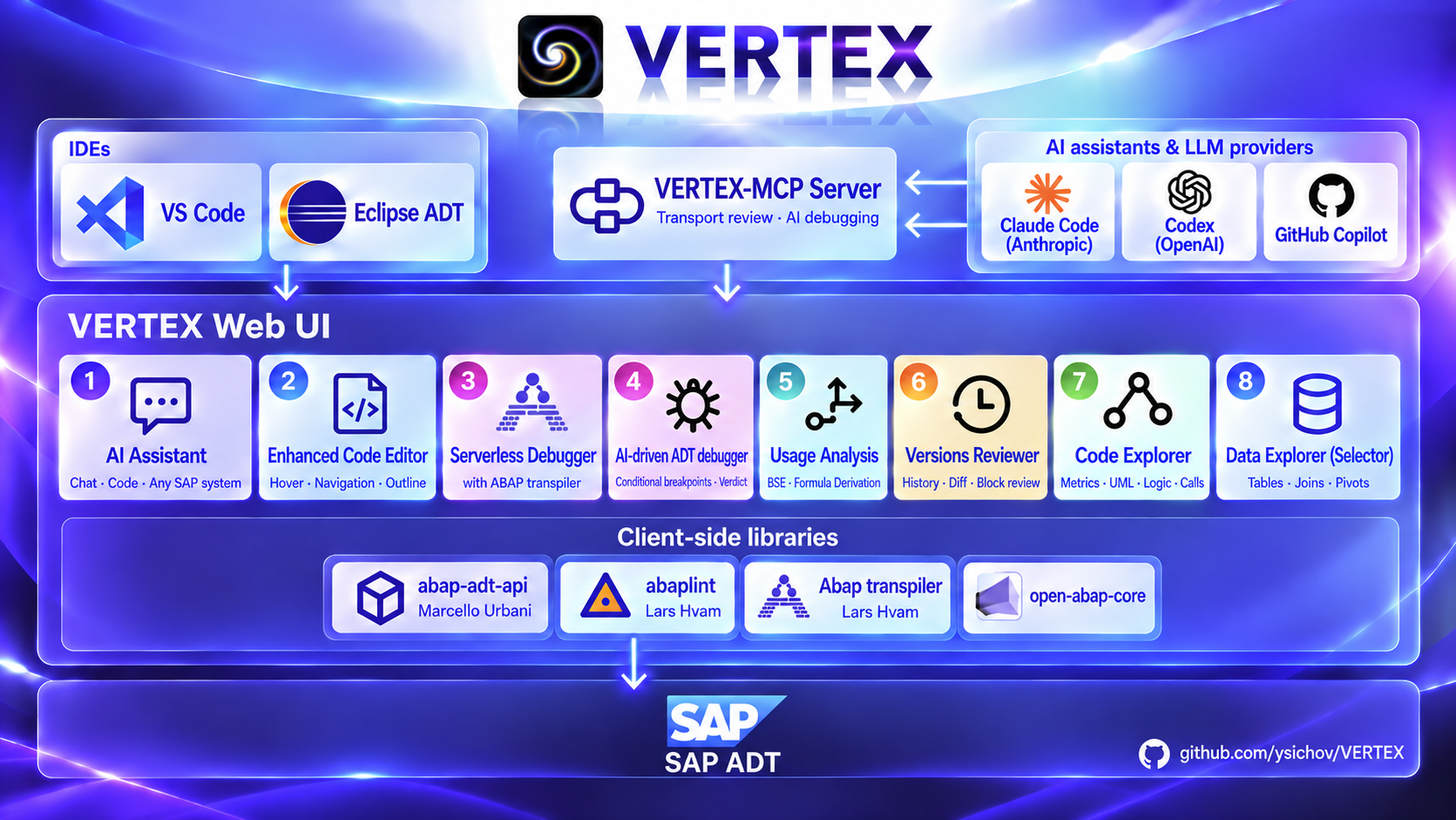
SAP ABAP VERTEX ToolsStandalone AI Code Agent for local Git projects in any language, plus SAP ABAP tools: file review and builds, serverless ABAP execution, visual debugger, code and data explorers, and MCP for AI assistants Installation Launch VS Code Quick Open ( Ctrl+P), paste the following command, and press enter.Copied to clipboard |

SAP ABAP VERTEX ToolsVersion: 0.9.119 VERTEX is a new set of plugins for VS Code and Eclipse ADT. Standalone AI Code Agent for local Git projects — any programming language (VS Code). VERTEX can work as an AI coding agent for an ordinary local Git repository: Python, JavaScript, TypeScript, Java, C#, Go, ABAP or another language. Open the project folder in VS Code, choose a provider and a model that supports tool calls, and give the agent a task in the VERTEX chat. No SAP system or ABAP project is required.
Quick start: open a local Git folder → open the VERTEX panel → choose a provider/model in LLM Providers → ask for a change → review the diff → Apply. Serverless, in VS Code - the ABAP transpiler runs ABAP on your machine:
Against SAP:
Several of them grew out of earlier SAP GUI tools.
The ABAP side, this repository's
Grew out of names where a tool's ideas were worked out first; those projects are not developed
further. VERTEX does not depend on them: nothing from Simple Data Explorer, ACE, AVE, Smart
Debugger or ABAP-AI-Code has to be installed, and none of their code is called. Code Explorer,
Value Origin and VERTEX Smart Debugger read ADT source and analyse it with abaplint in the editor; SelecTor
builds its statements and reads them through ADT's standard data preview; the version history and its diff
come from ADT's revision feed, as in Eclipse's Revision History, and the review of a transport is
built from them in the window. Saving a review to SAP needs one resource of VERTEX's own ABAP,
Getting startedGit and external tools (VS Code)Install Git and make the GitHub access, a remote repository and publishing are not required for local Git operations. For GitHub HTTPS operations, authenticate on the VS Code extension host (including the remote host for SSH, WSL or containers): run Check Ordinary API chat needs the configured provider credentials and network access; it does not require Git, SAP, Python or a separate Node.js installation. Claude Code, Codex and CodeMie modes require their installed client and authentication. Project builds/tests require that project's own toolchain. VERTEX local commands use Windows PowerShell 5.1 on Windows and Recommended companion extension:
ABAP by Lars Hvam
( Open Welcome with VERTEX: Get Started in the Command Palette. Code Agent and GitThe chat opens with Folder selected. Check SAP as well to enable both sources together: local project files and Git reviews stay available alongside the selected SAP system, editor and MCP tools. Check only one to use that source alone. Zero context is exclusive; it sends the chat history, your message and attached images without project or SAP context, tools or Jev routing. Builds on Windows. In Folder mode, use Change… beside the folder name to choose a project without changing the VS Code workspace. The picker lists workspace folders and folders recently chosen in VERTEX; Browse adds another, and Follow active file / workspace restores automatic selection. Ask the agent to build the selected project. Local file and command tools stay available even when the SAP toolset is VERTEX Orchestrator. Commands use Windows PowerShell 5.1 and require command approval; builds default to the real project folder and exclude unapplied working-copy edits. For VERTEX itself, use Agent. The agent reads your folder directly. On its first edit, VERTEX prepares an isolated Git working copy; changed files are read from that copy while unchanged files remain current in your folder. Review edits file by file: Approve the files to copy into your folder, Decline those to discard, then select Apply. To discard only marked files while leaving the others pending, select Delete Declined. Decline All marks every file; Delete All Changes discards every pending edit after confirmation. When closing a review, you can delete all edits or choose specific files to delete. Declining or deleting does not send a rework request to the model. After Apply it can run the project's own build and test commands and fix failures. In an assistant change review, ASK Jev at the top assesses the whole text diff; the file header assesses that file, and a block button assesses one block. Jev compares the visible change with the user requests assigned to the conversation topic, including later refinements. Its advice does not run the program or apply the change. Automatic checks. After edits, before review, VERTEX checks changed JavaScript ( For project linters and tests, add Each matching command runs once per verification pass in the agent's working folder, with a two-minute timeout and the existing shell permission setting. In Git projects with review, the assistant can run Bash commands and builds. Host checks run in its copy; Bash changes in the real project open a read-only Git diff immediately, while changes in the copy go through Apply. Globs match repository-relative paths; commands in a selected subfolder run from that subfolder. Dependencies ignored by Git are absent from the copy: install them there when needed, or the check cannot pass. A declined command is UNVERIFIED. Choose commands that check rather than rewrite source. Runtime behavior, data contracts and generated code require suitable tests; a successful static check or VSIX build does not establish those. Checks describe the working copy before Apply, including any pending changes from earlier turns. Git History (VERTEX panel, beside Folder) lists the folder's commits with date, author and message, filtered by date range, month or author. Uncommitted changes at the top opens the working changes against HEAD. Push… in the header pushes the current branch to a remote; PR… opens GitHub's pull request page for a pushed branch. Commits not yet pushed are marked with a dot before the hash. Git review. A commit or the uncommitted changes open as a file tree beside the diff of the selected file, in Compact (changed blocks) or Full view. Open on a block, or a line number in the diff, opens the file at that line: the working file for uncommitted changes, the file as the commit has it (read-only) for a commit. ASK AI asks about a block, a file or the whole change. ASK Jev assesses a block, file or the whole visible text diff. It finds each file's latest Edit, Write or approved Review in saved logs, reads the topic recorded there, and sends all user requests in that topic, including earlier refinements. A whole-diff assessment includes the topics linked to all its files. This also works when the current chat is empty. Files hidden by Review prompts. A prompt bar above the blocks chooses what ASK AI and Copy prompt ask for: Technical review (bug hunt), Business review (against requirements pasted one per line), Documentation, Test plan or Release notes. A question typed in the chat refines the chosen prompt. With TypeSafe Jev set up, Sort blocks with Jev puts the most significant blocks first and, for a business review, points at the blocks that likely implement each requirement. Prompts… edits all prompt texts, including the commit message and pull request generators; user versions are saved in Commit, Push, PR. Commit opens Summary and Description fields; Generate with AI drafts them from the reviewed diff. The branch selector creates or switches branches. Push previews what it sends and sends committed changes only, never with force. PR (github.com remotes) opens GitHub's comparison page with a generated title and description; you publish it on GitHub. Web search (Vercel AI Gateway): ask explicitly to search the web; only the question is sent, with source links in the answer. Logs & Cost (the $ icon in the VERTEX title bar; the former Session Logs and Usage & Cost windows are now one) has a Logs | Flow | Usage & Cost switch and a shared date range, Today by default. Usage & Cost shows tokens and USD cost by date, activity, provider and model; conversation rows show Model and Jev costs separately, and ≈ marks estimates (for example CodeMie's list-price estimate), not the service bill. Anthropic API costs in the chat panel and Session Logs are calculated from actual tokens at published list prices, including caching; account discounts are not included. Existing logs are calculated when opened. Screenshot recognition and Jev topic routing/tagging appear inside their parent conversation in Session Logs; conversation totals include these calls, and ≈ marks totals that include estimated Jev costs. Enable Choose Flow in Logs | Flow | Usage & Cost to replace the table with a graphical conversation view. Within Flow, Step | Steps | Context switches between a selected request as a left-to-right action flow, all recorded actions, and the prior messages Jev included or excluded for each request. Step shows one prompt as a left-to-right action flow; use the prompt list beside the mode buttons to choose any request in the conversation. Its cards follow user action → model step → tool call and result → response, including the image-recognition result when recorded. Directional connections show recorded step order within and between actor columns, not inferred dependencies. In Step, tool-calling rounds share one VERTEX column headed Round N: a compact processing card shows the panel model name and tool-call count above the individual calls, without duplicating their requests. Select the header card or a tool for its complete logged details. Text-only rounds retain their response previews. In Steps, LLM processing cards retain the round number, tool-purpose or response preview, response type and recorded input/output tokens. Metadata-only rounds are marked explicitly. Each Flow column names its prompt number, topic and question at the top. The prepared LLM request is a separate unnumbered block in Steps. Consecutive tool calls in Steps sit inside a Thinking block as compact operation cards; select a card to inspect its recorded call and result. Context numbers included blocks and identifies their source prompt. Excluded history is summarized as a percentage without individual cards. A summary above the graph totals estimated LLM context tokens saved across requests with recorded selections and separates topic-selection savings from duplicate-attempt savings. Reconstructed older records show an unattributed estimate because they did not record duplicate checks. Each column shows included context blocks and summarizes excluded history by percentage in its saved-token comparison bar. Context uses theme colors to identify included topics; excluded blocks are hidden. Block height compares estimated token counts across the visible requests, with the number printed on each block. The current question is always included, so the first request shows 100% of its conversation context and zero savings. Savings compare the selected history plus that question with the full history plus that question, estimated as characters / 4. When a selected topic has several completed exchanges, one additional Jev check evaluates which prior results are verified successes and which attempts they can replace. For binary Jev answers, the Yes probability is the confidence measure; no separate confidence field is required. A failed attempt resolved by a strongly verified result may be removed at 65% duplicate probability; other exchanges require 80%. The retained representative is the verified result with the fewest recorded tool steps when known, otherwise the latest verified result; distinct requirements and unresolved failures stay. Incomplete attempts and legacy untagged exchanges are considered too. A local replay tool ( In the chat, streamed model thoughts and answer text appear in one chronological flow: thoughts use the theme reasoning color and answer text stays green. Codex requests a reasoning summary when the model provides one; the summary is labeled separately from raw model thoughts. To see the recorded Claude Code/CodeMie parts later, configure Session Logs numbers tool calls and shows query results as tables. Click a SELECT to reopen it in SelecTor with its joins and filters; this reads current SAP data. Click a revision link to read that historical source through the original SAPRead toolset and open it read-only. Codex turn totals are labelled separately from individual API model calls. Jev results in a conversation, its chronological steps and technical Jev logs offer Rerun and Test in Jev chat when the saved decision input is available. Rerun sends that same input to the recorded provider/model again; normal provider charges may apply. Test in Jev chat loads the saved input for editing. Older logs without a saved input show the controls disabled.
Local ABAP executionVERTEX runs ABAP on your machine with the bundled abaplint transpiler: open a local Setup, what runs and the debugger: Local ABAP execution. The ABAP backendThe repository's First run
SettingsIn the VERTEX panel's title, the server icon opens the SAP Systems table, the sparkle opens LLM Providers, and the gear opens every VERTEX setting in the Settings editor. Animations
ConnectingConfigure SAP Systems (the server icon in the VERTEX panel's title) lists the configured systems. Per row: make it active, switch SNC or password logon, switch it off, Log in (the password is kept in the OS credential store), Test and Delete. Above the table: Import from SAP Logon and Eclipse, Edit in settings.json and the connection log. In SAP Systems, the SNC checkbox switches a system between SNC single sign-on and password authentication.
Turning SNC off keeps its connection details in settings; turning it back on
requires The universal VSIX carries prebuilt RFC bindings for Windows x64 and macOS on
Apple silicon. SNC requires local VS Code, Secure Login Client, and the SAP NW
RFC library installed on your computer. On Windows, VERTEX looks for
Over RFC, hover and navigation send the whole source of the open object to SAP, and The direct SNC connection builds on fr0ster-forks' auth-broker PR #1: VERTEX sends ADT requests over RFC through Several clients of one system. List them in For SNC, SNC can be refused before connecting:
If the SAP library or binding cannot load, VERTEX names the missing component and includes the load failure. Running a program under the debugger opens WebGUI. ADT breakpoints do not catch a SAP GUI (SAP Logon) session. For SNC systems too, browser logon for WebGUI is SAP's (SSO certificate/SPNego or password), independent of SNC. The Eclipse plugin inherits its connection from the ABAP project. There is no
project to inherit from here, so the systems are a list and one of them is
active. They live in VS Code's own settings file: Ctrl+Shift+P →
Preferences: Open User Settings (JSON), and the entries below go into it.
Workspace settings ( A first install opens Get started with VERTEX (VS Code's Get Started page; later Help > Get Started): import the systems, test them, choose the assistant, add the VERTEX MCP server - each step with its button. The quickest way is VERTEX: Import SAP Systems (also a button in SAP Systems and a link under The Systems with SNC single sign-onA system that logs on with SNC single sign-on - SAP Logon's Activate Secure Network
Communication without SNC logon with user/password - has no password VERTEX could use over HTTP.
VERTEX: Import SAP Systems reads a SAP Logon entry's SNC name, protection level and RFC address into VERTEX's own SNC connection: the application server and instance of a direct entry, the message server, system ID and logon group of a group entry. It finds the ADT HTTP address; the client and user come from the selected Eclipse workspace or are asked.
When an SNC connection fails, its message names the address it used, and the VERTEX output (Open connection log
in SAP Systems) records each connection. Code reviews are saved where CommandsVERTEX: Open Panel (or the VERTEX icon in the Activity Bar) opens the chat. VERTEX Tools opens the tools window: choose an object type and a name, then a function - Object Navigator, Data (SelecTor), UML, Metrics, Calls and Logic diagrams, Diff, Versions and the review of a transport. Every command and window: Commands and the VERTEX Tools window. Clickable ABAP sourceThe old SAP GUI was great because every meaningful name was something that could be clicked.
VERTEX applies that idea to the editable Currently supported:
Interface method calls navigate to the implementation reported by SAP, including calls on references inferred from factory results. The target can be an interface-qualified Navigation is provided only for source read through VERTEX and therefore does not depend on an ADT project being open. If SAP ABAP Development Tools is available, its own editor navigation and context-menu commands remain available too. Source view versus editable sourceEvery object does not have the same action set. The object type determines the available VERTEX functions: transports focus on Versions and review; classes and programs can offer source, metrics, flow/scheme and diff; packages offer their package-level views. This keeps unavailable or meaningless actions out of the toolbar. There is no View source function. The source is the editor: choosing an object to read opens its VERTEX tab (ask the chat to open it, as below), and the structure of that tab - a class's sections and methods, a program's forms, events and local classes - is VS Code's Outline, Ctrl+Shift+O and the breadcrumbs, with a click to go to the line. In Tools an object starts on its first function: UML for a class, Metrics for a program. The Parts list at the left of Tools stays for the functions that follow one part: the Logic and Calls diagrams. Metrics and UML draw the whole object and have none. The chat context follows the active function. UML sends the diagram's object, nodes, method names and relationships instead — not a method signature — so it can be analysed directly. Ask the chat explicitly to open or edit an object — for example, Open ZCL_FOO please — to open a normal, editable VS Code tab instead. Changes made there are still sent to SAP only through VERTEX: Review & Activate or VERTEX: Save & Activate. Value OriginIn VS Code the analysis is reached through VERTEX Smart Debugger: a breakpoint's Analyze flow path is Forward Usage Analysis from that point - to the next checked point the flow meets, else to the end - for the value chosen in Variables, and its Where used is Backward Usage Analysis. Neither has an editor menu or palette entry of its own. What follows describes the analysis itself. Without a value chosen in Variables, Analyze flow path offers FLOW with Full scope; Formula, Expression and BSE are disabled until a value is chosen. Both Value Origin windows expose Analysis log directly above the flow. Copy log copies the engine, source loading and parsing times, source closure, definitions, dependency edges, traversal, warnings, and Formula/Expression diagnostics. The log is accessible without enabling the technical sections. Choose a value in Variables of VERTEX Smart Debugger and click Analyze flow path on a breakpoint
(Forward Usage Analysis, formerly Analyze Variable Value Origin). It answers how that value is computed, down from the breakpoint across calls, without running
the program: the sources are read through standard ADT and parsed with the bundled abaplint, customer code ( The result has a Type. FLOW is what the program does - its statements grouped by class and
method, nested by blocks and their branches, with a node on each call edge naming what that call
passes ( Where used (Backward Usage Analysis) goes the other way: from the routine up into its callers, found by SAP's where-used, following the value - the variable under the cursor, or else the routine's parameters and attributes - through each caller and further up. Standard SAP code is not followed. Breakpoints stop the walk one level of callers at a time. The tab must be saved. Run Select. VERTEX: Run Select (editor context menu) runs the SELECT at the cursor read only through ADT's data preview and shows the rows beside the code. Values only the running program supplies are dropped from the WHERE, and the dropped parts are listed. A SELECT on one table, view or CDS entity opens in SelecTor with its conditions as selection lines; a SELECT with joins opens in SelecTor's Join when the dictionary supports it. Expression is a third Type beside FLOW and Formula: the derivation written out as one formula,
by substitution alone. Each definition stands where its value is read; a step that adds or takes
off a share of the value before it ( The debugger's Analyze flow path draws Flow, Formula and Expression with the same code: only where the rows come from differs. The assistant is given what is on screen - the flow, the formula or the expression, within the depth set - labelled as analysis, not a run. What it does not claim: a concrete database-dependent iteration order, a runtime value, or which branch a dispatch takes. Those stay explicit boundaries, and the analysis log below the tree says what was read and where it stopped. VERTEX chatIn VS Code chat, each newly attached screenshot is recognized independently by the selected Vision-capable model, without conversation history, workspace context or tools. Jev identifies screenshot topics by the recognized scene and retains visual evidence and the latest answer when assessing follow-ups. Jev and the answering model receive its factual description; conversation context retains only a file reference and description. You can send a screenshot without text: the assistant identifies the visible problem or asks a specific clarifying question. While a request is processing, paste a screenshot and press Enter to add its recognized description at the next model step; the existing recognition animation runs separately without replacing the main task. If the active request cannot accept it yet or is finishing, the attachment is restored in the input for the next message. Recognition is a separate model request with its own usage accounting. New conversation clears the chat context. Remote API model catalogs are saved locally after the first load and reused when switching providers or restarting VS Code. Rebuild a catalog explicitly in LLM Providers to discover changes. Model selections apply immediately to the saved catalog. Each API credential has its own catalog; local servers keep a live list of loaded models. The VERTEX panel in the Activity Bar has a free-prompt chat. The panel's title holds three icons: SAP Systems, LLM Providers, and the gear for every VERTEX setting. The top line holds the SAP system list. The question box, the provider and model lists and New conversation stay at the bottom of the panel; the answers scroll above them, questions and answers in different colours. Each question shows its local time; questions from earlier dates also show the date. Asking for a VERTEX function — open table SFLIGHT, show the diff of ZCL_FOO — opens a VERTEX Tools window on it. To begin with a package or program, name it in the first request, for example open package Z_BILLING or open program Z_INVOICE. A single match opens in Object Navigator; if a plain name has no exact match, VERTEX tries a prefix and then a contained-name search. An explicit wildcard is used as written. With an ABAP source active - a local Context protection. VERTEX masks credential fields such as Additional field names and case-insensitive Live debugger values and SAP source are unchanged. Existing SAP recordings are protected when loaded, but existing files are not rewritten automatically. The filter does not inspect screenshots or other binary content, and cannot intercept an external agent's own filesystem tools. ASK AI in Assistant changes opens AI Review in the main chat with the selected block, file or all changes. An AI Review box above the chat input shows the reviewed object and its files and blocks. The selected review prompt appears in the input. Edit or replace it, then press Send; nothing is sent before that. Each question and answer appears in the chat as a step marked [AI Review · …]. Follow-up questions in the input stay in the same review. Review settings in the box has the same review types as Git review (choosing one loads its prompt), Requirements for this review (non-empty requirements are included automatically), Copy prompt and Prompts… for the prompt files. The settings collapse when a request starts. Expand them to make changes; entered settings are preserved. The review has its own conversation and log identity: it excludes the main chat history and has no tools, so it does not apply or edit files. Check again refreshes the snapshot and starts a new review. × closes the review, the next question goes to the chat again, and your earlier chat draft is restored. Discuss in chat under a review answer closes the review and attaches that result and its reviewed snapshot to the next chat question. Expand Attached review result to inspect it, or remove it with the attachment’s × button. The file tree of Assistant changes starts at the selected project root; ASK Jev results appear above the diff. Local ABAP programs and classes also have VERTEX navigation in the editor: Outline, Go to Definition for local method and class calls, and Back. The VERTEX Tools context menu opens UML for classes, metrics, Logic and Calls diagrams from local source using the bundled ABAP parser. Forward Usage Analysis and Backward Usage Analysis run on local workspace files and include unsaved editor text. Backward usage locates callers by textual call matching within the workspace, so check ambiguous calls. Diagram links return to local source lines. Diff/version history, SAP where-used, tests, ATC, debugger and activation require a configured SAP system. VERTEX: Path to This Line (editor context menu) shows the conditions under which the line at the cursor runs inside its METHOD or FORM: enclosing branches, earlier branches that must be false or must not leave, and CHECKs, written as in the code. Value sources shows where each variable in those conditions gets its value. In the Diagram, the Reachability toggle lights up the same path. No SAP system is needed. ABAP blocks fold in the editor by their structure, not by indentation, so unformatted code folds as well as formatted: IF, CASE, LOOP, DO, WHILE, SELECT loops, TRY, METHOD, FORM, FUNCTION, MODULE, CLASS and INTERFACE from the opening statement to the line before the closing one, and each ELSEIF, ELSE, WHEN, CATCH and CLEANUP up to the next branch. A condition written over several lines stays visible when its block is folded. For a folder of local ABAP files, choose VERTEX Tools: Analyze Local ABAP Package
from its Explorer context menu. UML includes its classes and interfaces; Metrics summarizes
all recognized The chat also runs the two checks the editor has: run the tests for ZCL_FOO runs ABAP Unit on the object and answers with how many test methods passed, how many failed and why, and run ATC on ZCL_FOO answers with the variant and the findings by priority. Both need no open tab, both show the same run in the Test Explorer and the Problems view, and both are refused while that object's tab holds unsaved edits — the run needs the active SAP source. Where-used and the keyword documentation stay editor commands, Shift+F12 and F1 in a source tab: SAP answers them for a position in the source, not for a name, so the chat says which key does it instead. Providers
A provider offers in chat only the models ticked in LLM Providers. A model the provider adds to its catalog later appears in the table marked new and stays off until you tick it; the VERTEX panel says how many new models are waiting and links to LLM Providers. A ticked model the catalog no longer lists stays in the table marked not in catalog and is not offered; if it is the chosen model, the panel says so and asks for another one. The catalog is read again each time the VERTEX panel opens. LM Studio and Ollama start switched off in VERTEX: LLM Providers; switch one on there to offer it in the provider picker. When LM Studio or Ollama is picked, VERTEX says at once whether it is installed, whether its server answers and how many models it has; when it is not installed, Download opens its site. A local server on another address or port is set in A subscription is used through its installed client. VERTEX runs the Claude Code
or Codex CLI from its VS Code extension or a native installation. Copilot models
come from VS Code's Language Model API. For EPAM CodeMie, VERTEX runs
Open LLM Providers → API providers → MF0.AI and save a key with Add or replace key. Enter a model ID and select Add, switch it on in the table, choose In use, and select Save to use MF0.AI in chat. MF0 has no built-in model catalog in VERTEX and adding an ID does not contact MF0. MF0 text generation is asynchronous: after HTTP 202 VERTEX polls the returned generation ID until the result is ready, then records returned usage and cost.
Choose the active name manually in LLM Providers; VERTEX uses that key for
model loading and requests. Existing single keys appear as The panel shows the provider's short name. Changing the provider there
switches at once and clears the chosen model ( Decision models: TypeSafe JEV and GeminiChoose Auto (Jev) in the chat to show the decision-model list beside it. It groups all enabled decision models by provider; choose the exact model, for example Gemini → Gemini Decision 1 or TypeSafe → jev-preview. This selection is saved independently of the chat model and is used for topic routing, Tag topics, ASK Jev and block sorting. Add the corresponding key in LLM Providers and enable the model there first. The ◇ marker appears only in LLM Providers. Decision models are also listed in the chat model list of their provider: choosing any of them — TypeSafe Jev, Gemini Decision 1 or OpenCode Jev — switches the chat to the Jev decision interface, where you enter context and questions and get choices and probabilities instead of chat text. Gemini Decision 1 uses Google's native Decisions API. Gemini cost is shown only when the API reports it; no list-price estimate is added. Free quota depends on the Google project. Each model row in LLM Providers has two rate cells you fill in by hand from that tier's own conditions: In tok/min (input tokens per minute) and Calls/min (requests per minute). Providers state different ones - Gemini's free tier refuses a decision with "limit: 50000 input tokens per minute", while a provider that counts calls needs the second cell - so fill in whichever your tier publishes, or both. VERTEX keeps requests for that model inside them and waits instead of exceeding them, so the model finishes the work rather than failing on a rate limit. One orchestrator tool selection costs roughly 26000 input tokens, so a 50000 token budget allows about two per minute. Each model counts its own minute, and nothing crosses between models or providers. An empty cell means that limit is not enforced. While VERTEX waits, the chat says so and for how long. The counters see only what VERTEX itself spends - another window or tool on the same key spends the same quota unseen, and tiers may also cap requests per day. TypeSafe Jev APITypeSafe Jev is a decision model, not a chat. Add a TypeSafe API key in LLM Providers, then pick TypeSafe Jev and a Jev model in the panel: it turns into a form with a context, questions (Yes / No, Choose an option, Rate on a scale) and Run Jev. Answers come with confidence and probabilities. Only the entered context and questions are sent. Jev is also used by ASK Jev in reviews and Sort blocks with Jev in Git review. OpenCode ConsoleOpenCode Console takes a named OpenCode API key in LLM Providers; its catalog can be filtered by provider, availability and free models. Which models are offeredOpen VERTEX: LLM Providers from the VERTEX panel's sparkle icon. Check models sends one short paid request to each model of a provider and switches off the ones that fail, with the reason; Stop keeps the results so far, and Hide unavailable hides failed models. Save applies the choices to the chat. Vercel AI Gateway and OpenRouter list their models by provider, with capability icons (tools, JSON, reasoning, image input, web search, context size) and input/output prices per million tokens; click a column heading to sort. In the chat, ⓘ beside a model shows its details. LLM Providers shows every provider with its own checkbox, In use switch,
and a fold button for its model list. Each provider can be expanded or collapsed
independently. Clear all / Select all switches that provider's model checks
in one click; after clearing, tick the models you want before saving. Only the
ticked models appear in the model lists; with no model
chosen, the first enabled model is used. A provider switched off
keeps its model ticks but is left out of every provider choice; the one in use cannot be switched
off - choose another first. With no provider switched on, the chat panel shows no provider, model or
effort choice; the same holds when the provider in use has no models - its error stays in the panel, and VERTEX: LLM Providers switches to another. While no provider with models is available, review pages hide their ASK AI buttons and keep the prompt buttons. Save refuses a provider with no model ticked, and resets a chosen
model that is no longer offered. The choice is kept in
Several systemsThe chat can publish an OData V2 or V4 service binding ( The chat can also read table contents itself: its With MCP: VERTEX selected, ask the chat to find a BSP by its Fiori screen title or technical name. The panel's chat can reach every system in A VERTEX Tools window keeps the system that was active when it opened, and its tab is named after it — VERTEX E19. Everything started from the window works against that system; choosing another system in the panel affects only windows opened later. The window has no chat of its own: the chat is the one in the VERTEX panel. ASK AI inside a review — on a block, an object or a developer's or reviewer's blocks — opens that panel with the selection on the chip above the input; you write the question and send it yourself. Enter sends a question and Ctrl+Enter inserts a new line. The question box grows with what you type or paste and then scrolls; ⤢ in its corner expands it to most of the panel, and ⤡ shrinks it back. Ask in any language, for example show ZCL_TR_TEXT_DATA, explain this method or add a check for an empty table here. The chat searches and reads SAP source itself and opens the object in an editable tab on the right. Follow-up requests about "this code" use the active SAP editor tab as context. The chat never writes to SAP on its own: a change it makes goes into the object's tab, unsaved, and you save it with VERTEX: Save & Activate or VERTEX: Review & Activate - or undo it with Ctrl+Z. If the tab already holds edits that SAP does not have, the chat's change is refused rather than written over them: save or undo yours first. Code reviewerFor a transport review, open VERTEX Tools → Transport Request → Review, then an object, class or Expand all. Standard diff / VERTEX diff switches line alignment without rebuilding the review or changing decisions. VERTEX diff is selected initially and keeps repeated statements in order when displaying a commented ABAP block, highlighting the added ASK Jev beside ASK AI (when the selected decision model is set up) checks whether the supplied context is enough and estimates the probability of auto-approval from the visible diff and user requests. The percentage runs from red through yellow to green. When a linked user topic is available, it also checks whether the diff implements that request. A whole review assesses each changed file separately. If Jev needs more context for one file, it retries with additional changed files from the same diff. The displayed auto-approval likelihood is the lowest file/part probability, and the result names the counts. It never approves, declines or applies anything. Edit SAP source in a VERTEX editor tab, then choose VERTEX: Review & Activate in the editor title or context menu (or ask the chat to save your edits). The Code Change panel shows the edits against the current SAP source, cut into blocks with context lines:
Ctrl+S saves the local copy only, never SAP. Development statusReview instructions and conversationsIn Versions' Assistant, choose a review profile above the conversation. Expand Review instructions to edit it. Save profile updates the profile with that name; enter a new name to create another. The current text is sent with each request, including unsaved edits. Built-in profiles cover general review, SQL/performance, security and tests. Follow-up requests include previous messages and their object/version context.
Profiles and the conversation are kept in the webview's local storage when
available. New conversation, or sending The tested integrations are GitHub Copilot in VS Code, Claude Code, and Codex in VS Code. Claude web, ChatGPT web, Claude Desktop, and other MCP clients are not supported or tested yet. The remote HTTP host is experimental and documented for future development only. Where MCP comes in
MCP is how Claude Code and Codex are given tools in both cases. The difference is who connects them: the extension, for one request, or you, once. Choose the chat's SAP toolsThe MCP list in the VERTEX panel, beside the SAP system and client, picks where the VERTEX chat's SAP tools come from:
The ⚙ beside the list opens the settings of the picked server: its write access (ARC-1, mcp-abap-adt,
vibing-steampunk and its path), SAP's With an MCP server picked, its tools replace VERTEX's SAP read and write tools in the chat; the debugger and ABAP transpiler tools stay VERTEX's. Picking a server opens a window that first asks what the server may change in
SAP; every choice is read-only by default, so pressing Start without a change
keeps it read-only. The server then starts in the same window with an install
scene. The choices are kept in the settings below and can be changed there later.
A server left picked starts again in the background when VS Code starts; if it
fails, an error message says why.
A started server keeps running until VS Code closes: switching to another server
and back, or enabling its toolset from the orchestrator, does not start it again.
The servers need nothing installed except Node.js: vibing-steampunk is a single executable, not an npm package: download The server works on the active SAP system with its url, user, client and the
password VERTEX keeps in the OS credential store; nothing is entered again.
mcp-abap-adt reads its connection only from a file, so VERTEX writes a temporary
SAP ADT is different: SAP's extension runs that server itself and logs on with its own systems (destinations), so VERTEX hands over no system or password and asks for no write access - SAP's settings decide. To use it:
The ⚙ beside the MCP list opens these settings when SAP ADT is picked. After a change to them SAP's extension restarts its server and logs off: log on to the system there again. The chat then works on the systems logged on in SAP's extension, which may differ
from the system active in VERTEX; SAP's tools name their system in Toolsets: extra tools on demandThe MCP list replaces VERTEX's SAP tools with one server's. Toolsets add a few
tools of another server only when a task needs them: the chat gets one small
The default set SAP RAP takes from the SAP ADT server its RAP generators (table,
CDS view, behavior definition, service definition and binding in one go), the
service-binding tools (publish, OData details), object actions, activation and the
transport-request tools - about a fifth of that server's tool descriptions. It needs
the SAP ADT server set up as above and works on SAP's extension's systems; the model
is told to name the system it changes. Sets are defined in Outside VERTEX Orchestrator, only toolsets marked Global VERTEX workflow and MCP orchestration are separate. For code changes, the shared workflow runs lint/automatic checks, then asks Jev to compare the performed edit with the complete changed diff before showing human review. This is independent of the MCP toolset. It does not assess readiness of the whole task, require a later build/Apply, or run a completion decision for ordinary question–answer exchanges and builds without edits. Enable the shared decision model and key in LLM Providers; the existing Jev gear chooses it. Change verification with Jev and its separately accounted usage appear in the log. A positive Jev opinion cannot override failed host checks. If Jev finds an incorrect or unverifiable edit, the executor gets one recovery attempt with actual errors and original constraints. Automatic-check repair uses that same budget. If the repeat remains unsuccessful, the explanation and continuation question appear in the chat. Reply continue there, or select another model and then continue; the conversation and working copy remain available. Jev details use the normal decision table, including confidence and probabilities when recorded. Open Steps (chronological) in a logged prompt to see events in recorded order. Each row has its time and actor: LLM, Tools, Checks, Jev, VERTEX orchestrator or MCP orchestrator. Calls and results have separate positions. Recovery states are preserved without repeating an entire Jev verdict. The same reader applies to historical logs; missing internal CLI events are not reconstructed. MCP tool orchestration is the VERTEX Orchestrator choice in the MCP list. It selects tools and, when needed, MCP execution stages; it is not the global multimodel workflow described above. Choose VERTEX Orchestrator in the MCP list. A single Jev request selects the functions
needed for the task and chooses After each staged MCP execution attempt, Jev assesses its stage completion checks against recorded tool results. Executor claims alone do not prove success. Failed or unverified checks block advancement; a missing decision is reported as unverified. The existing single recovery attempt may obtain missing evidence within the same permissions and action budget. This stage routing remains separate from the pre-review code-change check; no whole-task completion assessment is added after synthesis. Direct is the default. The executor receives the whole task and all selected function schemas,
without a planning-model call or an arbitrary two/three-function cap. A task needing five functions
or ten actions is not split merely because it has several steps. Explicit Jev exclusions are
respected; Jev chooses staged only when separate contexts or dependent discovery materially justify it. Only then does the chat model create a validated JSON plan of 1–6 stages. The host runs stages in order, passing relevant dependency reports instead of full prior conversations. Each stage keeps the SQL/code baseline plus at most one specialized function and must return a matching JSON report. Invalid or unresolved blocked stages do not advance; one missing-capability retry stays within the same authorization and remaining stage budget. Direct tasks have a 32-action budget; staged execution has six actions per stage. Both stop after three consecutive tool failures. Repeated successful reads reuse actual results in the same system and question; cached attempts still count toward the budget. Failures are not cached, and writes invalidate previous results. Authorization is fixed by the initial Jev decision: inspection-only tasks cannot run new ATC/Unit/syntax checks or write data. Existing host access and review rules apply. The gear beside the MCP list, or VERTEX: Configure Orchestrator Jev Model, selects the shared Jev decision model used by Auto (Jev) and review assessments. Enable that model and its key in LLM Providers first. ARC-1 must be configured and reachable. A missing model or invalid decision stops before execution; a failed staged selection does not advance the plan. In Session Logs, tool selection and Jev stage verification appear inside their parent conversation. The log shows the selected execution mode, function set and verification result. JSON plans and stage reports appear only for staged runs. Each Jev stage records its subtask, decisions and probabilities, selected and deferred tools, authorization exclusions, time and usage. Detailed inputs require question logging; stage result bodies respect answer logging. Local commands and post-review builds return output up to 8 KB in full. Larger output is saved permanently under MCP Servers windowThe ⓘ button beside the MCP list opens VERTEX: MCP Servers: every server with
its description, version, toolsets and a table of its tools - the toolset each is
in and whether it may change SAP. Versions and tool lists are those kept from each
server's last start in VERTEX, so nothing has to run to show them; Read tools
starts a server once to read them. After VS Code loads, and again each time this window opens, VERTEX asks npm whether
a newer ARC-1 or mcp-abap-adt is out; if so, Update appears beside the MCP list
and in the window. Nothing is installed until you press it: the newer version is
written to Settings:
Run one MCP tool yourselfA tool does not have to go through the chat. In the VERTEX Tools window pick
MCP as the object type: the name field lists the servers of
Run sends the call and shows what came back by the shape of the answer: a
list of rows as a table, SQL and fenced code with their language, an image as an
image, other JSON as its structure, and anything else as the server's own text.
An answer that carries its rows under a key - A server offers its tools here only once VERTEX has read them - after it has been used in the chat, or after Read tools in the MCP Servers window. Review transports with Copilot, Claude Code or CodexVERTEX serves two read-only MCP tools. The same tools come from two servers. Which one depends on where the assistant runs:
The Assistant panels in SelecTor and Versions need neither: the extension starts Claude Code or Codex for them itself. The server in this extensionIt starts with VS Code, on
A window reload changes nothing about a registration. After changing
Then ask, for example: Review transport DEVK900123 using the VERTEX SAP tools. Debug with an assistantAn assistant can run the ABAP debugger by itself: set breakpoints with conditions SAP evaluates, start the program in WebGUI, read what the program held where it stopped, and end with a verdict that names the line and the values that prove it. You describe the problem; you do not step through the code. VERTEX Smart Debugger shows the same session on screen, and records a run for replay. Setup, how a run is caught, breakpoints, dumps and the tools: Debug with an assistant. Set up SelecTor or Versions with a sentenceAssistant in SelecTor's bar opens a chat. It uses the provider and model chosen in the VERTEX panel; write what to show, for example SFLIGHT for carrier AA, joined with SCARR. The assistant reads only the table's layout — fields, keys, texts, the tables the dictionary offers to join — and no row of any table. It answers with the state SelecTor is to be put in; the extension checks it against the dictionary, and the window fills in the selection panel, the join and the pivot and runs the query as if it had been clicked. A plan naming something the table does not have is shown as an error and changes nothing. Versions has the same Assistant: the last change of CALCULATE in ZCL_MY_CLASS, the review of DEVK900123, the CALCULATE part, describe the method GET. It reads what the window can show — parts, versions, the change a version made, whole sources, and a saved review with its blocks and verdicts — so it describes and reviews code, and it moves the window to what it talks about the way the clicks would. That source goes to the model you chose, as it does with the MCP review tools; SelecTor's assistant never sees a table row. ExamplesA request can be written in any language; the answer comes back in the language of the request. SelecTor:
Versions:
A subscription provider needs the Claude Code or Codex extension installed in this VS Code: VERTEX starts the copy that comes with it, with your login, in an empty folder, with no other MCP server and no shell. See Providers. What it writesEverything reads, with one exception: saving a code review - and approving, declining and
commenting in it - writes the review to AcknowledgementsThe experimental client BSE parser uses abaplint by Lars Hvam and contributors (MIT). The VS Code extension talks to SAP ADT through abap-adt-api by Marcello Urbani (MIT): reading and writing source, activation, the debugger, ABAP Unit, ATC, where-used, keyword documentation. It travels inside the VSIX with its licence, as do the other npm packages it depends on (MIT, Apache-2.0, BSD-3-Clause), each in its own folder. The Eclipse plugin does not use it: it works through the platform and ADT only. The direct SNC transport uses fr0ster's @mcp-abap-adt/connection, auth broker and Release notesWhat changed in each version: history.md. LicenceMIT. See the project. |