Terminalogue
Turn Markdown code blocks into animated terminal sessions. Write commands and sample
output as plain text; Terminalogue plays them back in the built-in Markdown preview as if
someone were typing at a real terminal.
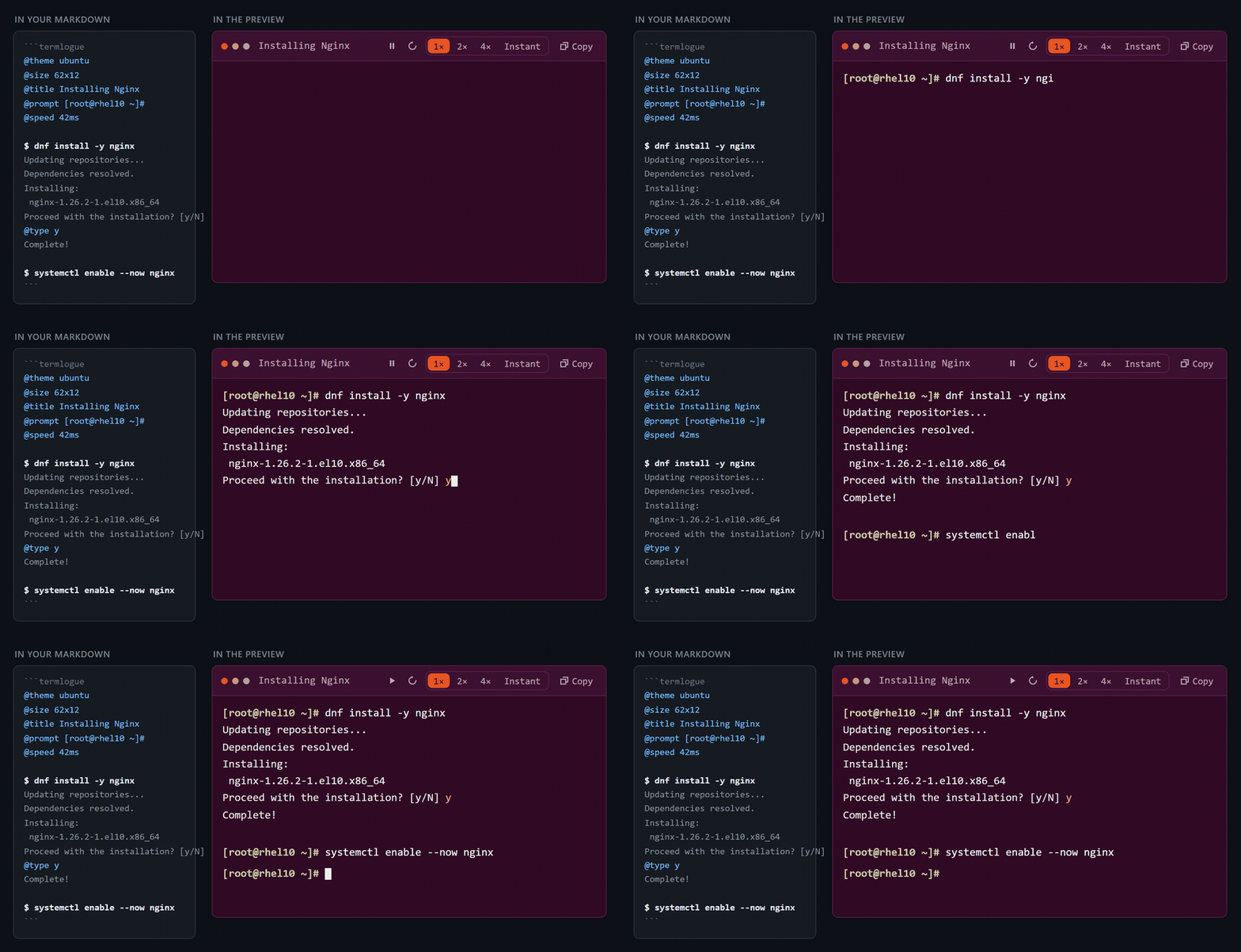
Write a termlogue fenced code block:
```termlogue
@theme ubuntu
@title Installing Nginx
@prompt user@ubuntu:~$

$ sudo apt install nginx
Reading package lists... Done
Building dependency tree... Done
@wait 800ms
Setting up nginx...
```
…and the preview shows a terminal window in which the command is typed one character at a
time, with a little human-looking jitter, followed by its output appearing line by line.
The reader can play, pause, restart, pick a playback speed of 1× / 2× / 4× / Instant,
and copy the block's commands to the clipboard.
Commands are never executed. Terminalogue is display-only — see Security.
Getting started
Terminalogue extends the built-in Markdown preview; there is no custom preview or
webview to open. Install the extension, then press Ctrl+Shift+V (Cmd+Shift+V on macOS)
on any Markdown file containing a termlogue block.
Blocks start playing when they first scroll into view, so a long page does not fire off
every animation at once.
The DSL
Every line in a termlogue block is one of four things.
| Line |
Meaning |
$ command |
A command, typed one character at a time. The $ is syntax, not output. |
| Anything else |
Terminal output, revealed a whole line at a time. Whitespace is preserved exactly. |
@directive |
A directive (below). |
\… |
An escape: \$ x and \@title show a literal $ or @. |
| Directive |
Effect |
@title <text> |
Sets the terminal window title. |
@theme <name> |
Visual theme: light, dark, ubuntu, powershell, cmd. Defaults to dark. |
@size <columns>x<rows> |
Fixes the terminal body at that many columns and rows, e.g. @size 80x24. Omit it for automatic sizing. |
@prompt <text> |
Prompt used by every command after this line. Defaults to $. |
@type <text> |
Types text onto the end of the line already on screen — how you answer an interactive question. |
@wait <duration> |
Waits for a fixed time before continuing. |
@pause [label] |
Stops playback until the reader presses Play. The label is optional. |
@speed <duration> |
Base per-character typing speed. Defaults to 55ms. |
@typo <probability> |
Chance from 0 to 1 that a typed character is mistyped and corrected. Defaults to 0. |
@clear |
Clears the terminal screen. |
Durations are a number followed by ms or s: 800ms, 1.5s. Unknown directives,
malformed durations, unknown theme names, unusable sizes and out-of-range typo
probabilities produce a diagnostic with a line number, rendered inside the block — a
mistake never breaks the preview.
@typo 0.02 gives every typed character a 2% chance of being struck wrong: the finger
lands on the key immediately left or right of it on the same QWERTY row, Backspaces, and
types the intended character after all. It applies to $ command lines and @type input,
never to output, and it is purely a playback effect — the finished terminal, the accessible
transcript and Copy always hold the command you wrote. 0.01–0.02 reads as a human
at a keyboard; @typo 0 (the default) turns it off.
Terminal size
@size 80x24 gives a block a fixed terminal viewport: eighty character columns by
twenty-four rows, measured on the terminal body, with the title bar and the controls
outside the count. The area is reserved before playback starts, so nothing below the block
moves as the session types itself, and output longer than the rows scrolls inside the
terminal the way it does in a real one.
Columns run from 20 to 240 and rows from 5 to 100. A terminal never grows wider than the
preview pane: when there is not enough room the terminal stops at the pane's width and long
lines wrap, and the font is never shrunk to keep the columns. Without @size a block is
sized automatically, exactly as before.
Themes
| Theme |
Looks like |
dark |
A modern developer terminal. The default. |
light |
A white screen with near-black text, for light documents and printed pages. |
ubuntu |
Ubuntu's terminal: deep aubergine screen, warm orange accent. |
powershell |
Classic Windows PowerShell: solid blue console, console-yellow prompt. |
cmd |
The classic Windows Command Prompt: black screen, silver text, no ornament. |
A theme changes colours and nothing else. In particular it does not touch the prompt —
@theme powershell still renders a $ unless the block also says
@prompt PS C:\Users\Administrator>. All five themes clear WCAG AA contrast, and none of
them depends on a platform-specific font, so powershell and cmd render correctly on
macOS and Linux too.
Controls
▶ ↻ 1× 2× 4× Instant Copy
Play/Pause resumes where it left off; Restart plays from the beginning. The speed
multiplier divides every delay the document asks for, and Instant drops delays
altogether — but it ignores time, not control flow, so @pause still stops playback.
Every block on a page has entirely independent state.
Copy puts the block's $ command lines on the clipboard, one per line. Prompts,
terminal output and @type input are demonstration material, so none of it is included.
Accessibility
- With
prefers-reduced-motion: reduce, nothing autoplays and the finished terminal state
is shown immediately.
- The animated screen is
aria-hidden; assistive technology reads a separate, complete
transcript instead, so typing never produces per-character announcements.
- Every control is a real
<button> with an aria-label, reachable by keyboard. The
selected speed is marked with aria-pressed, not by colour alone.
Security
Terminalogue never executes anything. A termlogue block is prose that happens to look
like a shell session.
- No shell, no
child_process, no terminal or task integration. No eval. No network
requests — it is entirely client-side and works offline.
- Copy only ever writes a string to the clipboard. It does not read the clipboard, and
nothing runs what it copied.
- Block content is never treated as trusted HTML: text reaches the DOM through
textContent, so <script>alert(1)</script> renders as literal terminal text.
The extension is enabled in untrusted workspaces and in virtual workspaces, because it only
ever renders text.
Also for Obsidian and for Marp
The same parser, renderer and stylesheet ship as an Obsidian plugin and as a Marp CLI
engine, so a block looks and animates identically in a Markdown preview, in a note, and on
a slide. See the repository.
License
MIT. See LICENSE.

