AI-DLC Panel
See where your AI-DLC workflow stands, what to do next, and how much it cost — right inside your IDE.
No more digging through terminal logs or state files. One AI-DLC icon in the Activity Bar shows progress, artifacts, review status, and token usage, and lets you continue the workflow. The panel reads engine state read-only — it never touches or changes your workflow files.
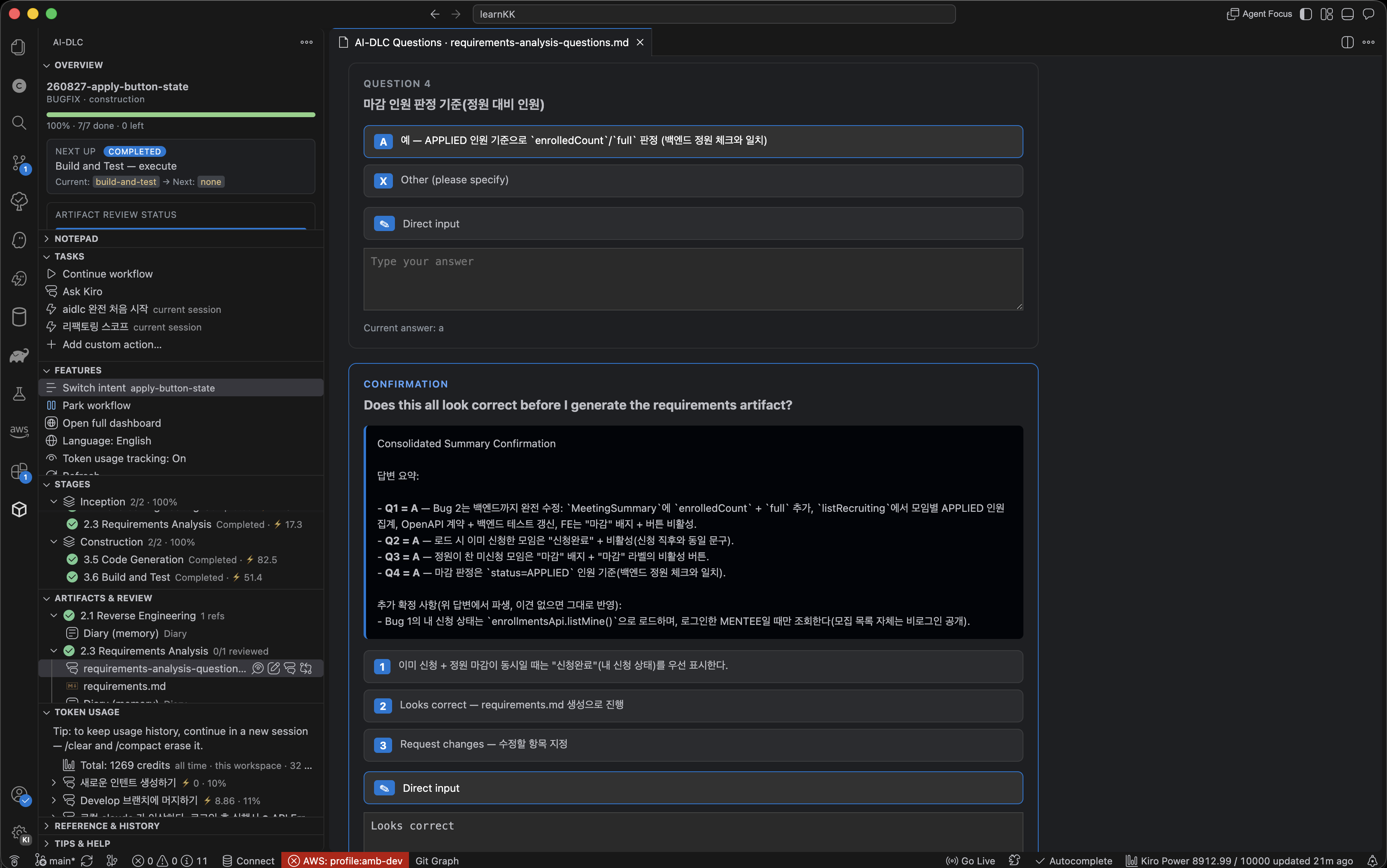
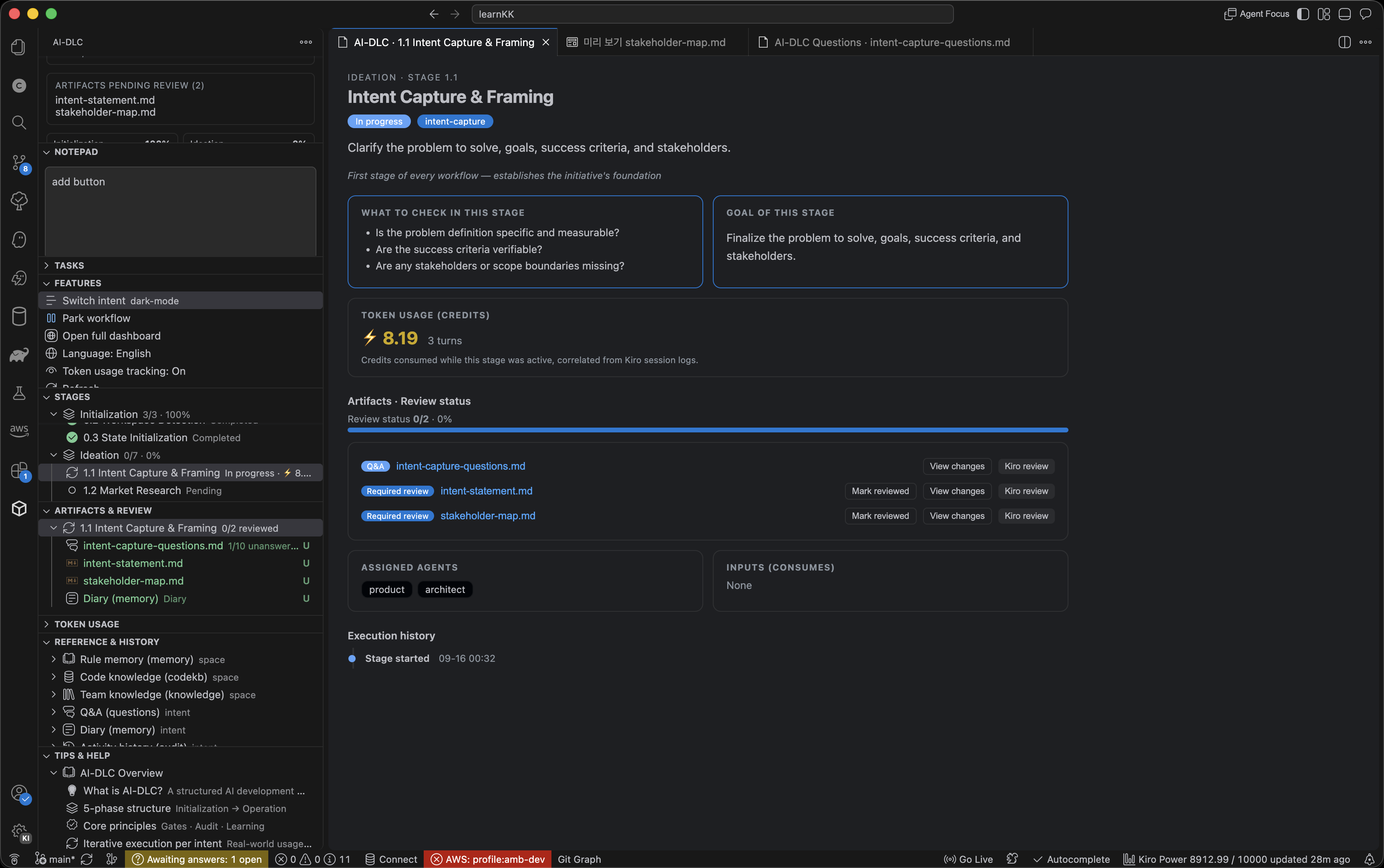
What you can do
- Know where you are — overall progress, current Phase/Stage, and the next action at a glance.
- Review artifacts — open the files each stage produced, mark them reviewed, and diff against the previous git state.
- Answer questions inline — click through choice questions, or review a summary and approve/request changes for confirmation-style questions.
- Track token usage — Kiro credit consumption per stage, per intent (cumulative), and per session.
- Get notified on gates — a status bar item and notification when the workflow is waiting for your approval.
- Continue in one click — resume the workflow in a fresh Kiro session.
- Ask Kiro to review — hand an artifact to Kiro for review.
- Look back — browse rules, knowledge, Q&A, and activity history read-only.
Getting started
- Install the extension.
- Run Developer: Reload Window.
- Open an AI-DLC workspace (a project with
.kiro/tools/aidlc-lib.ts somewhere in it).
- Click the AI-DLC icon in the Activity Bar.
On first activation the panel installs a small read-only tool (panel-model.ts) into the workspace's .kiro/tools/. No setup needed.
Requirements
- VS Code
^1.74.0 or Kiro IDE
- bun on your PATH (runs the read-only state tool)
- An AI-DLC workspace — one of the open folders must contain
.kiro/tools/aidlc-lib.ts. In multi-root workspaces the engine folder is found automatically.
Views
- Overview — active Intent, overall progress, artifact-review bar, next action, and pending reviews.
- Tasks — workflow buttons (Continue workflow / Ask Kiro) plus your custom actions.
- Features — panel utilities: Switch Intent / Park·Resume / Full dashboard / Switch Workspace / Language / Token usage on·off / Refresh. Switch Intent and Switch Workspace show the current selection on the right.
- Stages — a Phase → Stage tree with each stage's status (complete, in progress, awaiting approval, revising, pending, skipped). Click a stage for details (what to check, the goal, review status, an execution-history timeline, and this stage's token usage). The top row shows the cumulative token usage of the current Intent.
- Artifacts & Review — files grouped by stage, with review mark/unmark, review counts, new/changed badges vs git HEAD, diff, and "Ask Kiro to review".
- Token Usage — Kiro credit consumption per session and per stage (see below).
- Reference & History — rules memory, code knowledge (codekb), team knowledge, Q&A, observation diary, and activity history, read-only.
- Tips & Help — Scope, panel usage, and AI-DLC v2 tips in collapsible sections.
- Notepad — a simple per-workspace scratch pad.
Token usage
The panel reads Kiro's local session logs (~/.kiro/sessions) read-only to show credit consumption. The unit is Kiro credits (not raw tokens); the context-window usage (%) is shown too. Both IDE and kiro-cli sessions are recognized.
Three ways to view it
- Per stage — each stage shows the credits spent on it; the top of the Stages tree shows the current Intent's cumulative total. The stage-detail screen shows it as a card too.
- Per session (Token Usage view) — a
session → intent → stage → turn tree showing credits, elapsed time, and context % for each exchange.
- Filters — from the view title bar you can switch all workspaces ↔ this workspace and filter by month (all time or a specific month).
Turn it on/off — the "Token usage tracking" row in Features toggles it (on by default). When off, no session logs are scanned.
Accuracy notes
- Per-stage / per-intent attribution is a best-effort estimate correlated by time against the workflow audit trail. Per-session and per-turn credits are exact from the logs.
/clear and /compact make Kiro erase that session's credit records. To keep usage history, continue in a new session when context fills. The view shows this reminder at the top.- So these numbers are a lower bound based on locally-retained logs and may differ from your account's billed total.
Common tasks
- Continue workflow — the Continue workflow button opens a new Kiro session and sends
/aidlc; the engine resumes from the last checkpoint.
- Answer questions — open
*-questions.md in the dedicated screen. Choice questions save on click; direct input auto-saves. Confirmation questions show the summary and offer approve / request-changes buttons.
- Approval gates — when the workflow reaches a gate, the status bar shows
⏳ Awaiting approval and a one-time notification appears; Open stage jumps to the detail.
- Ask Kiro to review — opens the target file as context and hands a review prompt to a new Kiro session.
Commands
Available from the Command Palette (Ctrl/Cmd+Shift+P):
| Command |
Description |
AI-DLC: Refresh |
Re-read state. |
AI-DLC: Switch Intent |
Change the active Intent. |
AI-DLC: Switch Workspace |
Pick which open AI-DLC project the panel targets. |
AI-DLC: Park / Resume |
Safely pause/resume the workflow. |
AI-DLC: Open Full Dashboard |
Generate and open the HTML dashboard. |
AI-DLC: Ask Kiro |
Open a new Kiro session with the current stage context. |
AI-DLC: Continue Workflow (new session) |
Ask a new Kiro session to continue the workflow. |
AI-DLC: Toggle Token Usage Tracking |
Turn token usage calculation on/off. |
AI-DLC: Probe Token Usage |
Report the usage summary read from local session logs. |
AI-DLC: Set Panel Language |
Choose English / 한국어 / Auto. |
AI-DLC: Probe Chat Commands |
Report the chat/new-session commands this build recognizes. |
AI-DLC: Initialize Panel |
Reinstall the model tool and refresh. |
Language
The panel language is independent of the IDE: English / 한국어 / Auto (follows the IDE). Switch it from the Language row in Features or the AI-DLC: Set Panel Language command — it applies immediately, no reload needed.
Privacy & data
This extension reads local files only. It reads the workspace's AI-DLC state files and Kiro's session logs under ~/.kiro/sessions read-only to display them; it sends nothing over the network and never modifies engine or session files. Only your own settings (review marks, toggles) are stored in VS Code's local storage.
한국어
AI-DLC 워크플로가 지금 어디까지 왔고, 다음에 무엇을 해야 하는지, 그리고 얼마나 썼는지를 IDE 안에서 한눈에 보여주는 패널입니다.
터미널 로그나 상태 파일을 뒤지지 않아도, Activity Bar의 AI-DLC 아이콘 하나로 진행 상황·산출물·검토 현황·토큰 사용량을 확인하고 다음 작업을 이어갈 수 있습니다. 패널은 엔진 상태를 읽기 전용으로만 읽으며, 워크플로 파일을 건드리거나 바꾸지 않습니다.
시작하기
- 확장을 설치합니다.
- Developer: Reload Window 를 실행합니다.
- AI-DLC 워크스페이스(폴더 어딘가에
.kiro/tools/aidlc-lib.ts 가 있는 프로젝트)를 엽니다.
- Activity Bar에서 AI-DLC 아이콘을 클릭합니다.
필요한 것: VS Code ^1.74.0 또는 Kiro IDE · PATH의 bun · .kiro/tools/aidlc-lib.ts가 있는 AI-DLC 워크스페이스.
화면 구성
- 현황 — 활성 Intent, 전체 진척도, 산출물 검토 진행바, 다음 할 일, 검토 대기 요약.
- 작업(Tasks) — 이어서 진행하기 / Kiro에 물어보기 + 커스텀 작업.
- 기능(Features) — Intent 전환 / 파킹·재개 / 전체 대시보드 / 워크스페이스 전환 / 언어 / 토큰 사용량 켜기·끄기 / 새로고침. Intent·워크스페이스 전환 행에는 현재 선택이 오른쪽에 표시됩니다.
- 진행 단계 — Phase→Stage 트리와 상태 표시, 단계 상세(확인 사항·목표·검토 현황·실행 이력·이 단계 토큰 사용량). 맨 위에 현재 Intent 누적 사용량 표시.
- 산출물 · 검토 — 검토 표시/해제, git HEAD 대비 변경·신규 배지, 변경 비교, Kiro에 검토 요청.
- 토큰 사용량 — Kiro 크레딧 소비를 세션별·단계별로 표시(아래 참고).
- 참조 · 이력, 팁 · 도움말, 메모장.
토큰 사용량
Kiro의 로컬 세션 로그(~/.kiro/sessions)를 읽기 전용으로 읽어 크레딧 소비를 보여 줍니다. 단위는 Kiro 크레딧(raw 토큰 아님)이며 컨텍스트 사용률(%)도 표시합니다. IDE·kiro-cli 세션 모두 인식합니다.
- 진행 단계별 크레딧 + 현재 Intent 누적 총합, 세션별 트리(
세션→Intent→단계→대화), 전체/현재 워크스페이스 전환과 월별 필터.
- 기능(Features) 뷰에서 계산을 켜기/끄기(기본 켜기). 끄면 스캔하지 않습니다.
정확도: Intent·단계 귀속은 시각 기반 추정치이고 세션·대화별 크레딧은 정확한 값입니다. /clear·/compact는 해당 세션의 크레딧 기록을 지우므로 컨텍스트가 찰 땐 새 세션에서 이어가세요. 이 수치는 로컬 기록 기준 하한값이라 계정 실제 과금과 다를 수 있습니다.
개인정보 · 데이터
로컬 파일만 읽습니다. AI-DLC 상태 파일과 ~/.kiro/sessions 세션 로그를 읽기 전용으로 읽어 표시할 뿐, 외부로 전송하지 않고 엔진·세션 파일을 수정하지 않습니다.
License
MIT © b0ho
| |

