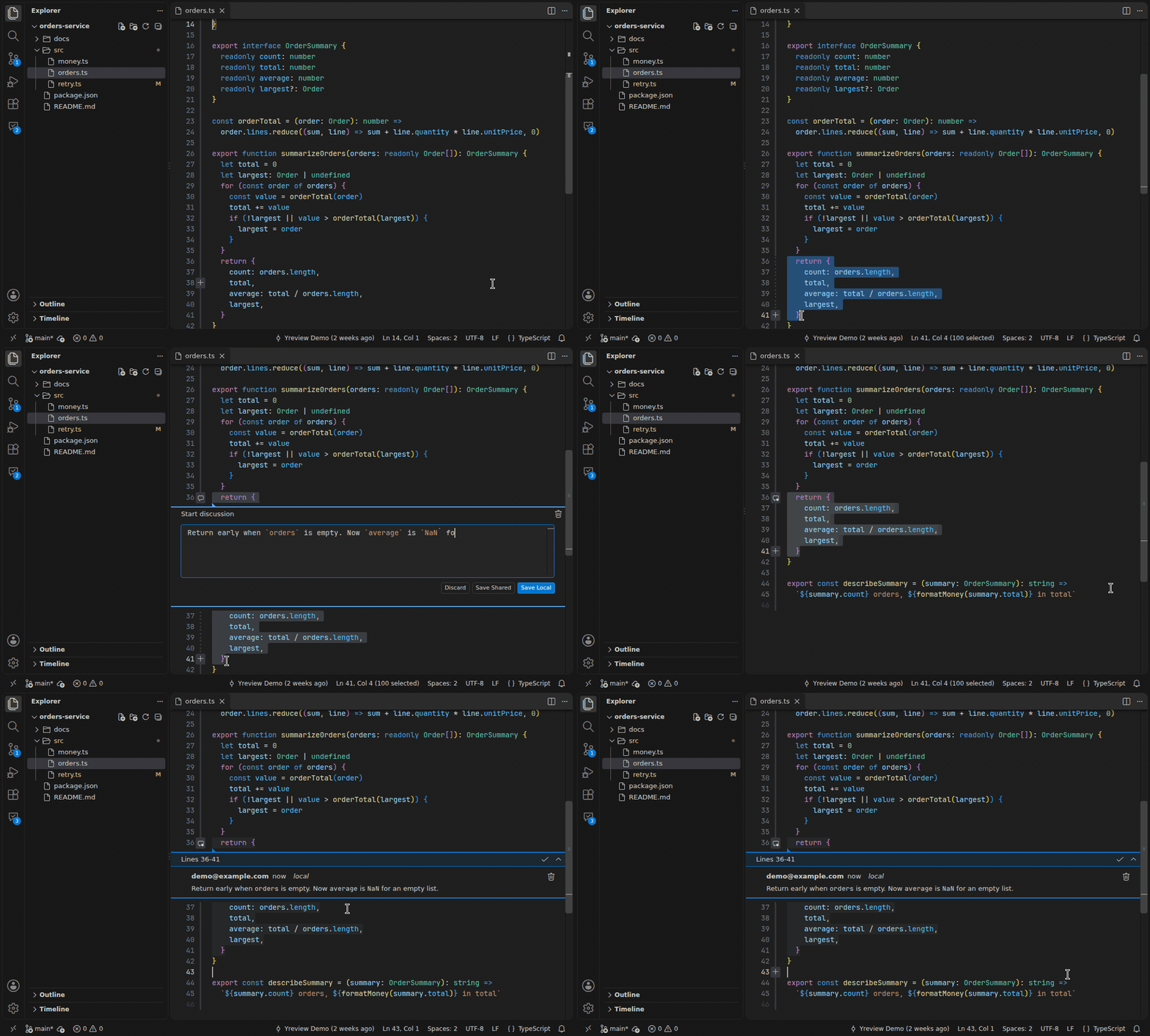
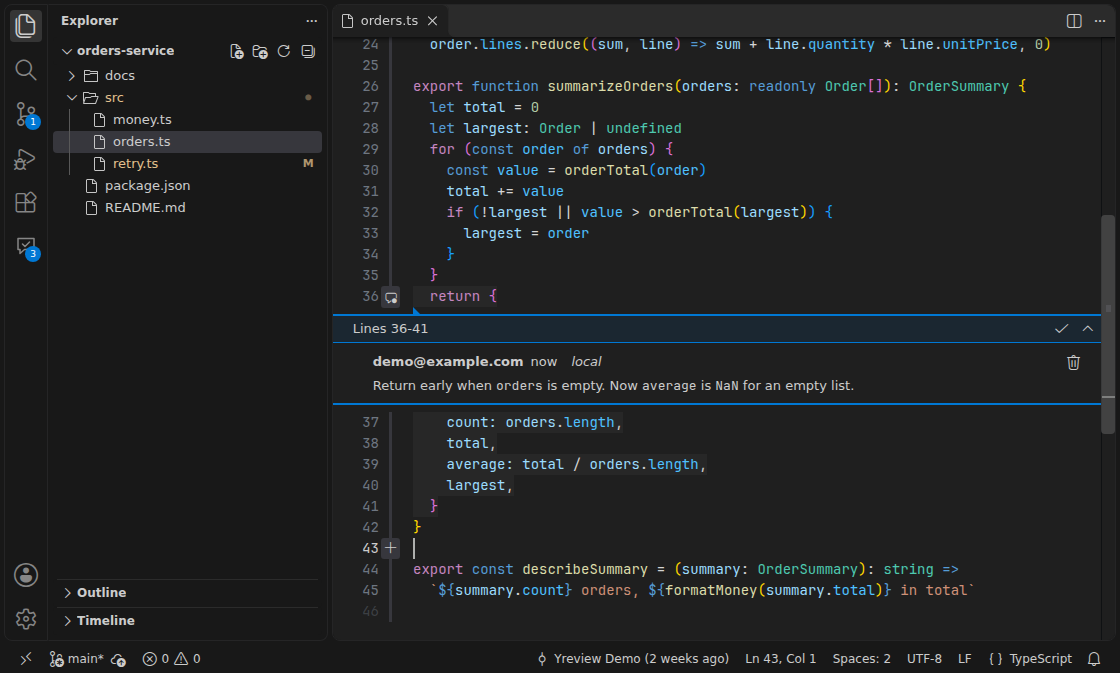
YreviewComment on any line as in a pull request review, then send the comments to Claude Code, Codex or another AI agent to fix. Comments live in git notes: no server, no account. Installation Launch VS Code Quick Open ( Ctrl+P), paste the following command, and press enter.Copied to clipboard |

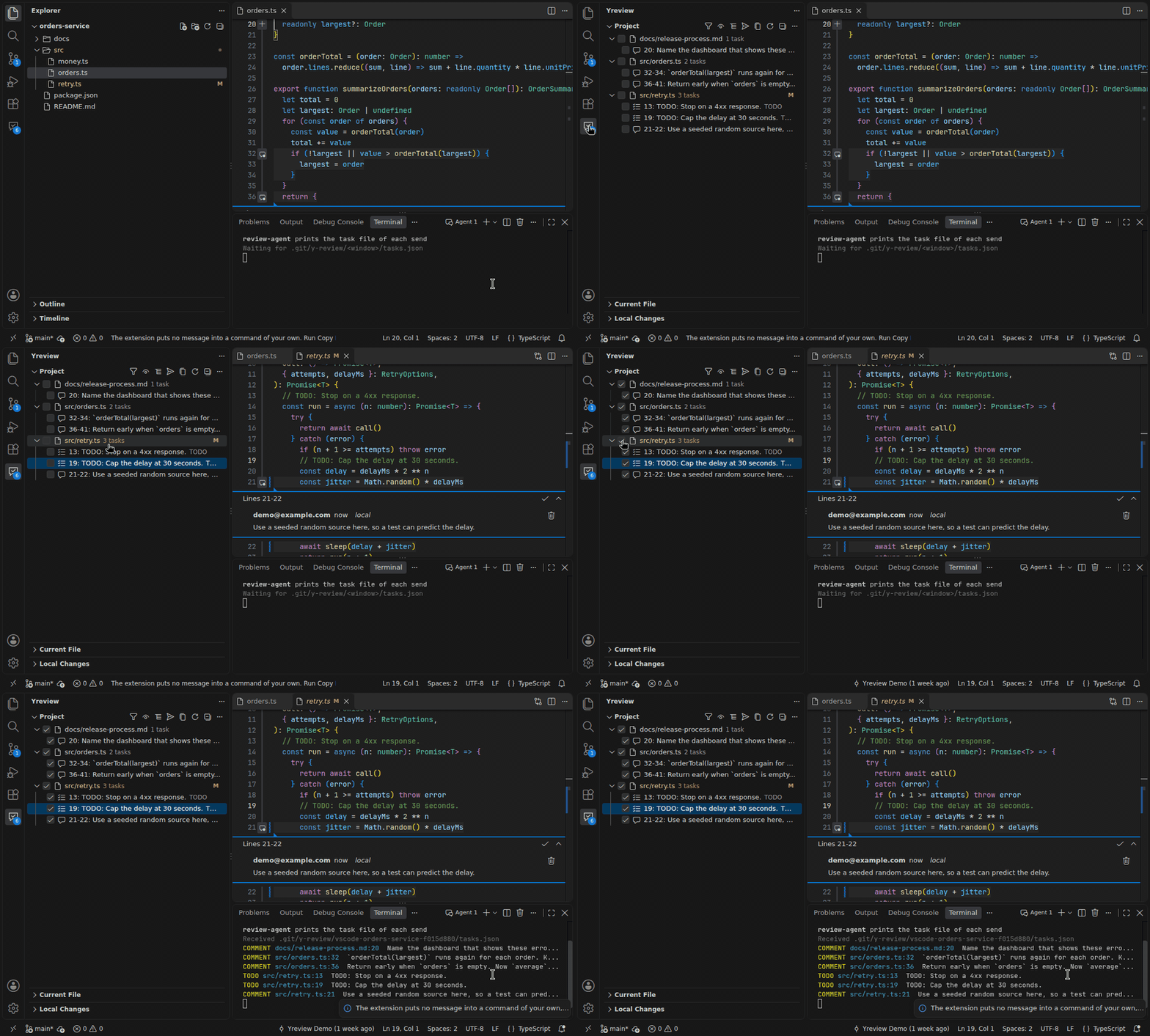
YreviewReview the code that an AI agent wrote the same way you review a pull request. Select lines, write a comment, and go on to the next file. Then send the comments to Claude Code, Codex or another command line agent. When the agent reports a fix, Yreview marks the comment resolved.
How it works
Yreview keeps each comment as a git note in your own repository. It needs no server and no account. Features
The same comments show in the Yreview plugin for IntelliJ IDEA, so one team can use VS Code and IntelliJ IDEA together. Write a comment
To close a new comment box, click Discard or press Escape. Escape asks first when the box has text. Click Resolve on a comment to close it. Click Delete to remove it from the notes. A comment box cannot get the focus on a line that already shows a comment thread. On such a
line, Add Review Comment opens a draft editor beside the file. Write the comment in the draft,
then click Save Local or Save Shared in the title bar, or press Ctrl+Enter. When you close a
draft tab that has text, VS Code asks you to save it. Save writes the comment with the first
button of the comment box (setting Ctrl+Enter and keymap extensionsA keymap extension can bind Ctrl+Enter to another command in each text editor. For example, the
IntelliJ IDEA Keybindings extension binds it to Go to Declaration. A user key binding wins over
that binding. When Yreview finds such a binding, it offers to add this line to your
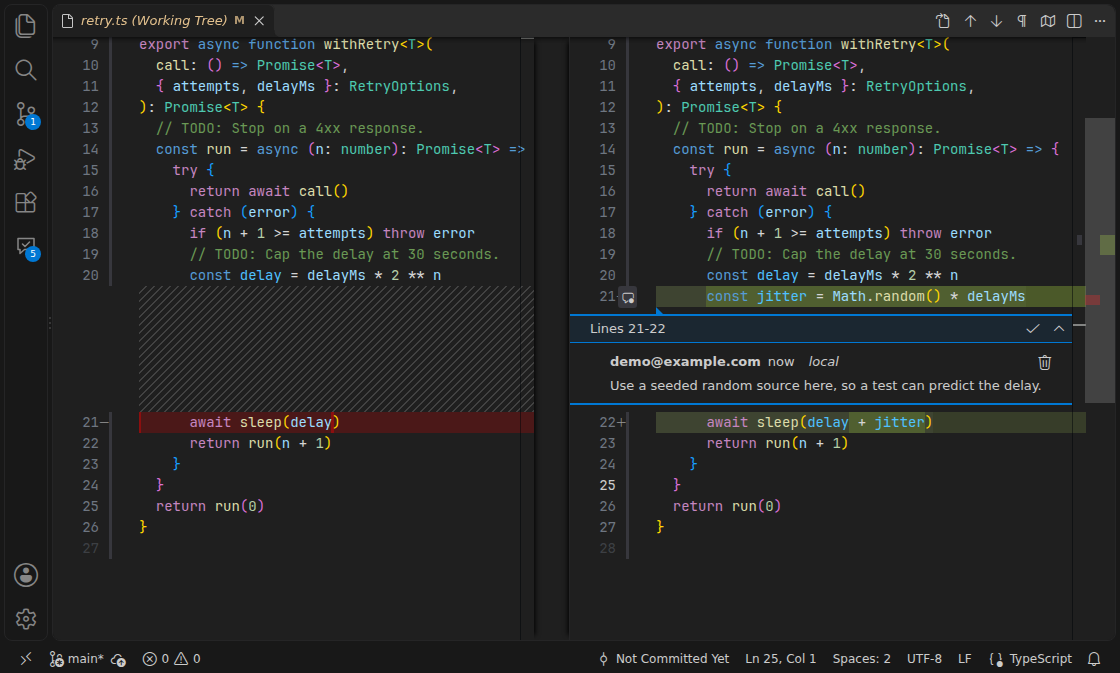
DiffsOpen a change in the Source Control view. Both sides of the diff take comments. A comment on the
left side goes to the note of the revision of that side. A comment on the working tree side goes
to the note of HEAD. The thread label shows the revision, for example Colors and outdated commentsText under one open comment gets the color The comment box opens on the first line of the commented text. For this reason, the VS Code Comments view shows only the first line of each comment. Yreview shows the open comments of every commit, not only those of HEAD. When the commented lines
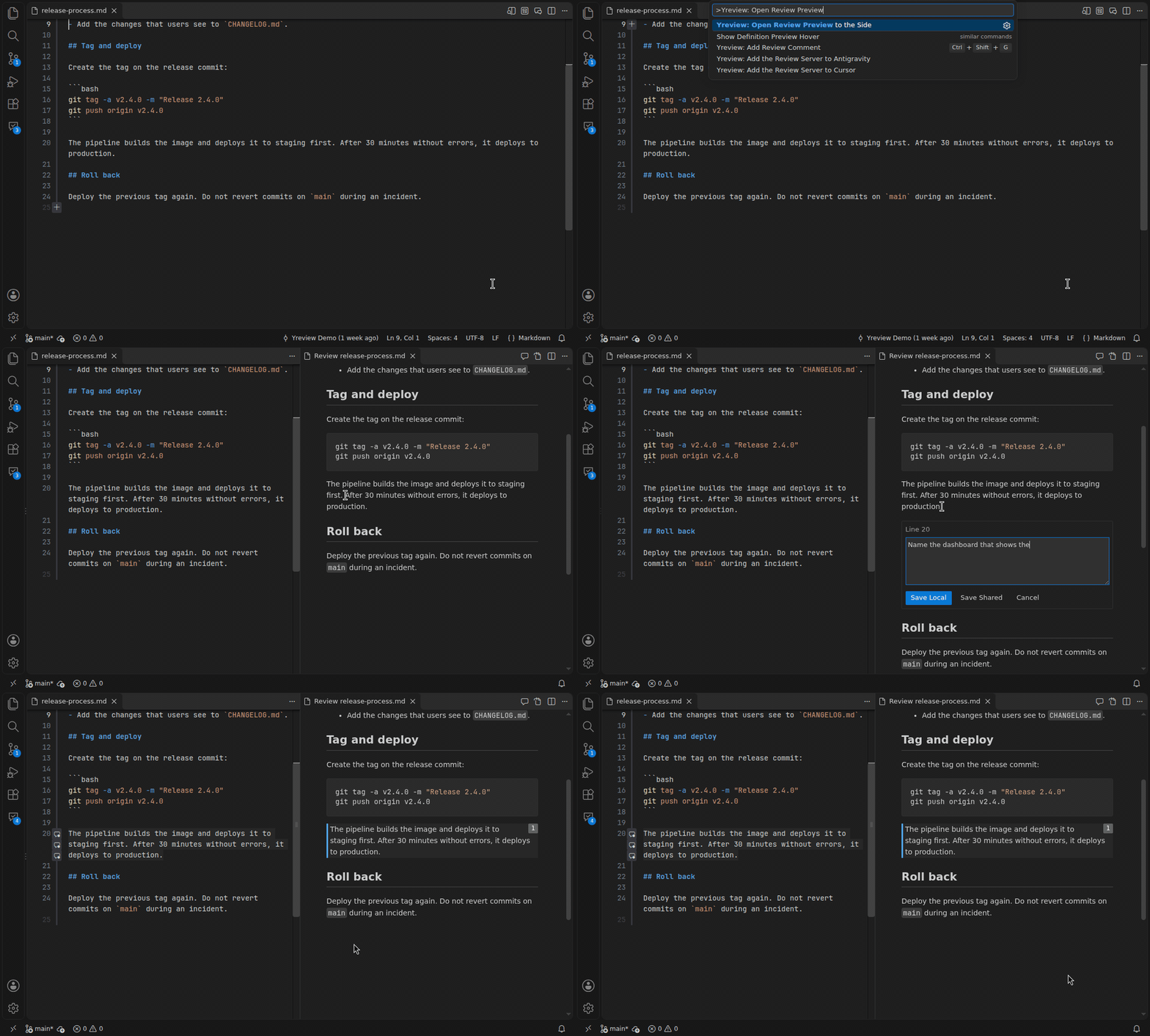
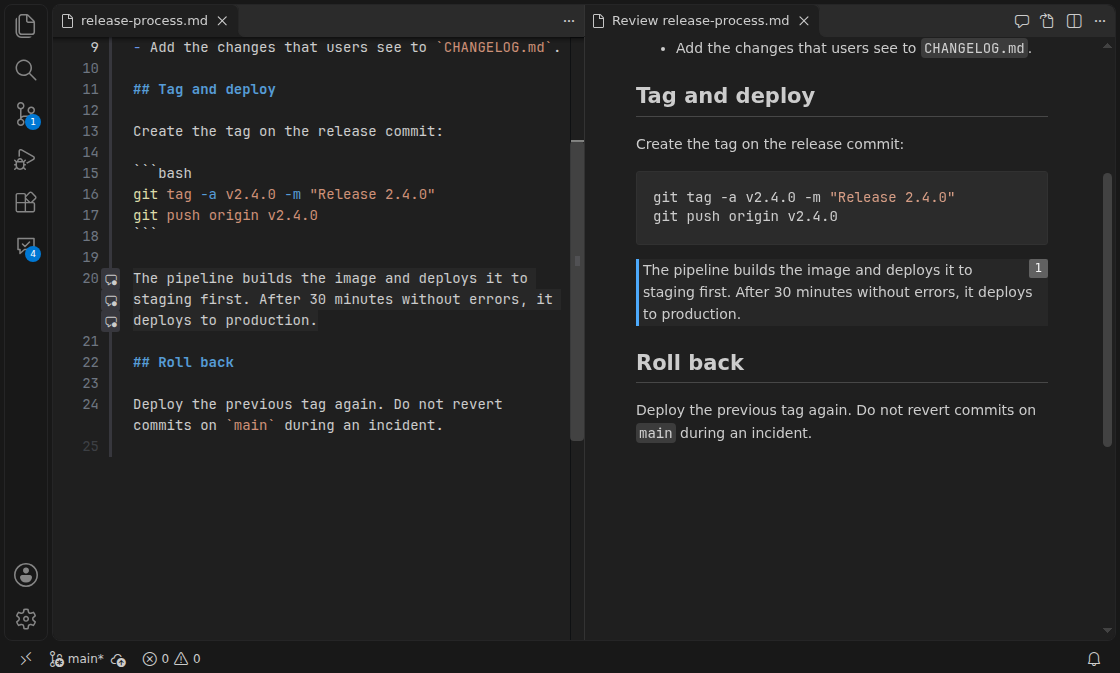
change, the thread label starts with The review previewRun Yreview: Open Review Preview to the Side, or click its button in the title bar of a Markdown file. The review preview renders the file with the engine and the styles of the built-in Markdown preview. It also loads the preview scripts of your Markdown extensions, for example Mermaid. It follows your edits before a save, and it scrolls with the source editor. Double-click a block to show its source line. Select text in the review preview, then press Ctrl+Alt+G (Cmd+Alt+G on macOS), or right-click and select Add Review Comment. The comment box opens below the selection, on the source lines of the selected text. The review preview marks each block that an open comment covers. Click the count at the right of a block to read its comments, to resolve or delete one, or to show it in the source.
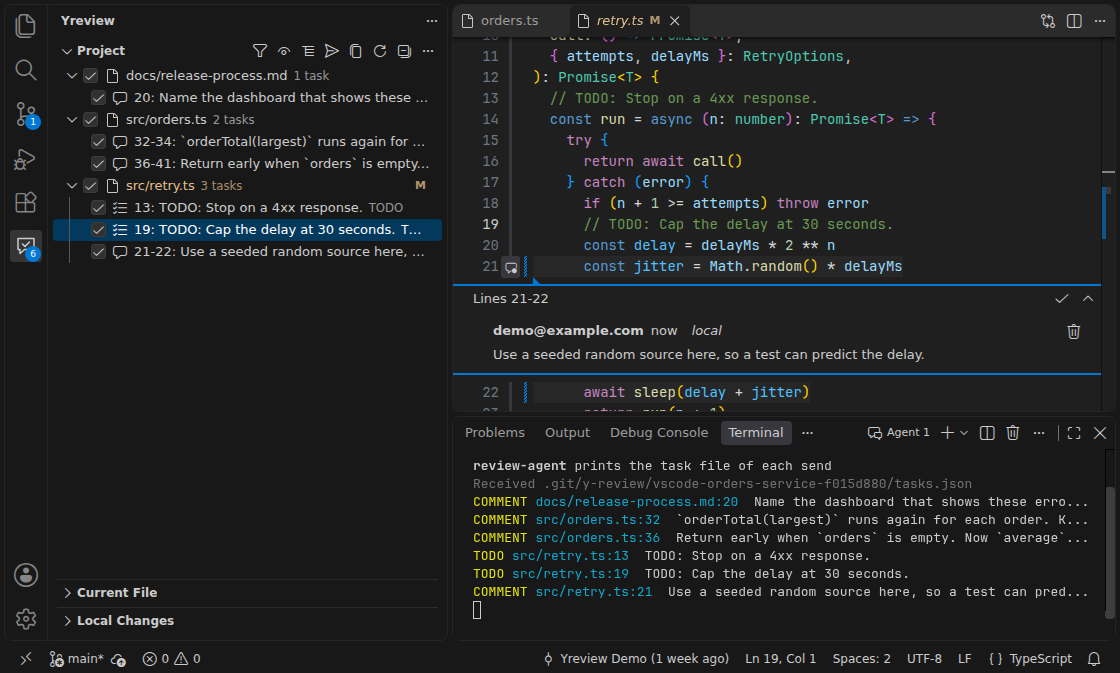
The built-in Markdown preview also marks the commented blocks. Right-click a selection or a block and select Add Review Comment. Its title bar button and Ctrl+Alt+G use the selection of the source, because VS Code gives a key no data from the built-in preview. In the built-in preview, the comment box opens in the source file. VS Code 1.146 and later also has a rich Markdown editor. To open it, select Reopen Editor With, then Markdown Editor. Its title bar button and Ctrl+Alt+G open the box in the source on the selection of the rich editor. To read that selection, the tab shows the text editor for a moment. The task viewsClick the Yreview icon in the activity bar. It holds three views of the open review comments and TODO items:
Click a row to open the file at the task. A click on a comment row also expands its thread. In a
task view, run Filter and type a glob, such as
Yreview finds a TODO item with Requirements
The extension is also on Open VSX. CI tests Yreview in VS Code on Windows, in Remote-SSH, WSL and Dev Containers windows, and in VSCodium and Windsurf. In Cursor 3.30, Yreview installs and activates, and 6 of the 11 checks pass. CI cannot run the other 5, because a new Cursor profile opens a sign-in screen. The check table gives each check and each editor version. In a remote window, Yreview runs on the remote host. git, the review bridge, the agent terminal
and the files under SettingsRun Yreview: Open Settings to see every setting. Run Yreview: Choose Agent to see the agents of this machine and what each one supports.
To make the session panel larger, use the Maximize Panel Size command of VS Code. What Yreview writes
Yreview changes no file of your working tree, except the folder Do not open one folder outside git in two editors at the same time, for example two VS Code windows, or VS Code and IntelliJ IDEA. Each editor locks the comment file only inside its own process, so one of two parallel writes can get lost. PrivacyYreview sends no telemetry. It sends data only with the git push of a shared comment, to the remote that you chose. The log (Yreview: Show Log) removes your folders, remote addresses, mail addresses and secret values from each line. The diagnostic report and the issue form remove every path of your machine before you see them. They also remove every remote address, every mail address and every token. Report a problemRun Yreview: Copy Diagnostic Report and paste the text into an issue. The report holds versions, switches, counts, states and the last 50 records of this window. It holds no comment text, no author, no path of your machine, no remote address and no token. Read it before you paste it. When a command fails, the error message has a Report button. The button opens a new issue form in your browser with the error and the versions. Nothing goes anywhere until you press Submit. Run Yreview: Show Log to see the log of the extension. To attach the log files of VS Code, run Developer: Export Logs, or run Developer: Open Logs Folder and copy the files. A crash of the extension host itself makes no report. VS Code starts the host again and shows its own message. Read the notes yourself |