
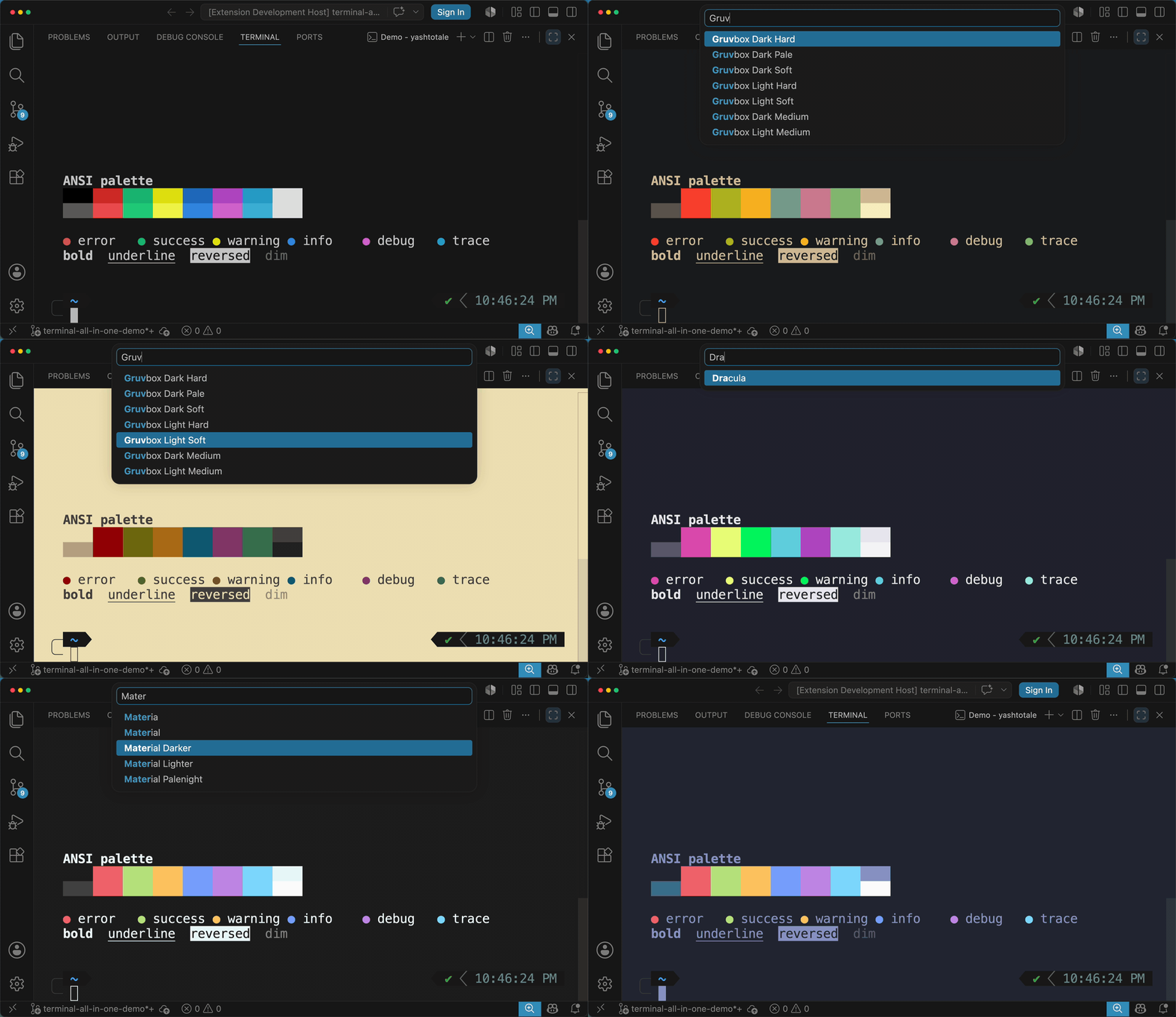
Terminal All In OneApply 100+ terminal themes, save and run terminal scripts, and control your terminal with keybindings Installation Launch VS Code Quick Open ( Ctrl+P), paste the following command, and press enter.Copied to clipboard |

|



| Keybinding | Command | Description |
|---|---|---|
cmd/ctrl+i t |
Choose Theme | Live-preview and apply one of 100+ terminal themes |
cmd/ctrl+i enter |
Run Script | Pick a saved script to run |
cmd/ctrl+i 0–9 |
Run Script | Run one of your first 10 saved scripts directly |
cmd/ctrl+i m |
Toggle Maximized Terminal | Maximize or restore the terminal panel |
cmd/ctrl+i c |
Create New Terminal | Open a new terminal instance |
cmd/ctrl+i d |
Delete Current Terminal | Close the active terminal |
cmd/ctrl+i r |
Rename Current Terminal | Rename the active terminal |
cmd/ctrl+i . |
Focus Next Terminal | Switch to the next terminal |
cmd/ctrl+i , |
Focus Previous Terminal | Switch to the previous terminal |
cmd/ctrl+i ] |
Split Terminal | Split the active terminal |
cmd/ctrl+i backspace |
Clear Terminal | Clear the active terminal |
cmd/ctrl+i s |
Select Default Shell | Choose the default shell (bash, zsh, etc.) |
cmd/ctrl+i w |
Change Cursor Width | Live-preview and set the cursor width |
cmd/ctrl+i y |
Change Cursor Style | Live-preview and set the cursor style |
cmd/ctrl+i b |
Toggle Blinking Cursor | Turn cursor blinking on or off |
cmd/ctrl+i f |
Change Font Size | Live-preview and set the terminal font size |
cmd/ctrl+i - |
Decrease Font Size | Decrease the terminal font size by 1pt |
cmd/ctrl+i = |
Increase Font Size | Increase the terminal font size by 1pt |
cmd/ctrl+i q |
Change Font Weight | Live-preview and set the terminal font weight |
Configuration
Themes
terminalAllInOne.terminalTheme — the active terminal theme, from this list. Set it with the Choose Theme command (cmd/ctrl+i t). Defaults to "None" (no styling).
Themes use User settings by default. For a project-specific theme, open Settings, select the Workspace tab, and set terminalAllInOne.terminalTheme there. Choose Theme, its previews, and the generated colors then use that workspace's settings (.vscode/settings.json for a folder, or the .code-workspace file for a multi-root workspace). Canceling the picker or failing to save the theme setting restores the previous colors.
Reset the Workspace theme setting to inherit the User theme again. This removes colors still matching the previous Workspace theme and preserves unrelated customizations and manual color edits.
Scripts
terminalAllInOne.scripts — your saved scripts. Each entry has a name and a script, which is either a single command (string) or multiple commands run in order (array). Run them with Run Script (cmd/ctrl+i enter), or cmd/ctrl+i 0–9 for your first 10.
{
  "terminalAllInOne.scripts": [
    { "name": "Greet", "script": ["echo hello", "echo How was your day?"] },
    { "name": "List workspace", "script": "ls ${workspaceFolder}" },
    {
      "name": "Install deps",
      "script": ["npm i react", "npm i --save-dev mocha"]
    }
  ]
}
Scripts support VS Code variables such as ${workspaceFolder}, ${file}, ${relativeFile}, ${lineNumber}, ${selectedText}, and ${config:Name}. Set terminalAllInOne.script.disableAutoRun to true to insert a script's command into the terminal without running it.
Keybindings
terminalAllInOne.disableAllKeybindings — set to true to disable every keybinding listed above. Defaults to false.
Messages
terminalAllInOne.disableAllMessages — set to true to silence all info, warning, and error messages from the extension.
Contributing
Contributions are welcome! See CONTRIBUTING.md for local development setup. To report a bug or request a feature, open an issue; for usage questions, start a thread in Discussions.
Licensed under MIT.