riSim Studio
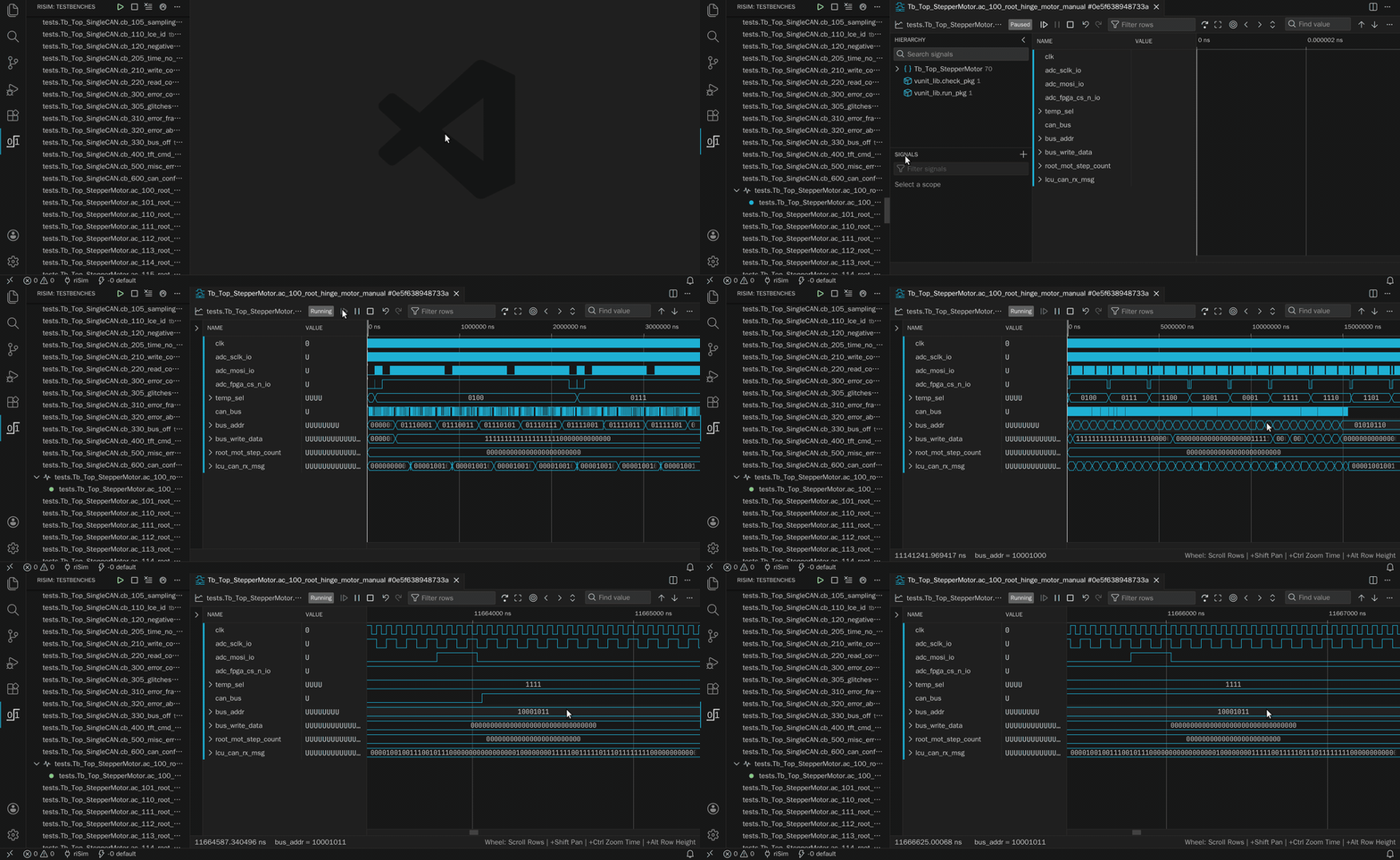
riSim Studio is a VHDL simulation and verification environment built into VS Code.
It discovers your VUnit testbenches, runs them on its own VHDL-2008 simulator, and streams live waveforms into an interactive viewer.
No separate simulator, Python, or VUnit installation is required.
1. Quick start
An empty workspace is enough to get started.
We'll add a testbench, point risim-config.toml at it, and run our first simulation.
Skip to 1.2. Configure your sources if you already have a project.
1.1. Write a VUnit testbench
Unless you already have a VUnit testbench, create one and add a testcase.
Name the entity with a tb_ prefix or _tb suffix, include the VUnit context, add a runner_cfg : string generic, and terminate with test_runner_cleanup.
More detail is in the VUnit user guide.
Create a my_example folder in your workspace and copy the following example into my_example/tb_example.vhd:
library vunit_lib;
context vunit_lib.vunit_context;

library ieee;
use ieee.std_logic_1164.all;

entity tb_example is
  generic (runner_cfg : string);
  signal clk : std_logic := '0';
end entity;

architecture tb of tb_example is
  signal counter: natural := 0;
  signal tick: std_logic := '0';
begin
  clk <= not clk after 5 ns;

  process (clk)
  begin
    if rising_edge(clk) then
      if counter < 10 then
        counter <= counter + 1;
        tick <= '0';
      else
        counter <= 0;
        tick <= '1';
      end if;
    end if;
  end process;

  process
  begin
    test_runner_setup(runner, runner_cfg);

    while test_suite loop

      if run("test_pass") then
        wait for 50 ns;
        assert tick = '0' report "This will pass";

      elsif run("test_fail") then
        wait until counter = 10;
        wait until counter = 0;
        wait until rising_edge(clk);
        assert tick = '0' report "This fails";

      end if;
    end loop;

    test_runner_cleanup(runner);
  end process;

end architecture;
Don't worry about the errors that are getting reported, they'll disappear once you add the configuration file in the next section.
Add a risim-config.toml file at the root of your workspace folder, mapping source files to VHDL libraries:
[libraries.my_design]
files = ["my_example/tb_*.vhd"]
This compiles all matching VHDL files in the my_example folder into the my_design library.
Source files are searched automatically for VUnit testbenches.
1.3. Discover your testcases
Open the riSim view in the activity bar.
Once discovery completes, testbenches appear in the Testbenches sidebar.
Configuration problems show up in the VS Code Problems panel.
1.4. Run and debug
Click the run icon next to a testcase to execute it, or choose Start in Paused Mode to open the simulation in a waveform view.
Add signals from the view's hierarchy pane to display their waveforms.
2. Features
2.1. Run your testbenches
The Testbenches sidebar lists all testcases in your project.
- Automatic discovery of VUnit testcases from
risim-config.toml, no run.py
- Run one testcase or all of them from the sidebar
- Parallel execution: simulations are scheduled across your CPU cores, within the simulation threads of your plan
- Incremental recompiles: edit sources and re-run; only what changed is recompiled
- Multi-root workspaces: each workspace folder can have its own
risim-config.toml
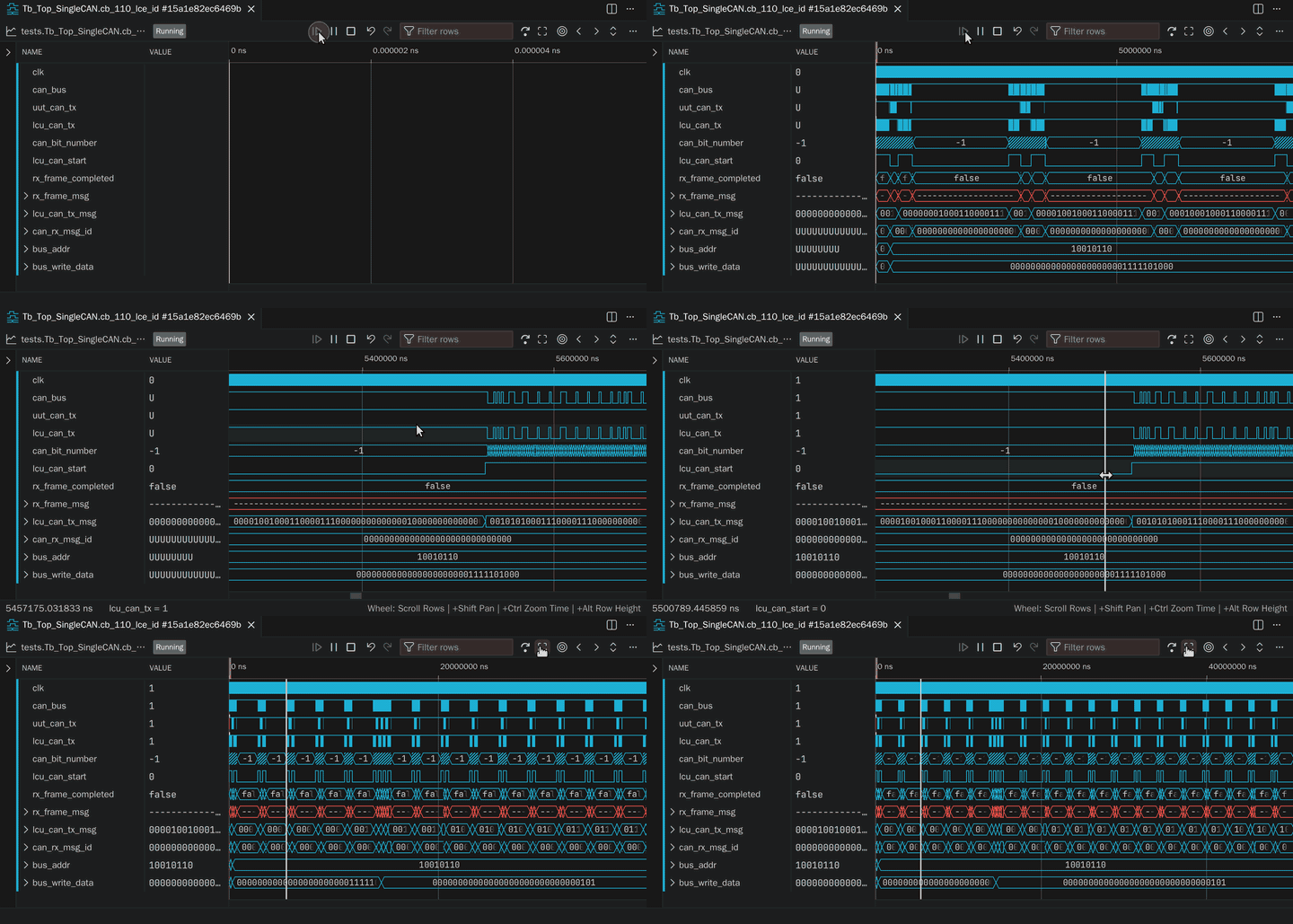
- Live signal updates stream into the waveform view while the simulation runs
- Full run control: run, pause, and stop from the sidebar or the waveform view
- Build a view from the hierarchy pane: search for signals, add the signals you select, add a scope's signals or an entire subtree from the scope's context menu, or drag a scope onto the signal list
- Several views per simulation: Open Waveform or New Waveform View on a simulation row; views follow reruns of their testcase and are restored after a window reload
- Display options: signal colors, separators, binary/decimal/hexadecimal radix, analog and literal drawing modes
- Navigation: one-click zoom to fit, transitions and values to jump to, delta cycles, time units from femtoseconds to seconds
2.3. Keep an eye on runs and simulations
The dashboard shows everything that is running in one place.
Open it with the dashboard icon in the Testbenches sidebar's title bar, or with riSim: Open Dashboard from the command palette.
It stays open across window reloads.
- Every test run in your workspaces, including those started by another VS Code window or the command line: compile progress, the testcases of each run with their results and durations, and the last finished runs
- Last results of all testcases, with when they finished and how long they took; filter by name and sort by state, finish time or duration
- Rerun failed testcases of a run or of a whole workspace
- Simulation statistics: simulated time and speed, realtime duration
2.4. Language server for VHDL
- Errors and warnings in your VHDL files appear in the editor and the Problems panel while you edit, for every file of your project, open or not
- Syntax highlighting for
.vhd, .vhdl and .vho files
2.5. Use riSim from the command line and in CI
Run riSim: Install Command-Line Tools from the command palette to install risim on your PATH, or install it without VS Code with the installer of the download page.
risim list, risim compile and risim simulate work on the same testbenches, compiled libraries and results as the extension- A live view of the running testcases in the terminal, and exit codes for scripts and CI
2.6. Pin the riSim version of a project
A project pins its riSim version in risim-config.toml:
[toolchain]
version = "1.0"
- The extension runs the newest installed 1.0.x for that folder, and installs it if needed
risim toolchain override set <version> pins a directory for you only, without changing the project- If a pinned version doesn't fit this version of the extension, the extension offers to change the pin or to install the matching extension version
2.7. Navigate VHDL
The riSim language server, which comes with the extension, analyzes your VHDL files while you edit them: every file of your projects, and the VHDL files you open outside them.
- Semantic highlighting: names are colored by what they denote, such as signals, ports, generics, constants, types, subprograms and labels
- Go to Definition and Go to Declaration lead to the declaration of a name
- Go to Implementations leads from an entity to its architectures, and from a package, subprogram, protected type, deferred constant or incomplete type to its body or full declaration
- Find All References and the highlights of a name in its file include end names, selected names and use clauses, and the highlights tell where an object is written and where it is read
- Rename Symbol renames a declaration in every file of your projects, open or closed
- Hover shows a name's declaration, and its value if it is static
- Outline, breadcrumbs and Go to Symbol in Editor show a file's design units, declarations and labeled statements
- Go to Symbol in Workspace searches the design units and declarations of your projects, without those inside subprograms and processes; it answers from the latest analysis, so it can lag behind your edits briefly
- Positions in files that aren't open assume that VS Code reads them as UTF-8, its default; with
files.encoding set to a Latin-1 encoding, columns after non-ASCII characters can be off
- The language server uses the riSim version that comes with the extension, even where a project pins another one, so its results can differ from those of a compile
- The language status item of VHDL files (the
{} in the status bar) shows whether the language server runs; riSim: Restart Language Server from the command palette starts it again
3. Plans
- Free: 2 simulation threads per machine, no license key or registration necessary, for operating systems running directly on their hardware; not for virtual machines or containers
- Trial: riSim Pro on one machine for 30 days, also in virtual machines and containers; request a trial and enter its key with riSim: Enter License Key
- Pro: node-locked seats and floating licenses; available soon
The pricing page has the details.
4. Requirements and limitations
- Platforms: VS Code 1.116 or newer, on Linux x64 with glibc 2.28 or newer (such as RHEL 8, Debian 11, Ubuntu 20.04 and newer) or Windows x64
- Language: a subset of VHDL-2008, analyzed and simulated with riSim's own simulator; Verilog and SystemVerilog aren't supported yet (supported languages and limitations)
- Testbenches: VUnit builtins
com and osvvm are added automatically
- No full
run.py support: riSim builds your project from risim-config.toml; VUnit's Python hooks (pre_config, post_check) are not available
5. Privacy
riSim Studio runs your simulations on your machine and sends no telemetry.
It connects to the internet only
- to download toolchains from
dl.risim-studio.com, which you can turn off with the environment variable RISIM_OFFLINE
- on a machine where a license key has been activated, to the license server
See the riSim Studio Software Privacy Notice.
6. Documentation
The riSim Studio documentation contains more details:
7. Support
Report bugs and ask questions in the issue tracker on GitHub.
Extension logs are in the Output panel under riSim, and those of the VHDL language server under riSim Language Server.
Please include them when reporting a problem.
Issues are public, so leave out anything confidential, such as code you can't share or license keys.
For those, and for questions about your license or trial, write to support@risim-studio.com, or use the contact form.
To report a security vulnerability, see Security.
8. License
riSim Studio is proprietary software, licensed under the riSim Studio License Terms, also in LICENSE.md in the extension.
The extension bundles and incorporates third-party components (including VUnit under the MPL 2.0, OSVVM under the Apache License 2.0, and numerous permissively licensed Rust and JavaScript libraries).
Their licenses and attributions are collected in THIRD_PARTY_NOTICES.md, and the full license texts and the components' copyright notices in the folder third-party-licenses, both in the extension.
Published by xq-Tec GmbH; see the legal information.

