Which AI to Use
See what wastes your AI tokens, your AI setup score, which AI (and model) to use for a task, tips when Claude's limit is close, hand work to another AI when it runs out, and see your AI week. Everything runs on your machine.
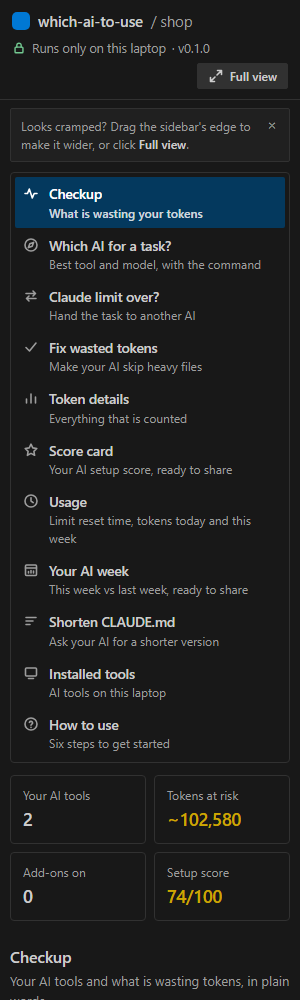
Click the ✦ Which AI icon in the Activity Bar (left edge). The sidebar shows the same dashboard as npx which-ai-to-use dashboard, inside VS Code and in your editor's theme. Sidebar too narrow? Click Full view to open it in an editor tab, or drag the sidebar's edge to widen it:
- your AI setup score and the tokens at risk
- Checkup and Fix wasted tokens (preview first, nothing changes until you click Apply)
- Which AI for a task?: the best AI and model, with a Copy button for the command
- Claude limit over?: writes HANDOFF.md so another AI carries on
- Score card you can save as an image, token details, usage (with tips when Claude's limit is close) and installed tools
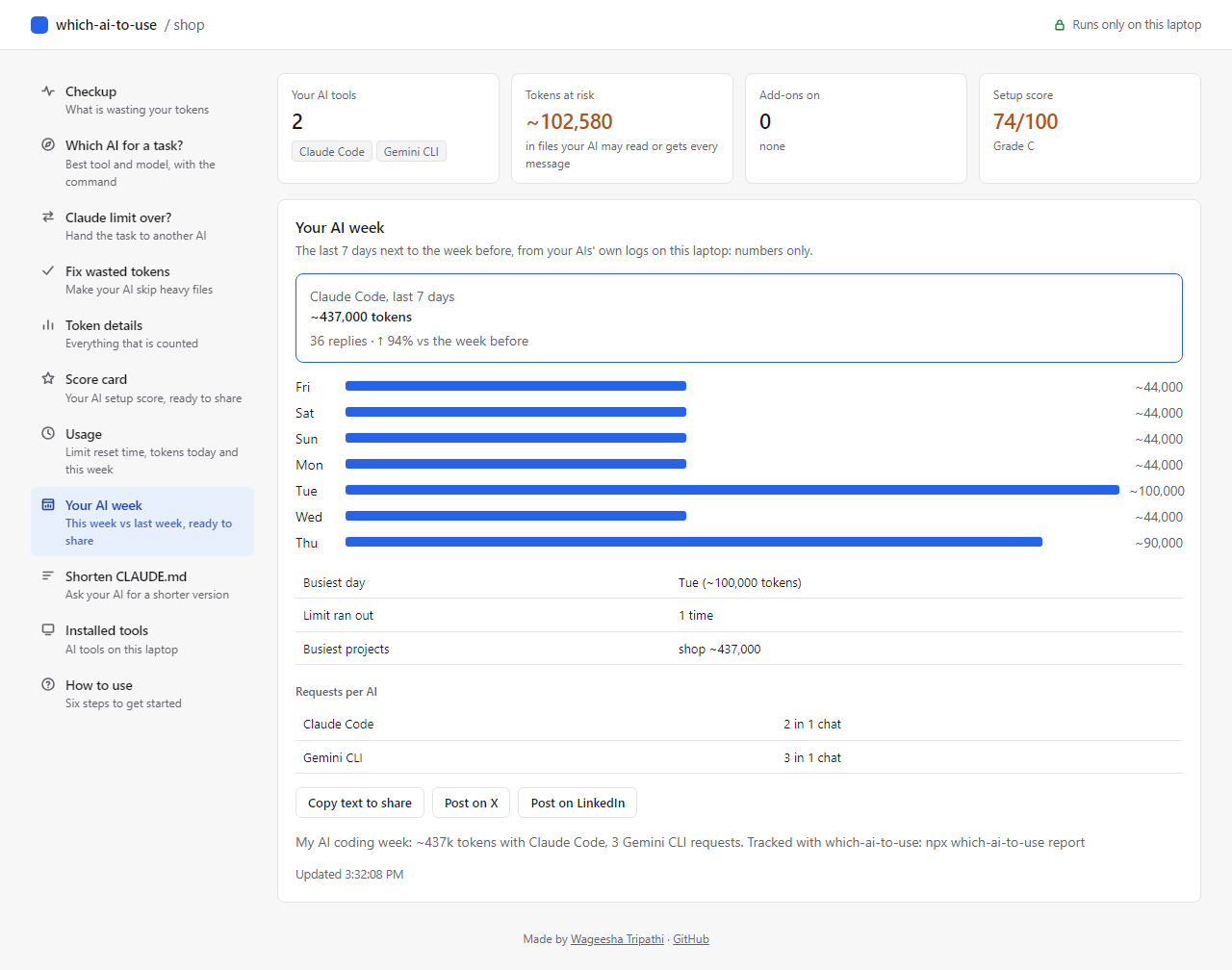
- Your AI week: tokens per day next to the week before, limit hits and requests per AI, with a line to share
With Ask my AI too, the sidebar shows exactly what would be sent and asks before using an AI you already have.
In the status bar
✦ AI 77/100 · 58k tokens at risk: your project's AI setup score and the tokens your AI may waste. Hover for the reasons, click for the menu.
Commands
Prefer the keyboard? Open the Command Palette (Ctrl+Shift+P / Cmd+Shift+P) and type Which AI:
| Command |
What it does |
| Checkup |
Your AI tools and, in plain words, what wastes tokens with one fix each |
| Which AI for a task? |
The best AI for the task among all tools, then the best of the ones you have, with the command to copy |
| Fix wasted tokens |
Shows which heavy files your AI tools will skip and applies it only after you click Apply |
| AI setup score |
Your score out of 100, what costs points, and a line to share |
| Claude limit over? Write a handoff |
Writes HANDOFF.md so another AI carries on instead of starting over |
| Claude's limit reset? Hand the task back |
Writes HANDOFF.md again and starts Claude Code with it in a terminal |
| Open the sidebar |
Shows the Which AI sidebar |
| Open the full dashboard |
Opens the dashboard in an editor tab |
| Open menu |
All of the above in one list; also a click on the status bar |
Works with Claude Code, Codex, Gemini CLI, Cursor, GitHub Copilot, Windsurf, Cline, Aider and Ollama. Nothing is sent anywhere unless you allow Ask my AI too.
Same engine as the command-line tool: npx which-ai-to-use. Not a developer? Try the website: https://wst2002.github.io/which-ai-to-use/
Made by Wageesha Tripathi · LinkedIn · Email · GitHub

