
Cool Theme Kit (JetBrains Look)JetBrains (PyCharm New UI) style theme for VS Code: file icons, colors and product icons, with other installed themes layered on top by priority Installation Launch VS Code Quick Open ( Ctrl+P), paste the following command, and press enter.Copied to clipboard |

|


| Group | Combinations |
|---|---|
| JetBrains look | JetBrains Dark, JetBrains Light, Material green (the #79cb60 accent on the controls, tab lines and folders) |
| JetBrains frame, other syntax colors | One Dark Pro, Dracula, Catppuccin Mocha (with the Catppuccin folder icons) |
| Another frame, JetBrains syntax | GitHub Dark |
| File icons only | vscode-icons for the names Cool Icons has no icon for |
Each one is shown as you move to it (the themes of other extensions are mixed in once you choose it). A combination that uses the themes of other extensions says so, and asks before installing them. It writes only its own settings to your user settings; Undo the Last Theme Combination (or the Undo button of its notification) puts back the values they had. Installing Cool Theme Kit applies no combination.
You can also select the themes with Preferences: File Icon Theme, Preferences: Color Theme and Preferences: Product Icon Theme, and the fonts with the Use the JetBrains Fonts command. Everything is undone the same way: select another theme, or run Stop Using the JetBrains Fonts.
Moving from
woogajjangka.cool-icon-vscode? That was the id of Cool Theme Kit from 1.0.0 to 1.3.0, and it is no longer on the Marketplace. Install this extension (woogajjangka.cool-theme-kit) and uninstall the old one: Cool Theme Kit offers to when it finds it. The settings did not change, so yours still apply.
| Cool Islands Light | Mix Themes page |
|---|---|
 |
 |
What VS Code itself cannot do (rounded floating panels, the interface font, colored product icons) is listed in Differences with the JetBrains plugin and Compatibility.
Themes
| Kind | Name in the VS Code picker | Base | Status |
|---|---|---|---|
| File icons | Cool Icons | Atom Material Icons, as PyCharm shows them | Available, with other icon themes mixed in |
| Color theme | Cool Islands Dark / Light | JetBrains Islands Dark / Light | Available, with other color themes mixed in |
| Product icons | Cool Islands Icons | JetBrains New UI icons | Available, with other product icon themes mixed in |
| Product icons | Cool Material Icons | Material Design Icons, from the original extension | Available |
| Fonts | Use the JetBrains Fonts command | JetBrains Mono, then Korean fallbacks | Available, when you choose them |
Cool Theme Kit is an unofficial fork of Atom Material Icons, a port of the Atom File Icons for VS Code, inspired by the Material Icon Theme and Atom Material Icons for JetBrains.
Color themes
Cool Islands Dark and Cool Islands Light are the Islands Dark and Islands Light themes of the JetBrains IDEs with the New UI: the colors of the windows, tool windows, tabs, lists and popups, and the editor color scheme with the colors PyCharm adds for Python, Markdown, YAML and shell scripts, and the colors of the scheme for HTML and XML tags, regular expressions, properties files and JavaScript/TypeScript (regex literals, members and the globals of the standard library). Other languages get the default colors of the scheme (keywords, strings, functions…), which is also what the JetBrains IDEs fall back to.
The syntax colors are checked token by token against the IDE (bun run check:colors, with the grammars of a real VS
Code), and compared character by character with the rich text the IDEs copy (bun run compare:ide) or on screen:
| Languages | Compared with |
|---|---|
| JavaScript/TypeScript, HTML, XML, CSS, JSON, SQL | WebStorm, PyCharm |
Python, YAML, TOML, Markdown, reStructuredText, shell, properties, Groovy, Java, .env |
PyCharm, IntelliJ IDEA |
| Ruby, PHP | RubyMine, PhpStorm |
| C/C++, Go, Rust | CLion, GoLand, RustRover |
| C# | the Islands defaults (Rider draws C# with its own palette) |
| Lua, Swift, PowerShell, Dart, Perl, R, Julia, Clojure, Objective-C, batch files, Makefiles, log files | PyCharm, which draws them with the same TextMate grammars as VS Code |
They are generated from the theme files of JetBrains/intellij-community
the way the IDE reads them (parent themes, named colors, * keys, parent schemes, inherited attributes), with a map of
which JetBrains color each VS Code color takes:
- Python looks like PyCharm: keywords,
self, keyword arguments, builtins,__dunder__names, decorators and docstrings have their PyCharm colors, and constants, attributes and method calls keep the text color, as in PyCharm. - With a language server (Pylance, TypeScript…), its semantic tokens get the same colors.
- Bracket pairs keep the text color: the JetBrains IDEs do not color them. Turn
editor.bracketPairColorization.enabledoff to remove the VS Code setting itself. - VS Code cannot draw the rounded islands: the panels get the island color and the space between them the window color.
Mixing color themes
VS Code uses a single color theme at a time. Other installed color themes can be mixed into Cool Islands, without
selecting them, for the workbench colors (ui) and the syntax colors (syntax) separately. Each one is a layer, given
by its id (the value of workbench.colorTheme when it is selected):
{
  "a-file-icon-vscode.colorThemeLayers": [
    { "theme": "GitHub Dark", "ui": "off", "syntax": "override" },
    "Monokai"
  ]
}
fill(a plain id isfillfor both): only what Cool Islands has no color for (the colors of other extensions, the scopes it has no rule for);override: the workbench colors of the theme win; for the syntax, its token and semantic colors replace the ones of Cool Islands;off: not used.
A theme mixes into the Cool Islands theme of its own kind: a dark theme into Cool Islands Dark, a light one into Cool
Islands Light. "applyTo": "dark" | "light" | "both" changes that.
colorThemeByKey takes single colors from a theme, over every layer: a workbench color id or a glob of them, a TextMate
scope (scope:) or a semantic token selector (semantic:). A later key wins over an earlier one:
{
  "a-file-icon-vscode.colorThemeByKey": {
    "terminal.ansi*": "Dark Modern",
    "scope:comment": "Monokai",
    "semantic:parameter": "GitHub Dark"
  }
}
From the strongest to the weakest: colorThemeByKey > accentColor > the override layers (the first listed wins) > Cool Islands > the
fill layers (the first listed wins). The theme files are read the way VS Code reads them (comments, include, token
colors in another file); TextMate .tmTheme files are not read.
Accent color
accentColor replaces the blue of the JetBrains Islands themes (#3871e1) in Cool Islands Dark and Light, for example
to match the green accent of a Material Theme UI setup in PyCharm. Leave it empty for the Islands blue:
{
  "a-file-icon-vscode.accentColor": "#79cb60"
}
It changes the focus ring, buttons, the progress bar, links, the badge on the activity bar, the active tab, and the selection of lists, menus and the editor. The pale selection of the light theme and the dark navy of the dark one keep their lightness, so they stay readable: only their hue (and the saturation, by the same ratio) follows the accent, and the text on a button or badge turns black or white when the accent would make it hard to read. Colors that only happen to be blue but mean something else (git decorations, the terminal's blue, the debugger's stack frame, find matches) are not touched.
The accent wins over the colorThemeLayers and loses to colorThemeByKey. It works in the desktop app only (VS Code
for the Web has the built-in colors).
The Choose the Accent Color (with Preview) command lists named accents: the Islands blue and one accent per hue
from the Material themes (Green #79cb60, Teal, Cyan, Aqua, Blue, Violet, Purple, Magenta, Pink, Coral, Orange,
Yellow), a custom #rrggbb, and the way back to the Islands blue. Each accent is shown at once while you move through
the list (or type a color); Enter keeps it and Escape goes back. The Colors tab of the
Mix Themes page does the same with named swatches, a color picker and a #rrggbb field.
VS Code reads a color theme only when the window reloads, so the preview writes the colors that change, for the
moment, into the "[Cool Islands Dark]" and "[Cool Islands Light]" blocks of your workbench.colorCustomizations.
Escape takes them away; a chosen accent goes into the theme files and its colors leave the setting on the next start.
Your own values in those blocks are kept and put back.
accentTargets paints more parts with the accent (the Islands blue when there is none). Each one can be turned on
alone, here or with the checkboxes of the Colors tab:
{
  "a-file-icon-vscode.accentTargets": ["controls", "tabs", "folders"]
}
controls: the scrollbars, checkbox borders, badges and the active options of the search fields.tabs: the line under the active tab, under the active panel title and beside the active activity bar item. VS Code has no setting for the thickness of these lines: only their color changes.folders: the folder icons of Cool Icons (instead offolderColor).
VS Code reads a color theme again only when the window reloads: when the mixed colors of the selected Cool Islands theme change, a notification offers to reload the window. The Mix Color Themes (with Preview) command opens the Mix Themes page on its Colors tab.
Fonts and Korean
Cool Theme Kit changes no font by itself. The Use the JetBrains Fonts command (also a button of the walkthrough) writes the fonts of the JetBrains IDEs to your user settings, after asking before it replaces a font you set there; Stop Using the JetBrains Fonts removes them again (only these lists, never a font of your own). When you select a Cool Islands color theme and have no editor font of your own, a notification offers them, once.
| Setting | Written by Use the JetBrains Fonts |
|---|---|
editor.fontFamily |
'JetBrains Mono', 'D2Coding', Consolas, Menlo, 'Droid Sans Mono', 'Malgun Gothic', 'Apple SD Gothic Neo', 'Noto Sans Mono CJK KR', 'Courier New', monospace |
markdown.preview.fontFamily |
Inter, -apple-system, BlinkMacSystemFont, 'Segoe WPC', 'Segoe UI', system-ui, 'Malgun Gothic', 'Apple SD Gothic Neo', 'Noto Sans KR', Ubuntu, 'Droid Sans', sans-serif |
- VS Code draws each character with the first font of the list that has it: the Korean fonts after JetBrains Mono and Inter draw the Hangul they do not have. D2Coding comes first among them because its Hangul is exactly two columns wide, so Korean text stays aligned.
- The terminal, the debug console, the inlay hints and the code lens use the editor font, as VS Code does by default.
- An extension cannot install fonts: when the editor uses these fonts and JetBrains Mono is missing (and D2Coding, with
a Korean interface), a notification links to their download pages, once (
a-file-icon-vscode.showFontMessageturns it and the offer off). - An extension cannot change the font of the VS Code interface (menus, side bar, tabs) either: it stays the font of the system, with Malgun Gothic or Apple SD Gothic Neo for Korean.
Korean is checked in every part: the interface and the settings are translated (a test keeps the translation complete), Korean file and folder names in your associations match in any Unicode form (macOS gives decomposed names), and the Mix Themes page breaks Korean lines between words.
File icon features
- Replaces file icons with their relevant logo icons
- According to their extension (
.java,.php,.ruby...) - According to the framework (Android, NPM, RSpec...)
- According to the program used in conjonction (Babel, Docker, CircleCI...)
- According to the parent directory (
.github/*,.vscode/*...) - And others...
- According to their extension (
- Replaces folder icons:
- From common patterns:
src,main,app,img,docs... - From specific use cases:
node_modules,.vscode,.git...
- From common patterns:
- Mixes in other installed icon themes for the names you choose, or for the names it has no icon for.
Associations
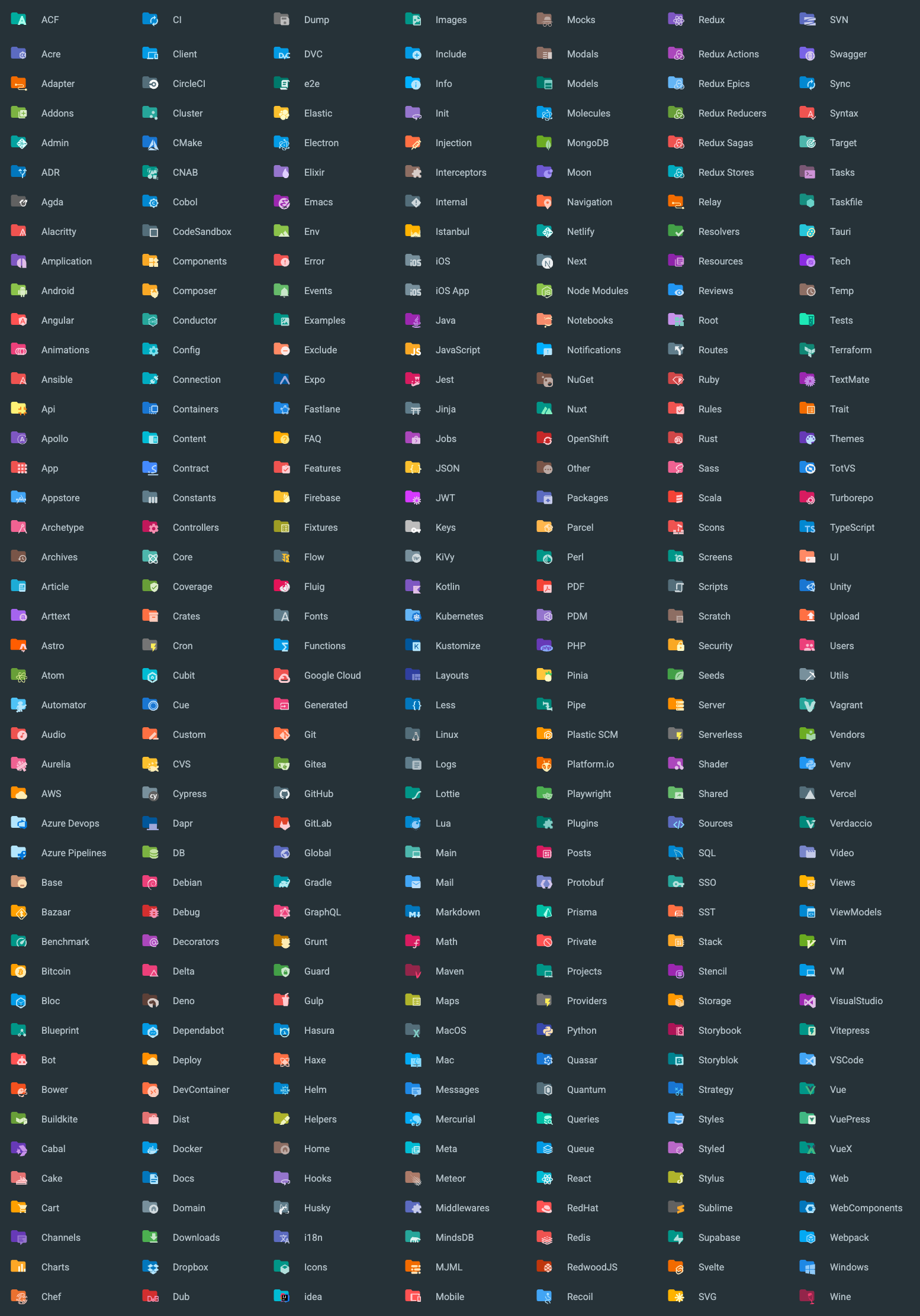
The icons follow what PyCharm shows with the Atom Material Icons plugin for JetBrains IDEs: for every file and folder name the JetBrains plugin knows and VS Code can express (a file name, an extension, a folder name), the theme uses the icon the JetBrains plugin picks. Names the JetBrains plugin does not know keep the icons of this extension.
You can find a list of all the available associations in the following links:
- File Associations
- Folder Associations
- Language Associations:
src/icons/languageIcons.ts(VS Code language ids, used when no file name or extension matches)
File Icons

Folder Icons
Usage
Since this extension is based off the original Material Icon Theme, you can find most of the original settings here as well.
Therefore, this extension exposes a bunch of commands that you can invoke via the command palette:

Just type Cool Theme Kit in order to see the commands that are available.
Settings
You can customize many aspects of the extension, either via the VSCode settings or by invoking the commands via the command palette.
When setting the option via the Preferences, they will affect all projects, whereas the commands only affect the current workspace.
Icon Packs
While this extension contains a lot of icons, there are some icons that overlap with each other. For example, Angular, and NestJS use similar icon filename patterns. If you are working with an angular project you wouldn't want to see NestJS icons and vice-versa.
This command will allow you to decide which pack(s) to enable for the current workspace.
By default the packs of the JetBrains plugin are enabled (Angular 2, Nest, Next, NgRx, Rails, Recoil, Redux, Tests), plus
pycharm. AngularJS (angular) is disabled, as in the JetBrains plugin.
As in the JetBrains plugin, two packs do not belong to a framework:
- tests (enabled by default):
*.test.ts,*.spec.py... use the test icon of their language. - css (disabled by default):
.cssfiles use the alternative CSS icon. It is enabled in the JetBrains plugin, but its icon loses against the regular CSS icon there, so PyCharm shows the regular one. - pycharm (enabled by default): Python files look like in PyCharm. Every
.py,.pyiand.pywfile, whatever its name (manage.py,__init__.py,test_app.py...), uses the two-tone Python icon of PyCharm instead of the Atom icons.

Note: Since you can enable multiple packs, there is still a way to enable both overlapping icon packs. It's recommended to not do as such as it would return unexpected results.
Arrow Styles
You can customize the look of the arrows in the tree view using the command palette:

or via user settings:
{
  "a-file-icon-vscode.arrowTheme": "material"
}
The available options are:
material: Material Design arrows (chevrons)triangle: Triangle arrowsplusMinus: Plus and minus signsarrow: Simple Arrowsnone: No arrows
Note: This setting affects not only arrows from the tree view, but also arrows that you can find in many other places, such as the collapsible sections, code folding, etc.
Another note: Arrows in the tree view work differently than arrows in the other places, as they are currently rotated from the "down arrow". As a result, some styles will display "weird results", such as the "Plus-Minus" style, that only displays the minus sign, but rotated. This could be solved via custom CSS in the future.
Custom Folder Color
You can customize the color of the default folder icon using the command palette:

or via user settings:
{
  "a-file-icon-vscode.folderColor": "#ef5350"
}
Folder Theme
You can change the style of the folder icons using the command palette:

or via user settings:
{
  "a-file-icon-vscode.folderTheme": "specific"
}
The available options are:
specific: Replace specific folders, such assrc,main,app,img,docs, etc.classic: Replace all folders with the default folder iconnone: No folder icons
Custom icons' opacity
You can customize the opacity of the icons, between totally opaque to completely gone.
You can either choose a predefined opacity or enter your own opacity via the command palette:

or via user settings:
{
  "a-file-icon-vscode.opacity": 0.5
}
Custom icons' saturation
You can customize the saturation of the icons. The less saturated they are, the more grayscale they will appear.
You can either choose a predefined saturation or enter your own saturation via the command palette:

or via user settings:
{
  "a-file-icon-vscode.saturation": 0.5
}
Monochrome icons
Display every file and folder icon in shades of a single color, like the Monochrome icons option of the JetBrains plugin. Use the Toggle Monochrome Icons and Change Monochrome Color commands, or the settings:
{
  "a-file-icon-vscode.monochrome": true,
  "a-file-icon-vscode.monochromeColor": "#90a4ae"
}
Hide file icons
Remove the file icons and keep the folder icons ("a-file-icon-vscode.folderTheme": "none" does the opposite):
{
  "a-file-icon-vscode.hideFileIcons": true
}
Mixing icon themes
VS Code uses a single file icon theme at a time. This theme follows the JetBrains plugin, which focuses on the languages
of the JetBrains IDEs: the files and folders it does not know get the default icon. Other installed icon themes can be
mixed in, without selecting them as the icon theme. Each one is a layer, given by its id (the value of
workbench.iconTheme when it is selected):
{
  "a-file-icon-vscode.iconThemeLayers": [
    "material-icon-theme",
    { "theme": "vscode-icons", "files": "override", "folders": "off" }
  ]
}
A layer mixes in one of three ways, for files and for folders separately (a plain id is fill for both):
fill: only for the names left with the default file or folder icon;override: its icon wins for every name it gives an icon to, and its default file or folder icon too;off: not used.
From the strongest to the weakest:
iconThemeByName(below);- the
overridelayers, the first listed wins. Your ownfilesAssociations,languagesAssociationsandfoldersAssociationskeep their icon; - this theme;
- the
filllayers, the first listed wins.
The default is ["material-icon-theme"]: install the
Material Icon Theme and its icons fill
the gaps. An empty list uses this theme only.
One name from another theme
iconThemeByName gives a file name, an extension (*.ext) or a folder name (ending with /) the icon another installed
theme shows for it, or that theme's default icon when it has none. It wins over everything else:
{
  "a-file-icon-vscode.iconThemeByName": {
    "*.svelte": "material-icon-theme",
    "package.json": "vscode-icons",
    "src/": "material-icon-theme"
  }
}
Like *.ext in filesAssociations, an extension does not replace the icon of the specific file names this theme knows
with that extension.
The icons of the other themes get the opacity, saturation and monochrome filters of this theme, and are updated when
those themes or their settings change. Folders only come from other themes with the specific folder theme, and files
not at all with hideFileIcons.
Themes made of font glyphs, like the built-in Seti theme (vs-seti), can be mixed in too: their glyphs come with their
font, and their colors get the saturation and monochrome filters. The opacity does not apply to them, since VS Code
takes no transparency in the color of a glyph. PNG icons are skipped.
Themes drawn with the color of the text (usesCurrentColor, like the built-in VS Code Modern theme) get the text color
of the default dark themes (#cccccc), and of the default light themes (#3b3b3b) in light color themes: VS Code only
paints the icons of the selected theme with the text color.
Mix Themes page
The Mix Themes (with Preview) command opens a page to edit the layer settings without writing json, with a tab for the icons, one for the colors and one for the product icons.
| Colors | Product icons |
|---|---|
 |
 |
- Icons: add, order and remove the layers and choose their mode for files and folders, and give single names their
own theme. Its preview lists sample names (the default ones, the files and folders at the top of the workspace, or
your own) with the icon of the result and the icon of each installed theme. Click the icon of a theme to use it for
that name (
iconThemeByName), click it again to stop. - Colors (also Mix Color Themes (with Preview)): add, order and remove the color layers, choose their mode for the workbench and the syntax and the Cool Islands theme they mix into, and give single keys their own theme. Its preview shows workbench colors and a line of Python with Korean text in the result, in Cool Islands alone and in each theme mixed in.
- Product icons: add, order and remove the product icon layers and give single icons their own theme, with a preview of common workbench icons in the result, in Cool Islands Icons alone and in each theme mixed in.
Product Theme
Two product icon themes replace the icons of the VS Code interface (Preferences: Product Icon Theme):
- Cool Islands Icons: the icons of the JetBrains New UI, as PyCharm shows them: the tool window buttons (Project,
Find, Commit, Debug, Plugins…), the arrows of the trees, the editor and panel actions, find options, problems,
run and debug, source control, and the symbols of the outline. The icons VS Code has no New UI equivalent for keep
the VS Code icon. The font is built from the New UI SVGs of
JetBrains/intellij-community (
bun run build:product-icons): each icon is turned into a one-color glyph, as VS Code draws product icons with the color of the theme. - Cool Material Icons: the Material Design Icons of the original extension. Its arrows follow the arrow style setting.
Mixing product icon themes
Other installed product icon themes can be mixed into Cool Islands Icons, given by their id (the value of
workbench.productIconTheme), Cool Material Icons included:
{
  "a-file-icon-vscode.productIconThemeLayers": [
    "a-file-icon-vscode-product-icon-theme",
    { "theme": "fluent-icons", "mode": "override" }
  ],
  "a-file-icon-vscode.productIconByName": {
    "debug-*": "fluent-icons"
  }
}
A layer is fill (a plain id: only the icons Cool Islands Icons has none for), override (every icon the theme has) or
off. productIconByName gives icon ids, or globs of them, the icon of a theme. From the strongest to the weakest:
productIconByName > the override layers (the first listed wins) > Cool Islands Icons > the fill layers (the first
listed wins). The fonts of the other themes are copied into this extension's folder. When Cool Islands Icons is the
selected product icon theme and its icons change, a notification offers to reload the window. The Product icons tab of
the Mix Themes page edits both settings with a preview.


Custom associations
You can customize the icon associations directly in the user settings. The value is the name of one of the bundled
icons (the file name without .svg in iconGenerator/assets/icons/files or .../folders).
File associations
With the *.[extension] pattern you can define custom file icon associations. For example you could define an icon
for *.sample and every file that ends with .sample will have the defined icon. However, not all files with the same
file extension always have the same icon. For some specific file names there is a special icon. In order to overwrite
all the specific file icons as well, two asterisks must be set instead of one, i.e. **.[extension].
If there's no leading * it will be automatically configured as filename and not as file extension.
{
  "a-file-icon-vscode.filesAssociations": {
    "*.ts": "typescript",
    "**.json": "json",
    "fileName.ts": "angular"
  }
}
Custom SVG icons
Instead of a bundled icon name, the value can be the path of your own SVG file. Use an absolute path, or a path starting
with ~ for your home directory:
{
  "a-file-icon-vscode.filesAssociations": {
    "*.foo": "~/icons/foo.svg",
    "fileName.ts": "C:/icons/sample.svg"
  },
  "a-file-icon-vscode.foldersAssociations": {
    "recipes": "~/icons/recipes.svg"
  }
}
The file is copied into the extension when the theme is regenerated, with the same opacity, saturation and monochrome
filters as the bundled icons. For a folder, a recipes-open.svg (or recipes_open.svg) next to it is used for the
expanded state, otherwise the same icon is used. A path that does not exist is ignored.
Note: the icon is copied when the settings change. After editing the SVG file itself, change any setting (or remove and add the association again) to pick up the new version.
Folder associations
The following configuration can customize the folder icons. It is also possible to overwrite existing associations and create nice combinations. For example you could change the folder theme to "classic" and define icons only for the folder names you like.
{
  "a-file-icon-vscode.foldersAssociations": {
    "customFolderName": "src",
    "sample": "dist"
  }
}
Custom SVG folder icons
See Custom SVG icons: the same paths work in foldersAssociations.
Language associations
With the following configuration you can customize the language icons. It is also possible to overwrite existing associations.
{
  "a-file-icon-vscode.languagesAssociations": {
    "languageId": "iconName",
    "json": "json",
    "mylang": "~/icons/mylang.svg"
  }
}
The key is a language identifier (case-sensitive). VS Code uses it only for files whose name and extension have no icon. The value is a bundled icon name or the path of a custom SVG file, as for the file associations.
Commands
Here's a list of the available commands:
| Command | Description |
|---|---|
| Arrows Style | Change the style of the arrows in the project tree. |
| Change Folder Color | Change the color of the folder icons. |
| Change Folder Theme | Change the design of the folder icons. |
| Change Monochrome Color | Pick the color of the monochrome icons (and enable them). |
| Change Opacity | Change the opacity of the icons. |
| Change Saturation | Change the saturation value of the icons. |
| Choose the Accent Color (with Preview) | Pick a named accent or a #rrggbb for Cool Islands, shown at once. See Accent color. |
| Choose a Theme Combination (with Preview) / Undo the Last Theme Combination | Apply a ready-made combination of themes and settings, or put the settings back. See Getting started. |
| Icon Packs | Select icon packs that enable additional icons (e.g. for Angular, React, Ngrx...). |
| Mix Themes (with Preview) | Mix other installed icon and color themes, with a preview of the result. |
| Mix Color Themes (with Preview) | The same page, on its Colors tab. |
| Use the JetBrains Fonts / Stop Using the JetBrains Fonts | Write the JetBrains font lists to your user settings, or remove them. |
| Copy Diagnostics (for a Bug Report) | Copy what a bug report needs, to paste into an issue. See Reporting a problem. |
| Restore Default Configuration | Reset the default configurations of the icon theme. |
| Toggle Monochrome Icons | Switch between colored and monochrome icons. |
Differences with the JetBrains plugin
Some options of the JetBrains plugin cannot be built with the VS Code icon theme API:
- Hollow folders (folders that contain open files): an icon theme does not know which files are open.
- Accent color: it colors UI icons, and VS Code product icons are a font that takes the color of the theme.
- Icon size and row height, PSI icons (icons based on the file content), and icons of the whole IDE UI.
- Associations based on the parent folder (
tests/*.ts): VS Code matches only file names and extensions. - Interface font (Inter in the JetBrains IDEs): VS Code has no setting for it. Cool Theme Kit gives the editor and Markdown preview fonts only.
- Rounded, floating panels of the Islands themes: a color theme gives colors only. The panels get the island color and the space between them the window color. Extensions that inject CSS into VS Code can round them, but they change the installation of VS Code (which then reports itself as corrupted), so Cool Theme Kit does not do it.
- Colored product icons: VS Code draws product icons with a font, in one color that the color theme gives.
Compatibility
| Where | What works |
|---|---|
| VS Code desktop 1.95 or later | Everything. Checked on 1.95.0 and 1.147.0 (activation, Mix Themes page, regenerated themes). |
| VS Code for the Web (vscode.dev) | The themes as they are built: Cool Icons, Cool Islands Dark/Light, the product icons. The settings that change them (icon settings, accent color, mixed themes) are not applied: the extension cannot write its theme files there. |
| A read-only install (system-wide install, read-only folder) | The same as the web: the default themes work. A notice says once (per version) that the settings are not applied, instead of an error at every change. |
| An untrusted folder (Restricted Mode) | Everything, except the filesAssociations, foldersAssociations and languagesAssociations of the folder's settings, which may point to SVG files: only those of your user settings apply until you trust the folder. |
Reporting a problem
Open an issue, in English or Korean:
- Bug report: run Cool Theme Kit: Copy Diagnostics (for a Bug Report) and paste what it copies. It lists the
versions of the extension, VS Code and the OS, the selected themes, the editor font, the other theme extensions
installed, and the settings of Cool Theme Kit you changed. It sends nothing itself, and it writes your home folder
~, but read it before you post it: the settings can contain file and folder names. - Looks different from PyCharm: an icon, a color or a product icon that is not what the JetBrains IDE shows. Screenshots of both side by side are the fastest way to a fix.
- A security problem goes to private vulnerability reporting, not to an issue.
Credits
This is an unofficial fork of AtomMaterialUI/a-file-icon-vscode, not affiliated with or endorsed by its authors or JetBrains. Product names and logos shown in the icons belong to their owners. All licenses and sources are listed in THIRD-PARTY-NOTICES.md.
- The PyCharm Python icon comes from JetBrains/intellij-community (Apache License 2.0, copy in assets/icons/LICENSE-APACHE-2.0.txt), see assets/icons/NOTICE.md
Special credits to:
- VSCode Material Icon Theme for the implementation
- Atom File Icons and Sublime Text A File Icon for the idea
- File-Icons
- FontAwesome 4.7.0
- MFixx
- Devicons
- Octicons
- Material Design Icons