Codex Usage CompanionStandalone VS Code usage dashboard with a bundled, parent-bound local collector. Installation Launch VS Code Quick Open ( Ctrl+P), paste the following command, and press enter.Copied to clipboard |

Codex Usage CompanionCodex Usage Companion is a standalone VS Code dashboard for a durable local usage ledger, Task Storage, and Task Transfer. Each platform-specific VSIX includes the matching collector for macOS Apple Silicon or Windows x64; Python, uv, this repository, and the native app are not runtime requirements. On activation, the extension authenticates an existing collector for the chosen
Install
No source checkout, native app, or local copy of this repository is needed. Supported PlatformsThe extension ships separate platform VSIX packages for macOS 13 or later on Apple Silicon and Windows 10 or later on x64. Intel macOS, Windows ARM64, and Linux are not supported in the 2.x release line. The optional native app is an unsigned, self-contained native app preview with its own background collector and full native UI, but it is not required for Companion commands. Its CI artifacts include SHA-256 integrity metadata; the operating system may display an unidentified-developer or unknown-publisher warning. What You Can Do
The native app remains the home for background capture outside VS Code, installer, and update workflows. It is optional and is not required for any Companion command. Quick Start
The Companion's collector is parent-bound: automatic capture stops when VS Code closes. It continues while VS Code is open, even if the dashboard panel is closed. Automatic capture outside VS Code requires the optional native app to have installed its separate background collector. The default interval is 15 minutes. Commands
Usage And CaptureUsage reports, Agent Activity, and its CSV export come entirely from
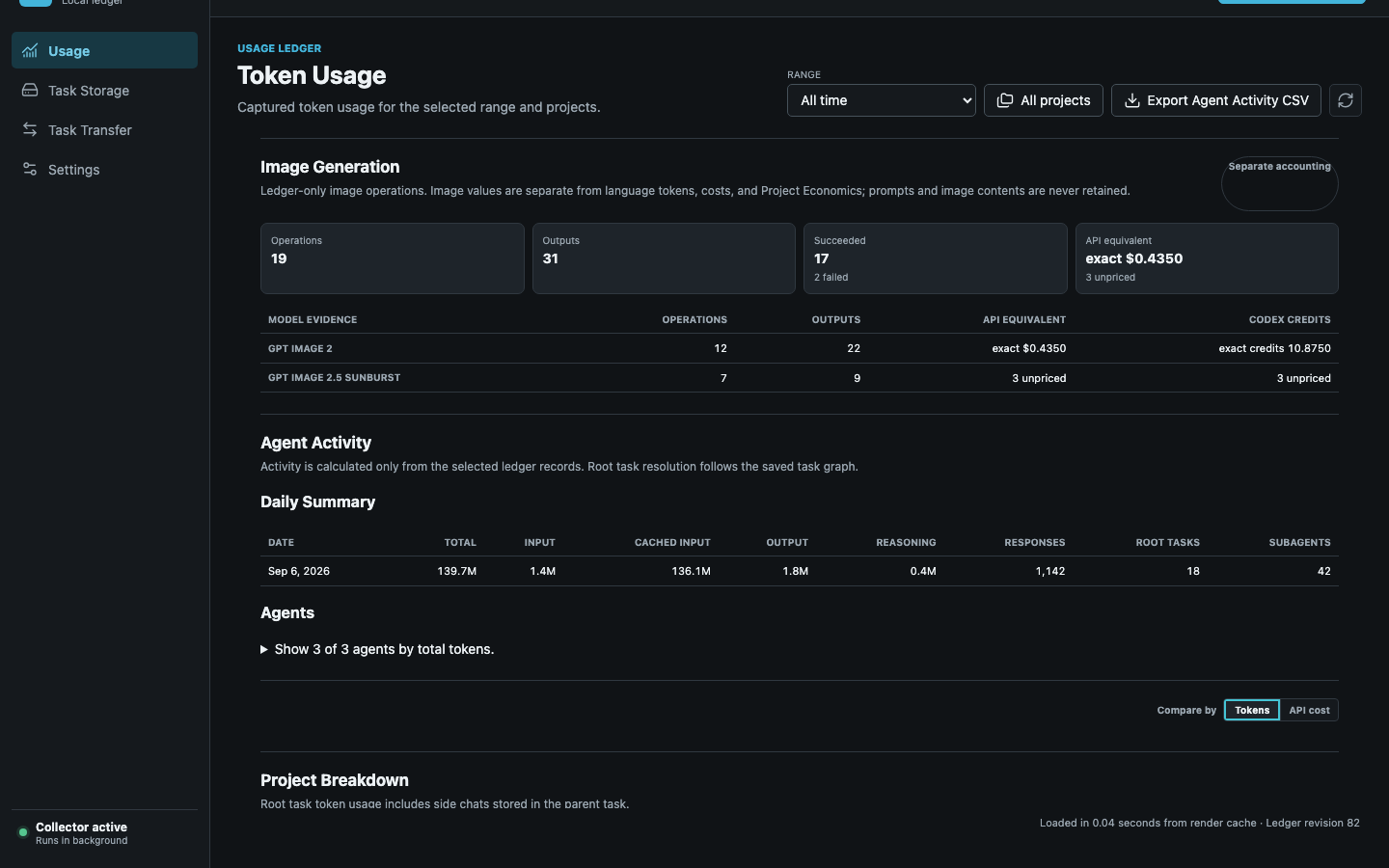
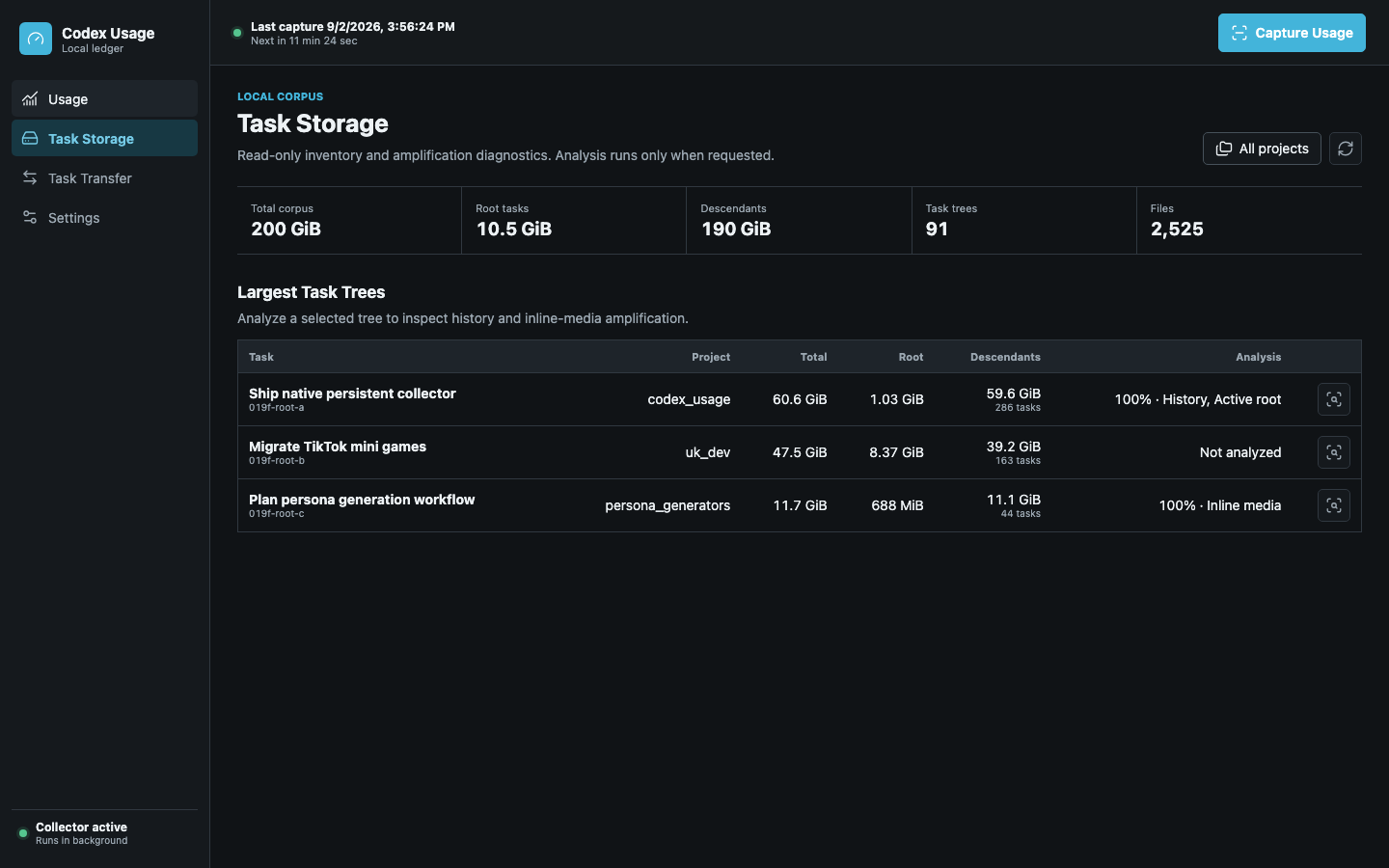
Each role cell shows both tokens and API-equivalent dollars. Use the shared Compare by control to change both Project Breakdown and Model Mix between Tokens and API cost without regenerating the report. Models are shown by generation and product tier with stable, distinct colors; the bounded visual set still prioritizes the models responsible for the most tokens. Project Economics adds a weighted all-project benchmark and expandable project and model turn metrics from the same selected ledger rows. Distinct non-empty project/task/turn identities define turns; blank turn IDs remain in totals and coverage, while unpriced turns are excluded only from cost denominators. Detailed Token Accounting is collapsed by default, and Cache Write (reported) is copied from the ledger rather than inferred or reconstructed. Image Generation reporting uses only durable image-event metadata. It keeps operations, outputs, model evidence, exact values, and unpriced coverage separate from language accounting; prompts, paths, bytes, and image contents are not retained. Unknown or conflicting model evidence is shown as unpriced rather than estimated. Historical image recovery participates in startup, scheduled, and manual captures. One capture reads no more than four 16 MiB rollout slices (64 MiB total), serves new recent artifact owners first, and then rotates the least recently served owners fairly. Missing or ambiguous owners remain visibly unavailable without blocking a valid owner from using the bounded slice. Pricing is bundled and effective-dated. GPT-6 Astra is recognized by its exact model ID, including cache-write and long-context API pricing. Credit estimates use published standard token rates and intentionally omit plan-specific or Fast-mode multipliers because task records do not identify them reliably. The collector normally checks every configured interval. Unchanged cycles may inspect filesystem metadata but open zero JSONLs; ordinary growth reads only guard windows and the new tail. Capture Usage coalesces with existing capture work and resets the next interval after success. The reload icon only re-queries the current view, so it does not scan task files or advance the ledger. Deleted source tasks remain in historical totals only after their latest usage was captured. Run Capture Usage before deleting. Codex Usage cannot restore a deleted task. Task StorageTask Storage reports current active and archived JSONL bytes by user-visible root task tree and separates root files from structured descendants. It does not follow the Usage date range. It shares the selected project filter and explicit Auto, Day, or Night theme with Usage.
Choose Analyze on a tree to scan only that tree for repeated compacted history, inline-media evidence, descendant concentration, and active-root risk. The operation is cancellable and does not invoke a model. History amplification is labeled only after a complete analysis finds at least 1 GiB of compacted rows representing at least 50% of logical tree bytes; otherwise the result remains Not analyzed, incomplete, or below threshold.
Codex Usage does not create, fork, archive, restore, or delete tasks. Task TransferTask Transfer deliberately moves selected active task JSONLs through a folder managed by OneDrive, Dropbox, iCloud Drive, Syncthing, a network drive, or a similar filesystem provider. It never runs automatically. Export
Import
Each Import or Export handles one project. Use the project Back action and repeat for another project. Review Status compares state without copying. The complete selected batch is validated first. Conflicts, changed files,
unsafe mappings, opposite-direction changes, running Desktop, ambiguous Desktop
projects, and assignment conflicts block the operation. Registration uses
targeted Codex Settings
Project selections are Companion UI state. Use Set Up Collector for
PrivacyThe companion connects only to the authenticated collector on For support, open a GitHub issue and include the app and companion versions, operating system, collector status, and redacted Codex Usage output. Never attach raw task JSONLs publicly. |