Palimpsest — Git WorkbenchA Git workbench with interactive history, working changes, branches, and a native floating window. Installation Launch VS Code Quick Open ( Ctrl+P), paste the following command, and press enter.Copied to clipboard |

Palimpsest — Git WorkbenchExplore your history and manage your next commit in one Git workbench. Palimpsest combines an interactive repository landscape with working changes, staging, commits, branches, and remote operations. Open it from its own Activity Bar entry, beside your code, or in a separate VS Code window.
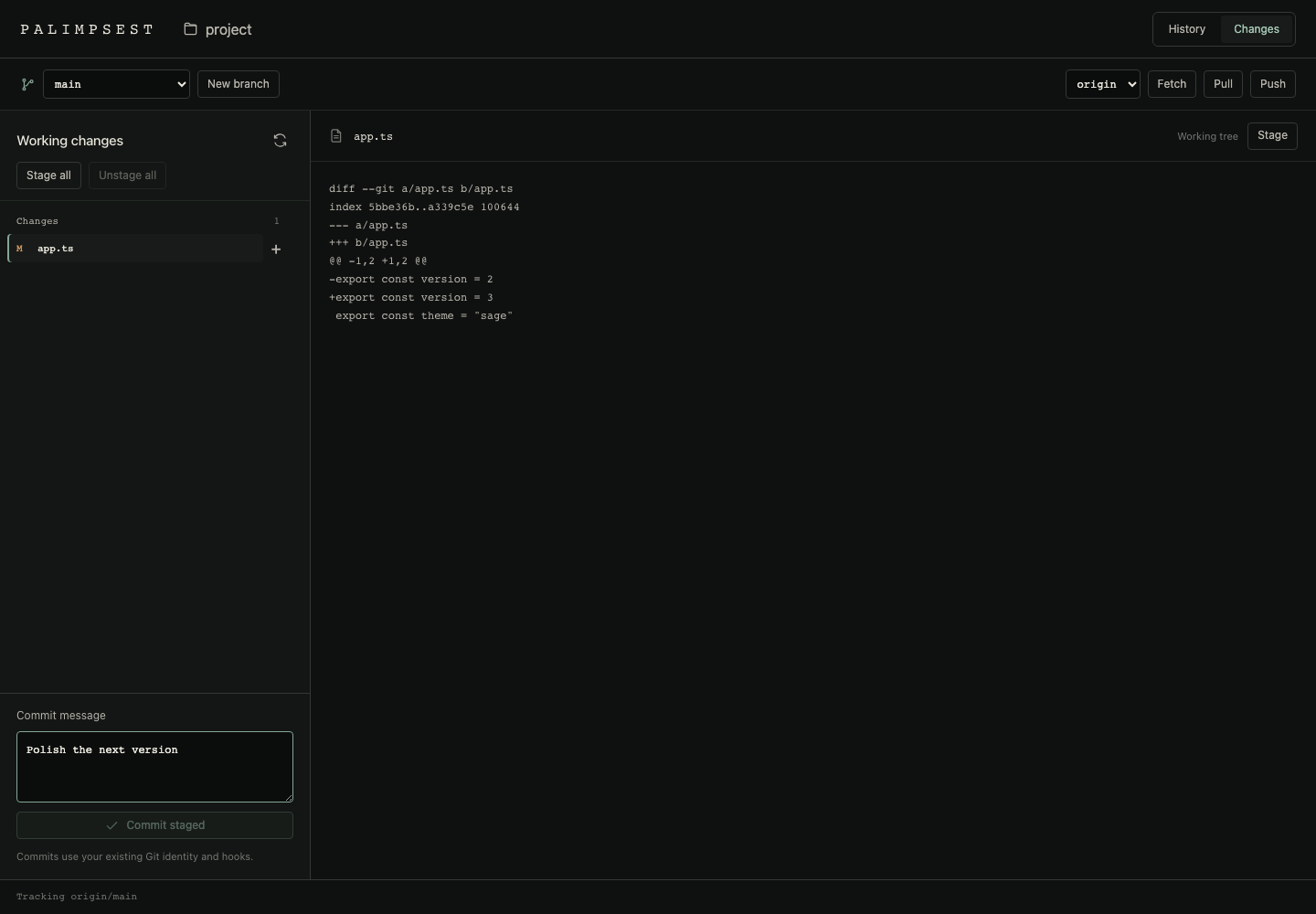
A temporary example repository used to verify the complete Git workflow. Make your next commit
Operations show their result in the workbench. Commits and branch changes refresh history; staging does not rebuild it. Refresh working changes after external edits. Remote operations use your existing Git authentication configuration; if interactive authentication is required, complete it using VS Code's Git integration or terminal and retry. Running writes finish before an idle worker is released, and writes are never automatically retried.
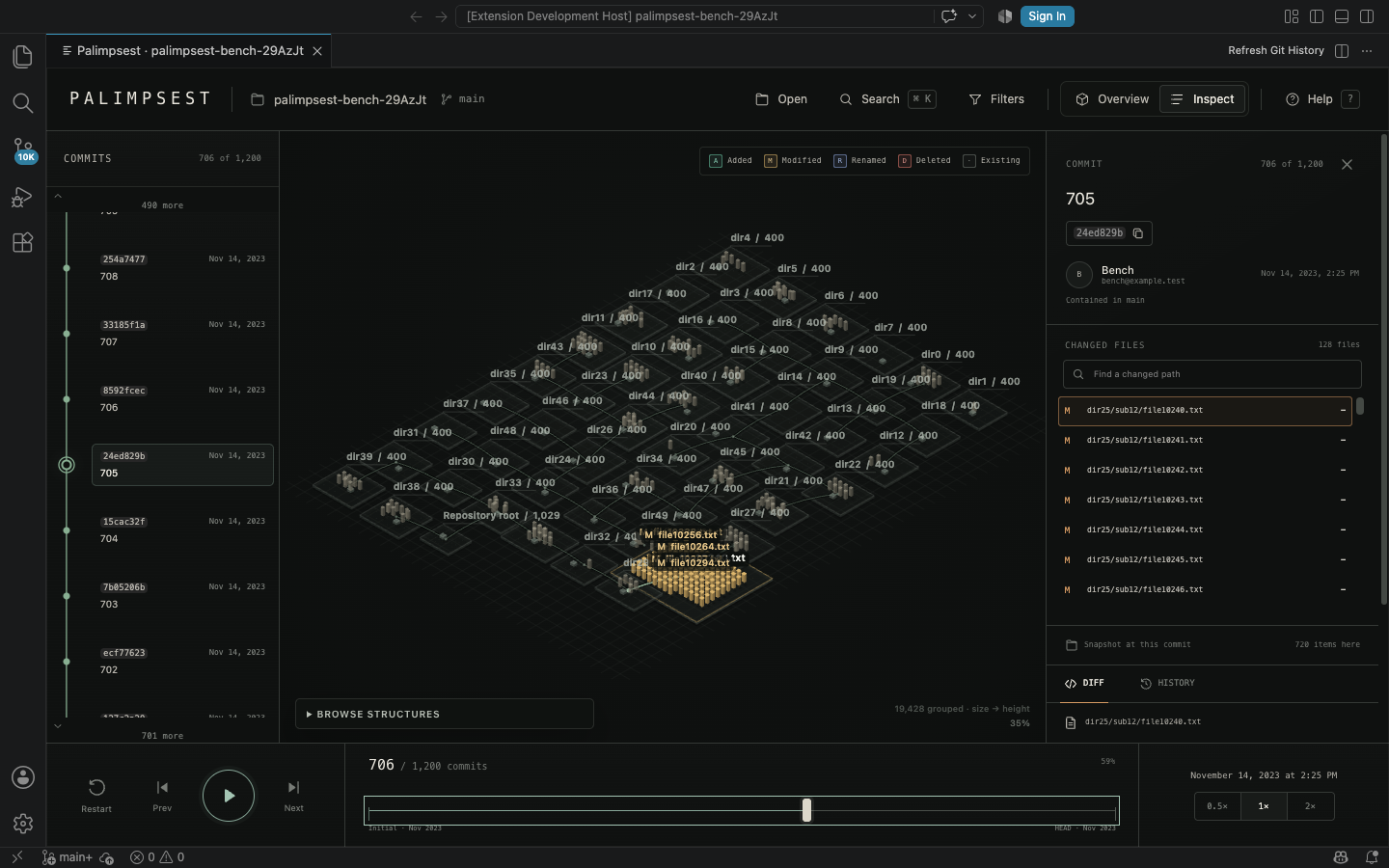
An example repository with 1,200 commits. The screenshot uses generated test data. Explore history visually
Install and openSearch for Palimpsest — Git Workbench by wenhao_question in VS Code's Extensions view. Packaged Or install the Marketplace extension with: After installation:
Use Open in New Window to move the workbench into a native floating window, similar to other VS Code tools. Its current page, history position, and commit draft survive the move. Open to the Side places it beside your code. On hosts without the floating-window command, the extension opens to the side and explains the fallback. A single workspace repository opens automatically. When multiple repositories are found, choose one from the picker. To open another project, run Palimpsest: Choose Repository… or right-click a folder in Explorer. Commands and controls
With the history view focused, Space plays or pauses, ← / → steps between commits, and Home returns to the beginning. Press F for filters, I for inspection mode, or ? for help. Drag the landscape to pan and scroll to zoom; when the canvas itself is focused, its arrow keys pan the view. Built for large repositoriesHistory summaries and file listings load in pages. The landscape uses representative file blocks and directory totals to keep large trees readable; exact paths and diffs remain available through the inspector. Initial indexing of a large history can take longer than later navigation. Panning and continuous zooming reuse a compact viewport image, then restore native-DPR detail when the gesture ends. Static surfaces support up to 12M pixels; interaction surfaces use at most 4M. All display, scene, and preview surfaces share a 128 MiB RGBA storage budget; browser/GPU overhead is additional. Hidden views release cached canvases, and an idle scene draws no frames. A snapshot always produces the same grid. Switching Overview/Inspect or selecting a file keeps the buildings in place. Files outside the bounded visible sample highlight their directory; the inspector still provides their exact paths and diffs. Git runs in an isolated worker. Hiding the view pauses playback and cancels pending reads; the worker and its caches are released after an idle interval once running writes finish. Restoring the hidden view preserves the selected repository, branch scope, and commit position.
For large histories, metadata filters apply to the loaded commit window; branch selection covers the selected branch's complete history. File filters affect the current snapshot. Requirements
For Remote SSH, WSL, or Dev Containers, install Palimpsest on the remote workspace host. Repository reads run there, with the visualization displayed in your VS Code editor. No Palimpsest account or cloud service is required. See troubleshooting and support, the release notes, or the project on GitHub. |