

|
 LLM Translation



| 特性 | 描述 |
|---|---|
| 🤖 多 LLM 支持 | 支持 DeepSeek、阿里通义千问、月之暗面 Kimi、智谱 GLM 等主流大模型 |
| ⚡ 双模式显示 | 简版模式快速预览,侧边栏展示详细翻译结果 |
| 🌍 多语言翻译 | 支持中、英、日等多种语言互译 |
| 🔄 翻译替换 | 一键将原文替换为翻译结果 |
| 📝 自定义提示词 | 支持学术、代码、口语等多种翻译风格 |
| 🎨 智能 UI | 内联提示、悬停卡片、设置面板,操作便捷 |
| 🔐 安全存储 | API Key 存储在 VS Code 密钥管理中 |
| 📊 实时状态 | 状态栏显示当前使用的模型和翻译状态 |
📦 安装
方式一:VS Code 商店安装(推荐)
- 打开 VS Code
- 点击左侧扩展图标或按
Ctrl+Shift+X - 搜索
LLM Translation - 点击安装
方式二:手动安装
# 1. 下载最新 .vsix 文件
# 2. 在 VS Code 中按 Ctrl+Shift+P
# 3. 选择 "Extensions: Install from VSIX..."
# 4. 选择下载的文件
🚀 快速开始
1. 配置 API Key
打开 VS Code 设置(Ctrl+,),搜索 LLM Translation,配置至少一个服务商的 API Key:
{
  "llmTranslation.providers.deepseek.apiKey": "sk-xxxxxxxx"
}
或使用命令:Ctrl+Shift+P → LLM Translation: Set API Key
2. 开始翻译
- 选中文本
- 右键 →
Translation - 或使用快捷键
Ctrl+Shift+T(Mac:Cmd+Shift+T)
🏗️ 支持的 LLM 服务商
| 服务商 | 模型 | 官网 |
|---|---|---|
| DeepSeek | deepseek-chat | platform.deepseek.com |
| 通义千问 | qwen-plus (Qwen3) | dashscope.aliyun.com |
| Kimi | kimi-k2.5 | platform.moonshot.cn |
| 智谱 GLM | glm-4.7 | open.bigmodel.cn |
⚙️ 详细配置
API Key 设置
{
  "llmTranslation.providers.deepseek.apiKey": "your-api-key",
  "llmTranslation.providers.deepseek.model": "deepseek-chat",
  "llmTranslation.providers.deepseek.baseUrl": "https://api.deepseek.com",

  "llmTranslation.providers.qwen.apiKey": "your-api-key",
  "llmTranslation.providers.qwen.model": "qwen-plus",

  "llmTranslation.providers.kimi.apiKey": "your-api-key",
  "llmTranslation.providers.kimi.model": "kimi-k2.5",

  "llmTranslation.providers.glm.apiKey": "your-api-key",
  "llmTranslation.providers.glm.model": "glm-4.7"
}
默认设置
{
  // 默认翻译服务商
  "llmTranslation.defaultProvider": "deepseek",

  // 默认目标语言: auto(自动检测), zh(中文), en(英文), ja(日文)
  // auto 模式:中文自动翻译成英文,英文自动翻译成中文
  "llmTranslation.defaultTargetLang": "auto",

  // 显示模式: simple(简版), normal(侧边栏)
  "llmTranslation.displayMode": "simple"
}
简版模式设置
{
  "llmTranslation.simpleMode.autoHide": true,
  "llmTranslation.simpleMode.autoHideDelay": 300,
  "llmTranslation.simpleMode.showPronunciation": false,
  "llmTranslation.simpleMode.showAlternatives": true,
  "llmTranslation.simpleMode.maxAlternatives": 2
}
提示词模板
{
  // 默认模板: default, academic, casual, code, abbreviation
  "llmTranslation.defaultPromptTemplate": "default",

  // 自定义模板
  "llmTranslation.customPromptTemplates": [
    {
      "name": "商务正式",
      "description": "商务邮件正式翻译",
      "template": "请将以下内容翻译成正式商务风格的{targetLang},保持专业语气:\n\n{text}"
    }
  ]
}
⌨️ 快捷键
| 快捷键 | Windows/Linux | Mac | 功能 |
|---|---|---|---|
| 翻译选中文本 | Ctrl+Shift+T |
Cmd+Shift+T |
翻译当前选中的文本 |
💡 可在 VS Code 键盘快捷键设置中自定义
📋 命令列表
按 Ctrl+Shift+P 打开命令面板,搜索 LLM Translation:
| 命令 | 描述 |
|---|---|
Translation |
翻译选中文本(根据当前模式) |
Translate (Simple Mode) |
使用简版模式翻译 |
Translate (Sidebar Mode) |
使用侧边栏翻译 |
Translate to English |
翻译为英语 |
Translate to Chinese |
翻译为中文 |
Translate to Japanese |
翻译为日语 |
Translate and Replace |
翻译并替换原文 |
Switch Provider |
切换 LLM 服务商 |
Toggle Display Mode |
切换显示模式 |
Open Settings |
打开设置页面 |
Set API Key |
设置 API Key |
🖼️ 使用演示
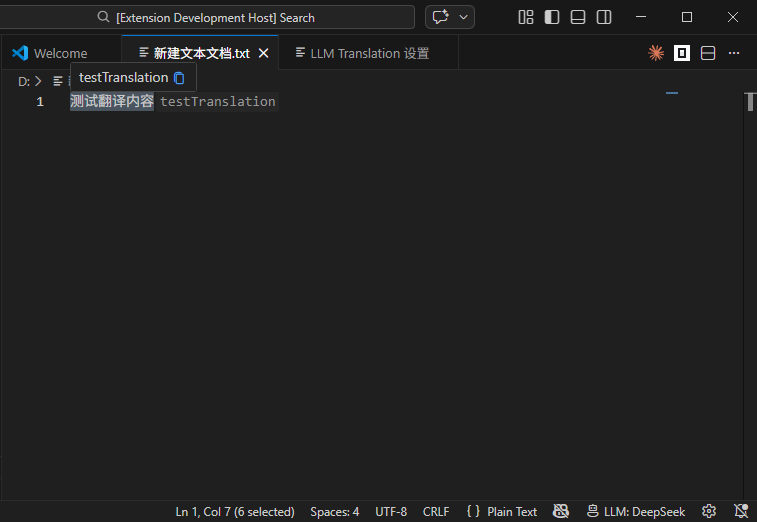
简版模式
选中文本后快速显示翻译结果,自动隐藏
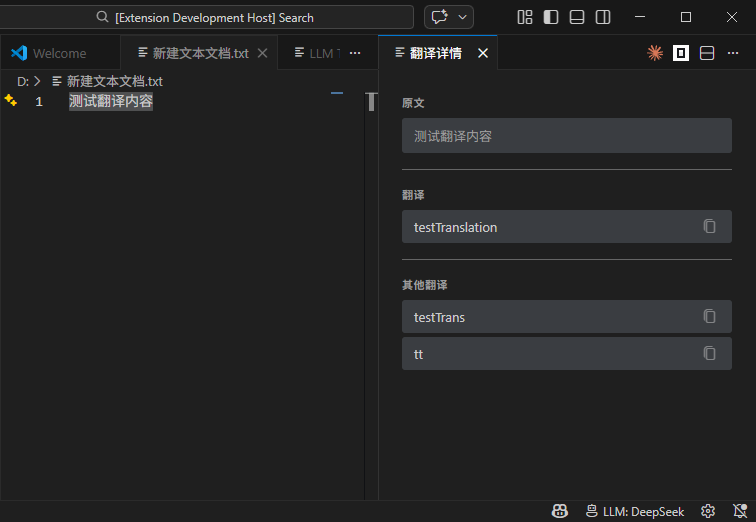
侧边栏
在面板中显示详细翻译结果、发音、备选翻译
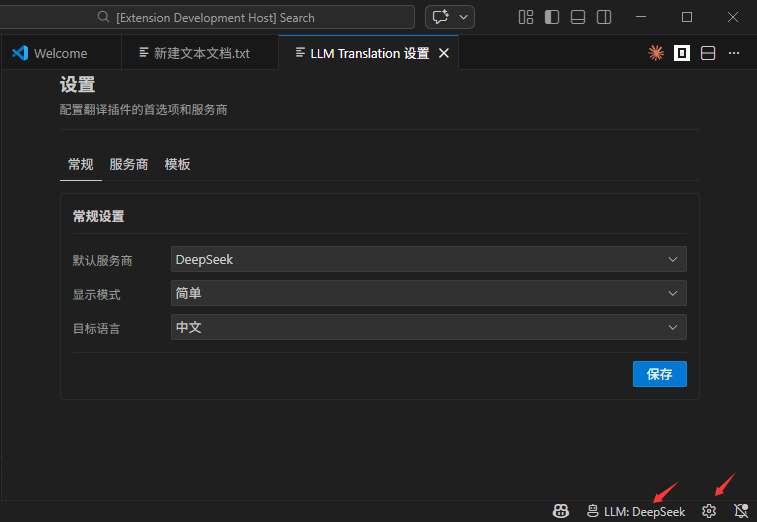
设置面板
可视化配置 API Key 和各项参数
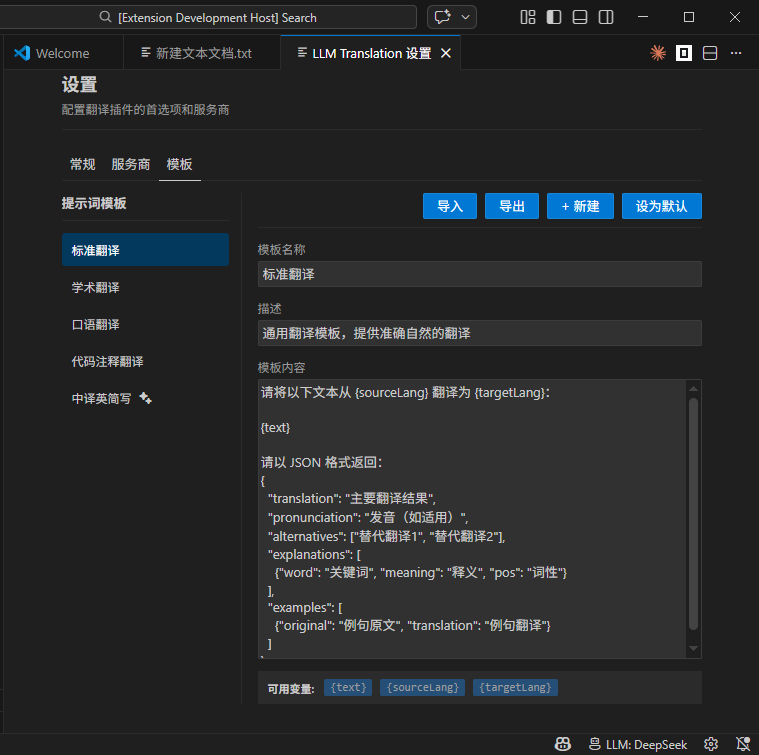
提示词设置
可自定义提示词模板
🏛️ 技术架构
┌─────────────────────────────────────────────────────────┐
│                    VS Code Extension                     │
│  ┌──────────────┐  ┌──────────────┐  ┌──────────────┐  │
│  │   Commands   │  │   Services   │  │   Webview    │  │
│  │  (翻译命令)   │  │ (状态栏/内联) │  │ (设置面板)    │  │
│  └──────┬───────┘  └──────┬───────┘  └──────────────┘  │
│         │                 │                             │
│  ┌──────▼─────────────────▼───────┐                     │
│  │       BaseProvider            │                     │
│  │     (通用 HTTP/错误处理)       │                     │
│  └──────┬──────────┬─────────────┘                     │
│         │          │          │                         │
│  ┌──────▼───┐ ┌────▼───┐ ┌────▼───┐ ┌────▼───┐        │
│  │ DeepSeek │ │  Kimi  │ │  Qwen  │ │  GLM   │        │
│  │ Provider │ │Provider│ │Provider│ │Provider│        │
│  └──────────┘ └────────┘ └────────┘ └────────┘        │
└─────────────────────────────────────────────────────────┘
                           │
                           ▼
                    ┌──────────────┐
                    │  LLM APIs    │
                    └──────────────┘
🤝 贡献指南
欢迎提交 Issue 和 PR!
开发环境
# 1. 克隆项目
git clone https://github.com/webPan/llm-translation
cd llm-translation

# 2. 安装依赖
npm install

# 3. 启动调试
npm run watch
# 按 F5 启动 Extension Host
项目结构
src/
├── commands/          # 命令实现
├── providers/         # LLM 服务商封装
├── services/          # 业务服务(状态栏、内联显示等)
├── types/             # TypeScript 类型定义
├── webview/           # WebView 面板组件
└── extension.ts       # 插件入口
提交规范
feat:新功能fix:修复问题docs:文档更新refactor:代码重构chore:构建/工具更新
📜 许可证
MIT © 2024 LLM Translation Contributors
🙏 致谢
⭐ 如果这个项目对你有帮助,请给它一个 Star!