RPA Sandbox
Let AI agents reuse recorded desktop workflows through MCP, including workflows in apps without an API. Deterministic VNC replay handles routine screen actions, while a failed OCR checkpoint returns a handover for an agent with computer-use access to inspect the live screen. Python 3.10 or newer runs the bundled recorder's headless replay entry point. Start the target VNC server separately before replay. The recorder's Auto-start local x11vnc option is off by default.
OCR by platform. Linux and Windows use PaddleOCR with PP-OCRv5 recognition models for 80+ languages. macOS uses Apple Vision, with the available languages determined by the installed macOS version. Choose language codes in the recorder or use languages in MCP OCR calls. PaddleOCR model documentation
Screenshots and demo
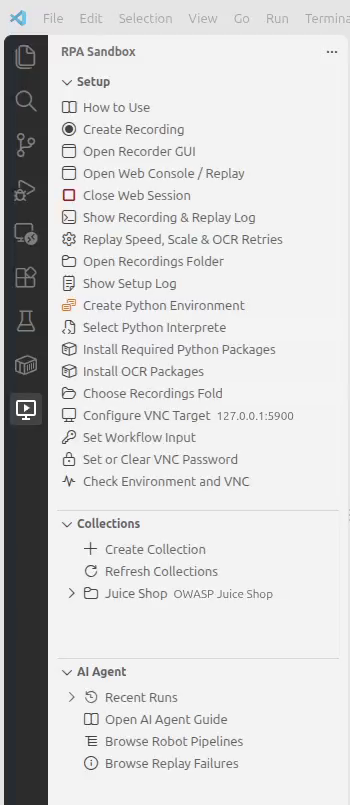
Setup, recording collections, and recent agent runs are available from the RPA Sandbox view.
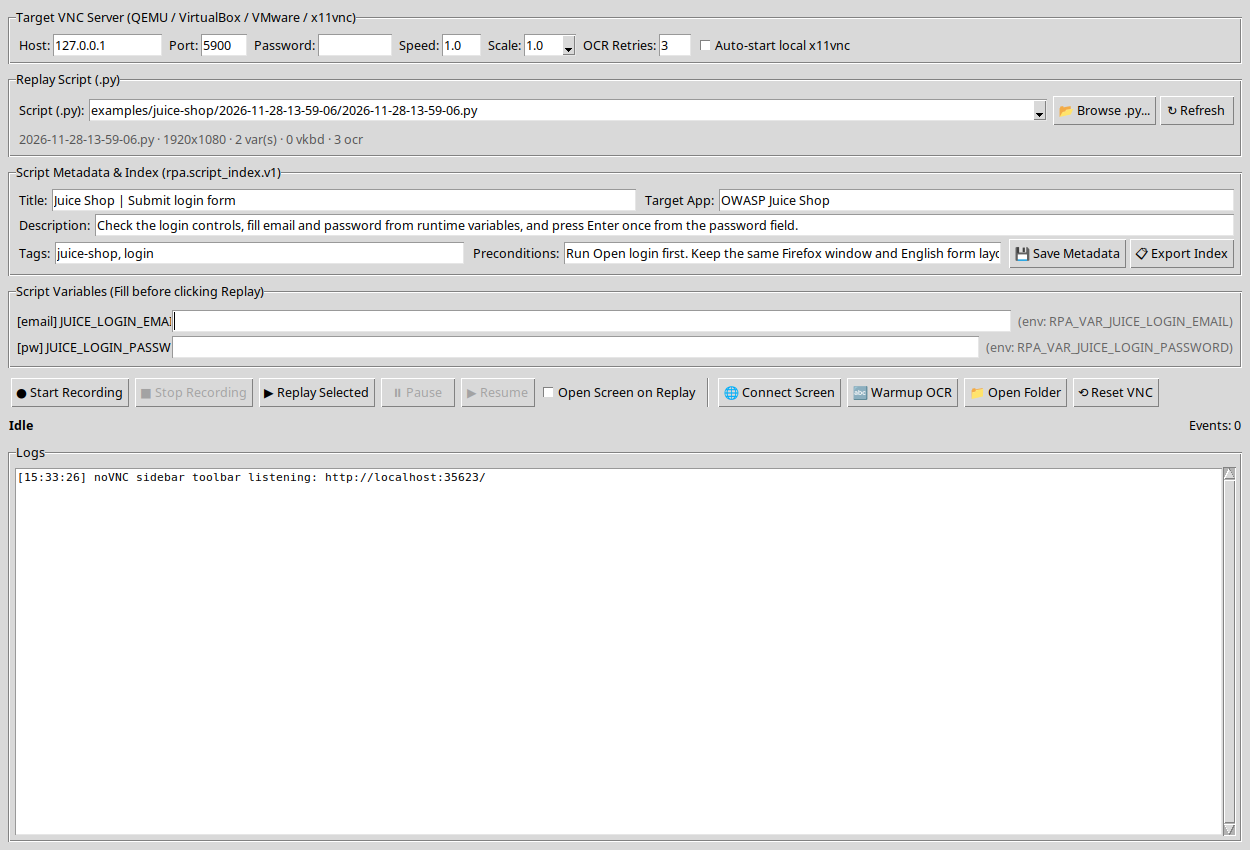
Recorder GUI
Configure your VNC target, select a recording, review its metadata, and supply runtime inputs before replaying.
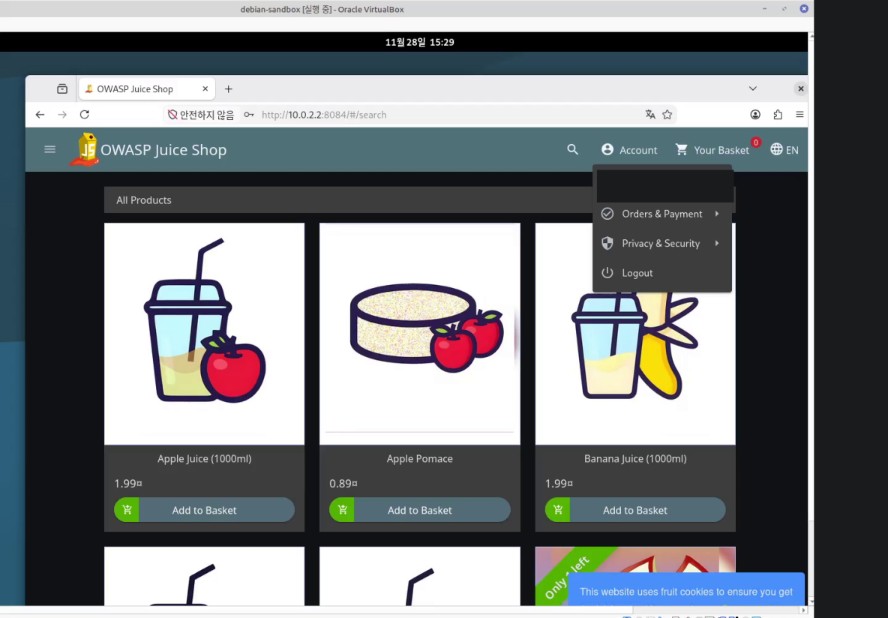
Juice Shop demo
The workflow runs in Firefox on a Debian 13 guest using VirtualBox VNC. The demo shows the login form replay and the signed-in Account → Logout check.
Watch the MP4 demo · English guide · 한국어 가이드
Install
- MCPB. Install
dist/rpa-sandbox.mcpb in an MCPB-compatible desktop client. Select the repository's sample-rpa directory in the bundle settings and enter the existing VNC server's host and port.
- VS Code 1.102+. Run
code --install-extension dist/rpa-sandbox.vsix or use Extensions → Install from VSIX…. Open a trusted workspace and click the RPA Sandbox monitor icon in the Activity Bar. How to Use reopens the Welcome walkthrough.
macOS support. Use macOS 13+ with Xcode Command Line Tools. MCP startup prepares a native Swift helper and automatically selects Apple Vision OCR. On Apple Silicon, the helper runs as ARM64 even when Python is translated. Vision manages hardware selection.
Required display setup
Set the VNC guest to 1920 × 1080 (Full HD) with 100% display scaling. Set the recorder’s Display Scale to 1.0 before recording or replaying, and keep the application layout consistent.
- Choose Create Python Environment to create or reuse and select
.venv in the open workspace folder and install or verify OCR. On Windows this automatically finds Python 3.13 (64-bit), preserves incompatible environments as backups, and uses only the workspace .venv. On Linux/macOS, Python 3.10+ is supported and Select Python Interpreter selects an existing interpreter.
- Choose Install Required Python Packages to prepare noVNC, its WebSocket dependencies, and Robot Framework.
- Use Install OCR Packages to repair an existing environment or change its OCR backend. A working OCR backend is required for recording and MCP startup. On supported Linux or Windows x64 hosts the installer checks the NVIDIA driver and GPU, selects a compatible CUDA build, and verifies it with a Paddle tensor operation. It can use the CPU build instead. The first OCR run may download models.
- Choose Choose Recordings Folder if the workspace does not already contain
sample-rpa.
- Choose Configure VNC Target and enter the host, port, and password of the existing VNC server. Press Enter with a blank password for a server without one. Restart existing web or MCP sessions to apply connection changes.
- Choose Check Environment and VNC to see the Python interpreter, recordings folder, OCR package detection, and VNC protocol connectivity in the RPA Sandbox output channel.
For workflow credentials, provide the variable names returned by the inspect tool in the MCP process environment. For VNC authentication, the VS Code extension can use its saved password or inherit VNC_PASSWORD. MCPB clients can use the bundle’s VNC password field. On Windows, set the bundle Workspace to an absolute path: MCP discovers Python 3.13, prepares that workspace’s .venv, installs dependencies, and starts only with its interpreter. Setup logs go to config/python-setup.log. On other platforms, point the bundle at a Python environment with the OCR dependencies installed. From VS Code, starting the recorder or MCP server checks OCR and asks before installing or repairing packages.
On Linux and macOS, Configure VNC Target and the MCPB client's VNC password field save a
per-user password for the selected host and port. The shared profile is a local file readable
only by the OS user, under $XDG_CONFIG_HOME/rpa-sandbox/vnc (normally ~/.config/rpa-sandbox/vnc).
Select the same host and port in each client and leave the MCPB password field blank to reuse the
profile. A non-empty MCPB password replaces the saved value when the server starts. To clear the
shared password, save a blank password in VS Code and clear any explicit MCPB password. On
Windows, each client keeps its password in its existing credential storage. Restart active
MCP and recorder sessions after changing the target or password.
OCR retries on CPU if CUDA memory is exhausted. Local processes share one CUDA OCR slot.
Processes that cannot acquire the slot use CPU OCR. Set RPA_OCR_DEVICE=cpu in the launch
environment to use CPU for automatic device selection.
Share the local MCP server
VS Code and MCPB start lightweight stdio adapters. Adapters using the same OS account,
compatible build, Python environment and native accelerator configuration connect to one local
worker. The worker uses a private Unix-domain socket and releases its OCR resources after one
minute with no connected adapters. Use that same Python environment in both clients to share
the worker.
Each connection keeps its own recordings folder, VNC settings, and replay credentials. Requests
run in order in the shared worker. The agent that starts a recording owns it until it stops or
that agent disconnects. Other agents can browse their recordings during that time. Retry screen reads, replay, and new recordings after the active recording ends.
Record a workflow in VS Code
Choose Create Recording in the RPA Sandbox sidebar. Fill in the title, description, target application, tags, and preconditions in the editor on the right. Start Recording opens the recorder’s noVNC toolbar in your browser. The first session installs the noVNC dependency into the selected virtual environment if needed. Open noVNC in Browser reopens a running session.
The toolbar keeps the Python recorder’s credential masking, virtual keyboard region selection, OCR region reading and verification, and metadata editing. Use Stop Recording in the browser or Stop and Save in the editor to generate the replay script, Robot wrapper, event log, and metadata. Closing the editor also saves an active recording.
Choose Open Web Console / Replay to view the target, select a workflow, edit metadata, export its index, or enter replay variables and run it. The browser controls replay pause, resume, and abort. Use Replay Speed, Scale & OCR Retries for defaults and Show Recording & Replay Log for subprocess output. Use Close Web Session before changing the console’s target or starting a new recording. The extension reuses the recorder’s existing web UI without requiring Tk or starting local x11vnc.
Choose Open Recorder GUI to open the original desktop recorder with the current recordings directory, VNC target, and replay defaults. The selected Python needs Tkinter and the VS Code extension host needs a graphical display.
Agent-assisted recording and collections
Use rpa_record_start to create a session in the configured recordings folder. Pass a collection ID to add the saved workflow to that collection. Use the returned browser URL to watch or manually interact with the same recorder. Browser controls require the noVNC dependencies. A text-only session can set browser: false.
- Observe and act.
rpa_record_screen returns text and OCR coordinates by default. Use include_image: true only when needed, and rpa_record_input for clicks, keys, text and scrolling. The recording browser and MCP inputs operate on the same target.
- Credentials and regions.
rpa_record_credential takes a local environment variable name. Use the latest frame ID with rpa_record_preview_region and rpa_record_save_region to record OCR checkpoints or keypad regions. Set pause: true on a keypad region to insert a manual-entry step.
- Save and organize.
rpa_record_stop exports the workflow. The VS Code recording editor can pick a collection. Open Collections in the sidebar to see workflow titles, hover for descriptions, or click to open the Robot suite. Edit the suite’s Metadata Title and Metadata Description settings and choose Refresh Collections to update the labels. The web console's Collections section can create a group, select its recordings and add or ungroup the selected recording. MCP exposes rpa_list_collections, rpa_create_collection, and rpa_collection_member. Use rpa_list_workflows with collection_id or query to narrow discovery.
- Read replay results. Use
rpa_read_screen after a replay to extract current text and boxes for reporting or comparison without returning images. See the repository's examples/juice-shop collection.
Robot pipelines and AI-guided repair
Connect the bundled MCP server to your AI agent. The VS Code AI Agent sidebar opens the guide, generated Robot suites, and persisted failure summaries. Recent Runs displays passed, failed, and skipped stages using the VS Code testing icons.
- Record each logical action via the approved VNC target and save it as a separate Python workflow.
- Call
rpa_create_pipeline with an ordered list of {name, workflow, comment} stages. The generated workflow.robot includes numbered stage comments. Use rpa_run_pipeline to run it and get the failed stage number and failure ID if replay stops.
- Call
rpa_repair_workflow with action: review and the failure ID. Ask the user to clarify the expected behavior, record the replacement stage, then use action: propose. After explicit approval, use action: apply with the proposal ID to create a revised pipeline. Review the target state before any retry.
The MCP tools keep the original recordings and pipeline. For standalone Robot execution, set RPA_RECORDER_FILE to the v7 recorder path, use a Python environment with Robot Framework, and run python -m robot <pipeline-directory>/workflow.robot. MCP can run the same suite without requiring a separate recorder path.
Bundled Agent Skill
Both packages include the rpa-sandbox skill. In VS Code versions with extension-contributed skills, Copilot Chat can discover it or invoke it with /rpa-sandbox. MCP Skills clients can load skill://rpa-sandbox/SKILL.md from the server. Clients that support MCP tools can call rpa_workflow_guide to read the same instructions, including on older MCP protocol versions.
| Tool |
Function |
rpa_workflow_guide |
Read the bundled skill instructions for choosing, replaying, and recovering a workflow. |
rpa_list_workflows |
List timestamped workflow IDs and relative script paths. |
rpa_inspect_workflow |
Read resolution, credential variable names, and recorded regions. |
rpa_replay_workflow |
Run a workflow by ID with optional speed, scale, and ocr_retries overrides. |
Replay runs the selected local Python script with your account permissions. Use a recordings directory you trust. The result includes the exit code and the tail of the replay output. Exit code 3 also returns the OCR handover payload when emitted. Use RPA_REPLAY_TIMEOUT to override the default 120-second limit. Set RPA_CONTROL_URL when using a replay that requires virtual-keyboard confirmation through the recorder sidebar.
Build
Run ./integrations/rpa-mcp/build.sh from the repository. The build uses Node.js and npm to package the same headless server and recorder into both formats. Pass --vsix-only to rebuild just the VS Code extension.
The original RPA Sandbox code is MIT licensed. The installed package includes LICENSE and
THIRD_PARTY_NOTICES.md. OCR engines and model weights, x11vnc, and noVNC retain their
respective upstream licenses.
Illustrated guides and demo
The repository includes an English guide and a Korean guide with Recorder GUI screenshots. The project README shows the Debian 13 and VirtualBox VNC demo.
Release automation
GitHub Actions runs packaging checks and Robot dry-runs for pull requests and pushes to
main. A v* tag must match the VSIX version in package.json. The release job builds
both packages, publishes GitHub release assets, and publishes the MCPB checksum and metadata
to the official MCP Registry using GitHub OIDC.
For Open VSX, register .github/workflows/release.yml as a trusted publisher and set
OPEN_VSX_TRUSTED_PUBLISHING to true. When Open VSX provides a pending registration code,
store it temporarily as the OPEN_VSX_REGISTRATION_CODE repository secret. Remove it after
the first successful publication. Use OPEN_VSX_TOKEN as a fallback when Trusted
Publishing is disabled. Bump both package versions before tagging a release. The registry
metadata is generated from the exact GitHub release asset.
Workspace container sandbox
The VS Code Welcome walkthrough includes Start a workspace sandbox container. Choose a workspace, install/select its Python, and start the user's Docker or Podman engine. Start Workspace Container builds an Ubuntu XFCE desktop and saves its VNC endpoint in workspace settings. Workspace Container Status and Stop Workspace Container inspect or stop it; the guest home remains under sandbox/volumes/. Build logs are under sandbox/. No sudo is invoked.
Standalone MCP hosts can set RPA_WORKSPACE to the absolute workspace path and call rpa_sandbox_status, rpa_sandbox_start (engine: docker or podman, mode: cpu, mesa, or nvidia), and rpa_sandbox_stop. Start automatically connects later MCP screen reads and replays to the container. The desktop app uses the same workspace configuration and Compose controller. Stop before changing engine or graphics mode. Docker Compose or a Podman Compose provider must be installed. VM lifecycle management is outside this feature.

