Claude Switch (unofficial)
Switch which Claude account the Claude Code VS Code extension uses, and with it the claude CLI in VS Code's terminal. Each VS Code window can use its own account: work in one window, personal in another.
Unofficial. This extension is not made, endorsed or supported by Anthropic. It works by swapping Claude Code's internal login files, so a Claude Code update can stop it from working. When that happens it refuses to switch instead of guessing.
Highlights
- An account per window. Work in one VS Code window, personal in another; each project remembers its account.
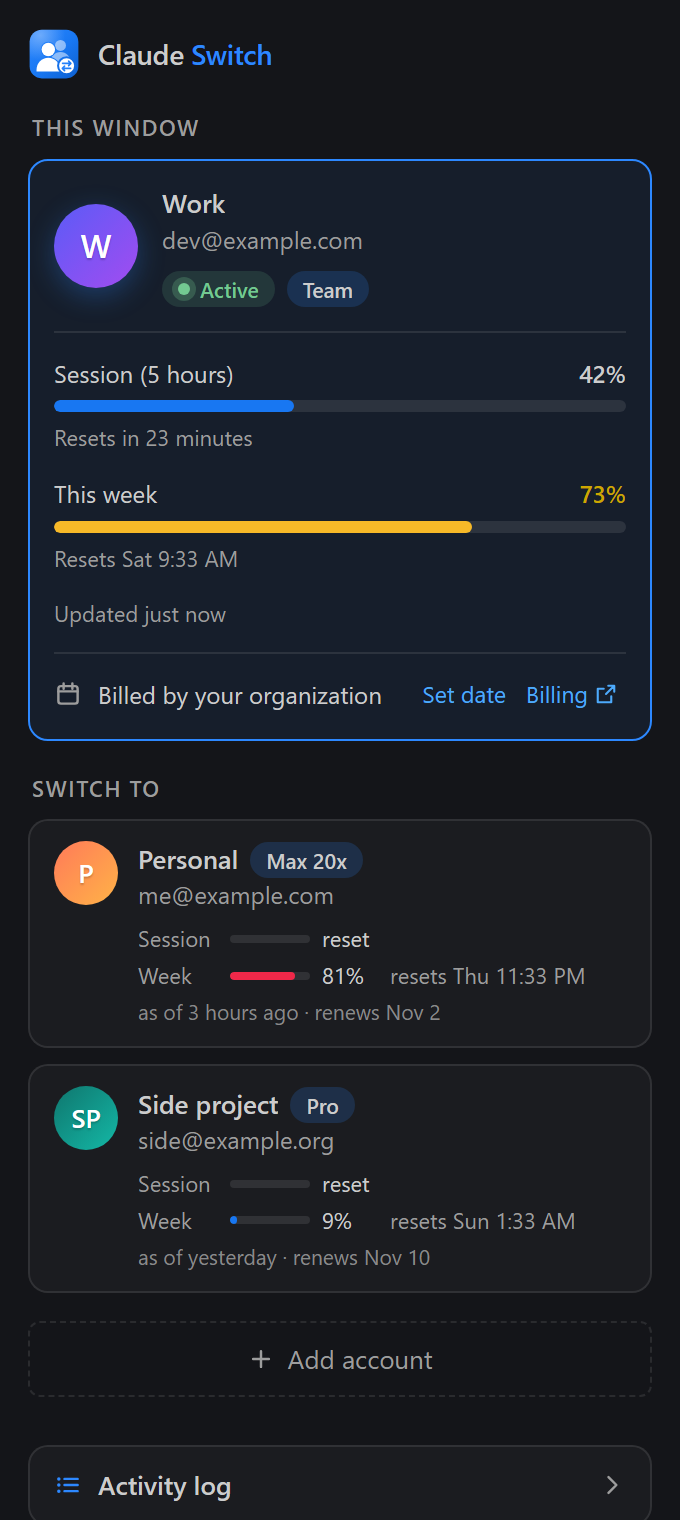
- Usage at a glance. Session and weekly limits for every account, refreshed every 10 seconds, turning yellow at 70% and red at 80%.
- Add accounts without a terminal. Sign in through the browser from the tab; your current login is not touched.
- Careful with your login. Saved logins stay encrypted, every switch is checked and rolled back on failure, and the extension makes no network calls of its own.
Install
Search for Claude Switch in the Extensions view (Ctrl+Shift+X) and click Install:

Or press Ctrl+P and run ext install wattanun42.claude-switch-accounts.
| Platform |
Status |
| Windows |
Supported |
| Linux, WSL, Remote SSH |
Expected to work, because Claude Code keeps logins in the same files there. Less tested. |
| macOS |
Not supported. Claude Code keeps logins in the macOS Keychain, not in files. |
Out of scope: the Claude desktop app and claude.ai in a browser.
How to use it
There are three ways in:
- Claude Switch tab in the activity bar (two people with swap arrows):
With no saved accounts, it shows a welcome page with an Add account button.
Otherwise, the account this window uses sits on top under This window, and your other accounts are listed below it.
Click an account to use it in this window; other windows keep theirs. Hover over it for edit and remove buttons, or right-click it for the same actions and Switch All Windows.
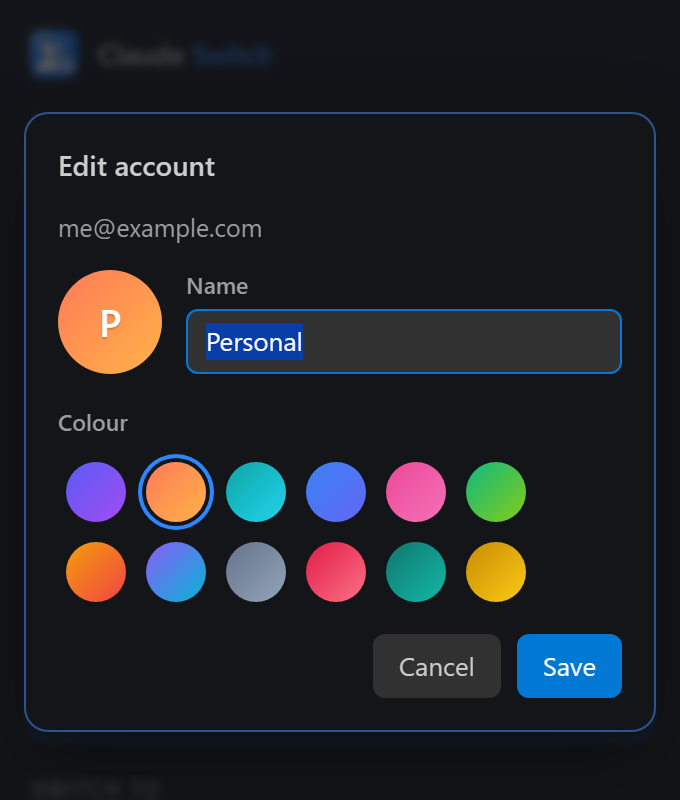
Edit (the pencil) changes the account's name and its avatar colour, with a live preview:
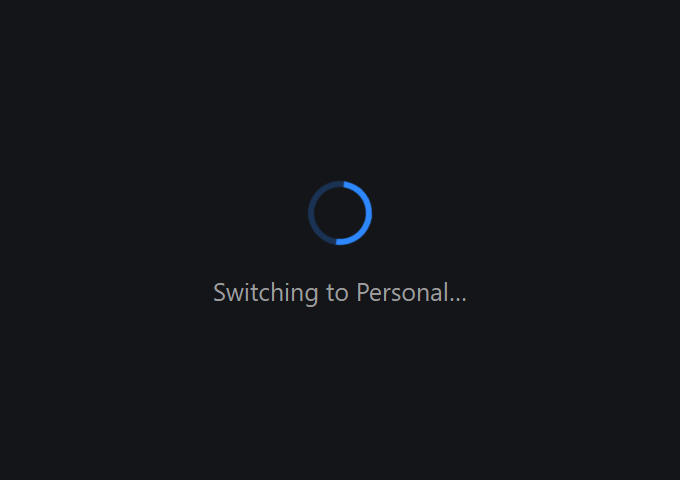
While VS Code starts, or the window reloads after a switch, the tab shows a spinner and what is happening, such as "Switching to Work…", until the accounts are ready.
While you add an account, a sign-in card walks you through it.
The + button in the title bar adds an account. The ⋯ menu holds Switch All Windows, Restore Last Backup, Re-capture Current Login, Show Log and Remove All Saved Data.
The tab shows a badge when an account needs a new sign-in, or when this window should reload because another window changed its account.
The Activity log button at the bottom shows how many entries there are, with a yellow or red dot for warnings or errors you haven't seen yet. It opens the log page right in the tab:
- a timeline grouped by day, newest first
- filter chips for info, warnings and errors
- Copy and Clear buttons
Every question, confirmation and message appears inside the tab: name boxes, "Are you sure?" dialogs, account choices, progress and notices. Nothing pops up elsewhere in VS Code.
The view follows your colour theme, including light and high-contrast themes, with Facebook blue as its accent colour.
- Status bar: shows this window's account, for example
$(account) Work. Click it to open the Claude Switch tab.
- Command Palette: run any of these commands.
| Command |
What it does |
| Claude Switch: Switch This Window's Account |
Opens the Claude Switch tab to pick an account for this window. See Switching. |
| Claude Switch: Switch All Windows |
Makes every window use one account, by changing the default login in ~/.claude. |
| Claude Switch: Add Account |
Signs in to another account in your browser, with progress shown in the Claude Switch tab. Your current login is not affected. |
| Claude Switch: Edit Account |
Changes an account's name and avatar colour. |
| Claude Switch: Remove Account |
Deletes a saved account and its backups from this device. The account this window uses, and the default account, cannot be removed. |
| Claude Switch: Save Current Login |
Saves the account Claude is signed in to, if it isn't saved yet. |
| Claude Switch: Re-capture Current Login |
Saves the live login into its saved account, for example after you ran /login in Claude. |
| Claude Switch: Restore Last Backup |
Puts back the default login from before the last Switch All Windows. If that account was used since, its newest tokens are restored. |
| Claude Switch: Set Renewal Date |
Replaces an account's estimated renewal date with the real one. Leave it empty to go back to the estimate. |
| Claude Switch: Refresh |
Re-reads the live login and updates the account list. |
| Claude Switch: Show Log |
Opens the activity log page in the Claude Switch tab. Secrets are never written to it. A copy also goes to the "Claude Switch" Output channel. |
| Claude Switch: Remove All Saved Data |
Deletes every account, login folder and backup Claude Switch saved, and every window goes back to the default login, which stays as it is. |
On first start, Claude Switch finds the account you are signed in to and shows it in the tab with a Save button, with a badge on the tab icon until you save it as your first account.
Usage and renewal
Each account card shows the account's plan (for example Team, Pro or Max 20x), its usage and its renewal date.
- Usage: this window's account shows meters for the 5-hour session and the weekly limit, with their reset times; a limit that resets within the hour counts down, for example "Resets in 23 minutes". These are the same numbers as
/usage in Claude Code. Meters are blue, turn yellow from 70% and red from 80%.
- Where the numbers come from: every 10 seconds while the tab is open and the window is focused, Claude Switch asks Claude Code's own CLI for the current usage, the same way Claude Code's Account & Usage panel asks it. The CLI fetches the numbers from Anthropic with its own login; Claude Switch never handles your token or makes the request itself. The CLI runs in safe mode, so your hooks, plugins, MCP servers and CLAUDE.md files are not loaded, and it saves no conversation. Each check takes a few seconds, and gets fresh numbers: Claude Switch clears the ones the CLI saved in its own settings folder, which it would otherwise reuse for a minute. If a check fails, for example because Anthropic is limiting requests, the next one waits longer.
- Between checks, and if
claudeRoster.usageCheckSeconds is 0, Claude Switch shows the numbers Claude Code last saved in .claude.json, re-read every 10 seconds (see claudeRoster.autoRefreshSeconds). Those can be several minutes old, and while windows use different accounts they are not used at all, because Claude labels them with the default account.
- Other accounts: show the session and weekly numbers from when each was last active, with reset times and how old the numbers are. A limit whose reset time has passed shows as reset.
- Renewal:
- Pro and Max plans show a date estimated from the subscription start date, assuming monthly billing.
- Team and Enterprise plans show Billed by your organization.
- To show the exact date, click Set date (or run Claude Switch: Set Renewal Date) and enter it from the claude.ai billing page. The Billing link opens that page. A date you set rolls forward every month or year.
Adding an account
- Click + in the Claude Switch tab. Enter the account's email if you like (it pre-fills the sign-in page), or press Enter to skip.
- Your browser opens the Claude sign-in page. Approve access with the account you want to add.
- Back in VS Code, name the account. That's it: no terminal is involved.
While the sign-in runs, the tab shows a sign-in card with these options:
- Open page: if the browser didn't open.
- Copy link: for a private window or another browser.
- Paste code: a box for the code, if the sign-in page shows one instead of finishing on its own.
- Cancel.
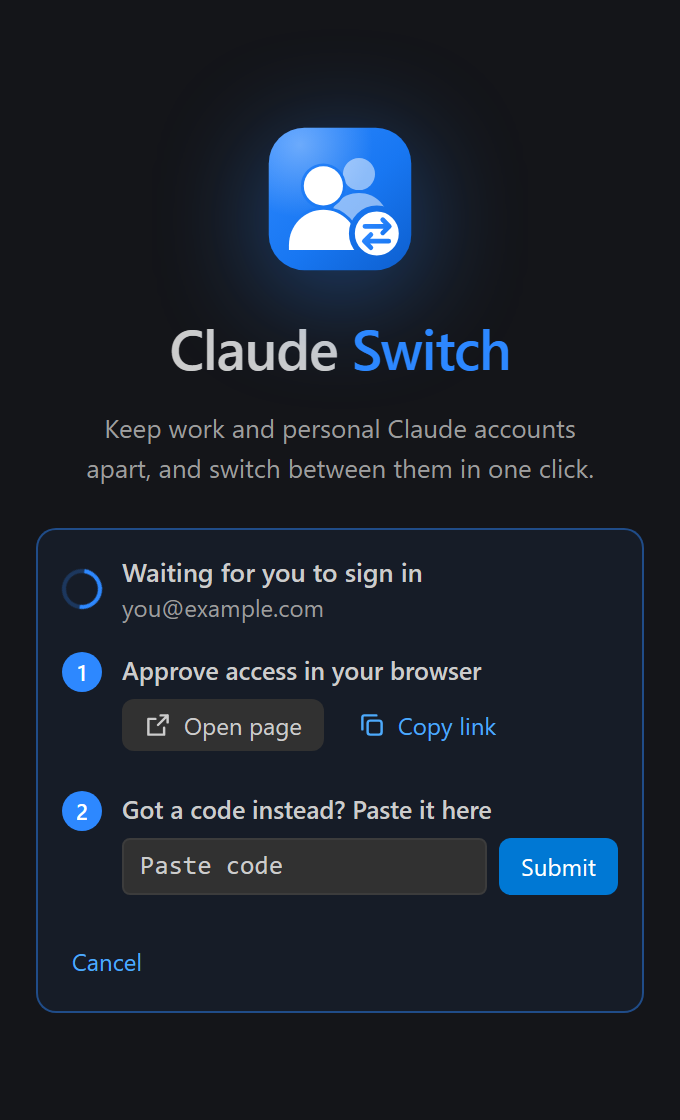
If your browser is already signed in to claude.ai as a different account, the sign-in page approves that account. Sign out of claude.ai first, or copy the link into a private window.
Under the hood, Add Account runs claude auth login as a hidden background process, with CLAUDE_CONFIG_DIR pointing at a temporary folder. It uses the CLI bundled with the Claude Code extension, or claude on PATH. If that fails, Claude Switch offers to sign in in a terminal instead.
An Active label marks the account this window uses. Expired means the saved login is past its refresh token's expiry date: click Sign in again to replace it.
Switching
Clicking an account switches only this window. Other windows keep their accounts, so you can work in one window as one account and in another as another.
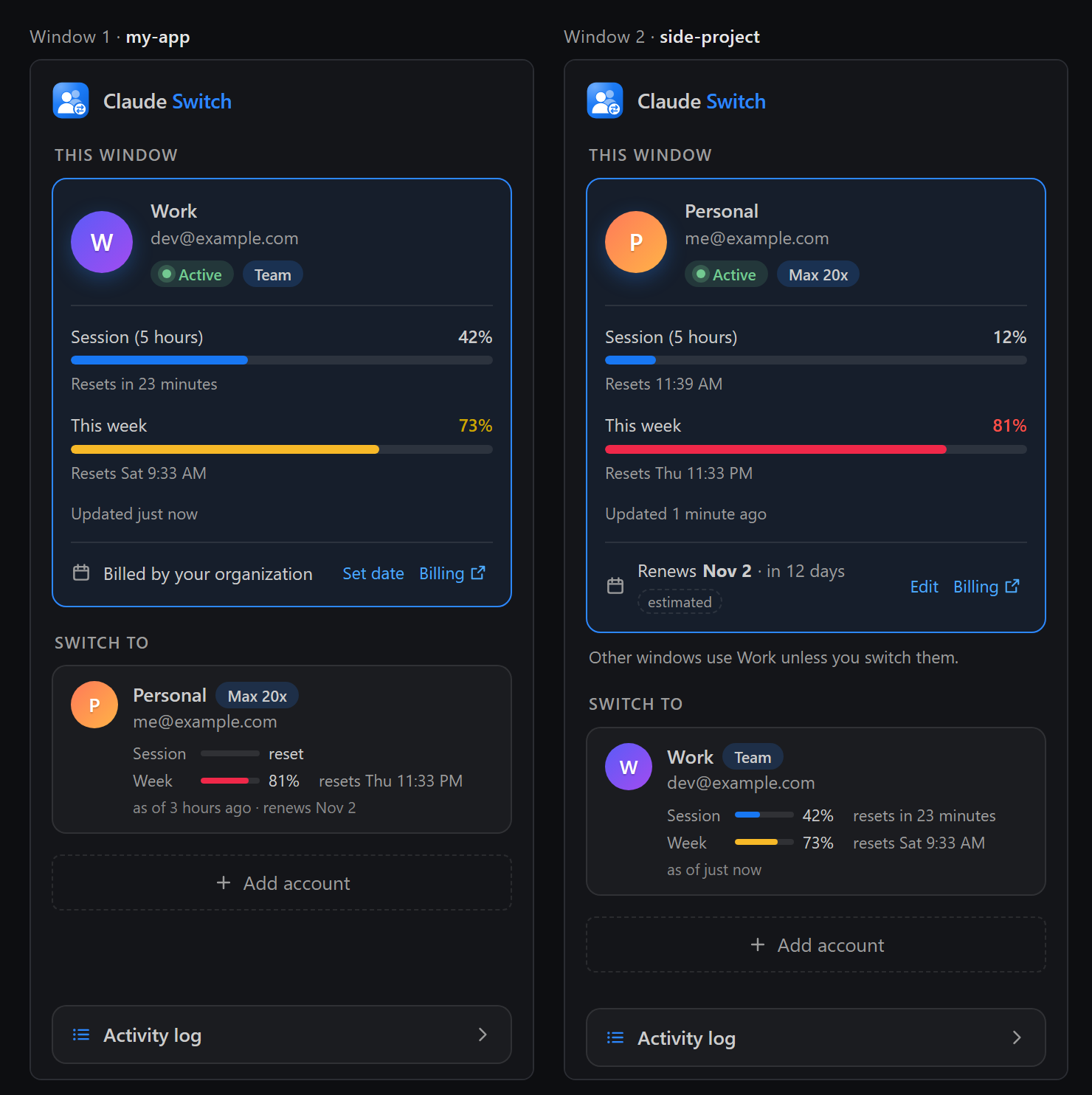
Your choice is remembered per workspace, so a project reopens on its account.
The default account is the login in ~/.claude. Windows that never chose an account use it, and so does claude outside VS Code. A window that picks the default account just uses ~/.claude.
How it works: Claude Code can read its login from another folder, named in the CLAUDE_SECURESTORAGE_CONFIG_DIR environment variable; its settings, history and MCP servers stay in ~/.claude. Claude Switch gives each account that some window uses (other than the default) a login folder of its own, and points that window's Claude, and its terminals, at it. Claude Switch starts with VS Code, before Claude Code, so a window's Claude starts on the window's account.
Each login lives in exactly one place: ~/.claude while it is the default, else its own folder. Claude replaces the refresh token each time it refreshes a login, so two copies of one login would sign each other out.
Claude conversations already running keep their account, in its own place, so nothing is written back: an account's login folder stays a day after the last window stops using it. By default the window reloads anyway, and only that window. Meanwhile the tab says what is happening:
To make every window use one account, use Switch All Windows (right-click an account, or the ⋯ menu). It changes the default login in ~/.claude, and every window goes back to the default account. Other open windows offer to reload; until they do, Claude conversations running there keep the old account and can write the old login back. Exit claude sessions running in terminals first, for the same reason.
Clicking accounts while a switch is under way does nothing; the tab greys out the list until the switch finishes.
To change what happens after a switch, set claudeRoster.switchMode:
| Mode |
What happens |
reloadWindow (default) |
Closes and reopens the window that switched. The most reliable. |
restartExtensions |
Restarts that window's extensions only (a few seconds; editors and terminals stay open), so every conversation in the window moves to the new account. Running Claude tasks stop. |
newConversation |
Switches without restarting and opens a new Claude Code conversation on the new account. |
instant |
Switches without restarting. The notice has a New conversation button. |
The last two are fastest, because Claude Code reads the login each time a conversation starts. Conversations that were already open keep the previous account until you start a new one. After Switch All Windows in these modes, Claude Switch watches for older conversations writing the old login back: it quietly repairs a rewritten oauthAccount, and warns you, with a button to switch again, if the whole old login comes back.
Known limitation: in a window with its own account, Claude Code's own account panel may still show the default account's email, because that comes from the shared ~/.claude.json. Claude uses the window's account all the same; the Claude Switch tab and status bar show which one.
Troubleshooting
| What you see |
What to do |
| Not sure which account a window uses |
Look at the status bar or the tab's This window card. From that window's terminal, claude auth status shows the account Claude signs in as. |
| A Claude conversation still uses the previous account |
Conversations started before the switch keep their account. Start a new conversation, or reload the window (the default switchMode does this for you). |
| A terminal still uses the previous account |
Terminals opened before the switch keep their account; VS Code marks them with a warning icon. Open a new terminal. |
| "The saved login has expired" |
Choose Sign in again, or Add Account with the same email: the new sign-in replaces the saved one, and windows that use the account get it too. |
| Usage numbers look old |
Usage is checked every 10 seconds while the tab is open and the window is focused (claudeRoster.usageCheckSeconds). The Activity log says if a check failed; after a failure the checks slow down for a while. |
| The tab keeps showing "Loading…" |
Run Developer: Reload Window. If it happens again, open the Activity log (or the "Claude Switch" Output channel) and include it in a bug report. |
| You want to start over |
Remove All Saved Data in the ⋯ menu deletes every saved account, login folder and backup. Your login in ~/.claude stays. |
The Activity log at the bottom of the tab records every switch, sign-in and problem, without secrets. Its Copy button copies it for a bug report.
Files this extension touches
Claude Switch reads and writes only these files:
| File |
Access |
Why |
%USERPROFILE%\.claude\.credentials.json (or in $CLAUDE_CONFIG_DIR, or in $CLAUDE_SECURESTORAGE_CONFIG_DIR if you set it) |
Read, replace |
Claude Code's login tokens. Replaced as a whole on a switch. |
%USERPROFILE%\.claude.json (or $CLAUDE_CONFIG_DIR/.claude.json) |
Read, patch |
Only the oauthAccount key (the signed-in identity) is changed. Every other key, the indentation and the line endings are kept. Claude Switch also reads cachedUsageUtilization (Claude Code's /usage cache) to show usage; it never writes that key. |
<file>.roster-<random>.tmp next to each file above |
Create, rename |
Writes go to a temp file first, which is then renamed over the target, so a file is never half-written. |
%TEMP%\claude-roster-login-<random>\ |
Create, delete |
Isolated sign-in folder for Add Account. Deleted right after the login is captured. Claude Switch refuses to delete any other path. |
VS Code global storage for this extension: switch-signal.json, switch.lock |
Create, write |
Tells other windows about a switch, and stops two windows from switching at the same time. Contains no secrets. |
Global storage: logins/<account>/.credentials.json |
Create, read, delete |
The login of an account that some window uses while it is not the default account, where that window's Claude reads it. Removed, after its newest tokens are saved, when the account becomes the default, and a day after no window uses it. |
Global storage: usage/<account>/ |
Create, delete |
A settings folder of its own for each account's usage check, so the numbers never mix with another account's. Contains no tokens. |
Note that .credentials.json can also hold sign-ins for MCP servers. Because the whole file is swapped, those sign-ins move with each account.
How a switch works
- Sync back: save the live login into its account, because Claude refreshes tokens while it runs. A login whose tokens and identity disagree (a sign of a mixed-up state) is never saved.
- Backup: keep the live login in one of 3 rotating backups.
- Apply: write the target's
.credentials.json, then patch oauthAccount.
- Validate: read both files back. On any difference, restore the previous files exactly.
- Reload: signal the other windows, then reload this window (or restart extensions, or open a new conversation, depending on
claudeRoster.switchMode). Claude Switch then checks that the switch stuck, and repairs oauthAccount if the old Claude process wrote the old one back as it exited.
Security and privacy
Encrypted storage for saved logins. Tokens and account details are kept in VS Code's SecretStorage, which uses the operating system's encryption. Settings, globalState, logs and error messages never contain them. The exception is the login of an account a window uses while it is not the default: Claude must read it from a file, so it is stored like Claude's own ~/.claude/.credentials.json, in Claude Switch's storage folder, and only while a window uses that account. globalState holds only display data:
the account name and email
a hash of the account and organization IDs
the plan name and subscription start date
the last usage percentages seen
any renewal date you set
which account each workspace uses
No network access of its own. There is no telemetry, and Claude Switch makes no network calls. The only process it starts is the Claude Code CLI: claude auth login for Add Account, and the usage check described under Usage and renewal. The CLI talks to Anthropic exactly as it does inside Claude Code.
Narrow file access. Only the files listed above are touched.
Fail closed. If a Claude file has a shape Claude Switch doesn't recognise, it refuses to switch.
Local only. Nothing leaves the device. Removing an account wipes its tokens and its backups. Remove All Saved Data wipes everything Claude Switch saved. Uninstalling the extension doesn't clear SecretStorage, so run that command first.
The extension never runs code from the open workspace. The CLI path used for signing in (claudeRoster.claudePath) can only be set in user settings, never by a workspace.
The sign-in code you paste goes straight to the CLI and is never logged or stored.
Locked-down view:
- The Accounts view loads nothing from the internet, and its content security policy allows only its own bundled script and stylesheet.
- Account names and emails are shown as plain text, never as HTML.
- Tokens and the sign-in link never reach the view.
- Every message from the view is validated before the extension acts on it.
Settings
| Setting |
Default |
Description |
claudeRoster.claudePath |
(empty) |
Path to the Claude Code CLI that Add Account uses. Empty means the CLI bundled with the Claude Code extension, else claude on PATH. Machine scope. |
claudeRoster.switchMode |
reloadWindow |
What happens after a switch: reloadWindow, restartExtensions, newConversation or instant. See Switching. |
claudeRoster.confirmBeforeSwitch |
true |
Ask before switching in the restartExtensions and reloadWindow modes. Instant switches never ask. |
claudeRoster.usageCheckSeconds |
10 |
How often to ask Claude Code's CLI for the current usage of this window's account, while the tab is open and the window is focused. Each check starts the CLI for a few seconds; raise it to check less often. 0 turns it off; the minimum is 10. |
claudeRoster.autoRefreshSeconds |
10 |
How often the tab and status bar re-read the login and usage while the window is focused. Local file reads only. 0 turns it off; the minimum is 5. |
If CLAUDE_CONFIG_DIR is set, Claude Switch switches the login in that folder and warns you once, because the Claude Code VS Code extension has been reported to ignore that variable.
License
MIT. See LICENSE.
Terms of service
Keeping work and personal accounts apart is the usual reason to use this extension. Rotating several personal subscriptions to get around usage limits may conflict with Anthropic's terms, so read them first. This is not legal advice.
Development
npm install
npm run compile            # type-check, lint, bundle into dist/
npm run test:unit          # engine tests against a fake home folder
npm run test:integration   # runs inside VS Code 1.100.0 (downloaded to %TEMP%)
npm run vsix               # builds claude-switch-accounts-<version>.vsix
- Press F5 and choose Run Extension (sandbox Claude folder) to try the UI with
CLAUDE_CONFIG_DIR pointing at a temp folder. Your real login is not touched.
- Run Extension (real Claude login) uses your real files. Back them up first (see below).
- Integration tests always use a fresh, fake
CLAUDE_CONFIG_DIR and a separate VS Code profile. Set ROSTER_TEST_VSCODE=stable to also test the latest VS Code.
Manual test checklist
Back up your login first. The copy contains live tokens, so delete it when you are done:
$dst = "$env:USERPROFILE\claude-backup-$(Get-Date -f yyyyMMdd-HHmm)"
New-Item -ItemType Directory $dst | Out-Null
Copy-Item "$env:USERPROFILE\.claude\.credentials.json", "$env:USERPROFILE\.claude.json" $dst
- [ ] Switch back and forth between two real accounts. Check both the Claude panel and
claude auth status in the terminal.
- [ ] Open two windows on different projects, give each its own account, and check
claude auth status in each window's terminal.
- [ ] Leave it overnight so tokens refresh, then switch again.
- [ ] Switch All Windows with two windows open, and with
claude running in a terminal.
- [ ] Corrupt
.claude.json (for example, make oauthAccount a string). Claude Switch must refuse to switch and leave the file alone.
- [ ] Add Account in the browser, then try it with the sign-in card's Paste code box and with Copy link in a private window.
- [ ] Cancel an Add Account from the sign-in card and from the Command Palette. The
%TEMP%\claude-roster-login-* folder must be gone each time.
Project layout
src/
  extension.ts     activate(): this window's account first, then commands, status bar, window sync
  commands.ts      RosterController: every command and flow, with questions asked in the tab
  windowAccounts.ts  per-window accounts: login folders, and the startup decision
  accountsView.ts  webview provider for the Claude Switch tab (CSP, messages)
  viewModel.ts     builds what the view shows; validates messages from it
  accountDetails.ts  plan, cached usage and renewal dates (no network)
  rosterLog.ts     in-memory activity log shown in the tab
  webview/         the view's browser code (main.ts) and the message types
  switchEngine.ts  sync-back → backup → apply → validate → rollback
  claudeFiles.ts   path resolution, atomic write, oauthAccount patch, schema checks
  profileStore.ts  globalState + SecretStorage wrapper
  addAccount.ts    isolated sign-in folder, `claude auth login` process, polling
  usageCheck.ts    asks the Claude CLI for current usage (stream-json get_usage)
  windowSync.ts    signal file between windows
  statusBar.ts     status bar item
  log.ts           logger interface and secret redaction
media/
  logo.svg         the logo (source of icon.png)
  icon.png         Marketplace and extension list icon (256 × 256)
  roster.css       styles for the Accounts view
resources/
  roster.svg       activity bar icon (monochrome)
test/
  unit/            runs in Node with an in-memory SecretStorage
  integration/     runs inside VS Code via @vscode/test-cli
| |

