Skip to content
| Marketplace
Sign in
Visual Studio Code>Machine Learning>copilot-shareNew to Visual Studio Code? Get it now.
copilot-share

copilot-share

warlordy

|
1 install
| (0) | Free
This extension hosts a local http server to share copilot
Installation
Launch VS Code Quick Open (Ctrl+P), paste the following command, and press enter.
Copied to clipboard
More Info

Table of Contents

  • Overview
  • Extension Quick Guide
  • Session-Oriented Workflow
  • Framework
    • 1. Deployment Architecture and Data Flow (Client-Host Topology)
    • 2. Runtime Request Sequence (Open Web -> Verify Access Code -> Chat)
  • Install Extension
  • Host and Manage the Web Hub
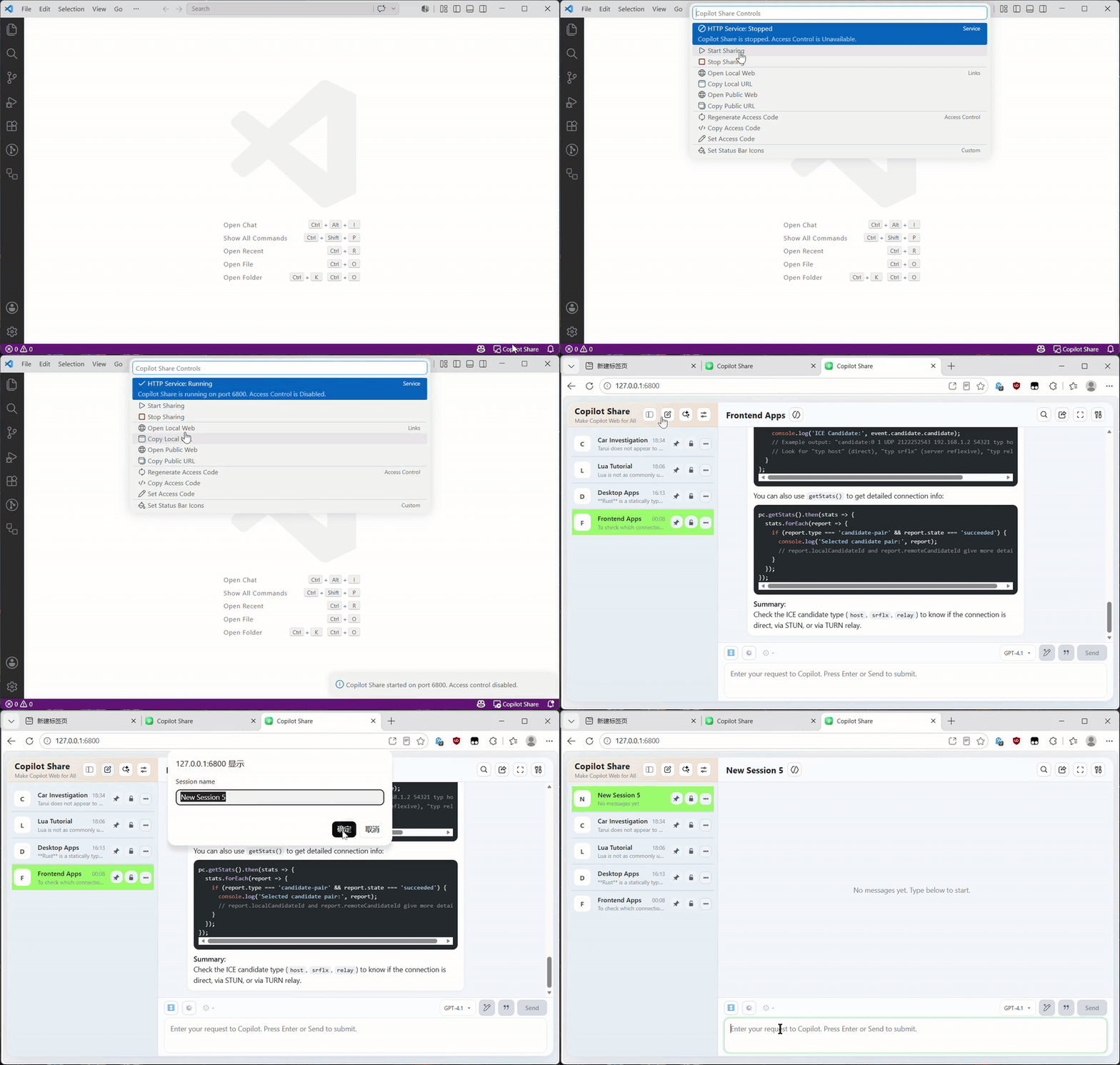
    • 1. Open Control Menu Dialog
    • 2. Control Menu Description
    • 3. Start the Web Hub
    • 4. Stop the Web Hub
    • 5. Use the Web Hub
      • 5.1 Launch Web Hub on Host Device
      • 5.2 Global Controls
      • 5.3 Session List Interactions
      • 5.4 Current Session Interactions
  • Use Copilot in the Web Hub
    • 1. Session Operations
    • 2. Conversation Operations
  • Release Checklist

Overview

copilot-share is a VS Code extension that brings Copilot from the VS Code IDE to a local web hub, delivering a streamlined user experience with reliable session operations and context management. This extension helps you:

  • Access Copilot across devices on your local network
  • Easily share with family, friends, coworkers, or teams

copilot-share introduces the session-oriented workflow that treats prompts and sessions as reusable, reviewable work assets—just like source code. This approach helps you:

  • Organize and track LLM-driven work by objective or project
  • Build a personal or team knowledge base for smarter reuse
  • Review, refine, and share prompt sessions for better outcomes
  • Accelerate solution prototyping and AI-driven demonstrations

This workflow is ideal for technical showcases, collaborative solution design, and building knowledge graphs or POC demos with AI.

Extension Quick Guide

  1. Install this extension
  2. Host and start the web hub
  3. Use Copilot in the web hub

Session-Oriented Workflow

Traditionally, we used code to build applications and services. Because of that, we reviewed code to ensure it matched design goals and business scenarios, and that it met expectations for runtime reliability (memory/concurrency/I/O), privacy, and network safety.

Today, prompts guide LLMs to generate code, documentation, and resource files.

In this model:

  • Prompts are like source code.
  • Sessions are like source files.

That means prompts and sessions should be:

  • Treated as core work assets, just like code and source files.
  • Reviewed with the same level of discipline used for code and source files, so we can confirm direction, validate objectives, find gaps early, avoid misleading outputs, and reduce the risk of accepting responses that sound convincing but are inaccurate.
  • Used to build a personal knowledge base or knowledge graph—ideal for technical showcases, solution prototyping, AI-driven demonstrations, and proof-of-concept (POC) workflows, enabling smarter reuse and accelerated innovation.

Why call it session-oriented:

  • A session is a deliberate container for multiple prompts that serve one objective. This is why I call it a session-oriented workflow: it offers a structured way to manage complex projects when prompts drive LLM-based implementation.

Framework

1. Deployment Architecture and Data Flow (Client-Host Topology)

Deployment architecture and data flow

2. Runtime Request Sequence (Open Web -> Verify Access Code -> Chat)

sequenceDiagram
  autonumber
  participant U as User (Browser)
  participant W as Web App
  participant S as copilot-share Server
  participant L as VS Code Copilot

  U->>W: Open Local/Public Web URL
  W->>S: GET /api/server-info
  S-->>W: Server status and access-control mode

  alt Access control enabled
    U->>W: Enter access code
    W->>S: POST /api/access-code/verify
    S-->>W: Verification result
    W->>W: Store access code for API calls
  else Access control disabled
    W->>W: Continue without access code
  end

  U->>W: Send chat prompt
  W->>S: POST /api/chat (Bearer access code if enabled)
  S->>L: Forward prompt to Copilot model
  L-->>S: Model response (normal or stream)
  S-->>W: Chat response
  W-->>U: Render assistant output

Install Extension

  1. Install copilot-share by clicking the VS Code extensions icon (vscode-extensions-icon) and searching for copilot share.
  2. After installation completes, the status bar will show the extension icon (status-bar-icon).

Host and Manage the Web Hub

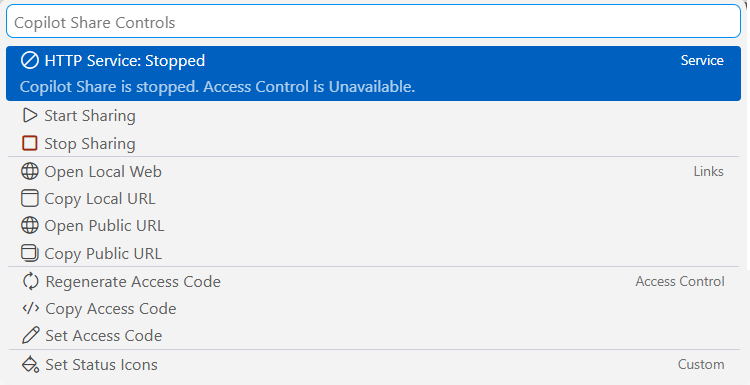
1. Open Control Menu Dialog

  • Click the extension icon (status-bar-icon) in the status bar to open the control menu window. control-menu-window

2. Control Menu Description

Menu Purpose
HTTP Service Show the web hub status: running state, port in use, and access control status.
Start Sharing Start the web hub access control toggled on or off.
Stop Sharing Stop the web hub.
Open Local Web Open the web hub at the local URL (http://127.0.0.1:***/).
Copy Local URL Copy the local web hub URL.
Open Public Web Open the web hub using its LAN-accessible public URL.
Copy Public URL Copy the public URL and show a QR code for quick access on another device.
Regenerate Access Code Generate a new access code for the web hub.
Copy Access Code Copy the current access code.
Set Access Code Manually set the access code.
Set Status Bar Icons Select the status bar icons for the extension.

3. Start the Web Hub

  • Click Start Sharing in the control menu to start the web hub.
    • copilot-share lets you enable or disable the access control for local network (LAN) usage. control-menu-access-control

4. Stop the Web Hub

  • Click Stop Sharing in the control menu to shut down the web hub.

5. Use the Web Hub

5.1 Launch Web Hub on Host Device

  1. Click Open Local Web or Open Public Web in the control menu to use Copilot in a browser on your host device.
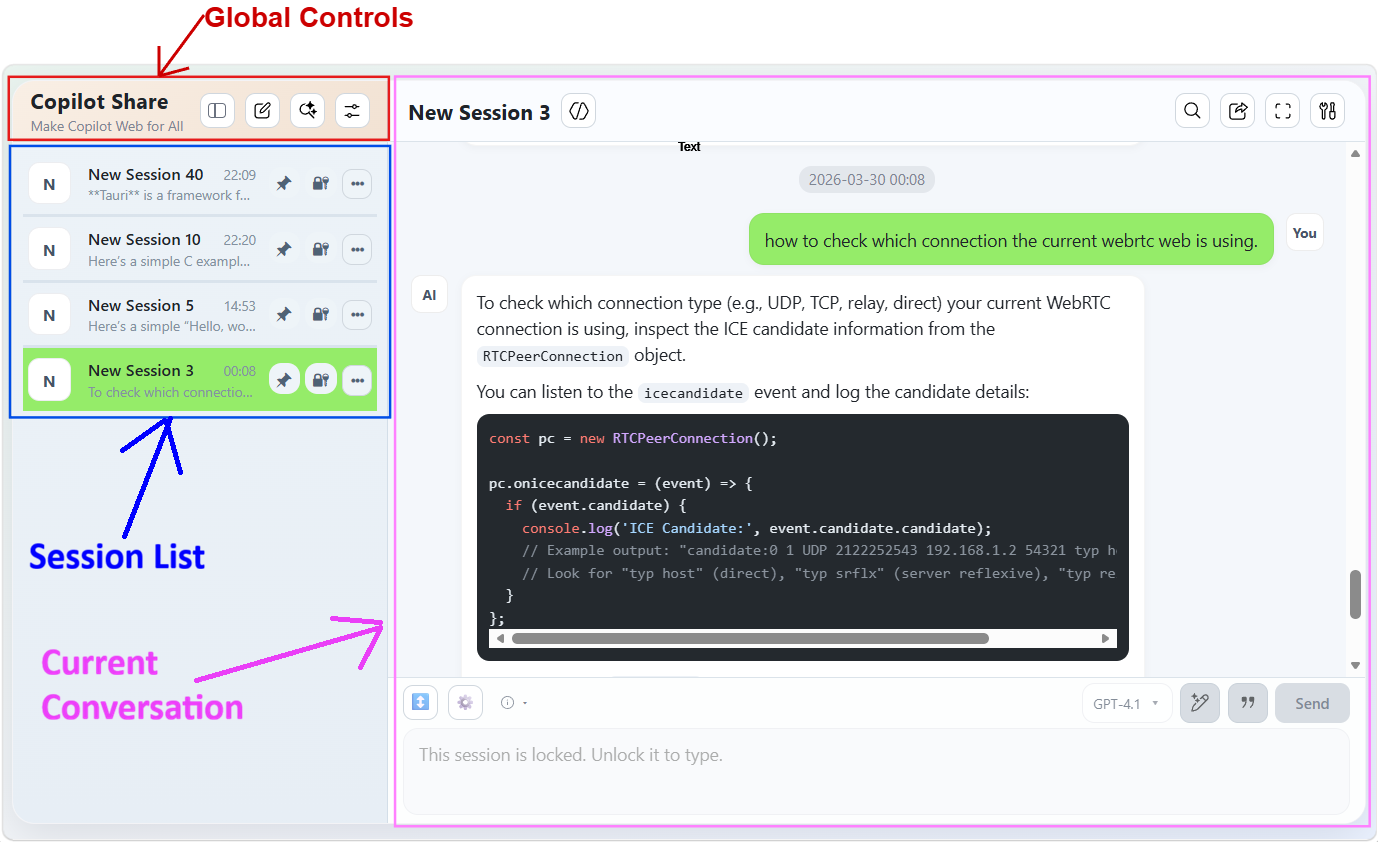
    • Web Hub UI: Web Hub UI modules overview

5.2 Global Controls

  1. UI Buttons
    • web-ui-global-controls

  1. More Actions

    • web-ui-global-controls-more-action
  2. Button Purpose Description

Button Purpose
Collapse Sidebar Toggle the sidebar between expanded and collapsed views to focus your workspace.
Create Session Start a new chat session with Copilot.
Search All Sessions Find matching text across every session in one search.
More Actions Open the More Actions menu for additional workspace controls.
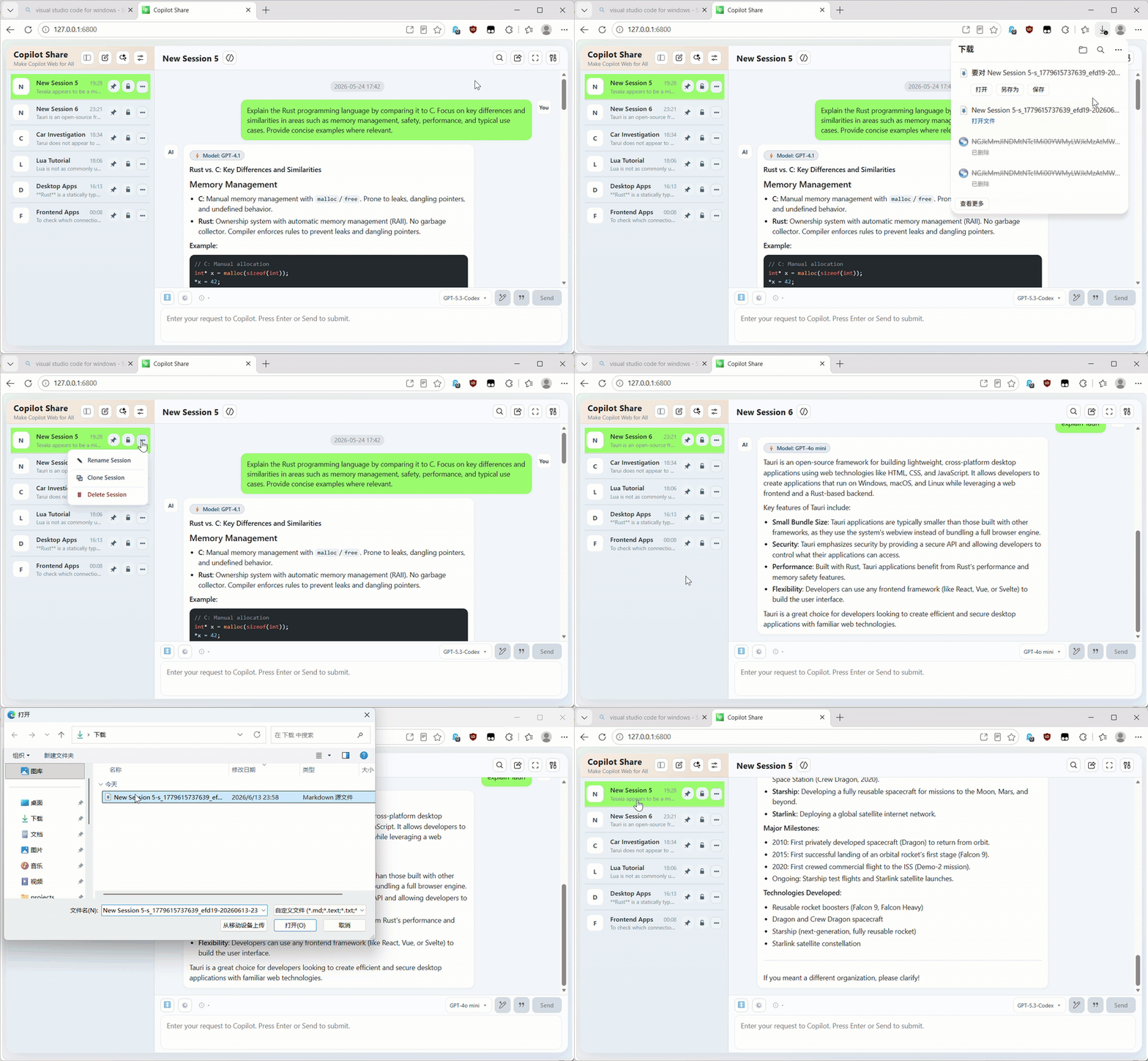
Share All Sessions Export conversations from all sessions to individual Markdown files and download them as a single ZIP package for sharing and review.
Import Session Import a Markdown session file to restore a previous conversation and metadata.
Export All Sessions Export conversations and metadata from all sessions to individual Markdown files and download them as a single ZIP package for local backup, rebuild, review and transfer.
Copy Public URL Copy the LAN-accessible web hub URL for quick sharing to other devices.
Open Public URL Open the LAN-accessible web hub URL in your browser.

5.3 Session List Interactions

  1. UI Buttons
    • web-ui-session-list-item

  1. More Actions

    • web-ui-session-list-item-more-action
  2. Button Purpose Description

Button Purpose
Pin Session Pin/Unpin this session to the top of the session list for quick access.
Lock Session Lock/Unlock this session to prevent accidental updates or edits.
More Actions Open the More Actions menu for additional session-list options.
Rename Session Give this session a clearer, more meaningful name.
Clone Session Duplicate this session with its full context for fast reuse.
Delete Session Permanently remove this session when it is no longer needed.

5.4 Current Session Interactions

  1. UI Buttons
    • web-ui-current-session-buttons

  1. More Actions
    • web-ui-current-session-buttons-more-actions

  1. Session Summary Dialog
    • web-ui-current-session-summary-dialog

  1. Input Area
    • web-ui-current-session-input-area

  1. More Input Actions
    • web-ui-current-session-input-area-more-actions

  1. User Prompt Context Menu
    • web-ui-current-session-input-area-more-actions

  1. Agent Response Context Menu

    • web-ui-current-session-input-area-more-actions
  2. Button Description

Button Purpose
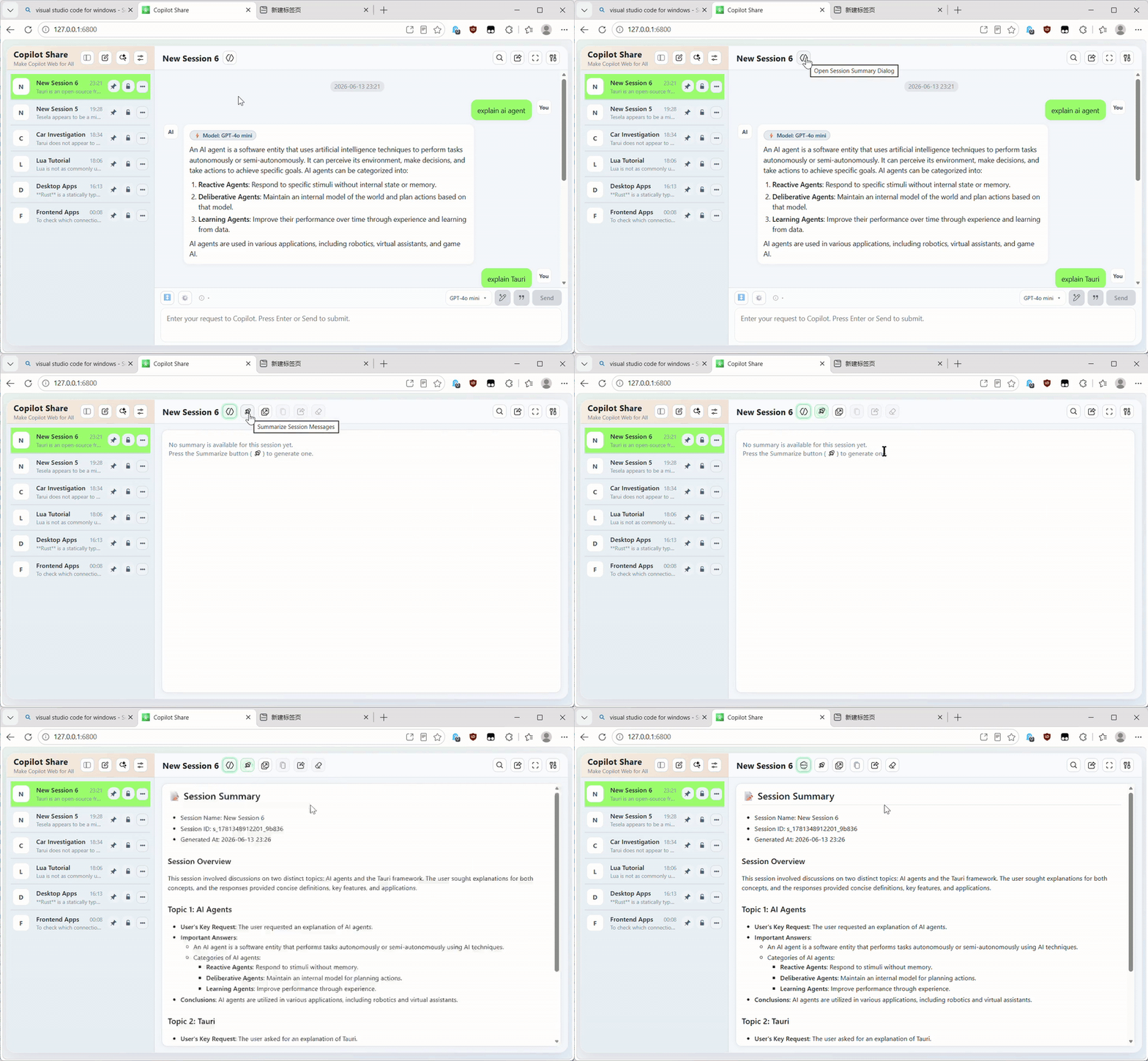
Open Session Summary Dialog Open the Session Summary dialog to generate and manage summary results.
Search Session Search for matching text within the current session.
Share Session Export the current session conversation as a Markdown file for sharing and review.
Enter Full Screen Enter or exit full-screen mode for a more focused workspace.
More Actions Open the More Actions menu for additional session options.
Copy Session Copy the current session conversation to the clipboard for quick sharing.
Export Session Export the current session conversation and metadata as a Markdown file for backup, rebuild, review, or transfer.
Clear Session Clear the current session conversation, metadata, and context.
Clear Context Clear only the current session context while keeping messages intact.
Rebuild Context Clear and then rebuild the current session context using all existing session messages, while preserving the visible conversation state intact.
Back To Session Close the summary dialog and return to the current session header.
Summarize Session Messages Generate a concise summary of the current session to surface key topics and critical points, removing redundant noise.
Open Summary in Mini Window Open summary results in a compact mini window.
Copy Summary Copy summary results to the clipboard.
Share Summary Export current summary results as a Markdown file for sharing and review.
Clear Summary Clear the current summary results.
Drag to resize input area Drag to increase or decrease the input area height.
More Input Actions Open the More Actions menu for additional input options.
Input Tips Show prompt-writing tips while you type.
Model Picker Show available models and let you choose one.
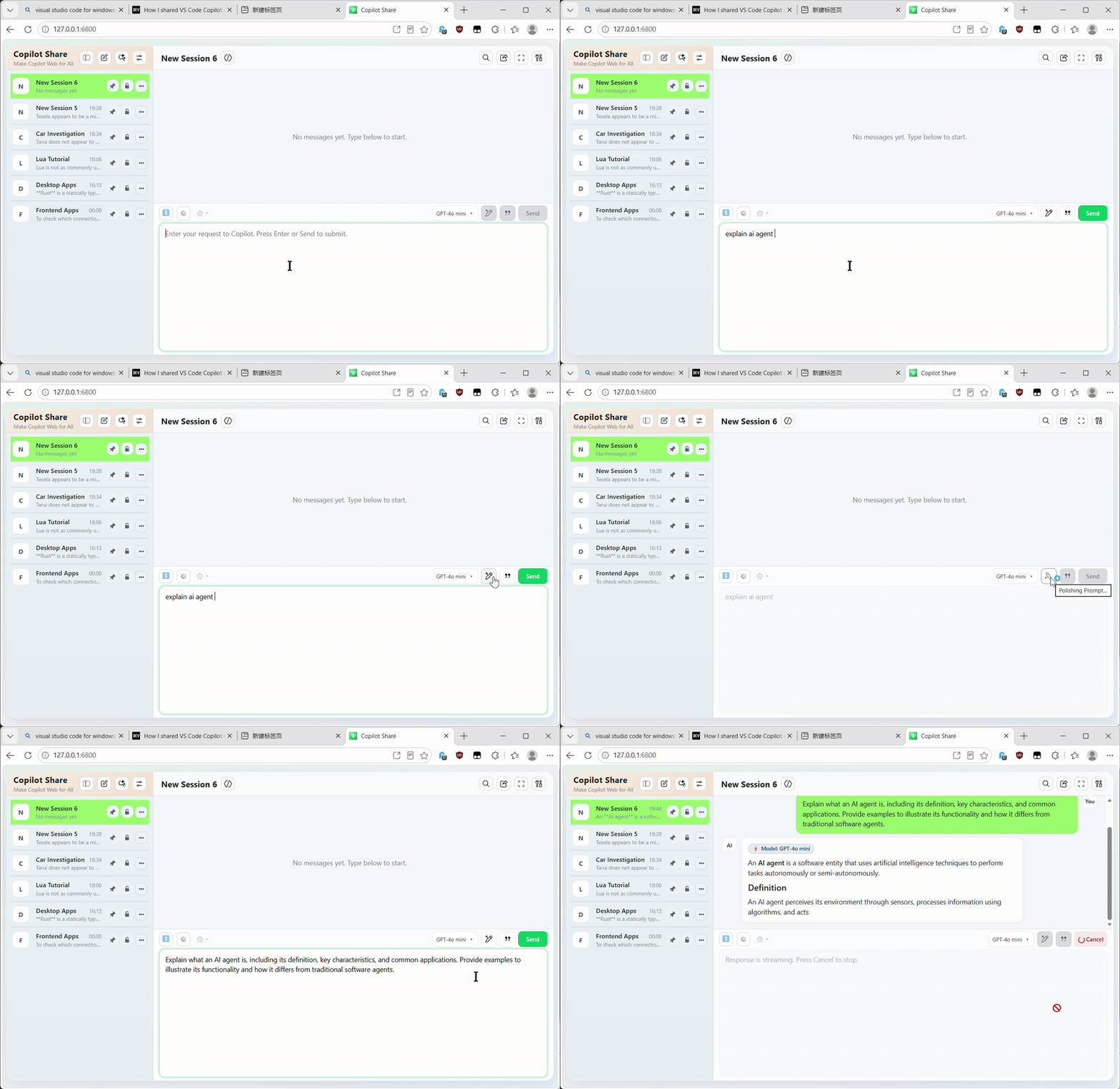
Polish Prompt Refine the original prompt so it guides Copilot more effectively.
Copy Original Prompt Copy the original user prompt.
Send Prompt Send the current prompt to the backend.
Enable Prompt Suggestions Enable suggestions based on similar historical prompts while you type.
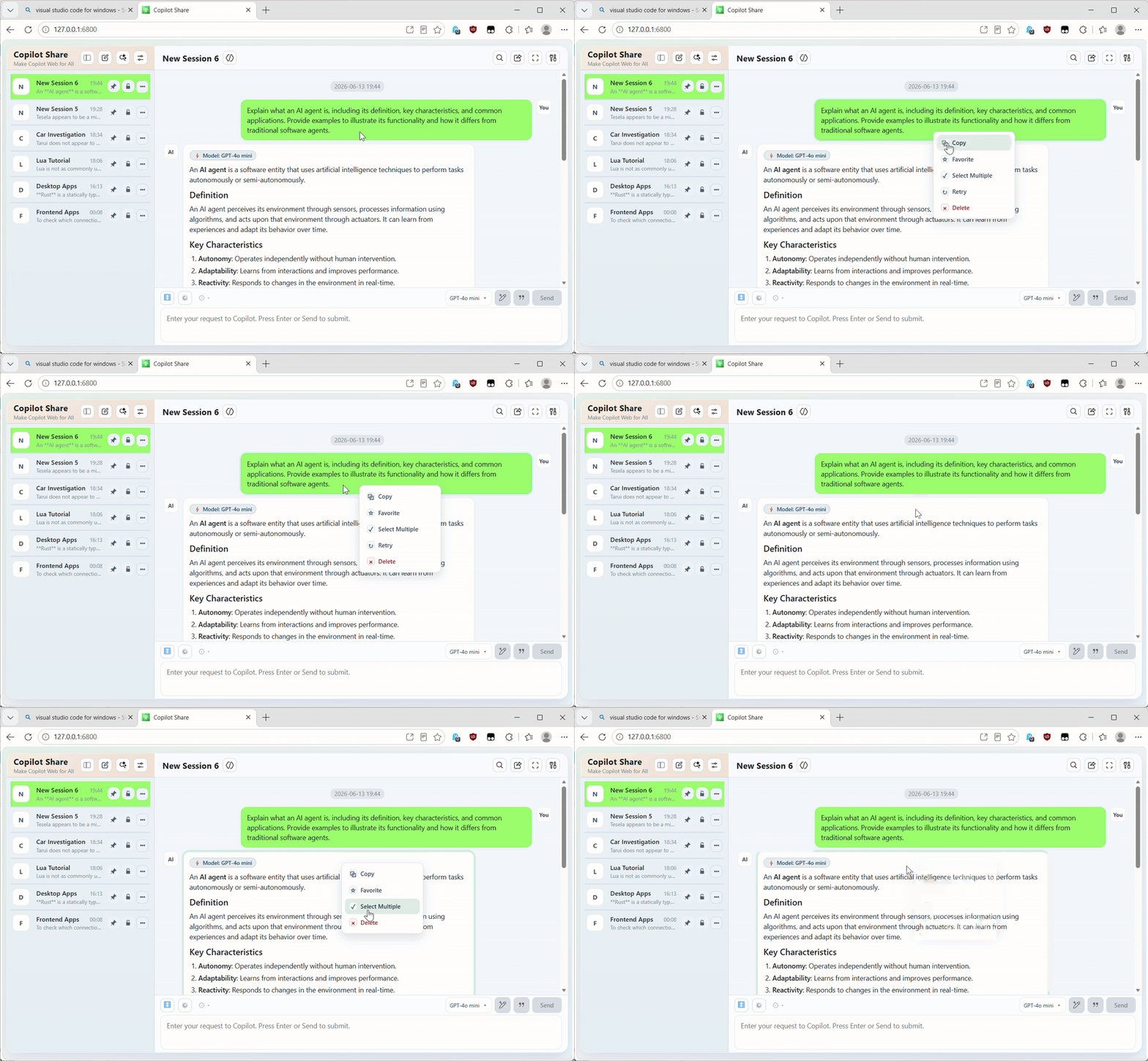
Copy Copy Markdown content of selected user prompts or agent responses.
Favorite Mark selected user prompts or agent responses as favorites.
Select Multiple Select multiple user prompts or agent responses to perform Copy, Favorite, and Delete actions in batch.
Retry Resend the selected user prompt to generate a new agent response.
Delete Permanently delete selected user prompts or agent responses.

Use Copilot in the Web Hub

Access the web hub to use Copilot through a session-oriented workflow.

1. Session Operations

Operation User Interaction
Locate Session Easily locate sessions from the session list
Reorder Session Drag a session with a mouse on PC, or long-press and swipe on mobile
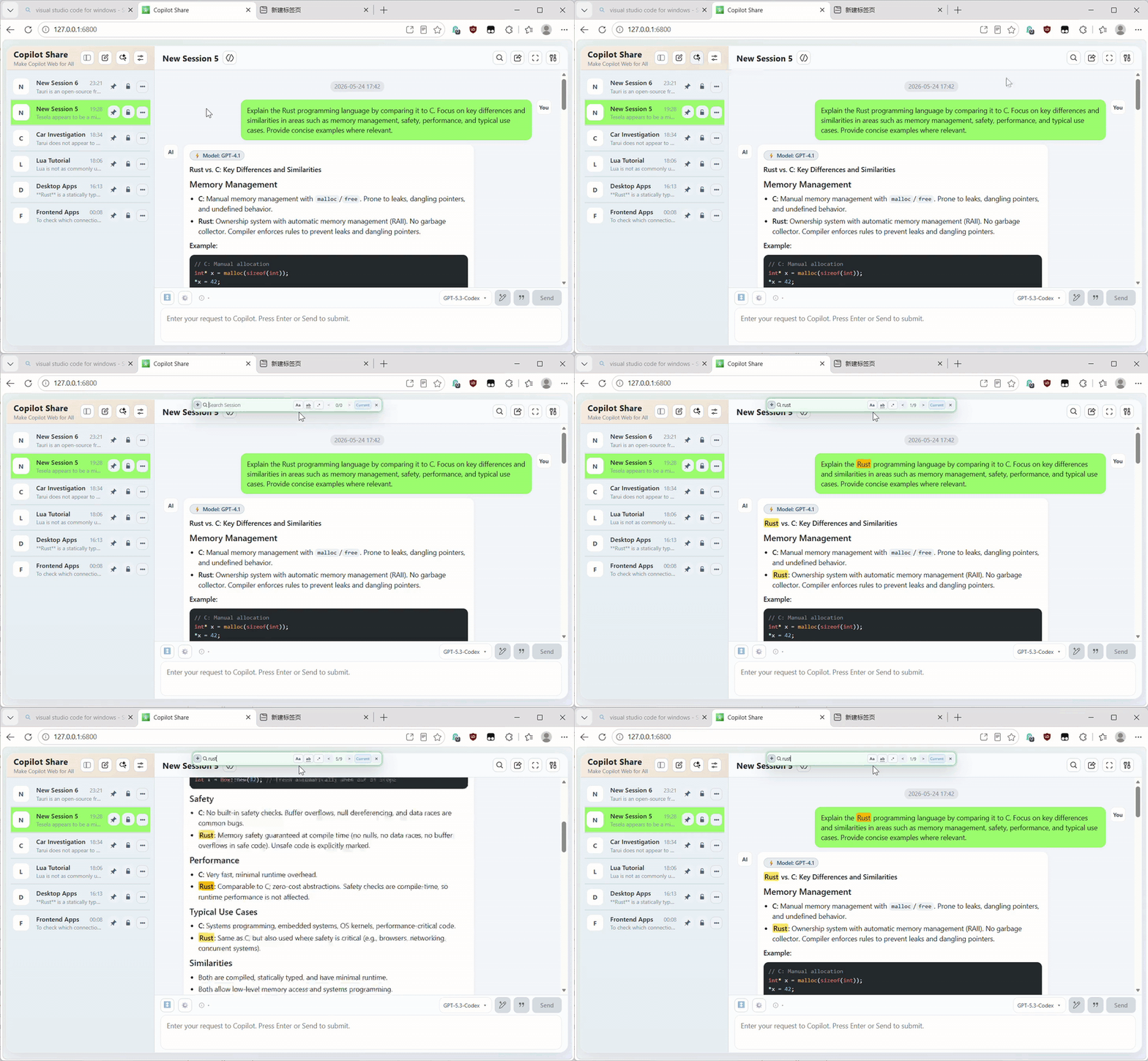
Search Messages within Current Session Click Search Session
Search Messages Across All Sessions Click Search All Sessions
Manage Session Lifecycle Click Create Session, Rename Session, Delete Session, Pin Session, and Lock Session
Export Current Session including conversation and metadata Click Export Session
Import Session for Rebuild Click Import Session
Copy Session Conversation to Clipboard for Review Click Copy Session
Share Session Conversation via MD file for Review Click Share Session
Clone Session for Reuse Click Clone Session
Summarize Session to Remove Chat Noise and Focus on Key Outcomes Click Open Session Summary Dialog
Manage Session Results Click buttons in Session Summary Dialog
Clear Session Conversation and Context Click Clear Session
Clear Only Session Context Click Clear Context
Rebuild Session Context Click Rebuild Context

2. Conversation Operations

Operation User Interaction
Select Model Click Model Picker
Polish Prompt Click Polish Prompt
Resend Prompt Click Retry in the user prompt context menu
Enable Prompt Suggestions Click Enable Prompt Suggestions
Copy Message Click Copy in the user prompt context menu or agent response context menu
Favorite Message Click Favorite in the user prompt context menu or agent response context menu
Delete Message Click Delete in the user prompt context menu or agent response context menu

Release Checklist

Use this checklist before every Marketplace publish:

  • Confirm metadata in package.json: publisher, version, license, homepage, bugs, categories, keywords.
  • Update CHANGELOG.md with user-facing changes for the release version.
  • Verify web assets are packaged: run npx @vscode/vsce package --no-yarn and confirm src/webapp/** is included in the VSIX file list.
  • Run quality gates: npm run pretest.
  • Run automated local release checks: npm run release:checklist.
  • Validate tag/version alignment before publish: npm run release:check-tag -- v<version>.
  • Manually smoke test in Extension Development Host:
    • Start Sharing and Stop Sharing from the control menu.
    • Open and copy local/public URLs.
    • Verify access control flow with /api/access-code/verify.
    • Verify protected chat APIs require bearer access code when access control is enabled.
  • Install the generated VSIX locally and retest key flows on at least one second LAN device.
  • Tag the release in git, then publish with npm run publish:vsce.
  • Contact us
  • Jobs
  • Privacy
  • Manage cookies
  • Terms of use
  • Trademarks
© 2026 Microsoft