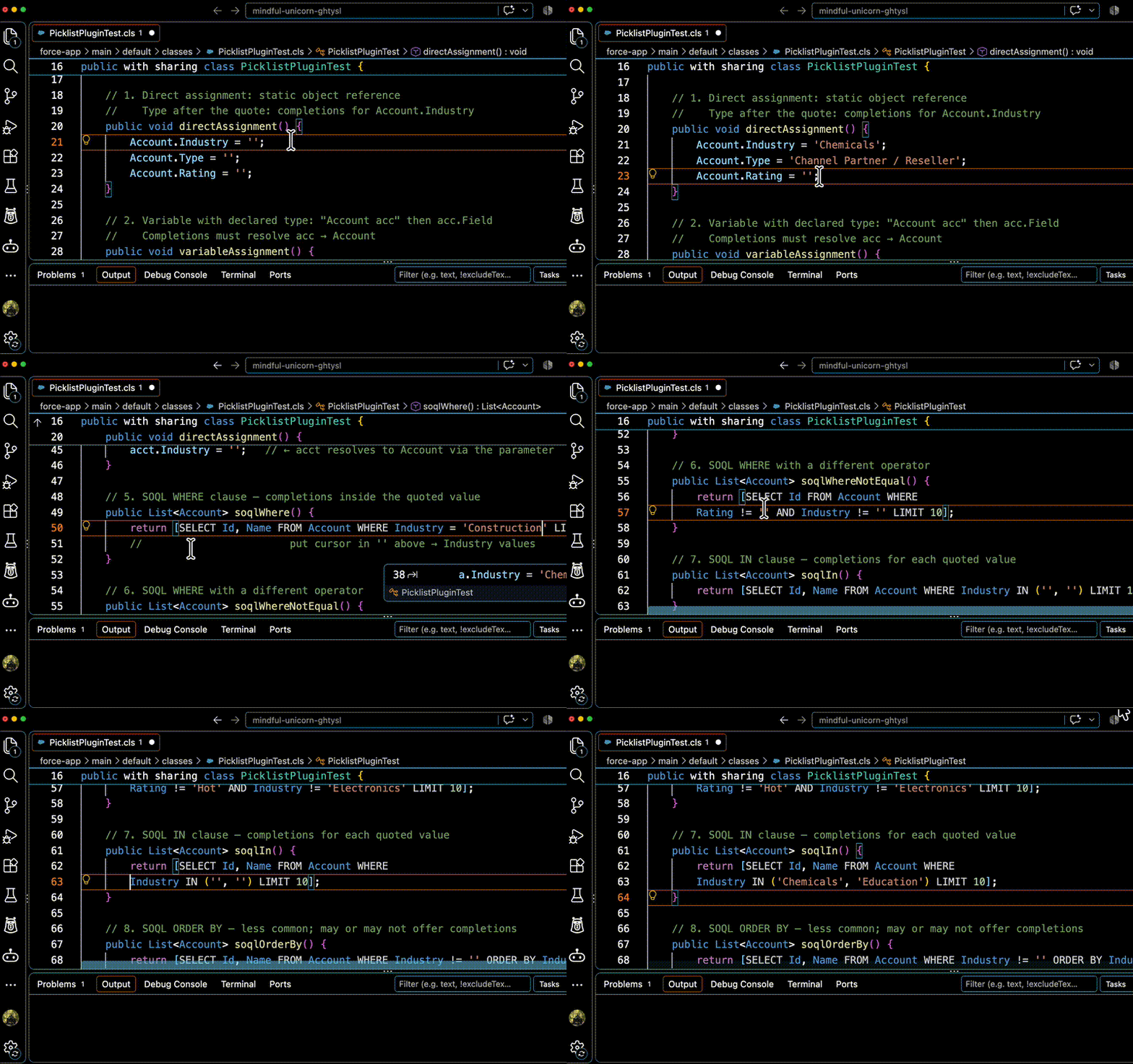
A VS Code extension that provides intelligent autocomplete suggestions for Salesforce picklist field values in Apex and SOQL code.
Features
Picklist Value Suggestions - Get autocomplete for picklist values when typing inside quotes after field assignments
Display Name & API Value - Shows both the user-friendly display name and the API value in autocomplete suggestions (e.g., Agriculture → Agriculture or Warm → Hot when they differ)
Multi-Select Picklist Support - Automatically filters already-selected values and inserts semicolon separators
SOQL Support - Works in WHERE clauses, IN clauses, and includes/excludes functions
Variable Type Tracking - Recognizes variable types to provide suggestions for acc.Industry when Account acc is declared
Hover Information - Hover over picklist fields to see all valid values
Caching - Caches metadata to minimize API calls with configurable TTL
Requirements
No Salesforce CLI required — the extension connects to your org directly using the credentials stored by the built-in login command (or by sf org login, if you already use the CLI)
Usage
Open a Salesforce DX project in VS Code
Start typing a picklist field assignment:
// Direct assignment
Account.Industry = '  // <-- suggestions appear

// Variable assignment
Account acc = new Account();
acc.Industry = '  // <-- suggestions appear

// SOQL WHERE clause
[SELECT Id FROM Account WHERE Industry = '  // <-- suggestions appear

// Multi-select picklist
[SELECT Id FROM Contact WHERE Languages__c includes ('  // <-- suggestions appear
Select a value from the autocomplete dropdown
Commands
Salesforce: Log in to Org - Browser-based org login (shared with other Wallencreek Salesforce plugins — only one login command appears even if several are installed)
Salesforce Picklist: Show Picklist Values - Display all values for a specified object and field
Extension Settings
Setting
Default
Description
wallencreekSf.targetOrg
""
Target org username or alias (shared with other Wallencreek Salesforce plugins; leave empty to use the project default org)
sfPicklist.cacheTTL
30
Cache duration in minutes
sfPicklist.includeInactive
false
Show inactive picklist values
sfPicklist.defaultOrg
""
Deprecated alias for wallencreekSf.targetOrg (still honored)
How It Works
The extension fetches object metadata from your connected org over the REST API (no CLI process involved). It parses your Apex/SOQL code to detect when you're assigning a value to a picklist field, then provides autocomplete suggestions based on the field's valid values.
Metadata is cached in memory and persisted to VS Code workspace storage, so subsequent requests are fast and don't require additional API calls until the cache expires.
Supported Contexts
Context
Example
Direct field assignment
Account.Industry = '
Variable field assignment
acc.Industry = ' (where acc is typed as Account)
SOQL WHERE clause
WHERE Industry = '
SOQL IN clause
WHERE Industry IN ('
Multi-select includes
WHERE Skills__c includes ('
Multi-select excludes
WHERE Skills__c excludes ('
Known Limitations
Custom object names must end with __c for automatic detection