SQLite Viewer & Editor
Open any SQLite database in VS Code and actually work with it. Double-click a .db, .sqlite, .sqlite3 or .db3 file to browse, filter, sort and edit your tables, run SQL, change the schema, export data, see an ER diagram and compare two databases. It is fast on big tables, follows your theme, and needs nothing else installed.
No ads, no account, no AI. Your data never leaves your machine.
Features
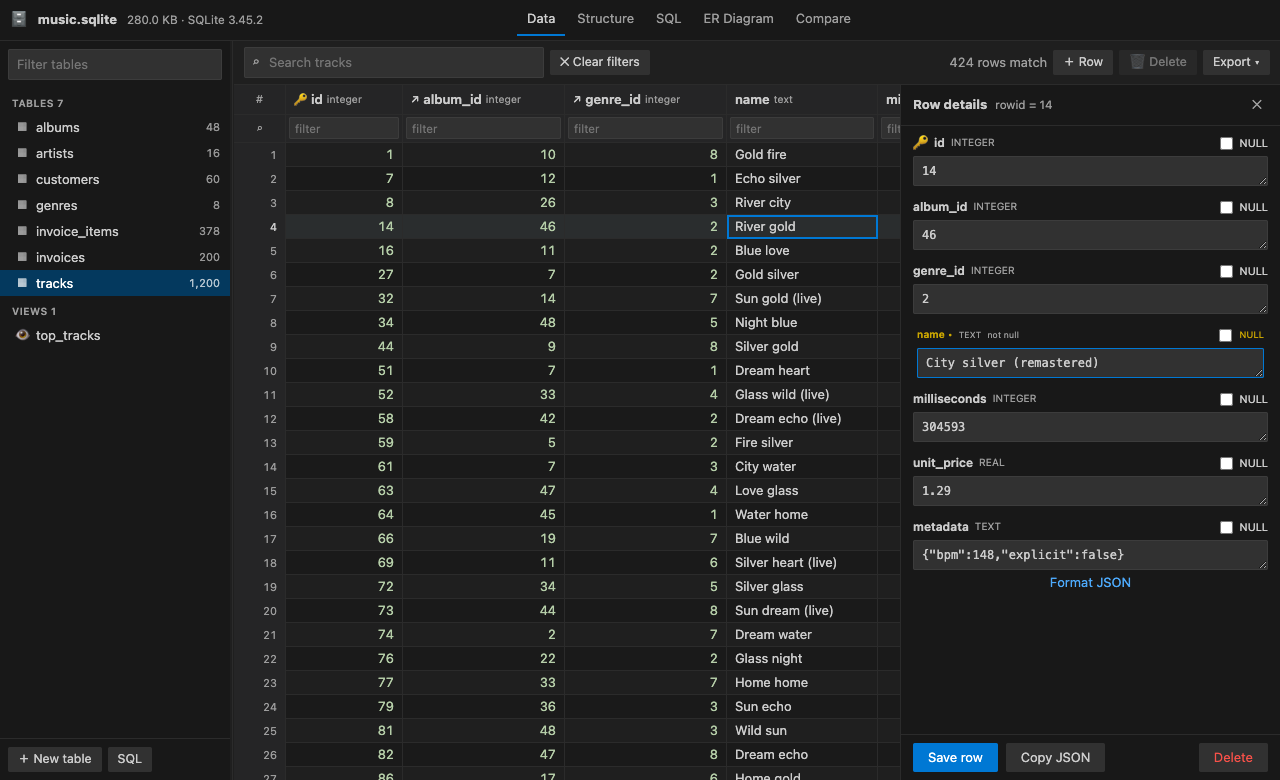
Browse millions of rows smoothly
- A virtualized grid that pages rows in as you scroll, so large tables open instantly.
- Click a header to sort. Resize columns by dragging.
- Filter each column:
abc (contains), =abc, !=abc, >5, <=10, null, !null, empty.
- Search every column at once (
Ctrl/Cmd+F).
- The table list shows row counts for every table and view.
Edit safely, with Undo
- Edit a cell in place: press
Enter or start typing. Press Delete to set a cell to NULL. You can also paste into a cell.
- Open the row panel (
Space) to edit every field of a row. It has NULL toggles, JSON formatting, and BLOBs as hex.
- Insert rows (defaults and
INTEGER PRIMARY KEY fill themselves), and delete one row or many.
- Changes behave like any other VS Code editor: Undo/Redo (
Ctrl/Cmd+Z), Save (Ctrl/Cmd+S), Save As, Revert File and hot exit. Nothing is written to disk until you save.
- Works with rowid tables,
WITHOUT ROWID tables, composite primary keys, generated columns and 64-bit integers. Views and virtual tables open read-only.
- If another program changes the file, it reloads automatically, or asks first when you have unsaved edits.
Run SQL
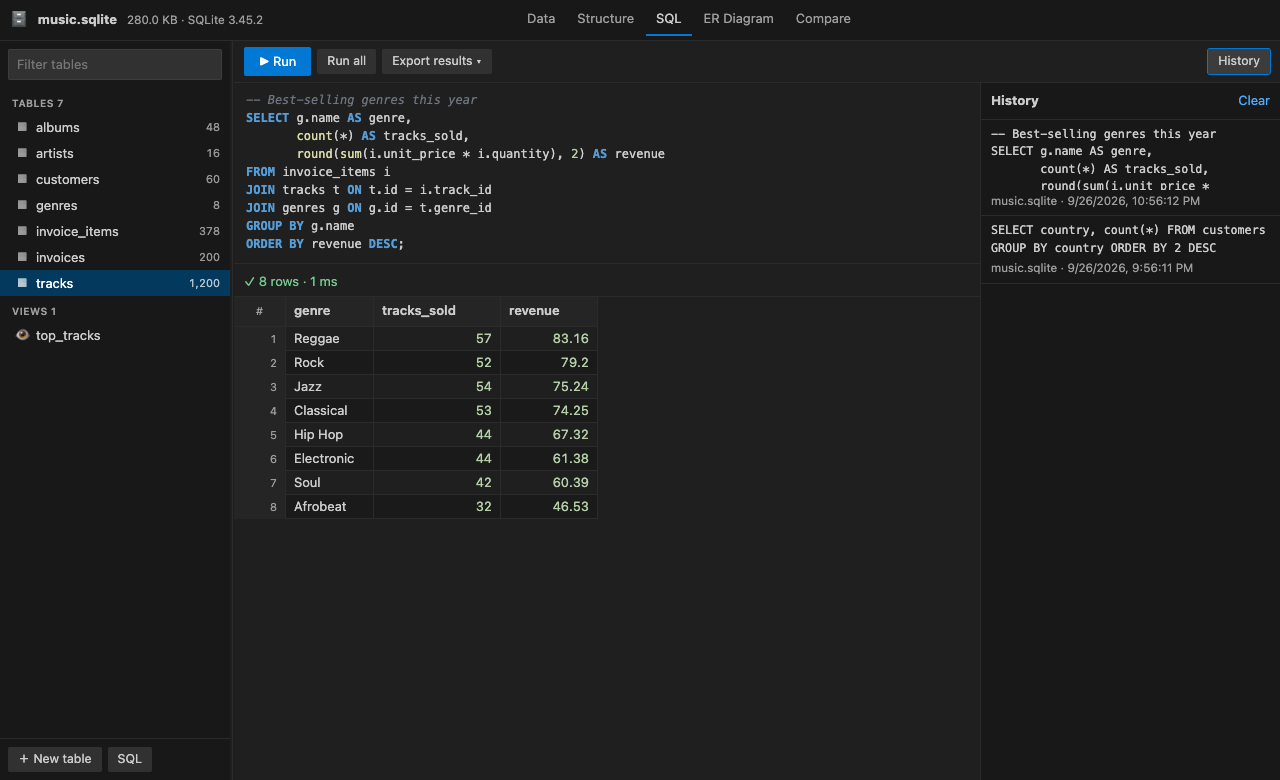
- An editor with syntax colouring and autocomplete for your tables, columns, keywords and functions (
Ctrl+Space).
Ctrl/Cmd+Enter runs the statement at the cursor (or the selection). Shift+Ctrl/Cmd+Enter runs everything.- Multiple result sets, sortable results, the time taken and the number of rows changed.
- Query history that you can load with one click.
- Statements that change data or schema can be undone like any other edit.
Structure and schema editing
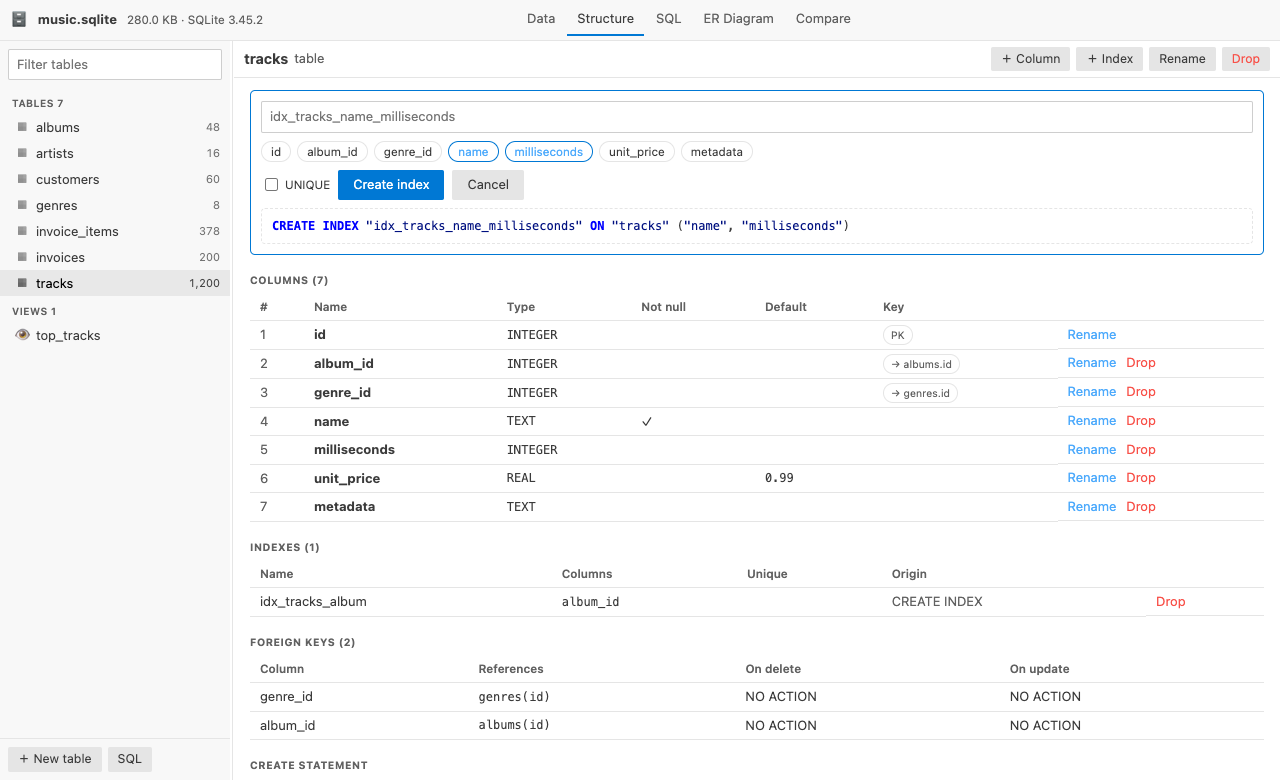
- See columns, types, NOT NULL, defaults, primary keys, foreign keys, indexes, triggers and the
CREATE SQL.
- Add, rename and drop columns. Rename or drop tables. Create and drop indexes.
- New Table form with a live SQL preview.
ER diagram
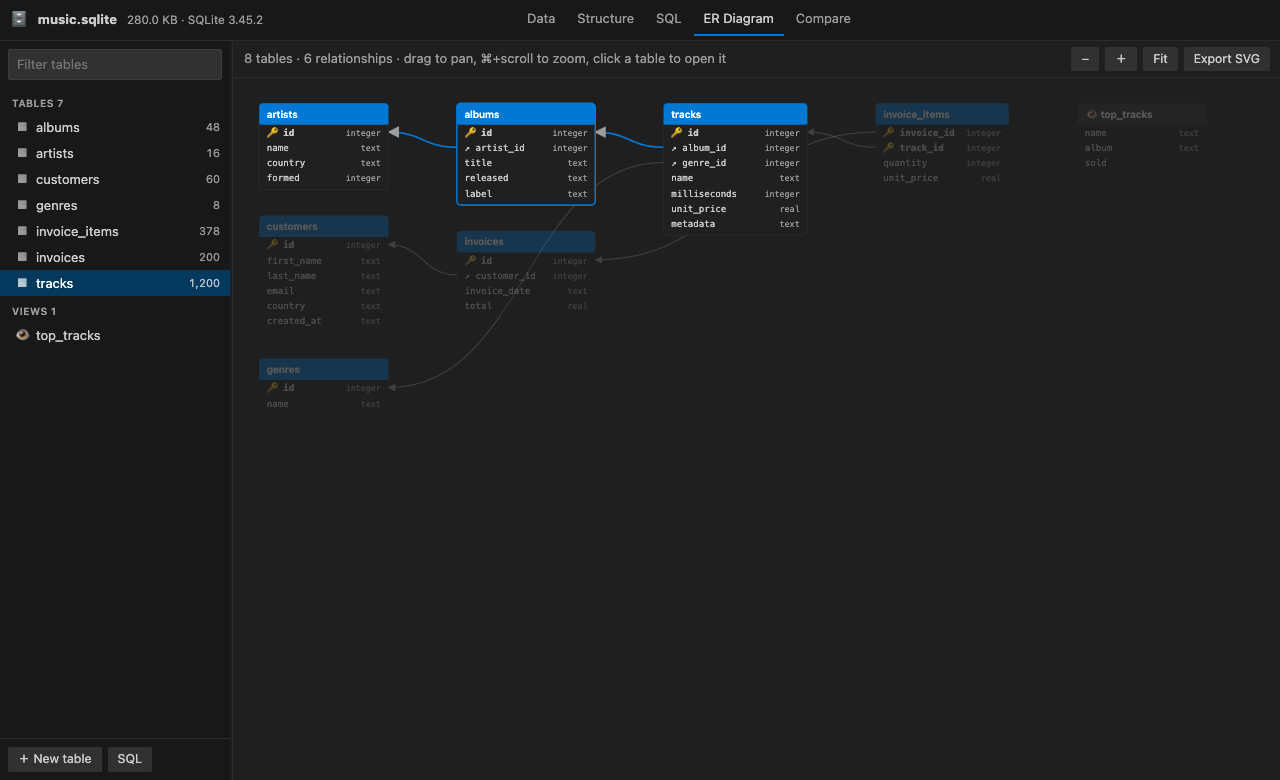
- Built automatically from your foreign keys, with referenced tables on the left.
- Pan, zoom (
Ctrl/Cmd+scroll or +/-), and hover a table to highlight its relationships. Click a table to open it.
- Export the diagram as SVG.
Compare two databases
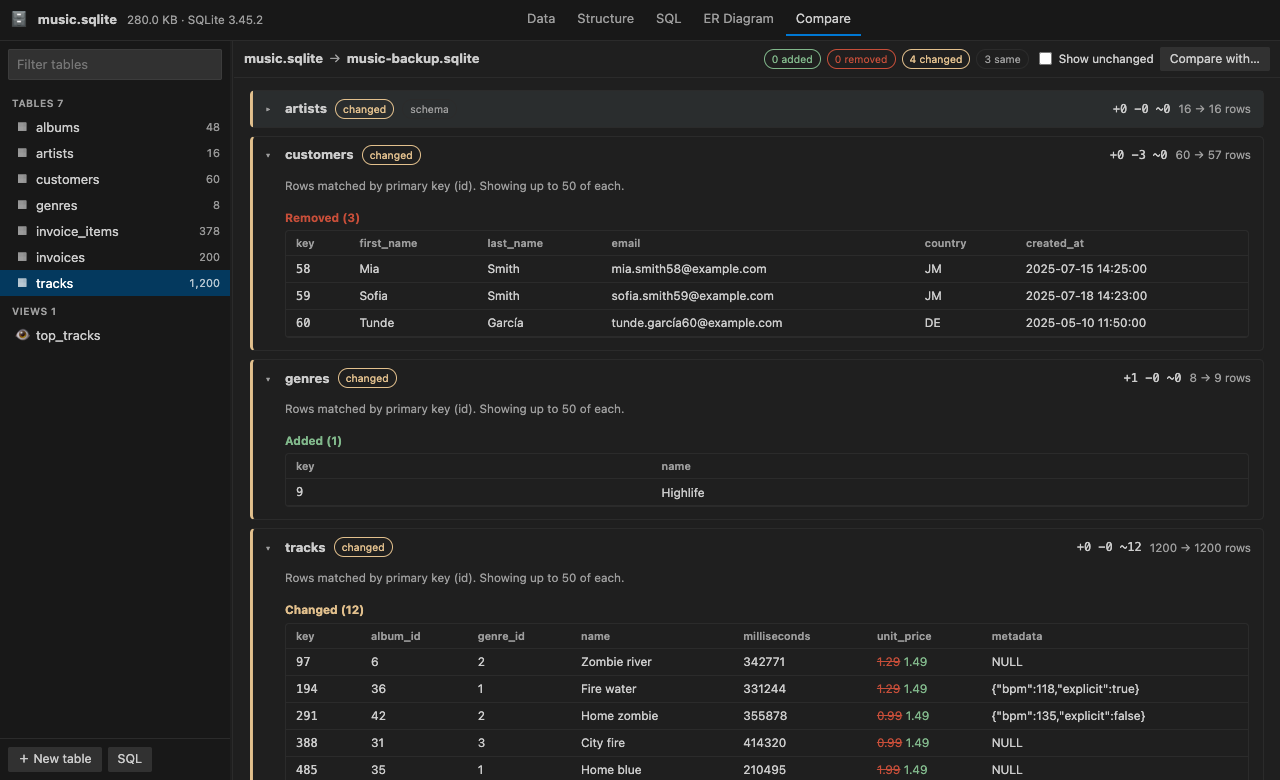
- Shows tables added or removed, and columns added, removed or retyped.
- Shows rows added, removed and changed, matched by primary key (or rowid), with the changed cells highlighted.
Export
- Export a table or query results to CSV, JSON, SQL (
CREATE + INSERT) or Markdown.
- Export the whole database as a
.sql dump.
Works everywhere
- Pure WebAssembly SQLite 3.45 with no native modules, so it runs the same on macOS, Windows and Linux.
- Also works in WSL, SSH and Dev Container workspaces.
- Follows light, dark and high-contrast themes, and is fully usable from the keyboard.
Keyboard
| Where |
Keys |
Action |
| Grid |
Arrows, PageUp/PageDown, Home/End, Ctrl/Cmd+Home/End |
Move |
| Grid |
Enter / F2 / type |
Edit cell (Enter saves and moves down, Tab moves right, Esc cancels) |
| Grid |
Space |
Open the row panel |
| Grid |
Delete |
Set cell to NULL, or delete the selected rows |
| Grid |
Shift+Arrow, click or Shift/Ctrl-click row numbers |
Select rows |
| Grid |
Ctrl/Cmd+C, Ctrl/Cmd+V |
Copy cell or rows (TSV), paste into a cell |
| Row panel |
Ctrl/Cmd+Enter, Esc |
Save row, close |
| Anywhere |
Ctrl/Cmd+F |
Search the table |
| Anywhere |
Ctrl/Cmd+S, Ctrl/Cmd+Z |
Save to disk, undo |
| SQL |
Ctrl/Cmd+Enter, Shift+Ctrl/Cmd+Enter, Ctrl+Space |
Run statement, run all, autocomplete |
Commands
Open the Command Palette and type SQLite:
- SQLite: Open Database... and SQLite: New Database...
- SQLite: Run SQL Query, SQLite: Show ER Diagram, SQLite: Compare with Another Database...
- SQLite: Export Table (CSV, JSON, SQL, Markdown)... and SQLite: Export Database as SQL Dump...
- SQLite: Reload Database from Disk
- SQLite: Restore Purchase
You can also right-click a database file in the Explorer and choose Open with SQLite Viewer & Editor.
Click the SQLite icon in the Activity Bar for one-click access: Open a database…, New database, Run SQL query, Show ER diagram, Compare and Export, your recent databases, and the most-used settings (open read-only, status bar info, the open-as-text hint).
Free trial and Unlimited
SQLite Viewer & Editor starts with a free trial that includes every feature. When the trial ends, choose an Unlimited plan to keep using it: Unlimited Monthly, Unlimited Yearly or Unlimited Lifetime (pay once). Stripe handles the payment securely in your browser, and Unlimited turns on here by itself, with no restart.
If you have already paid on another machine, run SQLite: Restore Purchase and enter the email you paid with. Subscribers can open Manage subscription from the plans screen to change their card or cancel.
Privacy
- Your databases are read and edited only on your machine (or inside your remote workspace). Nothing from your files is ever sent anywhere.
- There is no telemetry. The only network calls are the licence checks for the free trial and Unlimited. They send a random install id, a hashed machine id and how many seconds of active use went by, to
api-ext.viralinc.live.
Notes
- Files up to 1.5 GB are supported. The database is loaded into memory while it is open.
- In WAL-mode databases, if another program has unsaved changes in the
-wal file, the database opens read-only until that program checkpoints or closes. A WAL database keeps its journal mode when you save.
- FTS5 virtual tables are listed but cannot be read, because that module is not included.
- Encrypted (SQLCipher) databases are not supported.
Support
Email ope@trysixth.com. We read everything.
| |

