Responsive HTML Preview
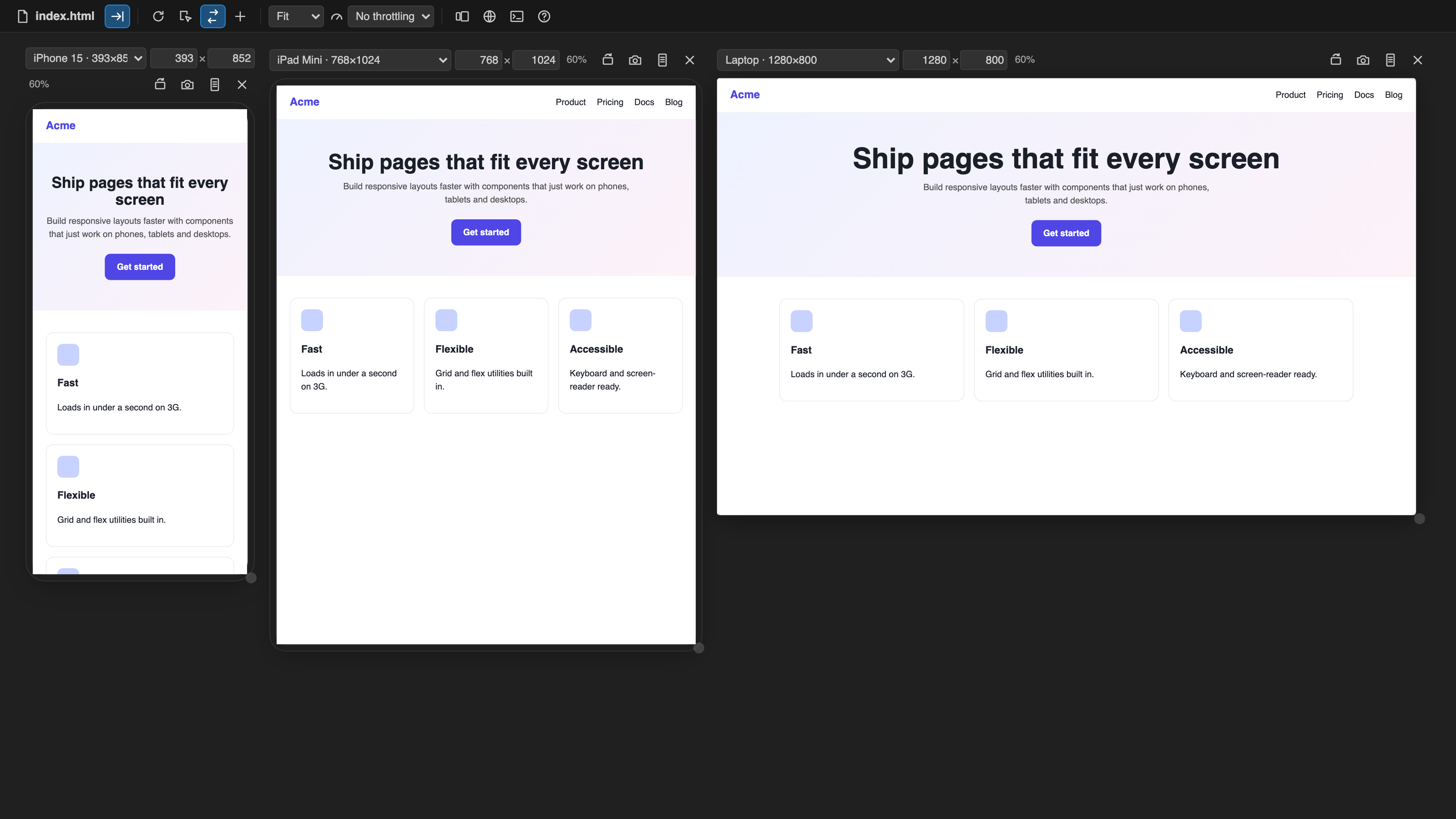
See your HTML page on a phone, a tablet and a laptop at the same time, right inside VS Code. The preview
updates as you type, scrolling and clicks stay in sync across every frame, and one click saves full-page
screenshots at every breakpoint.
Why this one
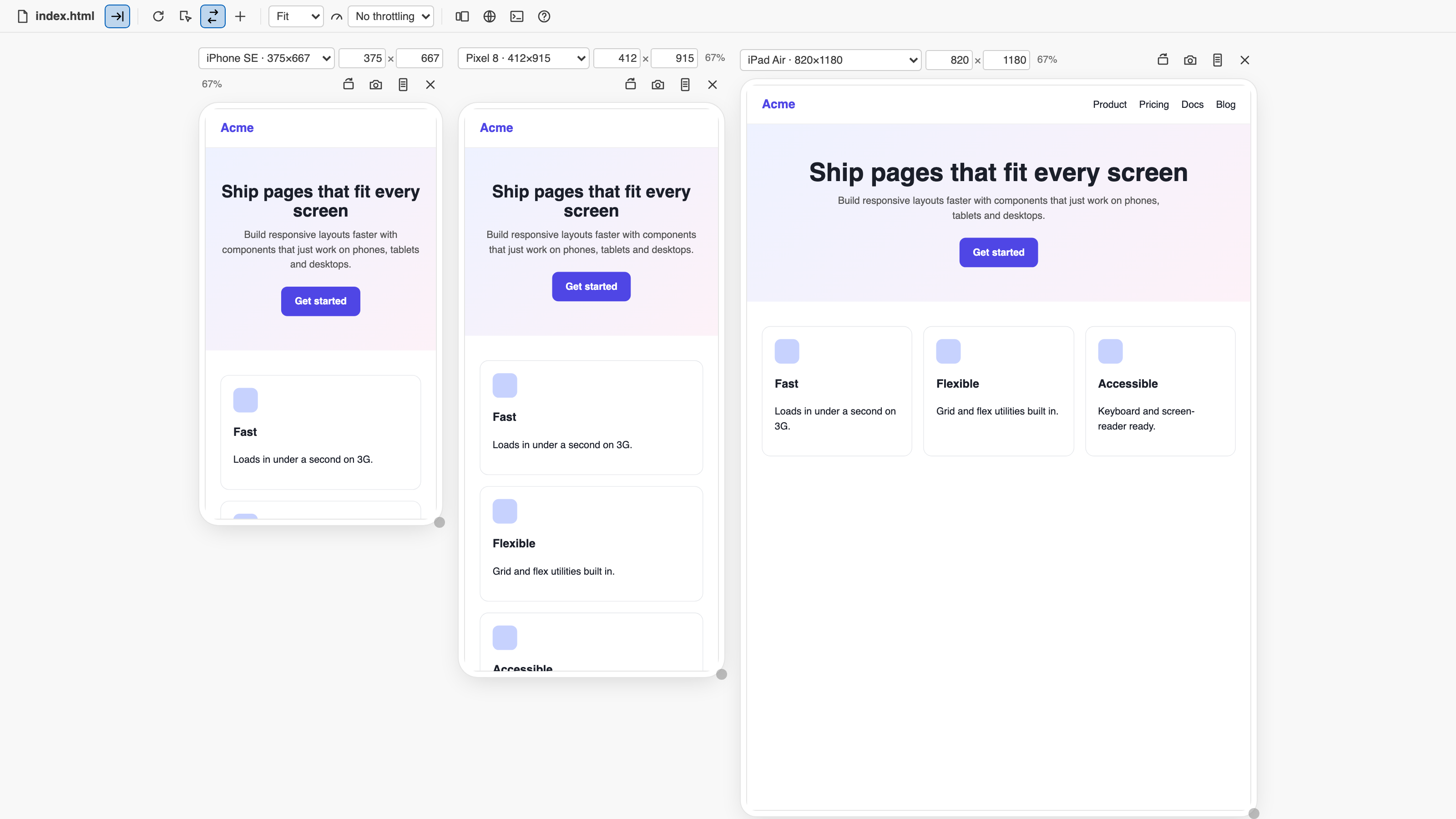
- Side-by-side device frames. iPhone, Pixel, Galaxy, iPad, Surface, laptop and desktop presets, a free
"Responsive" size you can drag, rotate, and up to six frames at once. Most preview extensions give you one pane.
- Live as you type. Unsaved edits show up instantly. CSS changes are hot-swapped without a page reload, so your
scroll position and form input stay put. Images, scripts and other files reload when they change on disk.
- Synced scroll, clicks, typing and navigation. Scroll the phone and the laptop follows. Click a link in one
frame and every frame goes there. Turn it off with one button (
S).
- Inspector with click-to-source. Hover to see an element's box model, size and key styles; click to jump to
the exact tag in your HTML. Click a tag in the editor and it is highlighted in the preview.
- Full-page screenshots. Capture the visible area or the whole page for one frame, or every breakpoint in one
go. PNG files are named after the page, device and size (
index-iphone-15-393x852-full.png).
- Console.
console.log, warnings, errors and uncaught exceptions from the page, with repeat counts.
- Network throttling. Fast 3G and Slow 3G profiles to see how your page loads on a bad connection.
- Custom devices. Save any size as a device from the frame menu, or list them in settings.
- Follows your editor. The preview switches to the HTML file you are working on, or pin it to one page.
- Open in browser. The same live page in your real browser, served from a local server on 127.0.0.1.
- Works with plain HTML/CSS/JS, Tailwind, Bootstrap, static sites, landing pages and HTML emails. Untitled files too.
- Follows your VS Code theme (light, dark and high contrast). No AI. Works offline. macOS, Windows and Linux,
and in Remote/WSL/Codespaces via port forwarding.
Getting started
- Open an
.html file.
- Click the Preview button in the editor title bar (or in the status bar), press
Cmd+K H / Ctrl+K H, or
right-click the file in the Explorer and choose Open Responsive Preview to the Side.
- Pick devices from each frame's menu, or press
N to add one.
Keyboard shortcuts (inside the preview)
| Key |
Action |
R |
Reload |
I |
Inspector on/off |
S |
Synced scroll and clicks on/off |
N |
Add a device frame |
O |
Rotate the first frame |
P |
Full-page screenshot of the first frame |
B |
Screenshots at every breakpoint |
C |
Console |
0 / + / - |
Fit / zoom in / zoom out |
? |
All shortcuts |
Esc |
Close a dialog or leave the inspector |
Resize handles on every frame also work with the arrow keys (Shift for bigger steps).
Settings
| Setting |
Default |
What it does |
htmlPreview.liveUpdate |
onType |
Update as you type, or only on save |
htmlPreview.liveUpdateDelay |
250 |
Milliseconds to wait while typing |
htmlPreview.defaultDevices |
["iphone-15","laptop"] |
Frames shown the first time |
htmlPreview.customDevices |
[] |
Your own devices: { "name", "width", "height" } |
htmlPreview.syncScroll |
true |
Sync scroll/clicks by default |
htmlPreview.highlightOnEditorClick |
true |
Clicking a tag in the editor highlights it in the preview |
htmlPreview.screenshotFolder |
"" |
Save screenshots here without asking (relative to the workspace) |
Free trial and Unlimited
Responsive HTML Preview starts with a free trial with every feature included. When the trial ends,
choose an Unlimited plan to keep using it: Unlimited Monthly, Unlimited Yearly or Unlimited Lifetime
(pay once). Payments are handled securely by Stripe, and Unlimited turns on right away with no reload.
Already paid on another machine? Run HTML Preview: Restore Purchase and enter the email you paid with.
Subscribers can open Manage subscription from the plans screen to cancel or change their card.
Privacy
Your pages are served only to your own machine (127.0.0.1) and never leave it. There is no telemetry and no
analytics. The only network calls the extension makes are for the free trial and your licence: a random install
id, a hashed machine id and how long the preview was actively used, sent to our licensing server.
Support
Questions, bugs or ideas: ope@trysixth.com.
| |

