Git Graph & Git History
A fast commit graph and git history for VS Code, written from scratch and actively maintained. You can see every branch, open any commit, compare branches, follow a file or a few lines back through time, and check out, merge, rebase, cherry-pick, revert or reset from the graph. The drag-and-drop interactive rebase comes with a one-click undo.
No account, no sign-in and no AI. It runs the git already installed on your machine, on macOS, Windows and Linux, and it follows your VS Code theme: light, dark and high contrast.
Features
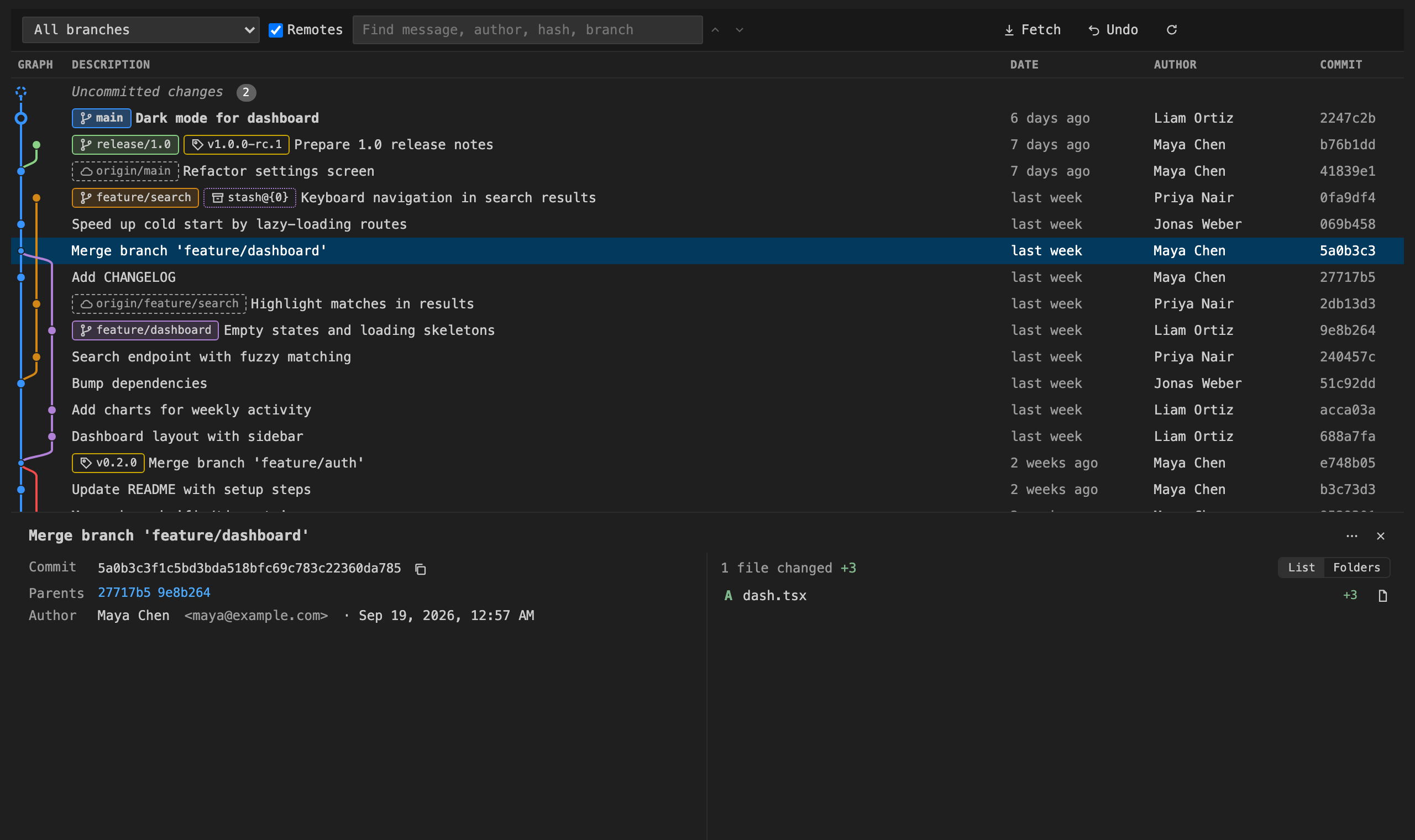
Commit graph
- Every branch, remote branch, tag and stash in a single colored graph. The graph is virtualized, so repositories with tens of thousands of commits scroll smoothly, and more commits load as you scroll.
- Badges show branches, remotes, tags, stashes and detached
HEAD. The checked-out branch is in bold.
- An Uncommitted changes row shows your working tree, including untracked files.
- Show all branches, only the current branch or one branch. Remote branches can be switched on or off for each repository.
- If you have several repositories, pick one from the toolbar.
- The graph refreshes by itself after commits, checkouts, fetches or changes made in the terminal.
Commit details and diffs
- Click a commit to see its hash, parents, author, committer, full message and changed files, with
+/− line counts. Files can be shown as a flat list or grouped by folder.
- Click a file to open it in VS Code's own diff editor, or open the file as it was at that commit.
Branch, tag and commit actions
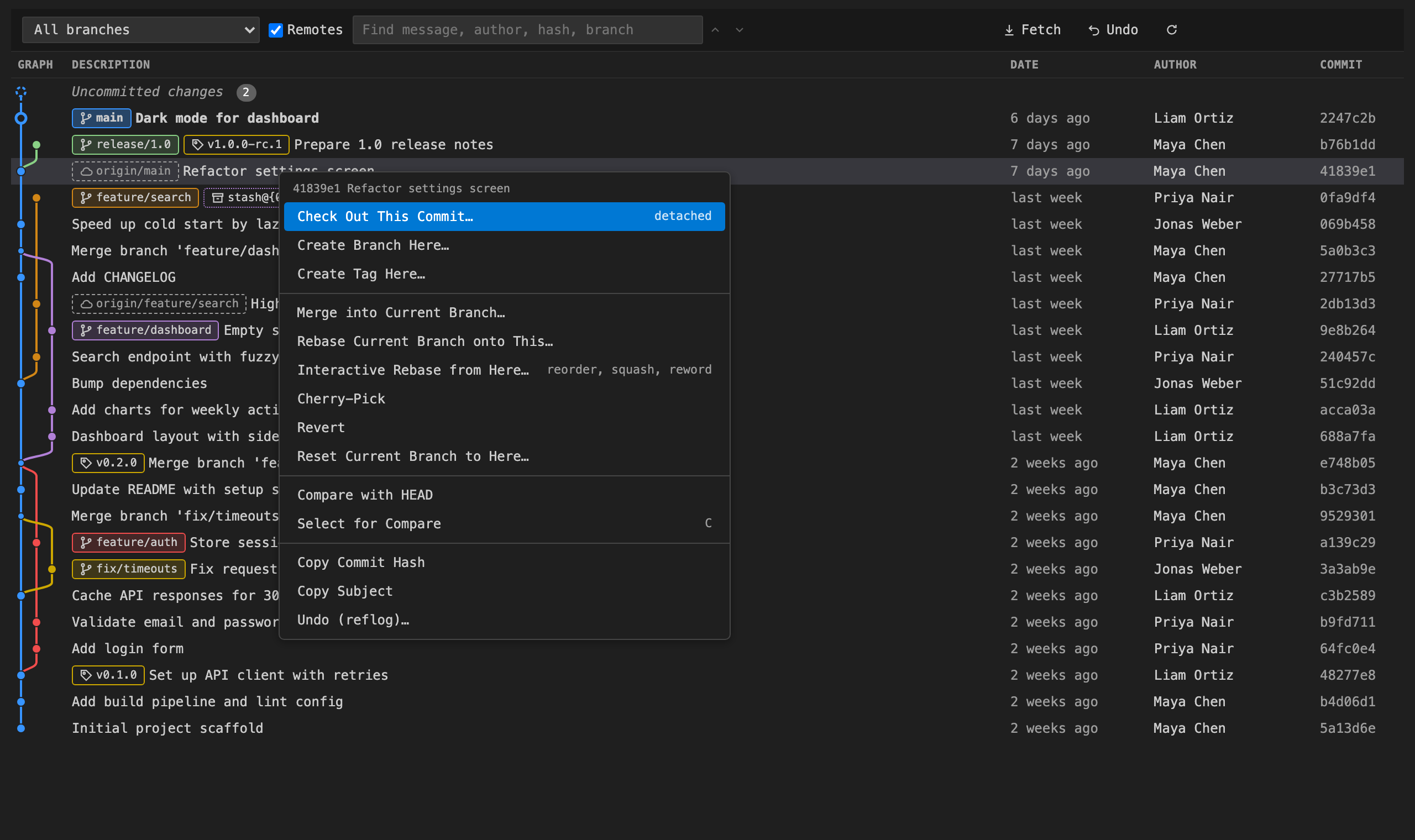
Right-click a commit or a badge, or press Shift+F10 on the selected row:
- Check out a branch, a tag, a remote branch (as a new tracking branch) or a commit.
- Create, rename and delete branches, and create (lightweight or annotated) and delete tags.
- Merge into the current branch (fast-forward,
--no-ff, squash or ff-only), and rebase onto another commit.
- Cherry-pick, revert (merge commits included) and reset (soft, mixed, keep or hard).
- Stash your changes, and apply, pop or drop stashes.
- Fetch from all remotes, using VS Code's own git credentials.
- Undo (reflog): move
HEAD back to where it was before a bad reset, rebase or merge.
Anything destructive asks for confirmation first. If a merge, rebase, cherry-pick or revert stops on conflicts, a banner offers Continue, Skip and Abort.
Compare branches and commits
Ctrl/Cmd+click a second commit, press C to mark a commit, or run Git Graph: Compare Branches or Commits… to choose any two refs.- You get the list of changed files, and each one opens as a diff. You can swap the two sides.
- You can also compare any commit with your uncommitted changes.
File history, line history and blame
- View File History from the editor title, the editor context menu or the Explorer shows only the commits that touched that file, with the full details and diffs.
- View Line History of Selection shows the commits that changed the selected lines (
git log -L).
- Toggle Line Blame (Command Palette or editor right-click) shows who last changed the line under the cursor, when, and why, right at the end of the line. Hover it to open that commit in the graph. Unsaved edits are taken into account.
Visual interactive rebase
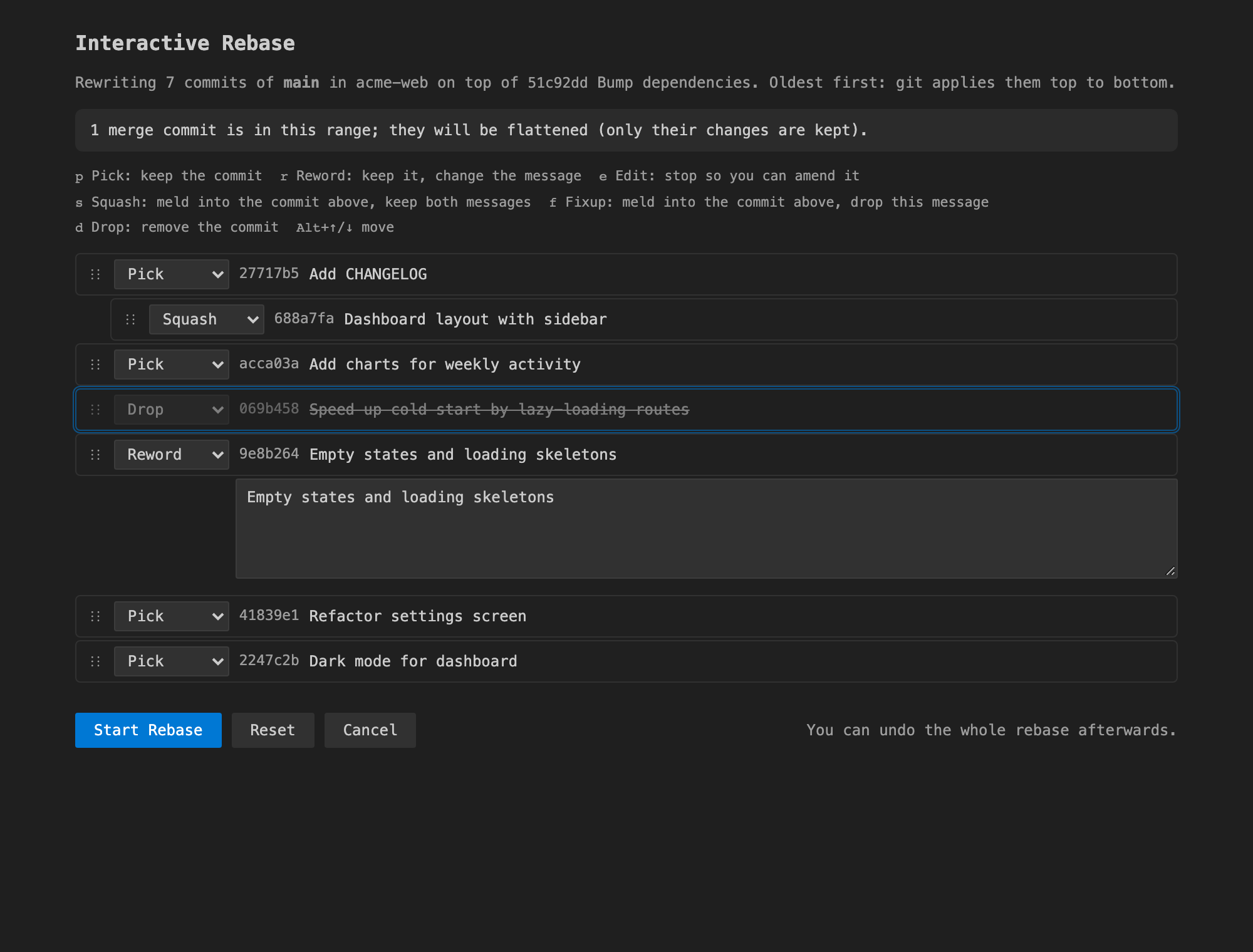
- Choose Interactive Rebase from Here… on any commit below
HEAD.
- Reorder commits by dragging them or with
Alt+↑/↓, and pick pick, reword, edit, squash, fixup or drop from the menu or with one key (p r e s f d).
- You can type the new message for a reword right in the list. No editor pops up.
- When the rebase finishes, Undo puts the branch back exactly as it was.
- If you run
git rebase -i in a terminal with VS Code as your git editor, the same visual editor opens for git-rebase-todo. Open as text is always available.
The Source Control sidebar gets a native tree of branches, remotes, tags, stashes and worktrees, with the same actions on right-click. Clicking an item jumps to it in the graph.
Keyboard friendly
| Key |
In the graph |
↑ ↓ / j k, PageUp PageDown, Home End |
Move the selection |
Enter / Space |
Open or close commit details |
Shift+F10 / . |
Actions menu for the selected commit |
Ctrl/Cmd+F or / |
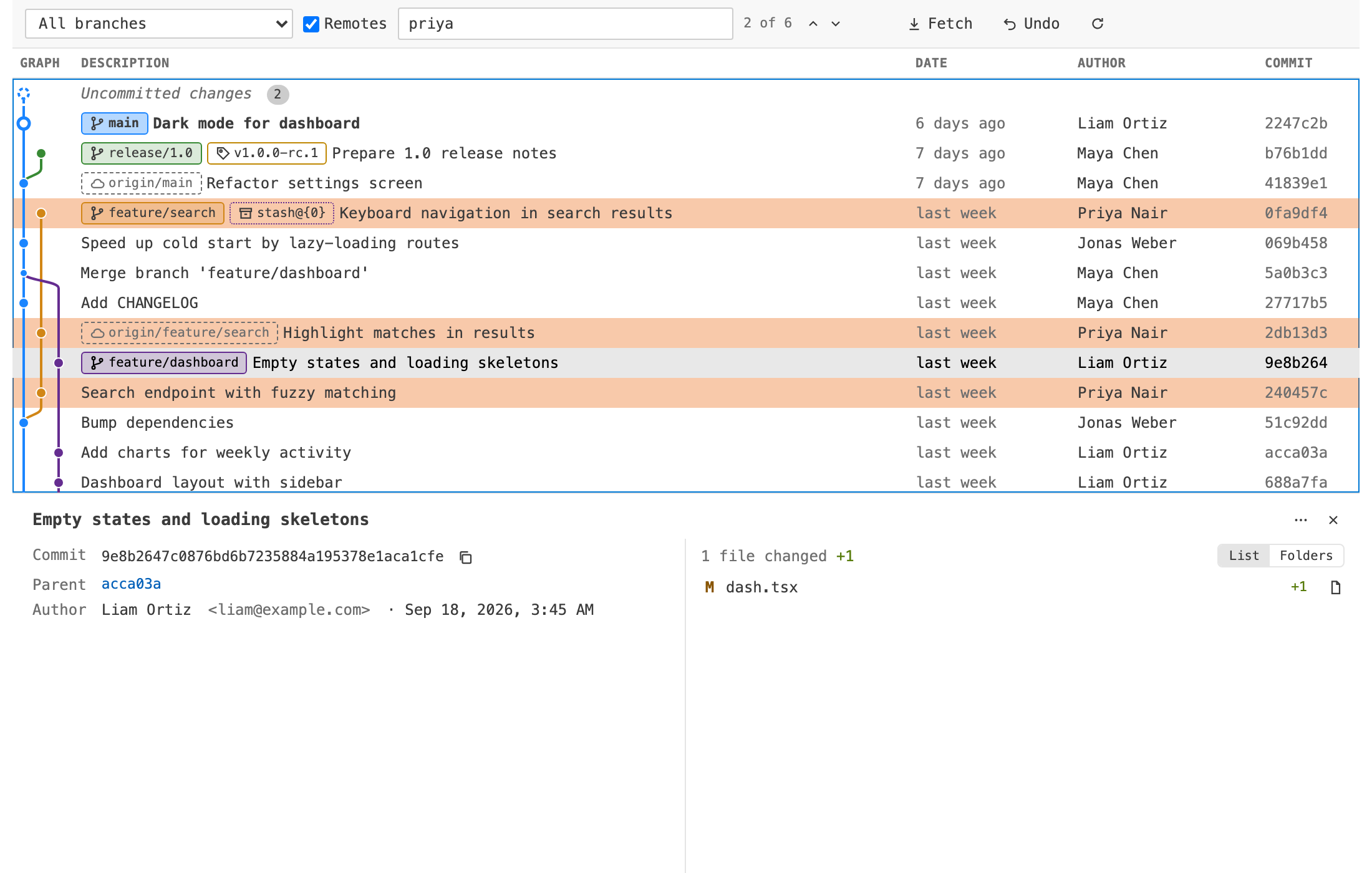
Find by message, author, hash or branch |
Enter / Shift+Enter (in Find), n / Shift+N |
Next or previous match |
C |
Mark the commit to compare from |
R |
Refresh |
Esc |
Stop comparing, close details or clear Find |
Open the graph with Shift+Alt+G, the Git Graph status bar button, the graph icon in the Source Control title bar, or Git Graph: View Git Graph in the Command Palette.
Free trial and Unlimited
Git Graph & Git History starts with a free trial. When the trial ends, choose an Unlimited plan to keep using it: Unlimited Monthly, Unlimited Yearly or Unlimited Lifetime (pay once). Stripe handles payment securely in your browser, and Unlimited turns on right away, with no reload and no account.
Once Unlimited is on, the Git Graph sidebar shows it under Settings. Run Git Graph: Restore Purchase to move a licence to a new machine.
- Already paid on another machine? Run Git Graph: Restore Purchase and enter the email you paid with.
- Subscribers can open Manage subscription from the plans screen to cancel or change their card.
Settings
| Setting |
Default |
|
gitGraph.maxCommits |
500 |
How many commits load at a time. More load as you scroll. |
gitGraph.dateFormat |
relative |
relative ("3 days ago") or absolute |
gitGraph.showRemoteBranches |
true |
Show remote branches by default |
gitGraph.showStatusBarButton |
true |
Show the Git Graph status bar button |
Requirements
- VS Code 1.90 or newer.
git on your PATH. If you have set VS Code's git.path, that git is used instead.- The workspace must be trusted, because the extension runs git in your repository.
Privacy
Your code, commits and repository data stay on your machine. Git Graph runs your local git and sends none of that anywhere. There is no telemetry.
The only network calls are for the free trial and your Unlimited licence. They go to our licensing server and contain:
- a random install id
- a hashed machine id
- how long the extension was actively used
Payments are processed by Stripe.
Support
Email ope@trysixth.com.
| |

