Code Screenshot
Select code, press a shortcut, get a polished image. Code Screenshot turns any selection into a
beautiful code image for X/Twitter, LinkedIn, Instagram, slides, docs and blog posts. It uses your own
editor theme and font, or one of 26 popular themes. Copy the image to the clipboard, or save it as PNG,
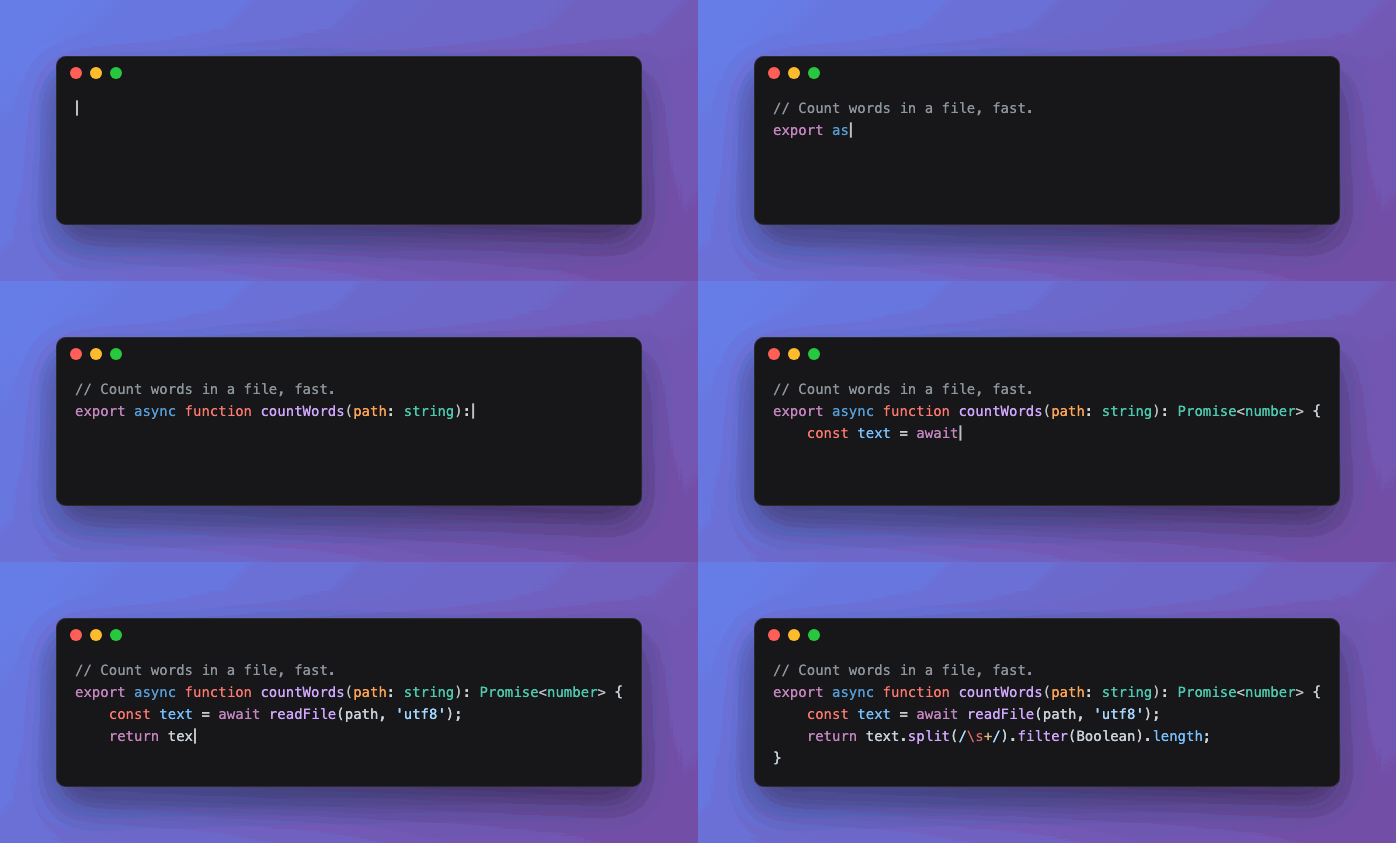
SVG or an animated GIF of the code typing itself.
A maintained, faster successor to CodeSnap and Polacode, with Carbon and ray.so style images, right inside VS Code.
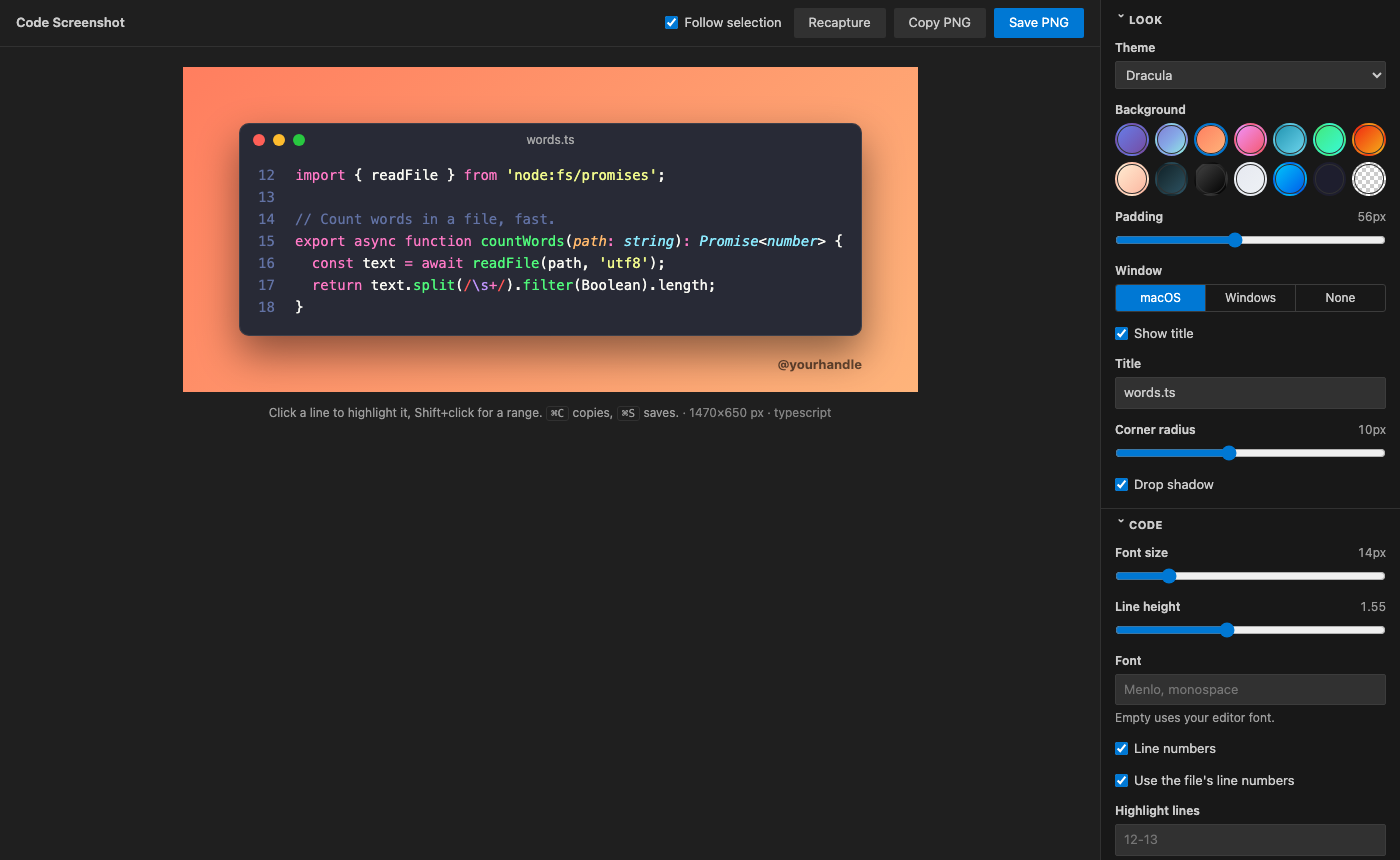
How to use it
- Select some code.
- Press ⌥⇧⌘S on macOS or Ctrl+Alt+Shift+S on Windows and Linux. You can also
right-click and choose Capture Selection, or click the camera in the status bar.
- Adjust the look in the sidebar, then press ⌘C/Ctrl+C to copy or
⌘S/Ctrl+S to save.
While the panel is open it follows your selection: select other code and the preview updates.
Activity bar: click the Code Screenshot icon for one-click Screenshot selection, Copy, Save,
your recently saved images and the most-used settings (format, window style, line numbers).
Features
Looks like your editor, or better
- Match editor: uses your current VS Code color theme and editor font, so the image looks like your screen.
- 26 bundled themes, including GitHub, One Dark Pro, Dracula, Tokyo Night, Catppuccin, Nord, Monokai,
Night Owl, Rosé Pine, Solarized, Vitesse and Gruvbox.
- Accurate syntax highlighting for more than 200 languages. It uses TextMate grammars, the same kind VS Code uses.
Frame it
- 12 gradient backgrounds, a solid color of your choice, or transparent.
- macOS or Windows window frames, or no frame. The title is the file name, and you can edit it.
- Padding, corner radius, drop shadow, font size, line height and font family.
Point at what matters
- Line numbers, either the file's own (line 120 shows as 120) or starting from 1.
- Highlight lines: click a line in the preview, Shift+click to select a range, or type
3-5, 9.
- Focus mode dims every line you did not highlight.
- Removes the common indent automatically, and expands tabs using your editor's tab size.
- Edit before capture: change the code in the panel without touching the file.
Share it anywhere
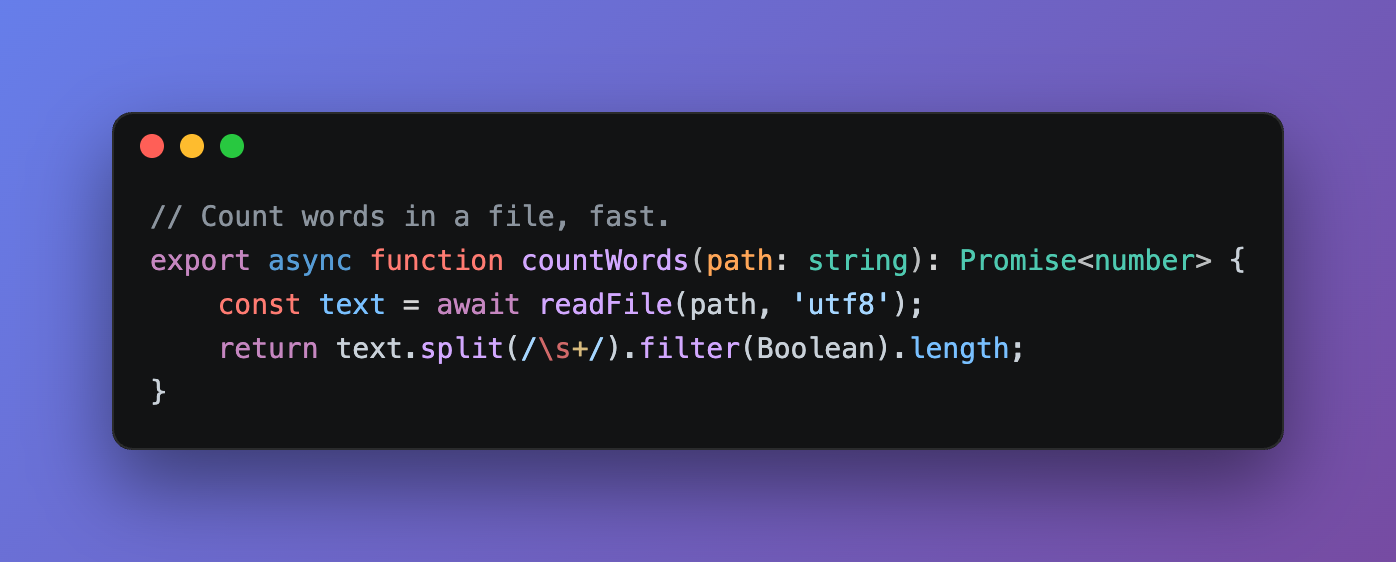
- Copy to clipboard as PNG, ready to paste into Slack, X, Notion, Google Docs or Keynote.
- Save as PNG at 1x, 2x, 3x or 4x resolution.
- SVG keeps the code as real text: it stays sharp at any size and you can edit it in Figma or Illustrator.
- Animated GIF: the code types itself, or appears line by line.
- Social sizes: X/Twitter 16:9, LinkedIn, Instagram square and portrait, Story/Reel 9:16, 1920×1080 slides
and 1200×630 Open Graph images, each exported at its exact size.
Your brand
- Add your @handle or site name and your logo under the window.
- Save brand templates (theme, background, frame, font, handle and logo) and apply them in one click.
| PNG |
Animated GIF |
 |
 |
Built for the keyboard: every control can be reached with Tab, the arrow keys move through option groups,
and ⌘C/⌘S (Ctrl+C/Ctrl+S) work as soon as the panel is focused.
The panel uses VS Code's own colors in light, dark and high-contrast themes. It runs on macOS, Windows and Linux.
Commands
| Command |
Shortcut |
What it does |
| Code Screenshot: Capture Selection |
⌥⇧⌘S / Ctrl+Alt+Shift+S |
Opens the panel with the selection (or the whole file if nothing is selected) |
| Code Screenshot: Open Panel |
|
Opens the panel |
| Code Screenshot: Copy Image |
⌘C in the panel |
Copies the image |
| Code Screenshot: Save Image |
⌘S in the panel |
Saves as PNG, SVG or GIF |
| Code Screenshot: Choose Save Folder |
|
Picks the folder the Save dialog opens in |
| Code Screenshot: Go Unlimited |
|
Shows the Unlimited plans |
| Code Screenshot: Restore Purchase |
|
Turns Unlimited on here with the email you paid with |
Settings
| Setting |
Default |
|
codeScreenshot.saveFolder |
empty |
The folder the Save dialog opens in. When empty, it opens in the last folder you used. |
codeScreenshot.showStatusBarButton |
true |
Shows the camera button in the status bar |
codeScreenshot.format |
png |
Image format for Copy and Save: png, svg or gif |
codeScreenshot.windowStyle |
mac |
Window frame: mac, windows or none |
codeScreenshot.lineNumbers |
false |
Shows line numbers in the image |
Everything else is set in the panel and remembered between sessions.
Free trial and Unlimited
Code Screenshot starts with a free trial that includes every feature. The trial only counts time you
spend actively using the extension, not time VS Code sits open. When the trial ends, choose an
Unlimited plan to keep using it: Unlimited Monthly, Unlimited Yearly or Unlimited Lifetime
(pay once). Payments are handled securely by Stripe. After you pay, Unlimited turns on right away, with no reload.
Already paid on another
machine? Run Code Screenshot: Restore Purchase and enter the email you paid with. Subscribers can open
Manage subscription from the plans screen to cancel or change their card.
Privacy
- Your code never leaves your machine. Highlighting and rendering happen locally, inside VS Code, and work offline.
- No analytics and no telemetry. The only network calls are for the free trial and your license. They send
a random install id, a hashed machine id, and how many seconds of active use to count toward the trial, to
api-ext.viralinc.live.
- Images are saved only where you choose. Copying to the clipboard stays on your computer.
Notes
- On Linux, copying images needs
wl-clipboard (Wayland) or xclip (X11) if VS Code's own clipboard
can't take images. Save always works.
- SVG files use the font installed on the computer that opens them. For pixel-perfect sharing, use PNG.
Support
Email ope@trysixth.com. Feature requests are welcome.
| |

