Backlog(Nulab) Integration for VS Code
IDE(VS Code , Cursor , Windsurf 等)で動く Backlog(Nulab社製プロジェクト・タスク管理ツール)拡張機能
A Backlog (Project/Task management tool by Nulab) extension for IDEs (VS Code, Cursor, Windsurf, etc.).
課題の確認、ステータス更新、コメント投稿から、プルリクエスト(PR)まで、開発に必要な操作をIDE内でシームレスに実行できます。
AIを活用したタスク登録や、分析機能も提供。
次世代のタスク管理を業務に取り入れよう!
From checking issues, updating statuses, and posting comments to handling Pull Requests (PRs), you can seamlessly run all the development operations you need right inside your IDE.
It also offers AI-powered task registration and analysis features.
Bring next-generation task management into your workflow!
Request → (https://forms.gle/bp5fGoxMbrva1pJJ8)
▼ 日本語版 概要説明
English version is available below.
主な機能 (Key Features)
1. タスク管理 (Task Management)
- 課題一覧表示: キーワード/担当者/状態/マイルストーン/更新日・作成日範囲/ソートで絞り込み表示(30件ずつページング)。件名は改行して全行表示。最終更新が自分のみ表示で、取得済み一覧をクライアント側で追加絞り込み可能。
- 課題詳細閲覧: 課題クリックでエディタタブに詳細を表示(既定表示を WebView / Markdown から切替可能)。
- 課題作成: 「新規課題」タブから種別・件名・担当者などを指定して起票(作成後の自動クリア対応)。
- コメント: 「コメントを読み込む」で10件ずつ追加読み込み(本文のないシステム更新コメントは表示しない)。各コメントから本文をクリップボードにコピー可能。新規コメント投稿に対応。
- ステータス更新: 課題詳細画面にて、ステータス更新が可能。変更前に確認ダイアログを表示。
- 一括更新: 課題一覧の「一括更新」ボタンで検索結果を最大100件までインライン編集可能な一覧で表示し、一括更新可能。件名は複数行表示・編集。読込時から値を変えたセルだけ緑背景で表示し、元に戻すと解除。
- 課題詳細の編集: 種別・優先度・担当者・期限日・マイルストーン・発生バージョン・完了理由をインライン編集可能。
- Markdown出力: 課題一覧/課題詳細を統計情報付きでMarkdown出力(AIチャット共有やWiki転記に便利)。
- 一覧アクション: 各課題行に MD(Markdown)/ Copy(クリップボード)/ Br(ブランチ)/ PR(プルリク)アイコン(表示/非表示をカスタマイズ可)。Git未検出時はBr無効、リポジトリ未設定時はPR無効(ツールチップで理由表示)。
- Copy: 課題一覧・課題詳細から課題キー・件名・説明をMarkdown形式でクリップボードにコピー。チャットへの貼り付けに便利。
2. Git連携 (Git Integration)
- スマートブランチ作成: 課題キーを含むブランチをプレフィックス付きで自動作成。ベースブランチ指定・作成後の自動チェックアウトに対応。
- コミットメッセージ補完: 現在のブランチ名から課題キーを抽出し、SCM入力へ自動挿入。
- ブランチ整理: リモートに存在しないローカルブランチを一覧表示し、一括削除可能。
3. PR管理 (Pull Request Management)
- PR一覧: Open / Closed / Merged、担当者、作成者、関連課題で検索し、ソート(更新日/作成日/PR番号、昇順/降順)・関連課題表示に対応、追加読み込みに対応。設定で「Git用に別のプロジェクトを指定」している場合は、そのプロジェクトでPR一覧を取得。
- PR詳細: エディタパネルで詳細閲覧、コメント一覧の追加読み込み、コメント投稿に対応。
- PR作成: マージ対象ブランチの選択、関連課題検索・自動検索、タイトル自動補完、担当者・通知ユーザ指定、作成後の自動クリア対応。最終確認欄に push 先のプロジェクト・リポジトリを表示。
4. Wiki参照 (Wiki)
- Wikiタブ: プロジェクト内のWikiページをエクスプローラー風のツリーで表示(ページ名の
/ 区切りで階層化)。
- キーワード検索: Backlog API の keyword で絞り込み。
- 詳細表示: ページ選択でエディタ領域のWebviewPanelに詳細表示(本文・タグ・添付・作成者/更新者・日付)。
- ブラウザで開く: 詳細画面から外部ブラウザで開く。
- MDで取得: 一覧のファイルノードまたは詳細画面からMarkdownとしてエディタに開く。
- Copy: Wiki一覧・Wiki詳細からタイトル・本文をMarkdown形式でクリップボードにコピー。
5. AI連携 (AI-Powered Features)
- 課題一括取り込み: ワークスペース内の
.backlog/import/*.md を解析し、Backlog課題として一括登録。プレビュー一覧の件名は複数行で全文表示・編集。読込時から編集したセルは緑背景で強調(元に戻すと解除)。AI用プロンプトを自動作成し、インポート用Markdownの作成を支援。
- 課題分析: 課題一覧データの定量分析・リスク検知用のAIプロンプトを生成。レポートやスライド構成の作成を支援。
6. 直感的なUIと設定 (Intuitive UI & Settings)
- 7つの専用タブ: 「課題一覧」「新規課題」「PR一覧」「PR作成」「Wiki」「設定」「ツール」。新規課題・PR一覧・PR作成・Wiki・ツールは設定 > 表示設定 > タブ表示で表示/非表示を切替可能。
- タブ表示形式: 既定は選択リスト形式(ドロップダウン)。タブ形式(横並び)と切り替え可能。選択リスト形式時はタブリストを左・Languageを右に同一行で配置。設定 > 表示設定 > タブ表示で選択。
- 表示カスタマイズ: タブ表示、課題フィルタ項目、アイコン(MD/Copy/Br/PR)の表示/非表示を切替可能。課題詳細の既定表示(WebView / Markdown)も選択可能。
- ステータス同期: ステータス/課題種別/ユーザー/優先度/マイルストーン等を一括同期し、キャッシュして高速化。設定でプロジェクトを切り替えた場合は保存時に自動同期。
- エディタパネル: サイドバーに加え、エディタ領域のタブとしてBacklog UIを開き、全7タブの操作が可能。課題/PR詳細へは同一パネル内でSPA遷移(戻る・別ウィンドウ化対応)。
- 通知バッジ: ステータスバーに未読お知らせ数を表示。クリックでQuick Pickから一覧を開き、課題/PRを直接開ける。
- VS Code Native: VS Codeのデザインシステムに準拠し、ダークモードにも対応。固定pxのUIフォントはやや小さめで情報密度を確保。
- 多言語対応: Backlog APIの認証ユーザー情報に基づき、UIを日本語/英語で自動切り替え。手動切替も可能で、設定は永続化されます。
- 設定の永続化: スペースURL・プロジェクト選択は globalState に保存され、ワークスペース変更やフォルダ移動後も保持されます。
始め方 (Getting Started)
- 拡張機能をインストールします。
- サイドバーのアクティビティバーに表示される Backlog アイコンをクリックします。
- 「設定 (Settings)」タブ を開きます。
- Backlog(接続設定) で以下を入力して保存します:
- 認証方式: APIキー / アクセストークン
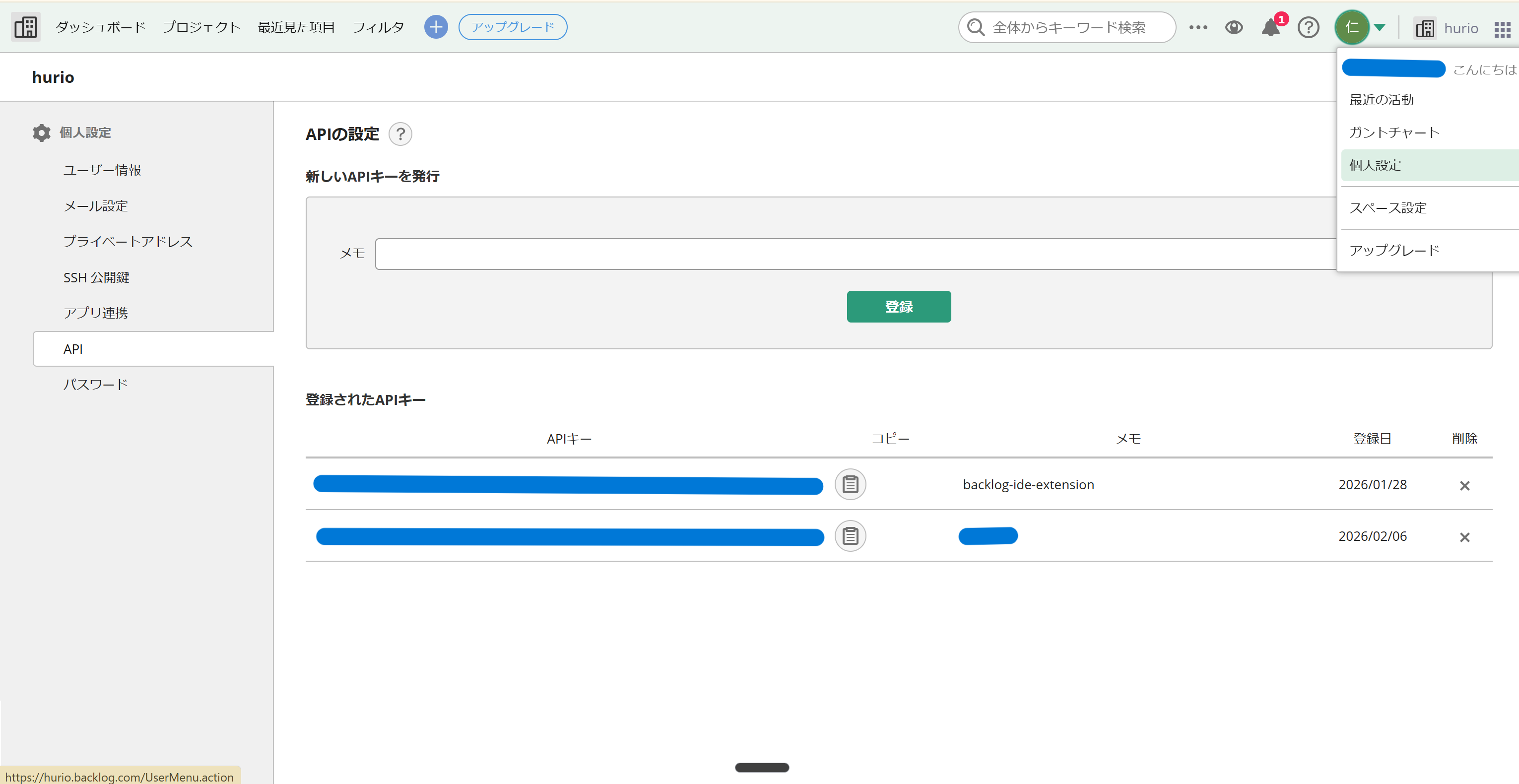
- APIキー / アクセストークン: Backlogの個人設定から発行した値
- Space URL: BacklogのスペースURL (例:
https://your-space.backlog.jp)
- プロジェクト選択: プロジェクト一覧取得 → ドロップダウンから選択(キーワード絞り込み対応)
- 取得件数上限: 一度に取得する件数
- API無効時間: 3秒 / 5秒 / 10秒 / 30秒
APIキーの取得:個人設定 > API
- Git連携/PR機能を使う場合、Git(Git連携設定) でリポジトリを選択(検索)して保存します。
- 「ツール」タブ で「同期」を実行します(課題作成・フィルタに必要なメタデータを更新)。
- 「課題一覧」タブ に移動し、「更新」ボタンを押すと課題が表示されます。
設定項目 (Extension Settings)
設定は基本的に サイドバーの設定タブ から行います(機密情報は SecretStorage に暗号化保存されます)。
Backlog(接続設定)
- 認証方式: APIキー / アクセストークン
- BacklogスペースURL
- プロジェクト選択
- 取得件数上限
- API無効時間(操作クールダウン)
Git(Git連携設定)
- プロジェクト設定(Git用): 「Backlogサブタブと同じプロジェクトを使用」/「Git用に別のプロジェクトを指定する」を選択。別指定時はプロジェクト一覧取得・絞り込み・選択リストで指定(Backlogサブタブと同様のUI)。
- リポジトリ選択: 手入力で検索・選択。BacklogのGit URL(例:
https://xxxx.backlog.jp/git/PROJECT/repo-name や .git 付き)を貼り付けた場合は、リポジトリ名を自動抽出して使用。
表示設定
- 検索項目の表示/非表示: キーワード/担当者/状態/マイルストーン/更新日範囲/作成日範囲/ソート
- タブ表示の表示/非表示: 新規課題 / PR一覧 / PR作成 / Wiki / ツール
- タブ表示形式: 既定は選択リスト形式 / タブ形式(横並び)
- 課題一覧: 検索項目・アイコン(MD/Copy/Br/PR)・課題詳細表示のデフォルト(WebView/Markdown)の表示/非表示
- PR一覧: フィルタ項目(ステータス/担当者/作成者)・ソートの表示/非表示
- 言語設定: UIの表示言語を日本語/英語から選択可能。Backlog APIの認証ユーザー情報に基づいて自動設定され、手動で変更した設定は永続化されます。
通知設定
- お知らせポーリング: ON/OFF、ポーリング間隔(10〜120分、デフォルト60分)。
セキュリティ (Security & Privacy)
- 機密情報の保護: APIキー/アクセストークンは、VS Codeの SecretStorage に暗号化保存されます。プレーンテキストファイルに平文保存しません。
- 通信: すべての通信は Backlog API (HTTPS) との間で直接行われます。外部の第三者サーバーを経由することはありません。
ヒント (Tips)
- AIとの連携: 「MD取得」で課題情報をMarkdown化し、AIチャットにペーストして文脈共有が可能。ツールタブの「課題一括取り込み」「課題分析」でAI用プロンプトを生成し、インポートやレポート作成を支援。
- フィルタの保存: 課題一覧タブで設定したフィルタ条件(担当者やステータス)は、タブを切り替えても保持されます。
- エディタパネル: コマンドパレットの「Backlog: エディタパネルで開く」から、エディタ領域で全7タブ(課題一覧・新規課題・PR一覧・PR作成・Wiki・設定・ツール)の操作ができます。
- Git/PRでエラーが出た場合: 404 や 403(機能制限)でGit関連のメッセージが出たときは、[設定 > Git] でプロジェクト・リポジトリが正しいか確認する案内が表示されます。「Git用に別のプロジェクトを指定する」が必要な場合もあります。
⌨️ コマンド (Commands)
Backlog: 課題からブランチを作成Backlog: プルリクエストを作成Backlog: エディタパネルで開くBacklog: 課題を一括取り込みBacklog: お知らせを表示更新
参考資料 (References)
▼ English Version / Overview
Key Features
1. Task Management
- Issue List: Filter by Keyword, Assignee, Status, Milestone, Updated/Created Date Range, and Sort (paging: 30 items). Optional Show only issues last updated by me narrows the loaded results on the client.
- View Issue Details: Click to show details in an editor tab (default: WebView or Markdown).
- Create Issue: Create issues from the "New Issue" tab (type, summary, assignee, etc.; optional auto-clear after create).
- Comments: Load 10 comments at a time (system-only comments with no body are hidden). Copy each comment body to clipboard. Post new comments.
- Status Update: Update status from the issue detail view (with confirmation dialog).
- Bulk Update: "Bulk Update" button on the issue list displays up to 100 search results in an inline-editable table for bulk updates. Summary wraps for multi-line editing. Cells changed from loaded values use a green highlight; reverting removes it.
- Issue Detail Editing: Inline editing for issue type, priority, assignee, due date, milestone, version, and resolution.
- Markdown Output: Export issue list or details with statistics to Markdown (for AI chats or Wikis).
- List Actions: MD / Copy / Br / PR icons per row (visibility customizable). Copy copies issue key, summary, and description to clipboard in Markdown format. Br disabled when Git not detected; PR disabled when repository not configured (tooltip explains).
2. Git Integration
- Smart Branch Creation: Create branches with issue key and prefix; base branch and auto-checkout supported.
- Commit Message Completion: Insert issue key from current branch name into SCM input.
- Branch Cleanup: List and bulk-delete local branches that no longer exist on the remote.
3. Pull Request Management
- PR List: Search by Open/Closed/Merged, Assignee, Creator, Related Issues; sort (updated/created/number, asc/desc), related issue display; incremental loading. When "Use a separate project for Git" is set, the list is fetched from that project.
- PR Details: View in editor panel, load comments, post comments.
- Create PR: Select branches, search/link issues, auto-complete title, assignee/notify users; optional auto-clear after create. The confirmation area shows the push destination (project and repository).
4. Wiki
- Wiki tab: Project Wiki pages in an explorer-style tree (hierarchy by
/ in page names).
- Keyword search: Filter via Backlog API keyword.
- Detail view: Open a page in the editor area (WebviewPanel) with body, tags, attachments, author/updater, dates.
- Open in browser: Open the current Wiki page in an external browser from the detail view.
- Get as Markdown: Open a page as Markdown in the editor from the tree or detail view.
- Copy: Copy wiki title and content to clipboard in Markdown format from the wiki list or detail view.
5. AI-Powered Features
- Bulk Issue Import: Parse
.backlog/import/*.md and register issues in bulk; preview table summary wraps for full-text view/edit; edited cells are highlighted green versus loaded values until reverted; auto-generate AI prompts for creating import files.
- Issue Analysis: Generate AI prompts for quantitative analysis and risk detection; supports reports and slide outlines.
6. Intuitive UI & Settings
- 7 Tabs: Issue List, New Issue, PR List, Create PR, Wiki, Settings, Tools. New Issue, PR List, Create PR, Wiki, and Tools tabs can be shown/hidden via Settings > Display > Tab visibility.
- Tab Display Format: Default is select list (dropdown); horizontal tabs optional. Settings > Display > Tab Display.
- Display Customization: Tab visibility, filter fields, and icons (MD/Copy/Br/PR). Default issue detail view (WebView or Markdown) is configurable.
- Status Sync: Batch sync and cache Status, Issue Type, User, Priority, Milestone. Auto-sync when project is changed in settings.
- Editor Panel: Open Backlog UI as an editor tab with all 7 tabs; SPA navigation for issue/PR details and optional separate window.
- Notification Badge: Show unread count in the status bar; open list via Quick Pick and jump to issue/PR.
- VS Code Native: Follows VS Code design system; Dark Mode supported. Fixed-pixel webview fonts are slightly smaller for denser layout.
- Multi-language: Auto Japanese/English from Backlog API; manual override persisted.
Getting Started
- Install the extension.
- Click the Backlog icon in the Sidebar Activity Bar.
- Open the "Settings" tab.
- Enter the following in Backlog (Connection Settings) and save:
- Auth Method: API Key / Access Token
- API Key / Access Token: Value generated from your personal settings in Backlog.
- Space URL: Your Backlog Space URL (e.g.,
https://your-space.backlog.jp)
- Project Selection: Fetch project list → Select from dropdown (supports keyword filtering).
- Fetch Limit: Maximum number of items to fetch at once.
- API Cooldown: 3s / 5s / 10s / 30s
To get API key: Profile > API
- If using Git/PR features, select (search for) your repository in Git (Git Integration Settings) and save.
- Go to the "Tools" tab and execute "Sync" (Updates metadata required for issue creation and filtering).
- Go to the "Issue List" tab and click the "Update" button to display issues.
Extension Settings
Settings are primarily managed via the Sidebar Settings Tab (Sensitive information is encrypted and stored in SecretStorage).
Backlog (Connection Settings)
- Auth Method: API Key / Access Token
- Backlog Space URL
- Project Selection
- Fetch Limit
- API Cooldown (Operation cool down time)
Git (Git Integration Settings)
- Project (for Git): "Use same project as Backlog tab" / "Use a separate project for Git". When separate, specify via project list fetch, filter, and dropdown (same UI as Backlog tab).
- Repository Selection: Search and select by name. Pasting a Backlog Git URL (e.g.
https://xxxx.backlog.jp/git/PROJECT/repo-name or with .git) auto-extracts the repository name.
Display Settings
- Toggle Search Items: Keyword / Assignee / Status / Milestone / Updated Date Range / Created Date Range / Sort
- Toggle Tab Display: New Issue / PR List / Create PR / Wiki / Tools
- Tab Display Format: Default is select list (dropdown) / Tab format (horizontal)
- Issue List: Search items, icons (MD/Copy/Br/PR), default issue detail view (WebView/Markdown)
- PR List: Filter items (Status/Assignee/Creator), Sort visibility
- Language: Japanese/English (auto from Backlog API; manual choice persisted).
- Settings persistence: Space URL and project selection are stored in globalState and persist across workspace changes and folder moves.
Notification Settings
- Notification polling: ON/OFF; interval 10–120 min (default 60 min).
Security & Privacy
- Protection of Sensitive Information: API Keys and Access Tokens are encrypted and stored in VS Code's SecretStorage. They are never saved in plain text files.
- Communication: All communication is conducted directly with the Backlog API (HTTPS). No external third-party servers are involved.
Tips
- AI Integration: "Get MD" converts issues to Markdown for AI chats. Use "Bulk Import" and "Issue Analysis" in the Tools tab to generate AI prompts for import and reporting.
- Save Filters: Filter conditions in the Issue List tab are preserved when switching tabs.
- Editor Panel: "Backlog: Open in Editor Panel" opens all 7 tabs (Issue List, New Issue, PR List, Create PR, Wiki, Settings, Tools) in the editor area.
- Git/PR errors: When you see a 404 or 403 (feature restricted) related to Git, the UI will guide you to check [Settings > Git] (project and repository). You may need to set "Use a separate project for Git".
⌨️ Commands
Backlog: Create Branch from IssueBacklog: Create Pull RequestBacklog: Open in Editor PanelBacklog: Bulk Import IssuesBacklog: Show NotificationsUpdate
References
License
Copyright (c) 2024-2026 uzin-60123
All rights reserved.
Permission is hereby granted, free of charge, to any person obtaining a copy
of this software and associated documentation files (the "Software"), to deal
in the Software without restriction, including without limitation the rights
to use, copy, modify, merge, publish, distribute, sublicense, and/or sell
copies of the Software, and to permit persons to whom the Software is
furnished to do so, subject to the following conditions:
The above copyright notice and this permission notice shall be included in all
copies or substantial portions of the Software.
THE SOFTWARE IS PROVIDED "AS IS", WITHOUT WARRANTY OF ANY KIND, EXPRESS OR
IMPLIED, INCLUDING BUT NOT LIMITED TO THE WARRANTIES OF MERCHANTABILITY,
FITNESS FOR A PARTICULAR PURPOSE AND NONINFRINGEMENT. IN NO EVENT SHALL THE
AUTHORS OR COPYRIGHT HOLDERS BE LIABLE FOR ANY CLAIM, DAMAGES OR OTHER
LIABILITY, WHETHER IN AN ACTION OF CONTRACT, TORT OR OTHERWISE, ARISING FROM,
OUT OF OR IN CONNECTION WITH THE SOFTWARE OR THE USE OR OTHER DEALINGS IN THE
SOFTWARE.
| |

