Time Tracker: offline coding time tracking for VS Code
Automatic coding time tracking by project, language, branch and file. No account, no server, no API key.
A private, offline alternative to WakaTime and Code Time: your time data never leaves your machine.
Why Time Tracker
- Zero setup. Install it and keep coding. There is nothing to sign up for and no key to paste.
- Private by design. Time is stored as small JSON files on your machine. Nothing about your code, files or
hours is ever uploaded.
- All your history. No "7 days of history" limit. Look back a week, a month, a year or all time.
- Built for freelancers. Turn tracked time into timesheets and invoices (CSV and PDF) with client rates.
- Fast and native. A small React dashboard that follows your VS Code theme (light, dark and high contrast)
and works fully with the keyboard.
Features
Automatic tracking
- Counts time while you type, save, scroll, move the cursor, switch files, debug, use the terminal or edit notebooks.
- Knows the project (workspace folder), language, git branch and file you worked on.
- Idle rules: stops after 5 minutes without activity (configurable) and never counts time while VS Code is in
the background (unless you turn that on for reading docs).
- Several VS Code windows at once? Each window records its own file, so nothing is double counted or overwritten.
- Pause tracking any time (Time Tracker: Pause / Resume Tracking) or exclude projects by name (
scratch*).
Dashboard
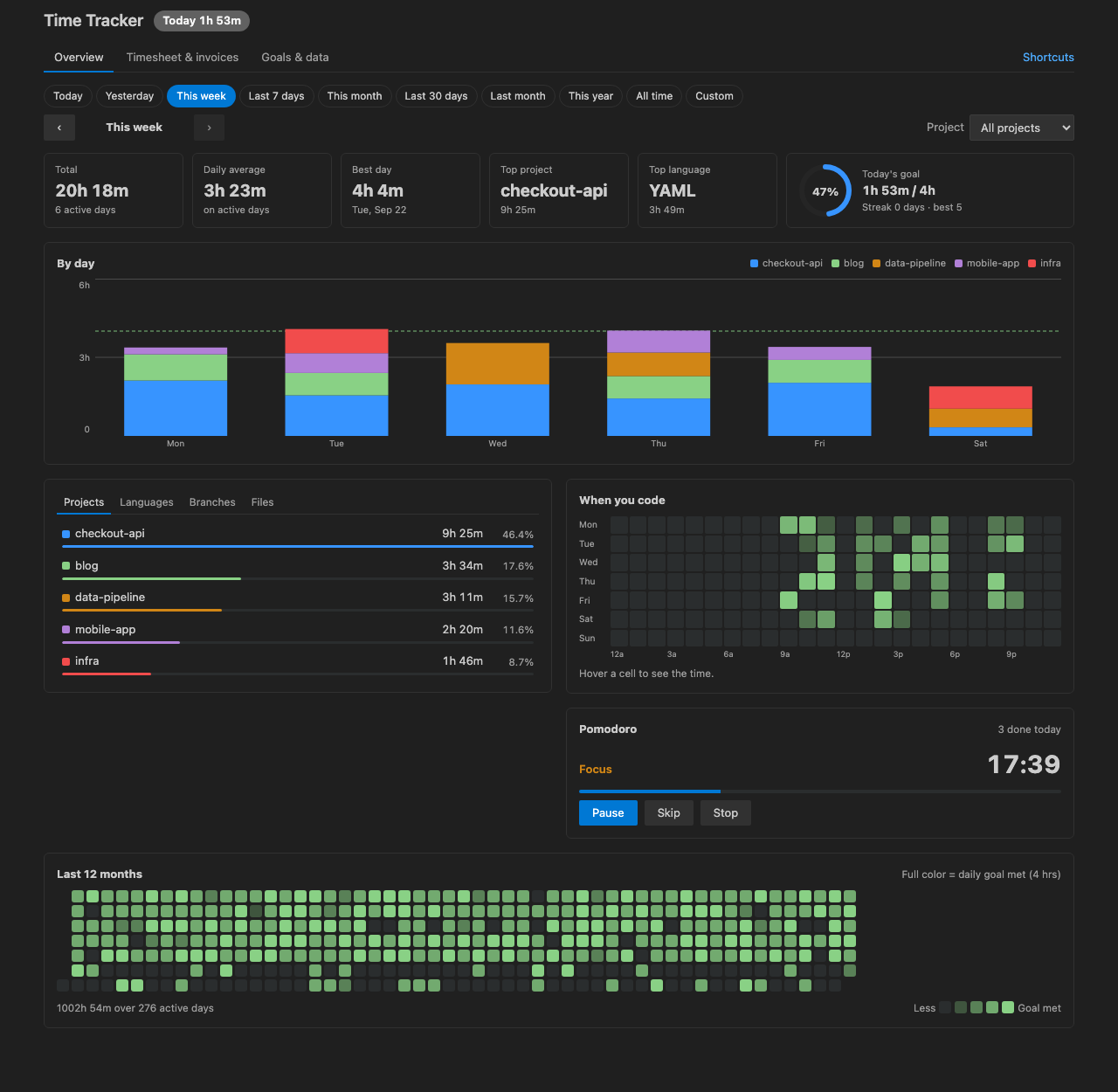
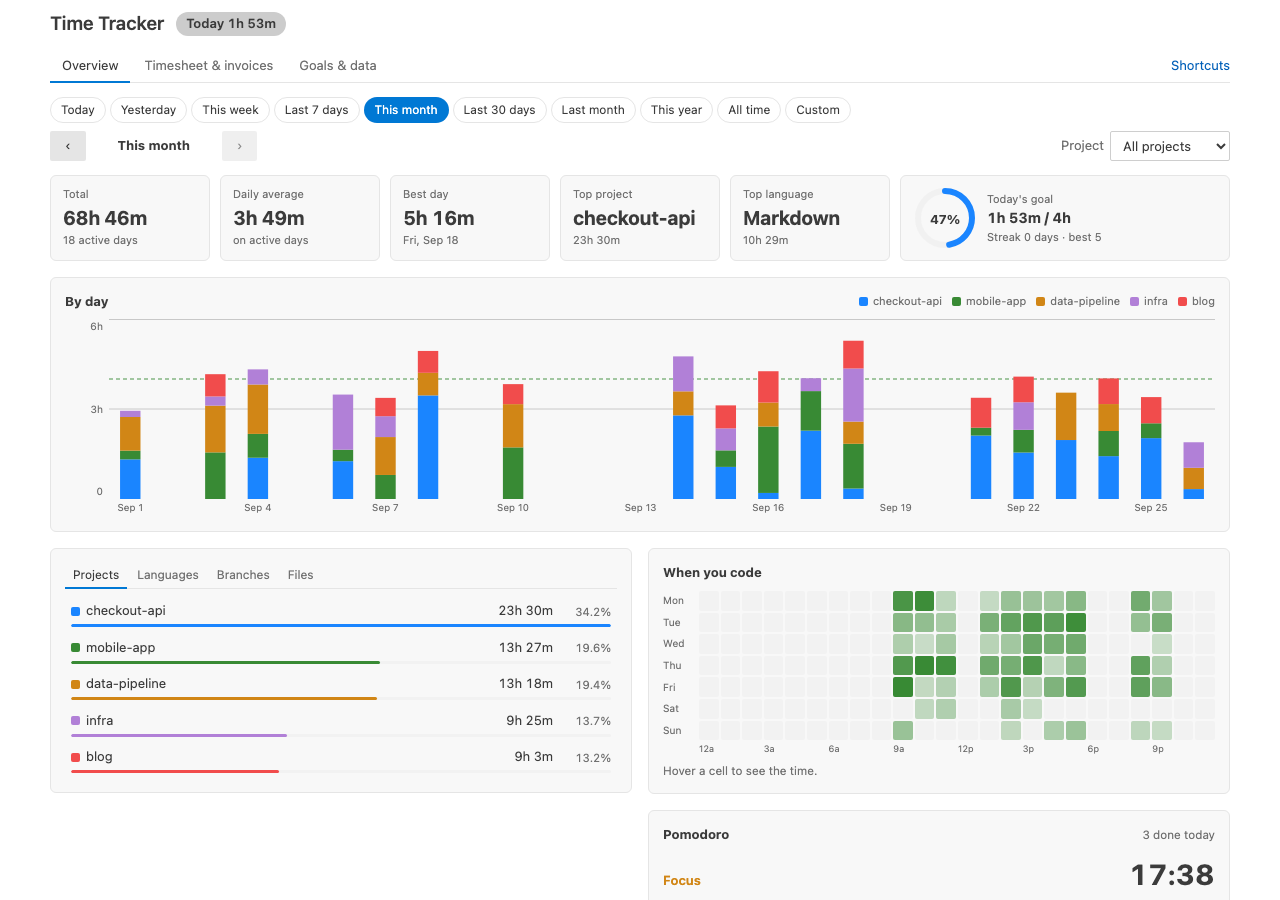
- Today, yesterday, this week, last 7 days, this month, last 30 days, last month, this year, all time or any custom range.
- Totals, daily average, best day, top project and top language.
- Stacked daily chart by project with your goal line, and an hour-by-hour chart for single days.
- When you code: a weekday by hour heatmap.
- Last 12 months calendar heatmap. Click any day to open it.
- Breakdowns by project, language, branch and file. Click a project to filter everything by it.
- Today's time in the status bar, and a Time Tracker sidebar in the activity bar: today's time, goal and streak, the Pomodoro timer, quick actions and the main settings.
Goals and streaks
- Set a daily coding goal. The status bar, the progress ring and the calendar show how you are doing.
- Current and best streaks of days meeting the goal. Weekends don't break a streak (configurable).
Pomodoro focus timer
- Focus, short break and long break (every 4 sessions), all configurable.
- Countdown in the status bar, a notification when each phase ends, and today's completed sessions.
Timesheets and invoices
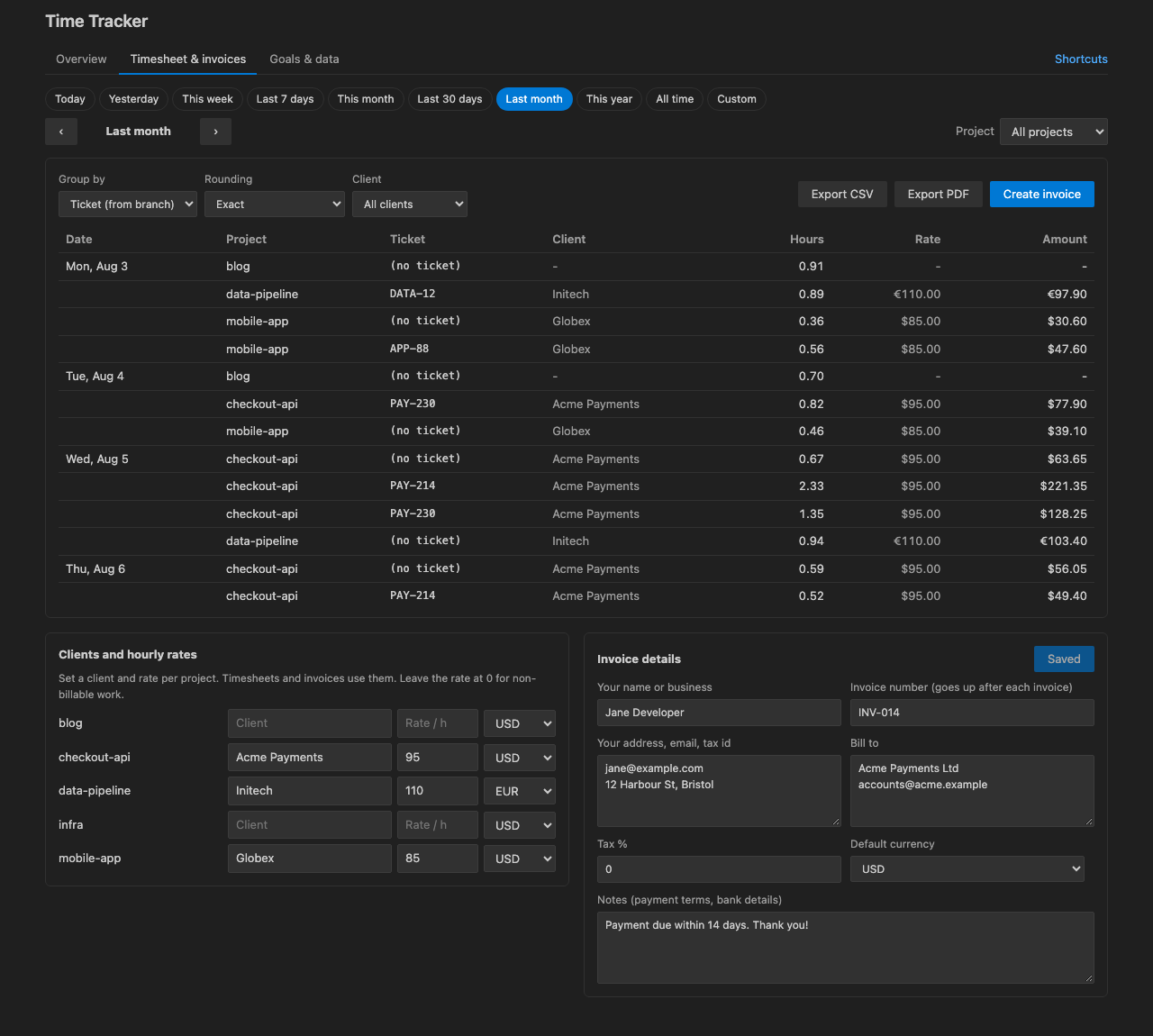
- Timesheet by day, grouped by project, branch, ticket or language.
- Tickets from branch names:
feature/PROJ-123-login becomes PROJ-123 (the pattern is configurable).
- Client name, hourly rate and currency per project. Rounding: exact, 1, 6, 15 or 30 minutes.
- Export CSV (opens in Excel, Numbers and Google Sheets) or PDF.
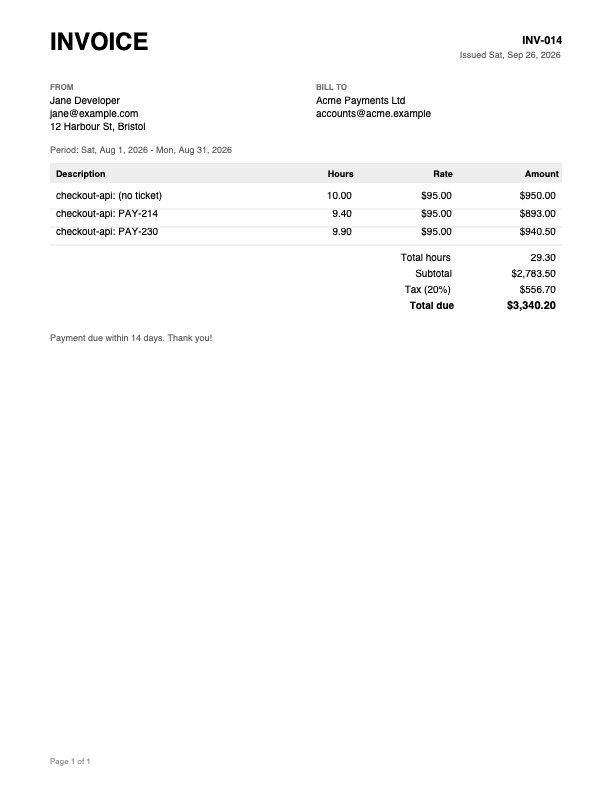
- Create invoice makes a clean PDF invoice with your details, bill-to, tax and notes. The invoice number
counts up automatically.
Several machines
Set timeTracker.dataFolder to a synced folder (Dropbox, iCloud Drive, OneDrive, Syncthing). Each machine writes its
own files, so there are no sync conflicts, and the dashboard combines them. You can also export everything as JSON
and import it elsewhere. Importing the same file twice never counts time twice.
Keyboard shortcuts (dashboard)
| Key |
Action |
t w m y a |
Today, this week, this month, this year, all time |
[ and ] |
Previous and next period |
1 2 3 |
Overview, Timesheet and invoices, Goals and data |
/ |
Filter by project |
Arrow keys, Enter |
Read chart bars, open a day |
? |
Show all shortcuts |
Commands
| Command |
What it does |
| Time Tracker: Open Dashboard |
Opens the dashboard |
| Time Tracker: Show Coding Time Today |
Today's total and top projects |
| Time Tracker: Timesheet & Invoice Export |
Opens the timesheet tab |
| Time Tracker: Start Pomodoro Focus / Start Pomodoro Break |
Starts the timer |
| Time Tracker: Pause / Resume Pomodoro, Skip Pomodoro Phase, Stop Pomodoro |
Controls the timer |
| Time Tracker: Set Daily Coding Goal |
Sets your goal in minutes |
| Time Tracker: Pause / Resume Tracking |
Stops or restarts recording |
| Time Tracker: Export All Data (JSON) / Import Data (JSON) |
Backup and move your history |
| Time Tracker: Open Data Folder |
Shows where your data lives |
| Time Tracker: Delete All Tracked Time |
Removes all tracked time on this machine |
| Time Tracker: Go Unlimited |
Shows the Unlimited plans |
| Time Tracker: Restore Purchase |
Turns Unlimited on here with the email you paid with |
Settings
| Setting |
Default |
|
timeTracker.idleMinutes |
5 |
Minutes without activity before counting stops |
timeTracker.dailyGoalMinutes |
240 |
Daily goal |
timeTracker.streaksSkipWeekends |
true |
Weekends never break a streak |
timeTracker.weekStartsOn |
monday |
First day of "This week" |
timeTracker.excludeProjects |
[] |
Projects never tracked (* wildcard) |
timeTracker.trackFileNames |
true |
Record file paths for the Files breakdown |
timeTracker.keepCountingWhenUnfocused |
false |
Keep counting while another app is focused |
timeTracker.showInStatusBar |
true |
Today's time in the status bar |
timeTracker.ticketPattern |
(built in) |
Regex that finds a ticket in a branch name |
timeTracker.dataFolder |
(private storage) |
Where your data lives; point it at a synced folder |
timeTracker.pomodoro.* |
25 / 5 / 15 / 4 |
Focus, short break, long break, long break every N |
timeTracker.enabled |
true |
Record coding time |
Free trial and Unlimited
Time Tracker starts with a free trial with every feature included. When the trial ends, pick an Unlimited plan
to keep using it: Unlimited Monthly, Unlimited Yearly or Unlimited Lifetime (pay once). Payments are
handled securely by Stripe.
The trial only counts while you are actually using Time Tracker (the dashboard, the sidebar, the Pomodoro timer,
exports). Background tracking while you code does not use it up. After the trial, your time keeps being recorded
privately on your machine, so your history is complete when you unlock.
Already paid on another machine? Run Time Tracker: Restore Purchase and enter the email you paid with.
Subscribers can open Manage subscription from the plans screen to cancel or change their card.
Privacy
- Your code, file names, projects, branches and hours stay on your machine. If VS Code telemetry is turned on, the extension also sends two anonymous usage events (opened, and the Unlimited page shown) with the same random install id, and nothing else.
- The only network calls are for the free trial and Unlimited licence: a random install id, a hashed machine id and
how long the extension's own screens were actively used, sent to our licensing server. Payments go through Stripe.
- Everything works offline. If the licensing server can't be reached, the last known plan stays in force.
Support
Questions, bugs or ideas: ope@trysixth.com.
| |

