UStudio Pro
The C++ and Blueprint workflow for Unreal Engine 5, in VS Code and Cursor.







UStudio turns VS Code into a first-class Unreal Engine development environment: instant IntelliSense, real-time reflection sync, Blueprint references, live Unreal Editor integration and one-click debugging, using a fraction of the RAM of heavyweight IDEs.
- Understands Unreal C++. Reflection macros, RPCs,
.generated.h, Build.cs modules and Unreal's own pitfalls, checked as you type.
- Works with the running editor. Live Coding, live C++ execution highlights, the Output Log and Python scripts, without leaving your code.
- Reads your Blueprints. Open any
.uasset as a C++ class, see which Blueprints use each function and property, and turn a Blueprint into a real C++ class (experimental).
- Builds classes from nodes. Blueprint-style graphs that compile into C++ or Python classes in the running Unreal Editor, with live debugging, your own custom nodes and Convert to Code.
- Feels familiar. Solution Explorer, Visual Studio and Rider shortcuts and layouts, Git and Perforce built in.
Questions, bug reports or feature requests? Join the community on Discord.
Contents
| Section |
What's inside |
| Getting started |
First steps and the guided tour |
| Code intelligence |
IntelliSense, F12, references, "used by N", inspections, autocomplete, formatting |
| Build and debug |
Build and launch, C++ debugger, error fixes, Automation tests |
| Live Unreal Editor |
Live Bridge, Live Coding, Live Execution, Unreal Log |
| Blueprints and assets |
Blueprints as C++ classes, Blueprint to C++ conversion, Blueprint CodeLens, Class Lifecycle |
| Node Graphs |
C++ and Python classes made with nodes: compile into Unreal Editor, live debugging, custom nodes, Convert to Code, PDF |
| Wizards and templates |
C++ classes, gameplay templates, your own C++ / Python templates, .uasset wizard, modules and plugins |
| Python for Unreal Editor |
IntelliSense, 29 templates, live runner, debugger |
| Source control and history |
Git, GitHub, Perforce, code authors, file history, Change Timeline |
| Navigation and workspace |
Solution Explorer, Favorites, Members, layout presets, export to PDF, shortcuts, config files |
| AI agents |
MCP server for Copilot, Cursor, Claude Code and Codex |
| Free vs Pro |
What each edition includes, pricing and activation |
Also: Cursor support · Requirements · Privacy · Support · User guide (PDF)
Getting started
- Open the folder that contains your
.uproject (File › Open Folder…).
- Click the U icon in the Activity Bar. UStudio detects the project and the engine version, and sets up IntelliSense.
- If
compile_commands.json hasn't been generated yet, click Fix IntelliSense in the UStudio sidebar, or run Unreal: Fix #include & Intellisense from the Command Palette (Ctrl+Shift+P).
User guide. Every feature, step by step, in the UStudio Pro 1.25.0 User Guide (PDF).
Guided tour. The first time, the dashboard shows a New to UStudio? card that opens a step-by-step tour: IntelliSense setup, search and navigation, build and launch, new C++ classes and Content assets, error fixes, file history, Python scripts and config files. Each step has a button that runs it and is ticked off once you've done it. Reopen the tour any time with the graduation-cap button in the dashboard title bar, or with UStudio: Getting Started Guide.
Code intelligence
Unreal-aware C++ editing on top of clangd: navigation, references and fixes that know about reflection, RPCs and Blueprints.
 
Automatic IntelliSense setup
- Generates and repairs
.clangd, compile_commands.json and .vscode/c_cpp_properties.json.
- clangd parses each file with the precompiled header its module is built with, like UnrealBuildTool. Code that compiles thanks to the PCH (an automation test without
#include "Misc/AutomationTest.h", #if ENABLE_DRAW_DEBUG…) shows no false errors, even in a module that hasn't been compiled yet. Modules and definitions you add to a Build.cs reach clangd when you save it, without waiting for a build: their headers are found right away. Headers you open on their own (including engine headers via F12) are parsed without the PCH, so nothing is defined twice.
- Edits
.vscode/settings.json, launch.json and c_cpp_properties.json in place: your comments, your own configurations and your clangd.arguments are kept. A file with a syntax error is reported, never overwritten.
Smart F12 navigation 
- From
.h to .cpp: F12 on any method (including Server_Throw) jumps straight to its implementation (Server_Throw_Implementation).
- From
.cpp to .h: F12 on ClassName::Method_Implementation goes back to the declaration in the .h, not into .generated.h.
- On RPC call sites:
F12 on Server_Throw(...) opens Server_Throw_Implementation.
Instant indexed references
Find every C++ and Blueprint reference to a class, method or property in milliseconds (Alt+Shift+F12), backed by a persistent inverted index. Each search stays in the Symbol References view as its own entry (newest on top, older ones collapsed), so you can go back to it, search again (↻) or close it (✕ or Delete). The last 20 searches are kept between sessions.
"used by N" above every function
Like Visual Studio's reference count or Rider's usages: every function and UPROPERTY, in headers and .cpp files, shows used by N. It counts the C++ calls in the class and its subclasses and, in Pro, the Blueprints that use it.
- Functions with the same name in different classes are counted separately. Each call is attributed by its qualifier (
Super::, AWeapon::), the receiver's type (Weapon->, Cast<AWeapon>(X)->, Weapons[i]->) or the enclosing class.
- Blueprint usages include every Blueprint that derives from the class, even through other Blueprints or C++ subclasses: one that calls the function on itself, overrides the event or changes the property's default counts too.
_Implementation / _Validate bodies count the calls to the declared function.- Click it to open a peek view with every usage, Blueprints included (their C++ view opens inside the same peek).
Real-time reflection sync
No more waiting for UnrealHeaderTool to clear red squiggles in the .cpp. When you declare a UFUNCTION with Server, Client, NetMulticast, BlueprintNativeEvent or WithValidation, UStudio synthesizes the matching _Implementation, _Validate and Execute_ declarations in real time.
Implementation generator
Press Ctrl+. on a method declaration in the .h to generate its body in the .cpp.
- Works on one method or on several selected methods at once.
- Creates the matching
_Implementation and _Validate bodies for RPCs and events.
- Fills in default return values and
Super::Method() calls for overrides. An override of an interface function never calls Super:: (the parent class doesn't have it): it gets a plain body, or IMyInterface::Method() when the interface already implements it.
Ghost implementations
Open a .cpp and every function or event its header declares without an implementation appears where its body belongs, as a ghost of its code with an Implement button:
void AMyActor::Tick(float DeltaTime) { Super::Tick(DeltaTime); } | Implement
- Implement writes it there and puts the cursor in the body. Implement all writes every ghost of that spot.
- Each ghost goes after the function declared before it in the
.h, so the .cpp keeps the header's order.
BlueprintNativeEvent and RPCs appear as _Implementation, with their _Validate for WithValidation. BlueprintImplementableEvent, pure virtuals, inline bodies and templates never appear, nor functions implemented in another .cpp.- Declarations under
#if WITH_EDITOR keep their #if.
- When the
} of the last function is the file's last line (no newline at the end), the ghost appears after that }, on the same line. Hover it for the whole code and Implement.
- Declare a function in the
.h and its ghost appears in the .cpp as you type, before you save.
- UStudio: Implement Missing Functions from the Header... (command palette, or right-click in the
.cpp) lets you choose among all of them.
- The Free edition shows the ghosts; writing them is Pro. Turn them off with
unrealStudio.codeLens.ghostImplementations.
Implement interfaces
Right-click an interface in the class declaration (class AMyDoor : public AActor, public IInteractable) and choose Implement Interface Functions... to pick the functions you want, or Implement All Interface Functions. Also from Ctrl+. on the interface name.
- Declares them in the class, inside a
//~ Begin IInteractable Interface block: Interact_Implementation(...) for a BlueprintNativeEvent, virtual ... override; for the pure and optional virtuals. Functions under #if WITH_EDITOR in the interface keep their #if.
- Creates their bodies in the
.cpp.
- Works with project interfaces and engine or plugin ones (
IAbilitySystemInterface, IGameplayTagAssetInterface, IGenericTeamAgentInterface...), including the interfaces they derive from.
- While you type a declaration in that class (
virtual void Inter…), IntelliSense suggests the interface functions it doesn't declare yet and completes the whole signature.
Real-time Unreal inspections
Mistakes the C++ compiler accepts but Unreal punishes at build, link or run time are flagged as you type, each with a quick fix (Ctrl+.):
| Rule |
Problem |
Quick fix |
| UE001 |
UObject pointer member without UPROPERTY() (the garbage collector can destroy it under you) |
Add UPROPERTY() and use TObjectPtr<> |
| UE002 |
UCLASS / USTRUCT without GENERATED_BODY() |
Add GENERATED_BODY() |
| UE003 |
AddDynamic / BindUFunction to a function that isn't a UFUNCTION (fails at run time) |
Mark it UFUNCTION() in the header |
| UE004 |
Override of BeginPlay, Tick, EndPlay, GetLifetimeReplicatedProps… that never calls Super:: |
Insert the Super:: call (last for teardown functions) |
| UE005 |
Replicated property missing from GetLifetimeReplicatedProps |
Add DOREPLIFETIME, the function, its declaration and Net/UnrealNetwork.h |
| UE006 |
RPC / BlueprintNativeEvent without _Implementation (or _Validate) |
Create the stub in the .cpp |
| UE007 |
CreateDefaultSubobject / ConstructorHelpers outside the constructor |
— (explains the alternative) |
| UE008 |
UObject created with new |
NewObject<T>(this) / SpawnActor<T>() |
| UE009 |
#include or reflected type from a module the Build.cs doesn't reference or link (C1083 / LNK2019 in the real build), or whose plugin isn't enabled |
Add the module (editor-only ones inside if (Target.bBuildEditor)) and enable the plugin |
| UE010 |
Event / RPC parameters UnrealHeaderTool rejects or rewrites: FString / FText / TArray / TMap / TSet by value in BlueprintNativeEvent, BlueprintImplementableEvent, Server, Client, NetMulticast; RPC without Reliable, with return value or out parameters; _Implementation with other parameters; BlueprintImplementableEvent or RPC defined under its own name |
const T& in the header and the .cpp, add Reliable, rename to _Implementation |
| UE011 |
AddDynamic handler whose parameters differ from the delegate (OnComponentBeginOverlap, OnActorHit, OnTakeAnyDamage, UButton::OnClicked, project delegates…) |
Rewrite the handler's signature in the header and the .cpp |
| UE012 |
Declarations UnrealHeaderTool rejects: private BlueprintReadWrite, BlueprintPure without result, UObject member by value, interface pointer, missing / renamed / misplaced .generated.h |
AllowPrivateAccess, BlueprintCallable, TObjectPtr<>, TScriptInterface<>, fix the include |
Silence one line with // ustudio-ignore UE001, or turn a rule off with unrealStudio.inspections.disabledRules. UStudio: Run Unreal Inspections on the Project checks every file.
Include, module and linker quick fixes
In every edition, compiler errors such as unknown type name 'UCameraComponent' get a quick fix that adds the right #include and the missing Build.cs dependency, and enables the plugin in the .uproject / .uplugin when the module lives in one. In headers it can forward declare instead. LNK2019 / LNK2001 unresolved externals are placed in the module's Build.cs, with a fix that adds the module that defines the symbol (UUserWidget → UMG).
Predictive autocomplete
Inline ghost-text suggestions that follow the Unreal Engine C++ coding standard, filled with the real variables, members, enums, timers and log category of your code. Accept with Tab, then Tab through the slots.
| Group |
Suggestions |
| Control flow |
if (condition) with Allman braces, if (IsValid(Actor)), if (HasAuthority()), if (IsLocallyControlled()), else, else if, indexed for, range-based for (const auto& Item : Items), safe reverse loop, while (bIsRunning), do { … } while (bCondition);, switch (State) with cases |
| Multithreading |
AsyncTask(ENamedThreads::GameThread, …), AsyncTask(ENamedThreads::AnyBackgroundThreadNormalTask, …), ParallelFor(Items.Num(), …), FScopeLock ScopeLock(&CriticalSection); |
| Diagnostics |
UE_LOG(LogTemp, Warning, …), UE_LOG(LogTemp, Error, …), check(…), checkf(…), ensure(…), ensureMsgf(…) |
| Reflection macros |
UPROPERTY(EditAnywhere, BlueprintReadWrite, …), UPROPERTY(VisibleAnywhere, BlueprintReadOnly, …), UPROPERTY(ReplicatedUsing = …), UFUNCTION(BlueprintCallable, …), UFUNCTION(BlueprintPure, …), UFUNCTION(Server, Reliable, WithValidation), UFUNCTION(Client, Reliable), USTRUCT(BlueprintType), UENUM(BlueprintType) |
| Objects |
Cast<T>, CreateDefaultSubobject<T>, NewObject<T>, FindComponentByClass<T>, GetWorld()->GetTimerManager().SetTimer(…) |
- The same snippets are in the
Ctrl+Space list, with tab stops.
- In C / C++ files only
Tab accepts a suggestion: Enter inserts a new line and typing ( or ; never inserts it, so typing if gives you if, not a template (unrealStudio.suggestions.acceptOnlyWithTab).
Right-click a .h / .cpp › Format Document (Unreal) and choose braces on a new line (Allman, the Unreal standard), braces on the same line (if (bReady) {), or your project's .clang-format. It runs clang-format with Unreal conventions:
- tabs and
Type* Name;
- includes keep their order;
- reflection macros stay above their declarations;
- long lines are left as they are.
With a selection, only those lines are formatted. clang-format comes with Visual Studio's C++ Clang tools and with LLVM. Set unrealStudio.format.braceStyle to stop being asked.
Build and debug
Build, launch and debug Unreal Editor from VS Code, with errors you can click and fixes you can preview.
One-click build and launch
Build, Rebuild and Launch Unreal Editor with one click from the status bar or the dashboard.
C++ debugging
Debug gameplay code and engine systems with breakpoints and no manual configuration.
- One-click debug launch: Debug Unreal in the status bar, or Launch Unreal Editor (Debug Mode) in the dashboard, starts
UnrealEditor.exe with the debugger attached (or attaches if the editor is already running).
- Readable Unreal types:
Unreal.natvis is linked automatically, so FString, FName, TArray, TMap, TSet, FVector and UObject* show their values instead of raw memory.
- Clear status: while debugging, the status bar turns amber with the PID and the session controls.
- Shortcuts (Visual Studio / Rider keymap):
F5 start or attach, Shift+F5 stop and detach (Unreal Editor keeps running), F9 toggle breakpoint, Ctrl+Shift+F9 clear all breakpoints.
Build errors in the Problems panel
Compiler (MSVC / clang), UnrealHeaderTool, *.Build.cs and linker errors from every build appear in the Problems panel with clickable file and line, with MSVC note: lines attached to their error. If Live Coding is active in the editor, UStudio offers to compile with Live Coding instead of showing a cryptic UBT failure. Linker errors land in the module's Build.cs, with a fix that adds the missing module.
Error fix suggestions with multi-file preview
Open the Build Errors & Fixes panel (next to Unreal Log), or right-click a compilation error there or in Unreal Log.
- Suggest Fix (Preview)… is highlighted when UStudio has an automatic fix for that error, and greyed out when it doesn't.
- The preview shows the diagnosis, every file that will change (
*.h, *.cpp, *.Build.cs, *.uproject) with a color-coded unified diff, and a button to compare in VS Code's diff editor. Nothing is written until you press Apply Fix.
Errors it fixes:
- Missing
#include, Build.cs module or .uproject plugin (EnhancedInput, Niagara, UMG, AIModule, GameplayTags, GameplayAbilities, Json, HTTP…).
- Circular header dependencies: the
#include in the header becomes a forward declaration (class A…; / struct F…;) and moves to the .cpp.
- Missing semicolons (
C2143, C2144) after a declaration or a class / struct closing brace.
- Misdeclared types:
C4099 class vs struct, and missing A / U / F prefixes (Vector → FVector, Rotator → FRotator, Actor → AActor, Character → ACharacter, UserWidget → UUserWidget).
- Include paths not found (
C1083) and unresolved externals (LNK2019 / LNK2001): missing Build.cs module, missing <MODULE>_API export macro, or a header method without a body in the .cpp.
- UHT and replication errors:
.generated.h include order, missing GENERATED_BODY(), missing _Implementation for RPCs / BlueprintNativeEvent, missing GetLifetimeReplicatedProps and Net/UnrealNetwork.h.
Automation tests in the Testing view
IMPLEMENT_SIMPLE/COMPLEX_AUTOMATION_TEST, Automation Specs (Describe / It, with their real names) and CQTest TEST_CLASS / TEST_METHOD appear in VS Code's Testing view, with ▶ buttons in the gutter. UStudio builds the editor target if needed and runs them headless with UnrealEditor-Cmd (or under the debugger with Debug Test); failures show their message at the failing line. Specs and complex tests expand into their real cases after the first run.
Live Unreal Editor
UStudio talks to the Unreal Editor that is running your project: open classes from the editor, compile into it, and watch your C++ run.

Live Bridge plugin
Double-click a C++ class in Unreal Editor and it opens in your VS Code (or Cursor) window.
- Plugin v4 lets VS Code / Cursor trigger Live Coding in the editor; v5 adds the
UStudioTrace runtime module behind Live Execution.
- UStudio asks before adding the plugin to
Plugins/UnrealStudioBridge (set unrealStudio.bridge.pluginInstall to always or never to skip the question) and never modifies your .uproject or shared Config/*.ini files.
- The plugin only takes over source code access on machines where UStudio is used for the project, so teammates who get it through source control keep their own IDE.
- The local bridge only accepts requests that carry a per-session token, and rejects browser (cross-origin) requests.
Live Coding
Ctrl+Alt+F11 (or the Live Coding status bar button that appears while Unreal Editor runs) saves your files and compiles them into the running editor, like the editor's own shortcut. The result appears in the status bar; on failure the compiler errors go to the Problems panel. When a normal build is refused because Live Coding is active, the error offers Compile with Live Coding. Requires Live Bridge plugin v4.
Live Execution
See your C++ run, like the execution highlight of Blueprint nodes. While Unreal Editor runs (in Play in Editor or not), the functions that execute light up:
- Running now: the signature glows amber and pulses, with its name in bold and
⚡ running · 60/s · 1,204 calls beside it. Header declarations glow too, so a UFUNCTION(BlueprintNativeEvent) lights up when its _Implementation runs.
- Just ran: the glow fades out over 3 seconds (
⚡ 0.8 s ago).
- Ran earlier: a faint bar and
✓ 12 calls · 34 s ago stay until the next Play or Clear Marks. The overview ruler shows them all at a glance.
How to trace:
- Right-click a function › Trace This Function Live adds
USTUDIO_TRACE(); as its first line (run it again to remove it). Trace All Functions in This File Live and Stop Tracing This File work on a whole file.
- UStudio adds
#include "UStudioTrace.h" and the UStudioTrace module dependency to the Build.cs for you. After that first build, Live Coding is enough to trace more functions.
- The N running status bar item lists the traced functions, running ones first, updating live;
Enter opens one.
USTUDIO_TRACE() costs a few atomic operations per call and compiles to nothing in Test and Shipping builds. Requires Live Bridge plugin v5. Settings: unrealStudio.liveExecution.* (color, fade time, reset on Play, call counts).
Unreal Log panel
An Unreal Log tab next to the terminal follows the Unreal Editor Output Log (Saved/Logs), including Play in Editor sessions.
- Filter by Errors / Warnings / Messages / Verbose and by category, search with text or
/regex/, toggle timestamps, auto-scroll.
- Source locations (
MyActor.cpp(42), ensure reports [File:...] [Line: 42]) and asset paths (/Game/Blueprints/BP_Player) are clickable.
- The tab shows a badge with the number of new errors. Choose Log File switches to another session's log (a
-game or server run).
Live editor status
When your project is open in Unreal Editor, the dashboard, Solution Explorer and status bar show it:
- The project card gets an emerald / cyan accent bar and a live banner (
EDITOR RUNNING · PID · Bridge Live), amber during Play in Editor and violet while debugging.
- Launch Editor, Live Coding, Unreal Log and Python Studio light up when they're ready to work with the running editor.
Blueprints and assets
Read Blueprints as C++ and see how your C++ is used from Content, without opening Unreal Editor.
Blueprints as C++ classes
Open any .uasset (Blueprint, Widget or Anim Blueprint, Interface, Function Library, User Defined Struct / Enum or data asset) as a read-only C++ header, without Unreal Editor:
UCLASS / UPROPERTY / UFUNCTION with the real specifiers (EditAnywhere, BlueprintReadWrite, Replicated, Category, ExposeOnSpawn…), tooltips and default values.- Components, designer widgets (
BindWidget), event dispatchers, custom events, RPCs, overridden events (BeginPlay, Construction Script…) and bound component events.
F12 on a type opens its engine or project header, or the other Blueprint's C++ view. The Outline lists every member, and the view refreshes when Unreal saves the asset.- Double-click a
.uasset in VS Code, click it in the Solution Explorer, or right-click › View as C++ Class.
Convert Blueprints to C++ 
Turn a Blueprint of an actor, component or object into a C++ class, and make everything that used the Blueprint use the class: actors placed in levels, child Blueprints, variables, Cast and Spawn nodes, class defaults. Right-click a .uasset › Convert to C++ Class (Experimental)..., or use the button in the title bar of its C++ view.
- Step 1, the class. Components with their hierarchy, attachments and settings (meshes, materials, collision, transforms), variables with their defaults and specifiers, event dispatchers, functions, custom events, RPCs, replication (
GetLifetimeReplicatedProps), overridden events (BeginPlay, Tick, OnConstruction...), BlueprintNativeEvent implementations and component events bound in BeginPlay. Uncheck what should stay out. The code is read against your engine's headers, so it uses the APIs of your Unreal version, and the modules it needs are added to the Build.cs.
- Step 2, the references (Unreal Editor closed): UStudio builds the project, moves child Blueprints onto the new class (keeping what they changed on inherited components), adds
[CoreRedirects] to Config/DefaultEngine.ini, has a headless Unreal re-save every asset that referenced the Blueprint, and deletes it. A copy is kept in Saved/UStudio/BlueprintBackups; under Perforce the assets are checked out and the Blueprint is marked for delete.
- Graph logic is not translated. Each function and event gets a body with a
TODO to port it; the wizard warns when the Blueprint has logic. Variables typed as another Blueprint use its C++ parent, and Timelines, Blueprint structs / enums and Blueprint interfaces are listed as not converted.
- Widgets, Anim Blueprints, levels, materials and data tables are not converted. Commit or shelve your work before step 2.
Blueprint and asset CodeLens
Above your UCLASS and USTRUCT declarations, see how many Blueprints (.uasset and .umap) inherit from or reference them; UFUNCTIONs and UPROPERTYs include their Blueprint usages in used by N. Click to inspect the connected Blueprints or copy their /Game/... reference paths.
- N derived Blueprints above each
UCLASS lists the Blueprints that have it as parent class: directly, through other Blueprints (BP_Rifle ← BP_WeaponBase ← AWeapon) or through C++ subclasses. Click it to pick one: Enter opens its C++ view, the buttons open it in Unreal Editor or reveal the .uasset. Also in the editor's right-click menu: Show Blueprints Deriving from This Class.
- Open Asset in Unreal Editor (title bar of a Blueprint's C++ view, or right-click a
.uasset in the Explorer) opens the asset's editor in the running Unreal Editor. It needs the Python plugin with Remote Execution enabled, or the Live Bridge plugin.
Class Lifecycle diagram
Class Lifecycle (editor title bar, context menu or dashboard) shows the life of the class at the cursor as a tree: where it appears when the game starts, who creates it, every engine callback in order with what your code does in it (creates, binds, timers, input), events, RPCs and replication. It also warns about missing Super:: calls, unimplemented RPCs and replicated properties without DOREPLIFETIME. Works for C++ classes and Blueprints.
Node Graphs
Build C++ and Python classes with Blueprint-style nodes, compile them into the running Unreal Editor, and turn them into regular code when they're done. A graph is a .ugraph file of your project, so Git and Perforce work as usual.
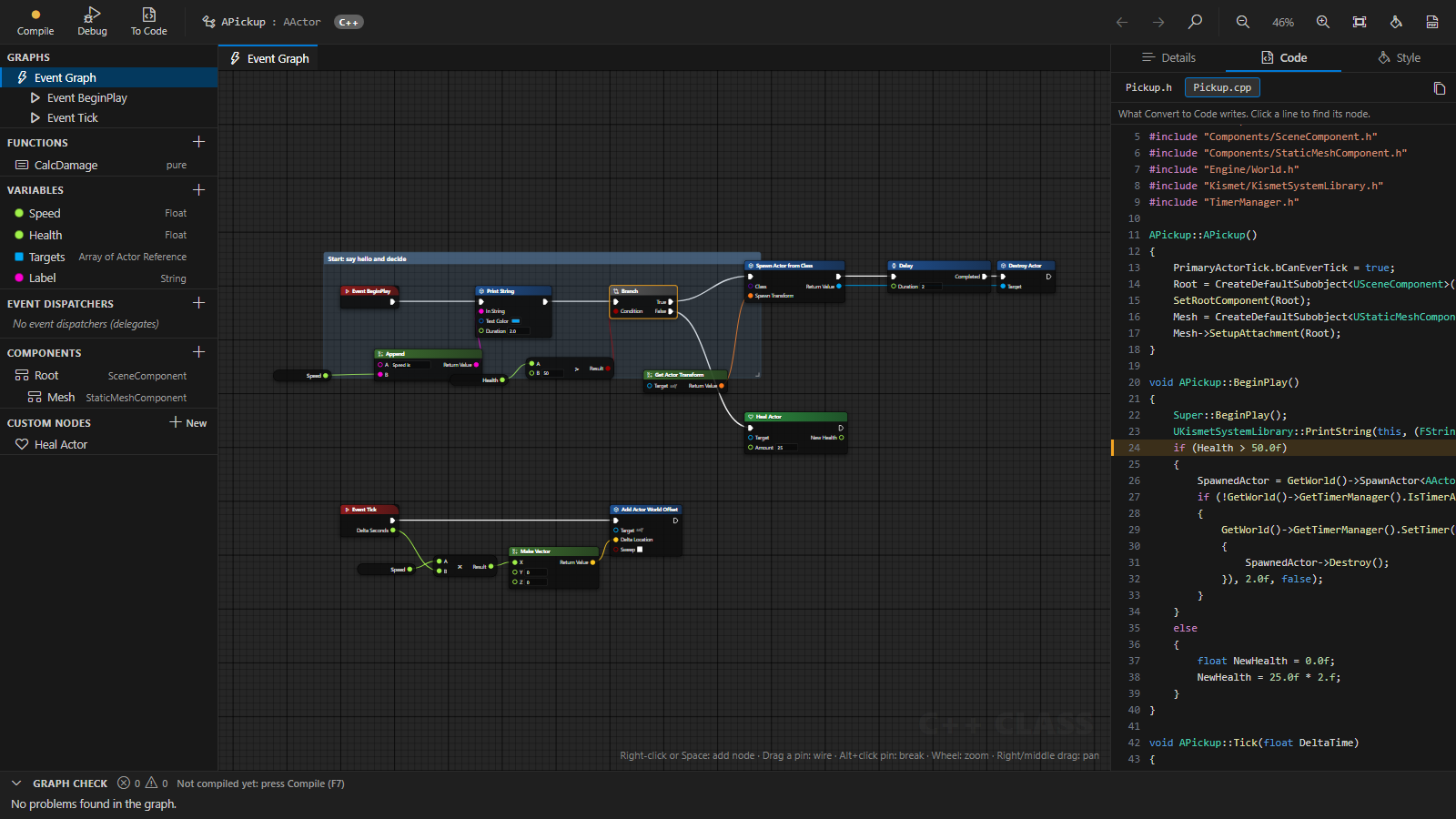
Visual class editor
Right-click any folder (Explorer, Solution Explorer, Favorites) › New Node Graph (C++ / Python)..., or Node Graph in the UStudio panel: a wizard with cards for C++, Python or a custom node, the module and code folder taken from the folder you clicked, and the starting events. Pick C++ or Python, the parent class (Actor, Pawn, Character, components, User Widget, Player / AI Controller, Game Mode, Game Instance, subsystems, Anim Instance, Function Library, Data Asset or any project class; for Python an editor tool, Object, Actor, Component or Function Library) and a name.
- A canvas like the Blueprint editor. Right-click or
Space opens the searchable node list; drop a wire on empty space to see only the nodes that fit, connected for you. Drag pins to wire, Alt+click breaks a wire, double-click one for a reroute. Comments (C), copy / paste / duplicate (Ctrl+D), box select, zoom with the wheel, pan with the right or middle button.
- Arrange like in Unreal.
Q straightens wires, Shift+W / S / A / D align top / bottom / left / right, Alt+Shift+W / S align middle / center, L arranges the selection or the whole graph, arrow keys nudge. Pins only connect when their types fit, as in Blueprints (a parent class needs a Cast).
- My Class panel. Variables (any type, arrays, defaults, Instance Editable, Read Only, Expose on Spawn, Replicated), functions (inputs, outputs, pure, static), components with their hierarchy and properties (mesh, collision, size, camera...), and event dispatchers. Drag them to the canvas: Get / Set, call, Bind...
- Graphs use each other, like Blueprints. Another graph's class works as a type, in Cast To and as a parent. Drag a wire from its pin to call its functions and custom events, read and write its variables, or bind to its dispatchers. The project's C++ classes and plugins work the same way (their public
UFUNCTIONs / UPROPERTYs, and library functions). Compiling a graph also compiles the graphs it uses.
- Class Defaults, like in Blueprints: variable defaults and the inherited properties: replication, tick, auto possess, Character Movement, the Game Mode's classes...
- Inherited components. Components shows what the parent class already has (a Character's capsule, mesh and movement), with its hierarchy. Attach your components to them, use their events and set their properties; the parent's root stays the root.
- Threads. Run on Game Thread, Run on Background Thread, Run on Thread Pool and Parallel For, with a warning when a node that needs the game thread runs on another one.
- Copy and paste as JSON through the system clipboard: paste nodes into another graph, window or chat.
- Engine classes and plugins, like Blueprint. Drag a wire from any reference (Character Movement, an actor, a component) for its functions, properties and events, inherited ones included (Get Velocity, Is Falling, Bind Event to On Component Hit...). Async actions from C++ plugins (e.g. SteamCorePro's Create Session) are latent nodes with On Success / On Failure, and structs, enums and maps are pin types with Make / Break nodes.
- Asset, class and type pickers like Unreal's, for the project's, plugins' and engine's assets, classes, structs and enums, with instant search, collapsible categories and subcategories, and Use Selected / Browse to Asset in the Content Browser.
- Event Constructor for every C++ and Python class with an instance: set defaults, configure components, bind to Event Dispatchers, and load assets in the C++ constructor (
ConstructorHelpers) or Python _post_init / __init__, with compile-time Graph Check rules for nodes that need a world.
- Enhanced Input. Variables of type
UInputAction and UInputMappingContext for Pawns, Characters, and Player Controllers. Bind to input actions with Started, Ongoing, Triggered, Completed, and Canceled execution triggers and action values (Axis 1D/2D/3D, Digital), plus Add and Remove Mapping Context nodes that register with UEnhancedInputLocalPlayerSubsystem.
- C++ interfaces, like Blueprint's Implemented Interfaces. Add the project's
UINTERFACEs under Interfaces and implement their functions: an event (Event Interact) or, when it returns values, a function graph, generated as Interact_Implementation(...) override with the interface's exact signature. Interact (Message) calls it on any object that implements it (C++ or Blueprint), and Does Implement checks an object.
- HTTP and JSON across all classes.
HTTP Request, HTTP GET, and HTTP POST nodes with asynchronous network execution, safe weak lambda callbacks (BindWeakLambda) that prevent crashes if the actor/object is destroyed during transit, and JSON helper nodes (Get String / Int / Float / Bool Field, Has Field, URL Encode / Decode). Responses arrive on the Game Thread, ready to chain with Delay, Async Task, Async Load Asset, and other gameplay actions.
- Timelines with a curve editor, Float Curve variables, and a color picker.
- Game framework, subsystems and spawning. Get Game Instance / Game Mode / Game State / Player State / HUD, and the Game Instance, World, Local Player and Engine subsystems with the class you pick. Spawn Actor (typed), sounds, Niagara and Cascade effects, decals, widgets, objects and components, with assets picked by path (
/Game/...).
- Details, like Unreal. Select a component to subscribe to its events with the + buttons (On Component Begin Overlap, End Overlap, Hit). Custom events can replicate (Run on Server, owning Client, Multicast, reliable). Every node can have its own color, icon and note.
- Code tab. The
.h / .cpp or .py as you edit, with the selected node's lines highlighted. Click a line to find its node.
- 175+ nodes. The events of each parent class, flow control (Branch, Sequence, For / For Each / While, Switch, Do Once, Do N, Gate, FlipFlop), Cast, math, vectors, rotators, strings and arrays, actor and component functions, Delay and Retriggerable Delay, timers, Async Task (a background thread, then back on the game thread), Async Load Asset, Enhanced Input Action, Add / Remove Mapping Context, HTTP Request / GET / POST, JSON helpers, event dispatchers with every kind of delegate (dynamic multicast, multicast, dynamic and single: Call, Bind, Unbind, Unbind All, Is Bound), Unreal Editor scripting for Python (selection, assets, actors, dialogs), and Custom Code / Custom Expression nodes for any C++ or Python.
Compile into Unreal Editor
Compile (F7) checks the graph and builds a temporary copy of the class into the running editor, so you can use it right away without converting anything:
- C++: Live Coding into the open Unreal Editor, or a build when it is closed. The copy lives in
Source/<Module>/Private/UStudioGraphs.
- Python: loaded live through Remote Execution. Run runs an editor tool's Run Script event.
- Compiler Results lists the graph checks and the compiler's errors and warnings, each on the node that produced the line, like Blueprint compile errors.
Live debugging
Turn on Debug (it compiles the class for debugging when needed): while the game (Play in Editor) or the tool runs, the nodes that run light up, the exec wires flow and each node counts its runs, like the Blueprint debugger. Pick which object to watch in the instance list, as in Blueprint's debug object list. Put breakpoints on nodes with F9: in Play in Editor the game pauses at the node, like a Blueprint breakpoint, with Continue (F5), Step (F10) and Stop, no debugger needed. C++ uses the Live Bridge plugin (v7) and its USTUDIO_TRACE; UStudio sets it up the first time.
Convert to Code
To Code writes the final .h / .cpp into the module (or the .py into Content/Python) as regular project code and removes the temporary copy. The class keeps its name, so Blueprints made from the compiled class keep working. Compiling the graph again updates that code while nobody edited it; files edited by hand are never replaced without asking.
Custom nodes
Make your own nodes (.unode), saved in the project (.ustudio/nodes, shared through source control) or just for you (~/.ustudio/nodes):
- With sub-nodes, like Blueprint macros: a graph between an Inputs and an Outputs node.
- With code, for C++ and / or Python:
{Input} reads an input, {$Output} = ... sets an output.
- Or both: a language with code uses it, the other uses the sub-nodes.
- Select nodes › right-click › Collapse to Custom Node makes one from a selection. Give it a category, a color, an icon or an image.
Navigation and export
Back / Forward (Alt+← / Alt+→, mouse buttons), Find (Ctrl+F) across every graph, Go to Definition (F12: a function's graph, a variable, a custom node, or the engine header of a C++ call), Show in Code, and from the generated code back to the graph (Show in Node Graph, CodeLens). Export to PDF writes every graph as drawn, in vector with selectable text, plus the generated code.
Appearance
The Style tab, Unreal by default: VS Code and Light presets, background color, grid and image, node body, borders, corners and font size, header colors per kind of node, pin colors per type, and wires (curved, straight or right-angled, thickness and colors). One wire can have its own color (right-click it).
Python classes that derive from Unreal classes exist while Unreal Editor runs (import them from init_unreal.py to have them at startup). Event dispatchers, delegates, timers and the async nodes are generated for C++.
Wizards and templates
Create classes, gameplay systems, Content assets, modules and plugins with a preview of every file before it's written.
New C++ class wizard
New Unreal C++ Class (.h + .cpp) from the Solution Explorer's right-click menu, or Unreal: Create New C++ Class from the Command Palette: pick the parent class (engine classes and your project's own), the module and the folder, and see where the .h and .cpp will go before they're created.
Modular gameplay templates
Component-driven C++ classes ready to drop into any UE 5.0 – 5.8 project, from the class wizard or UStudio Pro: Create Modular Gameplay Template:
- Modular Character and Ability Component;
- Projectile, AoE, Dash and Melee Combo abilities;
- Attribute Component (Health / Stamina / Mana / Armor with delegates);
- Status Effect Component (DoT, HoT, Slow, buffs);
- Interactable System (
UINTERFACE + UInteractionComponent + AInteractableActor).
Every preview shows the code with line numbers and VS Code's colors (Dark+ / Light+).
Your own templates
Turn the classes and scripts you write over and over into templates, in C++ and Python:
- New Template in the class wizard's Templates tab or in Python Studio, Save as Template on any preview, or right-click a
.h / .cpp / .py file > Save as Template. The class name, API macro and includes become placeholders on their own.
- Placeholders:
{{ClassName}}, {{BaseName}}, {{API}}, {{Module}}, {{Header}}, {{Project}}, {{Copyright}}, {{Year}}, {{Date}} (C++) and {{FileName}}, {{Project}}, {{Year}}, {{Date}} (Python), edited with syntax highlighting.
- My templates live in
~/.ustudio/templates and work in every project, in VS Code and Cursor. Project templates live in the project's .ustudio/templates: commit them and the whole team gets them.
Content asset wizard
Create real .uasset files in Content/ with your own parent classes and default property values. Unreal Editor creates them: UStudio runs the generated Python script in the editor that has the project open (Remote Execution or the Live Bridge), or headless with UnrealEditor-Cmd when it's closed (about a minute while Unreal starts). Blueprint variables need UE 5.6 or newer.
- Core framework:
GameInstance (GI_) and GameMode (GM_), with one-click generation of its PlayerController, Pawn / Character, PlayerState, GameState and HUD.
- UMG widgets (
WBP_): blank widgets, reusable pieces (WBP_ModularButton, WBP_StatBar, WBP_AbilitySlot) or full layouts (WBP_MainMenu, WBP_GameplayHUD, WBP_PauseMenu, WBP_SettingsMenu, WBP_InventoryGrid, WBP_InteractionPrompt), with a live, interactive 16:9 preview in the wizard. The layout is built on the widget's root CanvasPanel as previewed.
- Gameplay and data:
InputAction (IA_), InputMappingContext (IMC_), Blueprint Actor, ActorComponent, UObject, DataAsset and DataTable.
New module and plugin wizards
Create C++ modules (in the project or inside a plugin) and plugins (Blank, Blueprint Function Library, Runtime + Editor, Editor tool with a Tools menu entry, Content only) from the Solution Explorer or the dashboard. The wizard previews every file it creates and shows a diff of the .uproject / .uplugin / *.Target.cs changes before you confirm, keeps their formatting, and can refresh IntelliSense and build right after.
Python for Unreal Editor
Write, run and debug import unreal scripts for UE 5.0 – 5.8.

Python Scripting Studio
- Full
import unreal IntelliSense: configures Intermediate/PythonStub/unreal.py and generates a project-aware stub that includes your own C++ UCLASS, UPROPERTY and UFUNCTION symbols exposed to Python, plus inline completions, hover documentation and ▶ Run in Unreal Editor CodeLenses.
- Three ways to run: live in the open editor through Unreal's Remote Execution protocol (UDP/TCP,
239.0.0.1:6766) or the UStudio Live Bridge (POST /python/exec), or headless with UnrealEditor-Cmd.exe.
29 searchable templates for the work studios automate most:
| Area |
Templates |
| Sequencer and cinematics |
Sequence from selected actors; camera shot (CineCamera, Camera Cut, dolly, lens and focus keys); master sequence with SEQ/SH shots from a shot list or CSV; animations on characters; timing offset and frame rate change; sequence QA audit; FBX export; audio and fades |
| Rendering |
Movie Render Queue batch render (EXR / PNG / JPG / ProRes); asset turntables |
| Animation |
Root motion, root lock and footstep notifies; batch IK retargeting |
| Import and pipeline |
Batch import from disk; texture settings by suffix; Static Mesh Nanite / LOD / collision pass |
| Assets, levels and data |
Naming prefixes; unused assets; content budget report; Material Instances; Blueprint defaults; DataTable ⇄ CSV / JSON; blockout mesh swap; CSV / JSON actor layout; World Outliner cleanup; editor menus; non-blocking batch processing |
Python debugging
Debug the scripts that run inside Unreal Editor the way you debug C++: breakpoints, stepping, call stack, variables, watches, and a Debug Console where you can call the unreal API while paused.
- Debug in Unreal Editor: the debug button in a
.py file's title bar, the CodeLens or the right-click menu runs the script in the editor and stops at your breakpoints.
- Stays attached: breakpoints also hit when Unreal runs Python by itself (menu entries,
py commands, startup scripts). Attach Python Debugger to Unreal Editor attaches without running anything; Shift+F5 detaches and the editor keeps running.
- Ready in
launch.json: Unreal Python - Debug Current Script (UStudio) and Unreal Python - Attach to Editor (UStudio) work with F5.
- Uses Python Remote Execution and Microsoft's Python Debugger extension (debugpy); UStudio offers to set up both. The editor is frozen while a script is paused at a breakpoint.
Source control and history
Know who changed what, keep every version of your files, and go back to any point in time.
  
Source control status
- Detects whether the project uses Git (GitHub, GitLab, Azure DevOps, Bitbucket) or Perforce.
- Status bar: current branch, incoming (↓) and unpushed (↑) commits, modified and untracked files, and merge conflicts.
- Background fetch: tells you when teammates push to your branch, so you don't build against stale code.
- Perforce:
p4 edit (check out), p4 sync (Get Latest), p4 revert -a (revert unchanged) and a badge on every file for its Perforce state.
Perforce file badges
Like P4V, every file and folder in the Explorer, the Solution Explorer and the editor tabs shows its Perforce state. Hover a file for the details: who has it checked out and in which changelist, its #have and #head revisions, its file type.
| Badge |
State |
✓ |
Checked out by you |
+ ✕ → ↔ |
Marked for add, delete, moved here, opened for integrate |
! |
Needs resolve (✓!) |
↓ |
Newer revision in the depot, deleted in the depot, or not synced. ✓↓: checked out and out of date |
👤 |
Checked out by someone else. ✓👤: by you and someone else |
🔒 |
Locked: an exclusive (+l) file checked out by someone else, or locked with p4 lock |
✎ |
Modified or made writable without checking it out |
⏸ |
Shelved in one of your changelists |
? |
Not in the depot (a local file that hasn't been added) |
⊘ |
Not mapped: outside the workspace view |
| dimmed |
Ignored by P4IGNORE |
• |
Folder with checked-out, conflicting, modified or out-of-date files inside |
UStudio asks the server about each folder when its files appear on screen, and again when you come back to VS Code and every few minutes. Set unrealStudio.perforce.fileDecorations to changes to mark only your own changes, out-of-date and locally modified files, or off. The colors are ustudio.perforce.* in workbench.colorCustomizations. The legend is in the source control menu (click the P4 status bar item).
Perforce changelists
A P4V-style panel: right-click a file › Check Out / Shelve / Submit (Perforce)…. Pick a new, default or pending changelist and write its description, then check out (optionally with a lock), shelve (optionally reverting afterwards), submit or revert the checked files. Each file shows whether it is read-only, new, in another changelist, exclusively checked out by a teammate or behind the depot, with a diff against your #have revision.
Read-only file protection
- Read-only files show a lock badge in the Solution Explorer and in VS Code's Explorer. In a Perforce workspace the Perforce badges show the file's state instead, and
🔒 means a Perforce lock.
- Editing one prompts right away with Check Out (Perforce), Check Out to Changelist… or Make Writable, so you don't lose the edit at save time.
- A status bar item shows the current file's read-only state, with one-click actions.
Code authors
Who created and last edited the file and each class, struct, enum, property, function, event and delegate, shown as CodeLens, plus the author of the current line. Uses git blame (including unsaved and uncommitted changes) or Perforce p4 annotate. Turn it on or off with the Authors switch in the dashboard.
Local file history
UStudio tracks your edits automatically: 10 versions per file by default (1 to 100 with unrealStudio.fileHistory.maxVersions), stored as unified .diff snapshots in <temp>/ustudio-file-history/. The File Version History panel shows any revision as a unified or side-by-side diff and restores it with one click.
Change Timeline
Every change to every file of the project, day by day, from three sources you can show or hide: local saves (file history), Git commits and Perforce changelists. Open it from the dashboard (Diagnostics & Tools) or with UStudio: Change Timeline. Everything in it is free except Apply.
- Day bar: one column per day, as tall as the number of changed lines. Drag it, click a day, or use the date picker or the ‹ › buttons to jump between days with changes.
- Step slider: like an undo history, one notch per save, commit or changelist of the day. Drag it, click a change in the list, or use
← / → (Shift+← / Shift+→ jumps a day). Every file of that change shows its diff at once, with line numbers; open any file side by side or at the changed line.
- Files tab: every file changed that day. Click one to follow only that file on both bars.
- Search like the Solution Explorer: best matches first (exact name, prefix, start of a word, CamelCase initials, or a path with
/), with Match Case, Whole Word and Regex. The day bar marks the days with matches; Enter jumps to the best one.
- Export day…: the day's changes as a unified
.diff, a Markdown report or a self-contained HTML report.
- Apply… puts files back the way they were at the slider's position: only the files of that change, or every file changed since that moment. One confirmation lists what will be restored, created or deleted. Perforce files that aren't checked out are flagged and checked out (
p4 edit) only if you confirm; files locked by someone else are skipped, and you're told when you don't have the latest revision. Ctrl+Z undoes it.
Navigation and workspace
Find any file, member or symbol fast, and arrange VS Code the way you're used to.
Solution Explorer
A Rider-style project tree for Source/, Plugins/, Config/ and Content/, with right-click menus to create Unreal C++ classes, files and folders (mirrored in Public/ and Private/), rename and delete.
Follows the active file: switching tabs reveals and highlights the file, expanding its folders. The Reveal Active File button in the title bar does it on demand.
Sorts like Windows Explorer: Sort By (title bar, or right-click a folder) sorts by name (natural order: Level2 before Level10), type, date modified or size, ascending or descending. Folders can go first or mix with files, and Source, Plugins, Config and Content can stay on top. Sorting by date or size shows it next to each item.
Searches file names and contents: type at the top of the tree (Ctrl+; from anywhere, Ctrl+F inside it) and it shows only the results, with their folders:
- files by name, best match first and preselected:
weapon finds Weapon.h before BP_Weapon.uasset, wc finds WeaponComponent.h;
- lines that contain the text, under each file, with the match highlighted.
Enter opens the file or jumps to the line, and ↑ / ↓ move through the results. Match Case, Whole Word and Regex are supported. Content search uses the ripgrep that ships with VS Code / Cursor, so results arrive while you type. Intermediate, Binaries, Saved, DerivedDataCache and .uasset contents are skipped.
F2 renames and Delete deletes the selected file.
Favorites
The files and folders you use most, one click away in their own Favorites view.
- Add or remove: click the ☆ that appears when you hover a row in the Solution Explorer (favorites keep a yellow ★; click it to remove), or right-click › Add to Favorites / Remove from Favorites. The same entries are in VS Code's Explorer and in the editor tab's right-click menu, so engine headers can be favorites too. The ⭐+ button in the view adds the active file.
- The view: folders first, then files, each with its location (
Source/MyGame/Public, Engine/Source/Runtime/...). Favorite folders expand like in the Solution Explorer. Remove a favorite with its ✕ (on hover), middle-click or Delete; the files stay on disk.
- Saved per project: favorites follow files and folders renamed, moved or deleted from UStudio or VS Code. A favorite deleted outside VS Code stays in the list as not found until you remove it or it comes back (another branch, a Perforce sync).
Members view
Lists the variables, events and functions of the active class. The .h and its .cpp are shown together, one line each with its declaration (Fire(int32 Count) : void, Ammo : int32) and short tags (BP, RPC Server, replicated, private…).
- Search with
Alt+M from a C++ editor: filter by name or initials (ga → GetAmmo), then press Enter to jump.
- Filter variables / events / functions, and sort in declaration order or A–Z.
- Click an entry to open its declaration in the
.h, or its implementation when you're in the .cpp; ⇄ switches between the two.
- The member under the cursor stays highlighted.
Panel layout and presets
Every UStudio view (Dashboard, Solution Explorer, Favorites, Members, Symbol References, C++ Classes & Blueprints) can open as an editor tab (drag it anywhere, split it, maximize it or move it into a floating window) or move to the panel or the secondary side bar. Reset Panel Layout (view menu ... or dashboard) restores the defaults.
Layout presets (dashboard › Diagnostics & Tools, view menu ..., or UStudio: Apply Layout Preset) arrange the side bars, the panel and the UStudio views in one click:
| Preset |
Layout |
| VS Code |
UStudio on the left; Build Errors and Unreal Log in the bottom panel |
| Visual Studio |
Solution Explorer and Members on the right; Error List, Output and Find References under the editor |
| Rider |
Explorer and Members (Structure) on the left; Find Usages, Build and Log in a full-width bottom panel |
| Widescreen |
Three columns: Solution Explorer, the code, then Members, References and Classes in the secondary side bar |
| Header | Source |
The active class's .h and .cpp side by side |
| Focus |
Only the code |
| Unreal Live |
The Unreal Log beside the code while the editor runs or you Play in Editor |
Bind a preset to a key (ids: vscode, visualStudio, rider, widescreen, headerSource, focus, live):
{ "key": "ctrl+alt+1", "command": "unrealStudio.applyLayoutPreset", "args": "rider" }
Export to PDF
Right-click a folder or a file in the Explorer, the Solution Explorer, Favorites or an editor tab › Export to PDF. Select several to put them in one PDF.
- The structure first: the folder tree with each file's size and the page where it starts. Click a row to jump there; the PDF's bookmarks follow the same folders.
- Then every text file: its path and name in a header, its line count and size, and its contents with line numbers and syntax colors (C++, C#, Python, JSON,
.ini). Long lines wrap with an indent. Unsaved changes are exported as they appear in the editor.
- Structure only leaves the contents out.
- Any language: the PDF embeds Consolas and Segoe UI (Menlo and Arial on macOS, DejaVu on Linux), plus Chinese, Japanese, Korean and symbol fonts for the characters they lack. The text can be searched and copied. Files are read as UTF-8, UTF-16 or Windows-1252.
- Left out:
Binaries, Intermediate, Saved, DerivedDataCache, .git, .vs and what files.exclude hides (unrealStudio.exportPdf.exclude), unless you export that folder itself. Binary files such as .uasset, and files over 1 MB (unrealStudio.exportPdf.maxFileSizeKB), are listed without their contents.
- Page size (A4 or Letter), font size, line numbers and colors:
unrealStudio.exportPdf.*.
Visual Studio and Rider shortcuts
UStudio keeps VS Code's shortcuts by default. On first use it offers to switch Unreal projects to the Visual Studio / Rider keymap; change it any time with the unrealStudio.keybindings.visualStudioStyle setting.
| Shortcut |
Action |
Replaces in VS Code |
Ctrl+D |
Duplicate the line down (the caret moves to the copy), or duplicate the selections inline |
Add Selection to Next Find Match |
Ctrl+R, Ctrl+R (or Ctrl+R R) |
Rename a symbol across headers and sources, or a file in the Solution Explorer |
Open Recent |
F5 / Shift+F5 |
Attach to Unreal Editor / stop |
— |
F9 / Ctrl+Shift+F9 |
Toggle breakpoint / clear all breakpoints |
— |
Alt+Shift+F12 |
Fast indexed references (Pro) |
— |
F2 and right-click › Unreal: Rename Symbol always work, whichever keymap you use.
Build.cs and Target.cs
- Inside
PublicDependencyModuleNames, PrivateDependencyModuleNames, DynamicallyLoadedModuleNames, ExtraModuleNames…, typing " suggests every engine, plugin, project and ThirdParty module, and shows where each one lives. Modules already listed are left out. If the module's plugin isn't enabled yet, picking it also enables the plugin in the .uproject (or lists it in the .uplugin).
ModuleRules and TargetRules members (PCHUsage, bUseUnity, OptimizeCode, DefaultBuildSettings…) complete with a snippet, and enum values complete after PCHUsageMode., CodeOptimization., TargetType.… Names and docs come from your engine's UnrealBuildTool sources.- Hover shows the docs.
Ctrl+Click on a module name opens its Build.cs.
Config files: .uproject, .uplugin and .ini
- JSON Schemas and completions for
.uproject and .uplugin descriptors: modules, loading phases, target platforms, and every installed engine, Fab and project plugin with its description. Hover describes a plugin; Ctrl+Click opens its .uplugin.
- For
Config/*.ini (DefaultEngine.ini, DefaultGame.ini, DefaultInput.ini, DefaultEditor.ini): a dedicated grammar (unreal-ini), semantic coloring, hover documentation, smart completions and Ctrl+Click Go to Definition on class paths (/Script/Module.ClassName).
AI agents
Give AI agents what only UStudio knows about your Unreal project, through a local Model Context Protocol server.
    
MCP server
UStudio runs the server while the project is open and registers it automatically in VS Code (Copilot agent mode) and Cursor. For Claude Code, Codex, Windsurf and other clients, UStudio: Connect AI Agents copies the configuration. For Codex, paste the copied block into ~/.codex/config.toml; the Codex CLI, IDE extension and ChatGPT app share it.
| Tools |
What the agent gets |
build, live_coding_compile |
Compiles and gets the structured compiler / linker errors back, so it can fix them and try again |
get_problems, inspect_file |
The Problems panel and UStudio's Unreal inspections |
find_references, find_blueprints_using, read_blueprint_as_cpp, get_class_lifecycle |
C++ and Blueprint usages, Blueprints read as C++, and how a class is created and driven |
find_header_for_type, add_module_dependency |
The right #include, and the Build.cs / plugin entries a type needs |
get_unreal_log, list_tests, run_tests |
The Unreal Editor log, and Automation tests with their failures |
list_gameplay_templates, create_gameplay_template |
Modular C++ gameplay templates (Characters, Projectile / AoE / Dash / Melee abilities, Attributes, Status Effects, Interactables) |
list_content_asset_presets, inspect_cpp_class_properties, create_content_asset |
.uasset files in Content/ (GameInstance, GameMode and sub-assets, UMG widgets, Enhanced Input, Actors, Components, DataAssets, DataTables) |
list_unreal_python_templates, create_unreal_python_script, run_unreal_python_script, setup_unreal_python_intellisense |
Unreal Editor Python scripts, generated and run (UE 5.0 – 5.8) |
nodegraph_catalog, nodegraph_create, nodegraph_edit, nodegraph_read, nodegraph_generate_code, nodegraph_compile, nodegraph_run, nodegraph_get_execution, nodegraph_convert_to_code, nodegraph_export_pdf, custom_node_create, nodegraph_set_theme |
Node Graphs: build C++ / Python classes and custom nodes from nodes (wired by pin name), use other graphs' and C++ classes' members, set Class Defaults and component properties, compile them into Unreal Editor with the errors on their nodes, read which nodes ran, convert them to code |
The server only listens on 127.0.0.1, requires a per-machine token and rejects browser requests.
Cursor support
UStudio runs in Cursor as well as VS Code. Install it from Cursor's extension marketplace (Open VSX) or with cursor --install-extension ustudio-<version>.vsix.
- IntelliSense: clangd, as in VS Code. Cursor's own C/C++ extension also uses clangd, so the two work together, and UStudio finds the clangd that Cursor downloaded.
- Debugging: Microsoft's C++ debugger only runs in VS Code, so in Cursor UStudio sets up CodeLLDB (
vadimcn.vscode-lldb) and loads Unreal's LLDB data formatters (FString, FName, TArray, TMap…). If no debugger is installed, UStudio offers to install it. Its launch and attach configurations have "(UStudio, LLDB)" in their names.
- Live Bridge: double-clicking a class in Unreal Editor opens it in the editor that is running UStudio for the project (VS Code or Cursor). This needs plugin v3; UStudio offers to update older copies.
- Predictive autocomplete: off by default in Cursor so it doesn't compete with Cursor Tab. Turn it on with
unrealStudio.predictiveCode.enabled.
Free vs Pro
Every install starts with a 14-day Pro trial with every feature. When the trial ends, UStudio keeps working in Free mode, forever.
| Feature |
Free |
Pro |
| Code intelligence |
|
|
Automatic IntelliSense and clangd setup |
✅ |
✅ |
Predictive autocomplete (ghost text, Tab) |
✅ |
✅ |
| "used by N" above functions: C++ usages |
✅ |
✅ |
| "used by N" above functions: Blueprint usages |
— |
✅ |
#include, Build.cs dependency and LNK2019 quick fixes |
✅ |
✅ |
| Format Document, Unreal style (braces on a new line or the same line) |
✅ |
✅ |
Symbol and file renaming (Ctrl+R, Ctrl+R, right-click) |
✅ |
✅ |
Duplicate line or selection (Ctrl+D) |
✅ |
✅ |
Real-time .generated.h sync (RPCs and macros) |
— |
✅ |
Ctrl+. implementation generator |
— |
✅ |
Implement interfaces (right-click, Ctrl+.) and interface IntelliSense |
— |
✅ |
Smart F12 navigation (.h ↔ .cpp and RPCs) |
— |
✅ |
Fast indexed Find References (Alt+Shift+F12) with search history |
— |
✅ |
| Real-time Unreal inspections with quick fixes |
— |
✅ |
| Build and debug |
|
|
| Build / Rebuild / Launch Editor toolbar |
✅ |
✅ |
| One-click launch in Debug mode |
✅ |
✅ |
| Build errors in the Problems panel |
✅ |
✅ |
| Error fix suggestions with multi-file preview |
✅ |
✅ |
| Automation tests in the Testing view |
— |
✅ |
| Live Unreal Editor |
|
|
| Unreal Editor Live Bridge (UE 5.0 – 5.8) |
✅ |
✅ |
Live Coding from VS Code (Ctrl+Alt+F11) |
✅ |
✅ |
| Unreal Log panel and Build Errors panel |
✅ |
✅ |
| Live editor status in the dashboard and Solution Explorer |
✅ |
✅ |
| Live Execution: C++ functions light up while Unreal Editor runs them |
— |
✅ |
| Blueprints and assets |
|
|
Blueprints / .uasset as C++ classes |
Summary |
✅ |
| Convert Blueprints to C++ classes and replace their references (experimental) |
— |
✅ |
Blueprint / .uasset CodeLens |
— |
✅ |
| Derived Blueprints of each C++ class (direct and indirect) |
— |
✅ |
| Class Lifecycle diagram |
— |
✅ |
| Node Graphs |
|
|
| Node Graph editor for C++ and Python classes, live code preview, custom nodes, appearance |
✅ |
✅ |
| Compile into Unreal Editor, Compiler Results, live debugging, Convert to Code, Export to PDF |
— |
✅ |
| Wizards and templates |
|
|
| Visual C++ class wizard |
— |
✅ |
| Modular gameplay templates (characters, abilities, attributes, status effects, interactables) |
— |
✅ |
| Your own C++ and Python templates (personal or shared with the team) |
— |
✅ |
Content .uasset wizard (GameInstance, GameMode and sub-assets, UMG widgets, input, DataAssets) |
— |
✅ |
| New Module / New Plugin wizards |
— |
✅ |
| Python for Unreal Editor |
|
|
| Python Scripting Studio (IntelliSense, templates and live runner) |
— |
✅ |
| Python debugger for Unreal Editor scripts |
— |
✅ |
| Source control and history |
|
|
| Git and Perforce status, Perforce file badges (P4V-style), read-only badges |
✅ |
✅ |
| Local file history and code authors (Git, GitHub, Perforce) |
✅ |
✅ |
| Change Timeline: every change by date (local, Git, Perforce), diffs, search and export |
✅ |
✅ |
| Change Timeline Apply: put files back the way they were at any point (Perforce-aware) |
— |
✅ |
| Perforce changelist panel: check out, shelve and submit with a description |
— |
✅ |
| Navigation and workspace |
|
|
| Solution Explorer with auto-tracking and custom icons |
✅ |
✅ |
Solution Explorer search: file names and contents (Ctrl+;) |
✅ |
✅ |
| Favorites view (files and folders) |
✅ |
✅ |
Members view with search (Alt+M) |
✅ |
✅ |
| Panels as editor tabs, layout presets and reset |
✅ |
✅ |
| Export folders and files to PDF (structure, paths and contents) |
— |
✅ |
Build.cs, Target.cs, .uproject, .uplugin and Config/*.ini IntelliSense |
✅ |
✅ |
| Two-phase background engine indexer and dashboard |
✅ |
✅ |
| AI agents |
|
|
| MCP server for AI agents (Copilot, Cursor, Claude Code, Codex) |
— |
✅ |
Pricing
- One-time purchase. A Pro license includes one year of updates and unlocks up to 3 machines for your own use. Get UStudio Pro
- Yours to keep. After that year, Pro keeps working on every version released during it.
- Optional update renewal (US$15) adds another year of updates. Renewing early is fine: the new year starts when the current one ends.
Activating a license
- Click the license item in the status bar, or run UStudio: Manage License & Subscription from the Command Palette, and enter your key.
- Renewing updates: choose Extend Updates by 1 Year (or Renew Updates when your license doesn't cover the installed version), then enter the renewal key from the email with Enter License or Renewal Key. A renewal key extends the Pro license activated on that machine; it doesn't unlock Pro on its own.
Requirements
- Unreal Engine: 5.0, 5.1, 5.2, 5.3, 5.4, 5.5, 5.6, 5.7 or 5.8.
- Editor: VS Code 1.85.0 or newer, or Cursor.
- Platform: Windows 10 / 11 (64-bit).
Privacy
- No telemetry or analytics. UStudio never sends your code, project files or usage data anywhere.
- License checks (Pro): activating, re-validating (about once a week) or deactivating a license contacts the Lemon Squeezy license API (
api.lemonsqueezy.com) with your license key and an activation name made of your computer name, the editor name (VS Code / Cursor) and the first 8 characters of the editor's anonymous machine ID: the name you see when managing activations in the customer portal. Trial and license state are stored locally by the editor.
- Local connections only: the Live Bridge (Unreal Editor ↔ VS Code / Cursor), the Unreal Editor plugin's Live Coding endpoint and the MCP server (Pro) listen on
127.0.0.1 and require a local token.
- Files written: bridge discovery files (
.vscode/.unreal-studio-bridge.json, Saved/UStudio/editor.json and %LOCALAPPDATA%\UnrealStudioWorkflow\bridge.json), index caches in the project's .vscode folder and engine caches in your user profile.
Support
License
Commercial proprietary software. See LICENSE.txt for the full End User License Agreement (EULA).
Unreal and Unreal Engine are trademarks of Epic Games, Inc. UStudio is an independent extension and is not affiliated with Epic Games. Other product names and logos belong to their respective owners.
| |

