CUI Designer for VS Code (prototype)
Put a CUI interface together with the mouse and get the C code that builds it.
A design is a *.cui.json file. VS Code opens it in the designer, and saving
it writes <name>.ui.h and <name>.ui.c next to it.
This is an experimental prototype. It covers the layout containers and the most
common components, not all of CUI. It is not an extension of the CUI project:
it lives on a branch of a fork, Urquelle/CUI,
and is proposed to the project in yappologistic/CUI#139.
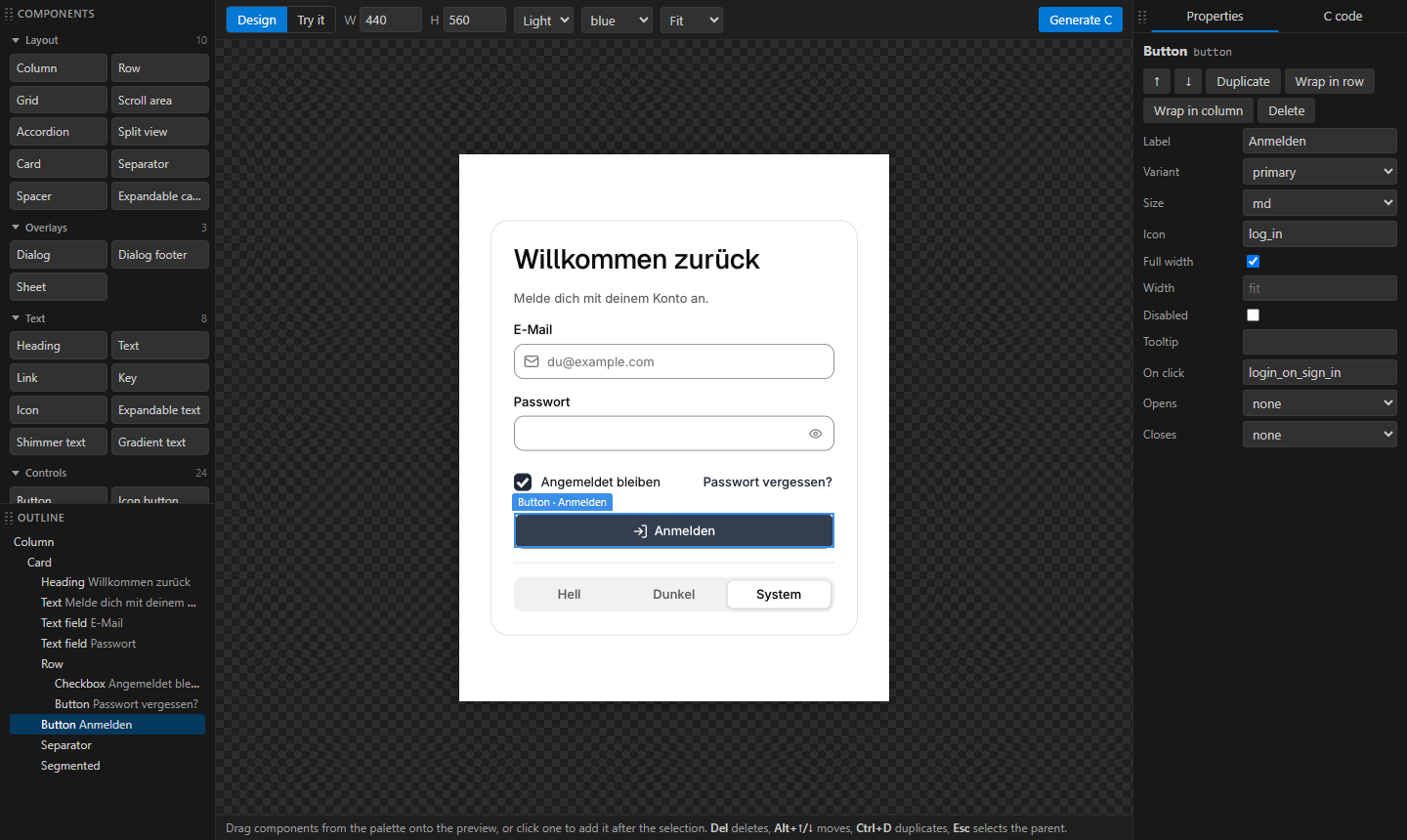
What it does
- Palette: 93 kinds in eleven groups. A click on a group's heading folds it. Drag a component onto the preview, or click it to add it after the selection.
- Layout: column, row and grid (with a theme background, border and radius), scroll area, accordion, split view (the first child is the first pane), card, expandable card, separator, spacer.
- Overlays: dialog, dialog footer (the dialog's button row) and sheet. A dialog shows in the designer while it or something in it is selected; in Try it and in the app it opens when its state field is true. A button, icon button or link opens or closes one with its Opens and Closes properties.
- Text: heading, text, link, key cap, icon, expandable text (with Show more), shimmer text, gradient text.
- Controls: button, icon button, checkbox, switch, slider, text field, text area, select (with Searchable, a combobox), segmented control, tabs, radio group, search, number field, chip, rating, range slider, date picker, color picker, tag input, one-time code, radio cards (choices are lines like
Team | Up to ten people | users | Popular), button group (a container for buttons), copy button, hold button.
- Actions: split button (its state field says which part was clicked: 0 the main part, 1 + i menu item i), toggle group (the items that are on are numbers like
0, 2; an icon per item with Icons only), confirm button (a second click confirms), status button (its state field is a cui_status the app sets to busy, success or error).
- Inputs: inline edit, scrub field, money field, shortcut recorder, multi-select, date range, time picker (two fields,
_hour and _minute), wheel picker.
- Dials: knob, fader, ruler slider, ratio slider, step slider (with a name for each stop), gradient slider (hue, temperature or opacity), aspect ratio picker, seed field (with a lock).
- Navigation: nav section, nav item, breadcrumb, pagination, stepper.
- Data: table and data grid (the grid builds only its visible rows). Columns are lines like
Size, 90, right (a title, then a width and an alignment); rows are lines of cells between |. With Data set to code, the generated header declares two functions that give the rows, and the preview keeps showing the sample rows.
- Feedback: progress, progress ring, badge, alert, spinner, skeleton, empty state, password strength (it rates a text field you pick, live in Try it), banner (its state field says whether it shows), countdown, status spinner, loader, status tag.
- Display: avatar, list item, meter, metric (with a change and a sparkline), timeline item, counter, radial gauge, readout.
- The kinds after Controls come from More components: those whose options the designer can set without data from your code.
- Panels: the palette, the outline and the properties sit in columns beside the preview. Drag the lines between them to change widths and heights (a double-click on a column's line gives its default width). Drag a panel by its header (the dots, for the properties) to another place in a column, to a column's edge for a new column there, or to the outer quarter of the preview for a new column on that side. VS Code keeps the layout and the folded groups for every design.
- Preview: the real library compiled to WebAssembly and drawn by its software renderer. Fit zooms a large design out to the editor's size; the other zoom levels are fixed. It is not an imitation: what you see is what the generated code draws (see Checks). In Design mode you select, drag and move. In Try it mode the preview takes the mouse and keyboard like the app, and the status line names the event handler that a click or change would call.
- Outline and properties: every option from the component's options struct, edited in place. Del deletes, Alt+↑/↓ moves, Ctrl+D duplicates, Esc selects the parent. Wrap in row and Wrap in column put a container around the selection.
- Undo, redo, save come from VS Code: the designer edits the JSON text. Reopen Editor With… → Text Editor shows the JSON itself.
- C code: the C code tab shows it live, Generate C (or saving, or CUI: Generate C Code) writes it to disk.
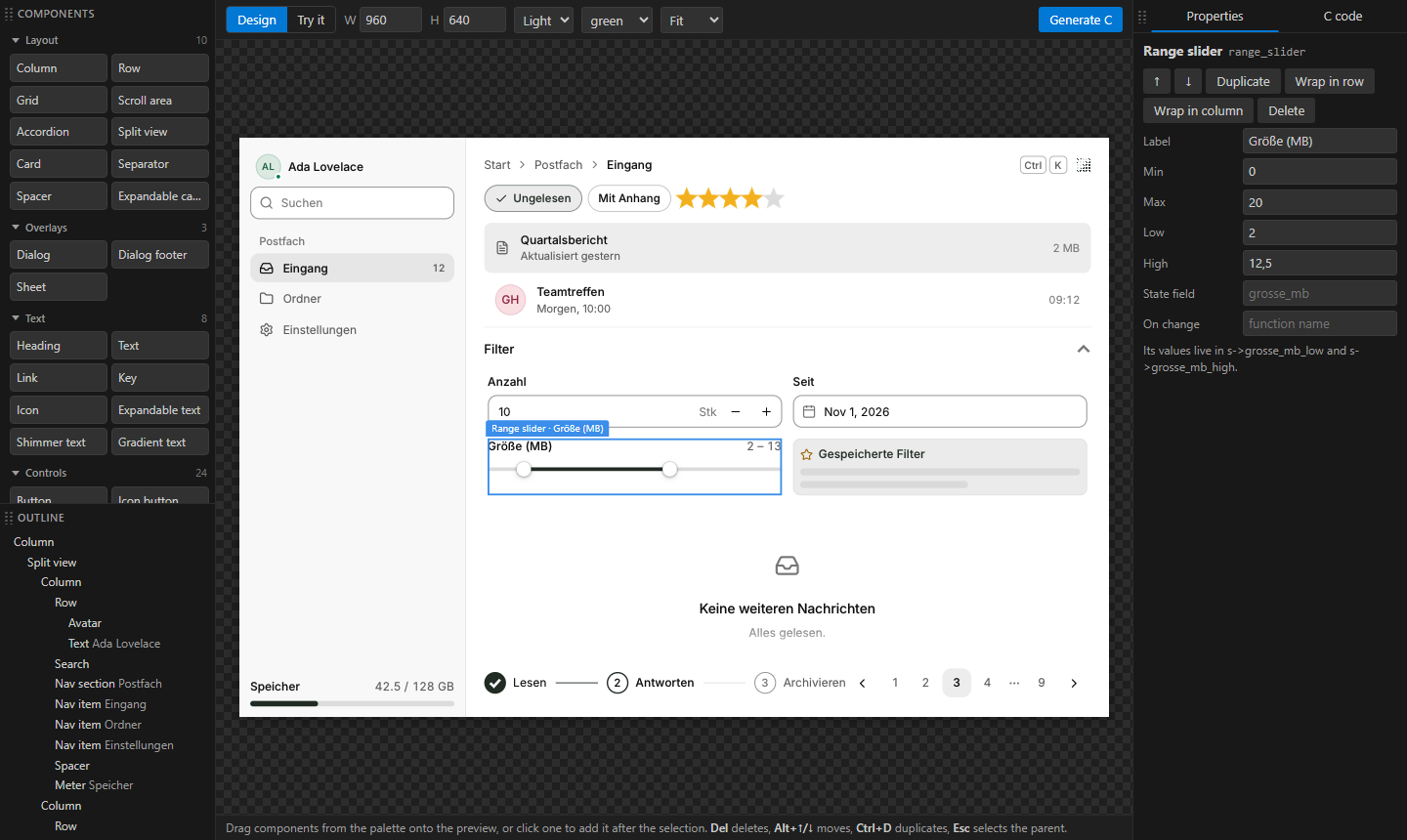
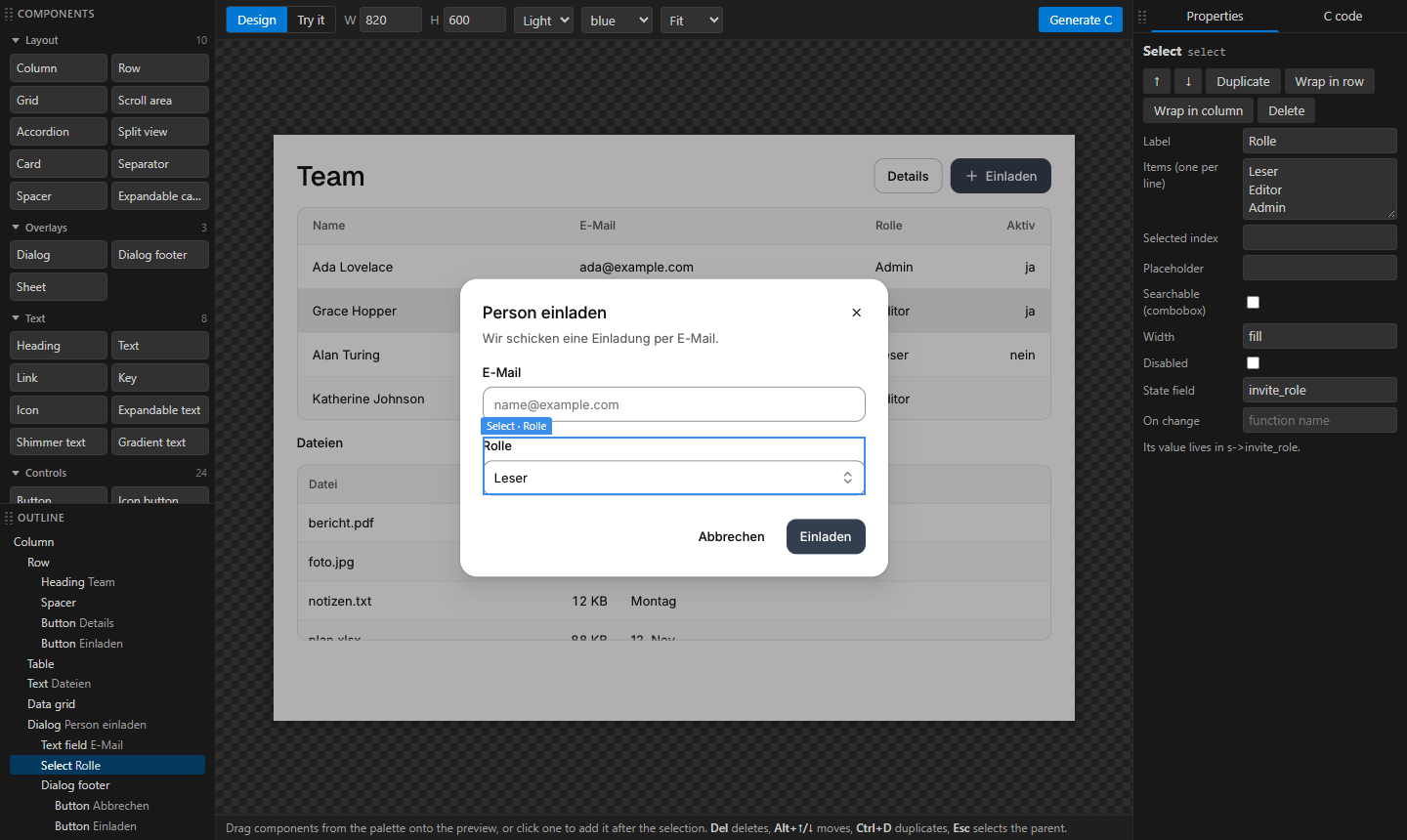
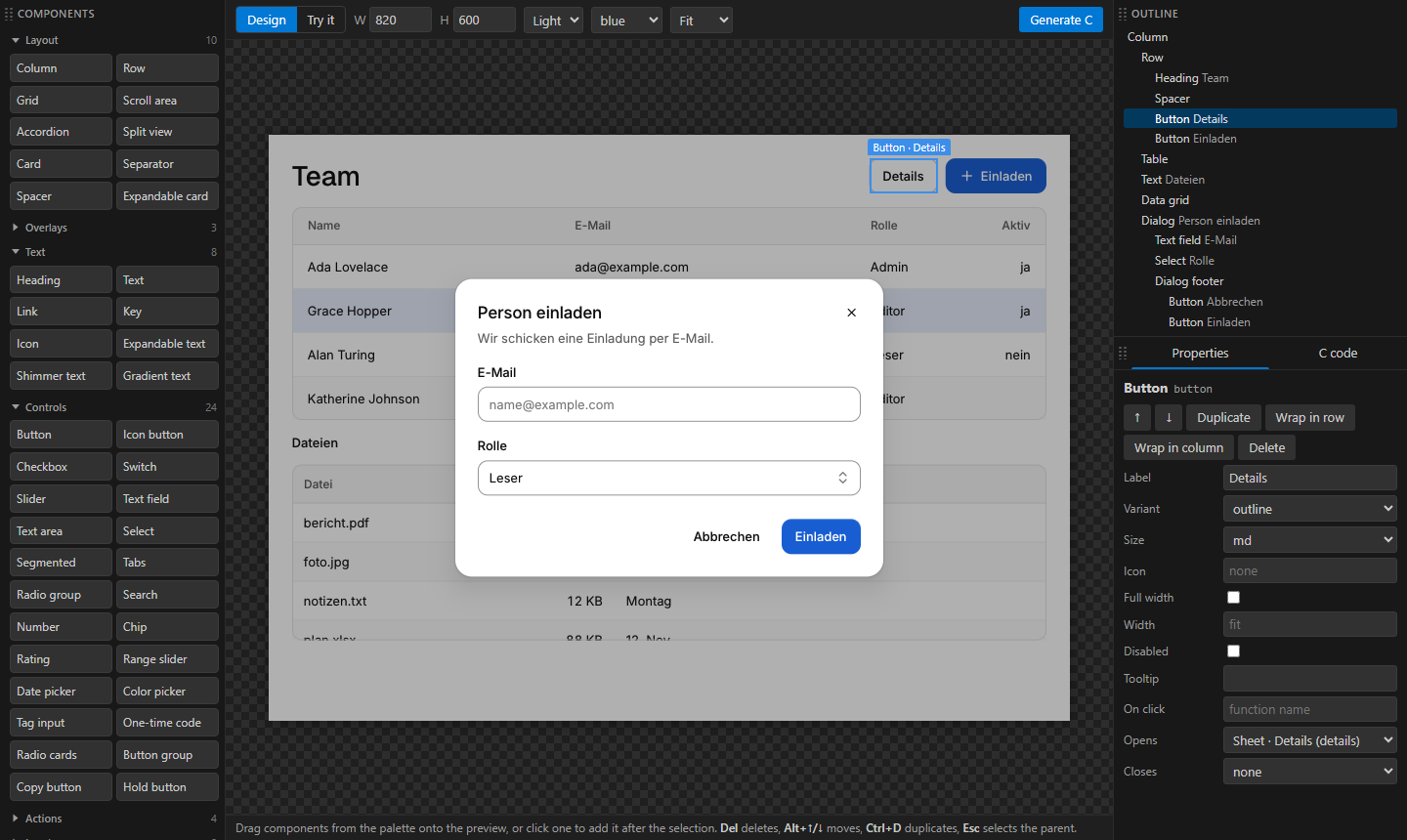
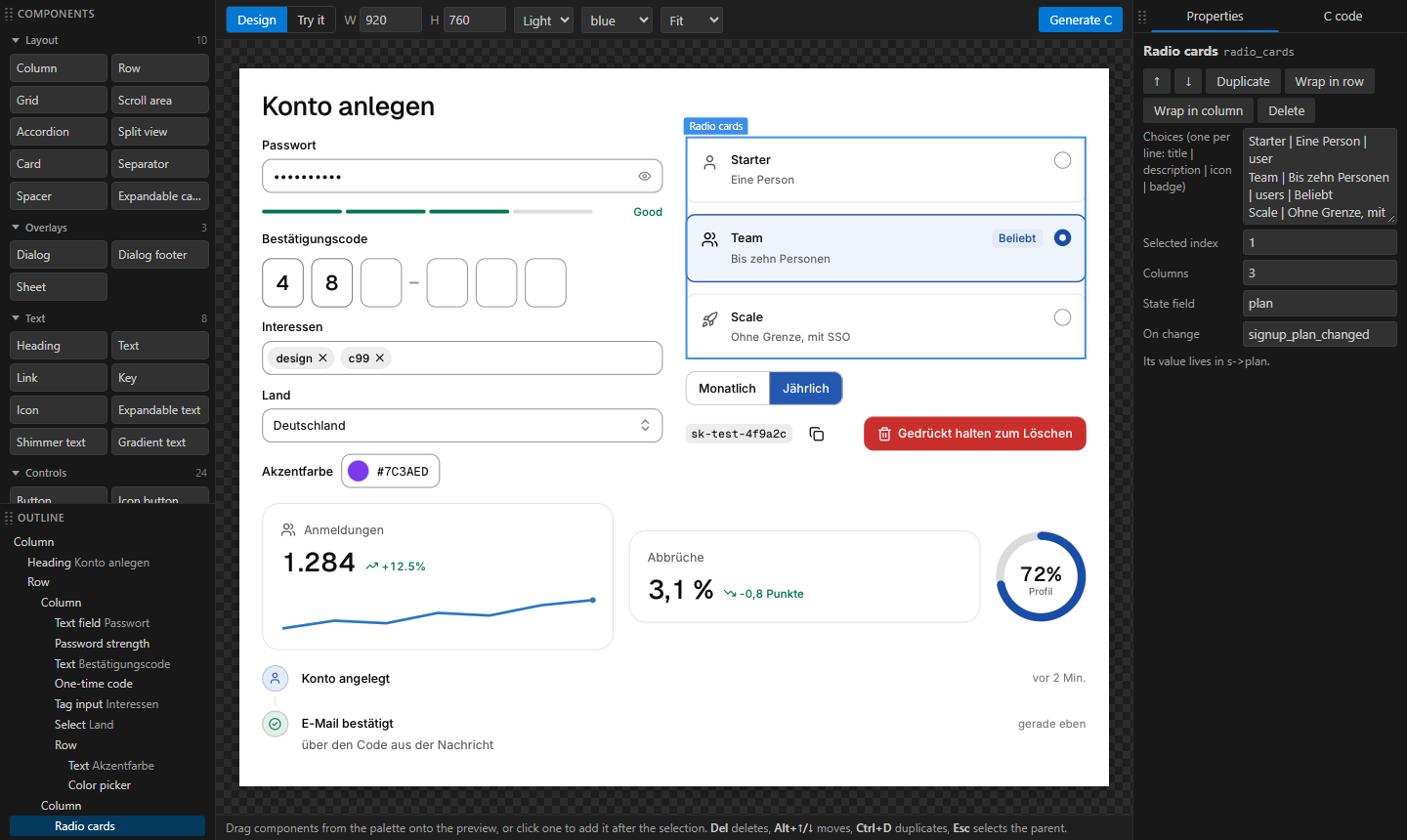
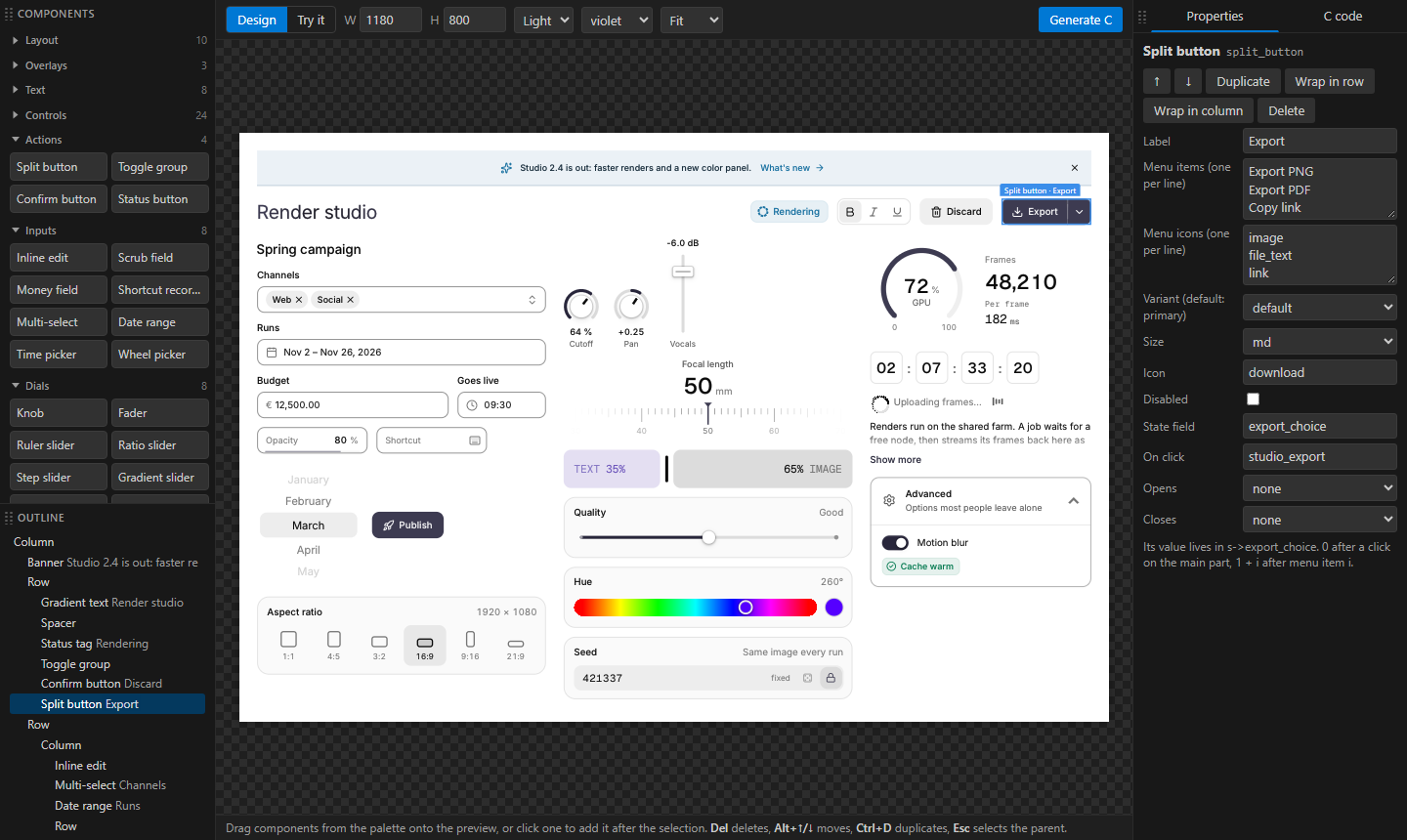
The images show the webview in a browser (test/serve.js), where it looks as it does in VS Code's dark theme.
The generated code
For login.cui.json with the C prefix login:
/* login.ui.h */
typedef struct login_ui {         /* one field per control that keeps a value */
    char email[256];
    bool remember;
    int theme;
} login_ui;
void login_on_sign_in(cui_ctx *ui, login_ui *s);   /* the event handlers you named: you write them */
void login_ui_init(login_ui *s);                   /* the values set in the designer */
void login_ui_build(cui_ctx *ui, login_ui *s);     /* call it every frame */
/* your code */
#include "login.ui.h"

void login_on_sign_in(cui_ctx *ui, login_ui *s) { (void)ui; printf("sign in as %s\n", s->email); }

static void frame(cui_ctx *ui, void *user) { login_ui_build(ui, user); }

int main(void) {
    static login_ui s;
    login_ui_init(&s);
    return cui_app_run(&(cui_app_desc){ .title = "Login", .width = 440, .height = 560 }, frame, &s);
}
A control's state field is its State field property, or a name made from its
label. An event handler is called when its On click, On change or
On Enter property names a function. A dialog's state field says whether it is
open; a button with Opens sets it. A table's state field is its selected row
(-1 for none). For a table whose Data is code, the header also declares
int team_file_rows(team_ui *s);                                 /* how many rows */
const char *team_file_cell(team_ui *s, int row, int column);   /* the text of one cell */
Do not edit the generated files: the next save overwrites them.
Build and run
editors/vscode/build.sh          # media/designer.wasm, needs clang with the wasm32 target and wasm-ld
code --extensionDevelopmentPath="$PWD/editors/vscode" editors/vscode/samples
To install it in your own VS Code, package it after build.sh and install the file:
cd editors/vscode && npm run package
code --install-extension cui-visual-designer-0.3.0.vsix
The README links its images at a fixed commit of the fork, because vsce gets
relative links wrong for an extension in a subfolder: it drops the subfolder. New
screenshots therefore take two commits: the images, pushed, and then the README
with that commit's hash in the links. To publish a new version, raise version
in package.json, then npx @vscode/vsce publish.
Then open a *.cui.json file, or run CUI: New Design from the command palette or
the explorer's context menu on a folder. To work on the webview without VS Code,
node editors/vscode/test/serve.js serves it at http://localhost:8790/ with a stand-in
for the VS Code API (?design=samples/settings.cui.json loads another design).
How it works
| File |
What it is |
native/designer.c |
The preview's interpreter: the webview sends the tree in (dsg_add, dsg_set) and it builds it with the real components every frame, and reports each node's rectangle for selection and drop targets. Linked with web/host/web_host.c, like the documentation site's modules. |
media/components.js |
The components, their properties and the C option each property sets. The palette, the property panel and the code generator read it. |
media/codegen.js |
The C generator. It runs in the extension (on save) and in the webview (the C code tab). |
media/designer.js |
The webview: palette, outline, overlay, drag and drop, property panel and input for Try it. |
media/layout.js |
The panels' columns: the splitters and moving a panel by its header. |
extension.js |
The custom editor for *.cui.json, the commands, and writing the C files on save. |
native/designer.c and media/codegen.js make the same calls with the same
options. A change to one needs the same change to the other, and the fidelity
check below catches a mismatch.
Checks
cd editors/vscode
node test/codegen.test.js          # the generated C of every sample compiles (clang -Wall -Wextra -Werror)
node test/fidelity.mjs             # every sample's generated C, compiled to wasm, draws byte for byte what the preview draws
node test/extension.test.js        # the extension against a stand-in for the vscode API
node test/smoke.mjs                # the preview module builds a tree and reports rectangles
Not done yet
- The rest of CUI's components, most of them fed by data from your code: trees, tree tables, charts, kanban boards, calendars, popovers, menus, toasts, toolbars, images, code and log views, the developer tool panels and the rest.
- Tables show text only: no components in cells, no sortable headers, no editable cells, and no checkbox selection in the data grid.
- Dynamic text (a label that shows a value from the state), lists built from data, and showing parts of the UI only under a condition.
- Reading hand-written C back into a design. The generator writes in one direction.
- Building and testing the extension in CI.
| |

