Agent Diagram Export
Preview and export the mermaid diagrams Cursor shows in agent chat, plan files, and markdown — in light or dark mode, as PNG, JPEG, or PDF. Most importantly with taste and style.
Built for Cursor — the AI IDE where agent chats, Plan Mode, and inline mermaid diagrams live. The extension reads Cursor agent transcripts, plan files, and markdown sources directly; it works in VS Code, but every source path and UI integration is tuned for Cursor.

Open preview
| Entry point |
Behavior |
| CodeLens |
Click Preview and Export above any mermaid or mmdblock in markdown or.plan.md |
| Chat title button |
Flowchart icon labeled Preview and Export on Cursor agent chat tabs and the agents pane |
| Editor title button |
Flowchart icon on markdown, .plan.md, Cursor prompt/instruction/skill files, and the markdown Preview tab |
| Status bar |
Shows N diagram(s) when the active file has mermaid fences; click to open the diagram picker |
| Command Palette |
Category Agent Diagram Export (see commands below) |


When a file has multiple diagrams, the extension shows a Quick Pick labeled with the nearest markdown heading (or the mermaid diagram type if there is no heading). If the cursor is inside a fence, that diagram opens directly.
Supported fence languages: mermaid and mmd. Frontmatter in .plan.md files is skipped when scanning for fences.
Diagram sources
| Source |
How to open |
| Open editor |
Title button, CodeLens, status bar, or Preview and Export |
| Markdown Preview tab |
Title button resolves the previewed file even without a text editor |
| Latest agent chat |
Chat title button, or Export Agent Diagram from Latest Chat — focused chat when possible, else newest transcript with a diagram |
| Any agent chat |
Choose Chat Transcript… — pick a transcript, then a diagram |
| Open or latest plan |
Export Agent Diagram from Open or Latest Plan — open .plan.md first, else newest plan file |
| Any plan file |
Choose Plan File… — pick a plan file, then a diagram |
Agent transcripts are read from the workspace’s Cursor agent-transcripts folder. Plan files are discovered in the workspace.
Preview panel
The preview toolbar controls rendering and export:
- Zoom — scroll wheel to zoom; − / + buttons; click the percentage to fit to view
- Pan — drag the canvas
- Light / Dark — switches diagram theme; opens in the mode that matches Cursor’s editor theme
- Mode — picks the drawing style: Default, Golden Era, or Home Computer (see below); writes
agentDiagramExport.mode globally
- Export — PNG, JPEG, or PDF; save dialog suggests a filename with the active theme and mode
Export details
| Format |
Background |
Notes |
| PNG |
Transparent |
Alpha preserved; good for slides and docs |
| JPEG |
Opaque themed canvas |
Always fills the background |
| PDF |
Opaque themed canvas |
Vector-friendly layout with rasterized diagram |
Exports rasterize at 3× resolution for sharp output. Default filenames follow {context}-{diagramType}-{light|dark}-{mode}.{ext} (e.g. agent-flow-flowchart-dark-home-computer.png).
Modes
A mode is a drawing style, not a color theme — light and dark still apply, and exports carry the mode because the ink travels inside the SVG. Pick one from the preview Mode menu or set agentDiagramExport.mode.
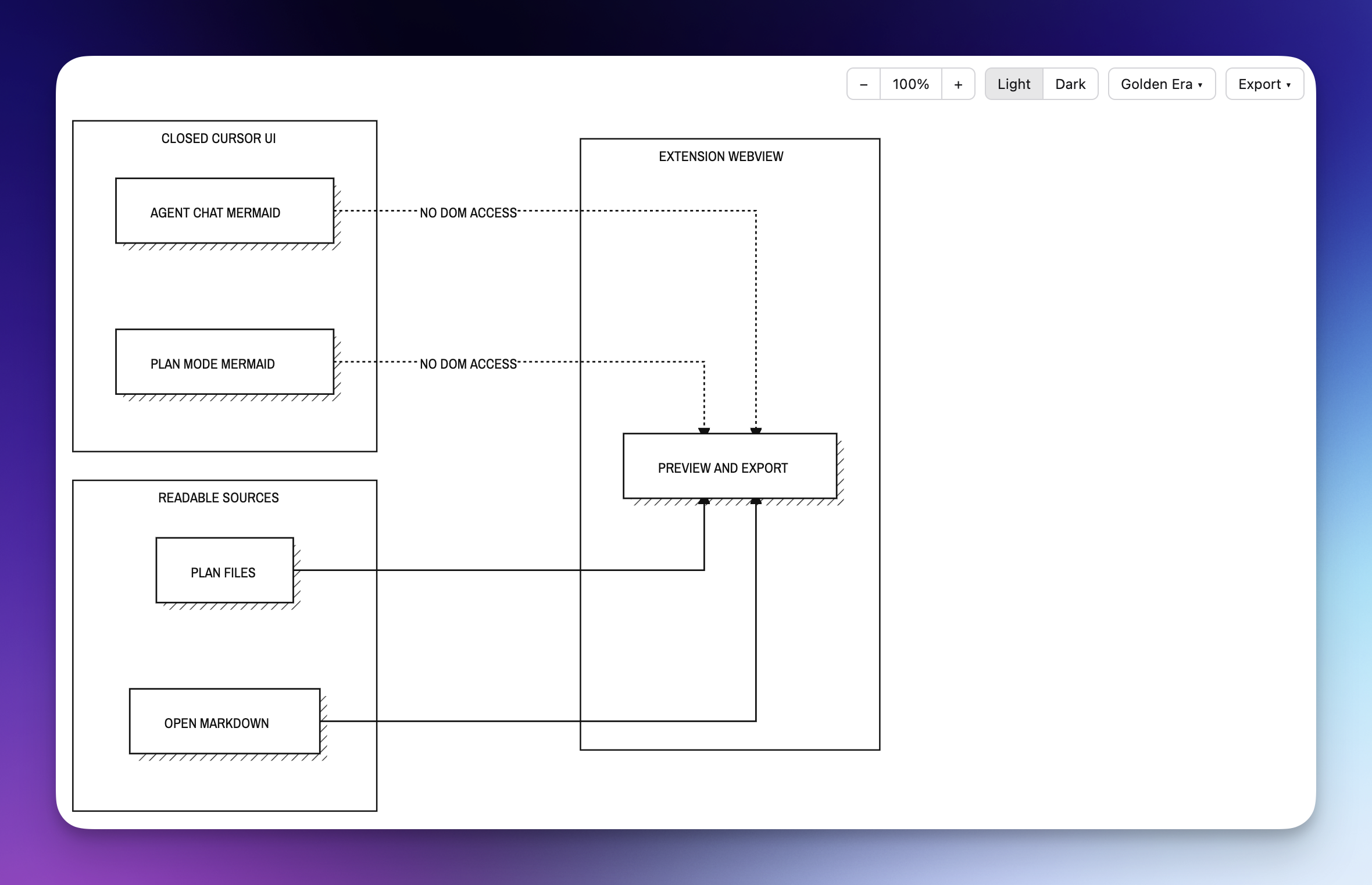
Golden Era redraws a diagram the way computer architecture was drawn in the 1960s: one ink color on the page, square-cornered boxes with hatched drop shadows, thin ruled connectors, and condensed drafting caps.
Home Computer is the 1977–83 reading of the mode, printed rather than drafted: cream stock inside a double keyline with a registration strip in the corner, flat spot-color blocks with white Helvetica bold caps, heavier right-angle runs, and dashed boundaries around subgraphs. Blocks take the next spot color in layout order, and the dark theme prints the same colors on a dark page.

With either mode on, all diagram types route through Mermaid’s classic renderer so the ink pass can reshape connectors, shadows, and blocks consistently.
Commands
All commands appear under Agent Diagram Export in the Command Palette.
| Command |
Description |
| Preview and Export |
Preview diagrams from the active markdown/plan file or Preview tab |
| Preview and Export at Line |
Used by CodeLens; opens the fence at the given line |
| Open Diagram Picker |
Same as clicking the status bar — pick a diagram in the current file |
| Export Agent Diagram from Latest Chat |
Chat title button or palette: focused chat when possible, else newest transcript with a diagram |
| Choose Chat Transcript… |
Pick any chat transcript for this workspace, then a diagram |
| Export Agent Diagram from Open or Latest Plan |
Open .plan.md if focused, else newest plan file; then pick a diagram |
| Choose Plan File… |
Pick any plan file, then a diagram |

Settings
| Setting |
Default |
Description |
agentDiagramExport.mode |
"cursor" |
Drawing style: "cursor", "goldenEra", or "homeComputer". Light and dark still apply. The preview Mode menu writes this setting globally. |
Example in settings.json:
{
  "agentDiagramExport.mode": "homeComputer"
}
Install
Install from the packaged VSIX: agent-diagram-export-1.1.0.vsix.
Build locally:
npm install
npm run package
License
MIT © Can Uludag
https://uludagcan.com

