ttime for VS Code — Your coding hours, captured automatically.Captures your VS Code activity in the background so you can review it, create clean billable records, and stay motivated with revenue visibility. Installation Launch VS Code Quick Open ( Ctrl+P), paste the following command, and press enter.Copied to clipboard |

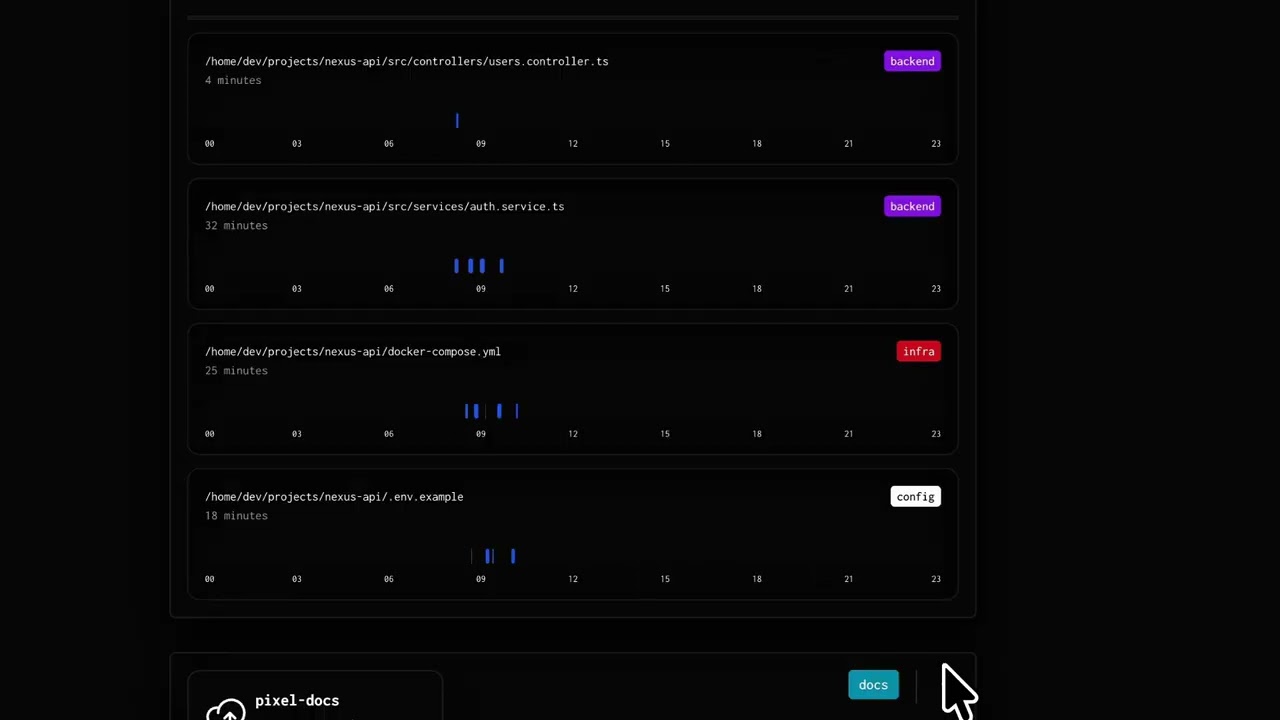
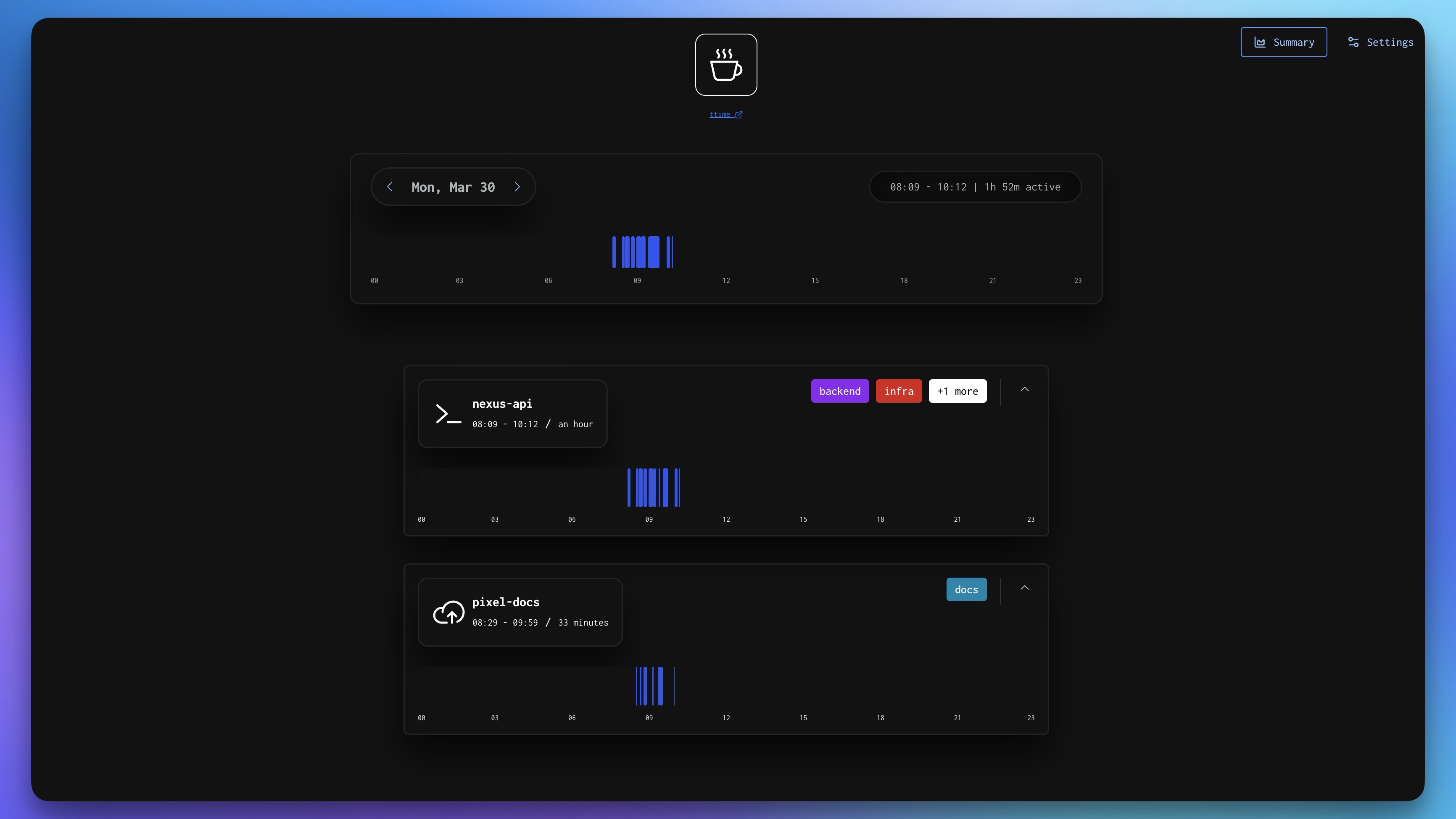
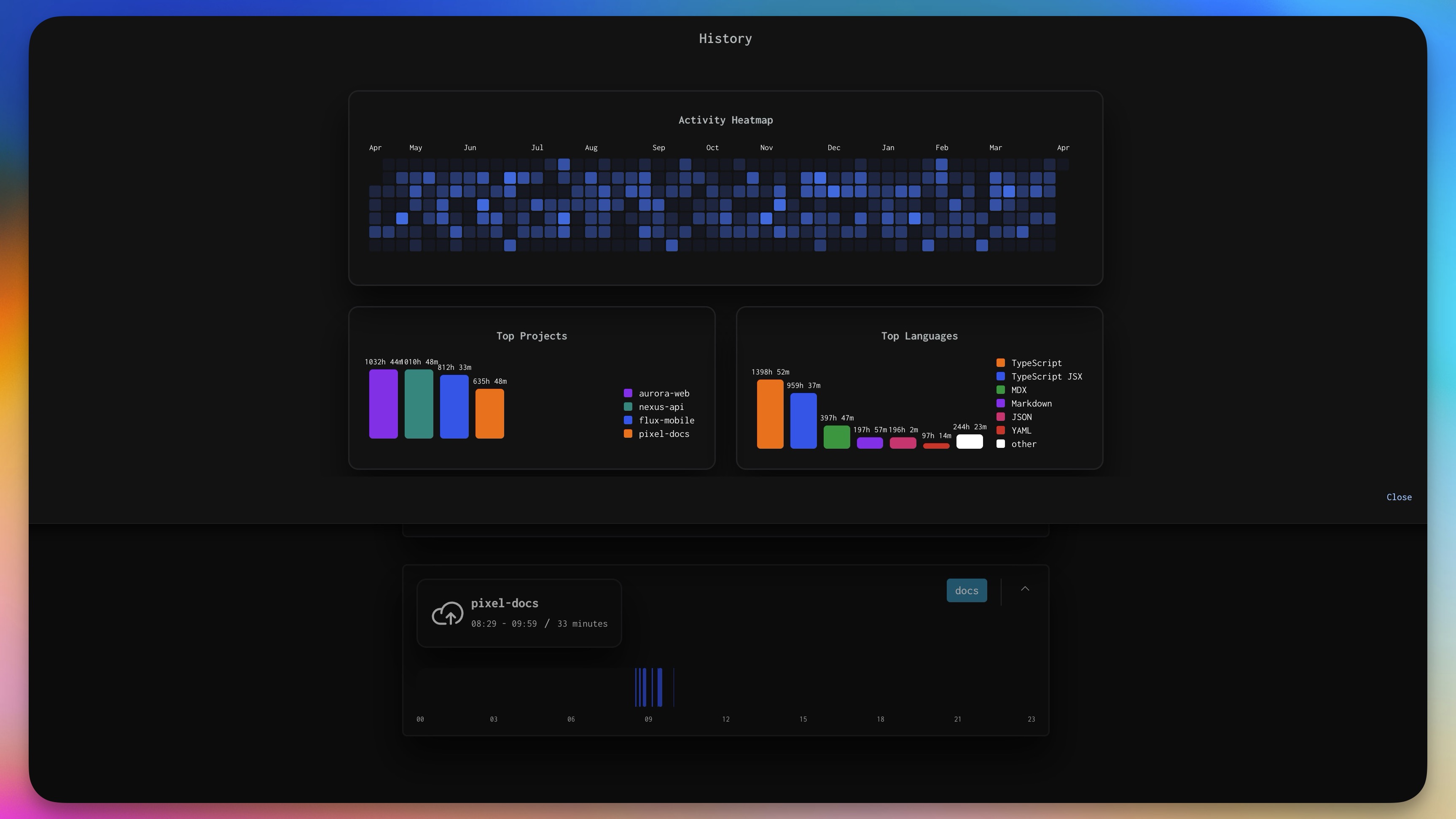
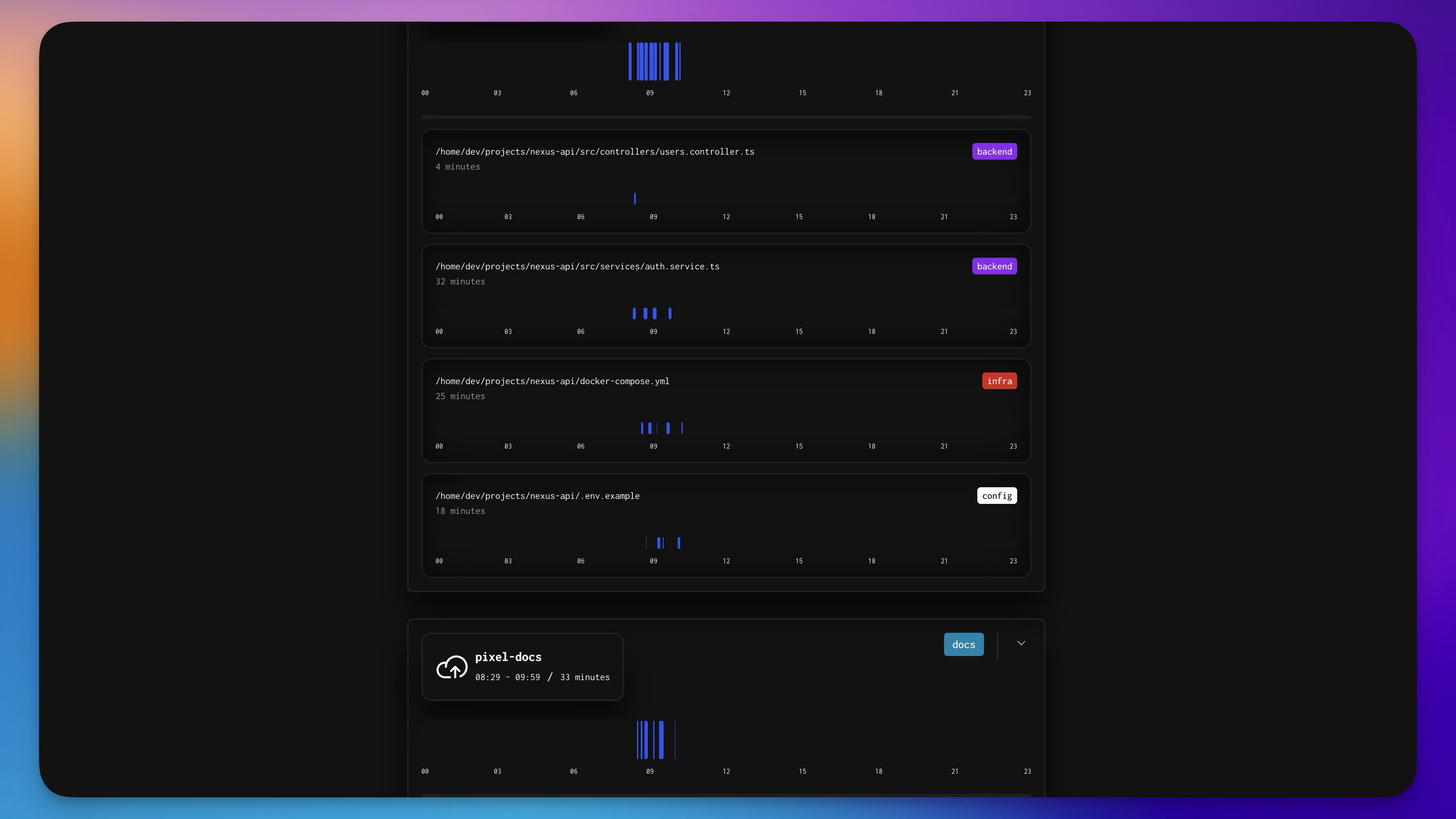
ttime for VS Code — Your coding hours, captured automatically.Time tracking is a chore. When it's done late (or not at all), billable hours get lost. This extension tracks your coding activity in the background — automatic sessions, git context, historical stats, and a full in-editor review panel. Everything works locally, no account required. If you connect a ttime account, your activity syncs to the ttime app where you can turn it into clean time records and track your revenue. But that's entirely optional. Website: https://gettti.me App: https://gettti.me/app Preview
What you get
Getting started
Tip: the ttime icon in the status bar reflects connection/auth state. Click it to open the panel. Commands
Requirements
Privacy & data collectionThis extension is built to capture activity metadata, not code contents. Stored locally (on your machine)
Uploaded to ttime (when authenticated) When you’re signed in, the extension periodically uploads session summaries to https://gettti.me. Session payloads include:
Not collected
Network requests
If you want to stop all tracking, disable the extension in VS Code. The “Connected” toggle in the ttime panel stops backend checks/uploads; the extension may still record sessions locally while disconnected. Troubleshooting
Known limitations
Supportcontact@gettti.me |