tsedalai.com · Docs · Terms and privacy Tsedal AI is an AI coding agent that works inside VS Code. Describe a task in plain words and Tsedal reads your project, edits and creates files, runs your tests, and keeps going until the job is done. You review every change before it is saved. It also answers questions about your code, edits a selection in place, fixes errors from the lightbulb, writes commit messages, completes code as you type, and runs tasks on a schedule. Getting started
You need a Tsedal account to use the extension. Get your API key at tsedalai.com, and see the Docs for more. Agent: hand off a whole task
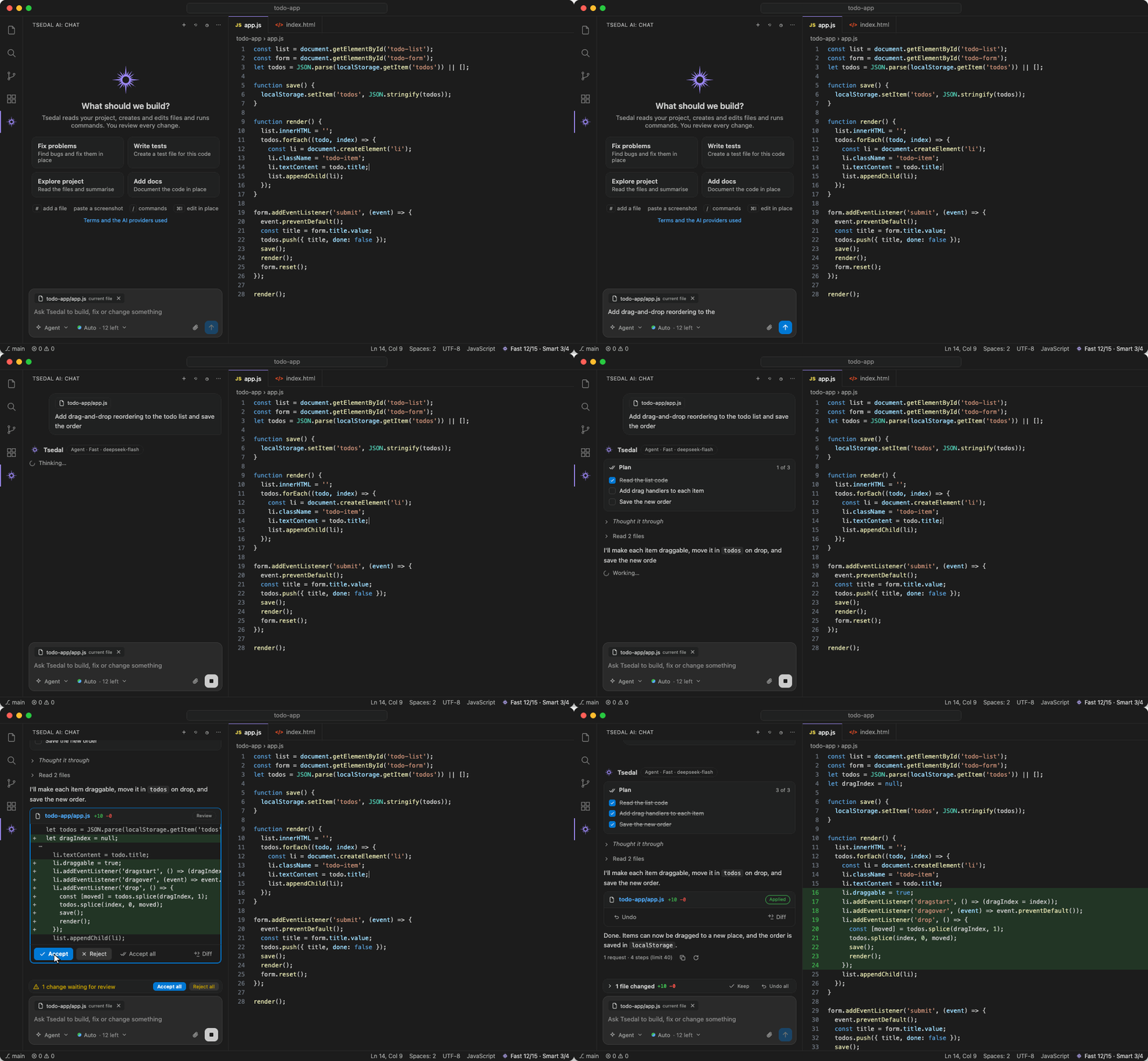
Type what you want, for example "Add drag-and-drop reordering to the todo list and save the order". Tsedal:
Every change can be undone, one at a time or all at once from the files changed bar. A whole task counts as one request against your allowance, however many steps it takes. Ask: questions about your code
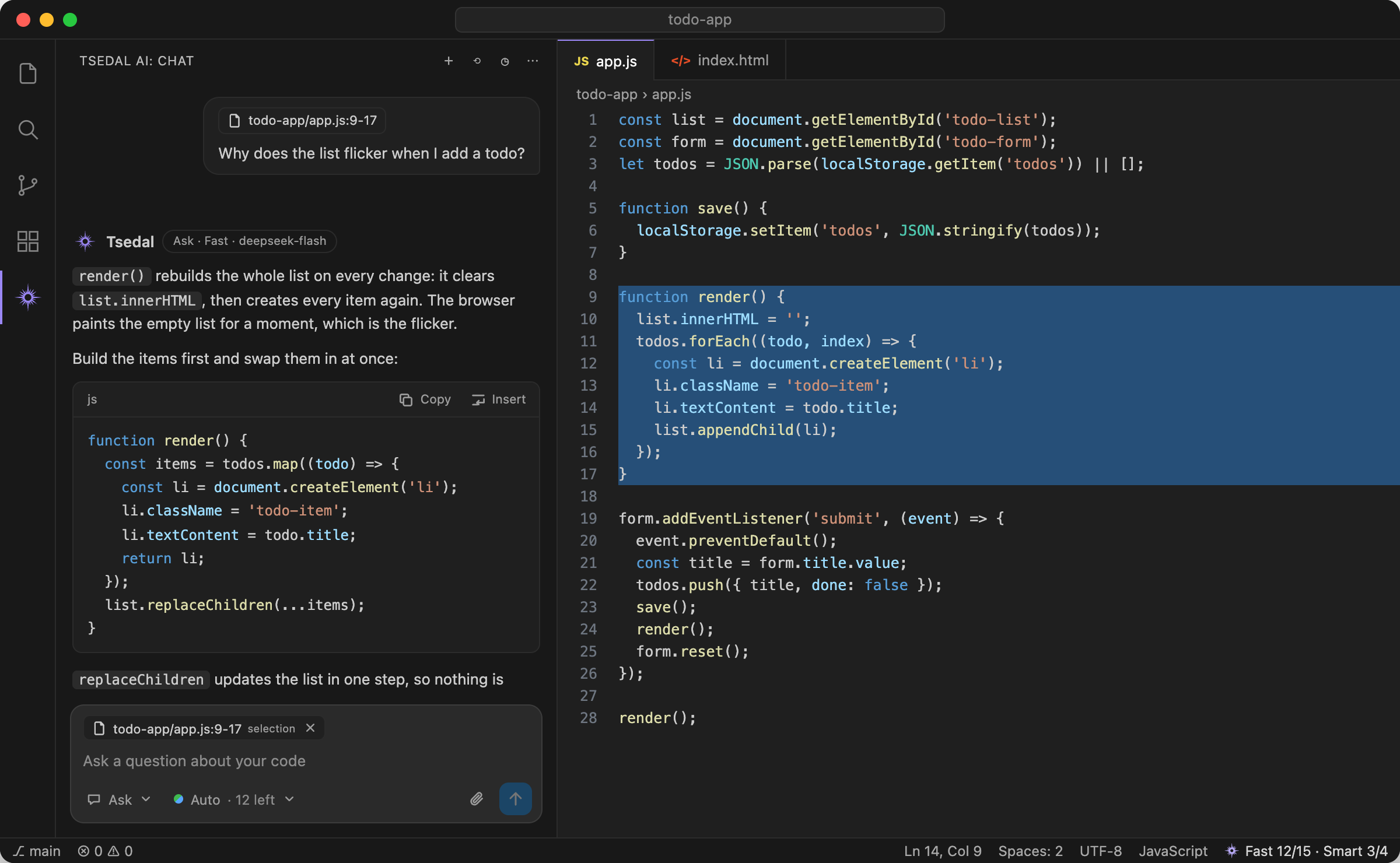
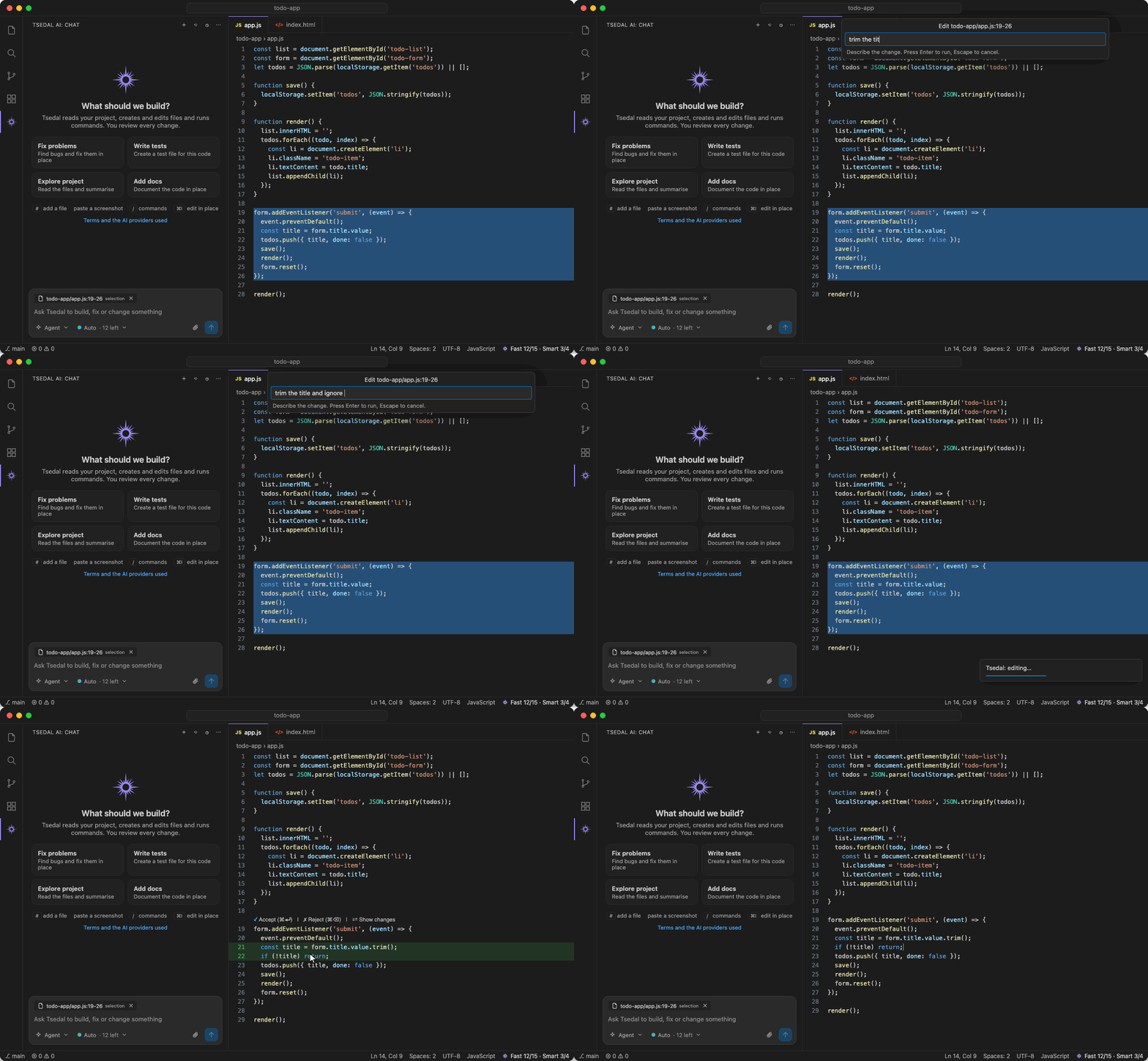
Switch the box to Ask for answers without changes to your files. The open file or your selection goes with the question automatically. Every code block in an answer has Copy and Insert, and file names in answers open the file when clicked. Type Edit in place
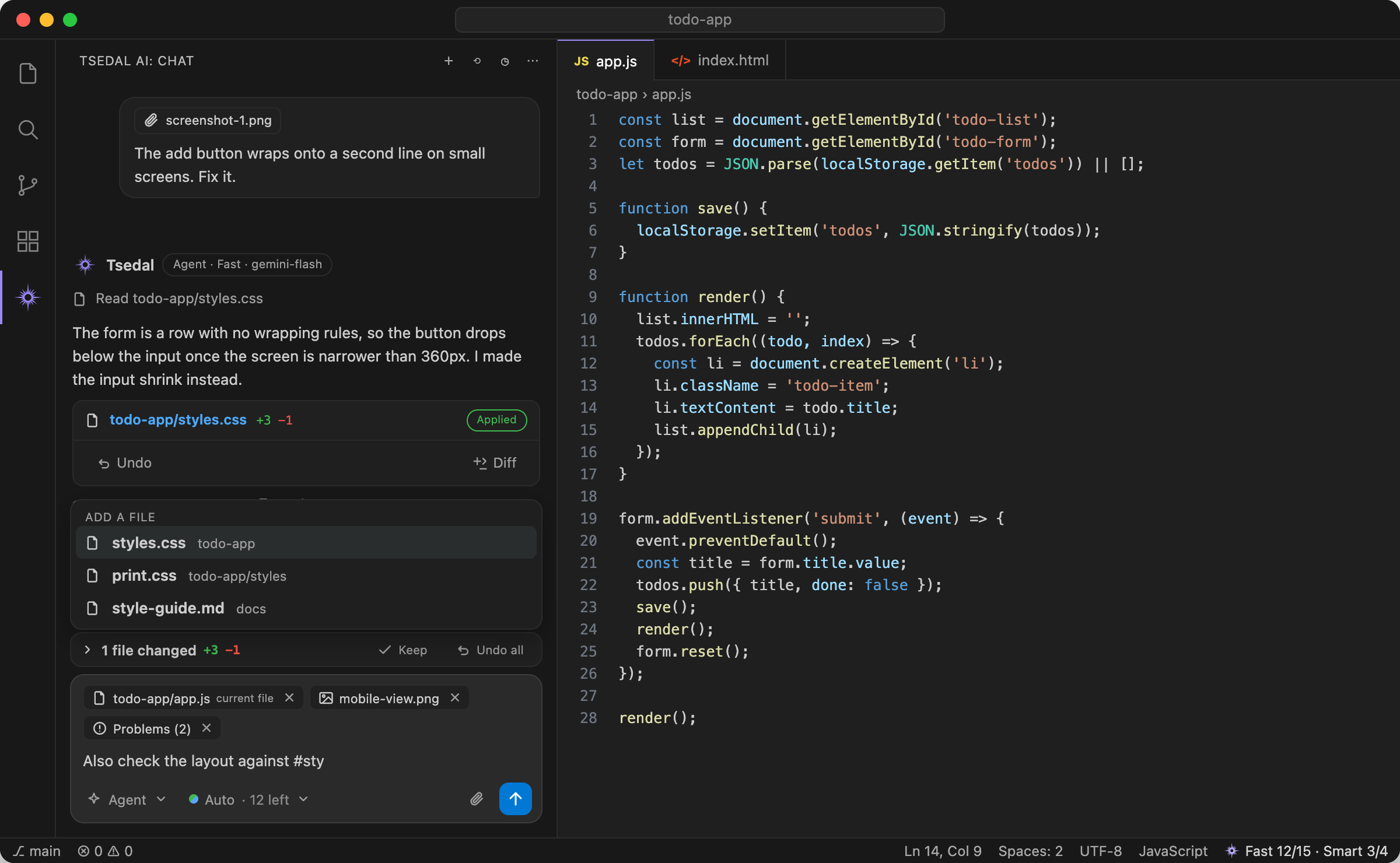
Select code, press On any error or warning, click the lightbulb and choose Fix with Tsedal. Add context: files, screenshots and PDFs
Give Tsedal what it needs to see:
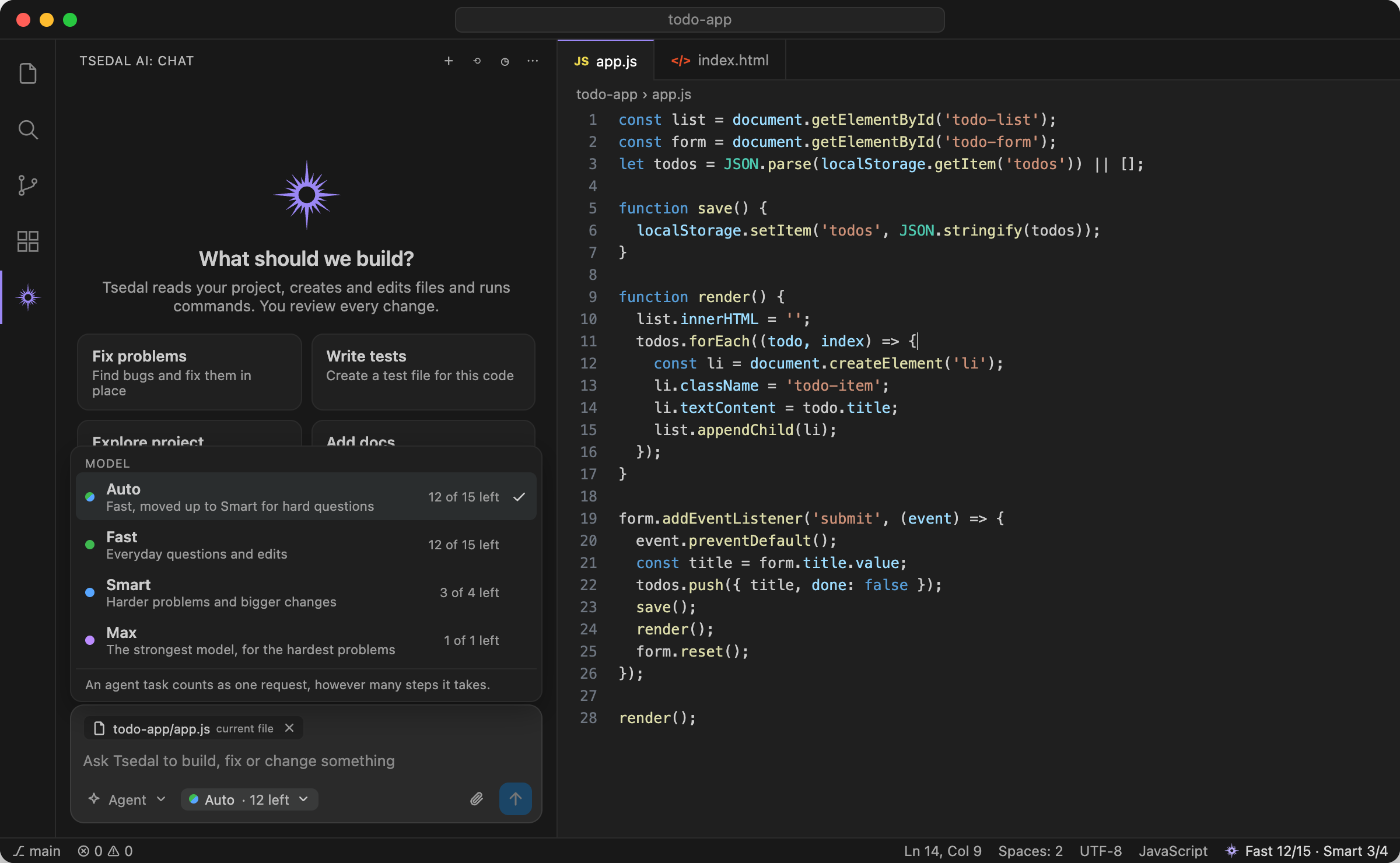
Choose a model
The status bar always shows what you have left today, for example Autocomplete
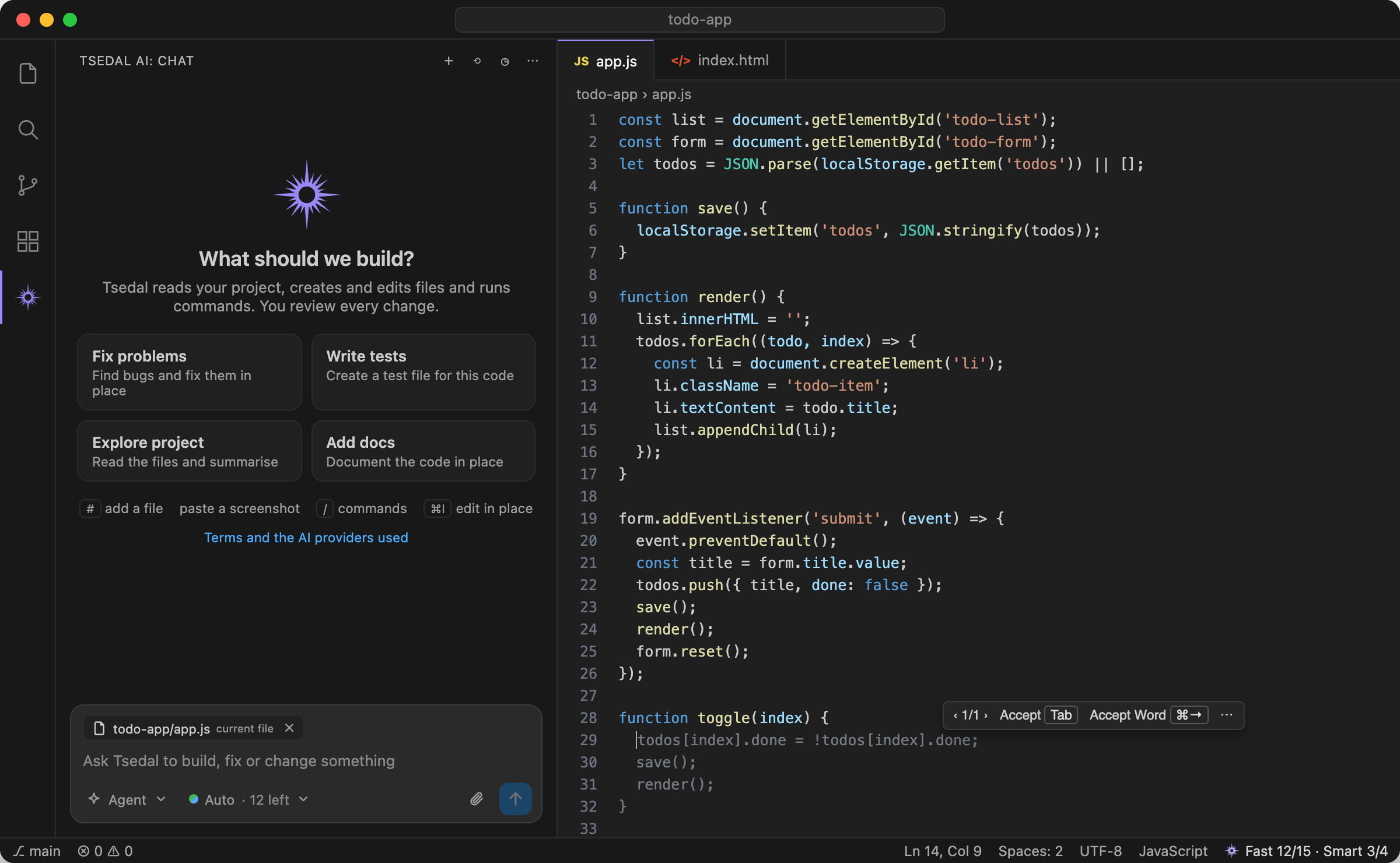
As you type, Tsedal suggests the next lines in grey, written for the code before and after your cursor. Press Scheduled tasks
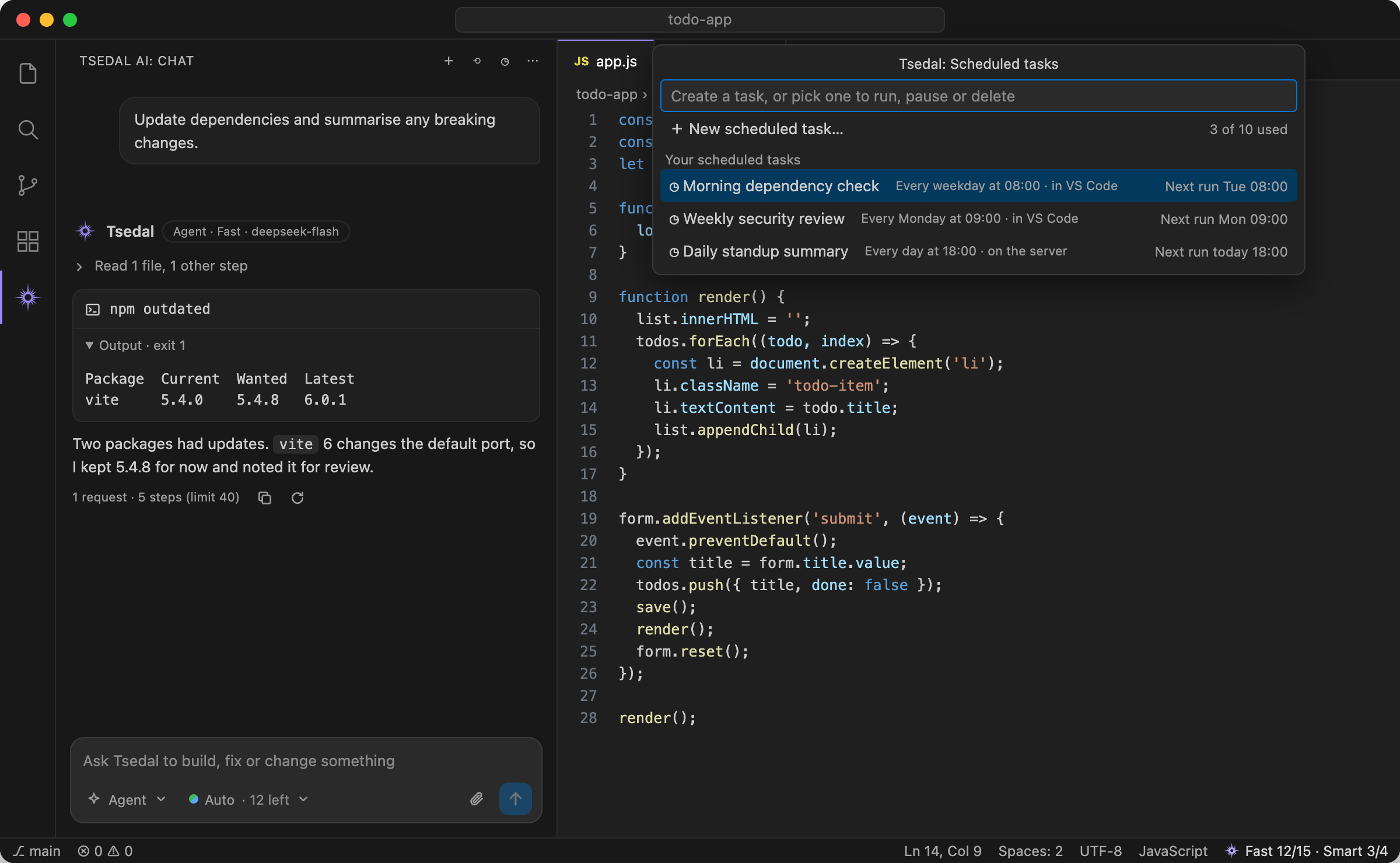
Let Tsedal do routine work on a timetable, for example "Update dependencies and summarise any breaking changes" every weekday at 08:00.
Open Tsedal: Scheduled Tasks from the Command Palette, or click the clock button in the chat title bar. More
Keyboard shortcuts
Safety
PrivacyYour prompts and code are sent to the Tsedal server, which passes them to AI providers to answer you. The server does not store prompts, code or answers. Images and PDFs you attach are kept on the server for 30 days so later steps of a task can use them; scheduled task prompts are kept with the schedule until you delete it. The terms and privacy page lists the AI providers used. Troubleshooting"This API key is not valid." Check that you pasted the whole key, starting with "You have used all … requests for today." The message says when your limit resets. You can continue on another model that still has requests left. "This agent task reached its step limit." Review what Tsedal changed, then click Start a new task to carry on. A model shows "Not available right now". Choose another model; it comes back automatically. SupportQuestions and feedback are welcome on tsedalai.com. Guides are in the Docs. |