
OmniSearch
One popup to find files, symbols, and text across your workspace -
one search box instead of three.

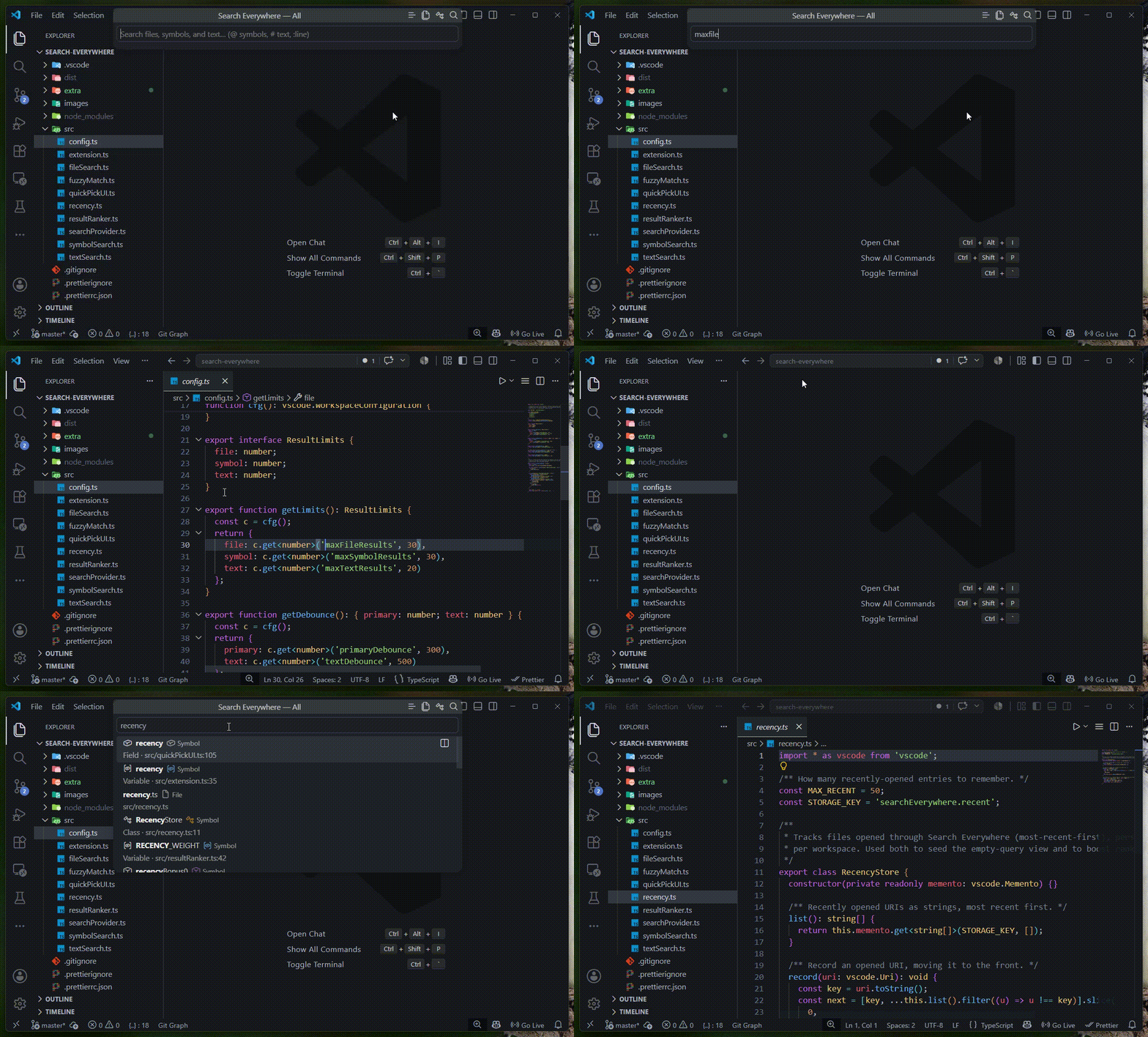
Stop juggling Go to File (Ctrl+P), Go to Symbol (Ctrl+T), and Find in Files (Ctrl+Shift+F). OmniSearch unifies all three into a single, fast, fuzzy-ranked popup - type a few characters and jump straight to whatever you meant.
Features
- Unified search - files, workspace symbols, and full-text matches in one list, grouped into clearly labeled sections.
- Fuzzy matching -
sft finds searchFileText.ts, gqp finds getQuickPick. Matched characters are highlighted as you type.
- Smart ranking - word-boundary, camelHump, and consecutive-character matches rank highest; recently opened files get a boost.
- Real file icons - results use your active File Icon Theme, so
.ts, .json, .md, and friends look like they do in the Explorer.
- Filter tabs - scope instantly to
All, Files, Symbols, or Text.
- Power-user prefixes -
@ for symbols, # for text, :42 to jump to a line.
- Open to the side - send any result to a split editor with one click.
- Recents on open - an empty query shows the files you opened most recently.
- Resilient & fast - debounced, cancellable searches; if one source fails, the others still deliver.
- Configurable - tune result limits, debounce timing, excludes, and more.
Getting started
- Install OmniSearch from the Marketplace (or see Manual install).
- Open a folder/workspace.
- Press
Ctrl+T (Cmd+T on macOS), or run OmniSearch: Open from the Command Palette.
- Start typing.
Note: the popup needs an open folder. With none, it shows “No workspace folder open.”
How to use
Triggers
| Action |
Shortcut |
| Open OmniSearch |
Ctrl+T / Cmd+T |
| Open via Command Palette |
OmniSearch: Open |
| Open selected result |
Enter |
| Open result to the side |
Click the split icon on the result, or the inline item button |
Filter tabs
Click a tab button at the top of the popup to scope the results:
| Tab |
Shows |
| All |
Files, symbols, and text matches |
| Files |
File-name / path matches only |
| Symbols |
Workspace symbols only |
| Text |
Full-text matches only |
The active tab is reflected in the popup title.
Prefixes
Prefixes are the fastest way to scope a single query - no clicking required:
| Type |
Does |
@parseConfig |
Search symbols only |
#TODO |
Search text only |
:120 |
Jump to line 120 in the active editor |
Result types
Each result is tagged so you always know what you're opening:
| Icon |
Type |
Detail line |
$(file) file-type icon |
File |
Relative path |
$(symbol-class) etc. |
Symbol |
Kind · path : line |
$(search) |
Text Match |
The matching line · path : line |
Symbols use kind-specific icons (class, method, variable, interface, enum, field, and more), exactly like VS Code's outline.
Settings
All settings live under the omnisearch.* namespace (Settings → search “OmniSearch”).
| Setting |
Default |
Description |
omnisearch.maxFileResults |
30 |
Maximum number of file results to show. |
omnisearch.maxSymbolResults |
30 |
Maximum number of symbol results to show. |
omnisearch.maxTextResults |
20 |
Maximum number of text-match results to show. |
omnisearch.textMinQueryLength |
3 |
Minimum query length before full-text search runs. |
omnisearch.primaryDebounce |
300 |
Debounce (ms) for file and symbol search. |
omnisearch.textDebounce |
500 |
Debounce (ms) for the slower full-text search. |
omnisearch.recentFilesCount |
10 |
Recent files to show when the query is empty. |
omnisearch.maxFileCandidates |
5000 |
Upper bound on files scanned. Raise for large repos at the cost of speed. |
omnisearch.respectEditorExcludes |
true |
Also honor files.exclude and search.exclude when searching. |
omnisearch.additionalExcludes |
[] |
Extra glob patterns to exclude, e.g. "**/*.min.js". |
By default, node_modules, .git, dist, out, and .next are always excluded.
- No custom index. Every source uses VS Code's own built-in providers - there's nothing to build or keep in sync.
- Debounced & cancellable. Files and symbols search after a short pause; the heavier full-text search waits a little longer. Each keystroke cancels in-flight work.
- Fault-isolated. A failing source never blocks the others.
- Bounded. Result counts and the file-scan ceiling are all capped (and configurable).
Large monorepos: full-text search reads candidate files in-process (VS Code exposes no stable programmatic text-search API), so on very large repos it's slower than the native Ctrl+Shift+F and is bounded by maxFileCandidates. For everyday projects it's snappy.
About double-press Shift
A double-press of Shift is a familiar way to open a universal search. VS Code does not expose raw key events to extensions, and binding a bare shift key would intercept every capital letter and break typing - so double-Shift can't be enabled safely by default.
The machinery ships and is ready: the extension registers an internal command omnisearch.shiftPressed plus a 400 ms double-press detector. To opt in, add this to your keybindings.json (be aware it captures Shift in the editor):
{
  "key": "shift",
  "command": "omnisearch.shiftPressed",
  "when": "editorTextFocus"
}
Most users should stick with Ctrl/Cmd+T.
Manual install
Grab the .vsix from the Releases page (or build it yourself, below), then:
code --install-extension search-everywhere-<version>.vsix
Or in VS Code: Extensions view → … menu → Install from VSIX…
Build from source
git clone https://github.com/truethari/OmniSearch.git
cd OmniSearch
npm install
npm run compile      # dev build
npm run build        # minified production bundle
npm run package      # produce a .vsix
To hack on it, open the folder in VS Code and press F5 to launch an Extension Development Host with the extension loaded. See DEVELOPMENT.md for the full dev guide.
Troubleshooting
- No symbol results? Workspace symbols come from language extensions - make sure the relevant language support is installed and has finished indexing.
- No text results? Text search needs 3+ characters (configurable) and skips binary/huge files and your excludes.
Ctrl+T does nothing? It may collide with another binding - run the palette command to confirm the extension works, then rebind in Keyboard Shortcuts.
Contributing
Issues and PRs are welcome at github.com/truethari/OmniSearch.
License
MIT © Tharindu N. Madhusankha

