Docker Sandbox Browser
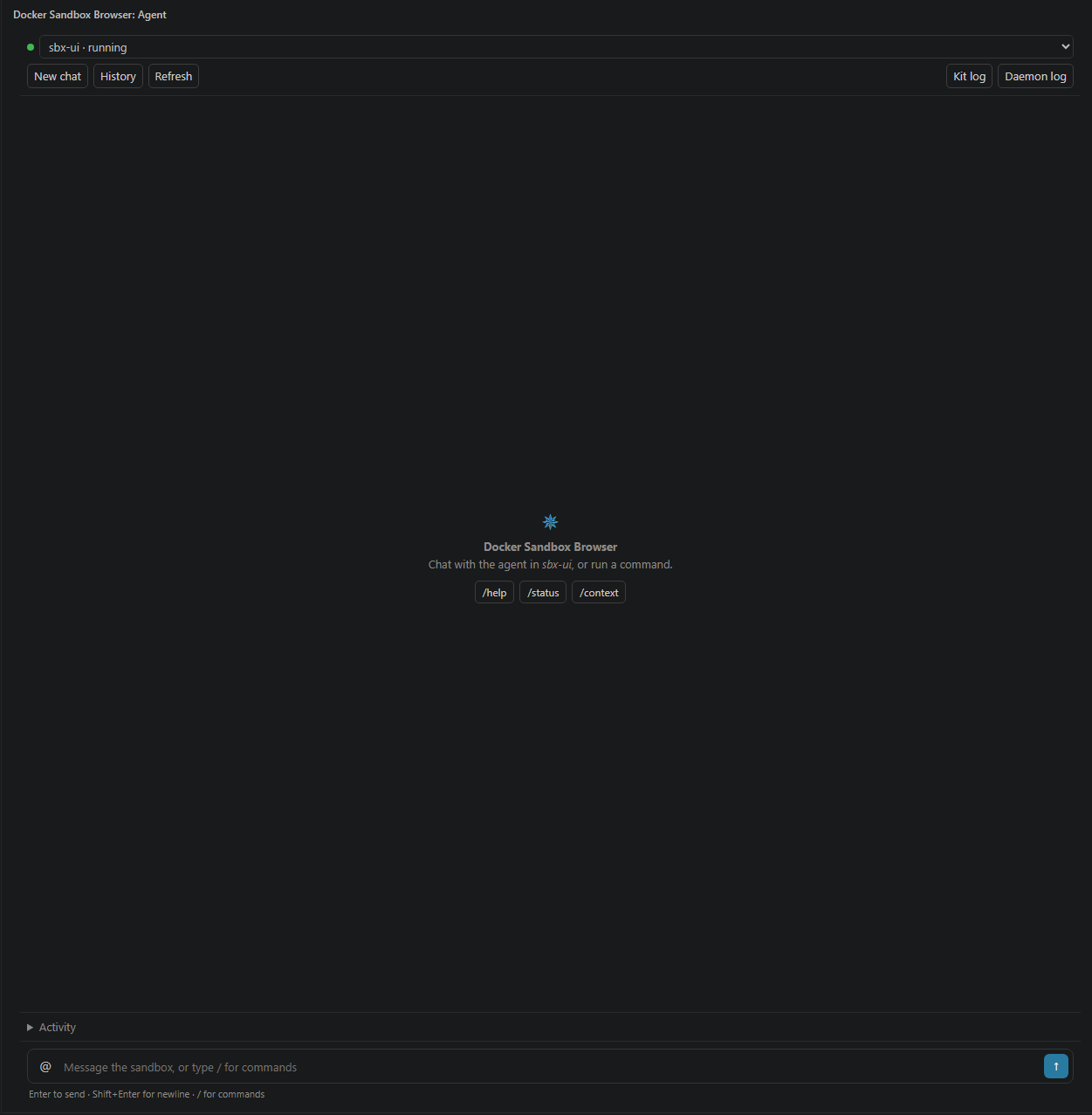
Chat with your Docker Sandboxes from the VS Code sidebar. Pick a sandbox, browse every available slash command, send prompts, and watch the agent's reply stream back — without leaving the editor.
Why
Docker Sandboxes (sbx) run coding agents in isolated containers. Normally you drive them from a terminal, which means remembering command names and switching windows. This extension puts that in a proper chat panel:
- every slash command is discoverable and searchable
- one command runs at a time, with a visible queue and a Stop button
- the agent's answer appears in the panel, not just the terminal
- each sandbox keeps its own conversation
Quick start
1. Install the prerequisites
You need the sbx CLI on your PATH and at least one sandbox:
sbx create claude .
Check it is visible:
sbx ls
2. Open the panel
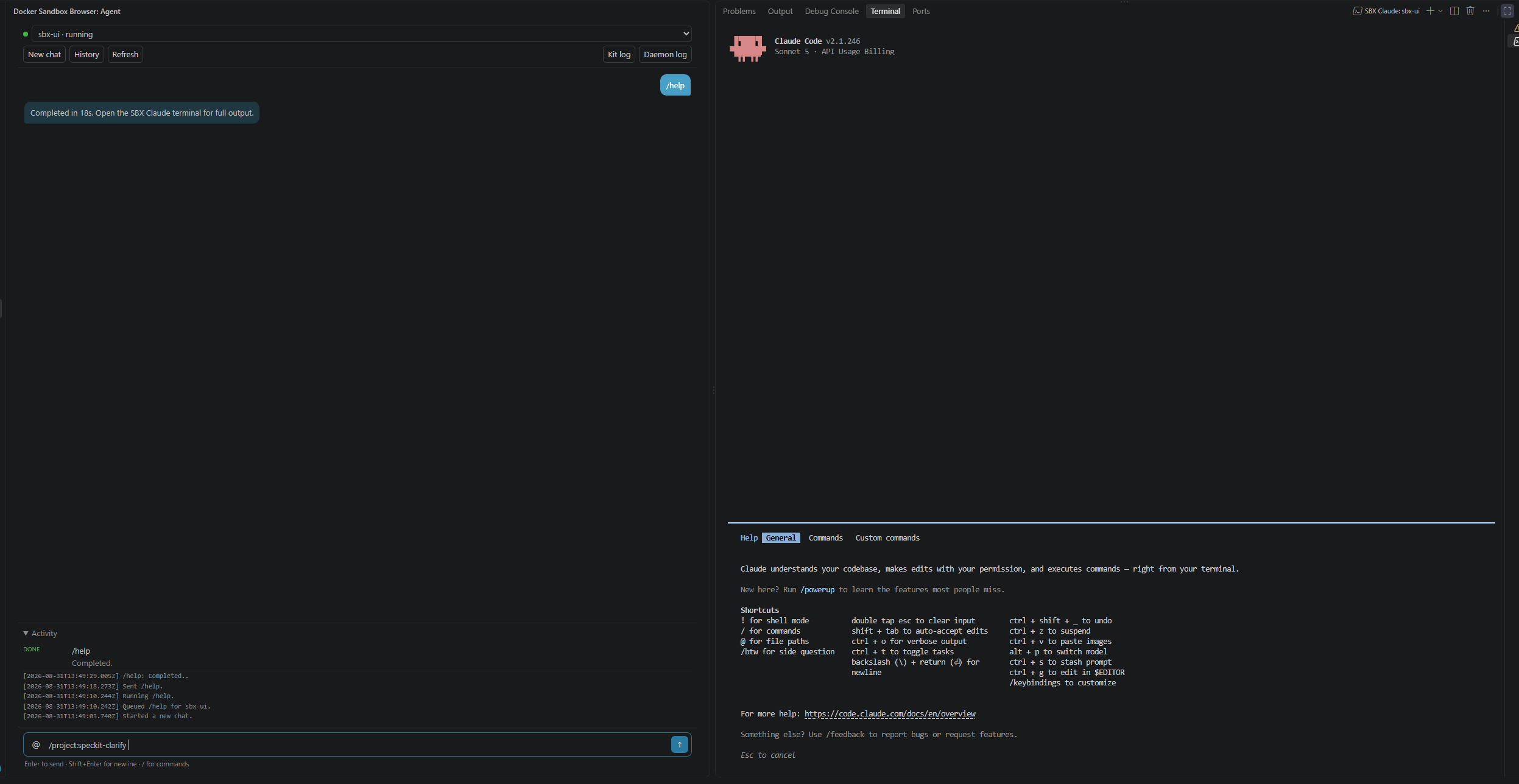
Click the Docker Sandbox Browser icon in the Activity Bar, or run SBX: Open Docker Sandbox Browser from the Command Palette (Ctrl+Shift+P).
3. Pick a sandbox
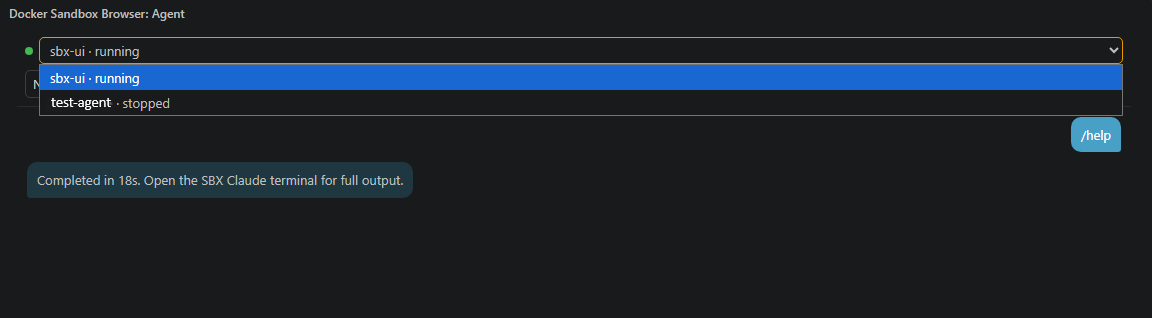
Choose an instance from the dropdown at the top. The dot shows its state:
| Dot |
Meaning |
| Green |
Running — ready to chat |
| Amber |
Stopped — sending a message starts it |
Selecting a stopped sandbox never starts it silently. You stay in control — it only starts when you send your first message. Press Refresh to re-read the current status.
4. Send a prompt or a command
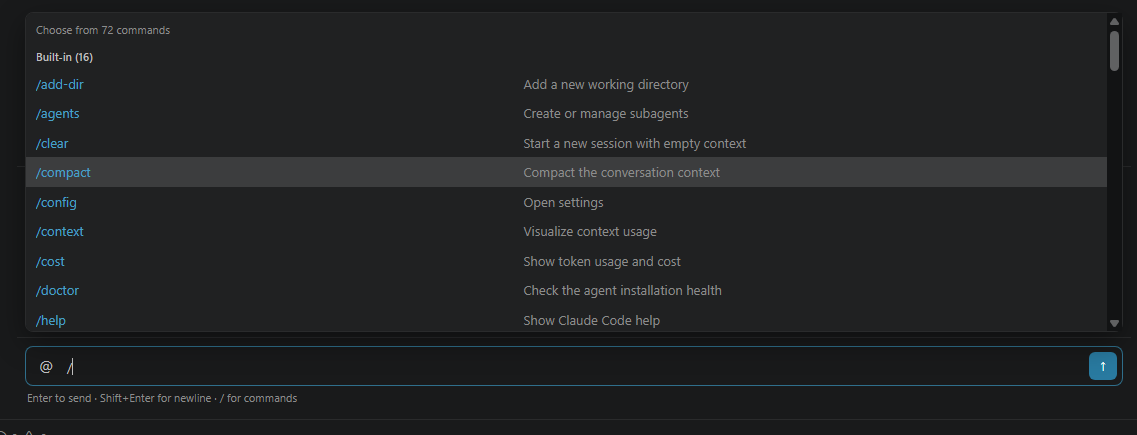
Type a message and press Enter, or type / to browse commands.
Using commands
Press / in the composer to open the command menu. Commands are grouped by where they came from:
| Group |
Source |
| Built-in |
Standard agent commands such as /help, /status, /context |
| Project commands |
.claude/commands/*.md in the sandbox workspace |
| Project skills |
.claude/skills/*/SKILL.md in the sandbox workspace |
| Plugin skills |
Skills installed inside the running sandbox |
Selecting a command inserts it into the composer so you can add arguments — it does not send immediately. Press the send button (or Enter with the menu closed) when you are ready.
/speckit-specify add a login page
Composer keys
| Key |
Action |
Enter |
Send |
Shift + Enter |
New line |
/ |
Open the command menu |
Up / Down |
Move through commands |
Tab / Right / Enter |
Insert the highlighted command |
Esc |
Close the menu |
While a command runs
The send button turns into a Stop button. The reply streams into the transcript as the agent writes it, and the Activity section shows the queue and local logs.
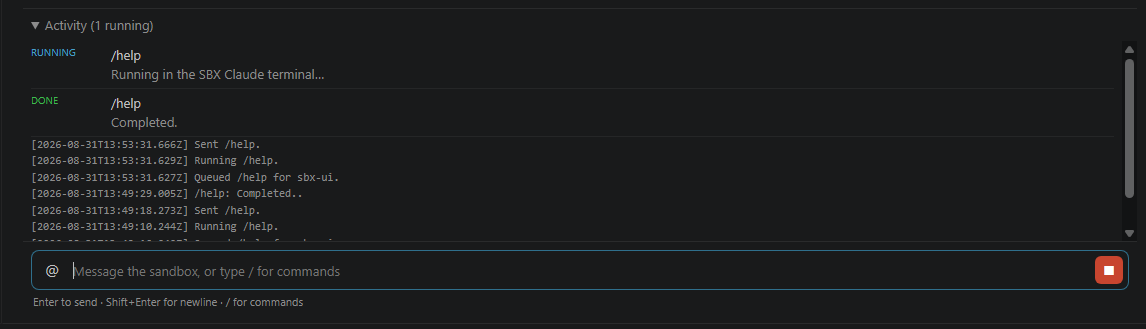
- Commands are serialized — one runs at a time, the rest queue up.
- Stop interrupts the current command and moves to the next.
- A command stays running until the agent actually goes idle, so long tasks are not marked finished early.
Conversations
| Button |
What it does |
| New chat |
Archives the current conversation and starts a fresh one |
| History |
Reopens a past session for this sandbox |
| Refresh |
Re-reads commands and logs (never starts a sandbox) |
| @ |
Attaches files from the workspace to your next message |
Conversations are kept per sandbox and persist across restarts.
Settings
| Setting |
Default |
Description |
dockerSandboxBrowser.sbxExecutable |
sbx |
Path or name of the sbx CLI |
dockerSandboxBrowser.preferredTerminalName |
SBX Claude |
Terminal name prefix |
dockerSandboxBrowser.runScriptPath |
(empty) |
Optional Node launcher (node <script> <sandbox>). Empty uses sbx run --name <sandbox> |
dockerSandboxBrowser.kitLogDirectory |
(empty) |
Optional workspace-relative folder of setup logs |
dockerSandboxBrowser.completionPollMs |
2000 |
How often to check whether a command finished |
dockerSandboxBrowser.completionIdleMs |
6000 |
Idle time before a command counts as finished |
dockerSandboxBrowser.completionMaxMs |
900000 |
Maximum wait before auto-completing |
How it works
Prompts and commands are sent to a dedicated SBX Claude: <sandbox> integrated terminal, started with sbx run --name <sandbox>. The agent CLI owns the real session and history, so nothing is duplicated or lost. The panel reads the agent's transcript inside the sandbox to display output and to detect when a command has finished.
Troubleshooting
The dropdown is empty
Run sbx ls in a terminal. If it works there but not in the panel, VS Code may not have inherited your PATH — set dockerSandboxBrowser.sbxExecutable to the full path of the sbx executable, then press Refresh.
A command looks stuck on running
The panel waits for the agent to stop writing before marking a command complete. Increase dockerSandboxBrowser.completionIdleMs if your tasks pause for long periods, or press Stop.
Commands from my project are missing
Project commands are read from the selected sandbox's workspace. Confirm .claude/commands exists there, then press Refresh.
License
MIT

