tshell for ai
tshell for ai is a lightweight SSH and SFTP extension for Visual Studio Code, with an AI assistant that works inside your own terminal session.
It helps you manage Linux servers, open interactive shell sessions, transfer files or folders, and hand a job on the machine to an assistant that runs it one command at a time while you watch. tshell only uses standard client-side SSH/SFTP. It does not install software, upload helper scripts, or modify the remote Linux server.
Key Features
- Chat with an AI assistant beside the terminal, and hand it a task in plain language to work through one command at a time, running its commands in your own terminal session.
- Let it write and edit files on the server, so it can write a script rather than dictate one, showing you exactly what will land before anything is written.
- Let it upload and download files between this machine and the server, with a live progress bar and a stop button.
- Read its replies as formatted text: headings, lists, tables, emphasis, and syntax-highlighted code blocks with a copy button.
- Run recognised read-only commands automatically and confirm everything else in a dialog over the panel, with destructive commands refused outright.
- Stop being asked about a directory you have already approved, or turn the asking off altogether, by switching mode from the toolbar. Destructive commands stay refused in every mode, and anything that ran without being put to you is marked as such in the thread.
- Let the assistant remember what it learns about a machine, in a plain markdown file per server plus one shared by all of them, which you can open and edit yourself.
- Write your own procedures for it to follow — one folder of markdown per skill — and let it pull in the relevant one by itself. Only the one-line descriptions are carried on every message, so a long runbook costs context on the tasks that need it and nothing on the ones that do not.
- Review what it remembers, which skills it may use, and which model answers, each in its own window in the chat panel: edit or delete a remembered line, switch a skill off, add or remove an endpoint.
- Reopen a past conversation from the history list, with its whole thread and its context intact, and start a fresh one at any time.
- Keep the assistant on a leash: a step limit, a per-command timeout, and a stop button.
- Watch how much conversation the next message is carrying, beside the model that will carry it.
- Configure as many OpenAI-compatible endpoints as you like, and switch between them and the language model VS Code already provides from the chat panel, without reopening anything.
- Decide whether the model thinks before it answers, and how hard, from the chat panel — and separately, whether you watch it think.
- Manage Linux servers in groups from the tshell activity bar.
- Add, edit, rename, and delete server groups.
- Add, edit, and delete server configurations.
- Store all groups, servers, language, and file-transfer options in
tshell.config.json.
- Support password login and private key login.
- Save passwords and private key passphrases as encrypted values in the config file.
- Run interactive terminal sessions with xterm.js.
- Support common terminal programs and ANSI output, including
vi, top, and clear.
- Select terminal text to copy immediately, and right-click the terminal to paste clipboard text.
- Duplicate and rename terminal sessions from the terminal tab context menu.
- Open a dual-pane SFTP transfer page beside the terminal, with local files on the left and remote files on the right.
- Upload and download files or folders by right-click menu or by dragging between panes, including multi-select transfers.
- Navigate entirely from the keyboard: arrow keys, Shift and Ctrl selection, Ctrl+A, Enter to open, Backspace to go up, Tab to switch panes.
- Jump to a file by typing its starting letters (type-ahead) in either pane.
- Sort either pane by name, size, or modified time, and resize the panes and log.
- Show overall folder progress alongside current-file progress, with size, percentage, speed, elapsed time, and estimated time remaining.
- Confirm before overwriting, with Overwrite, Skip, Overwrite all, Skip all, and Cancel all.
- Create folders, rename, and delete from either pane, with confirmation before deleting.
- Cancel an in-progress upload or download without dropping the SSH/SFTP connection.
- Browse local Windows drive roots such as
C: and D: from the local pane.
- View file size and last modified time in both panes.
- Keep detailed upload/download logs, including each file inside transferred folders, with a one-click Clear action.
- Preview remote files as text with line numbers, syntax highlighting, and UTF-8/GB2312 encoding selection.
- Preview CSV and DBF files as tables with row numbers.
- Load large text and DBF previews progressively while scrolling.
- Restore terminal output/status and transfer logs when VS Code reloads a webview after moving or copying it to another window.
- Support English and Chinese UI text.
Quick Start
- Open the tshell activity bar item in VS Code.
- Click the
+ button to add a group, or use the default group.
- Add a server under a group.
- Choose
Password or Private Key authentication.
- Double-click the server to open a terminal session.
- Click the green folder button in the top-right corner of the terminal to open the SFTP transfer page.
- Run
tshell: Configure AI once to point the assistant at a model — see Choosing a model — then press Shift+Alt+P in the terminal to open it.
Server Manager
The server manager is shown in the tshell activity bar view.
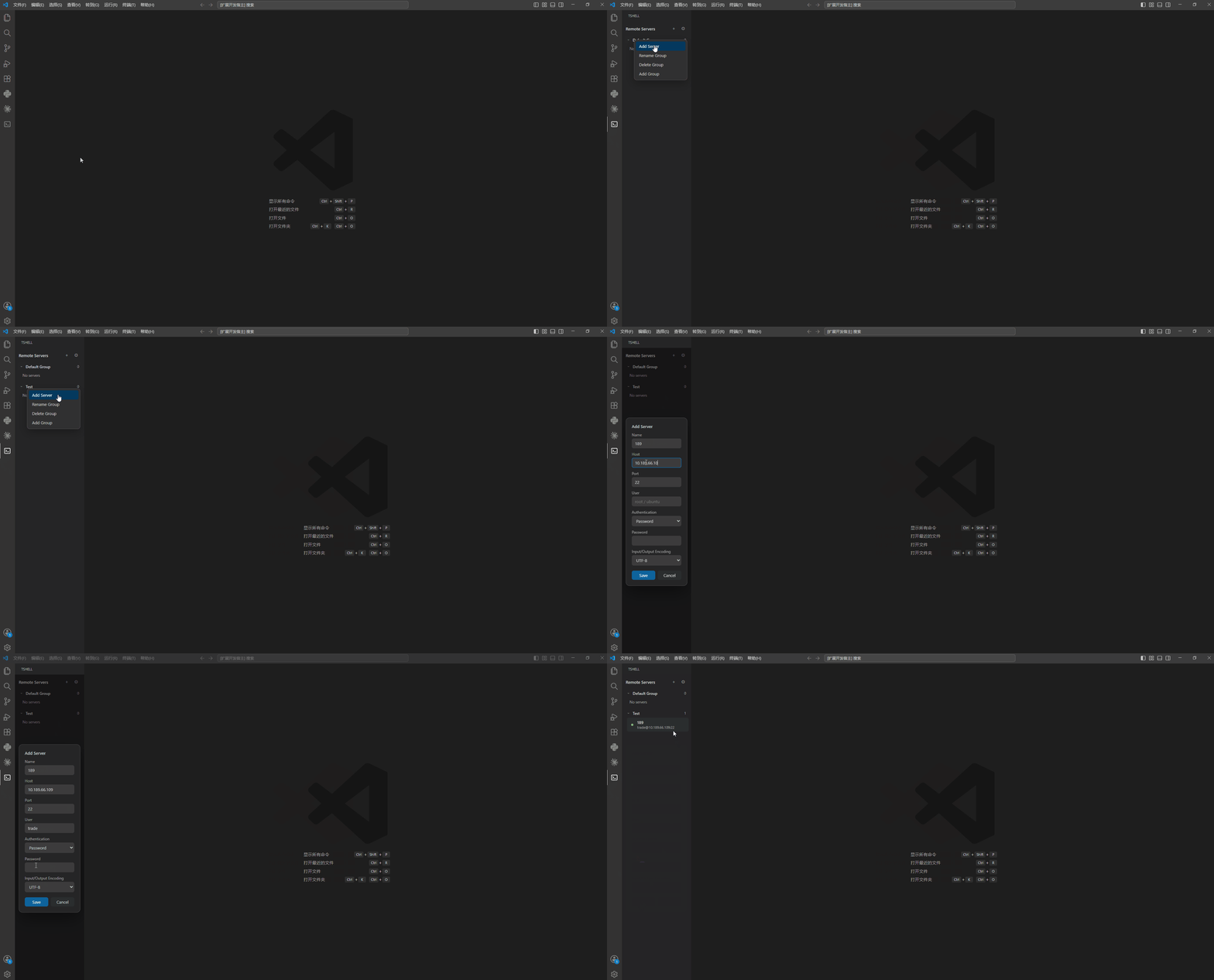
Available actions:
- Click
+ in the top toolbar to add a group.
- Click the settings button in the top toolbar to open
tshell.config.json.
- Right-click blank space to add a group or open the config file.
- Right-click a group to add a group, rename/delete the group, or add a server.
- Right-click a server to edit it, open what the assistant remembers about it, or delete it.
- Double-click a server to connect.
Authentication
tshell supports two SSH authentication modes.
Password Login
Choose Password in the server editor.
- If you enter a password, tshell saves it as
encryptedPassword.
- If you leave the password empty, tshell asks for it when connecting.
Private Key Login
Choose Private Key in the server editor.
Required:
privateKeyPath: local private key file path, for example C:\Users\you\.ssh\id_rsa or ~/.ssh/id_rsa.
Optional:
- Private key passphrase. If entered, tshell saves it as
encryptedPrivateKeyPassphrase.
Passwordless private keys are supported and do not require a login prompt.
Terminal Usage
Each connected server opens in an xterm-based terminal page.
Supported terminal behavior:
- Interactive shell input and output.
- ANSI colors and terminal control sequences.
clear clears the visible terminal.- Interactive commands such as
top and editors such as vi.
- Press Enter after a disconnect to try reconnecting.
- Select text to copy it immediately.
- Right-click the terminal content area to paste clipboard text at the cursor.
- Right-click the terminal tab header for AI Assistant, File Transfer, Copy Session, and Rename Session.
Two buttons float in the top-right corner of the terminal: the orange robot opens the AI assistant, and the green folder opens the file transfer page.
Duplicated sessions open in the same editor group as the current terminal. New session titles are numbered automatically, such as server, server(1), and server(2).
AI Assistant
Press Shift+Alt+P in a terminal page, click the robot button in the top-right corner, or run tshell: AI Assistant. A chat panel opens beside the terminal, one per terminal session, and it works on the machine that terminal is connected to.
The assistant needs a model before it can do anything: run tshell: Configure AI once, or read Choosing a model first. The toolbar under the message box shows which model is answering, and clicking it switches to another.
Talk to it the way you would to any chat assistant. Ask it a question and it answers; say hello and it says hello back. Nothing is sent to the server for an ordinary message.
Give it a job on the machine and it works the task one command at a time: it proposes a command, runs it, reads the result, and decides the next step, until it is finished and summarises what it did. When a decision is yours to make, it asks instead of guessing.
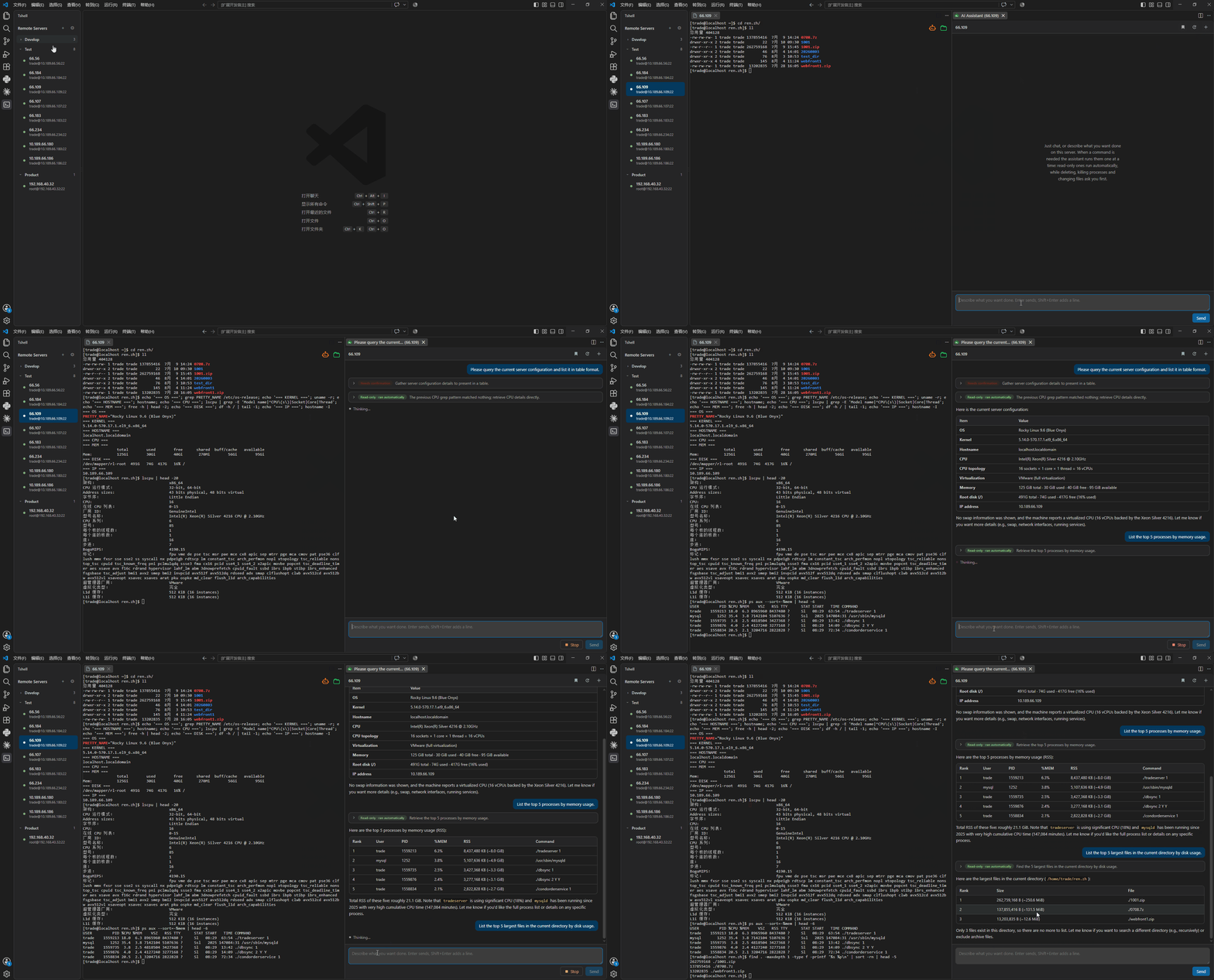
It has four ways of getting work done, each described below: it runs commands in your terminal, writes and edits files there, moves files between that machine and this one, and remembers what it learns for next time. Two more sections cover what it works from rather than what it does: its memory, which it writes itself, and its skills, which you write.
Where commands run
The assistant types into your terminal. No extra shell is opened for it: the command is written into the session you are looking at, exactly as if you had typed it yourself. That means:
- you watch every command run, and its output stays in your scrollback;
- it starts in whatever directory you are standing in, so relative paths mean the same thing to both of you;
cd, export and source it runs stay in effect for you afterwards, and yours apply to it;sudo prompts in the terminal as usual, and you type the password yourself -- the assistant never sees it;- you can interrupt anything with Ctrl+C, and keep typing while it works.
What the terminal shows is the command and its output, nothing else, and its commands land in that shell's history the same as yours.
The trade-off of a shared terminal: while a full-screen program such as vi or top owns the screen, anything typed would reach that program as keystrokes rather than run. The assistant refuses to run at all in that state and says so; leave the program and it carries on. It will not start such a program itself, and it cannot run anything that never returns, such as tail -f.
A POSIX shell is assumed -- bash, zsh, dash or sh. csh and fish are not supported.
What runs without asking
Only commands on a read-only allowlist run unattended — ls, cat, grep, ps, df, find, journalctl, systemctl status, docker ps, git log and similar. Everything else asks first, including commands the list has never seen.
A read-only command still needs confirmation when the line contains anything that changes its nature: a redirect, command substitution or backticks, sudo, an interpreter such as bash -c or python, xargs, tee, sed -i, or find -delete. Commands that never return, such as tail -f, also ask.
Destructive commands are refused outright and never offered as a confirmation: deleting the filesystem root, raw disk writes, formatting partitions, shutdowns, recursive chmod/chown on system paths, piping a download into a shell, fork bombs, bulk process kills, and truncating system configuration files. The refusal is reported back to the model so it can plan around it.
A command that needs confirmation opens a dialog over the panel showing the command, why the assistant wants to run it, and its answers. Choose with the arrow keys or the number keys, Enter confirms, and Esc skips the command. Skipping is reported to the model, which then tries another way.
All of the above describes the mode tshell starts in. Two others ask for less — see How much it asks — but nothing in the refused list above is reachable from any of them.
Writing and editing files
The assistant writes files itself, so asking it for a script gets you the script on the server rather than a block of text to copy out of the chat and paste in.
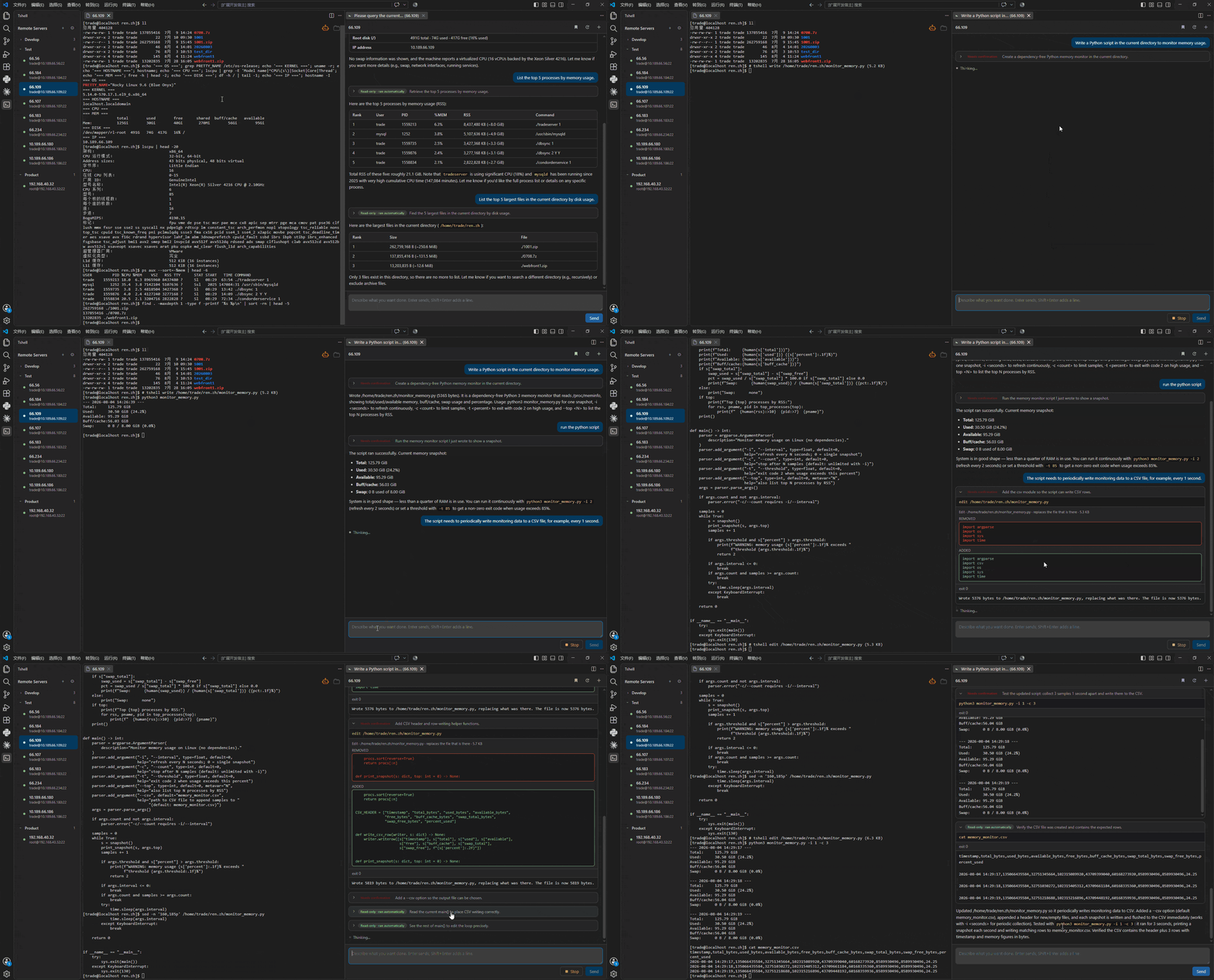
There are three kinds of change: write a file from scratch, append to the end of one, and edit one by replacing an exact piece of text with another. An edit is resolved against the file as it actually is at that moment, not against the model's memory of it — if the text it means to replace is not there, or is there more than once, the change does not happen and it is told why.
Every file change is confirmed, unless you have said otherwise for that directory or turned the asking off altogether — both covered in How much it asks. Out of the box nothing is exempt. The dialog shows the path, the size, and what will land: the content for a new file, or the before and after for an edit. What you are answering is the change as it will actually be made, not a description of one. The thread keeps the same card afterwards, so you can still read what was written once the dialog is gone.
The file is written through the terminal session like everything else — nothing is uploaded to help with it, and nothing is installed — and it is read back and checked once it lands. An interrupted write cannot leave a half-written file behind.
/dev, /proc, /sys and /boot are refused and never offered as a confirmation: a write there addresses hardware or the kernel rather than a file. Ordinary paths anywhere else are allowed, with you confirming.
Uploading and downloading
The assistant can move files between the server and this machine, the same way the file transfer page does — over SFTP, not through the terminal.
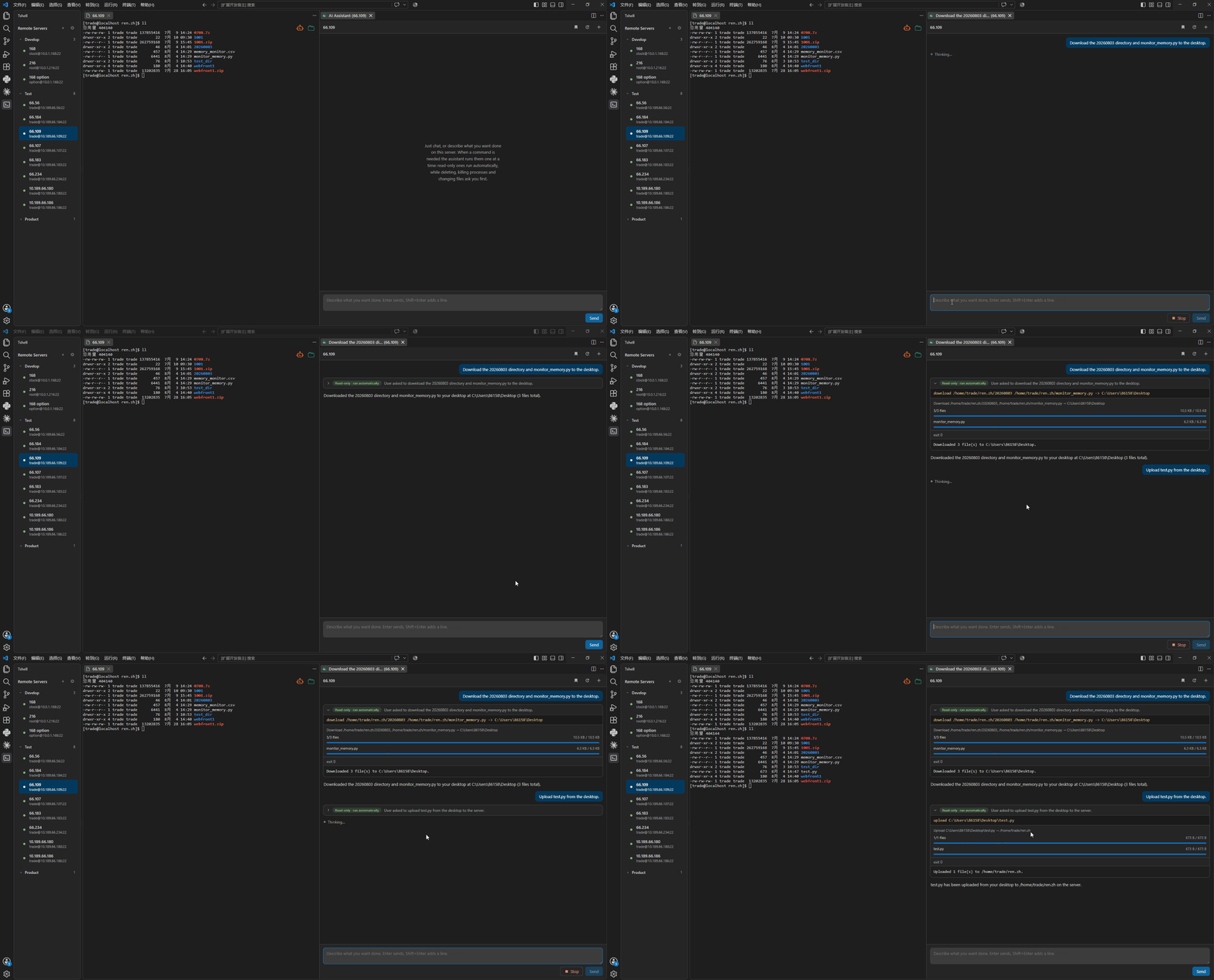
- Ask for something to come back — a log, a core dump, a config — and it downloads it. If it has nowhere to put it, a folder picker opens.
- Ask it to put a local file on the server and it uploads it, into the directory you are standing in unless you say otherwise. If it does not know which file you mean, a file picker opens.
- Your desktop, downloads folder, and the folder open in VS Code are named to it, so "put it on my desktop" resolves without a dialog. It is not otherwise given the run of your disk, and it does not guess local paths.
Transfers are the one step that is not confirmed, because there is a live progress bar in front of you and a Stop button that reaches it. What makes that safe is the rule underneath: anything already at the destination is skipped, never overwritten. Skipped files are named in the result, so the assistant knows they are not where it thinks and can say so rather than carry on.
The destination is checked the same way a file write is, so /dev, /proc, /sys and /boot are refused as targets.
Working through a long task
The four abilities are meant to be used together, and a real task usually does. Debugging a crashing program is the shape of it: read the crash, install what is missing, write the script that reproduces it, run it under gdb, read the backtrace, fix the line, run it again.
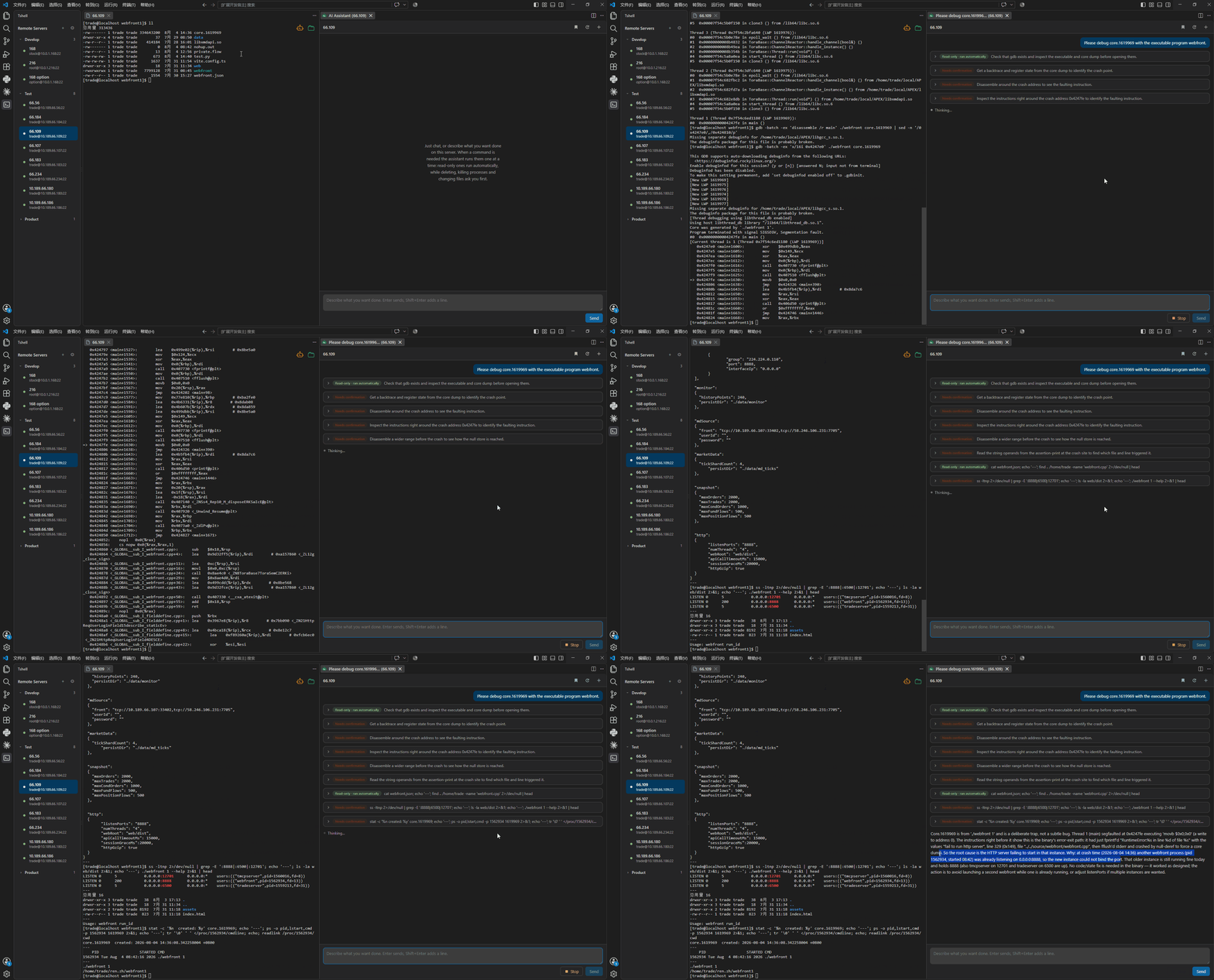
Each step is reported back to the model with its exit code and output, so it is deciding from what actually happened. You keep the terminal throughout — you can read the scrollback, type into it, and Ctrl+C anything, and the Stop button ends the task at any point.
How much it asks
Everything above describes Ask, the mode tshell starts in. A long task in one directory means answering the same question about the same place a dozen times, so there are two modes that ask for less. The button in the chat panel's toolbar shows which one is on and switches between them.
| Mode |
Commands |
File changes |
Refusals |
| Ask |
read-only run; the rest confirm |
all confirm |
refused |
| Trust |
read-only run; the rest confirm |
go through inside a trusted directory |
refused |
| Auto |
all run |
all go through |
refused |
Nothing reaches the refusals. Deleting the filesystem root, formatting a disk, shutting the machine down, a fork bomb, a write to /dev — all of them are blocked in Auto exactly as they are in Ask, and the model is told so it can plan around it. Confirmation is for what is risky; refusal is for what cannot be taken back, and turning the asking off says nothing about the second one. Choosing Auto asks you once more first, in the panel, and the toolbar button turns red and changes shape for as long as it is on.
A step that ran without being put to you is marked in the thread — auto or trusted directory — and stays open rather than folding away when it succeeds. The card is the only look you get at a change nobody showed you first, so it is left where you can read it.
The mode is one setting for every server and every panel, remembered between sessions. That is worth knowing before you leave it on Auto: a mode you set on a machine you were playing on is still the mode when you open a terminal onto one you were not.
Trusted directories
A trusted directory is one you have stopped being asked about. Answer a file dialog with Yes, and trust this directory from now on and the directory holding that file is added, subdirectories included. It is offered only when the path is absolute — where a relative path lands depends on where the shell is standing, and a directory nobody can name is not one you can trust.
Trusting only ever covers the three file actions: write, append and edit. rm is a command, so it goes through the allowlist and the confirmation dialog like every other command, in every mode short of Auto. Trusting /srv/app does not let anything delete it.
The list is per server, because a path is not a place: /home/you/work on the box you develop on and the same string on a production machine are two different directories, and trusting one must never quietly trust the other. In Ask mode the list does nothing at all — it is still kept, so you can build it up and switch to Trust when you want it to start counting.
The list button beside the mode button opens this server's directories, one per row, each with a delete button, and a pencil that puts the file in your editor for anything the list cannot do — reordering, or trusting something by typing it rather than by writing to it once. A directory is also removable from the row that appears in the thread the moment you trust it. tshell: Trusted Directories opens the same file from the palette.
They live beside the config file as trusted.json, grouped by server id. Deleting a server leaves its entry alone.
One limit worth stating: the check is textual and offline, the same way the refusals are, because the directory is on another machine. A symlink inside a trusted directory pointing outside it is not seen. Writing through one does not ask.
Memory
The assistant keeps notes about your setup, so what it worked out last week is not worked out again today. There are two scopes:
- This server — how a service is started and what its unit is called, where the logs really live, which tools are missing. One file per server.
- Global — what is true of every machine you work on, which is usually one of your own preferences. One file, shared.
Both are read at the start of every message and put in front of the model, the per-server one labelled with the machine it belongs to so a fact about one box never reads as a rule about all of them.
Two writers, one file. You write into it, and so does the assistant. When it learns something durable it records a line and carries on without stopping to ask; the line appears in the thread with an Undo next to it, and an Open that puts the file in your editor. Nothing marks which lines came from where, so you can rewrite anything it wrote and it will read your version next time. Saving is all that is needed — there is no sync step.
It records facts, not events: how the machine is put together, what you have told it to do differently, what it tried that does not work here. Not command output, not anything that changes on its own, and never a password or a key. When something it remembered turns out to be wrong, it removes that line and writes the corrected one.
Each scope has a character budget — 2000 global, 4000 per server, both configurable. When a scope is full nothing is written and the assistant is told so, which prompts it to drop a stale line or merge two into one before trying again. Nothing is ever evicted behind your back, so a rule you wrote by hand stays until you remove it.
The bookmark button in the chat panel opens the memory window, which lists both scopes line by line. Edit a line in place or delete it there; each scope also has an Open that puts the file in your editor, which is where you go to reorder lines, add headings, or rewrite a section. A line you edit is matched against the file as it stands, so if you have changed the file in your editor since the window was drawn, nothing is written and the list is redrawn from what is actually there.
You can also reach the files by right-clicking a server in the sidebar, or with tshell: Memory from the command palette. They live beside the config file, as memory/global.md and memory/<server id>.md. Deleting a server leaves its memory alone; delete the file if you want it gone.
Set settings.ai.memory.enabled to false to switch the whole thing off: nothing is injected, and the assistant is not offered the actions at all.
Skills
Memory is what the assistant works out for itself, one line at a time. A skill is the other kind of knowledge: a procedure you wrote — how your team restarts this service, what to check before a release, which five things cause a 502 here — long enough to have steps and branches and example commands in it.
Memory could not hold one of these, and not because of its size limit. Memory is injected whole, on every message, so a six-page runbook would be paid for again every time you said hello. A skill is advertised in one line and read only when it is wanted.
Writing one. A skill is a folder under skills/, holding a SKILL.md that starts with two fields:
---
name: nginx 502
description: What to check when nginx returns 502 here: upstream first, then error_log, then the socket
---

## 1. Is it nginx or the upstream?
...
description is the only part the assistant sees until it loads the skill, so it is the whole of what it decides by. Write it as what the skill is for, not what it is called. A skill with no description is never offered — it appears in the skills window, greyed, saying so, rather than silently doing nothing.
The folder may hold anything else you want: longer reference notes, a script. The assistant reads them the same way, by name, when SKILL.md tells it to.
How it gets used. Every request carries one line per skill and nothing more. When one looks relevant the assistant loads it as a step of its own, the text goes into the conversation, and it carries on with the task from there. You see a row in the thread saying which skill it read, with an Open beside it, so an answer that suddenly follows your house rules has a visible reason.
A skill is guidance, not authority. It cannot run anything, and it cannot change what is confirmed or refused: a command out of a skill goes through the same allowlist, the same dialog and the same refusals as one the assistant thought of itself. A script inside a skill is text — the assistant reads it and writes it to the server with write, which means you see the whole file and confirm it, exactly as with any other file it writes.
Managing them. The wrench button in the chat panel opens the skills window: every skill with its description, an Open that puts SKILL.md in your editor, and a switch that takes one out of circulation without deleting it. A skill switched off is not offered and cannot be loaded, even if the assistant remembers its name from an earlier conversation. The button at the bottom opens the skills folder, which is where you go to create one.
They live beside the config file, as skills/<name>/SKILL.md. The folder name is the name the assistant uses.
Skills are re-read at the start of every message, so writing one, editing one, or switching one off takes effect on your next message without reopening anything.
Set settings.ai.skills.enabled to false to switch the whole thing off. With no skills written, nothing about them reaches the model in the first place — not the list, not the action, not a word of instruction.
Conversations
Each conversation is kept, so closing the panel or reloading VS Code does not lose one. The history button in the panel header lists them, most recent first, with the server they belong to; opening one puts the whole thread back on screen — the turns, the command cards, the output, the file changes — and the next message carries on where it left off rather than starting over. The + button starts a fresh one, and a conversation you no longer want can be deleted from the list.
The tab is named after the conversation and the server, so several open at once stay apart.
Conversations are stored beside the config file, one JSON file each. They hold real output from real machines, so they are somewhere you can find, read, and delete.
Recording what the model said
Two things about a step are impossible to see from the thread. A reply that would
not parse is shown as a retry, with the text that failed nowhere; and an answer
that appears all at once looks identical whether the endpoint streamed it or
handed it over in one piece.
The toolbar answers the second one on its own. Beside the token counts, the last
request says how it arrived — Streamed · 42 chunks · first token 0.8s, or a
warning that it was not streamed. One or two chunks means the answer came whole,
which is a gateway that ignored stream or a proxy buffering the body, and not
a model that was merely quick.
For the first, and for anything else that needs the actual bytes, set
settings.ai.log.enabled to true. Every panel opened after that writes a
transcript of three kinds of record, each starting with its time and type:
time:20260709-12:00:00.212 type:request endpoint:https://api.deepseek.com/v1/chat/completions model:deepseek-chat temperature:0 stream:true reasoning_effort:max content:
[system]
You are a general-purpose assistant who also happens to have a shell ...

[user]
把 nginx 的错误日志最后 50 行看一下

time:20260709-12:00:04.881 type:reasoning content:
用户要看 nginx 错误日志。先确认路径 ...

time:20260709-12:00:06.402 type:response content:
{"action":"run","command":"tail -n 50 /var/log/nginx/error.log","why":"读取最近的错误"}
A request carries the body as it goes out — every parameter except the
messages, which is what makes a rejected request diagnosable — and then only
what was added to the conversation this time: the system prompt when it has
changed, and the turns since the last request. The model's own replies are not
repeated there; they are already in the file as response. A twenty-step task
otherwise records the same command output twenty times.
response and reasoning are each written once, whole, when the reply is
complete. Nothing is recorded per streamed chunk. tshell: Open AI Logs opens
the newest transcript, or offers to switch recording on when there is none.
The files sit beside the config file in logs/, oldest pruned past
settings.ai.log.keep. They are not masked. Masking is for what leaves this
machine, and this never does — and editing the bytes would ruin the one thing
the file is for, since a parse failure usually turns on the exact characters a
mask would replace. So it holds command output, memory and anything else the
model was sent, in the clear. Turn it on to look into something, read it, delete
it.
Thinking
Models that reason before they answer are steadier on a long task and slower and dearer on a short one, and until now tshell took whatever the endpoint did by default. The thinking button in the chat panel's toolbar opens a window of three settings, each answered by picking a word: think before answering (on or off), how hard (low, high or max), and show the thinking in the thread (yes or no). The button is lit while the model is thinking and grey while it is not.
The first governs the other two, which is why they share a control: turn thinking off and both go grey, because there is nothing to set a strength for and nothing to show. Their values are kept, so turning it back on returns to what you chose. Showing the thinking decides only whether what came back is drawn, folded, where you can open it — it never decides whether the model thinks. That last one is the setting that used to be the whole button.
The first two reach an OpenAI-compatible endpoint as thinking and reasoning_effort, and only where they change something: thinking on at high is what an endpoint does when it is told nothing, so nothing is sent for it. An endpoint that rejects one of these fields is not a failure — the field is dropped, the request goes again without it, and a line in the thread says which setting did not reach the model. That endpoint is not asked again for the rest of the session. VS Code's own model takes no such parameters at all, and the window says so.
Like the confirmation mode, this is one setting for every server and every panel, remembered between sessions.
Limits
The Stop button ends a task at any point, and needs no setting up. Two more limits are configurable:
maxSteps — how many commands one task may run before it hands control back to you. The default is 0, which is no limit: a task runs until it is finished, refused, or stopped. Set it to a number and the task pauses there; send another message to continue.commandTimeoutMs — how long a single command may run. The default is 30 seconds. An overrunning command is interrupted with Ctrl+C, which leaves the session and everything in it alive, and the model is told what happened.
The toolbar carries the size of the conversation, next to the model that will carry it: context 32.1k chars. It counts what the next message actually sends — the turns, the command output, what a skill put in — measured the same way contextBudget measures it, so the two numbers are always about the same thing. Characters rather than tokens, because characters are known and tokens would be a guess at someone else's tokeniser. It climbs while a task runs and stops climbing once the oldest command output starts being folded away.
Choosing a model
The assistant does not come with a model. You give it endpoints of your own, or let it use the one VS Code already has, and you can keep both and switch between them.
Adding an endpoint. Run tshell: Configure AI from the command palette, or click the model name in the chat panel's toolbar and choose Add a model. Both are the same three questions, and Esc at any of them cancels without saving:
- Endpoint — for example
https://api.deepseek.com/v1. Anything with an OpenAI-compatible /chat/completions route works: the OpenAI API itself, DeepSeek, a company gateway, or a local server such as Ollama at http://localhost:11434/v1. If the URL does not already end in /chat/completions, tshell appends it.
- Model name — spelled the way the service spells it, for example
deepseek-chat.
- API key — the input is masked, and the key is saved encrypted as
encryptedApiKey. Leave it empty for an endpoint that needs none, such as a local model.
The new model is added to the list and becomes the one in use. Adding an endpoint and model name you already have updates that entry rather than making a second one, which is how you replace a key. Saving turns the assistant on and takes effect on your next message.
Switching between them. The chat panel's toolbar shows which model is answering, next to the send button. Click it for the whole list: every endpoint you have configured, then VS Code model, then Add a model. Picking one takes effect on your next message and applies everywhere — every open panel follows, and the choice is remembered.
Each configured endpoint has a delete button on its row. Deleting the one in use moves to the first model left in the list. VS Code model has no delete button and is always offered, which is what keeps the list from ever being empty.
The model VS Code already has. Pick VS Code model from that list. It uses VS Code's own language model API, which in practice means GitHub Copilot: it has to be installed and signed in, and VS Code asks its own permission the first time. No key is stored by tshell in this case, and nothing falls back to it silently — whichever row you picked is the one that answers.
Editing by hand. settings.ai.models and settings.ai.activeModelId are plain text in tshell.config.json. Only the keys are encrypted, so use the command for those rather than writing one in.
Picking a model that works. The assistant steers itself by exchanging a short structured instruction with the model at every step, so it needs one that follows instructions closely and answers in the format it was asked for. Mid-sized and larger chat models, including reasoning models, handle this comfortably; very small local models often cannot keep to it, and the panel then reports that it could not understand the reply. A generous context window helps, because command output is fed back at every step.
If you are not sure what you ended up with, ask the assistant which model it is running on — it is told its own endpoint and model name and will tell you.
Setting settings.ai.enabled to false turns the whole thing off, and takes everything the assistant is reached through with it: the robot button in the terminal's corner, Shift+Alt+P, the tab menu entry, and the tshell: AI Assistant and tshell: Memory palette commands all disappear. tshell: Configure AI stays, because it is how you turn it back on.
What is sent
The assistant works by reading command output, so the output of every command it runs is sent to the model you configured. The first time you use it, tshell says so and waits for your consent. Each request includes:
- the server's system facts: distribution, kernel, shell, architecture, and login user;
- both memory files, unless memory is switched off;
- the recent commands of this session;
- the recent terminal output, up to
outputLines lines, unless sendTerminalOutput is false;
- the output and exit code of each command the assistant has run for this task;
- the current content of a file it is editing, which is what an edit is resolved against;
- the result of a transfer: how many files moved, and the names of any that were skipped.
Passwords, tokens, API keys, bearer headers, and private key blocks are masked before anything is sent, and long output is truncated in the middle. Masking is best-effort pattern matching, so avoid pointing the assistant at machines whose command output is highly sensitive.
Your own API key is not part of any of this. It is stored encrypted in the config file, in VS Code's global storage, and is sent to the endpoint you configured as its Authorization header and nowhere else. Nothing goes anywhere unless you have configured a model: with no endpoint and no VS Code language model available, the assistant does not run at all.
What is sent as "the recent commands of this session" is read off what the terminal displayed, not off your keystrokes, so anything the shell never echoes — a sudo password, for instance — is never collected in the first place.
The system facts are collected by a single silent command in that same terminal, the first time the assistant is opened for it -- never when the terminal merely connects. A session you never talk to the assistant in costs the machine nothing at all. Nothing is drawn for the command and no second connection is opened; the one trace it leaves is a line in the shell's history, and it is asked again after a reconnect.
File Transfer
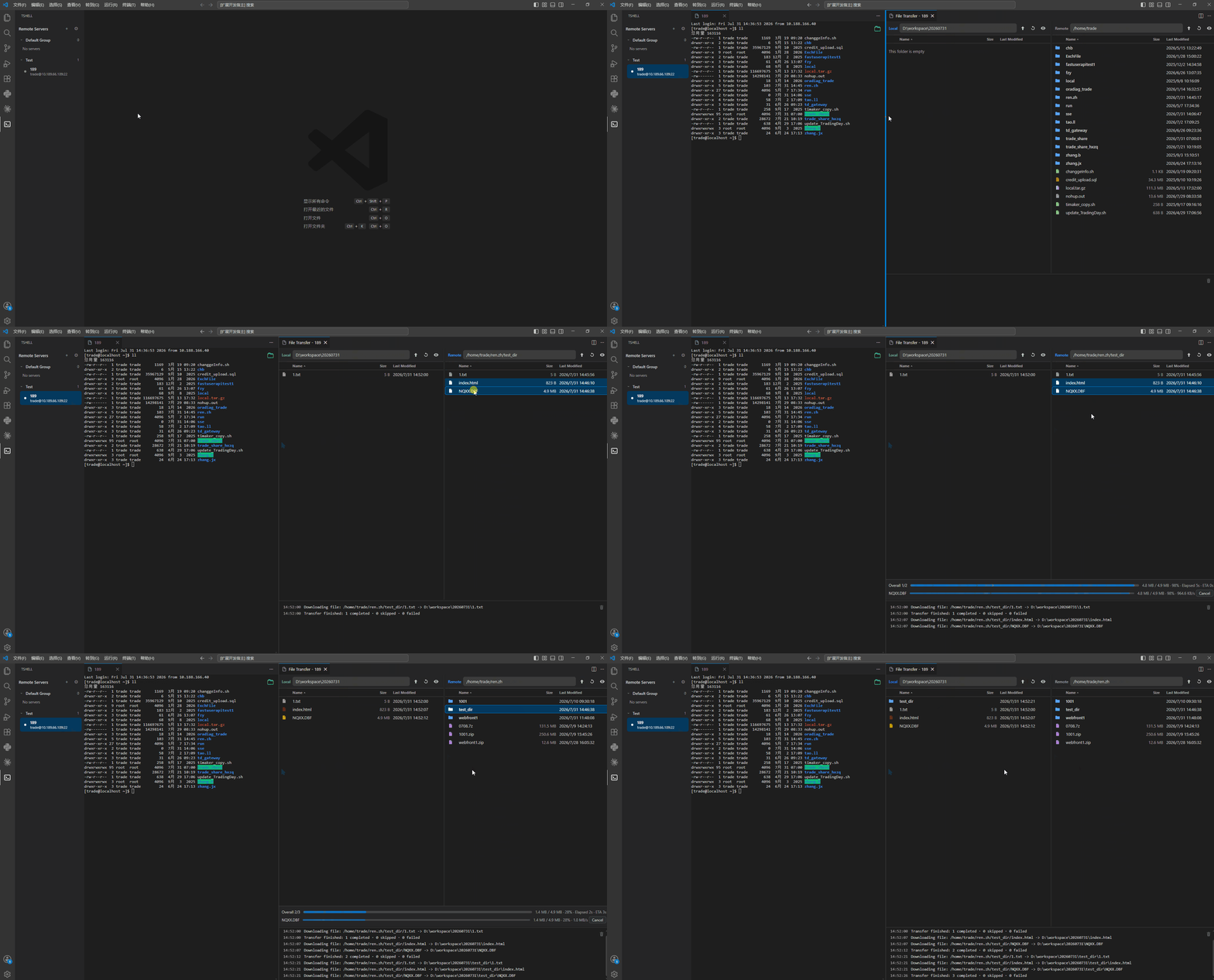
Click the green folder button in the top-right corner of a terminal page, right-click the terminal tab and choose File Transfer, or run tshell: File Transfer. The transfer page opens beside the terminal.
The page is a dual-pane file manager: local files on the left, remote files on the right, and the operation log below. Transfers move between the two open folders, so there is no separate upload picker or download destination dialog.
Browsing
- Each pane has its own address bar, parent-folder button, refresh button, and show-hidden-files toggle.
- Type a path and press Enter to jump to it; press Esc to restore the current path.
- Double-click a folder to enter it, or select it and press Enter.
- Double-click a file to preview it, or select it and press Enter.
- Sort by name, size, or modified time by clicking a column header. Folders always sort above files.
- Drag a column edge to resize it. Each pane remembers its own column widths.
- Drag the divider between the panes to resize them, and the divider above the log to resize the log.
- Clear the operation log from the button in its top-right corner.
- The left pane starts in your workspace folder the first time and reopens where you left off afterwards.
- Going up from
C:\ shows the Windows drive list.
Keyboard
| Key |
Action |
| Arrow keys |
Move the selection |
| Shift + arrows / click |
Extend the selection |
| Ctrl + click, Ctrl + Space |
Toggle one entry |
| Ctrl + A |
Select everything in the pane |
| Home / End / PageUp / PageDown |
Jump within the list |
| Enter |
Open a folder or preview a file |
| Backspace |
Go up one level |
| F5 |
Refresh the pane |
| Tab |
Switch panes |
| Esc |
Move focus to the address bar |
| Letters |
Type-ahead: jump to the first match, repeat to cycle |
Transferring
- Right-click the left pane for
Upload, the right pane for Download. Both menus also offer New Folder, Rename, Delete, Refresh, and Copy path.
- Drag a selection from one pane to the other. Dropping onto a folder row transfers into that folder.
- Folder transfers show two progress bars: overall progress across every file, and the current file. A single file shows one bar.
- Progress reports file name, size, percentage, speed, elapsed time, and estimated time remaining.
- Cancel from the progress panel. Cancelling stops the transfer without dropping the SSH/SFTP connection.
- Reconnect by pressing Enter in the remote address bar or clicking Refresh after a disconnect.
- Review detailed operation logs, clear them from the button in the log's top-right corner, and right-click the log to copy text.
Managing files
Both panes support the same operations from the right-click menu, on local and remote files alike:
New Folder creates a folder in the pane's current directory.Rename is offered when exactly one entry is selected.Delete removes the selected files and folders, and always asks for confirmation first. Deleting a folder removes everything inside it, and cannot be undone.
Rename and delete are unavailable while a transfer is running.
Overwrite prompts
When a name already exists at the destination, tshell asks before replacing it. Conflicts are detected before the transfer starts, so dialogs never interrupt a running transfer.
Overwrite / Skip apply to that one file or folder; the rest of the queue continues.Overwrite all / Skip all apply to every remaining conflict in the same transfer.Cancel all abandons the whole transfer.
A folder whose name already exists at the destination is merged into, not replaced, so only the files inside it are compared. If one side is a file and the other is a folder with the same name, overwriting removes the old one first.
If a single file fails, the transfer keeps going and reports a completed / skipped / failed summary at the end.
Opening file transfer multiple times for the same server creates numbered tabs, for example:
File Transfer - devFile Transfer - dev(1)File Transfer - dev(2)
File Preview
Double-click a file in either pane of the file transfer page to preview it, or select it and press Enter. Local and remote files use the same viewer.
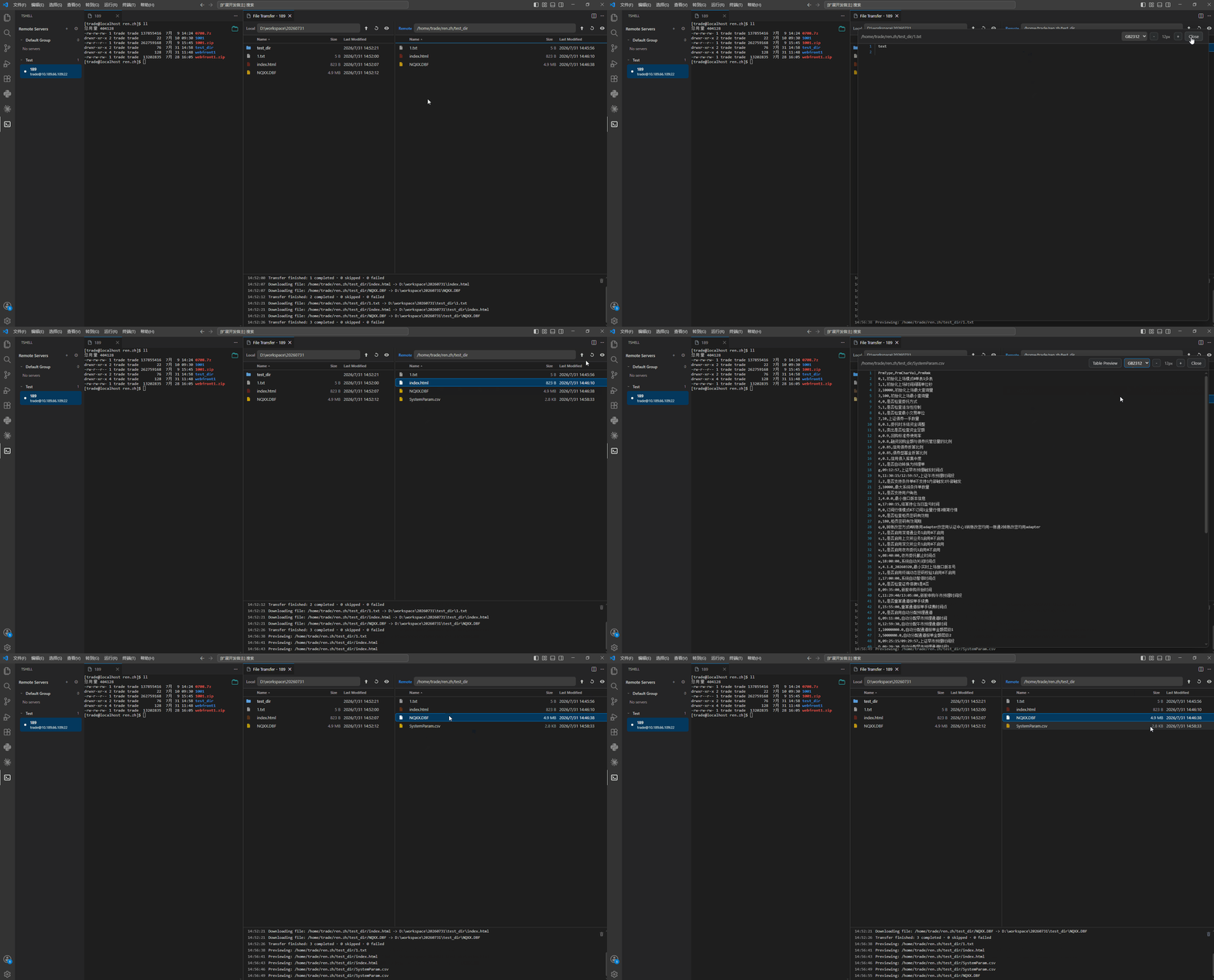
Preview features:
- All files can be opened for preview.
- Text files are shown as text.
- Binary files show an unsupported preview message.
- Each preview starts from the top.
- UTF-8 and GB2312 preview encodings are selectable in the preview toolbar.
- Preview font size can be adjusted.
- Large text files load progressively while scrolling.
- Common code/config formats have syntax highlighting.
- CSV files support text preview and table preview.
- DBF files support progressive table preview.
- CSV and DBF table previews include row numbers.
Common highlighted extensions include:
.c, .cpp, .h, .hpp, .java, .js, .ts, .json, .xml, .html, .css, .sh, .py, .txt, .ini, .conf, .cfg, .properties, .env, .csv, and .dbf.
Config File
Open the config file from:
- the settings button in the tshell sidebar, or
- the command palette command
tshell: Open Config File.
The file is named tshell.config.json and is stored in VS Code's extension global storage directory.
Example:
{
  "settings": {
    "language": "en-US",
    "showHiddenFiles": false,
    "ai": {
      "enabled": true,
      "models": [
        {
          "id": "m-deepseek",
          "baseUrl": "https://api.deepseek.com/v1",
          "model": "deepseek-chat",
          "encryptedApiKey": "enc:v1:..."
        },
        {
          "id": "m-local",
          "baseUrl": "http://localhost:11434/v1",
          "model": "qwen2.5-coder"
        }
      ],
      "activeModelId": "m-deepseek",
      "sendTerminalOutput": true,
      "outputLines": 40,
      "requestTimeoutMs": 120000,
      "thinking": {
        "enabled": true,
        "effort": "high",
        "show": false
      },
      "agent": {
        "mode": "ask",
        "maxSteps": 0,
        "commandTimeoutMs": 30000,
        "readOnlyCommands": [],
        "outputBudget": 6000,
        "contextBudget": 48000
      },
      "memory": {
        "enabled": true,
        "globalBudget": 2000,
        "serverBudget": 4000
      },
      "log": {
        "enabled": false,
        "keep": 20
      }
    }
  },
  "groups": [
    {
      "id": "default",
      "name": "Default Group",
      "servers": [
        {
          "id": "server-password",
          "name": "dev-password",
          "host": "10.0.1.168",
          "port": 22,
          "username": "stock",
          "authType": "password",
          "encoding": "gb18030",
          "encryptedPassword": "enc:v1:..."
        },
        {
          "id": "server-key",
          "name": "dev-key",
          "host": "10.0.1.169",
          "port": 22,
          "username": "ubuntu",
          "authType": "privateKey",
          "privateKeyPath": "C:\\Users\\you\\.ssh\\id_rsa",
          "encryptedPrivateKeyPassphrase": "enc:v1:...",
          "encoding": "utf-8"
        }
      ]
    }
  ]
}
Config Options
| Path |
Type |
Required |
Supported values |
Description |
settings.language |
string |
No |
en-US, zh-CN |
UI language. Defaults to en-US. |
settings.showHiddenFiles |
boolean |
No |
true, false |
Starting state of the show-hidden-files toggle in both transfer panes. Each pane can be toggled independently at runtime. Defaults to false. |
settings.ai.enabled |
boolean |
No |
true, false |
Whether the AI assistant works. Defaults to true. |
settings.ai.models |
array |
No |
Model objects |
The OpenAI-compatible endpoints you have configured. Empty by default. VS Code's own model is not one of them and is always offered. |
settings.ai.models[].id |
string |
Yes |
Unique string |
Stable model ID, generated when the model is added. What activeModelId points at. |
settings.ai.models[].baseUrl |
string |
Yes |
OpenAI-compatible endpoint |
For example https://api.deepseek.com/v1. /chat/completions is appended when missing. |
settings.ai.models[].model |
string |
Yes |
Model name |
For example deepseek-chat. |
settings.ai.models[].encryptedApiKey |
string |
No |
enc:v1:... |
Encrypted API key generated by tshell: Configure AI. Omit it for an endpoint that needs none. |
settings.ai.activeModelId |
string |
No |
A model ID, or vscodeLm |
Which model answers. vscodeLm selects VS Code's own. An ID that names nothing falls back to the first configured model, and to vscodeLm when there is none. |
settings.ai.sendTerminalOutput |
boolean |
No |
true, false |
Whether recent terminal output may be sent with the request. Defaults to true. |
settings.ai.outputLines |
number |
No |
1-200 |
How many recent output lines to send. Defaults to 40. |
settings.ai.requestTimeoutMs |
number |
No |
10000-600000 |
How long one request may go silent before it is abandoned. Defaults to 120000. |
settings.ai.thinking.enabled |
boolean |
No |
true, false |
Whether the model is asked to think before it answers. Sent to the endpoint as thinking when off, so it decides what a step costs rather than what is drawn. Defaults to true, which is what endpoints do by themselves. |
settings.ai.thinking.effort |
string |
No |
low, high, max |
How hard, sent as reasoning_effort. Only meaningful while thinking is on, and only sent when it is not high. Some models treat low as high. Defaults to high. |
settings.ai.thinking.show |
boolean |
No |
true, false |
Whether the thinking is drawn, folded, in the thread. Changes nothing about the request. Defaults to false. Replaces the old showReasoning, which is read once and migrated. |
settings.ai.agent.mode |
string |
No |
ask, trust, auto |
How much is confirmed before it happens. ask confirms everything but read-only commands, trust also lets file changes inside a trusted directory through, auto confirms nothing. Destructive commands are refused in all three. One setting for every server; the chat panel's toolbar is the usual way to change it. Anything unrecognised reads as ask. Defaults to ask. |
settings.ai.agent.maxSteps |
number |
No |
0-1000 |
Commands one task may run before handing control back to you. Defaults to 0, which is no limit. |
settings.ai.agent.commandTimeoutMs |
number |
No |
1000-600000 |
How long a single command may run before it is interrupted. Defaults to 30000. |
settings.ai.agent.readOnlyCommands |
string[] |
No |
Command names |
Extra commands treated as read-only, for in-house query tools. They still cannot bypass redirects or the destructive check. |
settings.ai.agent.outputBudget |
number |
No |
500-60000 |
Characters of a command's output kept before the middle is elided. Defaults to 6000. |
settings.ai.agent.contextBudget |
number |
No |
0-400000 |
Characters of the conversation carried into one request before the oldest command output is folded away. 0 carries everything. Defaults to 48000. |
settings.ai.memory.enabled |
boolean |
No |
true, false |
Whether the assistant reads and writes memory at all. Defaults to true. |
settings.ai.memory.globalBudget |
number |
No |
0-20000 |
Characters memory/global.md may reach. 0 makes it read-only. Defaults to 2000. |
settings.ai.memory.serverBudget |
number |
No |
0-20000 |
Characters a server's memory file may reach. 0 makes it read-only. Defaults to 4000. |
settings.ai.log.enabled |
boolean |
No |
true, false |
Whether the exchange with the model is written to a file for diagnosis. Not masked — it holds command output and memory verbatim. Defaults to false. |
settings.ai.log.keep |
number |
No |
1-500 |
How many log files to keep. The oldest go as new ones are opened. Defaults to 20. |
groups |
array |
Yes |
Group objects |
Server groups shown in the tshell tree view. |
groups[].id |
string |
Yes |
Unique string |
Stable group ID. |
groups[].name |
string |
Yes |
Any display name |
Group display name. |
groups[].servers |
array |
Yes |
Server objects |
Servers inside the group. |
groups[].servers[].id |
string |
Yes |
Unique string |
Stable server ID. |
groups[].servers[].name |
string |
No |
Any display name |
Server display name. If empty, the host is used. |
groups[].servers[].host |
string |
Yes |
Hostname or IP address |
Linux SSH server host. |
groups[].servers[].port |
number |
No |
1-65535 |
SSH port. Defaults to 22. |
groups[].servers[].username |
string |
Yes |
Linux username |
SSH login user. |
groups[].servers[].authType |
string |
No |
password, privateKey |
SSH authentication type. Defaults to password, or privateKey when privateKeyPath is set. |
groups[].servers[].encoding |
string |
No |
utf-8, gb18030 |
Terminal input/output encoding. Use gb18030 for GB2312/GBK-style Chinese output. Defaults to utf-8. |
groups[].servers[].encryptedPassword |
string |
No |
enc:v1:... |
Encrypted password generated by tshell. Omit it to prompt for a password when connecting. |
groups[].servers[].privateKeyPath |
string |
Required for private key login |
Local file path |
Local private key path. ~ is supported. |
groups[].servers[].encryptedPrivateKeyPassphrase |
string |
No |
enc:v1:... |
Optional encrypted private key passphrase generated by tshell. |
Notes
- tshell never writes plaintext passwords, private key passphrases, or API keys to the config file.
- Use the server editor UI to generate encrypted password/passphrase values, and
tshell: Configure AI for the API key.
- The AI assistant runs commands on the server only when the task needs one. Read-only commands run automatically; everything else waits for your confirmation, and destructive commands are refused.
- Every file the assistant writes or edits is confirmed by you first, and
/dev, /proc, /sys and /boot are refused as destinations.
- Those last two describe the default mode. Trust stops asking about file changes inside directories you have approved, and Auto stops asking about anything — but the destructive commands and the refused paths are refused in every mode, and a step that ran unasked says so in the thread.
- A trusted directory covers file changes only.
rm is a command and is confirmed like any other, whatever is trusted.
- Trusted directories are matched textually, so a symlink inside one that points outside it is not noticed.
- A transfer the assistant starts never overwrites anything: a name already at the destination is skipped and reported.
- The output of every command the assistant runs is sent to the model you configured. Secrets are masked on a best-effort basis, not guaranteed.
- Memory files are sent to the model with every message, and are masked the same way. Do not keep credentials in them.
- Conversations are stored unencrypted beside the config file, in VS Code's global storage, and hold the command output they showed. Delete one from the history list to remove its file.
- The AI log is off by default. Switched on, it records the exchange with the model unmasked, including command output and memory, in
logs/ beside the config file. Delete the files when you are done with them.
- Do not manually write plaintext secrets into
tshell.config.json.
- File preview encoding is selected in the preview toolbar and is not stored in the config file.
- The AI assistant shares your terminal session, so its commands appear in that shell's history and its
cd and export outlive the task.
- tshell only uses client-side SSH/SFTP and does not modify the Linux server.
Commands
All of these are available from the command palette:
| Command |
What it does |
tshell: Open |
Focuses the tshell view in the activity bar. |
tshell: Open Config File |
Opens tshell.config.json in the editor. |
tshell: Configure AI |
Adds a model — endpoint, model name, API key — and switches to it. |
tshell: AI Assistant |
Opens the assistant for the active terminal. Also Shift+Alt+P. |
tshell: Memory |
Opens a memory file, after asking which scope. |
tshell: Trusted Directories |
Opens trusted.json, the directories the assistant may change files in unasked. |
tshell: Open AI Logs |
Opens the newest model transcript, or offers to start recording them. |
tshell: File Transfer |
Opens the transfer page for the active terminal. |
tshell: Copy Session |
Duplicates the active terminal session. |
tshell: Rename Session |
Renames the active terminal tab. |

