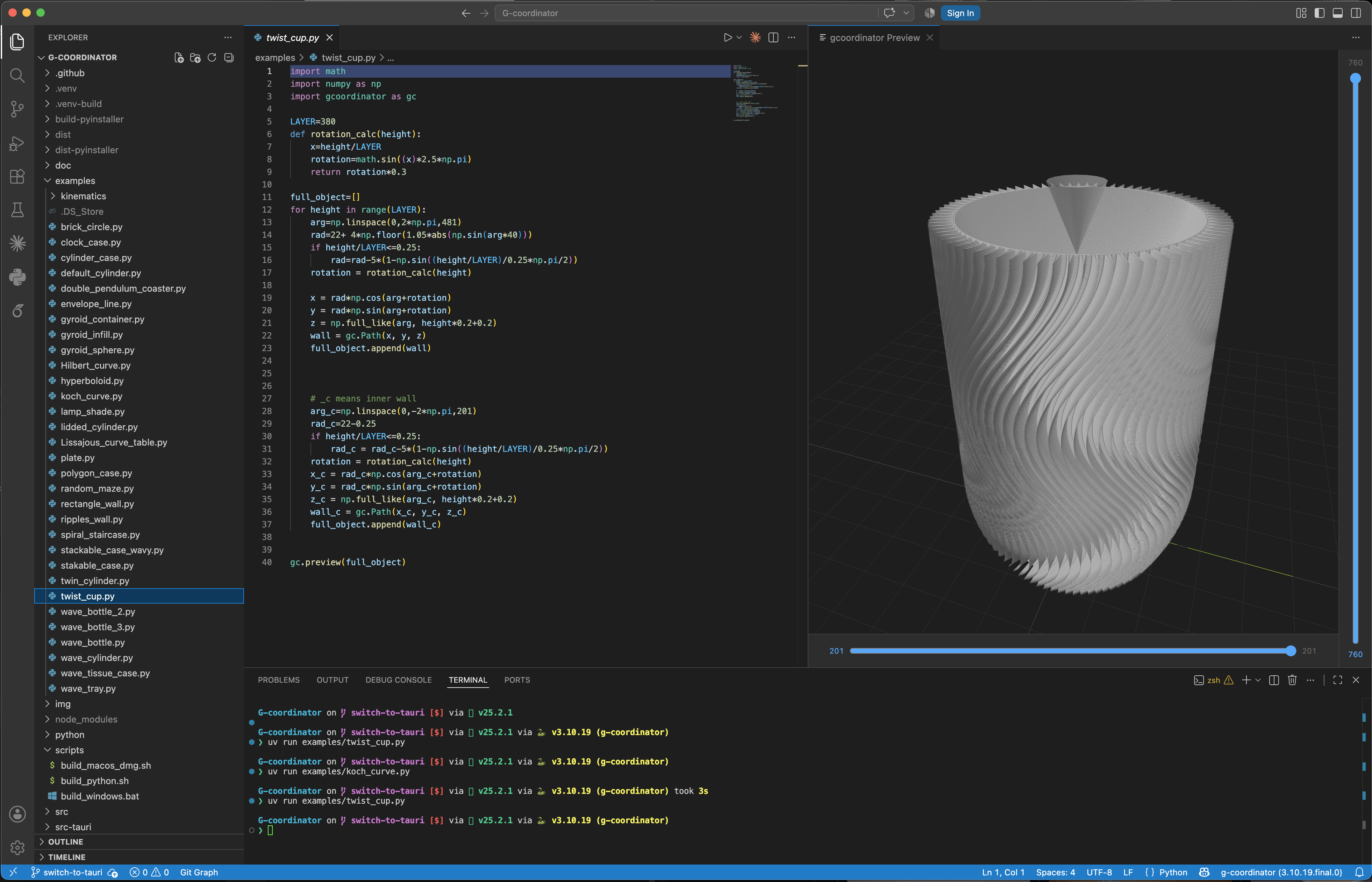
gcoordinator for VS Code
Live 3D preview of gcoordinator
toolpaths, right inside VS Code. Edit your Python script, hit save, and watch the
geometry update — no separate viewer window, no manual export step.
Also renders plain .gcode files, and supports 3Dconnexion SpaceMouse for
navigating the view.
Features
Live Preview
Point the extension at a Python script and it re-runs that script every time you
save, streaming the resulting paths into a 3D view beside your editor.
- Debounced re-runs (300 ms) so rapid saves don't pile up
- A configurable timeout kills runaway scripts (default 30 s)
stdout / stderr go to the gcoordinator Live Preview output channel- The status bar shows which file is being watched and when a run is in flight
G-code preview
Open any .gcode file and render it directly — extrusion moves are drawn as
swept geometry sized from your nozzle diameter, travel moves as separate lines.
SpaceMouse
If you have a 3Dconnexion SpaceMouse, you can fly the 3D view with it. The
extension deliberately does not take the device away from the 3Dconnexion
driver, so the puck keeps working in Fusion 360 and everything else while a
preview is open. Input is gated on VS Code having focus and the preview being
visible, so moving the puck in another app won't drag your preview around.
| Platform |
How it reads the device |
| macOS |
A bundled helper that talks to 3DconnexionClient.framework |
| Windows |
Raw HID via node-hid |
Linux is not supported. A mouse works fine everywhere — SpaceMouse is optional.
Requirements
- VS Code 1.80 or later
- Python 3 on your PATH (or set
gcoordinator.pythonPath), with the
gcoordinator package installed — only needed for Live Preview. G-code
preview works without Python.
We strongly recommend uv for this:
uv init --python 3.12 my-prints && cd my-prints && uv add gcoordinator,
then set gcoordinator.pythonPath to .venv/bin/python
(.venv\Scripts\python.exe on Windows).
- SpaceMouse only: the 3Dconnexion driver (3DxWare on Windows,
3DxMacWare on macOS) installed and running.
Usage
Previewing a Python script
- Open your gcoordinator script (
.py).
Ctrl+Shift+P / Cmd+Shift+P → gcoordinator: Start Preview- Edit and save. The preview updates on every save.
- gcoordinator: Stop Preview when you're done (or click the status bar item).
Scripts run with the workspace folder as their working directory, so relative
paths in your script resolve the way they do in a terminal.
Previewing a G-code file
- Open a
.gcode file.
Ctrl+Shift+P / Cmd+Shift+P → gcoordinator: Preview G-code
Commands
| Command |
Description |
gcoordinator: Start Preview |
Watch the active .py file and preview its output |
gcoordinator: Stop Preview |
Stop watching |
gcoordinator: Preview G-code |
Render the active .gcode file |
Settings
| Setting |
Default |
Description |
gcoordinator.port |
5163 |
Port the local preview server listens on (loopback only) |
gcoordinator.nozzleSize |
0.4 |
Nozzle diameter in mm. Sets the cross-section width of the path geometry (height is half this) |
gcoordinator.pathColor |
#ffffff |
Color of extrusion paths, as a CSS hex string |
gcoordinator.travelColor |
#ffffff |
Color of travel moves, as a CSS hex string |
gcoordinator.pythonPath |
"" |
Python interpreter for Live Preview. Empty = auto-detect: the Python extension's selected interpreter, then python3, then python |
gcoordinator.livePreviewTimeout |
30 |
Seconds a script may run before it is killed |
How it works
The extension runs an HTTP server bound to 127.0.0.1 (port 5163 by default).
Your script sends its computed paths to POST /preview as a MessagePack payload,
and the extension renders them with three.js. Nothing leaves your machine, and
the server is not reachable from the network.
A script has no way to say which VS Code window launched it, so the port decides:
only one window listens on it at a time, and that window renders every preview.
The focused window takes the port, which is what makes python script.py in
a terminal preview in the window you ran it from. Switching windows moves the
port with you; nothing else about a running Live Preview changes.
Troubleshooting
The preview stays empty when I save.
Open View → Output → gcoordinator Live Preview and check for a Python
traceback or a Spawn error. If Python can't be found, set
gcoordinator.pythonPath to an absolute interpreter path.
Port 5163 is already in use.
Another VS Code window holding the port is fine and expected — focusing this
window takes it over automatically. You only need to change gcoordinator.port
(and reload the window) if some other program is occupying it, which Start
Preview reports as an error instead of opening an empty preview.
The preview opened in a different VS Code window.
The window that had focus receives the preview. Click into the window you want it
in before running your script — including when you run it from an external
terminal, where the last VS Code window you touched is the one that gets it.
SpaceMouse doesn't respond.
Open View → Output → gcoordinator SpaceMouse. On a successful connection
you'll see a single opening <device name> line. The extension retries every
two seconds, so plugging the device in later works without reopening anything.
Make sure the 3Dconnexion driver is installed and running.
My script takes longer than 30 seconds.
Raise gcoordinator.livePreviewTimeout.
License
MIT

