Tomcat AI Agent for VS Code
English |
简体中文
Tomcat Agent Box brings the tomcat serve --stdio runtime into a dedicated VS Code sidebar.
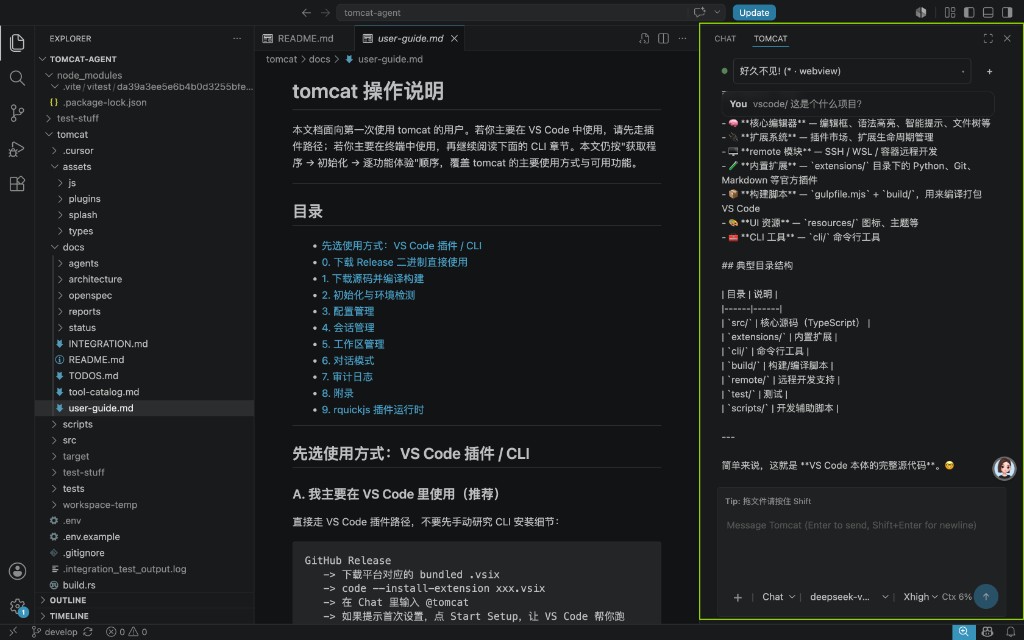
This extension is built for VS Code only.
Install from VS Code Marketplace
Requires VS Code 1.106.0 or newer. In Extensions, search for the exact ID tomcat-agent.tomcat-vscode-ext, check the publisher tomcat-agent, then install. You can also run:
code --install-extension tomcat-agent.tomcat-vscode-ext
The Marketplace release targets Apple Silicon macOS (darwin-arm64), Intel macOS (darwin-x64), and Linux x64 (linux-x64) with a matching CLI bundled inside each package. Linux packages use glibc; Alpine/musl, Windows, Linux ARM64, remote development and vscode.dev are not part of this release's support claim. Native release checks record the actual OS used; they do not establish compatibility with every Linux distribution.
Offline installation / GitHub downloads
0.1.90 release channel: this update is published on GitHub only; automatic Marketplace upload remains disabled. Install its VSIX to receive the new first-time setup flow rather than assuming the Marketplace listing has already updated.
Use GitHub Releases for platform-specific VSIX files, the CLI-only archives, or the pure extension package for existing CLI users. Choose the version from that release rather than an older filename in a tutorial. The pure package has no bundled CLI and is not published as a universal Marketplace fallback.
code --install-extension /absolute/path/to/downloaded-platform-package.vsix
Reload VS Code after installation. VS Code unpacks the bundle into its extension directory; the CLI does not run from the downloaded VSIX or your Downloads folder.
Model services, costs and data
Configure a model through Add Models... and supply the credentials required by your provider. Model/API services may charge separately. Your messages, attached or selected context, and relevant tool results can be sent to that configured service. File changes and command execution are subject to Tomcat's permission gates; review requests before allowing them. This is not a promise that all processing stays local or that all model services are free. For support, use GitHub Issues.
Known limitation with bundled CLI 0.1.73 and 0.1.74: after reloading chat history, a permission-refused write may incorrectly display Created even though the file was not created. Permission denial is still enforced; check the tool result and actual file rather than treating that restored label as proof of success. This presentation fix is deferred to a later release.
Open Tomcat Agent Box
- Press
Cmd/Ctrl+Shift+P.
- Run
Tomcat: Focus Agent Box.
- VS Code reveals the Secondary Side Bar and focuses Tomcat Agent Box.
You can also open the Secondary Side Bar yourself and click the Tomcat Agent Box icon.
First-time setup
- Open Tomcat Agent Box. No
tomcat init is needed.
- When the panel says "Set up a model to start chatting", click Configure model.
- Enter an API key, or add your own model and set it as default. Once saved, you can chat right away without restarting.
A model chosen for a single session, and the TOMCAT__LLM__DEFAULT_MODEL environment variable, take precedence over the default model.
Example first message:
help me understand this repository
Tomcat Agent Box restores the active project session by default. Use the
session picker at the top of the panel to switch sessions or create a new one.
The model picker now also includes an Add Models... entry that opens the
dedicated settings center, so you can add custom OpenAI-compatible or
Anthropic-backed models without leaving VS Code.
When Tomcat asks a clarification question:
- it stays in a fixed Needs your answer area above the composer and has no timeout;
- unanswered questions in other sessions show a badge in the session picker;
- switching sessions or reloading the webview keeps your unsubmitted selection;
- answering, skipping the whole request, interrupting, or losing the host connection produces a distinct history card. A VS Code window / Extension Host restart is an irrecoverable disconnect, while a webview-only reload keeps the live question pending.
Sessions, Settings and plan review
Session picker -> pin/unpin | trash -> confirm -> permanent local deletion
Top gear       -> Settings -> General -> Language
New plan       -> saved file -> Review plan | Skip and open
Pin or delete a session
Hover a session row, or reach its buttons with the keyboard, to see the pin and trash icons. Tooltips and accessible names describe each action. Pins are saved for this VS Code workspace; they do not change the session's last-active time or CLI ordering. A failed pin save is reported without automatic rollback; reload to check the persisted state. Pin saves do not block session deletion.
Deletion requires confirmation and does not stop a running task for you. Stop it first (including work still using that session in another process). Successful deletion removes that session's local transcript, owned sidecars and exclusive preheat cache, scratchpad, local file baselines, and the extension's draft/queue/pin. It does not undo workspace code, delete plan files, erase audit/debug trails, or promise deletion of shared caches/checkpoints or remote uploads. Shared attachments remain available to other sessions. Cleanup warnings mean the record was deleted but some owned files may remain. A lost reply is an unknown result: local state is retained until the same-scope disk list can confirm what happened.
Language and Settings
The top gear opens Settings → General, even when a session is busy or a model lacks tool support. The old manual compact button is removed; automatic compaction and terminal /compact remain available.
Choose Auto, 简体中文, or English. The shared preference is ui.language = auto | zh-CN | en in ~/.tomcat/tomcat.config.toml:
- Auto follows VS Code in the extension and the system locale in a standalone CLI.
- Saving updates this window's Host, four webviews and Serve in place; other already-running windows/CLI processes read the preference on their next start.
- Draft text, unsaved form values and existing user/model content are retained. Already emitted timeline notices are not retroactively translated.
- VS Code's own command/menu contributions follow VS Code's display language, independently of the application setting.
TOMCAT__UI__LANGUAGE overrides the stored preference; Settings shows when an environment override is active. From an independent terminal, tomcat config set ui.language en changes the same stored setting.
Technical terms such as Chat, Plan and model IDs may remain English. Model-facing tool guidance and developer diagnostics stay English; third-party descriptions and raw external diagnostics are preserved rather than machine-translated.
Descriptions explicitly stored in models.toml are displayed as saved. New initialization does not copy product descriptions into that file: built-ins without an explicit description use the UI catalog, even when their other settings have overrides. Existing user files are not migrated.
Saving uses the existing configuration writer: other values are retained, but comments and formatting may change.
Choose whether to review a plan
After saving a new plan, Tomcat asks in the existing question card whether to review it. Review checks design, dependencies, missing acceptance criteria and over-engineering, and may improve that same saved plan. It may take several minutes or longer and consumes additional model tokens; this is not a completion-time guarantee.
Skip and open opens the saved plan without starting a reviewer. Leaving the question unanswered neither times out nor silently starts review. Stop or a host disconnect does not remove the saved plan. Skipping review does not mark a plan accepted or complete, and review itself does not begin execution.
Files and task progress
The compact Todos / Files dock sits above the composer, below any pending question.
- Files accumulates files the agent changed since the last Keep All (or session start). Build, Resume, interruptions and follow-ups such as “continue” keep the list.
- Keep All accepts the current list by recording a time boundary; it does not copy or modify workspace files. The next native AI write captures its own pre-edit backup. Manual-only changes after Keep do not enter the list; a manual edit made before the next AI write becomes that write's baseline.
- Click a file to open one complete VS Code diff: the left side is the earliest pre-edit backup in the current Keep cycle, or the committed version when applicable; the right side is the real, editable file. Repeated AI edits are combined. Existing tool-card diff previews are unchanged.
- Hover or focus a row to reveal ×. Undo All restores the restorable subset; confirmation states how many files will be skipped. These actions restore entire files (or delete files newly created since the current baseline), overwrite later saved edits, and keep your chat.
- Unsaved target documents and the current foreground AI/maintenance job block restore; Keep also requires an idle session. Background Bash and other sessions/worktrees are not stopped or waited for. Files you commit count as kept and leave the list; if they change again, the diff starts from the committed version. File-review Undo is no longer disabled just because HEAD moved; message rewind retains its separate Git safety check.
- Only native write/edit/hashline-edit backups are tracked. Shell/MCP-only changes are not discovered. Backups are kept while the session is in use and removed after it has been idle for
retention_days; chat-only rollback and Retry do not discard them.
- Legacy file-backup records without the new
at timestamp and old Keep snapshot directories are not recognized or migrated. Their old Files/backup-based undo history is unavailable; subsequent native AI writes create new records. Chat history and workspace files are not deleted. Use matching CLI and extension versions.
See session-file-changes for scope and implementation details.
Optional settings
Most users do not need to configure anything manually.
You only need these settings when you want to override the default behavior:
{
  "tomcat.path": "/absolute/path/to/tomcat",
  "tomcat.session.defaultCwd": "/absolute/path/to/workspace",
  "tomcat.serve.extraArgs": [],
  "tomcat.layout.controlsInset": 15,
  "tomcat.layout.contentInset": 25
}
Sidebar spacing is configured in VS Code Settings: search tomcat.layout (User or Workspace settings), then Developer: Reload Window. Defaults are Controls Inset 15px and Content Inset 25px; explicit User/Workspace values are retained. Values are pixels from the sidebar edge, clamped to 0–40. Controls Inset sets the session bar/input border; Content Inset sets replies/cards/todos/attachments. Keep Content Inset greater than Controls Inset to align input text with replies; otherwise inner padding clamps to zero. The editor grows from one line up to 30% of webview height, then scrolls internally; attachments stay outside it.
Resolution order, in plain English:
tomcat.path wins if you explicitly set it.- Bundled VSIX packages prefer the bundled CLI by default.
- Pure extension installs fall back to
PATH / shell discovery.
Commands
The extension contributes these commands:
Tomcat: Focus Agent BoxTomcat: Open SettingsTomcat: Restart ServeTomcat: Start New SessionTomcat: List Sessions
Resource commands in the composer
Type / → choose a command (inserts text) → send → notice/error reply
/reload rescans Skills and plugin tools without restarting the running session. After external CLI or manual resource changes, run it explicitly; it is not a configuration reload or MCP reconnect./install './path with spaces' agent and /uninstall package-name agent install/uninstall and synchronize automatically. Specify current-project (scope), agent, or global; missing arguments return usage.- Uninstall uses the package name listed by
tomcat packages, not a tool name. Only ledger-managed packages are uninstalled; manually placed directories must be removed from that layer's plugins/ / skills/, then /reload.
- Suggestions open at the start, after whitespace, or on a new line, not inside paths/URLs. Terminal operations are hidden mid-message. Only leading shared operations in text-only drafts execute locally; references/attachments and unknown text remain normal prompts.
- Send and Build are disabled while a command reply is pending. No fake user turn is added. Servers that do not advertise the command table keep the old composer behavior.
Project prompt commands, skills and rules
/ menu → Skills / Commands / Terminal
Skills or Commands → yellow invocation chip → send → backend body snapshot
Terminal → ordinary slash text → local operation
Project .cursor/commands/**/*.md and .agents/commands/**/*.md appear in Commands; an optional frontmatter description is shown on the second line. Same names from different sources remain distinct. Each group shows three entries plus Show N more (four entries are shown directly). Invocation chips have no remove button: select them or place the caret adjacent and use Backspace/Delete. History displays the same chip; retry preserves the originally sent body. Ordinary file/selection references can be inserted repeatedly.
Rules under either directory's rules/ (.md or .mdc) only apply with boolean alwaysApply: true; they enter User Custom Instructions, refresh at the next user turn, and do not activate Cursor globs/intelligent/manual triggers. /reload reports counts and skip reasons. Project instruction reads respect Deny but need no tool-path confirmation; agent tools still retain their permission gate. An older CLI shows Terminal only and refuses restored invocation chips without deleting the draft. New draft schema migrates older drafts; an older runtime cannot replay new command/skill history kinds. See CLI usage and compatibility.
Troubleshooting
If Tomcat Agent Box does not appear:
- Run
Tomcat: Focus Agent Box from the Command Palette.
- If the right-side panel is hidden, show the Secondary Side Bar and try again.
- Make sure the extension is installed and enabled.
- Reload the VS Code window.
- Confirm that your VS Code version is compatible with the extension.
If VS Code says the VSIX is not compatible:
- Download the platform-specific bundled VSIX that matches your machine.
- Other platforms are not part of this release's support claim. The GitHub pure extension requires a separately available, compatible CLI.
If the extension cannot find Tomcat:
- Prefer the bundled VSIX for your platform.
- Otherwise, run
tomcat --version in a terminal.
- If that fails, fix your
PATH or set tomcat.path.
If Tomcat was found but cannot connect:
- Read the failure reason in the chat panel, or click View Logs.
- After fixing it, click Retry.
If Tomcat exits during a conversation:
- Any pending clarification question is recorded as Disconnected; it is not treated as a user skip.
- Run
Tomcat: Restart Serve.
- Check the
Tomcat output channel for startup and stderr details.
ask_question.timeout_ms, TOMCAT_ASK_QUESTION_TIMEOUT_MS, and
TOMCAT__ASK_QUESTION__TIMEOUT_MS were removed. Old values are ignored with a
migration warning and never create a question deadline.
Running development checks
Run commands below from tomcat-vscode-ext in an independent test shell. Tests keep private HOME/workspace directories and use fixed local model replies; they do not turn off Tomcat's nested-Agent protection. An Agent-hosted shell carrying TOMCAT_AGENT_ACTIVE=1 is not a normal CLI test environment.
npm run test:integration -- tests/serve_set_plan_mode.test.ts
npm run test:integration -- tests/serve_set_plan_mode.test.ts tests/serve_get_state_planstate.test.ts
# No positional paths means every tests/**/*.test.ts; an unmatched path fails.
# Standalone packaging smoke prepares its own build.
npm run test:integration -- tests/package_vsix_smoke.test.ts
npm run check:wire
npm run gate:full
package:vsix and standalone package smoke tests build by default. The smoke setup runs its build asynchronously with bounded process-group cleanup; gate:full owns one build and reuses it for sequential packaging. --skip-build validates a content-hash record and rejects missing, stale, or corrupt artifacts. Do not run builds/packages that share out/gui/dist concurrently.
GUI entry points clean known Electron window-mode variables only for the launch and restore them afterward. They retain unique launch logs under the printed artifact directory. Screenshots must show the test window, not the user's desktop; keep the matching accessibility and console records. A successful install is not visual acceptance. See the remediation evidence ledger for this run's successes, failures, and unfinished checks.
Changelog
See CHANGELOG.md for release notes.

