Text Highlighter for VSCode
Highlight what matters. Instantly spot TODOs, critical errors, and custom patterns in your code.
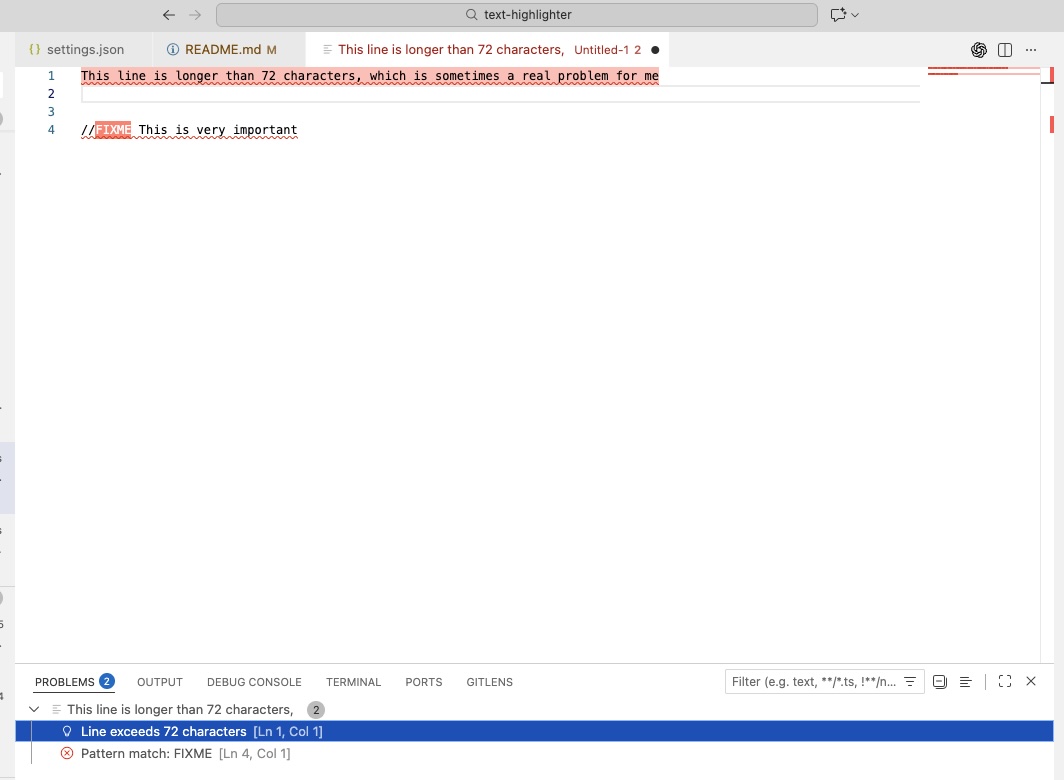
Why Text Highlighter?
Stop scanning through thousands of lines of code to find that one NOTE or FIXME. Text Highlighter lets you define custom rules to make important text pop out.
- 🎯 Never miss a TODO: Make them bright red, neon green, or whatever catches your eye.
- 🔍 Regex Power: Highlight complex patterns like email addresses, error codes, or specific variable naming conventions.
- 🚦 Instant Feedback: See matches in your Problems tab so you can navigate to them instantly.
- 🎨 Fully Customizable: Control background colors, text colors, and even add custom messages.
Quick Start
After installing the extension, add these recommended rules to your VS Code settings.json:
- Open VS Code Settings (
Cmd+, or Ctrl+,)
- Click "Open Settings (JSON)" in the top-right corner
- Add the following configuration:
"textHighlighter.rules": [
  {
    "pattern": "TODO",
    "backgroundColor": "gold",
    "severity": "information",
    "problemMessage": "TODO item found",
    "languages": ["*"]
  },
  {
    "pattern": "FIXME",
    "backgroundColor": "red",
    "severity": "warning",
    "problemMessage": "FIXME - needs attention",
    "languages": ["*"]
  },
  {
    "pattern": "NOTE",
    "backgroundColor": "dodgerblue",
    "severity": "information",
    "problemMessage": "Note for developers",
    "languages": ["*"]
  },
  {
    "pattern": "^.{101,}$",
    "backgroundColor": "lightpink",
    "severity": "information",
    "problemMessage": "Line exceeds 100 characters",
    "isRegex": true,
    "languages": ["*"]
  }
]
These rules will highlight:
- TODO with a gold background
- FIXME with a red background
- NOTE with a dodgerblue background
- Lines longer than 100 characters with a lightpink background
Features
- Multi-Pattern Highlighting: Define unlimited rules with unique colors.
- Problem Tab Integration: Matches appear as Errors, Warnings, Info, or Hints.
- Case-Insensitive Matching: By default.
- Performance Focused: Optimized for large files.
- Instant Results: Comes with TODO, FIXME, and NOTE highlighting out of the box.
Configuration Parameters
| Parameter |
Type |
Required |
Default |
Description |
pattern |
string |
Yes |
- |
Text or regex pattern to match |
languages |
array |
Yes |
- |
Language IDs (e.g., "python") or file patterns (e.g., "*.md") |
backgroundColor |
string |
No |
"rgba(255, 255, 0, 0.3)" |
CSS background color. You can use, e.g. red, darkblue |
color |
string |
No |
undefined |
CSS text color (leave empty to preserve syntax highlighting) |
problemMessage |
string |
No |
"Pattern match: {pattern}" |
Custom message for Problems tab |
severity |
string |
No |
"error" |
Diagnostic severity: error, warning, information, or hint |
isRegex |
boolean |
No |
false |
Treat pattern as regular expression |
Note: All pattern matching is case-sensitive.
Regex Tips:
- Use
^ and $ for line anchors (multiline mode is enabled)
- For lines longer than 72 chars:
^.{73,}$
- For matching at start of line:
^pattern
Cookbook / Common Patterns
Here are some useful patterns you can copy and paste into your settings.json to get started.
Log Levels
Highlight common log levels to make reading log files easier.
{
  "pattern": "[ERROR]",
  "color": "red",
  "languages": ["*"]
},
{
  "pattern": "[WARN]",
  "color": "orange",
  "languages": ["*"]
},
{
  "pattern": "[WARNING]",
  "color": "orange",
  "languages": ["*"]
},
{
  "pattern": "[INFO]",
  "color": "cyan",
  "languages": ["*"]
},
{
  "pattern": "[DEBUG]",
  "color": "gray",
  "languages": ["*"]
}
Security & Secrets
Help prevent accidental commits of sensitive data.
{
  "pattern": "(?i)(api_?key|token)\\s*[:=]\\s*['\"][a-zA-Z0-9\\-_]{16,}['\"]",
  "color": "red",
  "problemMessage": "Potential API Key found",
  "severity": "error",
  "isRegex": true,
  "languages": ["*"]
},
{
  "pattern": "AKIA[0-9A-Z]{16}",
  "color": "red",
  "problemMessage": "AWS Access Key ID found",
  "severity": "error",
  "isRegex": true,
  "languages": ["*"]
},
{
  "pattern": "-----BEGIN.*PRIVATE KEY-----",
  "color": "red",
  "problemMessage": "Private Key found",
  "severity": "error",
  "isRegex": true,
  "languages": ["*"]
}
Code Quality
Spot potential issues before they become problems.
{
  "pattern": "[ \\t]+$",
  "backgroundColor": "red",
  "problemMessage": "Trailing whitespace",
  "severity": "information",
  "isRegex": true,
  "languages": ["*"]
}
Found Bugs or Want to Contribute?
Head to https://github.com/tobiasorth1/text-highlighter/issues and report your problems as issue. Please describe your workflow and document what is not working. Or fix the problem yourself and open a PR.
Development Instructions
Prerequisites
Setup
- Clone the repository.
- Run
npm install to install dependencies.
Running the Extension
- Open the project in VSCode.
- Press
F5 to start debugging. This will open a new "Extension Development Host" window.
- In the new window, open a file and test the highlighting.
Running Tests
- Run
npm test to run the automated tests.
- Run
npm run test:compatibility to run compatibility tests with other extensions.

