VS AirTest
VS AirTest is a VS Code extension for Airtest-style Android screenshot workflows.
It is designed for people who capture Android screens, crop out UI fragments, and reuse those fragments in automation scripts or visual test assets.
What It Does
- Captures a screenshot from a connected Android device with
adb
- Opens the screenshot in a custom editor for interactive crop selection
- Copies crop coordinates to the clipboard
- Saves cropped images into a workspace template directory
- Generates
Template(...) snippets for automation scripts
- Removes unused crop images that are no longer referenced in the workspace
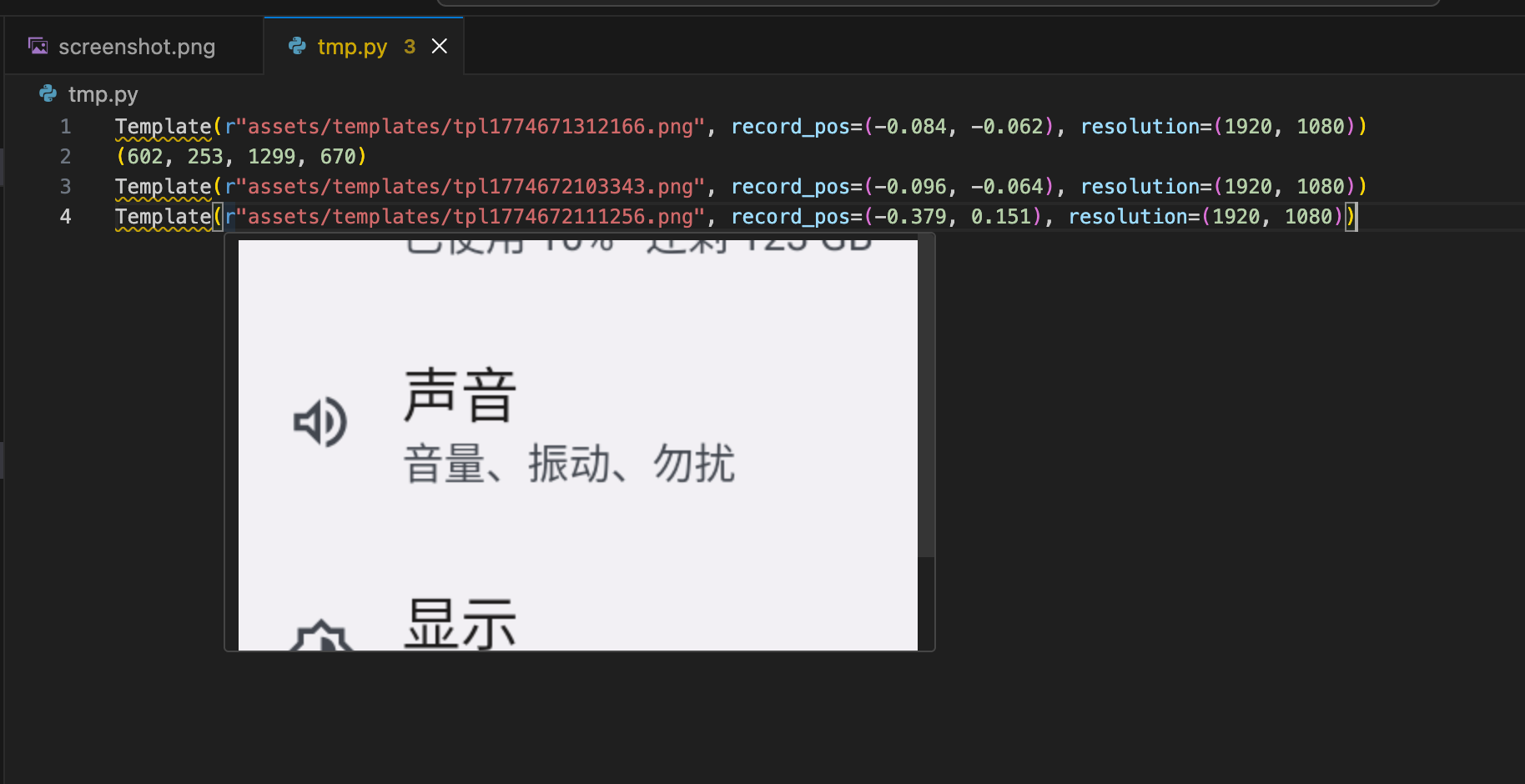
- Shows image previews when hovering over
Template("...png") references
Screenshot Shortcuts
The screenshot editor is built so you can finish the common flows without command palette actions.
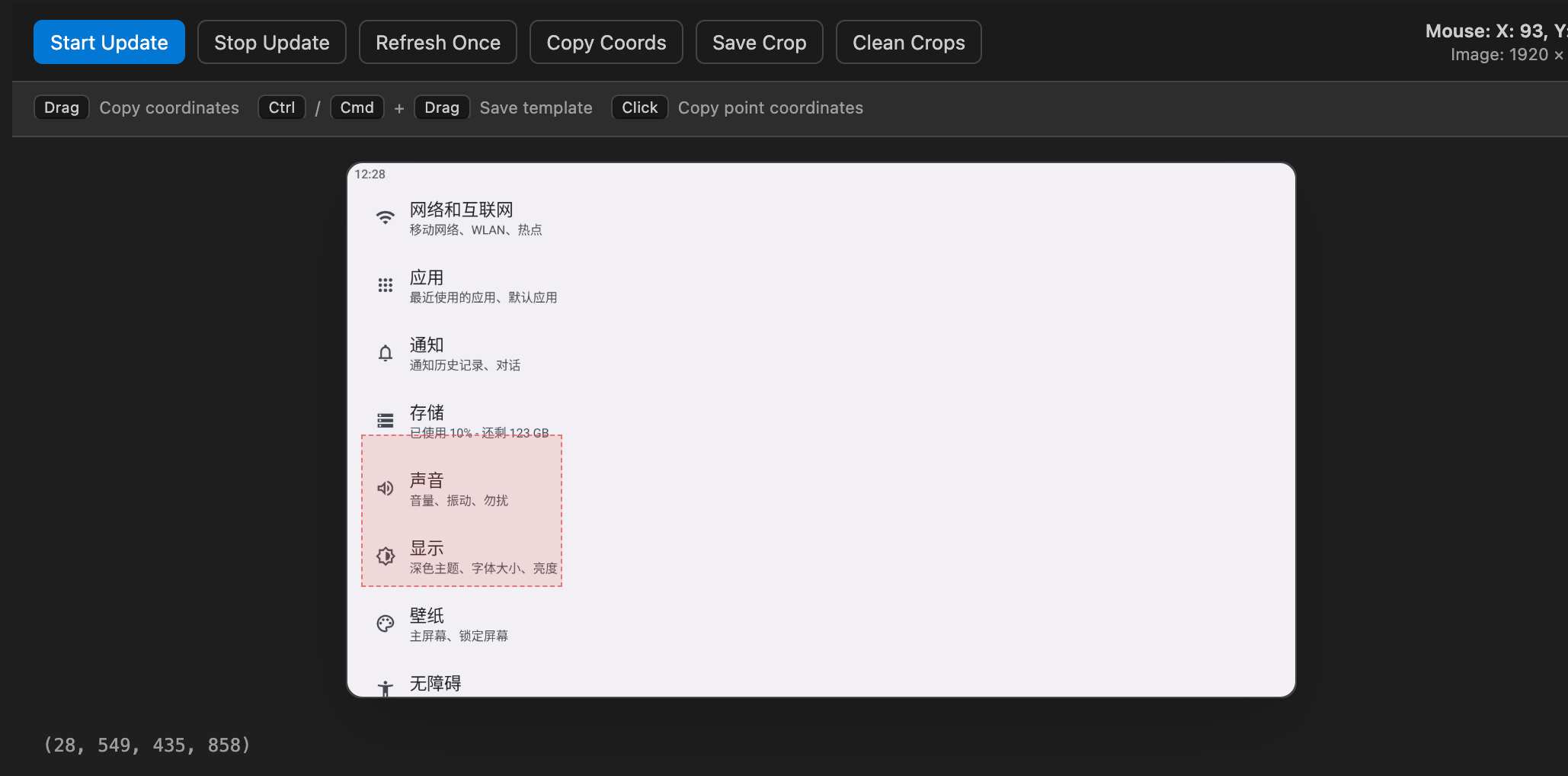
Drag: copy the selected crop coordinatesCtrl / Cmd + Drag: save the crop image and copy an Airtest Template(...) snippetClick: copy point coordinates
The toolbar still provides buttons for the same actions if you prefer mouse clicks.
Screenshots And Demo
Installation
From VS Code Marketplace
If you publish this extension, install it from the Extensions view in VS Code by searching for VS AirTest.
From A VSIX File
- Build the extension package with
npx @vscode/vsce package.
- Install the generated
.vsix file in VS Code.
From Source
- Clone the repository.
- Run
npm install.
- Run
npm run compile.
- Press
F5 in VS Code to launch the Extension Development Host.
Requirements
- VS Code 1.95.0 or newer
- Android Debug Bridge (
adb) available on your PATH, or configured manually
- A connected Android device with USB debugging enabled
Configuration
This extension contributes the following settings:
vsairtest.adbCommand: command used for screenshots. Example: adb -s 127.0.0.1:16384vsairtest.templateDir: output directory for saved crop images. Default: assets/templates/
Usage
- Run
Capture Screenshot from the Command Palette.
- The screenshot opens in the custom preview editor.
- Use the drag shortcuts above to copy coordinates or save templates.
- Use the toolbar buttons to refresh, clean unused crops, or trigger the same actions with the mouse.
- Hover over
Template("...png") references in code to preview the image.
Start Update: keep refreshing the screenshot every secondStop Update: stop live refreshRefresh Once: take a single new screenshotCopy Coords: copy the current selection coordinatesSave Crop: save the crop image and copy a Template(...) snippetClean Crops: remove unreferenced crop images in the template directory
Commands
vsairtest.captureScreenshotvsairtest.cleanCropImagesvsairtest.enableHoverPreviewvsairtest.disableHoverPreview
When you save a crop, the extension writes a PNG file into the configured template directory and copies a snippet in this format:
Template(r"assets/templates/tpl1234567890.png", record_pos=(0.000, 0.000), resolution=(1080, 2400))
The exact record_pos and resolution values depend on your selected crop and source screenshot.
FAQ
Why does screenshot capture fail?
Usually because adb is missing, the device is disconnected, or USB debugging is not enabled. Check vsairtest.adbCommand if your command is not on the PATH.
Where are screenshots saved?
The temporary screenshot used by the preview is stored in the extension global storage. Cropped template images are saved under vsairtest.templateDir, relative to the active workspace unless the path is absolute.
Why is hover preview not showing images?
Hover preview only works for lines that contain a Template("...png") reference and when vsairtest.enableHoverPreview is active.
Development
npm installnpm run compilenpm run compile:installnpm run watchnpm run lintnpx @vscode/vsce package
npm run compile:install builds the extension package and installs it into VS Code when the code CLI is available.
Release Notes
Use CHANGELOG.md for versioned release notes if you publish updates.
License
MIT

