
OpenCode GUI ChatGeneral-purpose agentic AI assistant for VS Code with a native chat UI, file and shell tools, multi-workspace support, MCP integrations, reusable skills and OpenCode CLI session history. Installation Launch VS Code Quick Open ( Ctrl+P), paste the following command, and press enter.Copied to clipboard |

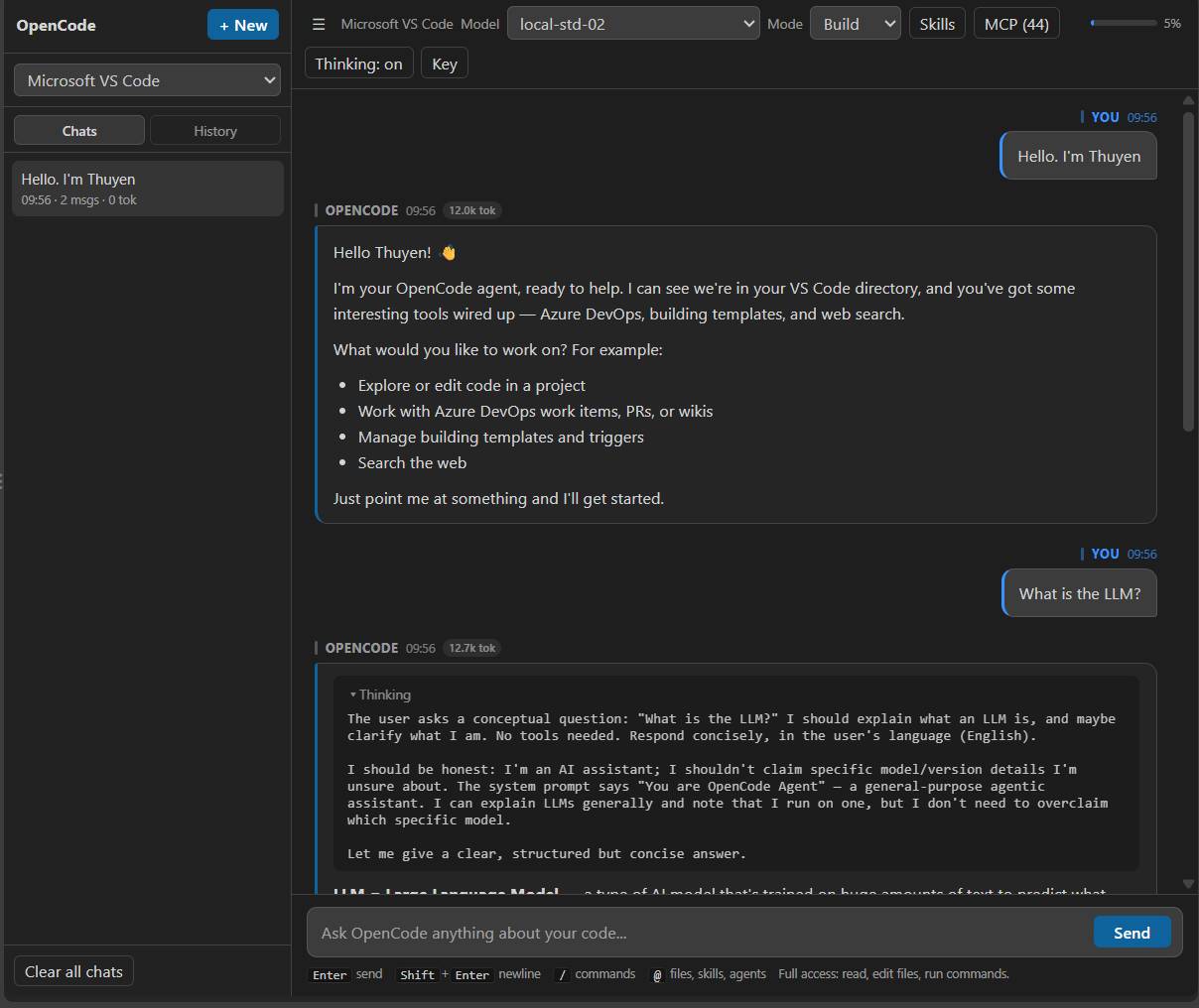
OpenCode GUI ChatA general-purpose AI assistant inside Visual Studio Code. OpenCode GUI Chat brings an agentic AI assistant into VS Code's native chat UI. Use it for coding, documentation, data analysis, research, and automation with any OpenAI-compatible endpoint (LiteLLM, DeepSeek, vLLM, Ollama, or an internal gateway). No terminal required.
Highlights
Requirements
InstallationMarketplace
VSIXOr use Extensions → First-time setup
Option 1:
|

| Setting | Example |
|---|---|
opencode.baseUrl |
https://litellm.example.com |
opencode.model |
my-model |
opencode.provider |
my-provider |
opencode.maxTokens |
8192 |
opencode.maxIterations |
500 |
Option 3: Secure API key
Run OpenCode: Set API Key from the Command Palette. The key is stored in VS Code Secret Storage, not in a config file.
Usage
Toolbar
| Element | Purpose |
|---|---|
| Project | Select the active workspace. |
| Chats / History | Extension sessions and OpenCode CLI sessions. |
| Model | Select a model. |
| Mode | Build, Plan, Review, or a custom agent. |
| Skills | Enable skills for the current session. |
| Context | Token and context details. |
| Reasoning | Show or hide model reasoning. |
| MCP | Server status and reconnect. |
| Key | Store an API key in Secret Storage. |
| Shortcut | Action |
|---|---|
Ctrl+Alt+O / Cmd+Alt+O |
Open chat |
Ctrl+Alt+N / Cmd+Alt+N |
New session |
Enter |
Send |
Shift+Enter |
New line |
The chat can also open in an editor group via OpenCode: Open Chat in Editor Group.
Composer syntax
| Syntax | Effect |
|---|---|
/ |
Commands; /skill-name activates a skill. |
@file |
Attach file contents to the context. |
@skill |
Enable a skill for this message. |
@agent |
Run with a specific agent. |
!command |
Run a shell command in the workspace. |
Summarize docs/requirements.md in 10 bullets.
@data/sales.csv find the 3 biggest monthly anomalies.
@src/extension.ts find bugs when no workspace is open.
Commands
| Command | Description |
|---|---|
/new |
New chat session. |
/clear |
Clear the current session. |
/compact |
Summarize the conversation to free context. |
/context |
Inspect context and token usage. |
/history |
Browse OpenCode CLI history. |
/thinking |
Toggle reasoning display. |
/export |
Export the chat as Markdown. |
/help |
List commands, skills, and agents. |
/init |
Create or update AGENTS.md. |
/review |
Review changes, a commit, branch, or PR. |
/test |
Run tests and fix failures. |
Custom commands load from .opencode/command/ and .claude/commands/.
Modes
| Mode | Access |
|---|---|
| Build | Read, edit, and run commands (permission-controlled). |
| Plan | Read and search only. |
| Review | Read only, focused on bugs and risks. |
Agents with mode: primary appear as additional modes.
Permissions
The extension applies the permission block from the merged opencode.json(c) to create, edit, bash, read, list, and grep.
| Action | Result |
|---|---|
allow |
Run without asking. |
ask |
Show a confirmation dialog. |
deny |
Block the action and return an error. |
For pattern rules, the last match wins. Put "*" first, then specific rules:
{
  "permission": {
    "create": "allow",
    "edit": { "*": "ask", "docs/**": "allow", "**/*.env": "deny" },
    "bash": { "*": "ask", "git *": "allow", "rm *": "deny" },
  },
}
create applies when write_file creates a new file; overwriting or editing an existing file uses edit. If create is unset, it falls back to edit.
Permissions can be overridden per agent in opencode.json or agent frontmatter:
{
  "agent": {
    "build": { "permission": { "bash": { "*": "ask", "git *": "allow" } } },
  },
}
Without a permission config, the safe defaults are create/edit/bash = ask and read operations = allow. Plan and Review are always read-only. MCP tool access is controlled by the MCP server.
Sessions and history
- Each workspace has its own session list in Chats.
- History shows sessions stored by the OpenCode CLI (CLI required).
/exportsaves a conversation as Markdown;/compactreduces context.
Skills, agents, and workspace instructions
| Type | Locations |
|---|---|
| Agent | .opencode/agent/, .claude/agents/, ~/.config/opencode/agent/, ~/.claude/agents/ |
| Skill | .opencode/skill/, .claude/skills/, ~/.config/opencode/skill/, ~/.claude/skills/, ~/.agents/skills/ |
| Command | .opencode/command/, .claude/commands/, ~/.config/opencode/command/, ~/.claude/commands/ |
A skill is a folder containing SKILL.md. Agents and commands are Markdown files that support frontmatter such as name, description, agent, model, and permission. AGENTS.md or CLAUDE.md at the workspace root is added to the system prompt.
MCP
{
  "mcp": {
    "remote-tools": {
      "type": "remote",
      "url": "https://example.com/mcp",
      "headers": { "Authorization": "Bearer <token>" },
      "enabled": true,
    },
    "local-tools": {
      "type": "local",
      "command": ["npx", "tsx", "D:/tools/my-mcp/src/index.ts"],
      "environment": { "API_TOKEN": "<token>" },
      "enabled": true,
    },
  },
}
localuses stdio;remoteuses Streamable HTTP.- Set
enabled: falseto disable a server. - Tools appear as
mcp_<server>_<tool>. - A failing server does not block chat; use the MCP modal to reconnect.
Configuration
Configuration files are merged in order; later files win:
$OPENCODE_CONFIG$OPENCODE_CONFIG_DIR/opencode.json(c)$XDG_CONFIG_HOME/opencode/opencode.json(c)(default~/.config/opencode/)<workspace>/opencode.json(c)
API key lookup:
provider.<id>.options.apiKey$XDG_DATA_HOME/opencode/auth.json(fromopencode auth login)- VS Code Secret Storage (Key button)
limit.context sets the context meter denominator; limit.output sets max_tokens per response (overridden by opencode.maxTokens). Use OpenCode: Show Resolved Config to inspect the merged config.
Context
Click the context meter or run /context to see the system prompt, tool schemas, messages, tool output, estimated tokens, and remaining context. Use /compact or /new when context is nearly full.
Security and privacy
- Messages, attached files, and tool results go only to the endpoint you configure.
- The extension has no sharing feature and does not send data to
opencode.ai. Sessions are stored locally in VS Code storage. shareinopencode.jsonconly affects the OpenCode CLI; the extension does not use it.- API keys saved via OpenCode: Set API Key are protected by VS Code Secret Storage.
- Avoid committing keys to
opencode.jsoncorsettings.json. - No telemetry or third-party analytics.
Troubleshooting
| Symptom | Fix |
|---|---|
| Icon missing | Reload VS Code and verify the extension is enabled. |
| 401/403 | Check the API key; save it again with OpenCode: Set API Key. |
| 404 / model not found | Check model, provider, and baseURL with Show Resolved Config. |
| Stream interrupted | Check endpoint connectivity and read the error in chat. |
| Empty or truncated reply | Increase opencode.maxTokens or limit.output. |
| "Tool budget reached" | Increase opencode.maxIterations, or send continue to resume. |
| MCP will not connect | Check command/url and environment variables; try Reconnect. |
| Skills/agents missing | Check folder locations and frontmatter; run /help. |
| Slow or high token use | Use /compact, disable skills, or choose a smaller model. |
Support
Report bugs or request features through the Q&A section on the Marketplace page. Include the extension/VS Code versions, provider and model (without the API key), the error message, and reproduction steps.
OpenCode GUI Chat — one assistant, every task.