Open in Typora
Right-click files or folders in the VS Code explorer to open them in Typora. Supports multi-select.
Features
- Explorer context menu entry for supported markdown-like files.
- Explorer context menu entry for folders, including the workspace root folder.
- Multi-select support for opening several files/folders in one action.
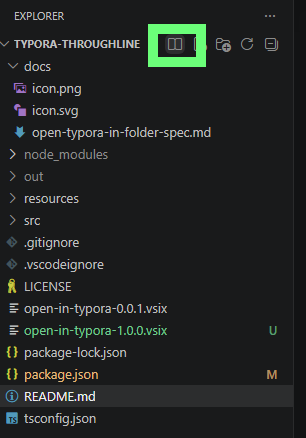
- Explorer view title button for opening the current workspace in Typora.
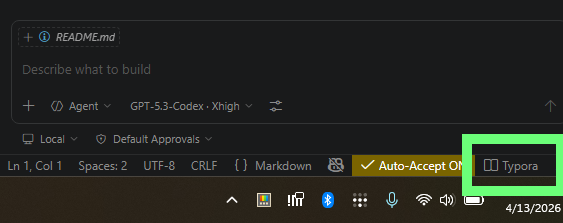
- Status bar button for opening the current workspace in Typora.
- Command palette workflows for opening current file, current workspace folder, or manually chosen paths.
Screenshots
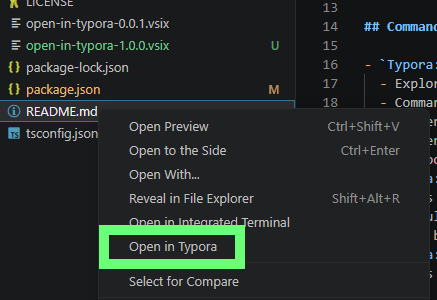
This screenshot shows the Explorer context menu entry on a markdown file.
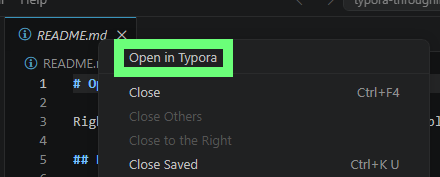
This screenshot shows the editor tab context menu entry for opening the active document in Typora.
This screenshot shows the status bar button used to open the workspace in Typora.
This screenshot shows the Explorer view title button used to open the workspace in Typora.
Commands
Typora: Open in Typora
- Explorer/editor context: opens selected item(s).
- Command palette: prompts with:
- Open current file
- Open current workspace folder
- Choose...
Typora: Open Workspace in Typora
- Opens the current workspace root folder directly.
- If multiple workspace folders are open, prompts for which workspace folder to open.
- Used by the Explorer title button and status bar button.
Typora: Open Open in Typora Settings
- Opens the extension settings filtered to
openInTypora.
Configuration
openInTypora.supportedExtensions
- Array of file extensions without the leading dot.
- Default:
["md","markdown","mdown","mmd","text","txt","rmarkdown","mkd","mdwn","mdtxt","rmd","qmd","mdtext","mdx"]
openInTypora.showStatusBarItem
- Show or hide the status bar button.
- Default:
true
openInTypora.executablePath
- Optional Typora executable path or command for all platforms.
- Default: empty string (auto-detect via platform defaults).
openInTypora.executablePathWindows
- Optional Windows-only override.
- Supports either a direct
.exe path or a Start Menu .lnk shortcut path.
- If you save a
.lnk path, the extension resolves it and automatically rewrites the setting to the target executable path.
openInTypora.executablePathMacOS
- Optional macOS-only override.
openInTypora.executablePathLinux
- Optional Linux-only override.
If you use Settings Sync across different operating systems, prefer the platform-specific settings above instead of a single shared executable path.
Install
- Build a VSIX package:
npm install
npx vsce package
- Install locally:
code --install-extension open-in-typora-1.0.1.vsix
Quick QA Matrix
| Area |
Check |
Expected |
| Install |
Install the VSIX locally |
Extension loads and commands are available in command palette |
| Workspace command |
Run Typora: Open Workspace in Typora |
Current workspace opens in Typora |
| Explorer view title button |
Click the Explorer header icon button |
Current workspace opens in Typora |
| Status bar button |
Click $(book) Typora on the right side |
Current workspace opens in Typora |
| Status bar setting |
Set openInTypora.showStatusBarItem to false |
Status bar button hides live without reload |
| Executable path override |
Set openInTypora.executablePathWindows to a valid Typora executable path |
Workspace/file opens even if Typora is not on PATH |
| Markdown file |
Right-click .md and choose Open in Typora |
File opens in Typora |
| Folder |
Right-click a folder and choose Open in Typora |
Folder opens in Typora |
| Multi-select |
Select a folder and a markdown file, then Open in Typora |
Both targets open |
| Unsupported file |
Right-click .json or .ts |
Open in Typora is not shown |
| Error handling |
Remove Typora from PATH and invoke a command |
Single toast appears and details are logged in output channel |
Notes
- Uninstall the official
typora.io "Open in Typora" extension first to avoid duplicate menu entries.
- If no executable path setting is configured, Windows and Linux use
typora from PATH.
PATH is not required when openInTypora.executablePath or a platform-specific executablePath setting is set.- On Windows,
.lnk shortcut paths in executable settings are auto-resolved to the target executable path.
- On first install or reinstall, the extension attempts to open its settings page once for that installed build.
- Typora may open one window per target. This is a Typora behavior, not extension-controlled.
Inspiration
Inspired by typora/vscode-open-in-typora.
License
MIT
Local Repo Workflow
This folder is intended to be a local-only git repo (no remote).
- Commit changes here first.
- Return to the umbrella tools repo.
- Commit the folder changes there for GitHub publication.

