
SQLLabSQL IDE for Oracle, MSSQL, DuckDB, MySQL, PostgreSQL, SQLite and more. Run SQL queries and explore results right inside VS Code. Installation Launch VS Code Quick Open ( Ctrl+P), paste the following command, and press enter.Copied to clipboard |

SQLLab — Your SQL Workspace, Inside VS Code
You open your editor to write code. Then you switch to a separate database tool to write a query. Then switch back. Then the query changes, and you can't remember which version was the one that worked. You copy ten thousand rows into a spreadsheet and your laptop fan spins up. You run the same slow query twice because you forgot you already had the answer. SQLLab puts a complete SQL workspace directly inside VS Code, so that context switch never has to happen again. Who Is This For?
Supported Databases
The Problems SQLLab Solves"I wrote this query last month and now I can't find it"SQLLab has a Saved Query Library where every query you choose to keep gets a name, a description, tags, and a type (Report, Debug Script, Stored Procedure, etc.). Search across all of them — name, description, and the SQL itself — in milliseconds. Filter by tag, type, or database. Your entire query library lives in one place and is always one keystroke away. The search uses full-text indexing (FTS5), so it is fast even with thousands of saved queries. To find an exact phrase — including a specific SQL fragment — wrap it in double quotes: SQLLab will return only the queries that contain that exact text verbatim. "I changed the query and now it doesn't work — what did I change?"
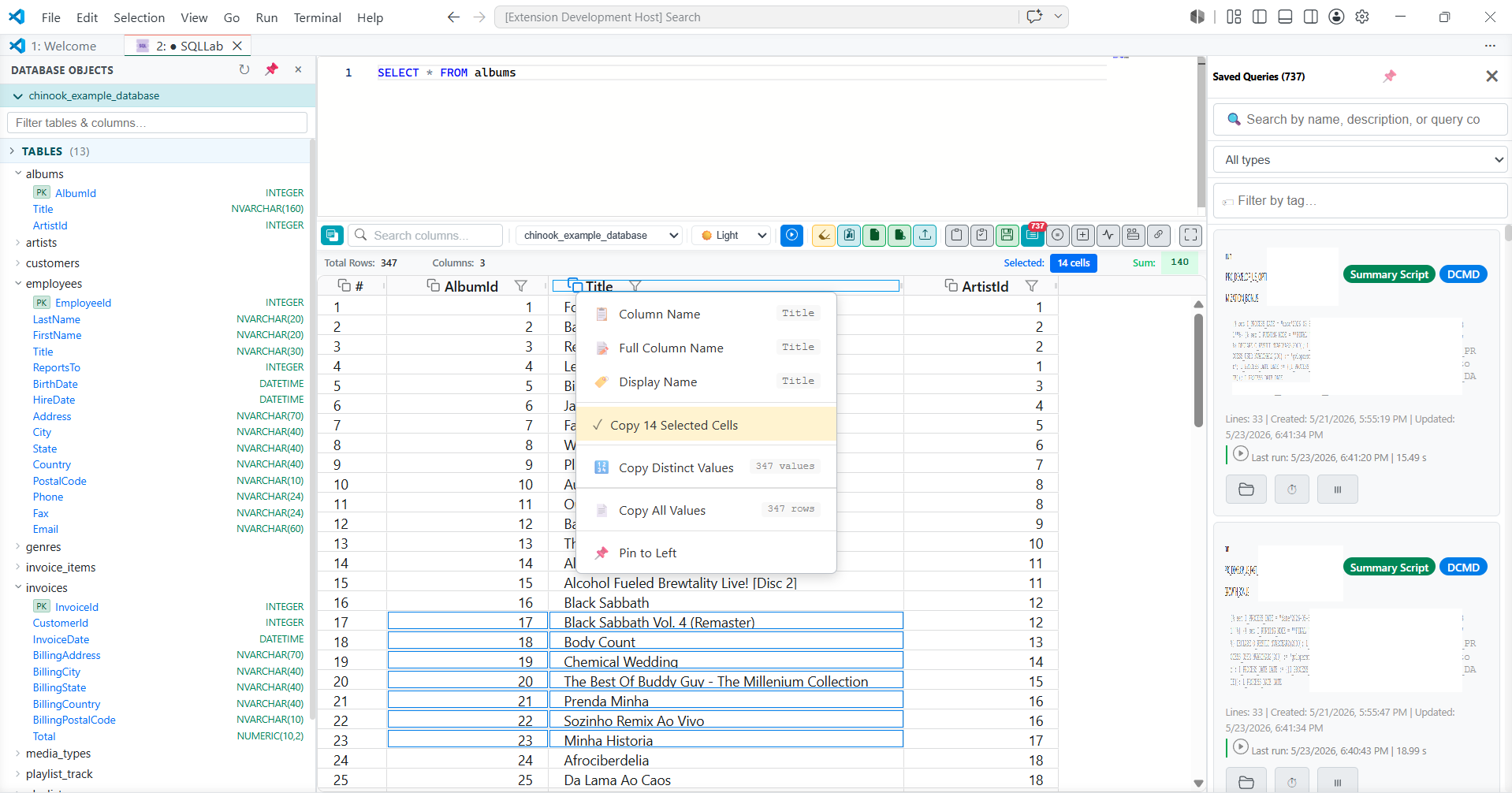
"The result set has 200,000 rows and my tool is frozen"SQLLab paginates results on the server side, so the editor never loads more than it needs to display. The result grid stays responsive no matter how large the dataset is. Need the full data? Export to Excel (.xlsx) or copy everything to clipboard — for very large results, SQLLab writes the file in the background and lets you open it directly in VS Code without ever locking the UI. "I need to compare the data in production vs staging"
"Someone is blocking my session and I don't know who"
"I have to switch to another tool every time I need to look at the schema"Press Browse every table, view, function, and stored procedure for your current connection. Expand any table to see its columns, types, and whether they are primary keys, unique, or indexed — each column carries a Right-click anything to generate SQL immediately:
SQL generation is database-aware throughout: MSSQL uses "I have to type the same table and column names over and over"As you type, SQLLab reads your database schema and suggests table names after "I need to run the same query for different date ranges / environments / IDs"Hard-coding values into a complex query and then hunting down every occurrence to change them is error-prone and slow. SQLLab supports dynamic SQL with parameters: declare a parameter once at the top of your script, then reference it anywhere in the query body. When you run the script, SQLLab substitutes all the placeholders automatically before sending the query to the database. Change the value in one place at the top — the entire query updates. You can also chain parameters so one variable's value is derived from another. A dedicated toolbar button lets you preview the fully resolved SQL before running — so you always see exactly what will be executed. When using Batch Run, you can override parameter values per script without touching the saved query itself. "I need to load a CSV file into a table"Drag a CSV or Excel file onto the Upload panel. SQLLab shows you a preview of the first 100 rows, detects column types, and writes the data into any table — appending, replacing, or failing if the table already exists. Column names are sanitised automatically for each database. For Excel files you can pick the sheet and the header row before writing. "Running all our nightly scripts one by one takes forever"Select multiple saved queries in the Batch Run panel and run them all at once, in parallel. A side panel tracks each script's progress and final status. You can override the connection or stop the whole batch if one script fails. Every batch run is saved to history — status, execution time, and per-script results persist across server restarts. Reopen VS Code the next day and your last batch results are right where you left them, ready to review or retry. Result GridEvery query result opens in a powerful grid with:
Saved Queries DashboardA full overview of your query library in one screen:
SQL Editor
Getting Started1. Install SQLLab from the VS Code Marketplace2. Open SQLLabPress 3. Add a ConnectionClick Connections → Add Connection and fill in your host, port, database, and credentials. 4. Write and RunPick your connection, write SQL, and press Run. Results appear immediately below. 5. Save Your WorkClick Save, give the query a name and optional tags. It is now searchable, versioned, and ready to run again any time. Commands
Keyboard ShortcutsVS Code
SQL EditorThese shortcuts are active when the SQL editor has focus.
Result GridThese shortcuts are active when the result grid has focus.
Settings
Pricing
Your license is verified locally — no internet connection needed after activation. Always Getting BetterSQLLab is actively developed. More database support, smarter tooling, and new workflows are continuously in the works. What you use today is only the beginning. If there is a database you need connected, a workflow that feels clunky, or a feature that would save you an hour every day — tell us. Post in the Q&A tab on this Marketplace page and our team will read every single message. Your feedback directly shapes what gets built next. We built SQLLab because we believe working with SQL should feel as natural and powerful as writing any other code. We will keep building until it does. Write better SQL. Ship faster. We have got your back. |
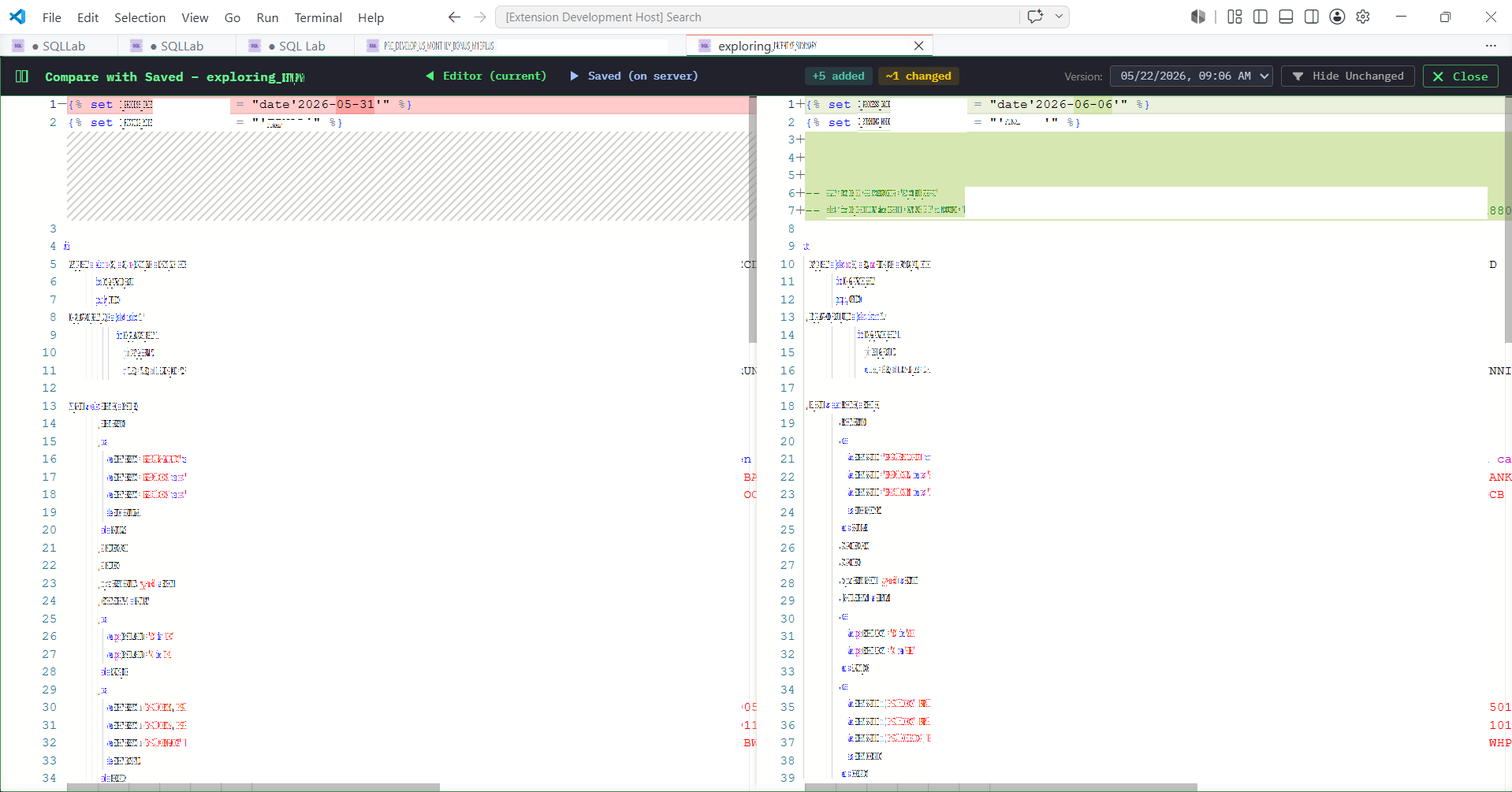 Every time you save a query, SQLLab silently captures the previous version. Open the Version History for any saved query to see a full timeline of every edit. Choose any two versions and open a side-by-side diff to see exactly what changed. You can also diff the current editor content against your clipboard at any time with
 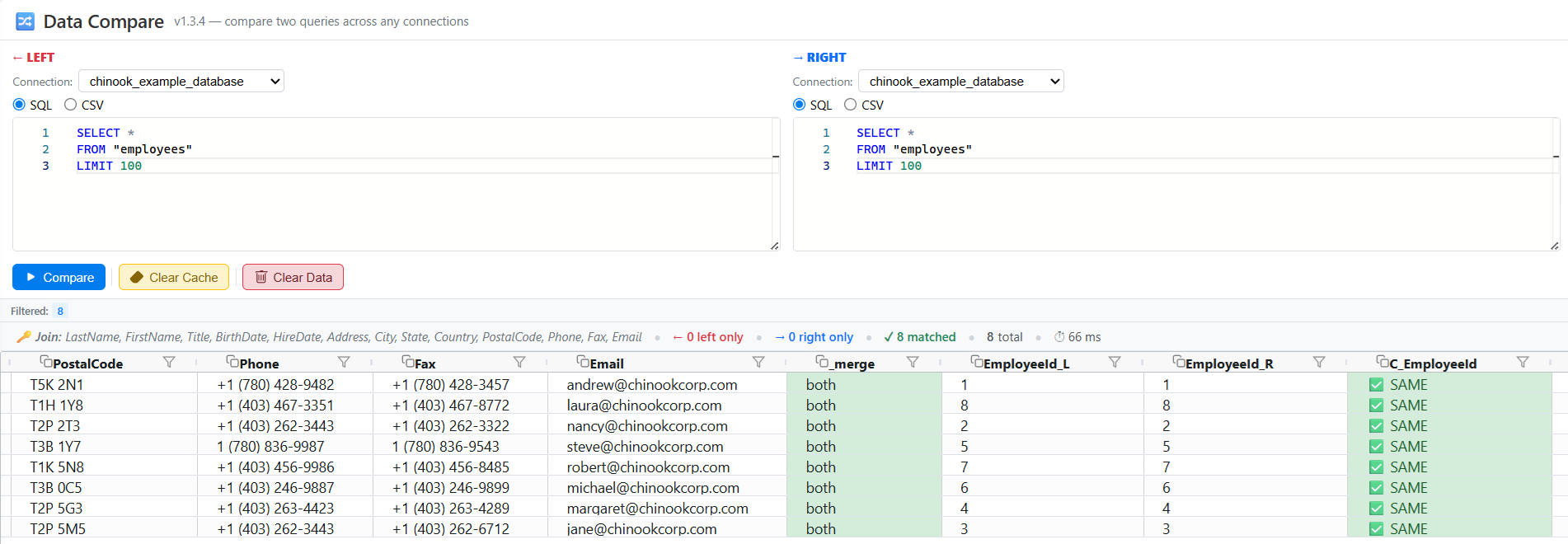 The Data Compare tool lets you run two queries — against different databases or connections — and merges the results side by side. Each row is marked
 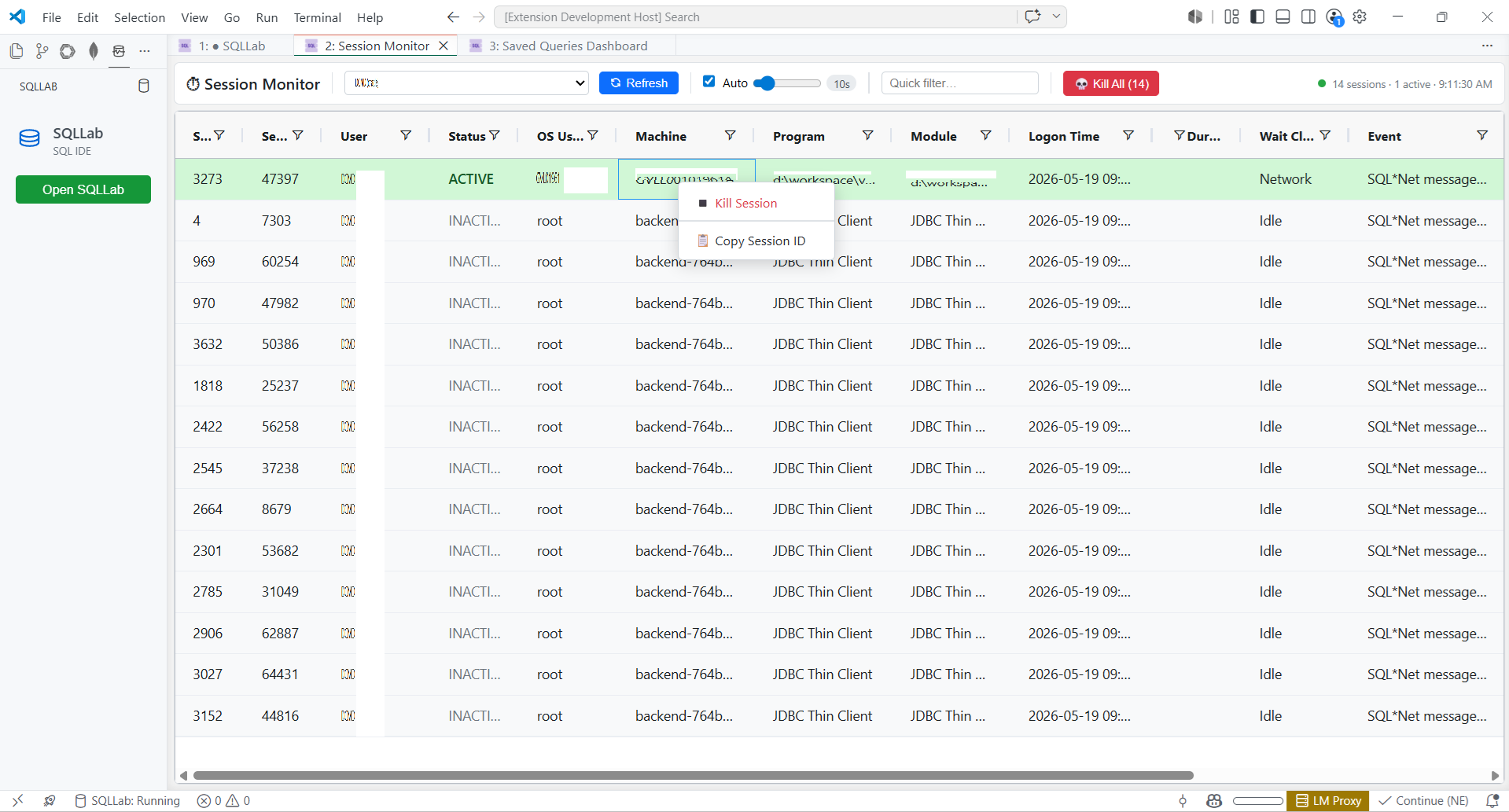 The Session Monitor shows all active database sessions in real time with auto-refresh. Blocked sessions are highlighted in red, active ones in green. Right-click any session to kill it, or use the Kill All option when you need to clear everything at once.