Squiffy for VS Code
Write Squiffy interactive stories in VS Code, with a live preview and a
story map.
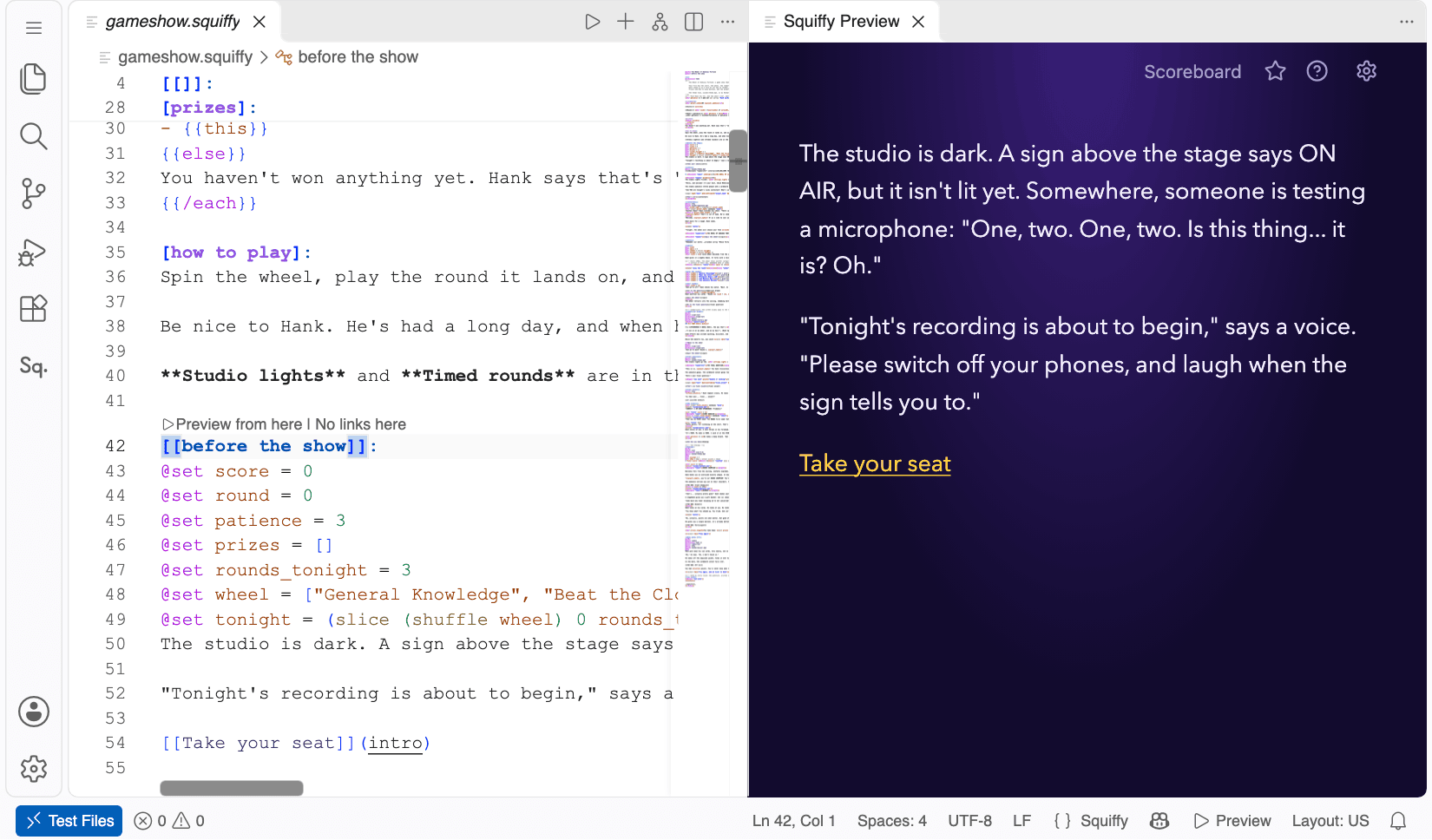
It works in VS Code on the desktop, and on vscode.dev and github.dev. To get
started, open the walkthrough on VS Code's Welcome page (Help > Welcome), which takes you
through making a story, previewing it, adding sections, the story map and publishing it. There's
more in Squiffy's documentation.
Writing
- Syntax highlighting and folding for
.squiffy files
- Problems as you type, for the whole story, including links to sections that don't exist, dead
ends and sections nothing links to
- Completion of section and passage names, attributes, directives, helpers (after
{{, {{#,
{{/ and () and snippets, hover, and quick fixes
- The Outline view and breadcrumbs, Go to Definition, Find All References and Rename for sections
and passages
- Above each section and passage, a count of the links to it, which lists them
- Squiffy: Add Section and Add Passage (also in the editor's context menu, and its title
bar: + and the ... menu) add a section or passage header at the cursor, to type its name
into
- Squiffy: New Story makes a new story in a folder: a
squiffy.json and a story.squiffy to
start from. New Squiffy Story Here in the Explorer's context menu makes one in that folder.
The Squiffy icon in the Activity Bar opens the Sections view, which lists every section and passage
in the story, across all its files, marking the start, endings, dead ends and sections that can't
be reached. Click one to go to it, or its ▷ to start the preview there. Its buttons run the
preview, add a section, show the story map and export the story, and its ... menu shares,
publishes or plays it in a browser. In a folder with no story, it offers to make one, or to convert
a Twine story or Quest gamebook.
Preview
Squiffy: Show Preview (also the ▷ button in the editor's title bar, and Preview in the status
bar) runs the story beside the editor, updating as you type. Preview from here above each
section and passage, or Start Preview at This Section in the editor's context menu, starts it
there. The attributes the story sets are logged in the Squiffy Preview output.
Story map
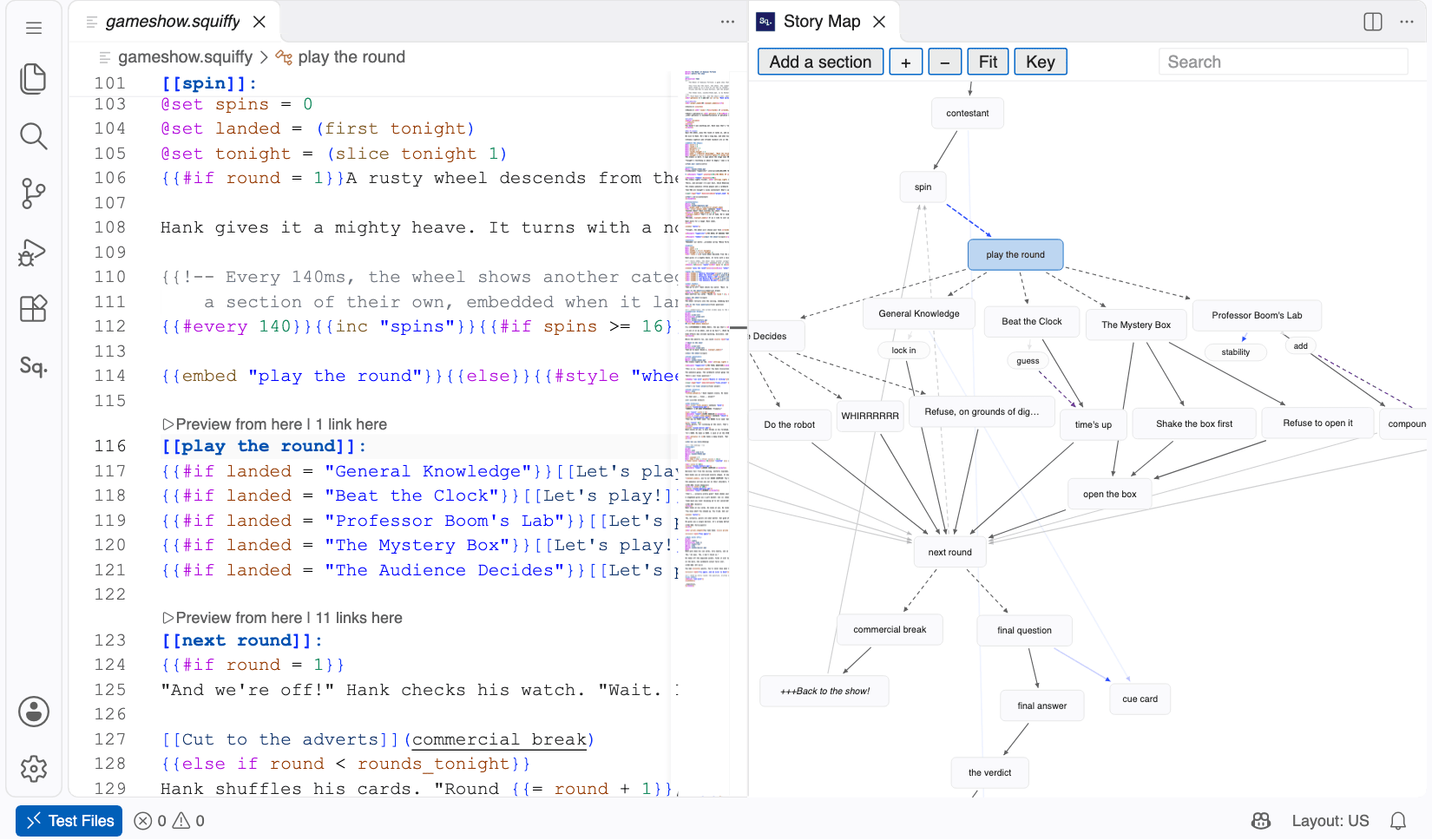
Squiffy: Show Story Map (also a button in the editor's title bar) shows the story's sections
and passages as boxes and its links as arrows, with problems marked, as the Squiffy editor does.
- Click a box to go to it, and drag from one box to another to add a link
- Right-click a box to rename it, add a passage to it, run the preview from it, start the story
there, or delete it
- Add a section with the map's button, by double-clicking the background, or by dragging a link to
empty space, and make a broken link's missing section from its red box
- Search it with the box at its top right (or Ctrl/Cmd+F). The selected box's details, with its
links in and out, are along the bottom
- Where you've been in the preview is outlined in green, and Key explains the rest
- Where you drag boxes to is kept in
squiffy.json, as the Squiffy editor keeps it
Sharing and publishing
- Squiffy: Share as a Link copies a squiffystories.com link with the whole story in it (its
text, and images of up to 4 KB), and offers to open it, or to copy it without the player's Open
in editor button. Squiffy: Play in Browser opens the story's link
- Squiffy: Publish to textadventures.co.uk uploads the story, opens textadventures.co.uk to
finish publishing it there, and says when it's published. The story is given an
id in its
squiffy.json first if it has none, which is how textadventures.co.uk knows it next time, and a
story with no squiffy.json is given one, with its setters converted to Squiffy 7's rules
- Squiffy: Export builds the playable story (
index.html, story.js, the page's stylesheets
and the story's images, sounds and other files) into a folder, or a zip to upload to a website,
as the Squiffy editor and command line tool build it. It can also make a single HTML file with
everything in it, or only story.js, for a page of your own
Converting stories
- Squiffy: Convert Twine Story and Convert Quest Gamebook convert a Twine story (a
.twee
file, or Twine's published or archive HTML) or a Quest gamebook (.quest or .aslx) into a new
story folder, with twine-import.txt or quest-import.txt listing what couldn't be converted
exactly, and a Quest game's images and sounds. If the folder you choose isn't empty, the story
goes in a new folder in it
- Squiffy: Convert from Squiffy 5 converts a Squiffy 5 file's text processor syntax
Stories and their files
A folder with a squiffy.json is a story, made of every .squiffy, .css and .js file in it,
as the Squiffy editor and command line tool see it. A .squiffy file anywhere else is part of
the story in its own folder, whose main file is the first one opened there (with the files it
@imports). Squiffy: Use as Main File picks another.
Squiffy is open source, in the Squiffy repository on
GitHub, where you can report problems. To work on the extension itself, see
DEVELOPMENT.md.
| |

