CSV Edit
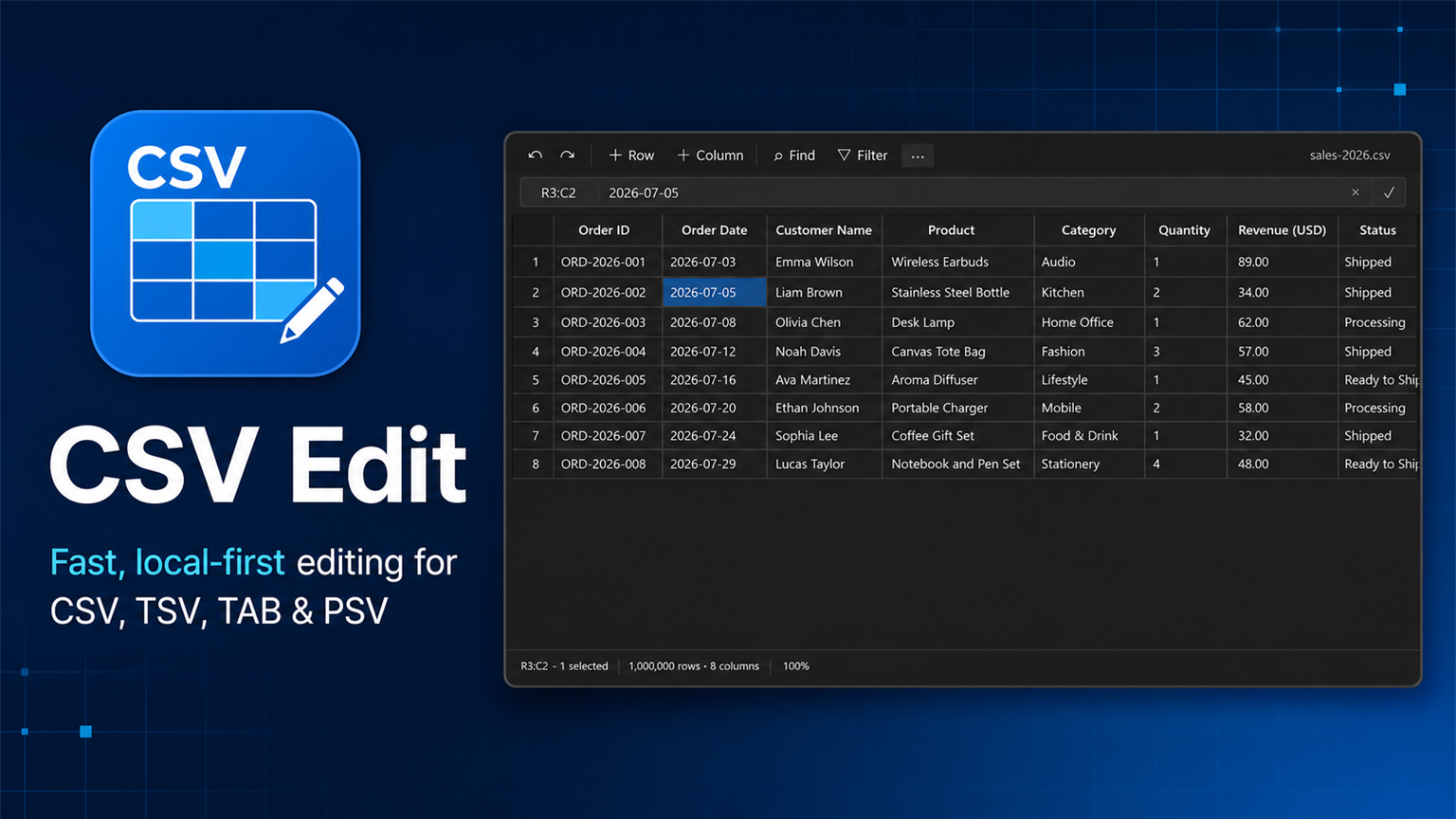
Edit delimited text like a table—without turning it into a spreadsheet file.
CSV Edit opens .csv, .tsv, .tab, and .psv files in a fast, compact grid
that feels native to Visual Studio Code. The source stays plain text, so Save,
Auto Save, Git diffs, and VS Code undo history keep working as expected. Parsing,
editing, search, and data tools all run locally on your machine.
Why CSV Edit
- Stay in VS Code — inspect and edit delimited files without switching apps
- Keep clean diffs — the document remains ordinary delimited text
- Work locally — file contents, searches, and transformations are not uploaded
- Handle real data — quoted fields, multiline values, BOM, and line endings are preserved
- Move quickly — keyboard editing, rectangular selection, filters, and bulk tools are built in
Designed for CSV work
The interface follows VS Code rather than imitating a spreadsheet application.
Common CSV actions stay in one 32-pixel command bar, complete cell values can be
edited in a compact value bar, and less frequent commands live in an overflow
menu. Dense rows and restrained borders keep the available space focused on data.
- Open CSV, TSV, TAB, and PSV files directly in a grid
- Edit cells, rectangular ranges, rows, and columns with mouse or keyboard,
including direct typing with an input method (IME) such as Japanese
- See Sum, Average, and Count for numeric selections in the status bar
- Jump to any row by typing its number (or
row,column) in the address box
- Right-click for cut, copy, paste, clear, sort, and row/column commands that
apply to every selected row or column
- Copy and paste tabular data using the familiar TSV clipboard format
(copy preserves embedded tabs, newlines, quotes, empty cells, and trailing spaces;
Select All copies every row, including ones not yet loaded, and skips rows hidden by the quick filter)
- Insert, delete, resize, and reorder rows and columns
- Sort, filter, find, and replace values; the filter, find, and open panels
stay put while you edit
- Trim whitespace, change case, fill blanks, and remove empty or duplicate rows
for the whole table or only the selected columns — the header row is never
changed
- Preview bulk transformations (with before → after samples) before applying
one undoable change
- Detect uneven rows, empty headers, and duplicate headers, then click an issue
to jump to the cell
- Turn the header row and row numbers on or off, and change the delimiter, from
the … menu or by clicking the delimiter in the status bar
- English and Japanese interface, following the VS Code display language
- Preserve delimiters, quoted fields, multiline values, BOM, and line endings
- Load large documents in chunks and avoid repeated whole-grid DOM scans
Grid and text views
Choose Open as text from the … menu, use the editor-title action, or run
CSV Edit: Toggle Grid/Text View. CSV Edit remembers the last view globally
and uses it for the next supported file.
Use CSV Edit: Set Theme to choose Auto, Light, or Dark. Auto follows the
active VS Code theme, and CSV Edit uses VS Code workbench colors throughout.
Keyboard workflow
| Action |
Windows / Linux |
macOS |
| Save |
Ctrl+S |
Cmd+S |
| Undo |
Ctrl+Z |
Cmd+Z |
| Redo |
Ctrl+Y |
Cmd+Shift+Z |
| Find |
Ctrl+F |
Cmd+F |
| Replace |
Ctrl+H |
Cmd+H |
| Copy / paste |
Ctrl+C / Ctrl+V |
Cmd+C / Cmd+V |
| Cut |
Ctrl+X |
Cmd+X |
| Clear selected cells |
Delete / Backspace |
Delete / Backspace |
| Edit the active cell |
Enter / F2 / start typing |
Enter / F2 / start typing |
| Add a line inside a cell |
Shift+Enter / Alt+Enter |
Shift+Enter / Option+Enter |
| Cancel an edit |
Escape |
Escape |
| First / last column |
Home / End |
Home / End |
| First / last cell |
Ctrl+Home / Ctrl+End |
Cmd+Home / Cmd+End |
| Edge of the data |
Ctrl+Arrow |
Cmd+Arrow |
| Page up / down |
PageUp / PageDown |
Fn+Up / Fn+Down |
| Extend the selection |
Shift + any move |
Shift + any move |
| Select all |
Ctrl+A |
Cmd+A |
| Find options |
Alt+C / Alt+W / Alt+R |
Option+C / Option+W / Option+R |
Commands
CSV: Toggle First Row as HeaderCSV: Toggle Serial Index ColumnCSV: Change CSV SeparatorCSV Edit: Open as GridCSV Edit: Open as TextCSV Edit: Toggle Grid/Text ViewCSV Edit: Set ThemeCSV Edit: FindCSV Edit: ReplaceCSV Edit: Toggle FiltersCSV Edit: Open Data ToolsCSV Edit: Validate Data
Privacy and file handling
CSV Edit does not upload document contents, usage data, or diagnostics. Parsing,
editing, filtering, transformation, and validation run locally inside VS Code.
Display state such as scroll position, column widths, filters, and theme choice
is stored in VS Code state rather than written into the CSV file.
Read PRIVACY.md for the complete policy. When reporting a problem,
follow SUPPORT.md and remove confidential values from sample files.
Independent rewrite and origin
This repository is an official GitHub fork of
jonaraphael/csv, retained so the project
origin and MIT attribution remain visible. CSV Edit is a complete product and
codebase rewrite: its implementation, architecture, interface copy,
documentation, icon, screenshots, and Marketplace presentation were created for
CSV Edit. Upstream README prose and Marketplace artwork are not reused.
Requirements
- Visual Studio Code 1.130 or newer
- Windows, macOS, or Linux
Build and verify
npm ci
npm run verify
npm run package
npm run package produces an installable .vsix file.
To try the grid in a browser without launching VS Code, run
npm run harness -- path/to/file.csv and open http://localhost:5317/. The
harness runs the real extension code against a mocked VS Code API inside the
same sandbox VS Code uses. npm run test:e2e drives it with headless
Chrome or Edge (real keyboard, mouse, and IME input).
Support development
If CSV Edit is useful to you, you can
support continued development.
Sponsorship helps fund maintenance, accessibility, performance work, and new
releases.
License
CSV Edit is distributed under the MIT License. The required original-project
copyright and derivation record are preserved in LICENSE and
NOTICE.
| |

