Scripting Assistant - For vMix
A typed development environment for writing VB.NET scripts for vMix, delivered as a Visual Studio Code extension.
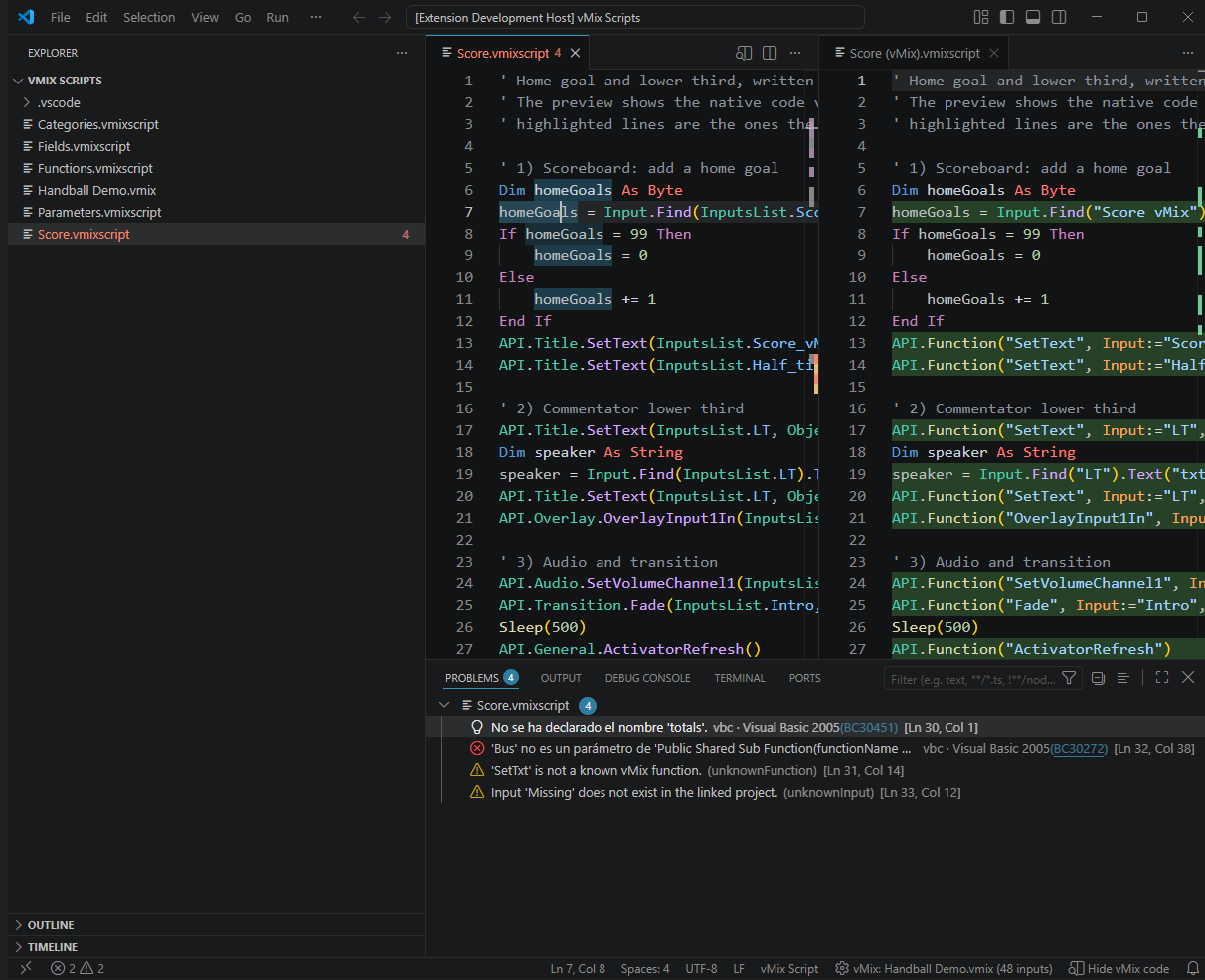
It reads your actual .vmix project, offers completions built from the inputs and title fields it finds there, emits the native code vMix expects, and validates your script with the same VB.NET compiler vMix itself uses.
Disclaimer: This is an unofficial community extension. It is not affiliated with, endorsed by, or supported by vMix or StudioCoast Pty Ltd. "vMix" is a registered trademark of StudioCoast Pty Ltd.
Compatible with: vMix 29
Contents
Why a typed syntax
Every vMix automation call goes through a single entry point:
API.Function("SetText", Input:="Score vMix", SelectedName:="txtHome.Text", Value:="3")
The function name, the input name and the field name are all plain strings. Nothing checks them: a typo in "SetText", a renamed input or a field that no longer exists fails silently at showtime.
This extension replaces those strings with typed members drawn from your own project:
API.Title.SetText(InputsList.Score_vMix, ObjectsList.txtHome_Text, "3")
You get completion, signature help and validation while you write, and the extension translates the call back to the native form on export. Both directions are lossless — see Import and export.
Features
Contextual IntelliSense
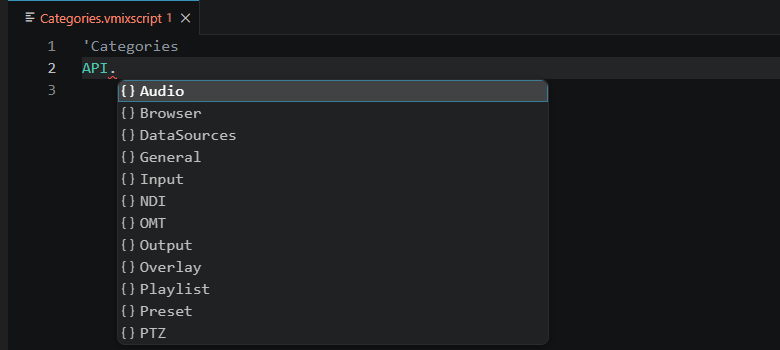
Completion for the full vMix API, organised by category. Suggestions are filtered by what can legally appear at that position, and valid value ranges are shown inline.
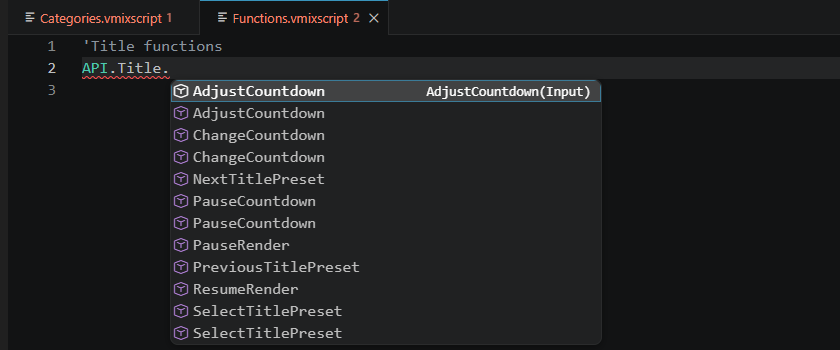
Each function is offered as two overloads: one with required parameters only, one with all of them.
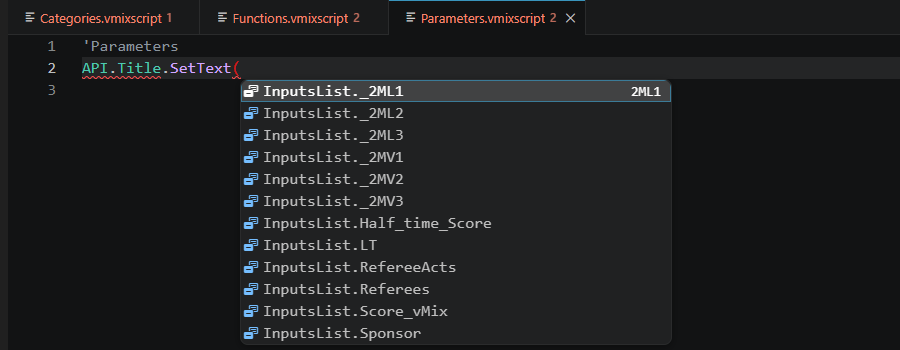
Inside the parentheses only what belongs there is suggested — for an Input parameter, the inputs of the linked project:
Title field awareness
When a project is linked, the extension opens each GT Title (.gtzip) and reads its document.xml, populating ObjectsList with the title's text and image elements. Fields are filtered by their parent input and by kind: SetText offers text elements only, SetImage offers image elements only.
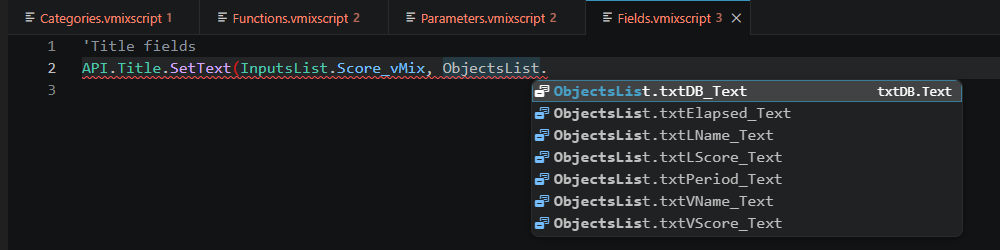
.NET classes
vMix scripts can use the .NET Framework 2.0 base classes. Where a type is expected (Dim x As, New, CType(x, …)) the list offers types:
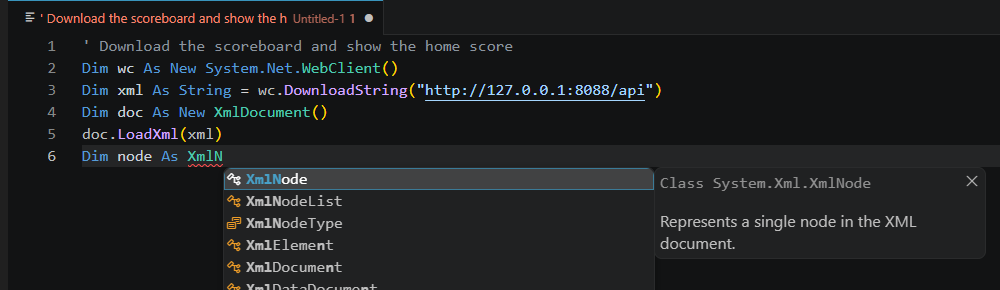
After a dot come the real members of the expression's type, with the same description Visual Studio shows as Quick Info: summary, parameters and return value. It follows the expression through calls and indexes: wc.DownloadString(url).Split(","c)(0)., doc.SelectSingleNode(…).InnerText.
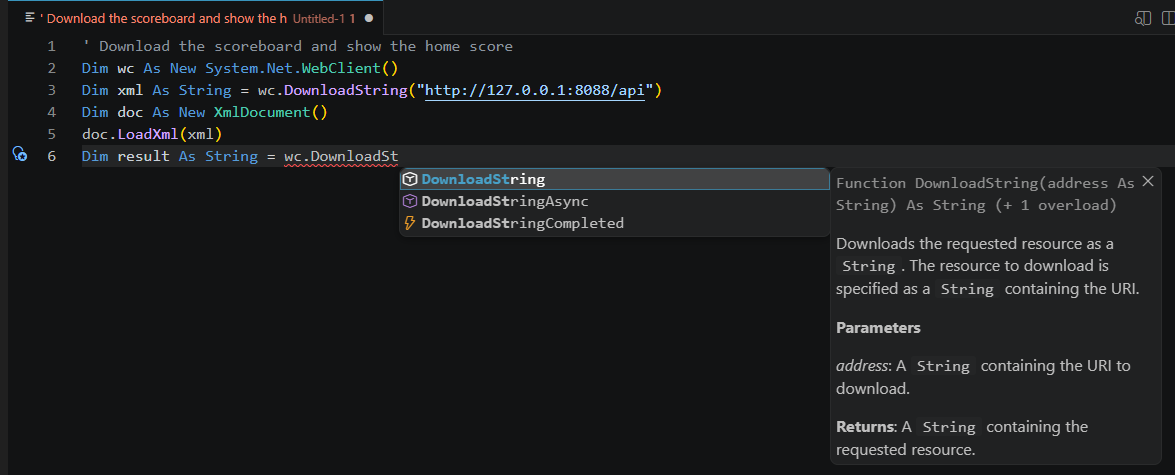
Signature help lists every overload and describes the parameter being typed, and hovering a member, a type or a variable shows its Quick Info:
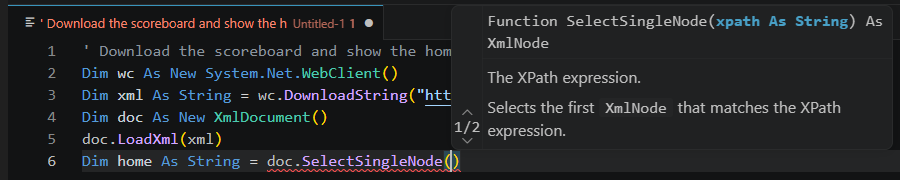
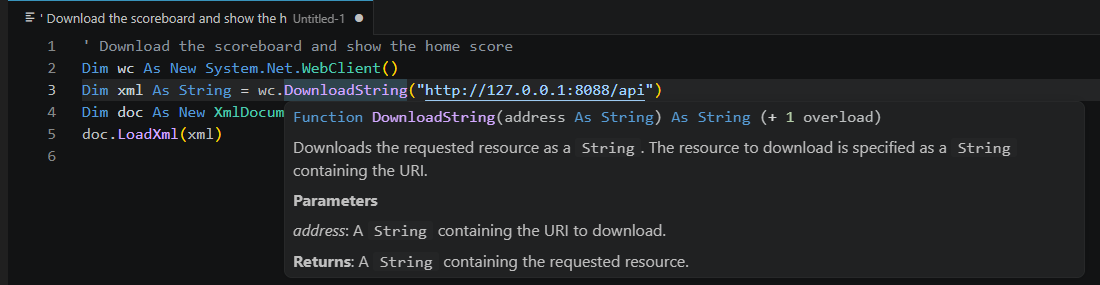
The types and signatures are read by reflection from the .NET Framework 2.0 itself, limited to the classes vMix scripts actually use. The descriptions come from the official .NET API documentation; when the .NET Framework IntelliSense files for your Windows language are installed (for example, Spanish), they are shown in that language.
Supported namespaces
Imported by vMix, usable without qualification:
- System —
String, Integer, Double, Boolean, DateTime, TimeSpan, Math, Convert, Array, Environment, Exception, Random, Uri
- System.IO —
File, Directory, Path, FileInfo, FileStream, StreamReader, StreamWriter
- System.Net —
WebClient, WebRequest, HttpWebRequest, HttpWebResponse, WebHeaderCollection, NetworkCredential
- System.Diagnostics —
Process, ProcessStartInfo
- System.Xml —
XmlDocument, XmlNode, XmlNodeList, XmlElement, XmlAttribute, XmlReader
Written qualified, since vMix scripts cannot declare Imports:
- System.Collections.Generic —
List(Of T), Dictionary(Of TKey, TValue), KeyValuePair(Of TKey, TValue)
- System.Collections —
Stack
- System.Text —
StringBuilder, Encoding, UTF8Encoding
- System.Text.RegularExpressions —
Regex, Match, MatchCollection
- System.Net.Sockets —
TcpClient, UdpClient, NetworkStream
- System.Threading —
Thread
- System.Globalization —
CultureInfo
vMix's documentation only says that scripts can use "the vast majority of the built in base classes in the .NET framework", so this list was put together from the vMix help, forum and knowledge base and from public vMix scripts. Some namespace or class may be missing or included unnecessarily, and the list is open to feedback: if a class works in your scripts and is not offered, or something listed does not work in vMix, please say so in the Q & A.
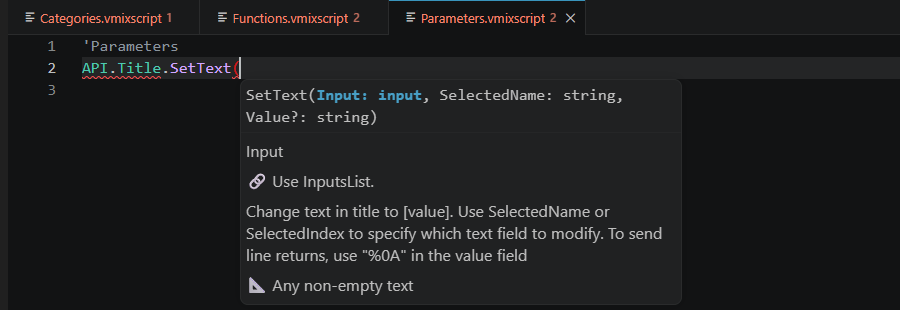
Signature help
The full signature with parameter names, types, documentation and accepted value range, shown while you type inside the parentheses.
Real compiler errors
vMix compiles scripts with the VB.NET compiler bundled with the .NET Framework. This extension invokes that same compiler — vbc.exe, already present on every Windows installation, nothing to install.
Your script is compiled in the background against stubs of the vMix objects, and the compiler's own errors are surfaced with their original code (BC30451), in your system language, linked to the Microsoft documentation.
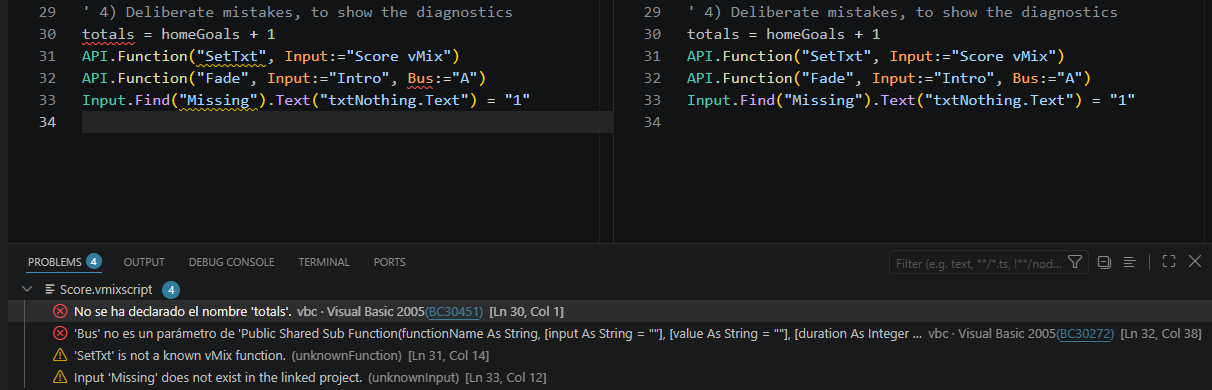
This catches what pattern matching cannot: undeclared variables, misspelled members, unclosed blocks, type mismatches, and the Sub/Function declarations vMix does not permit.
What is compiled is the exported native code rather than what you typed, since the typed syntax does not exist as far as vbc.exe is concerned. Compilation is debounced, each run cancels the previous one, and a typical script takes about 140 ms.
The 56 scripts of a real production project compile without a single error.
Quick fixes
Errors come with the light bulb (Ctrl+.), as in Visual Studio. The fixes are driven by the compiler's own error codes and by the linked project, so they suggest names that actually exist:
| Error |
Fix offered |
BC30451 — name not declared |
A similar variable or vMix object if it looks like a typo (totla → total); otherwise Generate Dim totales As Integer, with the type inferred from how the variable is used and the declaration placed where it stays in scope |
BC30456 — not a member (.Textt, Console.WritLine) |
The closest member of that type: the vMix objects, and common .NET types read by reflection from the .NET Framework |
BC30272 — argument not accepted (Bus:=, Inpt:=) |
The valid argument taken from the signature the compiler reports, or removal of the argument |
| Unknown vMix function, input or title field |
The closest name in the function database or the linked project; fields are limited to that title |
InputsList.X / ObjectsList.X not in the project |
The closest existing member |
Navigation and refactoring
| Shortcut |
Action |
F2 |
Rename a variable across the script. Only variables declared in the script can be renamed, and names that are reserved or already taken are rejected |
F12 |
Go to the variable's declaration. On InputsList.X, open the linked project |
Shift+F12 |
Find all references |
| — |
Occurrences of the variable under the cursor are highlighted, with assignments distinguished from reads |
Ctrl+K Ctrl+D (or Shift+Alt+F) |
Format the document with pretty listing and block indentation, as in Visual Studio, including Case indented inside Select Case. Ctrl+K Ctrl+F formats only the selection |
| — |
Pasted code is formatted automatically (editor.formatOnPaste is on by default for vMix Script) |
Ctrl+K Ctrl+S |
Surround With: wrap the selected lines in If, If…Else, Try…Catch, Try…Finally, For, For Each, Do…Loop Until, While, With or a '#Region |
Live vMix preview
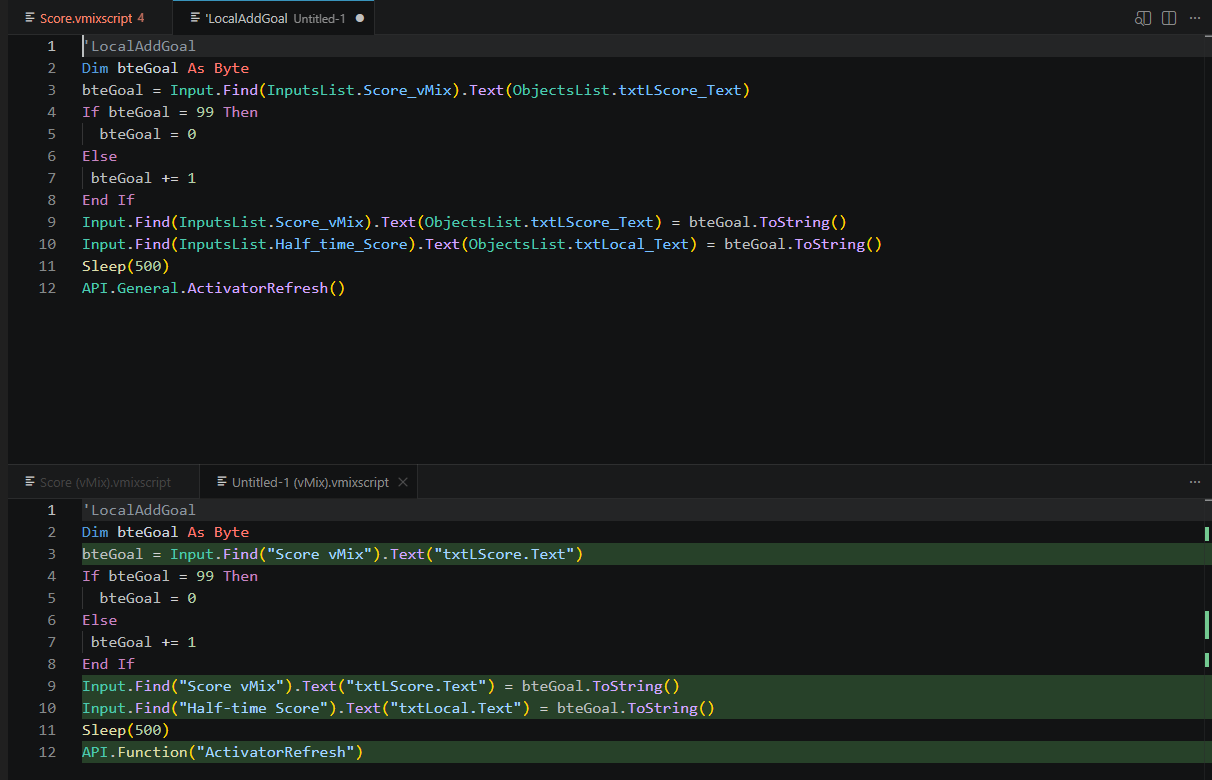
A read-only split showing the script exactly as vMix will receive it, updated as you type and following the scroll position of the source.
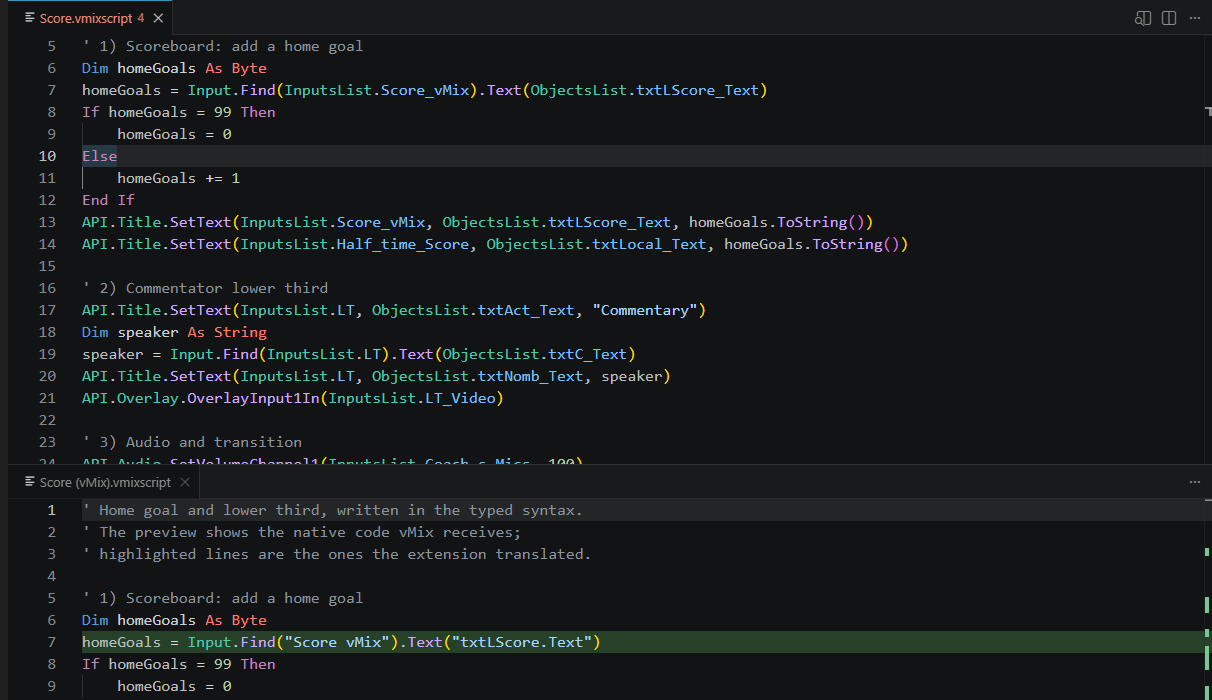
The highlighted lines on the right are the ones the extension translated; lines already written in native syntax pass through untouched. The preview opens automatically with each script, and a status bar button toggles it. Ctrl+K V opens it side by side, and a second command opens it below for a horizontal split.
Project integration
Link the .vmix file that vMix saves and the extension reads:
- Inputs, with their number and title.
- GT Title fields from each
.gtzip (txtScore.Text, imgLogo.Source). Title files are located relative to the project, so a moved project folder still resolves.
- Data sources and their tables, for the
DataSource* functions.
- Scripts, for import and export.
External changes to the project file are detected and reloaded automatically. When vMix is running, Refresh Inputs from vMix reads the live state over the HTTP API instead.
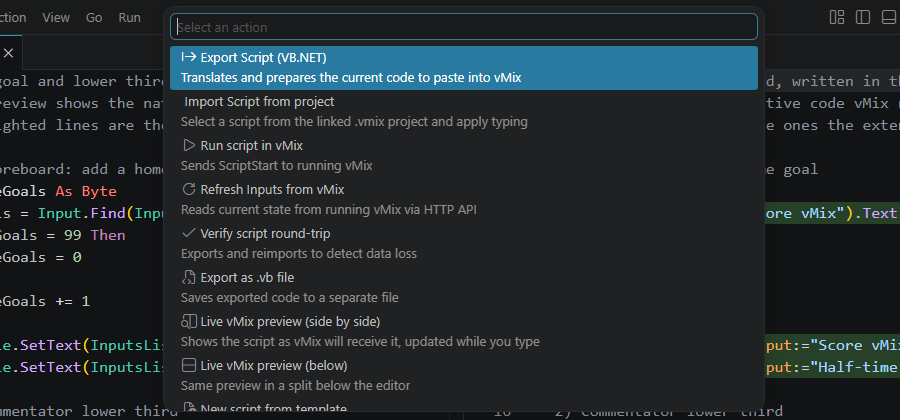
Every command is available from the status bar item, which also reports the linked project and its input count:
Import and export
Export converts the current .vmixscript to native VB.NET and copies it to the clipboard, ready to paste into vMix. It can also write the script straight into the linked project: only the <Scripting> section is rewritten, the rest of the file is preserved byte for byte, and a backup is taken first. Strings and comments are never modified.
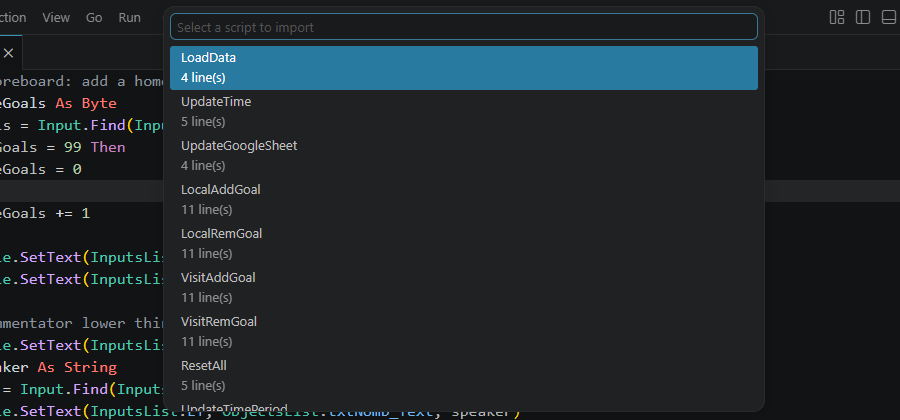
Import lists the scripts stored in the linked project and converts the selected one to the typed syntax.
The imported script opens in typed syntax, with the preview on the right showing it converted back to what vMix receives:
Both directions are verified against a real production project: its 56 scripts import and export back without loss. Twenty-nine return byte for byte; the remaining twenty-seven differ only in the order or spacing of named arguments, which vMix parses identically. The import converts at least one call in 55 of the 56.
Visual Studio–style editing
The editor reproduces Visual Studio 2022 behaviour for VB.NET, restricted to what vMix actually compiles: VB.NET 2.0 (Visual Basic 2005) inside a single Sub.
- Pretty listing. Committing a line — pressing Enter, or moving to another line — reformats it:
dim x as integer=5 becomes Dim x As Integer = 5, Foo( a ,b ) becomes Foo(a, b), Sleep (500) becomes Sleep(500). Named arguments stay tight, as in Visual Studio (Input:="Camera 1"). Strings and comments are never touched.
- Contextual casing. Keywords take their canonical form; variables keep the casing of their declaration, so a variable named
text is not rewritten to Text; members after API., InputsList. and ObjectsList. take their real names.
- End constructs. Pressing Enter after
If x inserts Then and End If, and likewise for For/Next, Do/Loop, While/End While, Select Case, Try/Catch, With, Using and SyncLock. Nothing is inserted when the block is already closed.
- Smart indentation, folding and comments. Blocks indent and outdent on their own, fold (including
'#Region markers), and Ctrl+K Ctrl+C comments the selection.
Native vMix syntax
Scripts written the way vMix documents them are fully supported, with completion inside the string literals:
| Position |
Suggestions |
Input.Find(", Input:=", Overlay.Find(1).In(" |
Input names from the project |
API.Function(", .Function(" |
vMix functions, with description and example |
SelectedName:=", .Text(" |
Fields of that title (txtScore.Text) |
Value:=" |
Script names for ScriptStart, data sources and tables, accepted values |
Diagnostics report inputs, title fields and functions that do not exist, arguments API.Function does not accept, and syntax newer than VB.NET 2.0 that vMix will refuse to compile — If(a, b, c), lambdas, $"...", ?., Integer?, collection initialisers, and implicit line continuation without _.
Hovering a function or input name inside a string shows its documentation.
Also included
- vMix objects. Completion for
Input.Find(...), Input.Preview, Input.Output, .Text("field"), .Function(...), .WaitForCompletion(ms), Overlay.Find(n), Console.WriteLine and Sleep(ms), as documented in the vMix VB.NET scripting guide.
- Data sources. Names and tables from the linked project, offered in the
DataSource* functions.
- Snippets. Common patterns, plus per-input shortcuts generated from the project (
cut-Camera_1, fade-Intro, gt-Score).
- Navigation. Document outline, folding, and
Ctrl+Click from InputsList.X to the linked project.
- Localisation. Messages, IntelliSense details, snippets and templates in English, Spanish and Portuguese, following the Windows display language — the same language
vbc.exe reports its errors in — or the language chosen in vmixScripting.language. Command titles in menus follow the VS Code display language.
Getting started
1. Install
Search for Scripting Assistant - For vMix in the Extensions view, or install it from the Visual Studio Marketplace.
2. Link a project
From the Command Palette (Ctrl+Shift+P), or from the status bar item:
Scripting Assistant: Open project...
Select your .vmix file. The extension loads its inputs and extracts the fields of every GT Title.
3. Write a script
Create a file with the .vmixscript extension. The first line must be a comment holding the script name, which is what identifies it inside the project:
'Lower Third In
Type API. to browse the categories, then the function and its parameters. The live preview on the right shows the native code as you go.
4. Export
From the Command Palette or the status bar item:
Scripting Assistant: Export Script (VB.NET)
The translated code is copied to the clipboard, ready to paste into vMix — or the extension can write it into the linked project for you.
Typed syntax reference
What you write:
API.Title.SetText(InputsList.MyTitle, ObjectsList.txtName_Text, "Hello")
API.Transition.Cut()
API.Transition.Fade(InputsList.Camera_1, 1000)
API.Audio.SetVolume(InputsList.Music, 80)
API.DataSources.DataSourceSelectRow("vMix", "Teams", 3)
Input.Find(InputsList.MyTitle).Text(ObjectsList.txtName_Text) = "Hi"
Sleep(1000)
What vMix receives:
API.Function("SetText", Input:="MyTitle", SelectedName:="txtName.Text", Value:="Hello")
API.Function("Cut")
API.Function("Fade", Input:="Camera 1", Duration:=1000)
API.Function("SetVolume", Input:="Music", Value:="80")
API.Function("DataSourceSelectRow", Value:="vMix,Teams,3")
Input.Find("MyTitle").Text("txtName.Text") = "Hi"
Sleep(1000)
Typed calls emit only the arguments API.Function accepts in VB.NET: Input, SelectedName, Value and Duration. Calls that cannot be represented without losing information — Mix:= or SelectedIndex:=, for instance — are left as API.Function(...) on import rather than converted approximately.
Literals are quoted for you
In API.Function, Value is a String and Duration is an Integer — a distinction that is easy to get wrong by hand. Write the literal in its natural form and the export applies the right one:
| You write |
vMix receives |
Why |
API.Audio.SetVolumeChannel1(InputsList.Mic, 100) |
Value:="100" |
Value is a String, so the number is quoted |
API.Transition.Fade(InputsList.Intro, 1000) |
Duration:=1000 |
Duration is an Integer, so it is left bare |
API.Transition.Fade(InputsList.Intro, "1000") |
Duration:=1000 |
The quotes are removed |
Variables and expressions are passed through exactly as written, since their type cannot be known.
Settings
| Setting |
Default |
Description |
vmixScripting.projectPath |
— |
The .vmix project to read inputs, title fields, data sources and scripts from |
vmixScripting.compilerDiagnostics |
true |
Validate the script with vbc.exe |
vmixScripting.vbcPath |
auto-detected |
Explicit path to the .NET Framework 2.0 vbc.exe |
vmixScripting.livePreviewAuto |
true |
Open the live vMix preview automatically with each script |
vmixScripting.prettyListing |
true |
Reformat each line as it is committed |
vmixScripting.endConstructs |
true |
Close blocks automatically on Enter |
vmixScripting.enableHotReload |
true |
Reload the project when the .vmix file changes on disk |
vmixScripting.enableLinter |
true |
Warn about consecutive calls on one input without Sleep, untyped API.Function calls, and loops with no exit |
vmixScripting.apiUrl |
http://localhost:8088 |
vMix HTTP API endpoint, used to run scripts and refresh inputs |
vmixScripting.checkFunctionUpdates |
true |
Check the published sources once a day and offer to update the function database |
vmixScripting.language |
auto |
Language of the extension: auto follows the operating system; en, es or pt force one |
Requirements
- Visual Studio Code 1.80 or later
- Windows, for the compiler diagnostics (
vbc.exe ships with the .NET Framework)
- A vMix installation with
.vmix project files, for the project integration features
API sources
The function database holds 792 functions, built from:
Staying current
Once a day the extension rebuilds the database from the first two sources and compares it with the one in use. When vMix publishes new or changed functions — or a new version of its help — it offers to update, with the list of changes available before accepting. Nothing changes without confirmation, and the updated database takes effect immediately, without restarting. Only those two public pages are downloaded and nothing is sent. The check can be run on demand with Scripting Assistant: Check for vMix function updates, or turned off with vmixScripting.checkFunctionUpdates.
Feedback
Questions and bug reports go to the Q & A tab of the Marketplace page.
Reports about specific vMix API functions are particularly useful: a wrong parameter type, a missing overload or an incorrect value range in the function database is hard to find without someone hitting it in production. When reporting one, include the call as you wrote it and what vMix did with it.
Third-party notices
vMix API function data
The vMix function data comes from the data file of The Unofficial vMix API Reference
(public/data/api.json, also served at vmixapi.com), which is distributed under the MIT License:
MIT License

Copyright (c) 2025 Nick Roberts

Permission is hereby granted, free of charge, to any person obtaining a copy
of this software and associated documentation files (the "Software"), to deal
in the Software without restriction, including without limitation the rights
to use, copy, modify, merge, publish, distribute, sublicense, and/or sell
copies of the Software, and to permit persons to whom the Software is
furnished to do so, subject to the following conditions:

The above copyright notice and this permission notice shall be included in all
copies or substantial portions of the Software.

THE SOFTWARE IS PROVIDED "AS IS", WITHOUT WARRANTY OF ANY KIND, EXPRESS OR
IMPLIED, INCLUDING BUT NOT LIMITED TO THE WARRANTIES OF MERCHANTABILITY,
FITNESS FOR A PARTICULAR PURPOSE AND NONINFRINGEMENT. IN NO EVENT SHALL THE
AUTHORS OR COPYRIGHT HOLDERS BE LIABLE FOR ANY CLAIM, DAMAGES OR OTHER
LIABILITY, WHETHER IN AN ACTION OF CONTRACT, TORT OR OTHERWISE, ARISING FROM,
OUT OF OR IN CONNECTION WITH THE SOFTWARE OR THE USE OR OTHER DEALINGS IN THE
SOFTWARE.
.NET API documentation
Contains descriptions of .NET types and members (summary, parameters and return value) taken from
.NET API reference documentation by Microsoft and the .NET Foundation,
licensed under the Creative Commons Attribution 4.0 International License (CC BY 4.0).
Changes: only the entries for the classes offered by the extension were kept, cross-references were converted to short
type names, C# keywords to their Visual Basic form, and remarks and examples were omitted.
When the Windows display language is not English and the .NET Framework IntelliSense files for that language are installed
on the computer, descriptions are read from those local files; they are not included in the extension.
The .NET type and member signatures are read from the metadata of the .NET Framework 2.0.
License
MIT
Built for the vMix community. vMix is a registered trademark of StudioCoast Pty Ltd.

