Sweet MarkdownToggle individual markdown tabs between source and rendered preview, in place. Each tab is independent. Installation Launch VS Code Quick Open ( Ctrl+P), paste the following command, and press enter.Copied to clipboard |

Sweet MarkdownWrite and read markdown in the same tab. No more flipping panes.
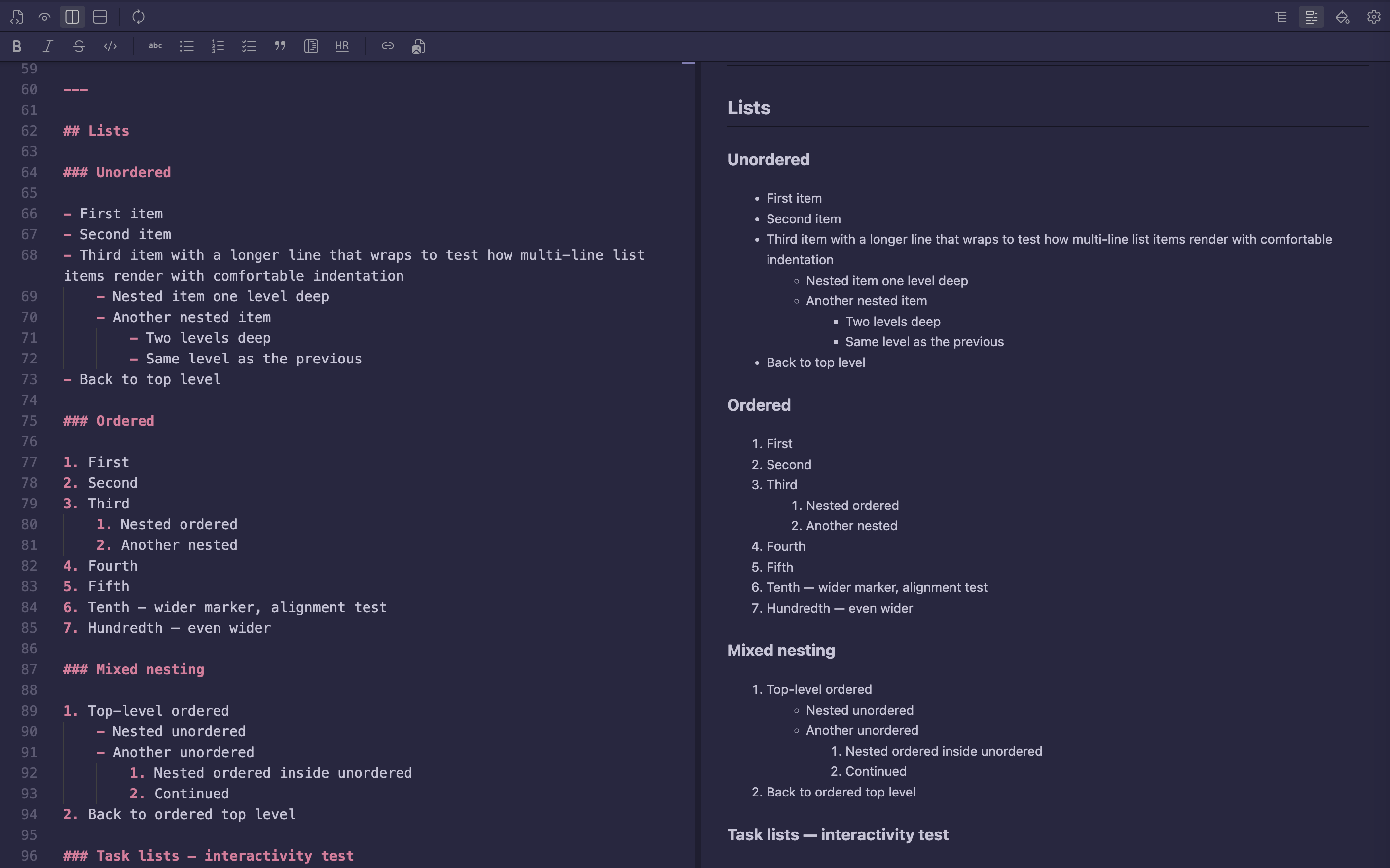
WhyMost markdown extensions split your screen into two: your file on one side, a preview on the other. Two windows for one document. Open another file and the whole layout shuffles. Sweet Markdown puts everything in one tab. You see your markdown rendered. When you want to edit, switch the same tab to the source view. When you want both, split the tab. Each file remembers its own setup. That's it. That's the whole pitch. What it doesFour ways to view a file, switchable from icons in the header: source only, rendered only, side-by-side, top-and-bottom. Each tab keeps its own setup. Live preview while you type. Updates as you go. No save-and-reload, no flipping panes. Sync scrolling. When you scroll the source, the rendered side scrolls with it. A formatting toolbar with the basics: bold, italic, headings, lists, links, images, code blocks. Toggle it on from the header icon. Keyboard shortcuts (⌘B, ⌘I, ⌘K) work whether the toolbar is visible or not. Math equations render inline with Diagrams with Mermaid: flowcharts, sequences, gantt charts, the lot. Just write a Code blocks get proper syntax colors, like in a real editor. Themes for everything: source, preview, code, diagrams. Pick separately for light and dark mode. Plus per-file overrides if you want this one document to look different. Outline view of your headings, both in the sidebar and as a slide-out panel inside the preview. Drag images in or paste them from your clipboard. They get saved to your workspace and linked at the cursor. Export to HTML or PDF when you need to share. Word count and reading time in the status bar. Try itOpen any
What it doesn't doThis is on purpose. Sweet Markdown stays focused.
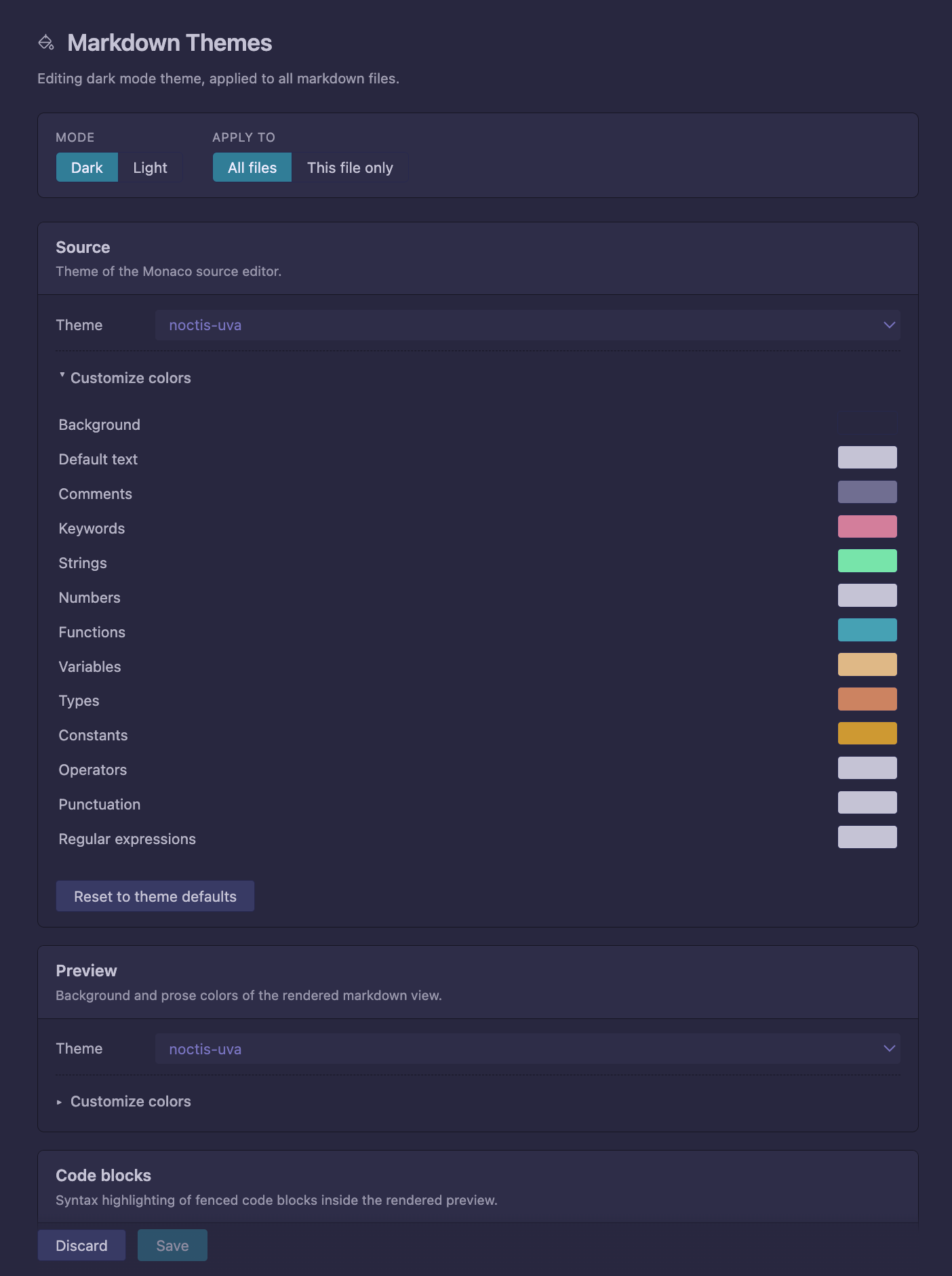
Some VS Code features that work in regular ScreenshotsTheme tab. Pick how source, preview, code, and diagrams look, separately for light and dark.
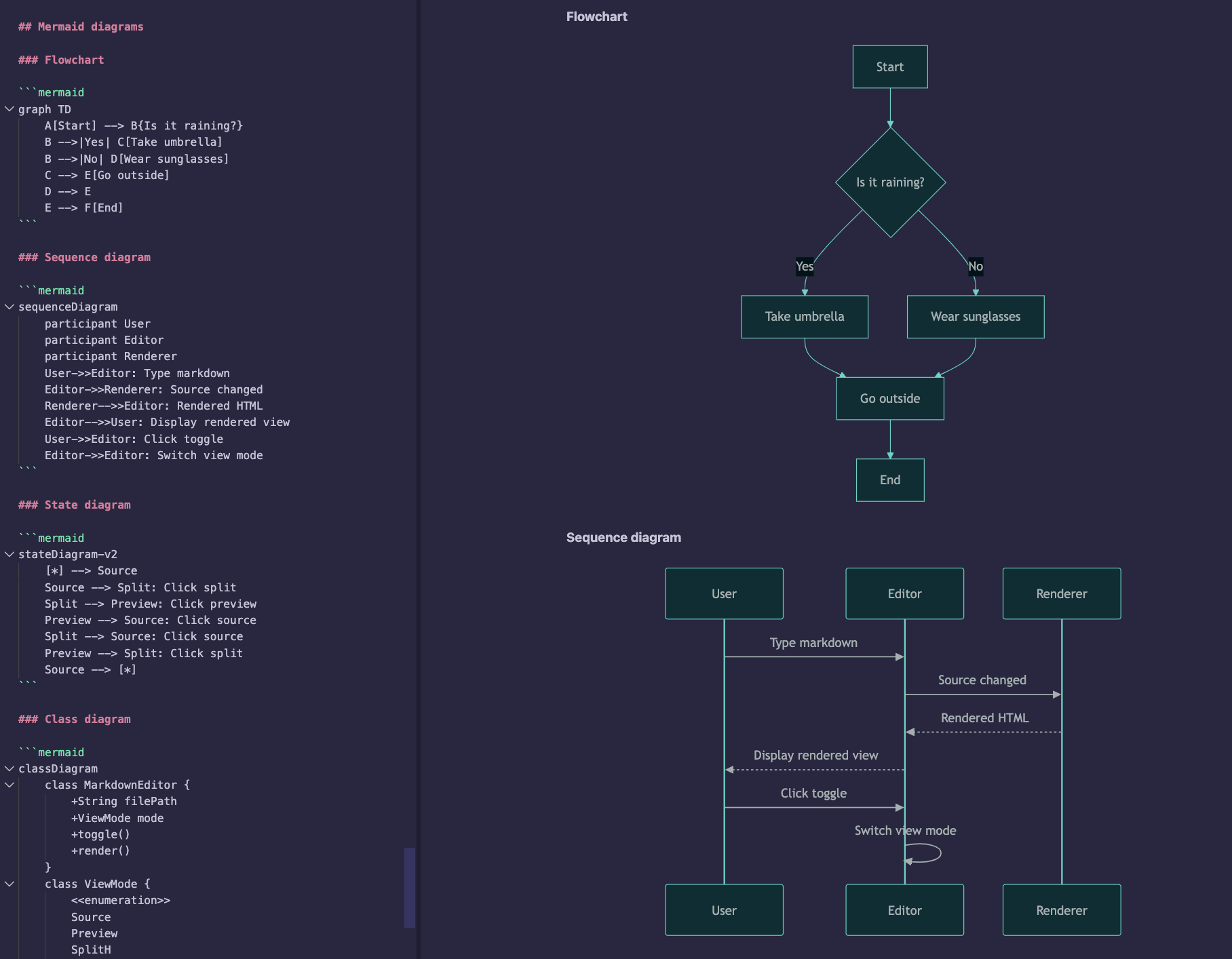
Mermaid diagrams that match your theme.
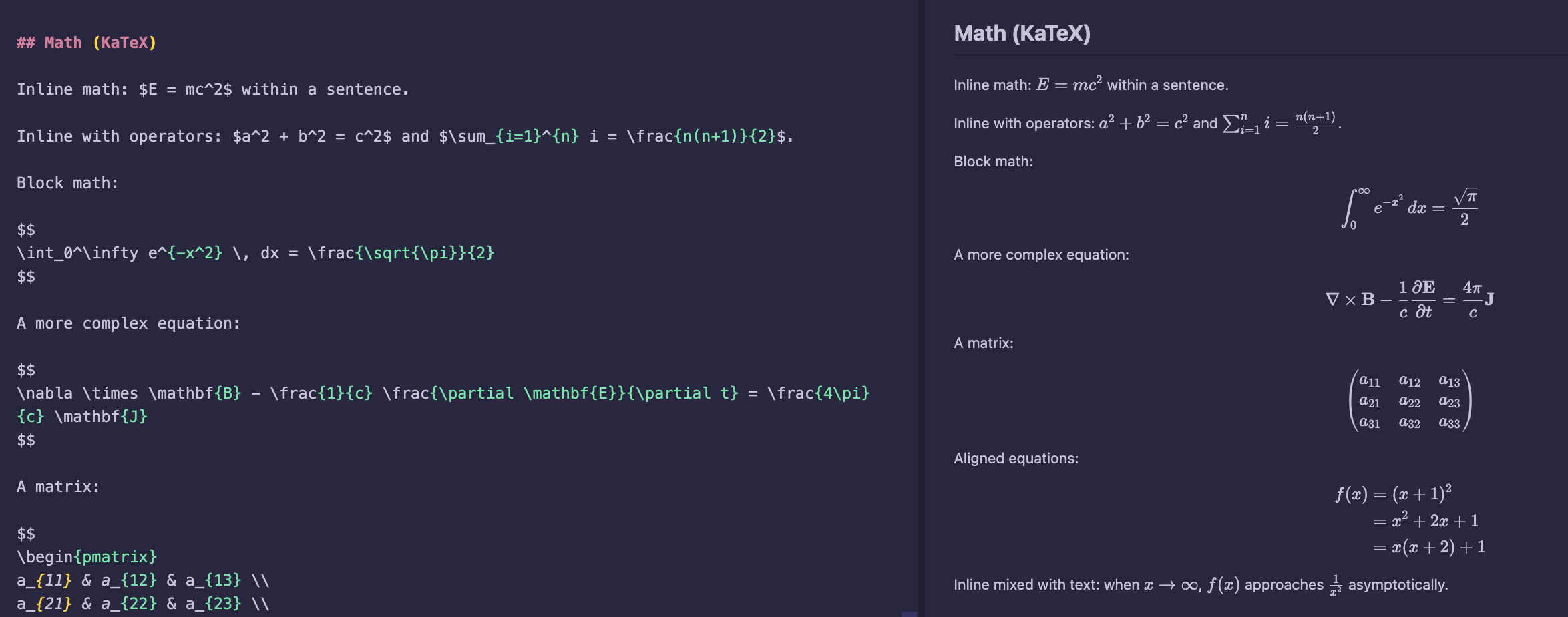
KaTeX math. Inline
FeedbackBug reports and feature requests on GitHub. License |