Skip to content
| Marketplace
Sign in
Visual Studio Code>SCM Providers>VI History SuiteNew to Visual Studio Code? Get it now.
VI History Suite

VI History Suite

Sergio Velderrain

|
5 installs
| (0) | Free
VS Code extension for content-detected LabVIEW VI history review in Git repositories.
Installation
Launch VS Code Quick Open (Ctrl+P), paste the following command, and press enter.
Copied to clipboard
More Info

VI History Suite

vi-history-suite is a Visual Studio Code extension for reviewing LabVIEW VI history in Git repositories.

This public GitHub repo is the source-facing product surface for extension users and public contributors.

If You Installed VI History Suite

If you installed the extension from the VS Code Marketplace or from a VSIX, start with the public user wiki instead of the branch/governance sections in this repo.

Installed-user start pages:

  • Home: https://github.com/svelderrainruiz/vi-history-suite/wiki
  • Install and release: https://github.com/svelderrainruiz/vi-history-suite/wiki/Install-And-Release
  • User workflow: https://github.com/svelderrainruiz/vi-history-suite/wiki/User-Workflow
  • Comparison reports and dashboard review: https://github.com/svelderrainruiz/vi-history-suite/wiki/Comparison-Reports-And-Dashboard-Review

Local installed-user workflow:

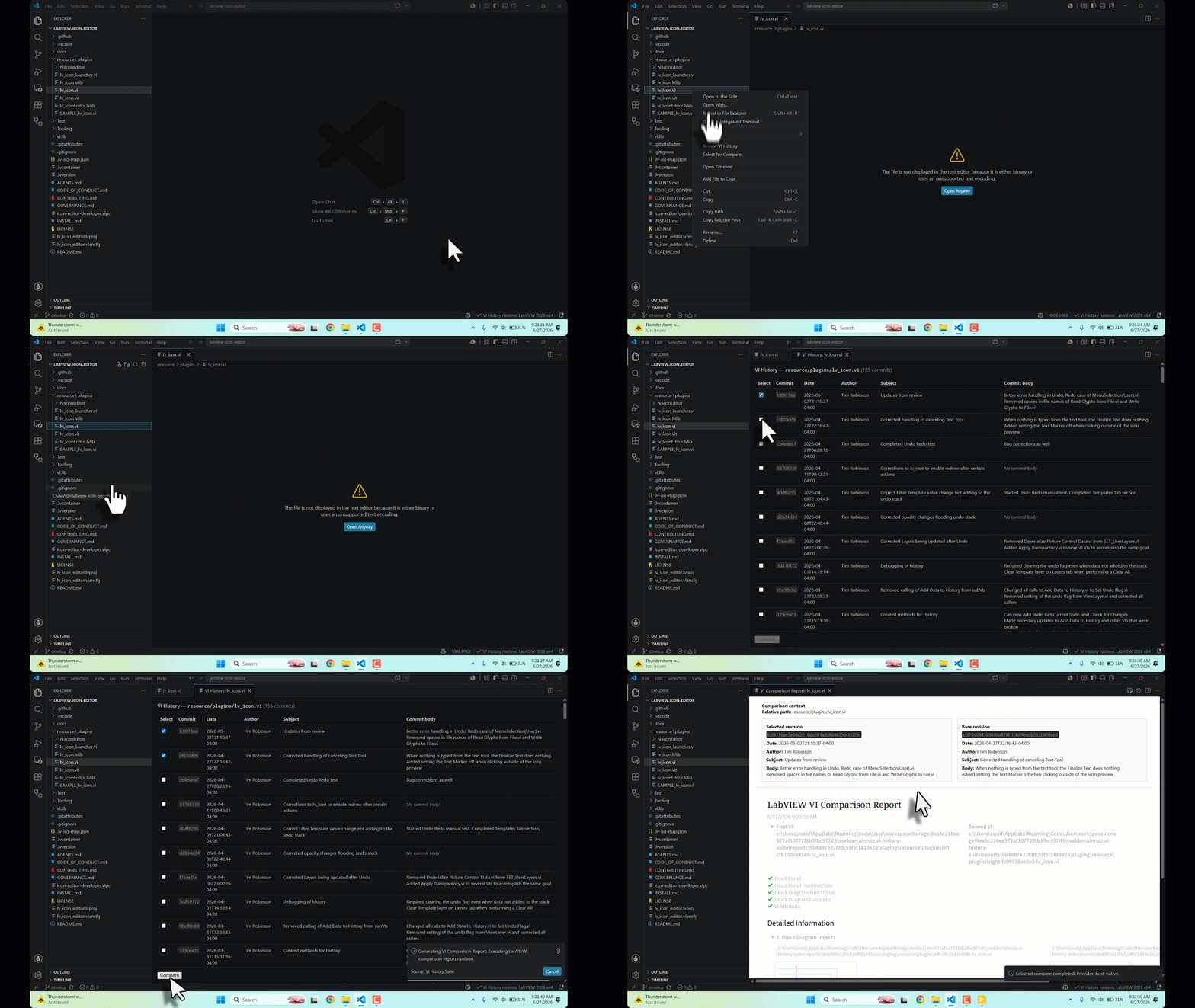
  1. install or start Docker Desktop or Docker, then confirm docker info succeeds in the same session that will run VS Code
  2. open a trusted Git repo that contains an eligible LabVIEW VI
  3. run VI History
  4. select one commit checkbox
  5. select a second distinct commit checkbox
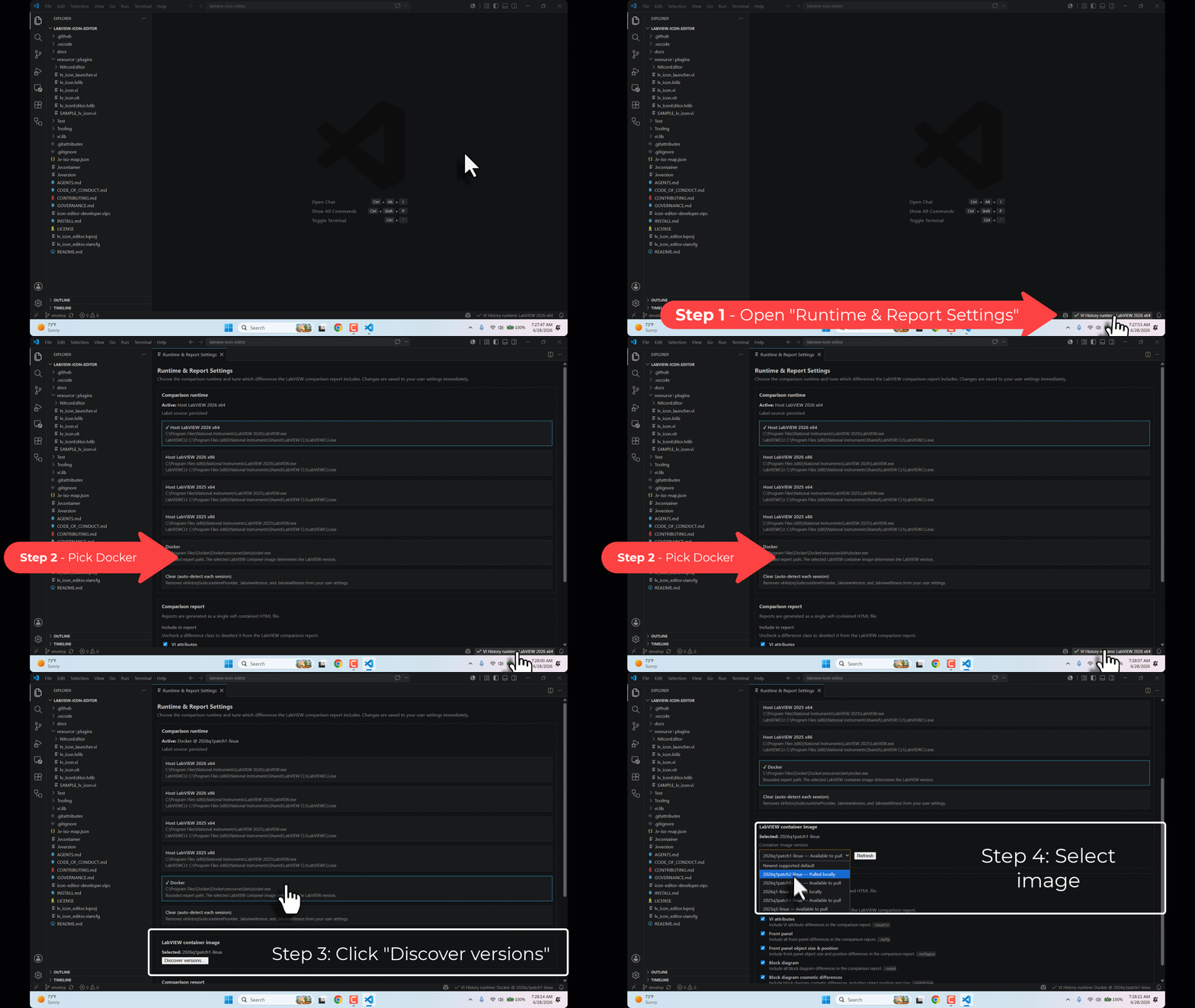
  6. if the governed image is missing but Docker is ready, wait for first-use image acquisition
  7. review the generated comparison report

You do not need to fork this repo or choose a branch to use the installed extension locally.

It is intentionally bounded:

  • Docker-only compare execution
  • x64 container surfaces only
  • Docker CLI plus a running Docker daemon are prerequisites for the first compare
  • repo-agnostic two-commit checkbox-selected compare flow
  • devcontainer/Codespaces-capable development path
  • no host-LabVIEW runtime competition in the installed-extension workflow

This repo does not publish the internal GitLab control plane, benchmark governance, or maintainer-only acceptance evidence.

Public Product Shape

  • Open a trusted Git repository containing an eligible LabVIEW VI.
  • Run VI History.
  • Select one commit checkbox.
  • Select a second distinct commit checkbox.
  • The second checkbox selection triggers compare generation automatically.

The compare surface is Docker-only:

  • Windows hosts use the governed image that matches the current Docker daemon engine.
  • Linux hosts use the governed Linux image.
  • Missing governed images are pulled on first use with visible progress.
  • If Docker is not installed yet, not running yet, or the selected image cannot be acquired, the extension fails closed instead of probing host LabVIEW.

Branch Use

  • Branches matter only when you are evaluating or contributing to the source repo. Marketplace and installed-extension users do not need this branch model to use the product locally.
  • If you are here to evaluate the next public candidate, use develop. Stay on main only if you want the latest exact released source.
  • main is the public default branch and tracks the latest exact released source line.
  • develop is the public evaluation branch for the next governed candidate line.
  • If you only want the latest released source or release-facing docs, stay on main; if you are following the first-time Codespaces or devcontainer evaluation flow, explicitly choose develop.
  • Exact release numbers and retained version facts are listed later in Current Version Line.

Fastest First Fork-Owner Run

If this is your first time using the public fork path, use this order:

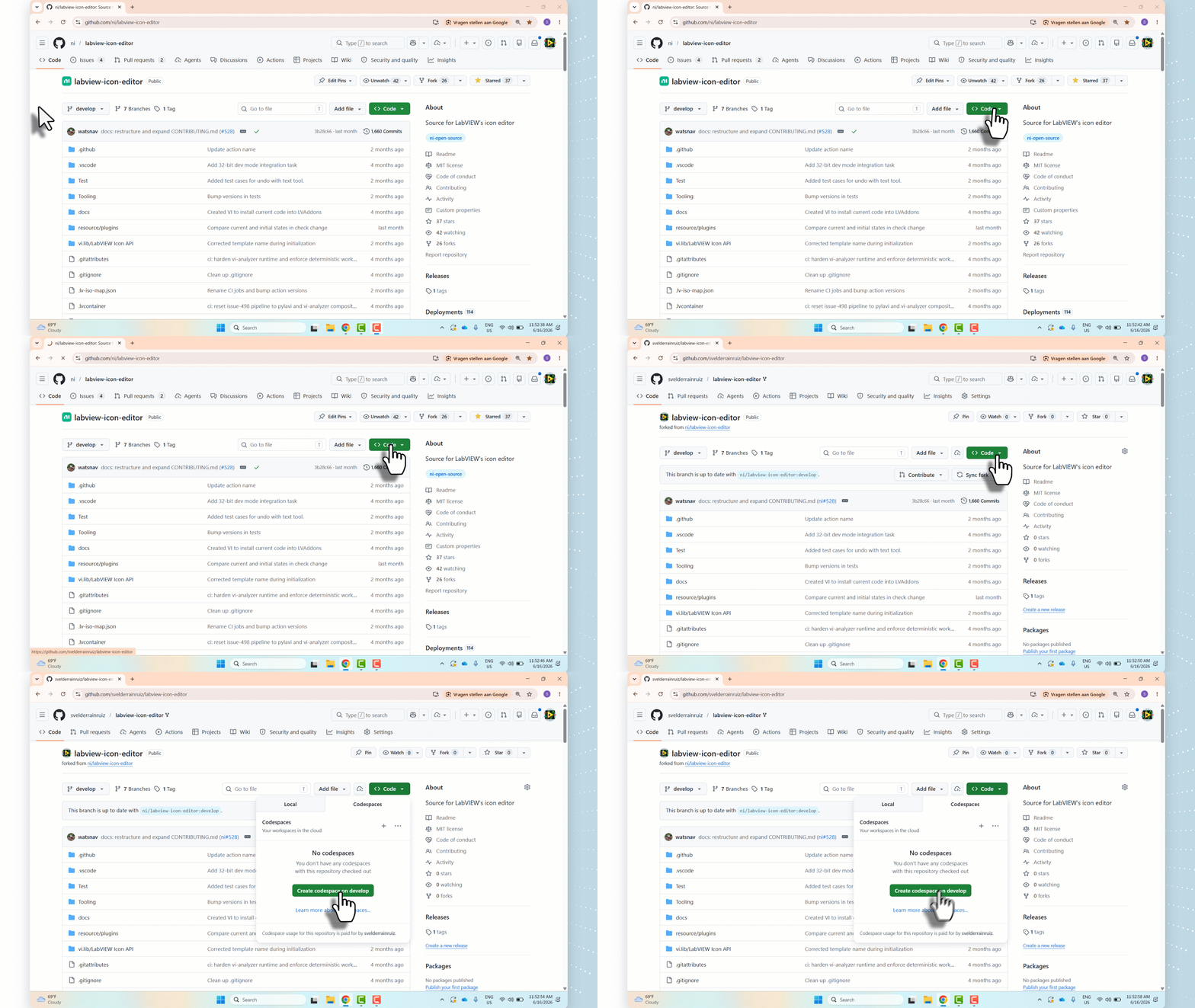
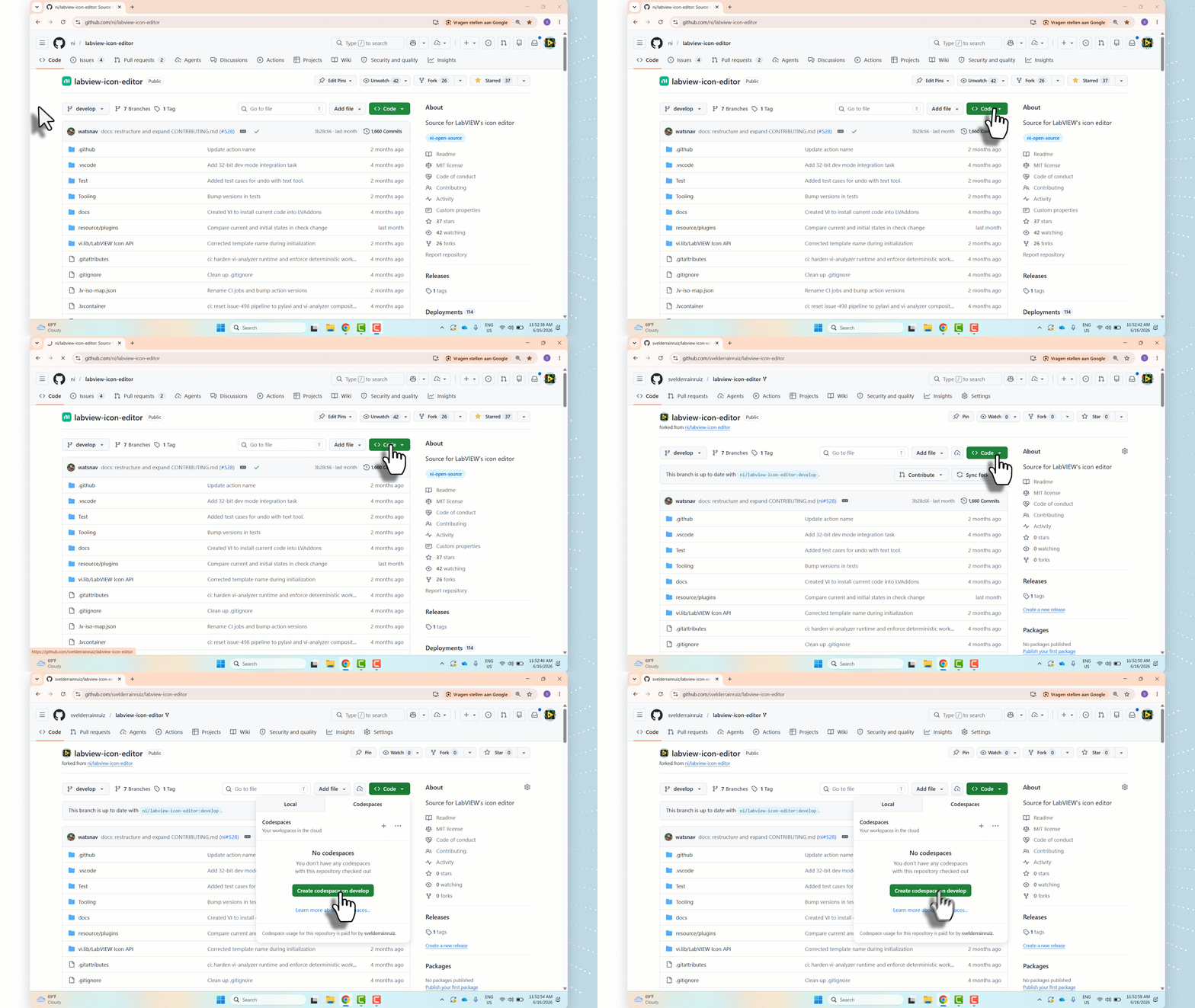
  1. Fork the repo and clear Copy the main branch only so your fork keeps develop. Your fork can still keep main as its default branch.
  2. Create a Codespace from develop with Codespace repository configuration -> New with options and choose a 16-core machine. Treat 16-core as the supported first-time machine. If GitHub does not offer 16-core on your account, choose the largest machine available and treat that as best-effort instead of equivalent support.
  3. Wait for the browser message Setting up remote connection: Building codespace to finish.
  4. Run npm run public:fixture:icon-editor.
  5. Press F5, open /workspaces/labview-icon-editor, then right-click resource/plugins/lv_icon.vi and choose VI History.

The full first-time walkthrough is on the public wiki:

  • https://github.com/svelderrainruiz/vi-history-suite/wiki/Fork-Codespace-Quickstart

That first-time walkthrough is the canonical step-by-step path for a brand new fork and a brand new Codespace. This README keeps only the short summary.

Public Development Path

This repo is expected to work in a Docker-capable devcontainer or Codespace.

GitHub opens this public repo on main by default. That is expected because main is the latest exact released source line. Use develop when you are following the public evaluation path that will lead into the next governed candidate line.

Public Devcontainer And Codespaces

The public GitHub facade is expected to support evaluation inside Codespaces or a local devcontainer.

  • A Linux-hosted development session uses the governed Linux container image.
  • No host LabVIEW installation is required for the installed extension path.

Typical public fast loop:

npm ci
npm run compile
npm run test:design-contract

Then press F5 in VS Code to launch the extension host.

The public devcontainer/Codespaces surface bootstraps the Linux VS Code host dependencies automatically during creation. If you need to rerun that bootstrap manually, use:

npm run public:host:bootstrap-linux

Codespaces/devcontainers also run npm ci on create and npm run compile on start. Only rerun npm run compile manually if the setup was interrupted or you are troubleshooting a stale development host.

The public Linux cold-pull smoke surface is:

npm run public:smoke:linux

The optional public tester-fixture helper is:

npm run public:fixture:icon-editor

It clones ni/labview-icon-editor into a repo-sibling labview-icon-editor folder. In a GitHub Codespace created from this repo, that path is /workspaces/labview-icon-editor.

For the step-by-step fork-owner walkthrough that ends at resource/plugins/lv_icon.vi, use the public wiki page:

  • https://github.com/svelderrainruiz/vi-history-suite/wiki/Fork-Codespace-Quickstart

That page is the easier first fork-owner path because the repo ships a helper for ni/labview-icon-editor and now includes:

  • fork guidance to keep the develop branch
  • Codespaces ... -> New with options
  • develop + 16-core Codespace setup
  • the browser message Setting up remote connection: Building codespace
  • the port 6010 forwarding dialog explanation
  • the exact Open Folder... path for lv_icon.vi

For refresh-only steps after the first successful Codespace setup, use:

  • https://github.com/svelderrainruiz/vi-history-suite/wiki/Refresh-Codespace-Repositories

Reference Manual For Any Public Repo

If you want to review the changes of a LabVIEW VI between two commits on a public GitHub or public GitLab repo instead of the helper-backed ni/labview-icon-editor path, use the public wiki reference manual:

  • https://github.com/svelderrainruiz/vi-history-suite/wiki/Review-Public-LabVIEW-VI-Changes

In a brand-new Codespace, start with the interactive command:

npm run public:repo:clone

Paste the repo URL when prompted. If you press Esc, the prompt stops and you can fall back to the canonical sample helper:

npm run public:fixture:icon-editor

If you prefer a non-interactive command, use this template:

npm run public:repo:clone -- --repo-url https://github.com/<owner>/<repo>.git

Supported repo URLs are public https://github.com/... and https://gitlab.com/... only.

Examples:

npm run public:repo:clone -- --repo-url https://gitlab.com/hampel-soft/open-source/hse-logger.git
npm run public:repo:clone -- --repo-url https://github.com/crossrulz/SerialPortNuggets.git

If you want a specific branch instead of the repo's default branch, add --branch <branch-name>. Otherwise omit --branch and let the command use the repo's remote default branch:

npm run public:repo:clone -- --repo-url https://github.com/crossrulz/SerialPortNuggets.git --branch <branch-name>

When --branch is omitted, the command resolves the remote default branch. That means it works whether the public target repo uses main, master, or a different default branch, and it keeps the first-time path simpler.

The clone target stays visible instead of hidden:

  • hse-logger becomes /workspaces/hse-logger
  • SerialPortNuggets becomes /workspaces/SerialPortNuggets

Use the exact path printed by the command when you later choose File -> Open Folder... in the extension development host.

The reference manual keeps the generic public-repo path separate from the canonical helper-backed lv_icon.vi quickstart, and it assumes a brand new fork and a brand new Codespace. It also includes the documented example VIs:

  • Hampel Software Engineering hse-logger: Examples/Logging with Helper-VIs.vi
  • crossrulz/SerialPortNuggets: ASCII/Terminals/ASCII Command-Response.vi

The guarded package path is:

npm run package -- --out /tmp/vi-history-suite-public-preview.vsix

Start Here

  • Install
  • Support
  • Contributing
  • Public GitHub wiki: https://github.com/svelderrainruiz/vi-history-suite/wiki

Current Version Line

  • retained exact-version releases: v0.2.0, v1.0.0, v1.0.1, v1.0.2, v1.0.3, v1.0.4, v1.0.5, v1.0.6, v1.1.0, v1.2.0, v1.2.1, v1.2.2
  • burned exact release line: v1.0.2
  • current exact released line: v1.2.2
  • current published package line on main: 1.2.2
  • current develop package line on develop: 1.2.2
  • active exact release candidate line on develop: v1.2.2
  • no newer release/* branch is active yet
  • public GitHub default branch: main
  • public Codespaces evaluation branch: develop
  • Contact us
  • Jobs
  • Privacy
  • Manage cookies
  • Terms of use
  • Trademarks
© 2026 Microsoft