MDX Studio Preview
A VS Code extension that previews .mdx files beside the editor, rendered with
this repository's own packages — @mdxstudio/core and @mdxstudio/react, plus
@mdxstudio/mermaid, @mdxstudio/charts and @mdxstudio/flow through the
plugin registry. Callouts, cards, tabs, steps, tables, charts, flow graphs,
Mermaid diagrams and syntax-highlighted code, themed to match the editor.
Opening an .mdx file opens the preview automatically. One panel is reused for
every document, and focus stays in the editor.
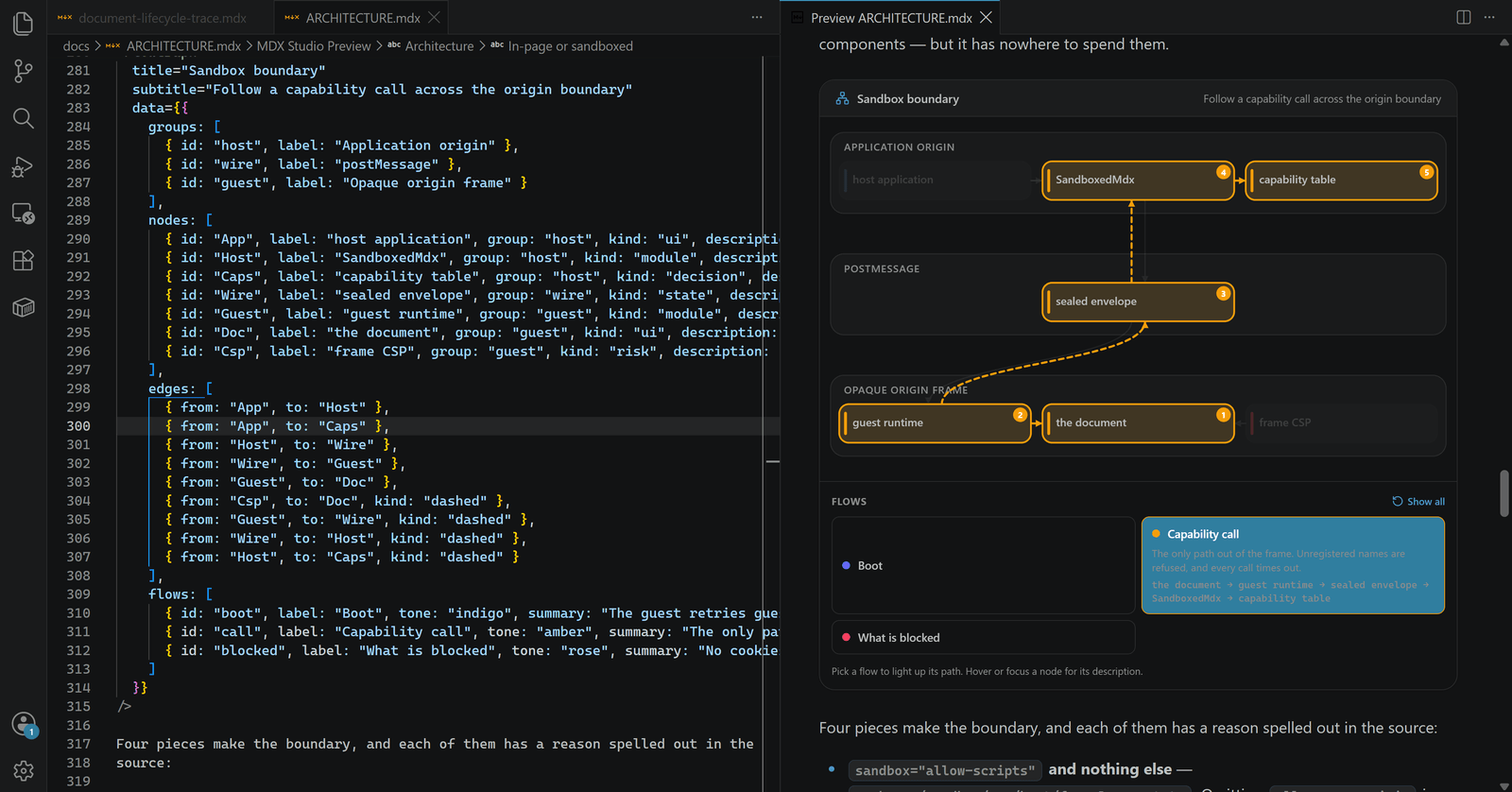
It keeps up as you type
The preview follows the buffer, not the file — a GitHub alert becomes a themed
callout and $E = mc^2$ typesets, without saving.
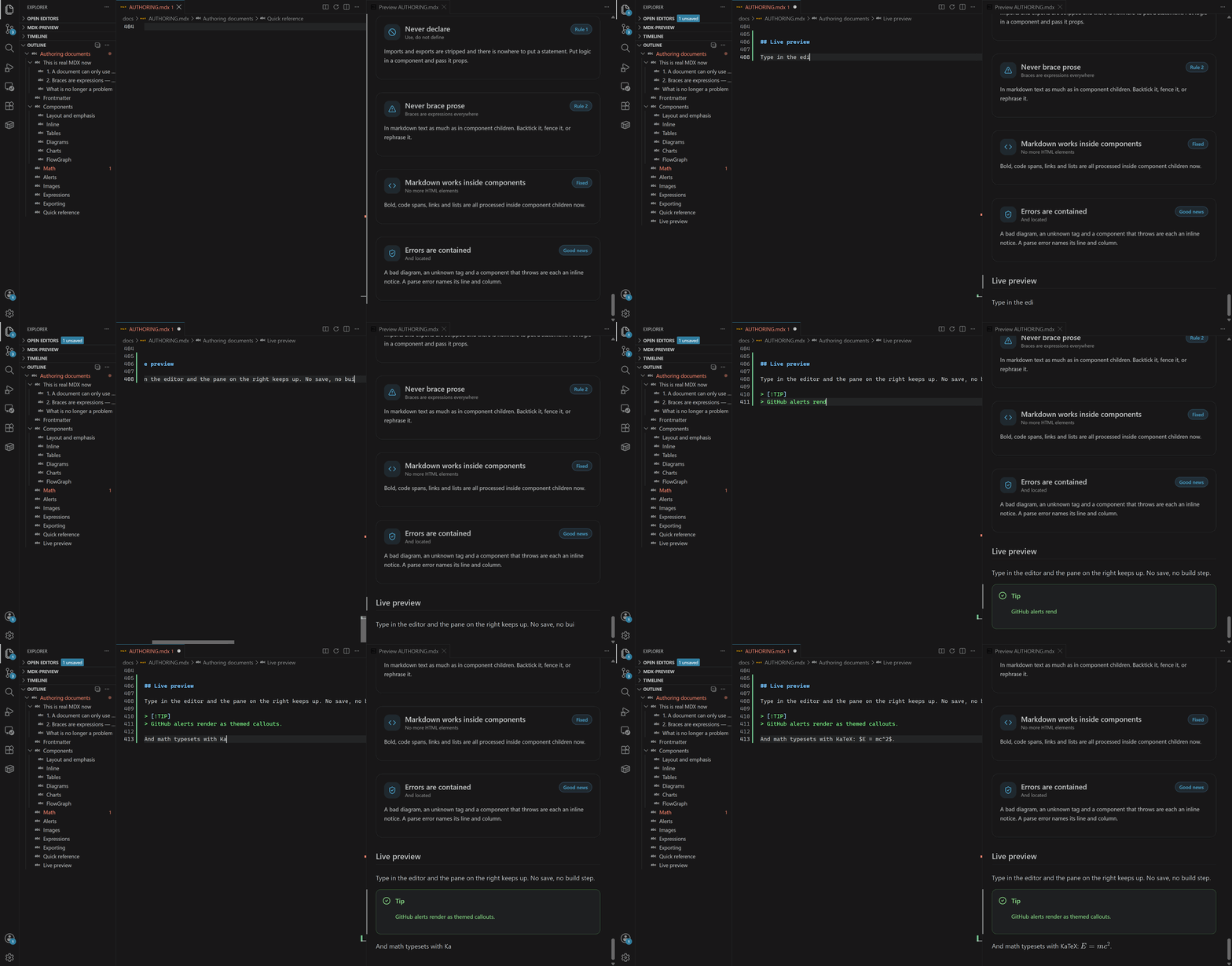
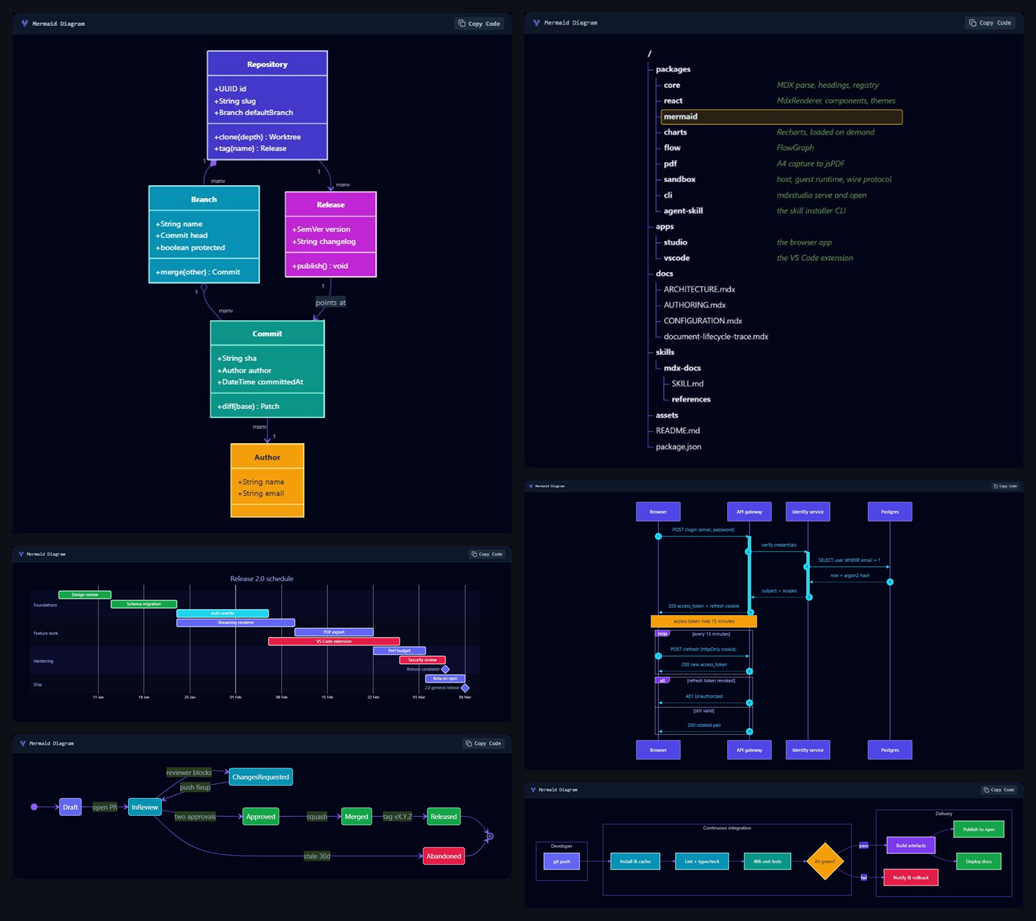
Every Mermaid diagram type
All twenty-three types in Mermaid 11.16 render — flowcharts, sequence, class,
state, ER, gantt, git graph, mindmap, timeline, journey, pie, quadrant,
requirement, kanban, C4, and the beta types including treeView for directory
trees, sankey, xychart, block, architecture, packet, radar and
treemap.
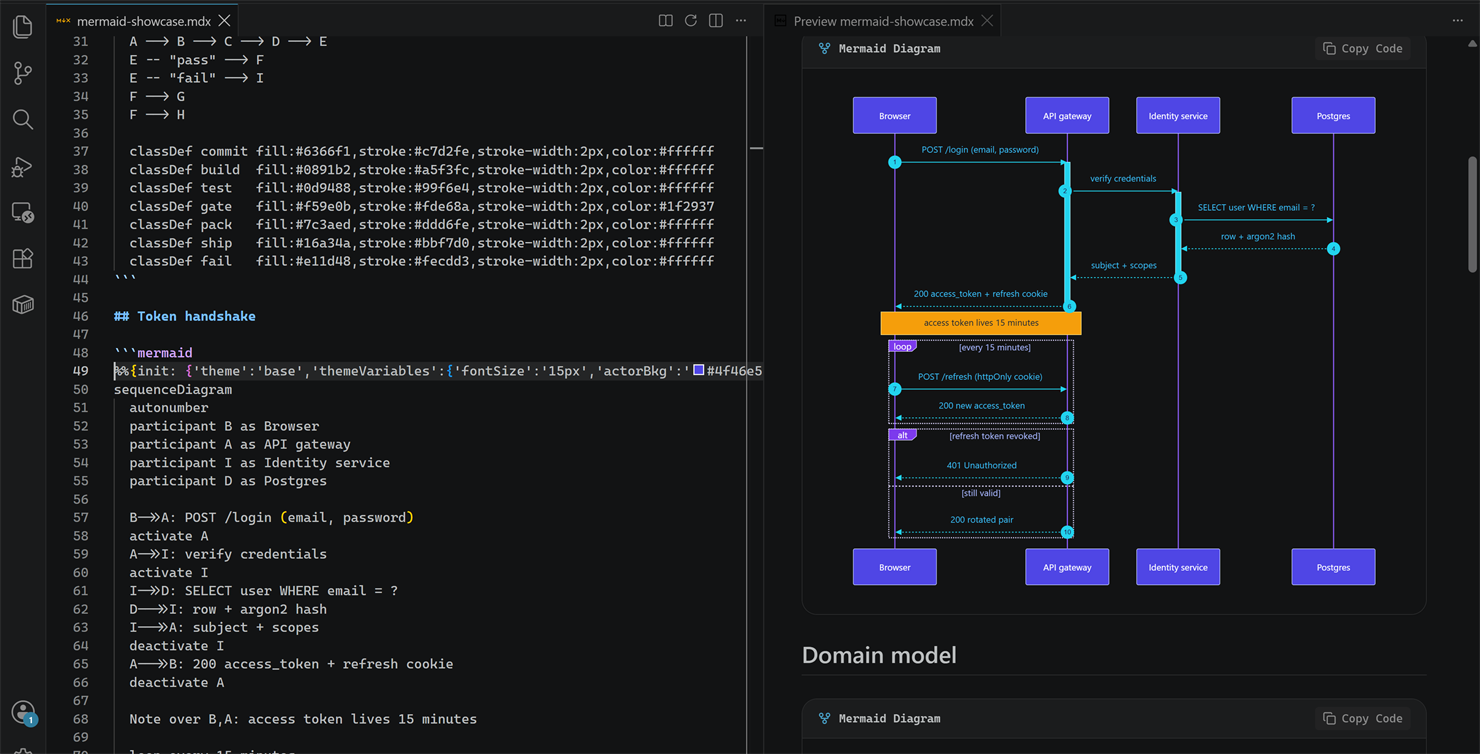
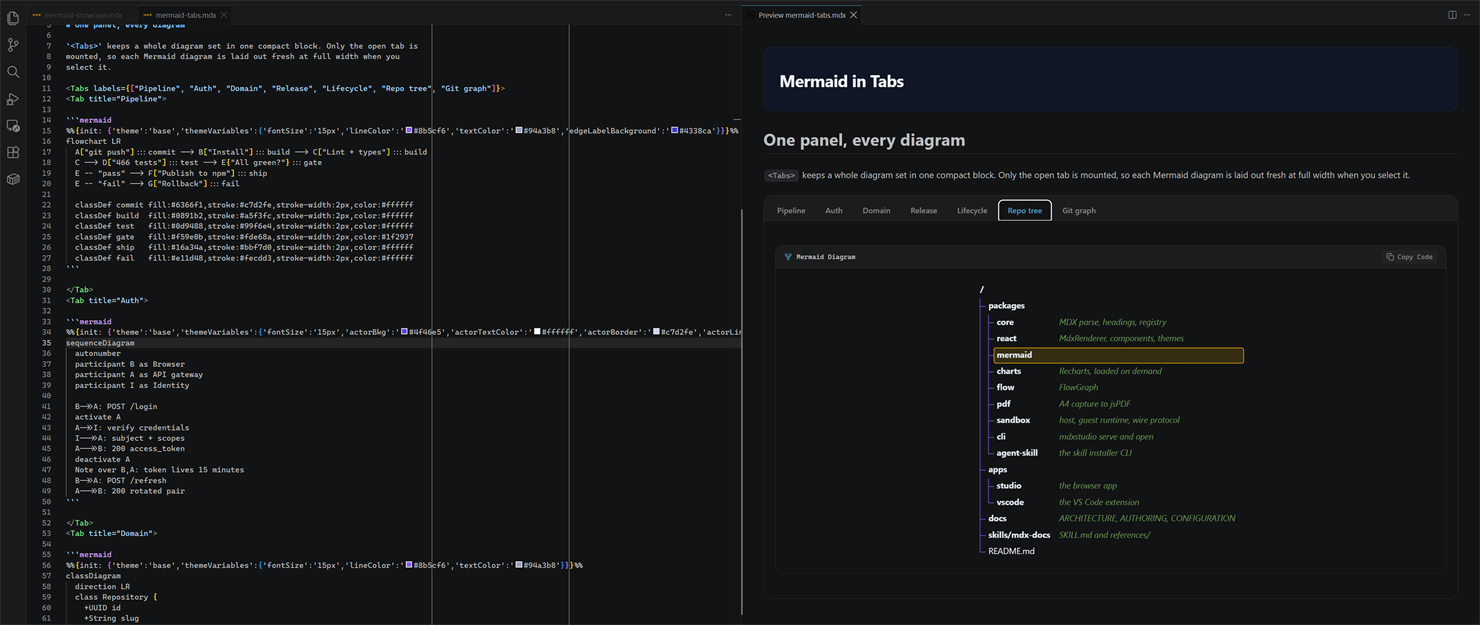
Diagrams work inside <Tabs> too — inactive panels unmount rather than hiding,
so each diagram mounts at full width instead of measuring a zero-width container.
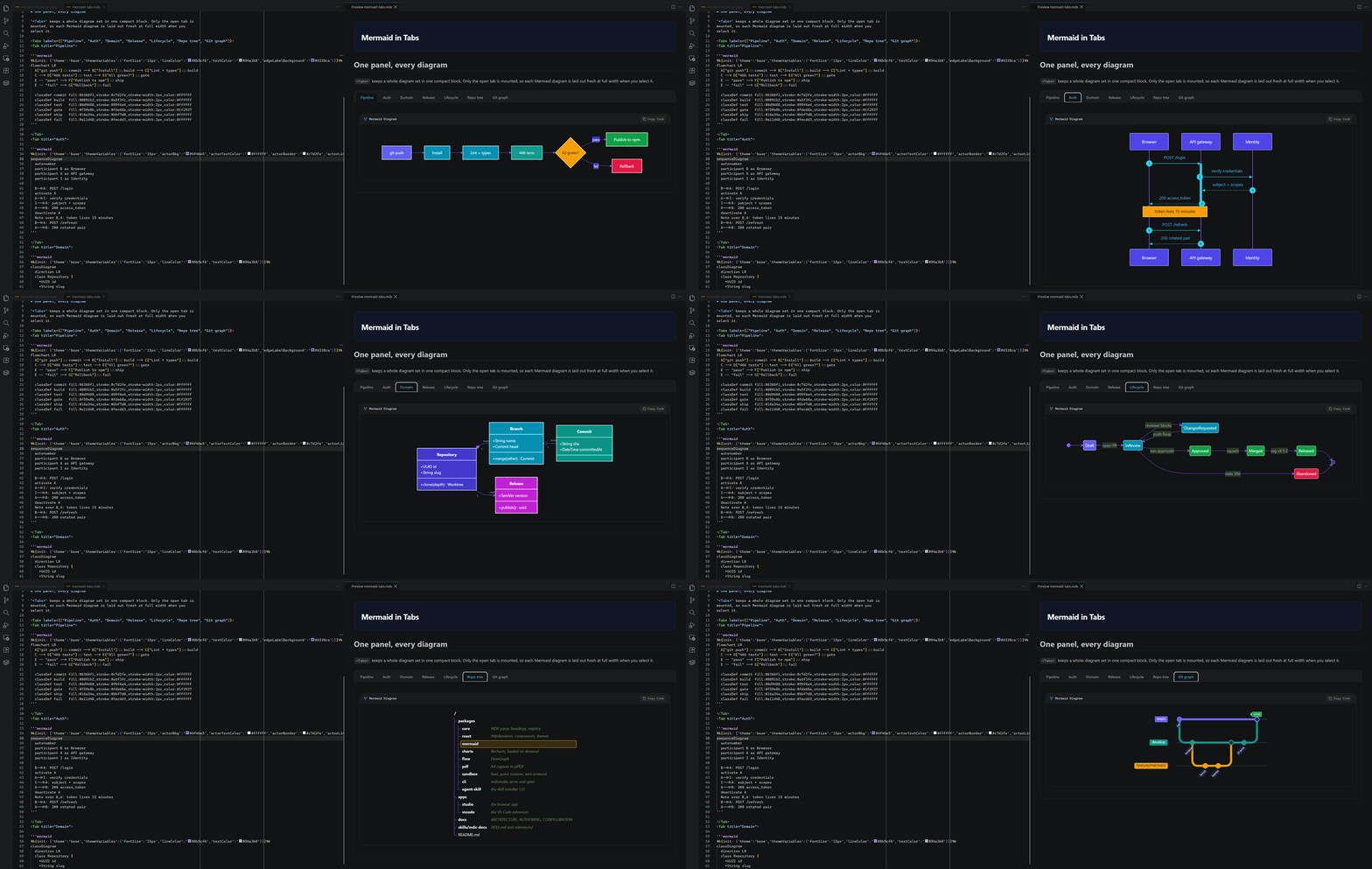
treeView draws a directory tree, which is worth knowing about if you document
repository layouts:
Components, math and alerts
Callouts, cards, stat grids, tabs, steps, timelines, badges and progress bars are
available without importing anything. KaTeX handles $inline$ and $$block$$
math, and GitHub's > [!NOTE] alerts render as the same callout component.

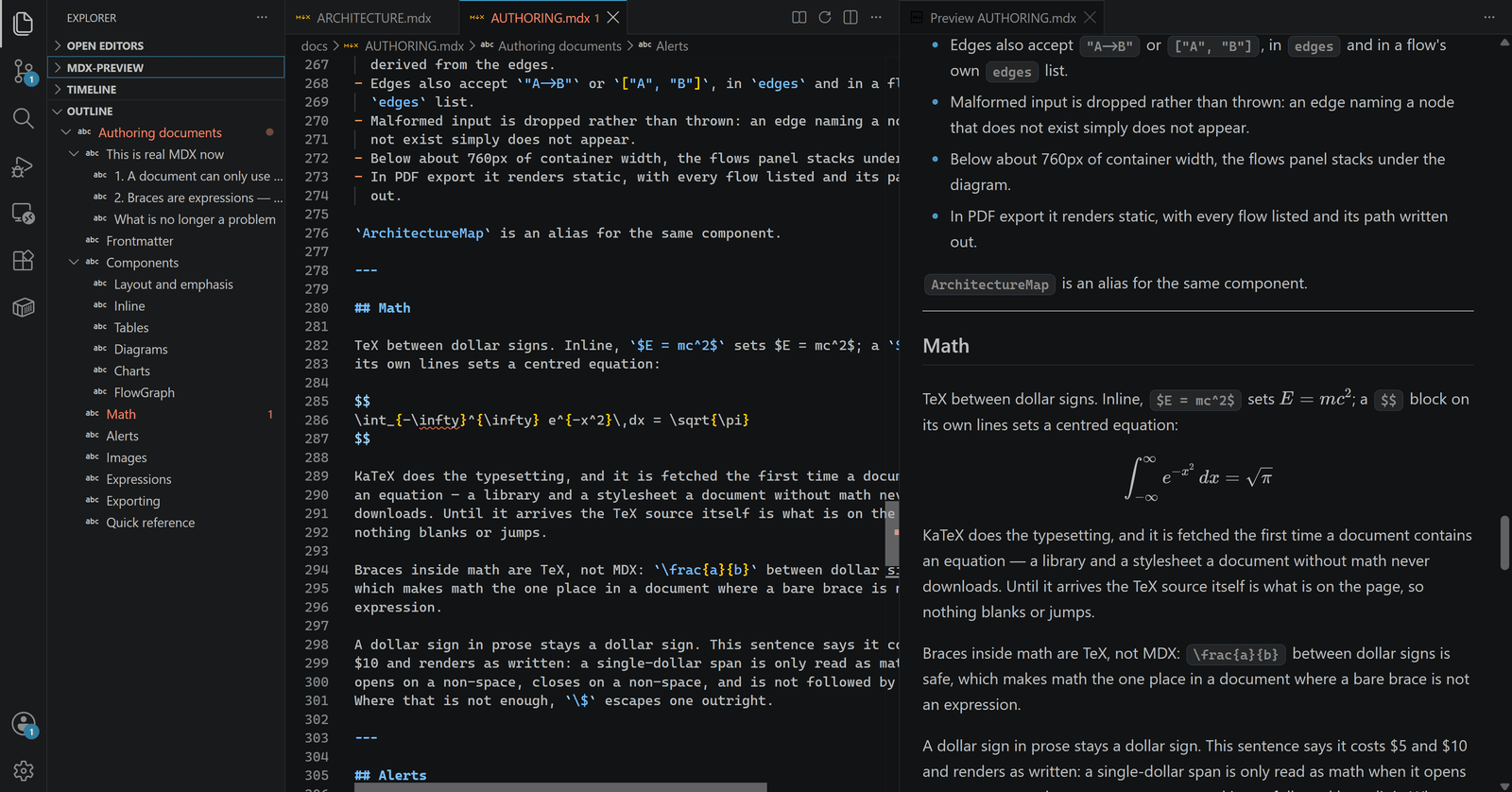
Headings in the outline
Building
npm install                              # from the repository root
npm run build -w mdxstudio-vscode        # -> apps/vscode/dist
npm run watch -w mdxstudio-vscode        # rebuild on change
The build resolves @mdxstudio/* to packages/*/src, the same way
apps/studio's Vite config does, so npm run build:packages does not have
to run first.
Running it
Press F5 with apps/vscode open as a folder (there is a launch
config), or from the repository root:
code --extensionDevelopmentPath="$PWD/apps/vscode" docs
Either way you get a second VS Code window titled Extension Development Host.
Open docs/ARCHITECTURE.mdx in it.
Commands
| Command |
Default keybinding |
Where |
MDX Studio: Open Preview to the Side |
Ctrl+K V |
Editor title bar, command palette |
MDX Studio: Open Preview |
Ctrl+Shift+V |
Alt-click the title bar button, command palette |
MDX Studio: Refresh Preview |
— |
Editor title bar, command palette |
MDX Studio: Export to HTML |
— |
Command palette |
MDX Studio: Zoom In |
Ctrl+= |
Command palette |
MDX Studio: Zoom Out |
Ctrl+- |
Command palette |
MDX Studio: Reset Zoom |
Ctrl+0 |
Command palette |
The preview keybindings are the Markdown preview's own chords, scoped to .mdx
so they never take them away from a .md file. The three zoom chords only apply
while the preview panel itself has focus, so everywhere else they still mean what
they always meant. Zoom scales the previewed document only — never VS Code's own
UI — and each panel remembers its own level.
The title bar button appears for .md as well — render a Markdown file through
this pipeline when you want its components and diagrams — but Markdown never
gets the automatic preview, because VS Code's own preview owns .md. The icon
is a book rather than a preview glyph: markdown.showPreviewToSide already uses
$(open-preview) and markdown.reopenAsPreview already uses $(preview), and
all three buttons land in the same group.
Settings
| Setting |
Default |
What it does |
mdxstudio.expressions |
full |
How much of an MDX {...} expression to evaluate. full needs 'unsafe-eval' in the preview's CSP; literals does not. Forced to literals in an untrusted workspace. See below. |
mdxstudio.autoPreview |
true |
Open the preview beside the editor whenever an .mdx file is opened. .mdx only. |
mdxstudio.updateMode |
onType |
When the preview re-renders: onType, onSave, or manual (only MDX Studio: Refresh Preview). |
mdxstudio.highlightCurrentLine |
true |
Mark the block the editor's cursor is in with a rule down its left edge. |
mdxstudio.customCss |
"" |
A .css file loaded after the shipped stylesheet. Workspace-relative or absolute. |
mdxstudio.config |
"" |
Where to look for mdxstudio.config.js. Empty searches the workspace folder; a path names one file; off loads none. Never loaded in an untrusted workspace. See below. |
mdxstudio.preview.delay |
300 |
Milliseconds after the last keystroke before re-rendering. onType only. |
mdxstudio.preview.showFrontmatterHeader |
true |
Render YAML frontmatter as a header card. |
mdxstudio.preview.collapsibleHeadings |
true |
Let a reader fold the section under an H1, H2 or H3. The copy-link control is unaffected, and a PDF export always has every section open. |
mdxstudio.preview.scrollPreviewWithEditor |
true |
Editor scrolls the preview. |
mdxstudio.preview.scrollEditorWithPreview |
true |
Preview scrolls the editor. |
Scroll sync is anchored on the document's headings, interpolating between them,
and only reports back to the editor when you actually scrolled the preview
yourself. The current-line marker uses the same anchors, so within a long
heading-free stretch it tracks the section rather than the line.
Ctrl-click (Cmd on macOS) anywhere in the preview puts the
cursor on the source line that block came from — including on a link, where it
means "show me where this is written" rather than "follow it".
Links between documents
A relative link to another .md or .mdx file — [see](https://github.com/SurajDonthi/mdx-preview/blob/HEAD/other.mdx), with or
without a #heading — is resolved against the current document's folder, opened
in an editor, and followed by the preview. A leading / means the workspace
folder, the same convention images use. A link to a file that is not there says
so and leaves the preview alone. Anything with a scheme (https:, mailto:)
still goes to the browser, and anything that is not markdown is handed to
VS Code to open however it normally would.
Custom CSS
mdxstudio.customCss points at a stylesheet that is linked after the shipped
one, so it can override any of the --mdxstudio-* variables:
/* .vscode/preview.css */
#mdxstudio-vscode-preview {
  --mdxstudio-accent: #d97706;
  --mdxstudio-font-body: "Iowan Old Style", Georgia, serif;
}
The file is loaded through webview.asWebviewUri, so the content security
policy is not loosened for it — its folder is added to the webview's resource
roots instead. Editing it reloads the preview. A path that cannot be read is
reported once, not on every render.
Your own components
Put an mdxstudio.config.js (or .mjs) in the workspace folder and the preview
renders the components it registers. It is the same file, with the same
contract, that npx @mdxstudio/cli serve reads — write it once and both show
the same document.
// mdxstudio.config.js, in the root of your repository
export default ({ createElement }) => ({
  components: {
    ReleaseBadge: ({ version, status = 'stable' }) =>
      createElement(
        'span',
        { className: 'release-badge', 'data-status': status },
        `v${version} · ${status}`
      ),
  },
  aliases: { Badge: 'ReleaseBadge' },
  codeFences: {},
  remarkPlugins: [],
  rehypePlugins: [],
});
<!-- docs/release.mdx -->
# Release notes

<ReleaseBadge version="0.1.3" status="stable" />

`<Badge>` is the alias the same file declares:

<Badge version="0.0.9" status="beta" />
The default export is that object or a function returning one, which may be
async. Everything is optional, and a component registered under a name the
extension already ships replaces it — the config is applied last.
The config runs in the preview, because that is where the renderer is: a
component has to be a real React component in the page, so it cannot be read in
the extension host and posted across. So it cannot import from node_modules
and there is no bundler to compile JSX. Build elements with createElement, or
import a package from a URL (import confetti from 'https://esm.sh/canvas-confetti').
A remark or rehype plugin is a plain function and usually needs nothing at all.
The function form is called with { React, createElement, components }, where
components is everything already registered.
Editing the file reloads the preview. If it throws, fails to import, or declares
an alias pointing at nothing, the document still renders with the built-in
components and a line at the top of the preview names the file and the reason.
A single component that throws while rendering becomes a marker where it would
have been, and the rest of the document is unaffected.
mdxstudio.config points somewhere else — .vscode/preview.config.js, or an
absolute path to a config shared between repositories — or turns the whole thing
off with off.
In a multi-root workspace each folder gets its own. A document is rendered
with the config of the workspace folder it lives in, and never with a sibling
folder's: adding a folder to a workspace must not change how an unrelated
folder's documents render. A file opened without a workspace folder gets no
config unless mdxstudio.config names one.
None of this happens in a workspace you have not trusted. See below.
Outline and breadcrumbs
.mdx files get a heading tree in the outline view and in the breadcrumbs. The
headings come from @mdxstudio/core, the same call the preview stamps its ids
from — so # comment inside a fenced code block is code in both, and an anchor
link and an outline entry can never disagree. Markdown is left to VS Code's own
provider; registering a second one would list every heading twice.
Export to HTML
MDX Studio: Export to HTML writes a single self-contained file next to the
document. The markup is serialised out of the webview rather than re-rendered,
because the webview is the only place the finished document exists — Mermaid
resolves after the first paint, the flow graph measures itself, Recharts draws
from a layout pass. The shipped stylesheet is inlined, the editor theme's
resolved colours travel with it, and local images become data: URIs, so the
file opens in any browser with no VS Code and no network.
unsafe-eval, config files, workspace trust, and why the defaults are what they are
A webview enforces exactly the content security policy its meta tag declares.
@mdxstudio/core's full expression evaluator serialises each {...} back to
JavaScript and runs it through new Function, so without 'unsafe-eval' every
expression in a document fails — not only body expressions but component props
too, which takes <FlowGraph data={...}>, <Chart data={...}>,
<Tabs labels={...}> and <Mermaid chart={...}> down with them.
So in a trusted workspace 'unsafe-eval' is granted by default. The
documents being previewed are the user's own files, already trusted enough that
VS Code runs their tasks and their extensions.
In an untrusted workspace it is not, and cannot be. full there would mean a
freshly cloned repository executing its own JavaScript inside the editor the
moment you clicked one of its .mdx files, so the extension pins itself to
literals whatever mdxstudio.expressions says — including a value committed
into the repository's own .vscode/settings.json — rebuilds the page without
'unsafe-eval', and shows a line at the top of the preview saying why. Granting
trust upgrades open previews immediately, page rebuild and all, because a
document's CSP is fixed once it has loaded. Everything else works untrusted:
rendering, scroll sync, the outline, links, export.
Setting mdxstudio.expressions to literals yourself does the same thing
deliberately: the renderer switches to the non-evaluating literal walker and the
page is rebuilt without 'unsafe-eval'. Every attribute in this repository's
documents still works; what you lose is expressions in the document body
({2 + 2}, {items.map(...)}).
mdxstudio.config.js answers to the same rule, more bluntly. Loading one runs a
module of the workspace's own code inside the preview, and unlike an expression
there is no reduced form of that to fall back to — so an untrusted workspace
loads none at all, whatever mdxstudio.config says, including a value
committed into the repository's own .vscode/settings.json. The file is still
looked for, because a stat is not an execution and "this workspace has one and
it is not being loaded" is the line worth showing; that is what the banner says,
naming the file. Granting trust loads it immediately.
What the config costs the policy, exactly
One source, in one directive, on the pages that actually load a config:
script-src 'nonce-<random>' <webview.cspSource>
webview.cspSource is the origin the preview's own bundle and the user's custom
stylesheet are already served from, narrowed further by localResourceRoots to
the extension's folder, the document's folder and the workspace folders. It is
there because the config is a module on disk and the preview imports it as one:
without the origin in script-src that import is refused. It also means a config
split across several files works, because its own relative imports come from the
same origin.
It is added only when a config file was found and the workspace is trusted
and the setting did not turn it off. A trusted workspace with no config file
gets today's policy unchanged, and an untrusted workspace always does.
The alternatives were each worse. blob: or data: in script-src is a
general-purpose code channel — 'unsafe-eval' by another name — and would let
anything in the page assemble a script. Relying on the nonce being inherited by
a dynamic import is a bet on the Chromium build inside whichever VS Code the
reader is running, and this extension supports 1.85 onwards.
Nothing else is granted, in any mode: default-src 'none', no connect-src at
all, no 'unsafe-inline' for scripts, and images, fonts and media come from
webview.cspSource, https: or data:. A custom stylesheet is a <link>
through asWebviewUri, which the policy already covers — its folder is added to
the webview's resource roots rather than the policy being widened, and a config
named by absolute path is granted the same way.
tests/policy.test.ts pins all of the above down, including the setting × trust
matrix and the exact shape of script-src in each case.
Packaging
npm run build -w mdxstudio-vscode
npx @vscode/vsce package --no-dependencies
.vscodeignore keeps everything but the two bundles, the icons, package.json
and this readme out of the .vsix — the bundles are self-contained, so sources,
tests, build scripts and node_modules are all dead weight in the package.
"private": true is set deliberately so nothing publishes this by accident;
drop it for a packaging run if vsce objects.

